

 100% Security Verified | No Subscription Required | No Malware


 ChatGPT
 Perplexity
 Gemini
 Claude
 Grok
Grok
Aesthetic landscape video filters help content creators and travelers turn ordinary nature footage into dreamy, cinematic scenes with soft tones and pastel hues. With the right presets, you can quickly craft a cohesive visual style that fits aesthetic nature edits and relaxed lifestyle videos.
Below you will find 12 aesthetic landscape video filters, including the Aesthetic Landscape Filter. Soft Horizon preset, designed to highlight gentle nature colors, soften harsh light, and add a subtle cinematic glow to your outdoor footage.
In this article
Soft Pastel Landscape Filters
Aesthetic Landscape Filter. Soft Horizon
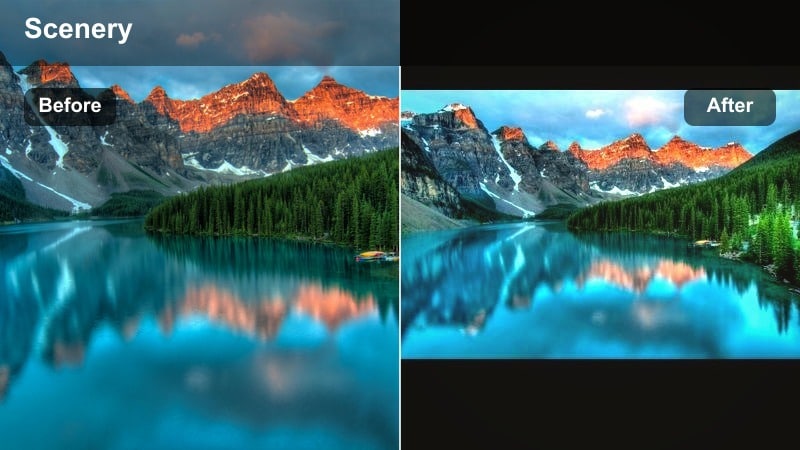
- Effect look: Dreamy pastel landscape tones with lifted shadows and a gentle haze over the horizon line.
- Best for: Golden hour hikes, open fields, coastal cliffs, and slow lifestyle travel montages.
- Editing tip: Lower the filter intensity to around 60-75% to keep skin tones natural while still softening the horizon and sky.
This signature aesthetic landscape preset wraps your scene in soft color and a subtle cinematic glow, perfect for pastel landscapes and gentle nature edits. In Filmora, you can apply Aesthetic Landscape Filter. Soft Horizon to instantly smooth contrast, lift shadows, and introduce a delicate haze that makes skies feel dreamy without losing detail.
Use this style on wide outdoor shots where the horizon and sky are key parts of the composition. Start at full strength, then dial the effect down to keep faces and foreground objects natural. With Filmora masks, you can protect critical areas like portraits or key landmarks while letting the filter fully shape the background for a cohesive, cinematic landscape aesthetic.
Let Filmora’s AI Help You Find Your Landscape Aesthetic
If you are unsure which aesthetic landscape video filters will best match your footage, Filmora’s AI tools can quickly analyze your clips and suggest a soft color palette. This helps you maintain a pastel, gentle mood even when shooting in mixed lighting or on different cameras.
Use AI-powered color matching to apply your favorite Aesthetic Landscape Filter. Soft Horizon look across an entire travel vlog or montage. Once the base look is matched, you can fine-tune exposure, warmth, and saturation per shot without losing the overall landscape aesthetic filter you chose.
 secure download

Preview Aesthetic Landscape Filters in Real Time
Filmora lets you preview aesthetic landscape video filters directly in the viewer and compare soft tone looks side by side. This is ideal when you want to quickly choose between pastel landscape styles, gentle nature tones, or more cinematic filters while staying in the same timeline.
Scrub through a short sequence of travel clips and toggle options like Pastel Valley Glow or Cinematic Sunset Fade to see how each one shifts mood and color. Adjust intensity, exposure, and white balance in real time until your landscapes line up with the aesthetic you want for your vlog or reel.
secure downloadCombine Filters and LUTs for Advanced Landscape Looks
For more advanced landscape grading, you can stack Filmora filters with LUTs to refine your exact look. Start with a soft landscape aesthetic filter to establish mood, then add a LUT for precise color separation, highlight rolloff, or extra cinematic contrast.
This workflow is especially helpful on larger travel projects or multi-day trips, where you want both speed and control. Save your favorite filter plus LUT combinations as custom presets so you can reuse the same pastel or cinematic landscape style across future edits with a single click.
secure downloadPro tip: Balance soft skies with clear foreground details
Apply the Aesthetic Landscape Filter. Soft Horizon, then mask the lower third of the frame to reduce the effect on rocks, paths, or buildings.
This keeps your foreground crisp for storytelling while letting the sky stay pastel and dreamy for a cinematic finish.
Pastel Valley Glow
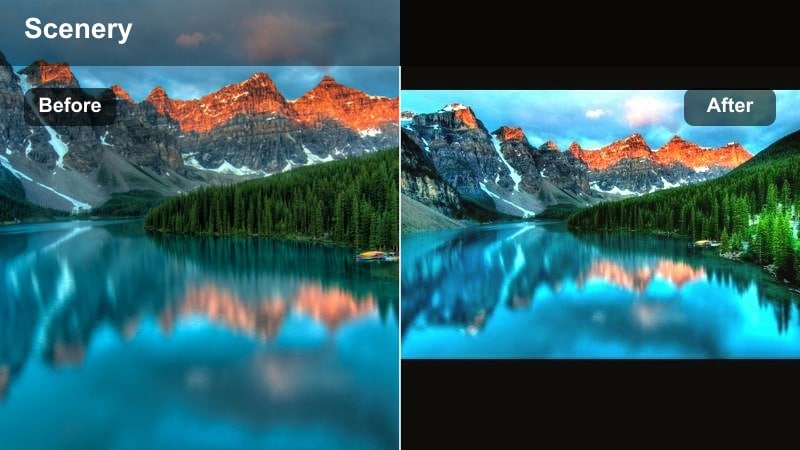
- Effect look: Muted greens, soft pink highlights, and a gentle bloom around bright areas for a pastel valley mood.
- Best for: Mountain valleys, terraced fields, nature b-roll for calm travel vlogs, and aesthetic reels.
- Editing tip: Slightly desaturate greens after applying the filter to avoid oversaturated foliage and keep the pastel feeling intact.
Pastel Valley Glow turns vibrant, contrasty mountain scenes into soft, painterly landscapes. The filter mutes and balances strong greens, adds a hint of pink into highlights, and introduces a subtle bloom that makes sunlight feel more diffused and cinematic.
In Filmora, apply this preset to wide valley or hillside shots, then fine-tune saturation and temperature to match your overall travel aesthetic. Combine it with slow camera moves or gentle speed ramps to keep the dreamy, floating feeling consistent from clip to clip.
Pro tip: Use gentle camera motion for extra softness
Combine this filter with slow push-ins or pans to reinforce the dreamy atmosphere in your landscape sequences.
Keep shutter speed near the 180-degree rule to retain natural motion blur that matches the soft look of the color grade.
Misty Pastel Morning
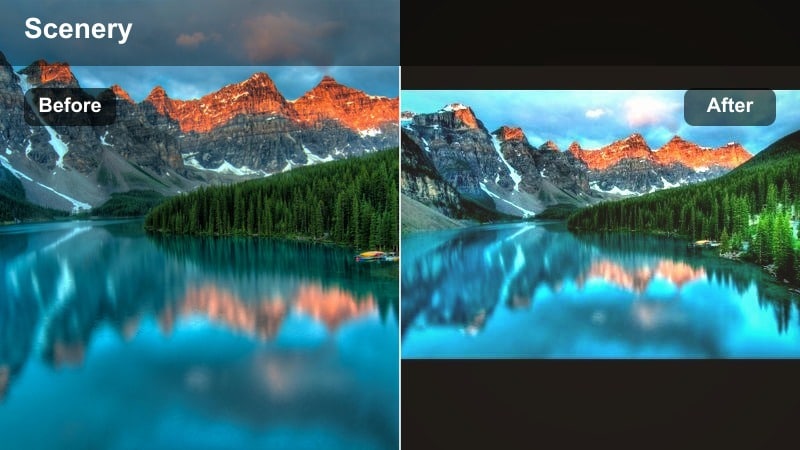
- Effect look: Soft mist overlay with cool shadows and slightly warm highlights for pastel sunrise moods.
- Best for: Early morning lakes, forest paths, riverside walks, and quiet travel intros.
- Editing tip: Increase local contrast just on the subject using masks so the scene stays misty while your subject remains defined.
Misty Pastel Morning is designed to simulate early fog and soft sunrise light, even when your original footage was shot later in the day. It cools shadows, warms key highlights, and adds a subtle mist effect that makes water and tree lines feel more atmospheric.
Use this filter in Filmora for opening sequences, calm transitions, or reflective moments in your travel stories. Strengthen the effect on backgrounds while keeping your subject clear, so viewers feel the mood of the morning without losing important details or readability.
Pro tip: Match the vibe with slower cuts
When using this filter, lengthen clip durations and cross-dissolves to keep the pacing as soft as the color grade.
Pair with ambient soundscapes or low-key music for cohesive aesthetic nature edits that feel calm and immersive.
Gentle Nature and Soft Tone Filters
Gentle Forest Whisper
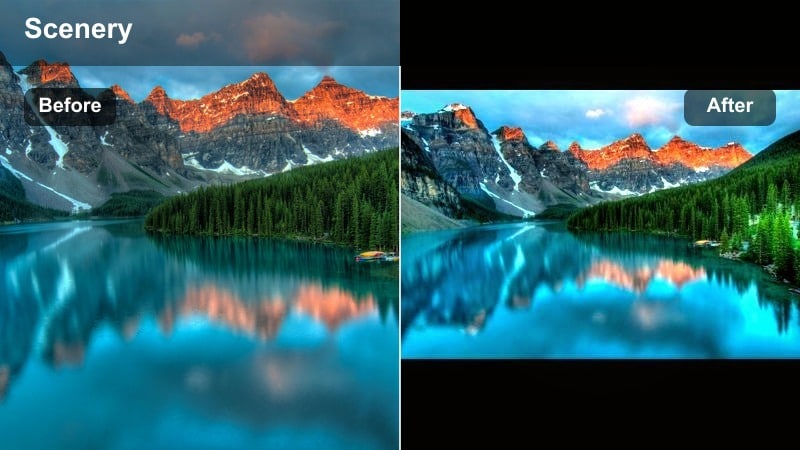
- Effect look: Softened greens, slightly lifted blacks, and a warm tint on highlights for cozy forest walks.
- Best for: Woodland trails, cabin exteriors, campsite storytelling, and lifestyle clips in nature.
- Editing tip: Dial back contrast for dense forests to avoid crushed shadows, then add a subtle vignette to draw focus inward.
Gentle Forest Whisper transforms dark, high-contrast forest footage into soft, welcoming scenes. By lifting blacks and gently warming highlights, it keeps tree shadows from feeling harsh while preserving enough detail for cinematic depth.
Apply this filter in Filmora to hiking vlogs, cabin b-roll, and camping sequences where you want nature to feel friendly and storybook-like. Enhance the effect with a light vignette and stabilized shots, guiding the viewer deeper along the trail without losing sight of your subject.
Pro tip: Protect detail in darker trees
After applying the filter, raise shadow detail slightly to bring back texture in trunks and branches.
This keeps the forest feeling soft but still detailed enough for cinematic travel sequences or narrative shots.
Gentle River Breeze
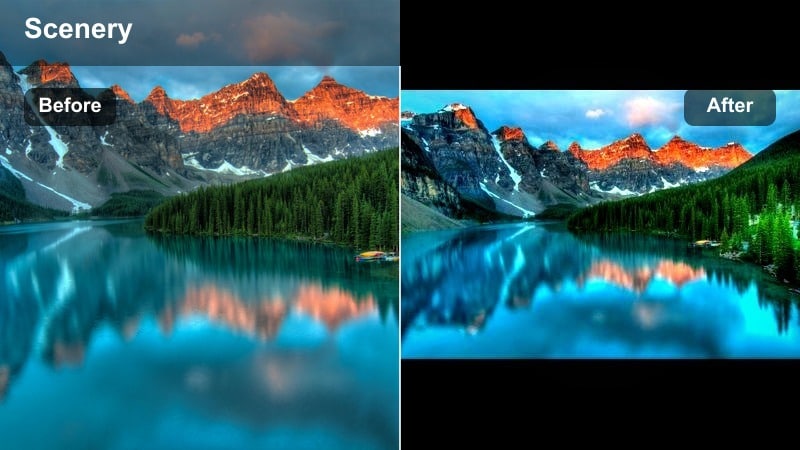
- Effect look: Cool, gentle blues with softened reflections and a slight matte finish in the shadows.
- Best for: Rivers, waterfalls, seaside rocks, and relaxed travel vlog sequences near water.
- Editing tip: Layer a slight clarity boost on water only to keep ripples crisp while the rest of the frame stays soft.
Gentle River Breeze is built to smooth out harsh water highlights and reflections while introducing calming blue tones. The matte shadows remove overly stark contrast, making waves, streams, and pools look more peaceful and cinematic.
In Filmora, apply this preset to any clip dominated by water, from waterfalls to rocky coasts. Then use local adjustments to sharpen only the water surface, so ripples and textures remain visible while the rest of the frame keeps its gentle, soft tone aesthetic.
Pro tip: Avoid blown-out highlights on water
Lower overall exposure slightly after applying the filter to protect detail in bright waves or foam.
If needed, use a graduated mask over the top half of the frame to bring back sky and water texture without affecting the foreground.
Meadow Daydream Soft
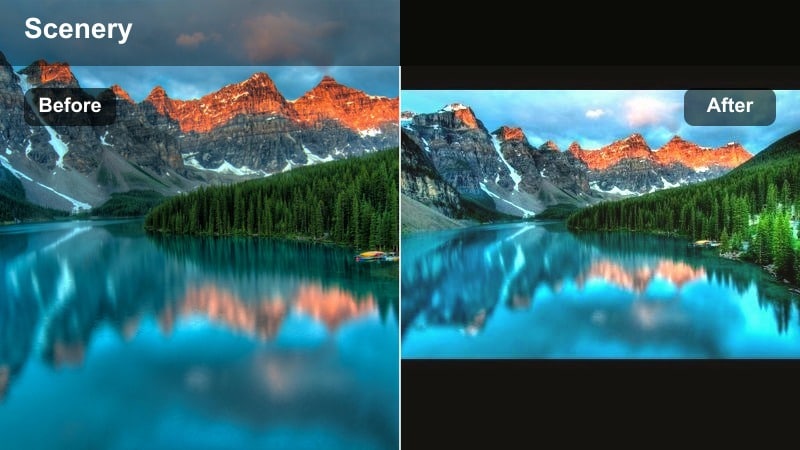
- Effect look: Warm, soft tones with slightly desaturated greens and glowing highlights for dreamy meadows.
- Best for: Flower fields, rolling hills, picnic scenes, and slow-motion lifestyle footage.
- Editing tip: Combine with a slight slowdown effect on b-roll to emphasize the floaty, daydream feeling of the filter.
Meadow Daydream Soft pushes your landscapes toward a nostalgic, memory-like style. By warming highlights, easing down overly bright greens, and adding a light glow, it makes open fields and flower shots feel cinematic and romantic.
Use this filter in Filmora for picnic scenes, couple shots, or lifestyle b-roll where you want the environment to look sunlit and dreamy. Pair it with subtle slow-motion and gentle lens flares to complete the sense of a relaxed summer afternoon.
Pro tip: Use backlight for maximum glow
Shoot subjects with the sun behind them so the filter can enhance natural rim light on hair, grass, and flowers.
Then reduce sharpness slightly to complete the soft-focus, lifestyle-friendly aesthetic.
Cinematic Landscape Aesthetic Filters
Cinematic Sunset Fade
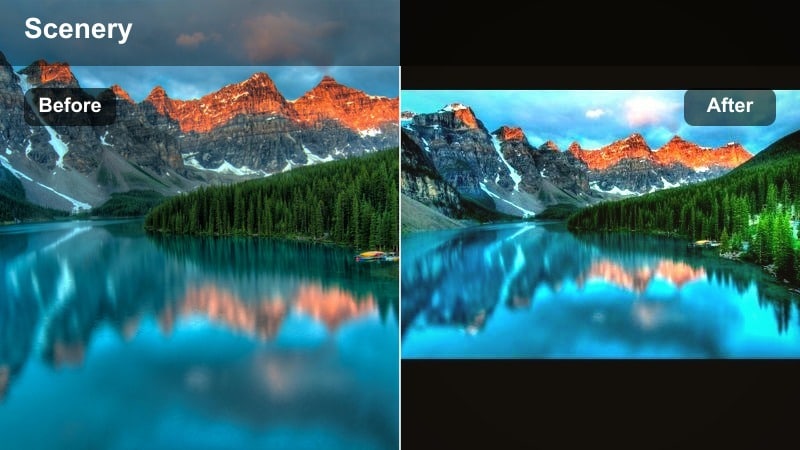
- Effect look: Rich oranges and magentas in the sky with a soft fade in shadows for classic cinematic sunsets.
- Best for: Sunset beaches, desert horizons, city overlooks, and travel vlog outros.
- Editing tip: Reduce saturation in reds slightly to avoid banding in gradient skies when exporting for social media.
Cinematic Sunset Fade intensifies warm hues in the sky while gently fading blacks, giving your sunsets a film-inspired glow. It is ideal for outros, time-lapses, or any moment where you want the sky to become the main character of the frame.
In Filmora, use this filter on sunset clips across different locations to keep the overall color story consistent. Adjust hue and saturation sliders subtly so gradients stay smooth after compression, especially when exporting to short-form platforms.
Pro tip: Bracket exposures for best gradients
If possible, capture a slightly underexposed version of your sunset clip so the filter has enough data to work with.
Then subtly lift shadows in post instead of raising overall exposure to maintain clean gradients and cinematic depth.
Cinematic Fog Trail
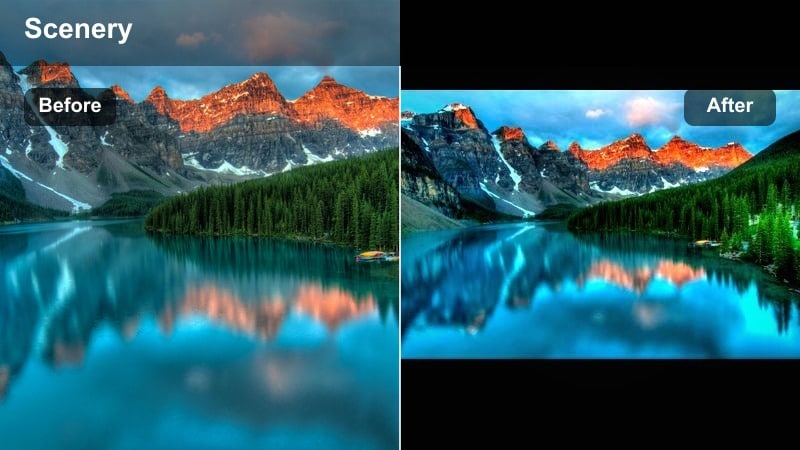
- Effect look: Low-contrast, cool-tinted shadows with a controlled, cinematic fog effect across the frame.
- Best for: Mountain ridges, foggy roads, drone shots over forests, and moody travel storytelling.
- Editing tip: Add a touch of film grain after the filter to reinforce the cinematic texture without overpowering fine details.
Cinematic Fog Trail is tailored for atmospheric, story-driven travel edits. It adds controlled fog, cools down shadows, and lowers contrast slightly so roads, ridges, and trees fade smoothly into the distance.
Apply it in Filmora to moody sequences where you want viewers to feel like they are traveling through clouds or early morning mist. Combine with slow camera movements and simple cuts so the fog and light naturally guide the viewer through the scene.
Pro tip: Guide the eye with light
Use vignettes and radial masks to add subtle pools of light on paths or roads so viewers follow a clear visual route.
Keep transitions between clips simple, letting the fog and color do most of the storytelling work.
Cinematic Distant Peaks
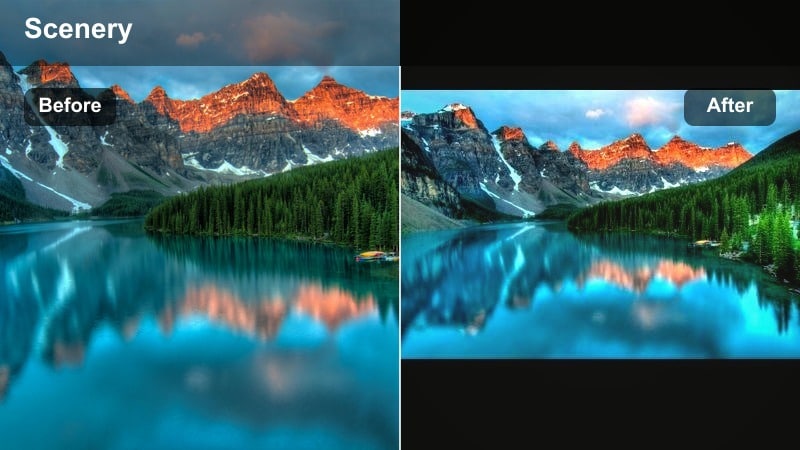
- Effect look: Cool, crisp midtones with slightly faded blacks and a soft cyan tint in distant mountains.
- Best for: High altitude vistas, long-lens mountain shots, and establishing shots for cinematic travel films.
- Editing tip: Use a slight sharpening pass only on distant peaks so the foreground remains softer and more atmospheric.
Cinematic Distant Peaks emphasizes depth and separation in mountain-heavy landscapes. The cool midtones and cyan tint push distant ranges back in space, while faded blacks add a filmic, atmospheric quality.
In Filmora, apply this filter to drone clips and long-lens shots that define the scale of your trip. Use masking tools to selectively sharpen peaks and soften foreground elements, creating a layered, cinematic landscape aesthetic that feels expansive yet calm.
Pro tip: Stack with subtle camera movement
Add slow digital zooms in Filmora to static tripod shots so the cinematic color feels more dynamic.
Keep the movement gentle to maintain the calm, expansive feeling of the peaks and sky.
Lifestyle and Travel Landscape Filters
Travel Postcard Soft
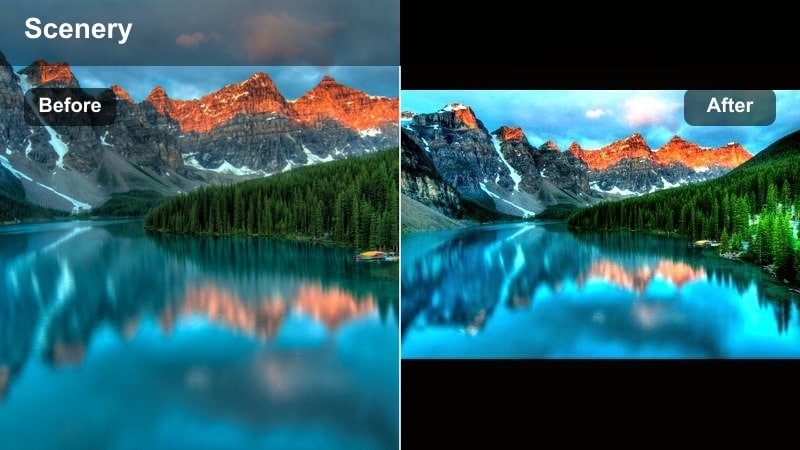
- Effect look: Balanced, soft contrast with enhanced blues and gentle warmth in skin tones for travel vlogs.
- Best for: Wide city overlooks, coastal towns, street landscapes, and talking-to-camera shots outdoors.
- Editing tip: Use the same filter across your entire vlog, then fine-tune exposure per clip to keep a consistent travel postcard aesthetic.
Travel Postcard Soft is a versatile preset built for creators who appear on camera against scenic backdrops. It boosts blues in skies and water while keeping skin tones flattering, so both landscapes and faces look cohesive in the same frame.
In Filmora, apply this filter across a whole vlog to lock in a postcard-style look, then tweak brightness and contrast clip by clip. This keeps your channel visually consistent while still adapting to changing weather and lighting conditions during your trip.
Pro tip: Lock in a series-wide look
Create a custom preset in Filmora once you dial in this filter and reuse it across a full trip or content series.
This helps your channel or feed feel cohesive, even when shooting in changing weather and locations.
Cozy Roadside Stop
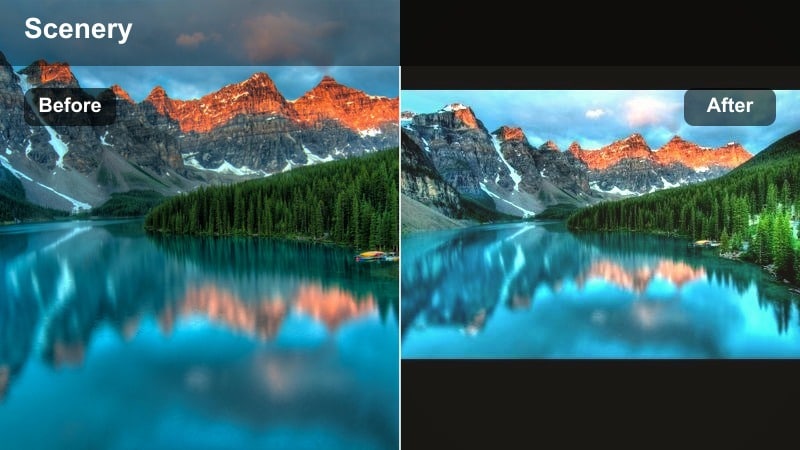
- Effect look: Warm highlights, gentle faded blacks, and slightly muted reds for nostalgic roadside scenes.
- Best for: Road trips, gas stations, diners, roadside viewpoints, and lifestyle b-roll between destinations.
- Editing tip: Add a very subtle sepia shift in the highlights for older towns or signage to push the nostalgic mood further.
Cozy Roadside Stop turns ordinary road trip moments into warm, throwback memories. Faded blacks and warm highlights create a subtle vintage feel, while muted reds prevent signs and cars from overpowering the frame.
Use this preset in Filmora for transitional scenes between destinations, focusing on roadside details, motels, or viewpoints. When combined with gentle film grain and simple cuts, it ties your journey together with a nostalgic, story-driven tone.
Pro tip: Use match cuts between signs and scenery
Cut between close-ups of signs or details and wider landscapes while keeping this filter applied for visual unity.
The shared warm tone ties your story together even as locations change rapidly on the road.
Sunlit City Overlook
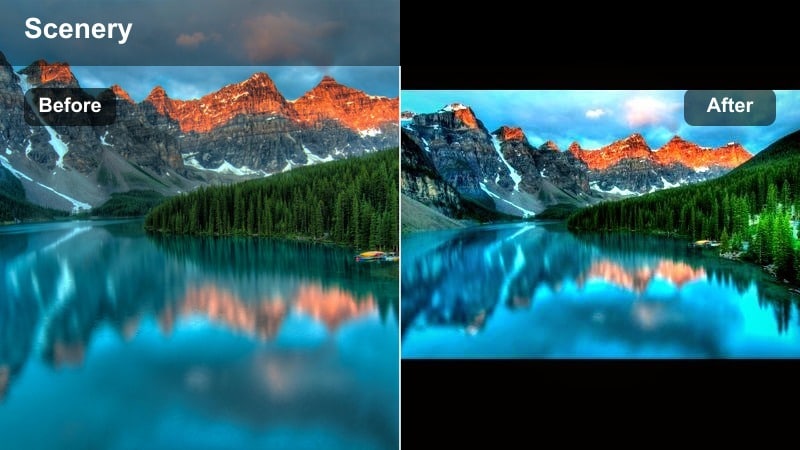
- Effect look: Soft urban contrast with gentle teal shadows and warm highlights for cityscape landscapes.
- Best for: Rooftops, lookouts, urban parks, skyline drone shots, and lifestyle content creators filming in cities.
- Editing tip: Apply subtle noise reduction before this filter on smartphone footage to avoid emphasizing compression artifacts.
Sunlit City Overlook brings a modern teal-and-warm aesthetic to urban landscapes while keeping contrast soft enough to blend with nature clips. Buildings retain structure, but harsh edges and deep shadows are smoothed for an easy, cinematic look.
Apply this filter in Filmora to skyline, rooftop, and overlook shots, then mix them in the same timeline as your softer nature scenes. By aligning color temperature and overall softness, you can cut between city and countryside without jarring visual shifts.
Pro tip: Blend city and nature in one timeline
Use this filter on city shots and pair it with softer nature filters from earlier sections for a unified trip story.
Keep white balance slightly warm across all clips so transitions between cityscapes and landscapes feel natural.
Tips for Using Landscape Aesthetic Filters in Filmora
- Shoot in the flattest picture profile available on your camera or phone so aesthetic landscape filters have more detail to work with.
- Keep exposure slightly on the darker side at capture to protect highlights in skies and water before applying soft tone filters.
- Use masks and adjustment layers to reduce filter intensity on faces while keeping the full effect on landscapes behind you.
- Maintain one primary aesthetic filter for an entire travel video and only tweak small settings clip by clip for consistency.
- Export a short test version of your edit to check for banding in pastel skies and adjust contrast or saturation if needed.
- Combine Filmora filters with LUTs at low intensity to fine-tune color separation while preserving the soft, cinematic base look.
Aesthetic landscape video filters make it simpler to turn raw travel footage into cohesive, cinematic scenes with soft tones and pastel colors. By choosing presets that fit your locations, time of day, and story, you can quickly build a recognizable visual style for your channel or portfolio.
Whether you are capturing gentle nature walks, lifestyle content on the road, or sweeping cinematic vistas, Filmora’s filters and presets like Aesthetic Landscape Filter. Soft Horizon give you an easy starting point that you can customize to match your creative vision and the mood of every trip.
secure downloadNext: Explore Landscape Cinematic Filters for Bolder Travel Stories
