

 100% Security Verified | No Subscription Required | No Malware


 ChatGPT
 Perplexity
 Gemini
 Claude
 Grok
Grok
Moody landscape video filters are perfect for transforming bright outdoor shots into atmospheric nature scenes with depth, mystery, and emotional weight. With the right combination of contrast, color shifts, and subtle fade, you can turn ordinary landscapes into cinematic dark nature visuals.
This guide showcases a curated set of moody landscape video filters, including the Moody Landscape Filter. Dark Nature preset, designed for photographers and filmmakers capturing forests, mountains, coastlines, and overcast vistas who want a more dramatic, story-driven look.
In this article
Forest And Misty Mountain Moods
Deep Fog Contrast
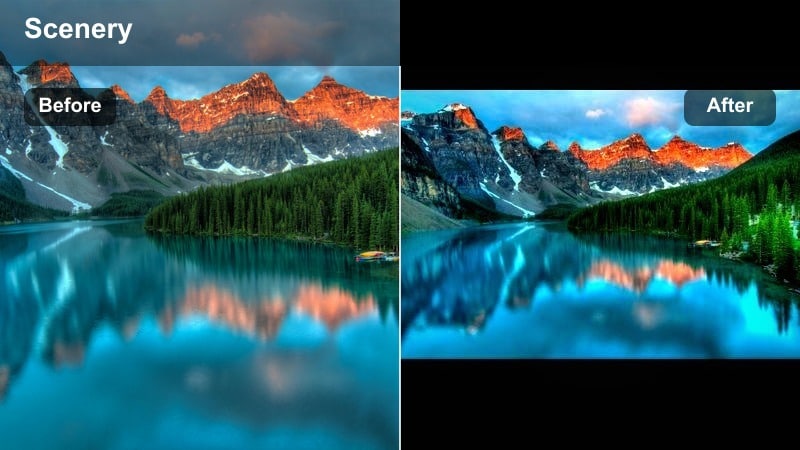
- Effect look: Muted colors with heavy midtone contrast and a slight cool tint that accentuates fog and low clouds
- Best for: Moody forest paths, misty mountain ridges, and overcast valley shots where depth and texture matter
- Editing tip: Lower highlights slightly to prevent fog from clipping, then add a gentle vignette to pull focus toward the center of the frame
Deep Fog Contrast is designed to carve structure out of soft, misty landscapes. By muting overall color while boosting midtone contrast and cool tones, it adds definition to tree trunks, rock faces, and layered hills without sacrificing the ethereal quality of fog. In Filmora, this filter is ideal when your raw footage looks flat and washed out but still needs to retain a natural, atmospheric feel.
Apply the filter to forest trails, mountain switchbacks, and ridgelines wrapped in cloud to emphasize depth from foreground to background. After adding the filter in Filmora, fine-tune your highlights so white fog does not blow out, and add a subtle vignette to guide the viewer into the center of the frame. For motion shots, pair the look with a slow push-in or dolly move so the audience feels like they are entering the mist, enhancing tension and immersion in your moody nature sequences.
Speed Up Moody Grading With AI-Powered Color Tools
Filmora s AI color tools help you keep a consistent moody landscape style across an entire sequence, even when you shoot in changing weather or at different times of day. Instead of grading each clip from scratch, you can let AI analyze a reference frame that already carries your ideal dark nature mood.
Use AI Color Palette to match contrast, saturation, and color balance from that reference to other shots in your timeline. This keeps your foggy forests, stormy ridges, and quiet lakes visually unified while you focus on storytelling, pacing, and camera movement.
 secure download

Preview Moody Landscape Filters In Real Time
Filmora lets you preview moody landscape video filters directly on your clips in real time, so you can quickly compare cool, ashen, and warm-dark styles. As you scrub through your timeline, you will see how each filter behaves with moving clouds, drifting fog, and changing exposure.
This live feedback makes it easy to test several looks before committing. Toggle filters on and off while playing back your misty forests or stormy shores, then lock in the style that best supports the atmosphere and emotion of your scene.
secure downloadCombine Filters And LUTs For Advanced Dark Nature Looks
Filmora includes 1000 plus video filters and 3D LUTs, giving you a deep toolkit for refining dark landscape styles. You can start with a subtle moody filter, then layer a cinematic LUT to control color depth, contrast curves, and highlight roll off.
Build your grade step by step on duplicate clips, comparing different filter plus LUT combinations until your forests, mountains, and lakes feel rich but still natural. This workflow is perfect for filmmakers who want precise, filmic control without leaving an intuitive editing environment.
secure downloadPine Forest Gloom
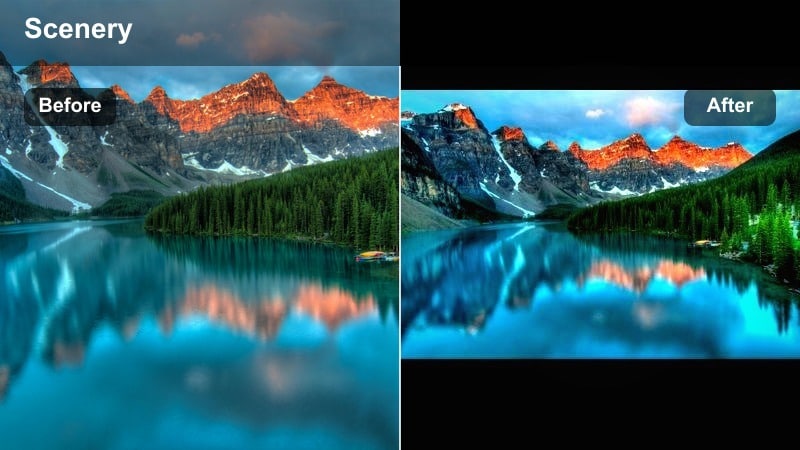
- Effect look: Desaturated greens, lifted blacks, and subtle cyan shadows for a cinematic gloomy forest aesthetic
- Best for: Dense pine woods, shaded trails, rainy woodland sequences, and drone shots over dark tree canopies
- Editing tip: Dial back saturation in the green channel while slightly boosting orange in the midtones to keep skin tones looking natural in the scene
Pine Forest Gloom transforms bright, vibrant woodland scenes into darker, moodier environments with desaturated greens and cool shadows. The lifted blacks keep detail in the trees while eliminating harsh contrast, so the forest feels deep and soft rather than harsh and crunchy. In Filmora, this look works especially well on rainy days, overcast hikes, and aerial shots gliding above dense pine canopies.
After applying the filter, adjust HSL controls to tame overly bright greens and protect skin tones if people appear in frame. Use local masks to subtly brighten shafts of light or clearings, guiding the viewer through the forest. This treatment lets you craft cinematic woodland sequences that feel mysterious and narrative driven without overwhelming the viewer with saturated foliage.
Ridge Line Drama
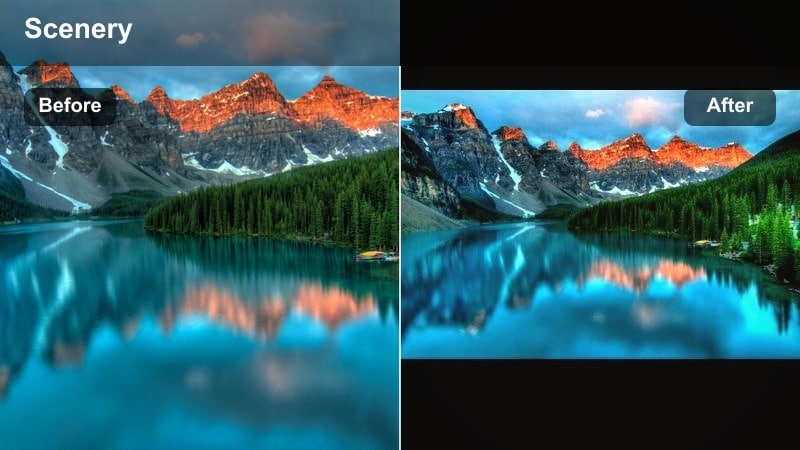
- Effect look: Strong contrast with deep blues in the shadows and gently faded highlights for dramatic silhouettes
- Best for: Mountain ridgelines, hikers on peaks, moody sunrise or sunset time lapses in hazy conditions
- Editing tip: Use the curve to slightly lift the black point while maintaining steep midtones, creating a filmic fade without losing subject separation
Ridge Line Drama is built to highlight stark silhouettes against textured, moody skies. It leans into deep blue shadows and firm contrast, making mountain peaks, rock formations, and lone hikers stand out clearly. In Filmora, this filter is a strong choice for time lapses of rolling clouds, sunrise hikes, and drone passes that trace the edges of ridges and peaks.
Apply the filter, then fine tune the tone curve to keep silhouettes crisp while gently fading the brightest highlights for a cinematic, almost analog feel. Use gradient masks from the top of the frame downward to retain sky texture and cloud details, balancing them against the darker land. This approach produces landscapes that feel epic, dramatic, and perfect for trailers, travel films, or documentary openings.
Stormy Coastlines And Lakes
Tempest Shoreline
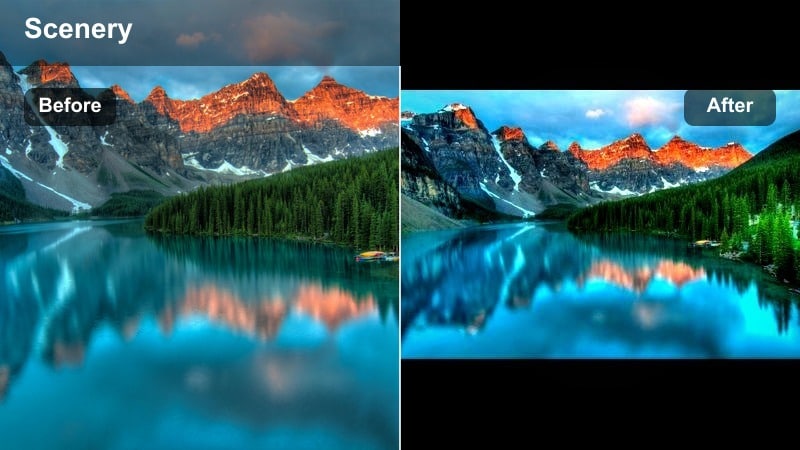
- Effect look: Cool, steel-blue tones with heightened texture in water and clouds, plus a soft matte finish
- Best for: Stormy beaches, crashing waves, rocky coasts, and lakes under heavy overcast skies
- Editing tip: Increase micro-contrast in the midtones to bring out wave patterns, but avoid over-sharpening which can make water look noisy
Tempest Shoreline pushes your seascapes toward cool, stormy moods with steel-blue tones and enhanced water texture. The soft matte finish stops highlights from becoming too harsh, so you can capture the power of crashing waves without losing detail in sea foam or bright spray. In Filmora, this filter excels on rocky coasts, moody piers, and lakes whipped by incoming weather fronts.
Once applied, nudge midtone contrast to define wave crests, and consider slower shutter speed footage for silky streaks of motion that pair well with the matte look. Cut between wide establishing shots and tight details of rocks or foam, letting the consistent cool grade unify your entire coastal sequence. This creates a cinematic sense of tension and energy that fits dramatic travel films and narrative work alike.
Dusk Harbor Haze
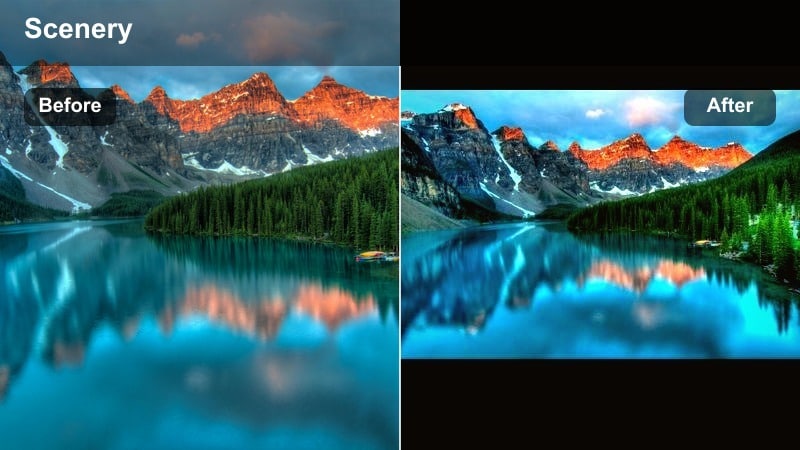
- Effect look: Soft purple-blue cast in the shadows with warm highlights and a gentle bloom around lights
- Best for: Twilight harbors, lakeside docks, fishing villages, and boats shot just after sunset
- Editing tip: Push white balance slightly cooler while bumping vibrance, not saturation, to keep the dusk colors subtle and cinematic
Dusk Harbor Haze is tuned for blue hour by the water, when sky and reflections still hold color but overall light is low. The filter wraps shadows in a purple-blue cast while allowing lamps, buildings, and windows to glow warm, adding a romantic, slightly nostalgic feel. In Filmora, it is ideal for harbors, docks, marinas, and lakeside scenes just after sunset.
After adding the filter, make small white balance adjustments toward cooler tones and lift vibrance so nuanced dusk colors stay present without appearing garish. If your footage is noisy, run noise reduction before boosting contrast, then apply a touch of bloom around lights to sell the dreamy harbor atmosphere. The resulting grade works beautifully for travel vlogs, cinematic B roll, and intro or outro sequences.
Lake Stillness Matte
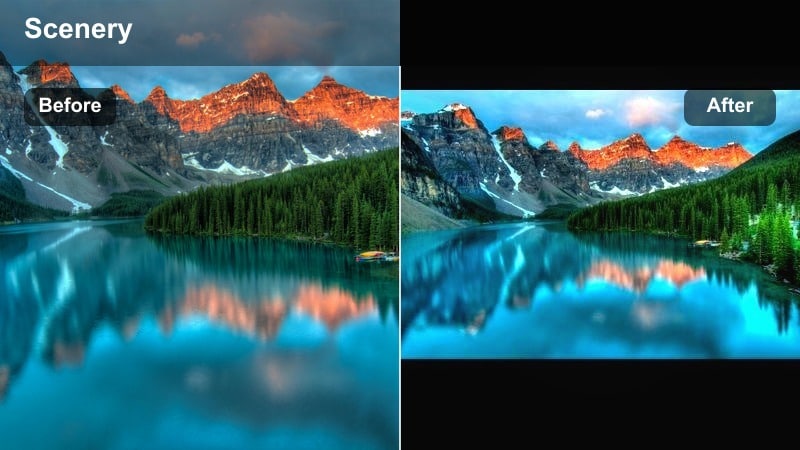
- Effect look: Low contrast with lifted blacks, muted blues, and minimal saturation for a quiet, introspective mood
- Best for: Calm lakes, mirror-like reflections, overcast river shots, and slow drone moves over water
- Editing tip: Reduce clarity in the upper half of the frame to keep reflections soft while keeping foreground shoreline elements slightly sharper
Lake Stillness Matte is designed for tranquil bodies of water where mood comes from stillness instead of drama. The filter lifts blacks, lowers contrast, and mutes blues to create a subdued, contemplative palette perfect for reflective scenes and slower storytelling. In Filmora, it brings a soft, almost painterly quality to quiet lakes, reservoirs, and broad rivers under overcast skies.
Apply the filter, then lower clarity or sharpness slightly in the sky and water areas to keep reflections gentle, while preserving a bit more detail in the shoreline or any subject in the foreground. Pair the look with longer cuts and slow drone movements, and consider subtler ambient audio like distant wind or soft waves for a cohesive, introspective sequence that feels calming and cinematic.
Valleys, Fields, And Open Landscapes
Lowland Mist Fade
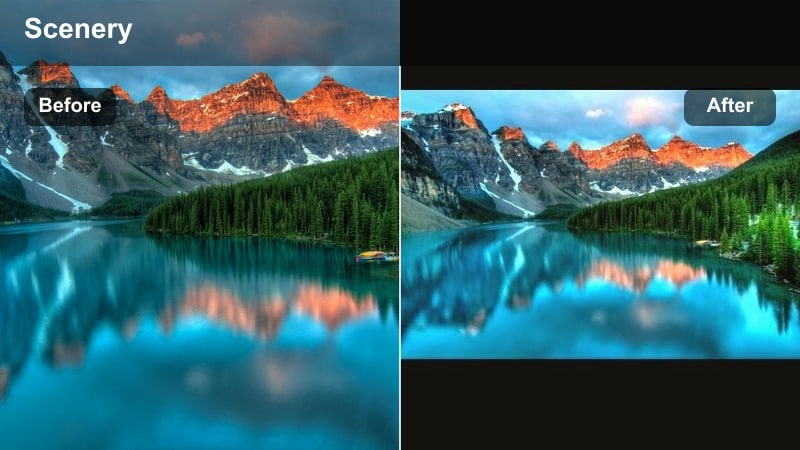
- Effect look: Soft, low-contrast look with cool highlights and slightly warmed midtones to separate land from sky
- Best for: Foggy farmland, open valleys at dawn, rolling hills covered by low clouds, and early morning meadows
- Editing tip: Use split toning to add cooler hues to the highlights and very gentle warmth to shadows to keep the image balanced and atmospheric
Lowland Mist Fade keeps the delicate character of valley fog while adding just enough separation between sky and land. The highlights lean cool, while midtones stay gently warm, giving fields and hills definition without breaking the soft, dreamy mood. In Filmora, this filter works beautifully for dawn farmland, mist-covered meadows, and wide valley vistas with layered haze.
After applying the filter, refine split toning so the sky stays pale and cool while the ground maintains just a hint of warmth. Add a subtle foreground darkening to preserve depth and keep the distant mist bright, creating a sense of scale in otherwise flat light. This approach yields cinematic open landscapes that feel quiet yet visually rich, ideal for establishing shots and transitional moments.
Moody Meadow Film
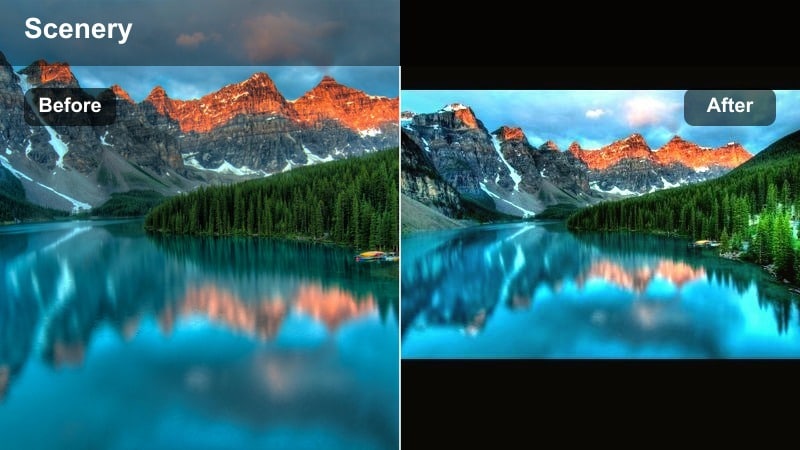
- Effect look: Soft film-inspired contrast with muted yellows and greens and a tiny hint of grain-like texture
- Best for: Windy fields, tall grass, lone trees on hillsides, and slow pans across open countryside
- Editing tip: Keep saturation under control and push the tone curve into a gentle S shape to retain detail in both clouds and grass
Moody Meadow Film channels a subtle, analog-inspired aesthetic with softened contrast and restrained color in yellows and greens. It turns bright, cheerful meadows into more nostalgic, slightly melancholic vistas that suit reflective or emotional storytelling. In Filmora, the filter pairs well with footage of swaying grass, isolated trees, and slow camera moves across rolling countryside.
Once the filter is on, keep saturation controlled and sculpt the tone curve into a gentle S so both sky and ground hold fine detail. Use natural movement like wind in the grass or drifting clouds to give the moody grade life, and avoid overly fast pans that can break the calm, filmic feel. The result is a timeless countryside look perfect for narrative films, music videos, and poetic travel sequences.
Stormfront Horizon
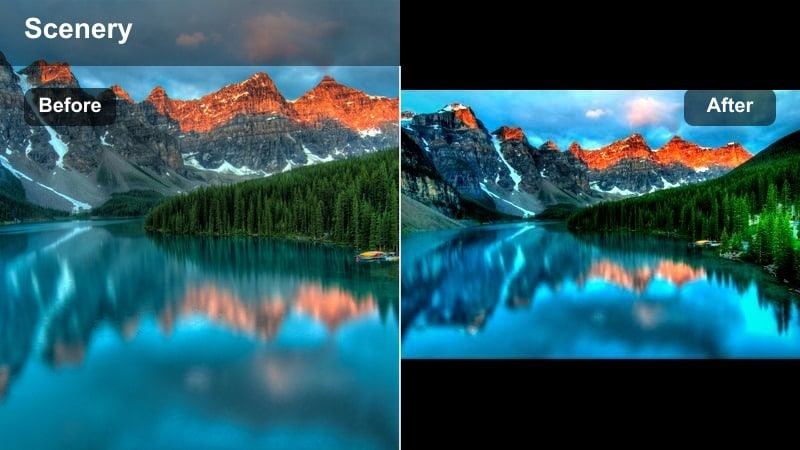
- Effect look: High drama with darkened skies, rich shadows, and cool-neutral tones across the frame
- Best for: Approaching storms over plains, wide establishing shots of fields, and timelapses of dark clouds
- Editing tip: Add a subtle vignette plus a top-down gradient to deepen the sky while keeping the horizon detail intact
Stormfront Horizon amplifies the power of incoming weather over open land, pushing skies darker while enriching shadows across the frame. The palette leans cool-neutral, ensuring the mood stays heavy and cinematic rather than colorful or cheerful. In Filmora, it shines on wide field shots, prairies, and plateaus where dark clouds roll in above a low, uninterrupted horizon.
After applying the filter, use gradient masks from the top to deepen clouds and hold highlight detail, while a light vignette keeps attention centered. Avoid crushing midtones so texture in grass, trees, and distant structures remains visible beneath the looming sky. This grade is perfect for building tension before a storm in documentaries, cinematic B roll, or dramatic storytelling edits.
Signature Moody Landscape Preset
Moody Landscape Filter. Dark Nature
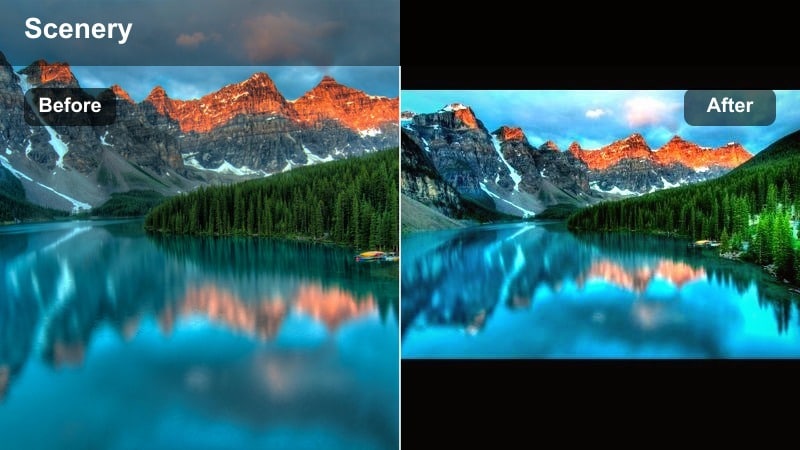
- Effect look: Deep, cinematic contrast with cool shadows, slightly warm midtones, and a gentle matte finish for a dark nature aesthetic
- Best for: Overall moody nature scenes, mixed forest and mountain shots, and dramatic travel b-roll that needs a unified dark landscape style
- Editing tip: Apply this preset lightly across a full sequence, then fine-tune exposure and white balance shot by shot to keep continuity without looking over-graded
The Moody Landscape Filter. Dark Nature preset is a versatile base look for entire projects focused on atmospheric nature. It combines cool shadows, warm midtones, and a subtle matte to create a cohesive dark aesthetic that works across forests, mountains, lakes, and valleys. In Filmora, you can apply it as a global style, then refine each clip so everything feels unified without becoming overly stylized.
Use the preset at moderate intensity for your full sequence, then tweak exposure, white balance, and local contrast per shot to maintain consistency in changing light. This workflow helps you build a recognizable visual identity for your film, making cuts between different environments feel intentional and cinematic. The result is a polished, professional-grade dark nature look with minimal complexity.
Ember Ridge Variant
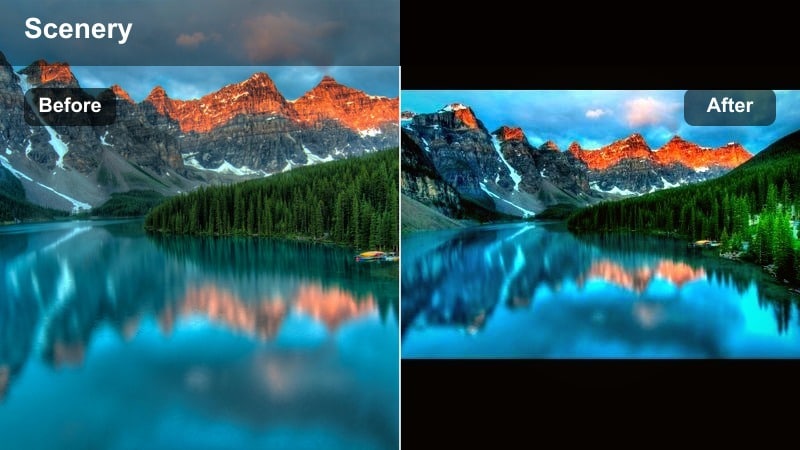
- Effect look: A warmer spin on the Dark Nature preset with amber highlights and slightly lifted shadows for dusk scenes
- Best for: Golden hour turning to blue hour on mountains, campfire near ridgelines, and warm clouds above dark terrain
- Editing tip: Increase warmth selectively in the highlights while keeping shadows neutral or cool so the scene still reads as moody, not cheerful
Ember Ridge Variant shifts the Dark Nature style toward warm, ember-like highlights while keeping terrain and shadows relatively dark. It is tailored for late golden hour and early blue hour, when clouds and horizon lines pick up orange and red hues above dark ground. In Filmora, it is particularly effective on mountain ridges, campfire scenes, and backlit hikers against glowing skies.
After applying the variant, selectively warm highlights and upper midtones while maintaining cooler or neutral shadows for a balanced warm-moody mix. Place your subject where sky warmth is strongest to separate them via color contrast, and gently reduce saturation in skin tones so the sky remains the emotional anchor. This creates a powerful, cinematic dusk atmosphere that still fits within a darker visual language.
Ashen Forest Variant
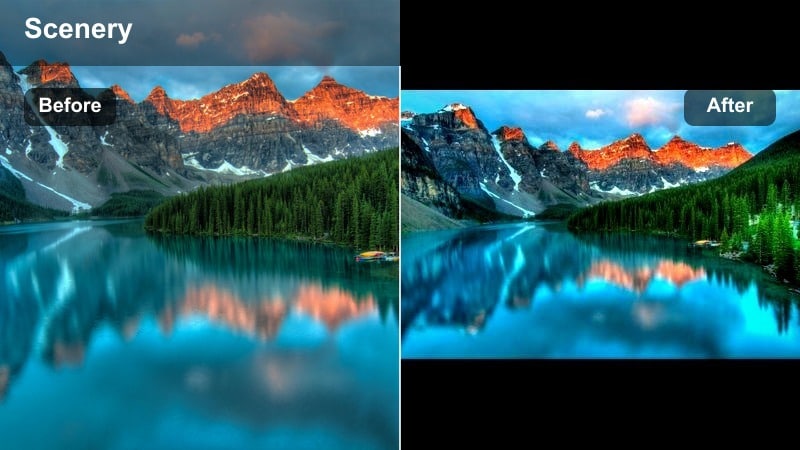
- Effect look: Very muted color palette with cool grays, softened greens, and a heavier matte for a bleak forest tone
- Best for: Bleak story sequences, winter forests without snow, burned or dead woods, and emotionally heavy nature scenes
- Editing tip: Pull most saturation out of greens and cyans, then introduce a slight blue tint into shadows to push the scene toward an ashen, somber mood
Ashen Forest Variant strips most color out of the scene, leaning into cool grays and heavily muted greens for a stark, somber mood. The stronger matte softens contrast further, creating a bleak, almost post-apocalyptic forest tone ideal for serious or introspective narratives. In Filmora, it works well on barren woods, late autumn landscapes, and story-driven sequences where nature reflects emotional isolation.
Apply the variant, then lower saturation in greens and cyans until color is barely present, finishing with a subtle blue tint in the shadows. Use this look selectively within your project to mark emotional low points, surrounding it with slightly richer grades before and after for contrast. Composition and performance will carry most of the emotion, while the ashen grade underscores the weight of the moment.
Tips for Using Landscape Moody Filters in Filmora
- Shoot slightly flatter in camera so moody landscape filters have more dynamic range to work with in the shadows and highlights.
- Keep your white balance consistent across shots in the same scene before applying filters to avoid unexpected color shifts.
- Use masks and keyframes to apply moody filters selectively, darkening skies or forests while keeping subjects readable.
- Export a short graded test clip to check how your moody landscape look holds up on different screens and devices.
- Stack Filmora filters with gentle manual adjustments to fine tune contrast and color rather than relying on a single strong preset.
- Adjust filter intensity per clip so bright daytime shots and darker overcast scenes still feel like part of the same visual world.
- Leverage Filmora s real time playback to compare different moody grades quickly and avoid over processing your footage.
- Save custom presets based on your favorite moody grades so you can apply a consistent look across future projects.
Moody landscape video filters are powerful tools for turning ordinary nature footage into atmospheric, story-driven visuals, whether you are filming misty forests, stormy coasts, or quiet lakes.
By combining Filmora s Moody Landscape Filter. Dark Nature preset with careful exposure control and subtle color adjustments, photographers and filmmakers can create cohesive dark landscape sequences that feel cinematic and emotionally resonant in any project featuring moody nature scenes.
secure download