

 100% Security Verified | No Subscription Required | No Malware

This narrative video color grading LUT-style filter collection is designed for content creators who want to tell stories with cinematic color, depth, and emotion in Filmora.
Use these filters to quickly dial in consistent looks across shots, reinforce narrative tone, and guide your audience's emotions without complex manual grading.
In this article
Dusk Street Dramas and Urban Journeys
Urban Twilight Contrast
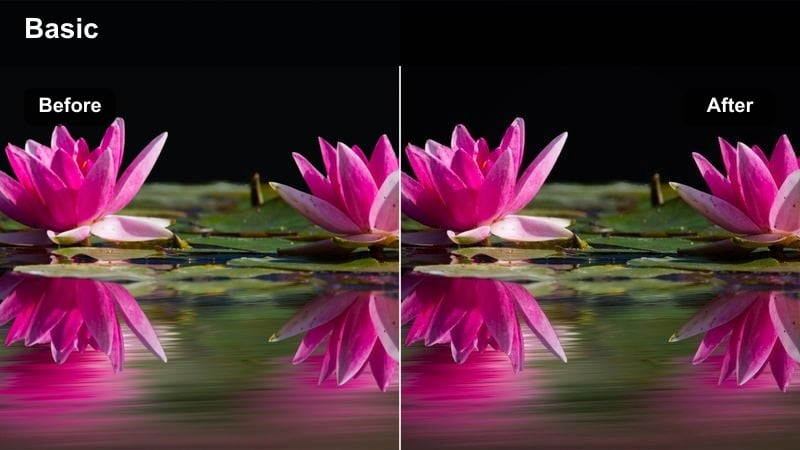
- Effect look: High-contrast, cool-tinted street look that deepens shadows while keeping neon highlights vivid.
- Best for: Narrative city walks, moody travel vlogs, and character intros filmed at blue hour.
- Editing tip: Lower exposure slightly and add a subtle vignette to focus attention on the subject's face against the city lights.
Urban Twilight Contrast gives dusk city footage a dramatic, cinematic edge by cooling midtones and shadows while preserving the punch of neon signs and car lights. It is ideal when you want your character to feel small yet defined against the scale of the city, with crisp separation between dark streets and glowing highlights.
In Filmora, apply this filter to all shots from your blue-hour sequence, then fine-tune exposure and vignette strength on a clip-by-clip basis. Use keyframed exposure changes to adapt as ambient light falls, and adjust white balance slightly warmer on close-ups to keep skin tones believable while maintaining the overall cool narrative mood.
Match Narrative Mood Faster with AI Color Tools
Instead of manually tweaking curves for every shot, use Filmora's AI-powered color tools to quickly align your narrative footage with the Urban Twilight Contrast style or any other look you choose. AI can automatically balance exposure and color so your filters sit on a clean, neutral base.
Once the AI has normalized your clips, your narrative video color grading LUT-style filters will apply more consistently, helping you keep emotional tone coherent from establishing shots to intimate close-ups.
 secure download

Preview Narrative Filters on Real Story Scenes
Preview different narrative filters on your own dialogue, street, and interior clips to see how each one shifts the emotional tone. Filmora makes it easy to duplicate a sequence and try multiple looks without touching your original edit.
Compare several options side by side in the timeline or using split-screen previews so you can confidently choose the style that best matches your pacing, performances, and story arc.
secure downloadBuild a Narrative Look Pack with LUTs and Filters
Filmora includes 1000 plus video filters and 3D LUTs you can mix with these narrative styles to create a personalized look pack. By combining filters, LUTs, and light adjustments, you can design a repeatable visual language for your films or series.
Save your favorite combinations as custom presets so that every new episode, short film, or client project starts from the same consistent narrative color base.
secure downloadGritty Sidewalk Chronicles
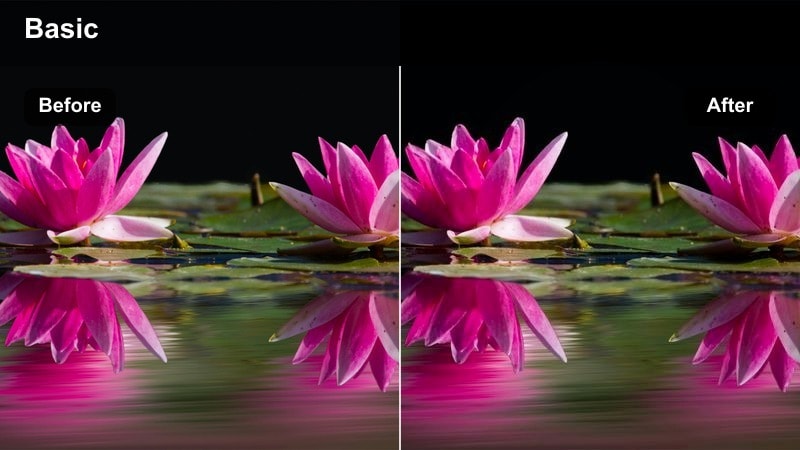
- Effect look: Muted colors with lifted blacks and subtle grain for grounded, documentary-style city storytelling.
- Best for: Urban dramas, social commentary pieces, and handheld alleyway sequences.
- Editing tip: Reduce sharpness slightly and add slower cuts to let the textured, gritty look carry the emotional weight.
Gritty Sidewalk Chronicles leans into a desaturated, lifted-black aesthetic that feels raw and documentary-inspired. It is well-suited to handheld footage, imperfect lighting, and environments where you want the citys wear and tear to become part of the story.
In Filmora, apply this filter to dialogue scenes, walk-and-talks, and B-roll of alleys or side streets, then add a light grain layer for extra texture. Slightly soften overall sharpness and avoid fast, flashy transitions so the grounded palette and roughness keep the audience rooted in the characters reality.
Neon Lonely Narrative
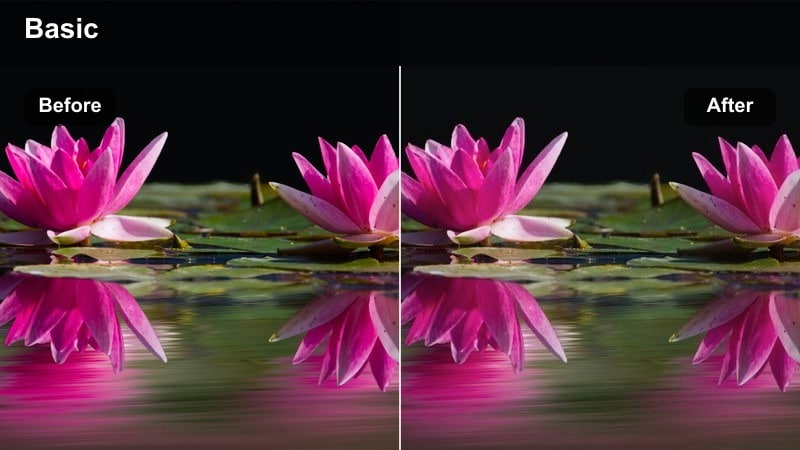
- Effect look: Deep shadows with saturated neon blues and magentas for stylized late-night solitude.
- Best for: Taxi rides, rain-soaked streets, and character monologues by shop windows at night.
- Editing tip: Emphasize reflections and negative space in your framing to let the neon colors echo the character's internal state.
Neon Lonely Narrative pushes blues and magentas to create a stylized, late-night city atmosphere where darkness feels heavy and reflections become emotional metaphors. The strong color separation between skin tones and neon signs makes characters pop while still feeling isolated in their environment.
Use this filter in Filmora on car interiors, storefronts, and rainy sidewalks, pairing it with shots that highlight glass, puddles, and empty streets. Dial back saturation slightly if neon signs begin to clip, and add gentle camera movement or slow motion so the rich colors and shadows have time to build mood between lines of dialogue.
Sunlit Domestic Moments and Family Stories
Soft Apartment Morning
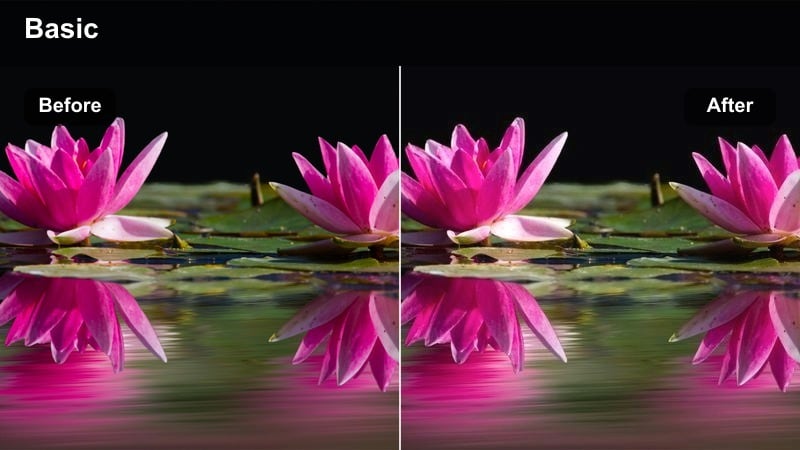
- Effect look: Warm, low-contrast grading that brightens interiors and softens hard window light.
- Best for: Quiet kitchen scenes, morning routines, and family conversations near windows.
- Editing tip: Slightly raise shadows to keep interior details visible and match exposure across multiple angles.
Soft Apartment Morning wraps interior scenes in gentle warmth, reducing contrast so window light feels inviting instead of harsh. The filter lifts shadows and smooths highlights, making small apartments, kitchens, and living spaces feel cozy and lived-in.
In Filmora, apply this look across all morning-routine shots, from wide room views to close-ups of hands making coffee. Use the color panel to keep white balance consistent between angles, raising shadows just enough that details in cabinets and walls remain visible while the window still glows softly behind your characters.
Nostalgic Living Room Glow
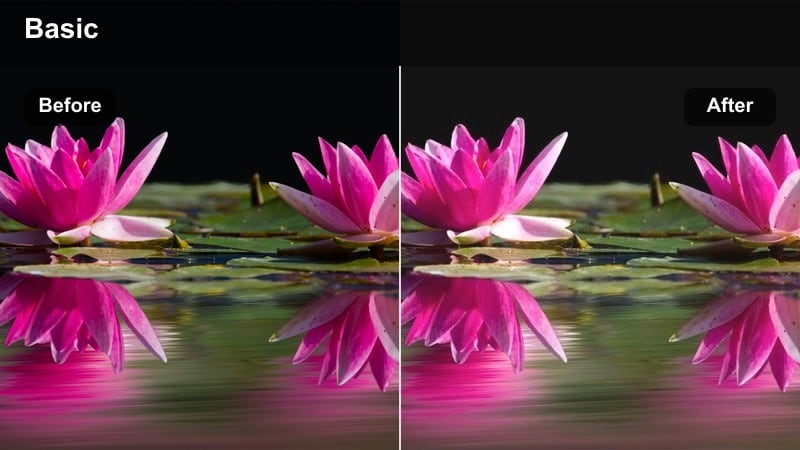
- Effect look: Golden midtones with gentle fade in blacks for a sentimental, memory-like feel.
- Best for: Family archives, childhood flashbacks, and warm living room dialogue scenes.
- Editing tip: Slow your cuts slightly and add soft music to let the warm grading sell the nostalgia.
Nostalgic Living Room Glow shifts your footage toward rich golden midtones and slightly faded blacks, immediately signaling memory, warmth, and sentimentality. The softened contrast makes lamp light and window light feel like they are wrapping around your characters, ideal for flashbacks and cherished family moments.
Apply this filter in Filmora to scenes set in living rooms or bedrooms where the story looks back on better times. Use it selectively for flashbacks while keeping present-day scenes more neutral, and fine-tune fade strength so the image feels evocative and cinematic without drifting into overly vintage territory.
Kitchen Table Confession
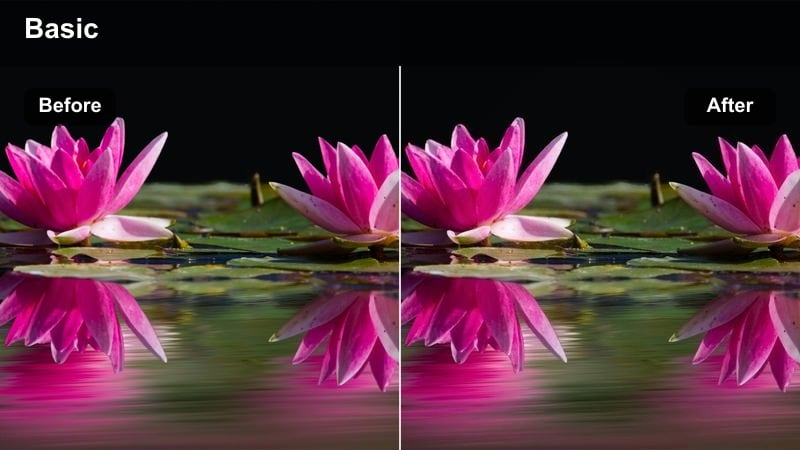
- Effect look: Neutral base with slightly cool shadows and gentle highlight roll-off for intimate dialogues.
- Best for: Serious conversations, character reveals, and emotionally heavy domestic scenes.
- Editing tip: Tighten your coverage with close-ups and let the subdued color help the dialogue feel raw and honest.
Kitchen Table Confession keeps colors close to natural while lightly cooling the shadows and smoothing out highlight transitions. This understated treatment makes faces, eye contact, and small gestures stand out without the color grade drawing attention to itself.
In Filmora, use this filter on dialogue-heavy scenes around tables or countertops, then cut between close-ups and mid-shots to emphasize performance. Adjust exposure and white balance very subtly from clip to clip, preserving a nearly invisible, grounded look that allows viewers to focus fully on what your characters are saying.
Road Trip Journeys and Travel Narratives
Dusty Road Odyssey
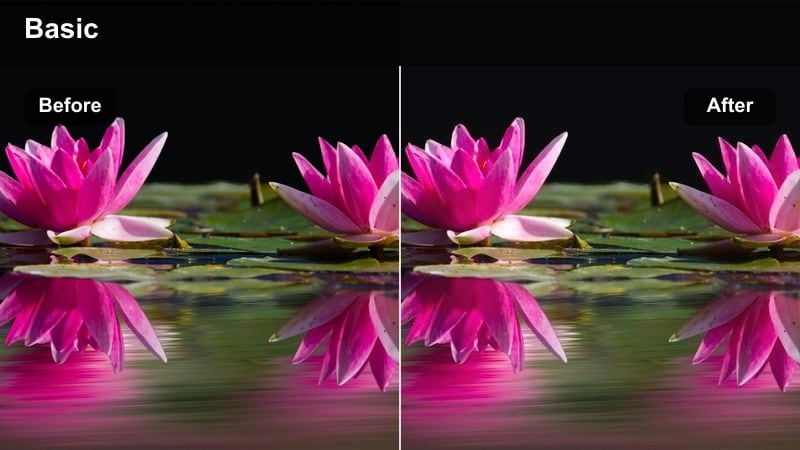
- Effect look: Earthy tones with warm highlights and slightly desaturated skies for open-road drama.
- Best for: Highway montages, roadside stops, and reflective driving shots.
- Editing tip: Add slow push-in shots and gentle speed ramps to let the muted palette emphasize introspection.
Dusty Road Odyssey pulls your palette toward warm, earthy browns and ambers while toning down sky saturation, creating a sun-beaten, cinematic road-movie look. The controlled color makes highways, fields, and roadside motels feel cohesive even when they are shot under different light conditions.
In Filmora, apply this filter to every clip in your travel or road-trip chapter, from dashboard shots to drone passes. Use slight speed ramps and slower cuts with this look, letting the warm highlights and dusty tones carry the weight of reflection as your character drives, thinks, or leaves something behind.
Late Bus Home
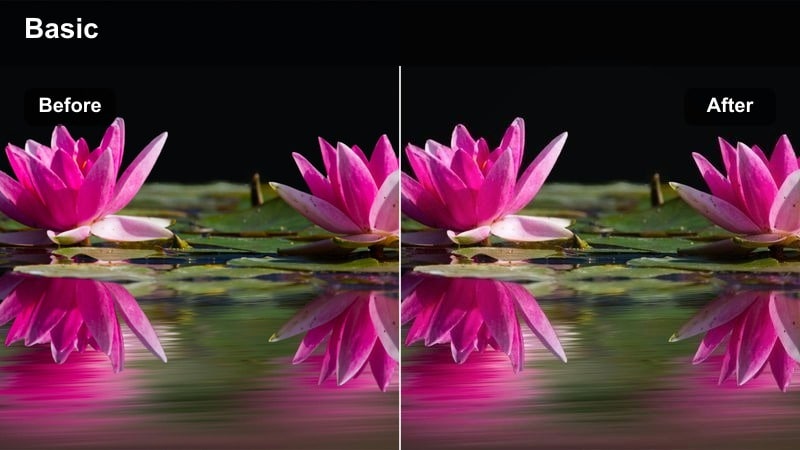
- Effect look: Soft teal shadows and warm midtones that bring out interior bus and train lighting.
- Best for: Night rides, commuter stories, and quiet travel reflections through windows.
- Editing tip: Frame reflections and passing city lights, then slow your cut pace to let the color do the narrative heavy lifting.
Late Bus Home creates a gentle teal-and-warm contrast that emphasizes the separation between cool outside darkness and the cozy, slightly worn light inside public transport. Shadows lean teal while faces and seats stay warm, visually echoing the feeling of being alone but not entirely isolated.
In Filmora, add this filter to clips shot on buses, trains, or trams at night, prioritizing angles that capture window reflections and passing lights. Trim shots a bit longer than usual, and pair the grade with ambient audio or soft music so the shifting teal shadows and warm interiors can communicate your characters emotional distance or homeward pull.
Station Goodbye Scene
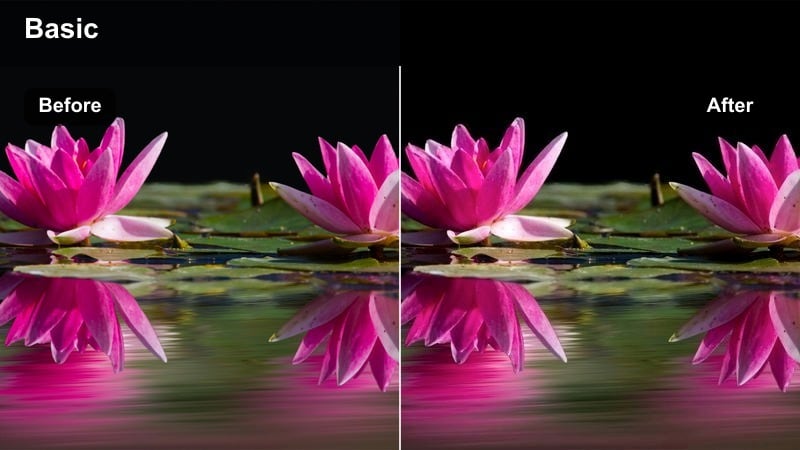
- Effect look: Soft contrast with gentle cool hues and slightly lifted blacks for bittersweet farewells.
- Best for: Train station departures, airport goodbyes, and emotional partings in transit hubs.
- Editing tip: Mix wide establishing shots with tight close-ups; the soft color will hold them together and underline the farewell.
Station Goodbye Scene cools overall color and slightly lifts blacks, giving parting moments a tender, bittersweet quality rather than harsh drama. The soft contrast smooths busy backgrounds like crowds and signage so that faces, hands, and eye contact stay central to each frame.
Use this filter in Filmora on all coverage from your farewell sequence, from wide platform shots to tight reactions. Maintain consistent exposure between angles, and consider gently reducing saturation as characters separate, allowing the softened cool palette and lifted shadows to convey a sense of emotional loss.
Night Interiors and Intense Dialogue Scenes
Lamp-Lit Interrogation
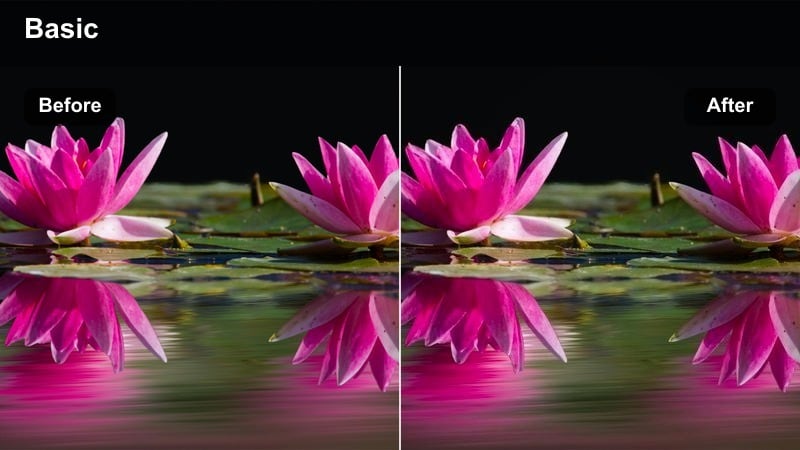
- Effect look: Hard contrast with warm key light and cool, shadowed backgrounds for tense conversations.
- Best for: Interrogations, arguments at the table, and high-stakes negotiations in small rooms.
- Editing tip: Use tighter framing and minimal camera movement so the stark lighting and color focus attention on performances.
Lamp-Lit Interrogation carves your scene with strong contrast, making a single warm light source feel like the only safe spot in a room full of cool, heavy shadows. This separation between warm faces and dark backgrounds heightens tension and power dynamics during difficult conversations.
In Filmora, apply this filter to night interiors where a lamp, overhead light, or monitor becomes the central source, then refine blacks to keep noise under control. Hold on close-ups a little longer and keep camera moves minimal so the stark interplay of warm skin tones and cold surroundings amplifies every shift in emotion.
Midnight Kitchen Conflict
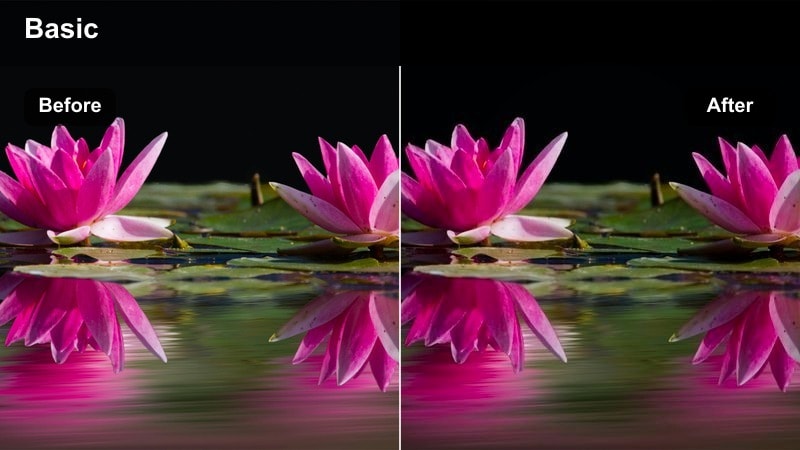
- Effect look: Cool, desaturated palette with sharp highlights from overhead kitchen lights.
- Best for: Late-night arguments, quiet breakdowns, and internal struggles in home interiors.
- Editing tip: Favor longer takes and deliberate pauses; the stark, cool grading will emphasize every silence.
Midnight Kitchen Conflict chills your image and pulls back saturation so familiar rooms feel emotionally colder and more unforgiving. Overhead fixtures and practical lights stand out as harsh highlights, emphasizing the loneliness or strain simmering beneath late-night conversations.
Use this filter in Filmora when you shoot nighttime kitchens, hallways, or bathrooms where a character is struggling internally or clashing with someone else. Leave more breathing room in your edit, holding on reactions and silences while the cool, desaturated grade transforms everyday spaces into intimate emotional stages.
Quiet Bedroom Reveal
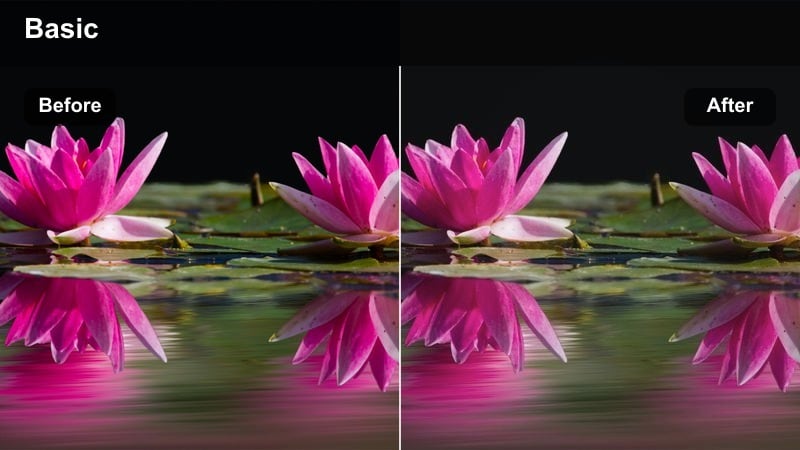
- Effect look: Soft, low-saturation tones with gentle vignetting for introspective night scenes.
- Best for: Confessions in bedrooms, late-night phone calls, and reflective voiceovers.
- Editing tip: Allow more negative space in the frame and slow crossfades to let the muted palette support vulnerability.
Quiet Bedroom Reveal mutes colors and adds a subtle vignette, drawing the viewers focus toward the center of the frame while keeping the overall feel soft and contemplative. It works especially well for whispered conversations, private breakdowns, and late-night thoughts that never leave the room.
In Filmora, layer this filter onto bedroom or small-room scenes, then slightly reduce saturation and contrast if you want an even more introspective feel. Combine the grade with restrained camera work and soft crossfades between angles so that the gentle vignette and subdued palette frame your characters inner world without distraction.
Tips for Using Narrative Video Color Grading Lut Filters in Filmora
- Plan your narrative video color grading LUT-style filters during the scripting stage so each scene has a clear emotional intention.
- Limit yourself to one or two core narrative looks per project and reserve additional filters for flashbacks, fantasies, or major emotional shifts.
- Always check how each filter affects skin tones in Filmora and fine-tune white balance and tint before locking picture.
- Match exposure and contrast between all angles in the same scene to keep color transitions invisible to your audience.
- Use stronger, more stylized filters for montages, transitions, and inner-thought sequences instead of every dialogue shot.
- Save your favorite combinations of filters, LUTs, and color tweaks as Filmora presets so recurring characters and locations stay visually consistent.
- Test grades on both bright and dark displays to ensure your narrative mood holds up across different devices.
Thoughtful narrative video color grading LUT-style filters can guide your audience through every emotional beat without calling attention to themselves. With consistent choices, color becomes a quiet storyteller that supports performance, pacing, and sound.
Build a small, reliable toolkit of Filmora filters that match your storytelling voice, and reuse them across projects so viewers instantly recognize your cinematic style. Over time, your LUTs, filters, and presets will form a visual signature that makes every new video feel like part of a coherent narrative world.
secure download