

 100% Security Verified | No Subscription Required | No Malware


 ChatGPT
 Perplexity
 Gemini
 Claude
 Grok
Grok
Moody night video filters help photographers and filmmakers turn flat low-light footage into cinematic, atmospheric night scenes with deep shadows and rich color contrast.
Using Filmora’s Moody Night Filter: Dark Horizon and related presets, you can quickly shape dark evening footage into a cohesive look that feels dramatic, immersive, and story-driven.
In this article
Deep Shadow Night Filters
Moody Night Filter: Dark Horizon
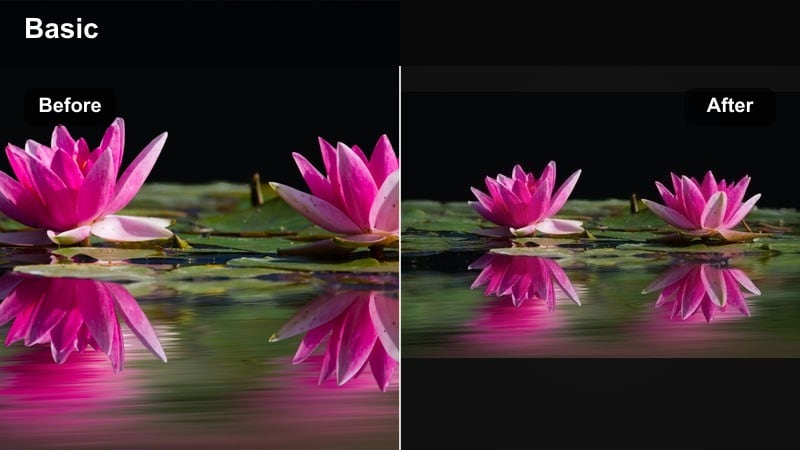
- Effect look: Crushed blacks with subtle cyan highlights and a muted midtone palette that emphasizes silhouettes against the night sky.
- Best for: Moody night scenes with strong contrast, street exteriors lit by a few practicals, or character profiles framed against dark horizons.
- Editing tip: Lower exposure slightly, then raise shadows just enough to keep facial details visible while preserving dense, cinematic blacks.
This signature Dark Horizon filter is built to turn ordinary low-light footage into a dramatic, filmic nightscape with rich blacks and stylized cyan highlights. In Filmora, you can apply it in one click to immediately shape the tonal curve, deepening shadows while keeping enough highlight detail in streetlights, neon, and windows.
Use it on narrative scenes, music videos, or B-roll where silhouettes and outlines against the skyline carry the story. After applying the filter in Filmora, fine-tune exposure, contrast, and curves so important details like eyes and key props remain readable while the rest of the frame falls into a controlled, cinematic darkness.
Use AI to Match Moody Night Palettes Instantly
Filmora’s AI tools can analyze your reference frames and suggest grading adjustments so your moody night video filters stay consistent from shot to shot. This makes it easier to maintain a unified Dark Horizon look across wide shots, close-ups, and inserts.
Load a still from your favorite dark evening film, then let Filmora AI guide your color balance and contrast before you fine-tune with presets like Moody Night Filter: Dark Horizon. Once the base match is set, stack additional adjustments such as vignettes or HSL tweaks to refine the atmosphere.
 secure download

Preview Moody Night Filters in Real Time
Filmora lets you hover over filters to preview how each moody night look will affect your footage before you commit. This speeds up the process of comparing deep contrast styles like Dark Horizon with softer haze or neon-driven looks.
Test multiple dark evening presets on the same clip, compare them side by side, and combine subtle adjustments until the atmosphere matches your story. Once you have a direction, lock it in and copy the look to the rest of your timeline for a consistent night mood.
secure downloadCombine Filters and LUTs for Advanced Night Grading
For more control, start with a moody night video filter as your base, then stack LUTs to refine color separation and film-like contrast. This workflow lets you get a fast starting point and then sculpt more advanced looks without complicated manual grading.
Filmora makes it easy to adjust intensity for both filters and LUTs so photographers and filmmakers can customize the exact level of drama they want. Use a subtle LUT to add cinematic roll-off to highlights or push cool shadows further, while keeping skin tones within a natural range.
secure downloadNoir Alley
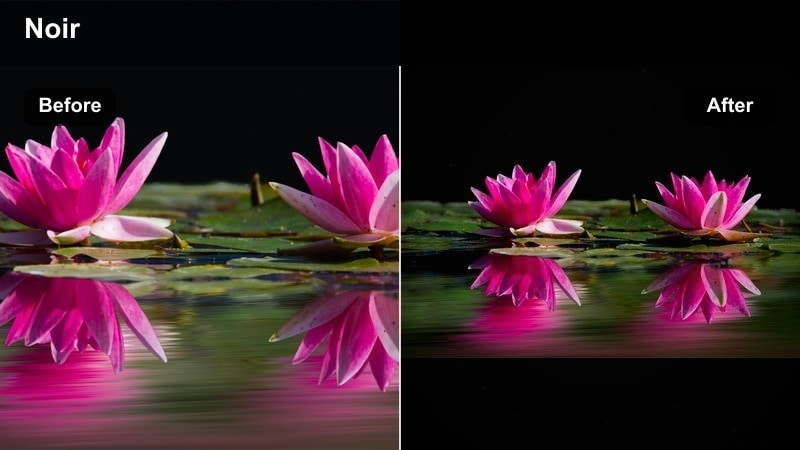
- Effect look: High-contrast, near-monochrome toning with cool shadows and minimal color, echoing classic noir night lighting.
- Best for: Dark evening alleys, crime or mystery sequences, and any scene where you want strong graphic shapes in the frame.
- Editing tip: Push clarity and local contrast on wet ground or brick textures to accentuate reflections and create layered depth.
Noir Alley gives your night footage a stripped-down, graphic feel that emphasizes light and shadow over color. In Filmora, it quickly converts mixed street lighting into a cohesive, almost black-and-white palette with a cool modern edge.
Apply it to alleyways, parking lots, and stairwells where negative space and sharp silhouettes support suspenseful storytelling. Enhance the effect by combining the filter with vignettes and selective sharpening on reflective surfaces, making rain-soaked ground and brick walls pop against the darkness.
Midnight Silhouette
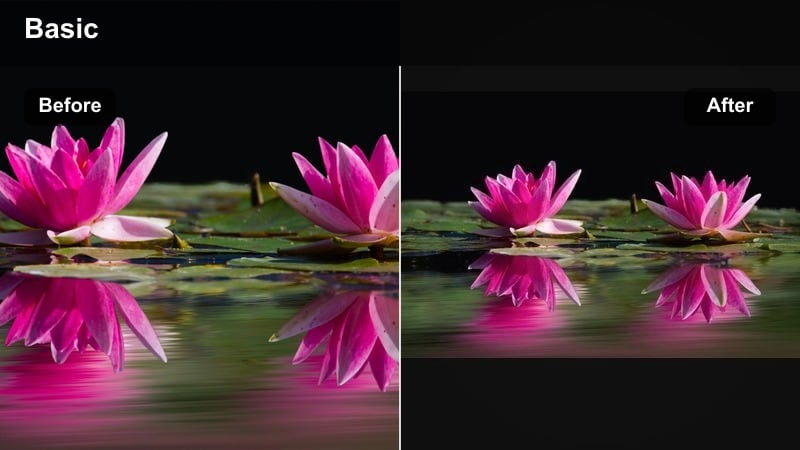
- Effect look: Strong backlit outlines with lowered saturation and a slight blue shift, ideal for silhouetted characters and props.
- Best for: Moody night scenes where your subject is framed against windows, neon signs, or distant city lights.
- Editing tip: Raise contrast and drop saturation globally, then lift highlights to make silhouettes pop against the background glow.
Midnight Silhouette is designed to turn backlights and city glows into striking outlines around your subject. In Filmora, this filter darkens the subject while gently cooling and brightening the background, pushing the viewer’s eye toward simple, iconic shapes.
Use it for rooftop scenes, window frames, and any moment where identity or mystery matters more than facial detail. After applying the preset, refine with curves and highlight controls so the edges remain crisp while background bokeh stays soft and dreamy.
Atmospheric Night Haze Filters
Foggy Crosswalk
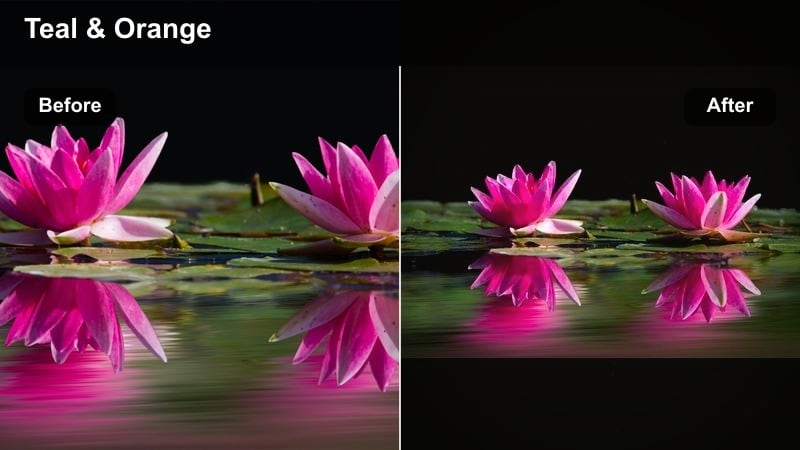
- Effect look: Soft halation around highlights with raised blacks and a gentle teal push in the shadows for cinematic haze.
- Best for: Rainy intersections, car headlights in the distance, or any atmospheric night with mist or smoke.
- Editing tip: Layer a subtle glow effect on top and keep sharpness low to avoid fighting the dreamy, diffused character.
Foggy Crosswalk adds a hazy bloom to lights and slightly lifts the blacks for a softer, more atmospheric night feel. In Filmora, it is a great choice for rainy streets, foggy bridges, or any scene where light beams through moisture in the air.
Apply it to shots with strong light sources, like headlights and shop signs, and then fine-tune contrast so details do not disappear completely. Combine the filter with Filmora’s glow and blur effects at low intensity to deepen the dreamlike, cinematic impression.
Neon Drift
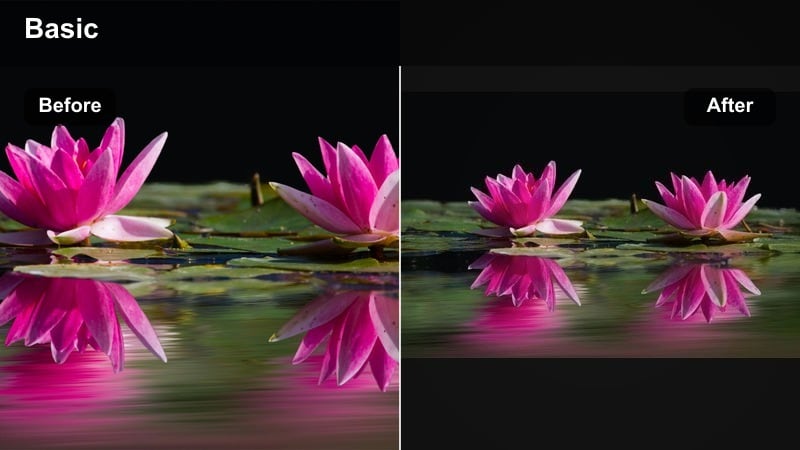
- Effect look: Softened contrast with vibrant neon blues and magentas, emphasizing color trails and reflections in wet surfaces.
- Best for: Night cityscapes, cyberpunk-inspired streets, and car scenes with neon signage or LED strips.
- Editing tip: Boost saturation in blues and pinks while muting greens and yellows to keep the palette focused and cohesive.
Neon Drift leans into saturated blues and magentas, turning ordinary city lights into stylized, cyberpunk textures. In Filmora, it enhances reflections on wet pavement and glass, helping you build a colorful, futuristic night without complex manual grading.
Use it for downtown walks, driving shots, or music videos where neon and LEDs dominate the frame. After applying the filter, refine specific hues with HSL controls to keep skin tones believable while backgrounds explode with vivid, controlled color.
Distant Glow
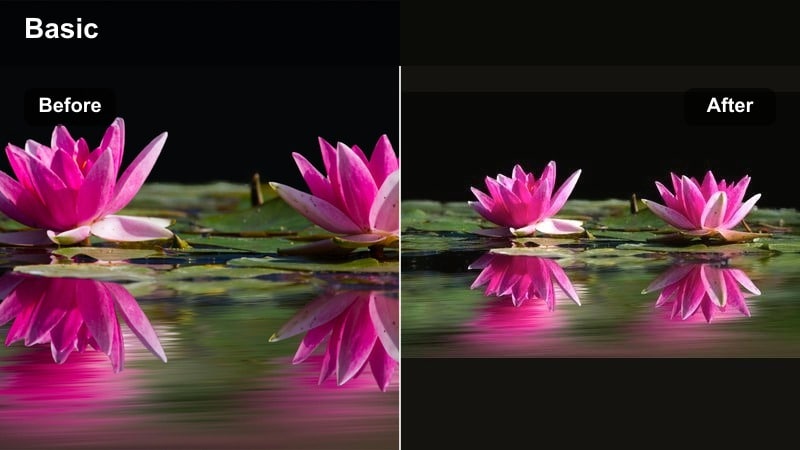
- Effect look: Muted overall contrast with a warm-cool split, keeping distant lights soft and dreamy while foregrounds stay dark.
- Best for: Long-lens shots of city skylines, highways at night, or isolated subjects against faraway light clusters.
- Editing tip: Lower clarity on background layers while keeping your subject slightly sharper to add a subtle depth separation.
Distant Glow is built for shots where far-off city lights create the emotional backdrop. In Filmora, the filter softens and warms background highlights while leaving foregrounds darker and cooler, producing a clear sense of separation and mood.
It works especially well on telephoto shots of skylines, bridges, and traffic trails behind characters. After applying, gently reduce clarity or add a touch of blur to background elements and keep your subject sharper so they remain the narrative focus against the soft glow.
Character-Focused Moody Night Filters
Lonely Window
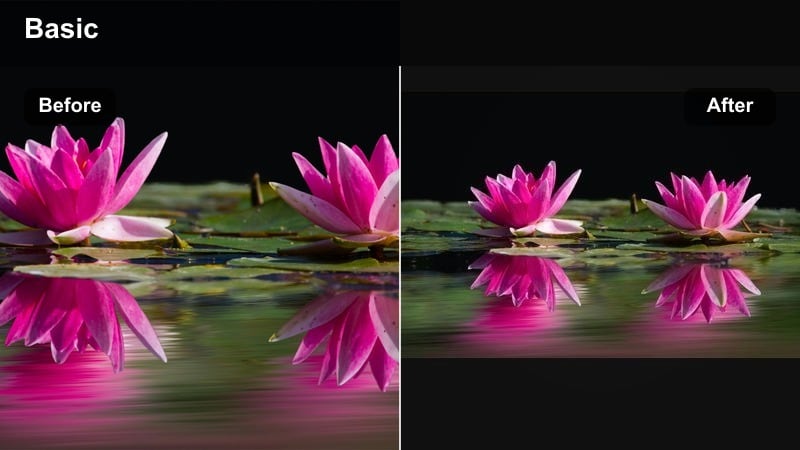
- Effect look: Soft, low-contrast faces lit by a single warm source, with cool, desaturated surroundings emphasizing isolation.
- Best for: Intimate character studies, late-night interiors, and quiet reflection shots by windows or lamps.
- Editing tip: Use masks to keep faces slightly warmer and brighter than the background so emotions remain readable in the dark.
Lonely Window is tuned for emotional close-ups illuminated by one key light, like a lamp or window. In Filmora, it keeps faces gentle and warm while pushing backgrounds cooler and more muted, naturally drawing attention to the character.
Apply it to dialogue scenes, contemplative moments, or narrative vignettes where internal emotion matters more than environment. Refine the effect with Filmora’s masking tools, brightening and warming only the face area while maintaining a subdued, cool-toned room around the subject.
Midnight Confession
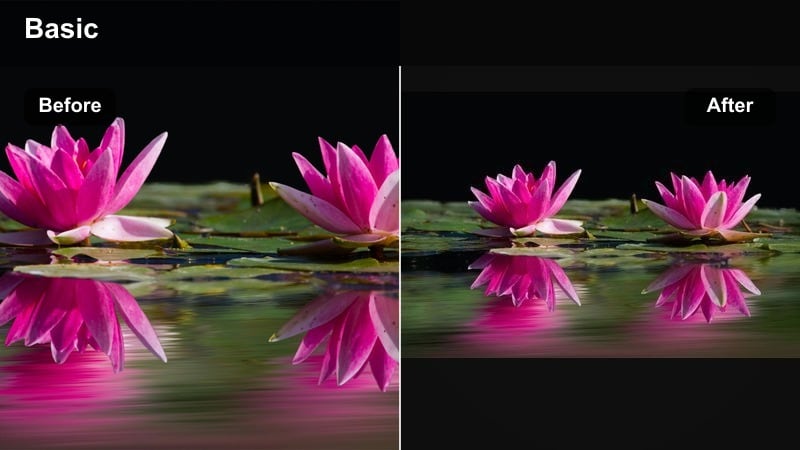
- Effect look: Gentle contrast and muted colors with a slight green-cyan bias, creating a pensive, late-night confession mood.
- Best for: Dialogue-heavy scenes, emotional monologues, or documentary-style interviews shot in low light.
- Editing tip: Keep noise reduction conservative to avoid waxy skin; a little texture can support the vulnerable, honest feeling.
Midnight Confession offers a restrained, naturalistic grade that suits introspective interviews and monologues. In Filmora, it subtly cools and desaturates the image while maintaining enough detail and skin tone accuracy to keep the scene grounded.
Use it when you want the viewer to focus on words and expressions rather than stylized color. Pair the filter with light grain and gentle noise reduction so the picture retains a human, imperfect texture that matches the honesty of the moment.
Street Lament
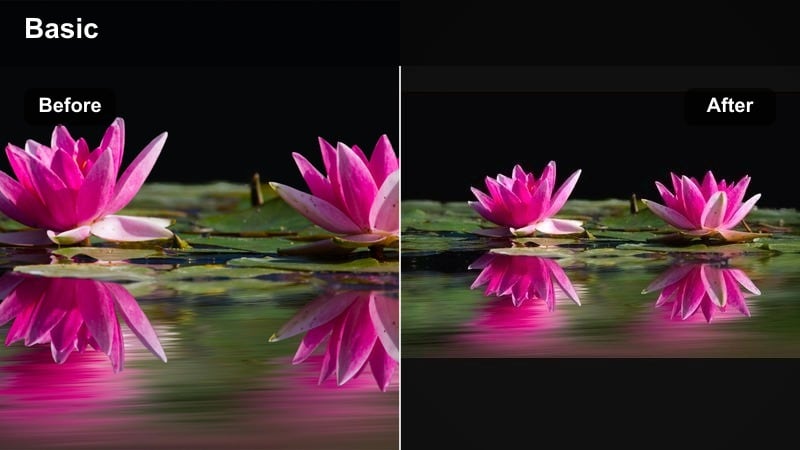
- Effect look: Cool, desaturated night streets with subtle amber highlights on skin, creating a melancholy but cinematic tone.
- Best for: Wandering characters, walk-and-talk scenes, or handheld documentary shots on dim streets.
- Editing tip: Stabilize only lightly to keep some organic movement, then use the filter to unify mixed street lighting colors.
Street Lament unifies messy street lighting into a cohesive cool-toned look with just enough warmth on skin to keep characters alive. In Filmora, it is ideal for handheld walks, reflective journeys, or observational documentary shots captured under mixed sodium and fluorescent lights.
After applying the preset, tweak saturation and color temperature so storefronts and street signs recede while your subject remains slightly warmer. A touch of stabilization combined with this grade can preserve natural motion while giving the scene a polished, cinematic mood.
Stylized Dark Evening Filters
Ashen Midnight
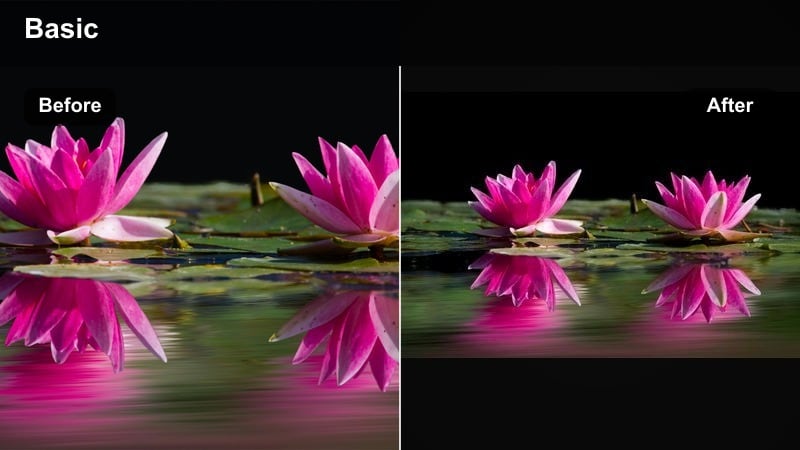
- Effect look: Desaturated, cool-toned image with soft blacks and a faint cyan cast, evoking bleak, post-apocalyptic nights.
- Best for: Thrillers, psychological dramas, and experimental projects that need a stark, moody night world.
- Editing tip: Reduce vibrance more than saturation to keep subtle color in skin while turning the environment nearly monochrome.
Ashen Midnight drains most color from your night scenes and leans into cool tones, creating a bleak and uneasy atmosphere. In Filmora, it is perfect for thrillers, dystopian stories, or any project that demands a harsh, emotionally distant night aesthetic.
Apply it to empty streets, industrial zones, or lonely characters to amplify tension. Afterward, use Filmora’s vibrance and HSL controls to keep just a hint of color in skin while pushing the rest of the frame toward steely, desaturated blues and cyans.
Crimson Nightfall
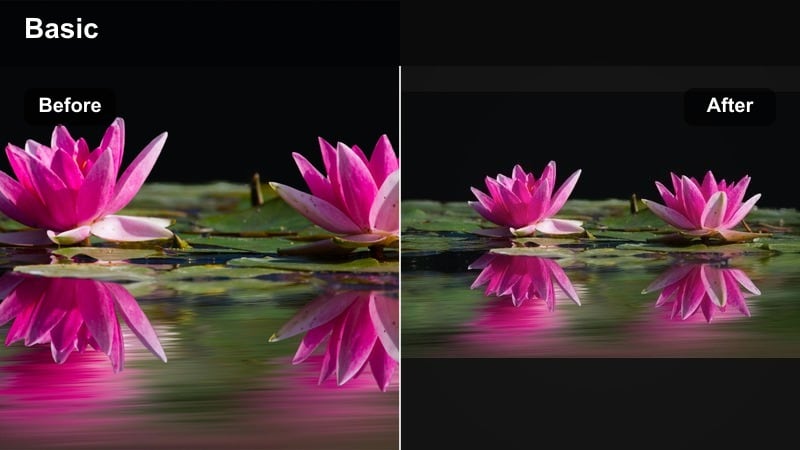
- Effect look: Deep reds and burgundies in highlights with rich, inky shadows, evoking passion, danger, or nightlife intensity.
- Best for: Clubs, concert venues, performance spaces, and narrative scenes that rely on red practical lighting.
- Editing tip: Protect skin tones by limiting red saturation in the orange range while allowing pure reds to stay bold and dramatic.
Crimson Nightfall pushes red highlights to the forefront, ideal for stages, clubs, and performance visuals. In Filmora, the filter deepens shadows and intensifies red light sources while giving the rest of the palette a darker, more mysterious character.
Use it whenever red spotlights, neon, or signage play a key narrative role. After applying, adjust HSL and skin-tone ranges to prevent faces from turning overly red, so the environment carries most of the saturated drama while characters remain readable.
Twilight Grain
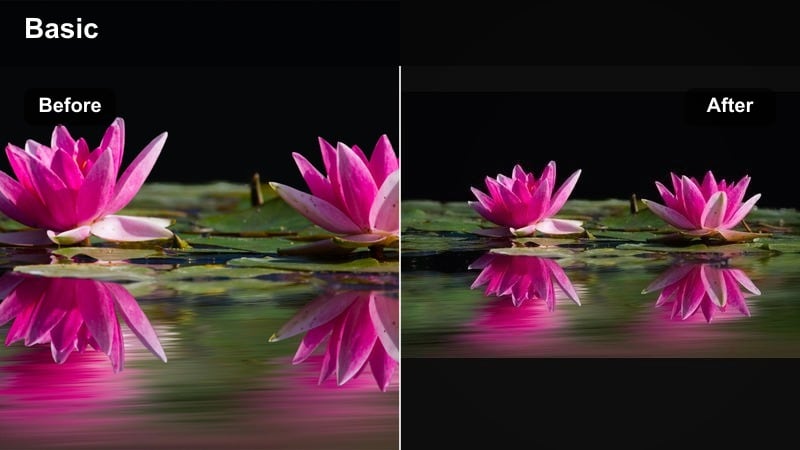
- Effect look: Soft contrast with a filmic grain overlay and gentle purple-blue split, reminiscent of pushed twilight film stocks.
- Best for: Indie-style city vignettes, handheld night walks, and narrative scenes inspired by analog aesthetics.
- Editing tip: Keep ISO noise in-camera moderate, then let the filter’s controlled grain unify the texture across shots.
Twilight Grain adds a nostalgic film-style texture with a subtle purple-blue split tone, perfect for indie nights and city montages. In Filmora, it softens contrast and lays a controlled grain layer over the image, masking small digital artifacts and giving footage a more analog feel.
Apply it across sequences shot on different cameras to unify noise and sharpness characteristics. Fine-tune grain size and intensity based on your resolution, and pair the look with gentle vignettes and slow camera movement to enhance the dreamy twilight mood.
Tips for Using Night Moody Filters in Filmora
- Expose slightly brighter in-camera at night and use filters to darken in post, preserving detail in shadows.
- Shoot around practical lights like street lamps and storefronts so moody night filters have defined highlights to work with.
- Keep white balance consistent across shots before grading to avoid color jumps when applying the same filter.
- Use subtle vignettes with night filters to focus attention on faces and key details in dark compositions.
- Watch noise levels in deep shadows; combine light denoising with film-style grain instead of over-smoothing the image.
- Test several Filmora night filters on the same clip, then save your favorite adjustments as a custom preset for faster grading later.
- Use masks to protect skin tones when pushing intense colors like cyan shadows or red highlights in moody grades.
- Match contrast and saturation across wide shots and close-ups so your night scenes feel cohesive from cut to cut.
Moody night video filters in Filmora give photographers and filmmakers a fast way to turn ordinary low-light footage into atmospheric, story-driven dark evening scenes.
Experiment with different presets, then fine-tune exposure, contrast, and color temperature so your night visuals feel intentional, cohesive, and true to the emotion of each moment.
secure downloadNext: Explore Night Warm Filter Looks for Cozy Evening Scenes
