

 100% Security Verified | No Subscription Required | No Malware


 ChatGPT
 Perplexity
 Gemini
 Claude
 Grok
Grok
Warm outdoor video filters are perfect for hikers and travelers who want their footage to feel like a golden adventure instead of a flat, gray memory. By adding subtle amber tones and soft contrast, your outdoor clips can look like they were filmed during the perfect golden hour, even if you shot them at midday.
With Filmora’s Warm Outdoor Filter. Golden Adventure preset and other warm looks, you can enhance skin tones, deepen sunlight, and give trails, campfires, and mountain views a cinematic glow that still feels natural for outdoor activities and hiking stories.
In this article
Golden Outdoor Adventure Filters
Warm Outdoor Filter. Golden Adventure
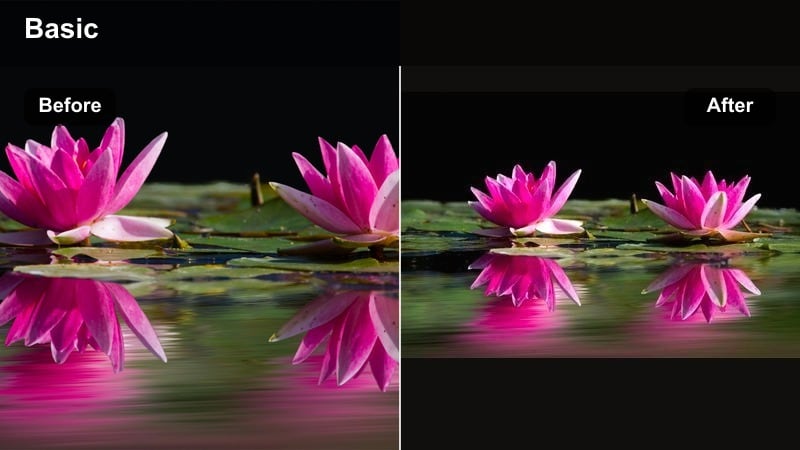
- Effect look: Rich golden-hour glow with warm highlights and gently lifted shadows
- Best for: Sunset hikes, golden ridge lines, warm city walks during travel
- Editing tip: Lower intensity to 60–70 percent if skin tones start to look too orange in harsh sunlight.
This signature warm outdoor preset wraps your hiking and travel clips in a cinematic golden adventure feel. It adds a rich amber tint to highlights and gently lifts the shadows so trails, rocks, and backpacks keep detail instead of turning muddy.
In Filmora, apply Warm Outdoor Filter. Golden Adventure from the filters panel, then fine-tune its intensity slider to match your footage. For mid-day or harsh-lit hikes, lower the strength so skin tones stay natural while your landscapes still pick up that golden-hour glow.
Pro tip - Balance Golden Glow with Natural Greens
If the filter pushes greens toward yellow, slightly reduce saturation in the yellow channel to keep forests and grass looking believable.
Combine this preset with a subtle vignette and a bit of clarity to make your subject stand out on winding hiking paths and ridgelines.
Use AI to Build a Warm Outdoor Color Palette
Filmora’s AI tools can quickly analyze your hiking and travel clips to create a consistent warm outdoor mood across your entire edit. This is especially helpful when your adventure includes both cloudy forest footage and blazing golden summits.
Start with the Warm Outdoor Filter. Golden Adventure preset, then use AI-driven color matching to synchronize warmth, contrast, and saturation from clip to clip. Your whole hiking playlist will share the same cohesive golden look without manual tweaking for every shot.
 secure download

Preview Warm Outdoor Filters in One Click
Filmora’s filter panel lets you hover and preview warm outdoor video filters directly on your hiking clips before you commit. You can quickly see how different warm styles affect skin tones, skies, and foliage without changing your timeline permanently.
Stack multiple warm looks, compare them side by side, and adjust intensity so every moment from trailhead to summit keeps the same golden outdoor feeling. This makes it easy to build a visual style for your entire adventure vlog.
secure downloadCombine Warm Filters with LUTs for Cinematic Trails
After you dial in a warm outdoor filter in Filmora, layering a subtle LUT can add film-style contrast and depth to your hiking footage. This combination keeps your golden base intact while adding more cinematic polish.
Keep LUT strength low so detail in forests, skies, and rocky peaks stays visible. Then refine highlights and shadows with Filmora’s color tools to avoid crushed blacks or blown-out clouds on your summits.
secure downloadSoft Golden Path
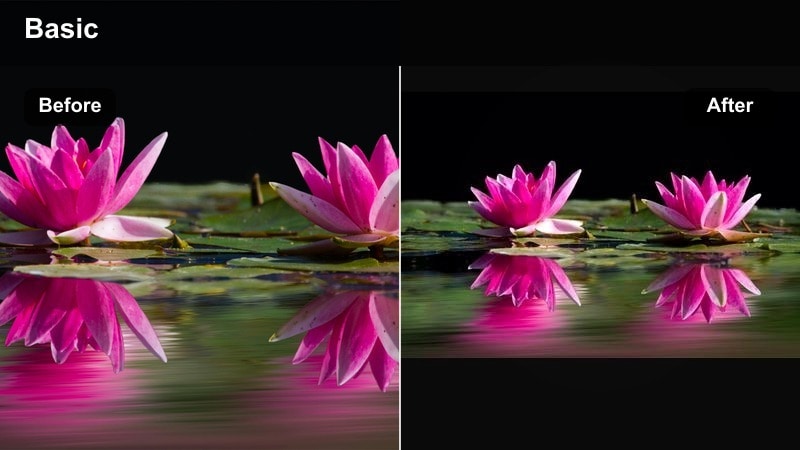
- Effect look: Delicate amber warmth with soft contrast and gentle haze in the highlights
- Best for: Early-morning trail walks, misty forest paths, calm camping scenes
- Editing tip: Add a slight fade in the blacks to enhance the dreamy mood, but keep midtones crisp so hikers remain defined.
Soft Golden Path gives your outdoor trails and forest walks a calm, romantic atmosphere. It adds a light amber wash to highlights and builds a subtle haze that makes fog, backlit leaves, and morning light feel more magical.
In Filmora, pair this filter with a gentle fade in the blacks and slightly boosted midtone sharpness. This keeps hikers, tents, and backpacks defined while the background takes on a dreamy, nostalgic glow that suits slow, reflective trail moments.
Pro tip - Use Haze to Guide the Eye
Increase highlight glow slightly above default to simulate light rays through trees and lead the viewer’s eyes along the path.
If the scene starts to lose depth, add a touch of local contrast on your subject so they do not disappear into the haze.
Amber Peak Glow
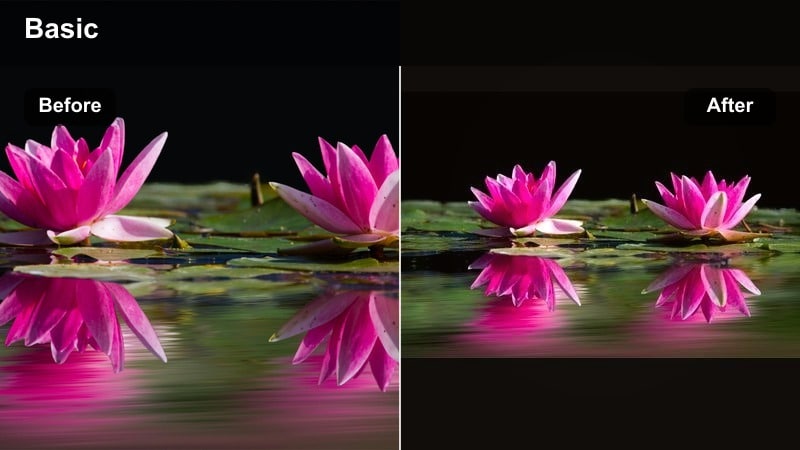
- Effect look: Bold amber highlights with deeper shadows for dramatic mountainscapes
- Best for: High-altitude hikes, sunrise summits, rocky viewpoints above the clouds
- Editing tip: Dial back contrast if your shadows crush important trail details, especially in rock faces and distant ridges.
Amber Peak Glow is built for dramatic mountain scenery, pumping strong amber into sunlit peaks and clouds while deepening shadows for extra contrast. It makes sunrise or sunset summits feel epic and cinematic.
Use it in Filmora on wide summit reveals, drone shots above ridges, and time-lapses of the sun rising over peaks. If rocks or paths lose detail, pull back overall contrast or raise shadow levels to keep your trail still visible in the darker areas.
Pro tip - Protect Detail in High-Contrast Scenes
Use highlight and shadow recovery before applying heavy contrast so snow, clouds, and rocks remain textured.
Fine-tune warm tones in the midtones range to keep the golden mood while preserving cooler blue detail in distant landscapes.
Warm Filters for Trails and Forests
Rustic Forest Warmth
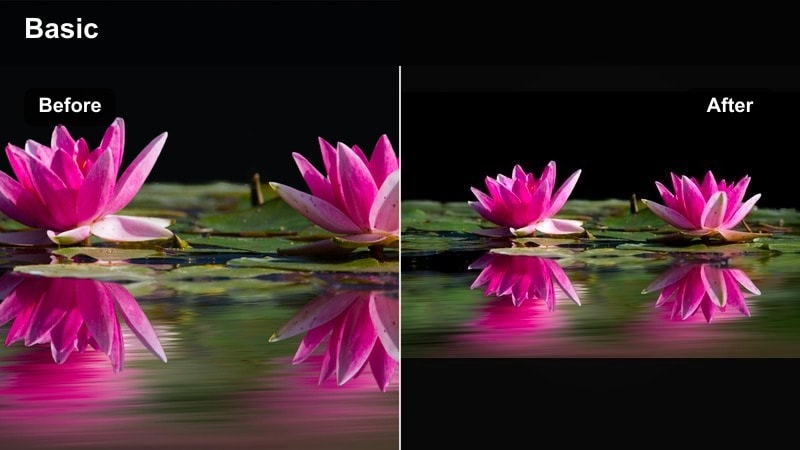
- Effect look: Earthy browns and warm greens with slightly muted highlights
- Best for: Dense forests, muddy trails, wooden bridges, autumn hikes
- Editing tip: Reduce green saturation slightly to avoid neon foliage, then raise luminance so leaves feel airy, not heavy.
Rustic Forest Warmth emphasizes browns, wood textures, and grounded warm greens to bring out the character of forest hikes. It tones down harsh highlights through the canopy and gives damp trails and tree trunks a cozy, earthy feel.
In Filmora, apply this filter to forest bridges, river crossings, and leaf-covered paths. Use the color controls to gently reduce neon greens and lift their luminance, so foliage feels bright and natural instead of cartoonish.
Pro tip - Keep Skin Natural Under the Trees
When foliage reflects onto faces, use a skin-tone mask to keep complexions neutral while leaving the overall scene warm.
If faces look muddy, lift midtones slightly and add a subtle touch of vibrance instead of global saturation.
Campfire Amber Glow
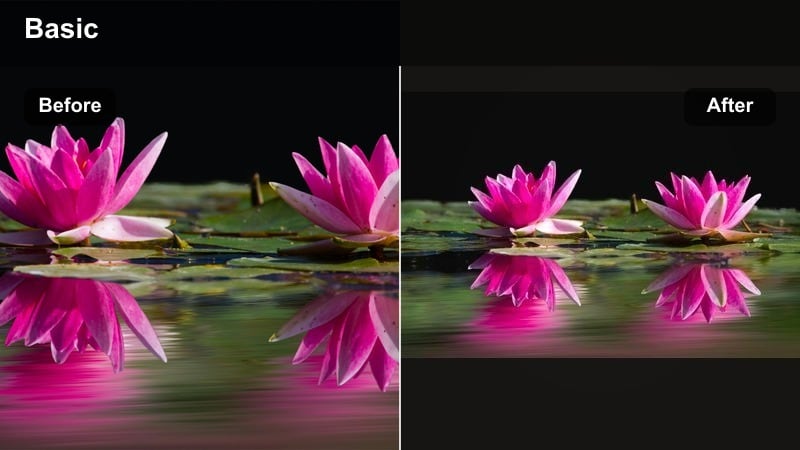
- Effect look: Strong amber oranges and deep cozy shadows around light sources
- Best for: Campfire stories, mountain cabins, evening rest stops on long hikes
- Editing tip: Lower saturation in reds if flames clip or look oversaturated, and protect shadow detail so faces stay visible.
Campfire Amber Glow is designed for night camps and low-light storytelling shots. It wraps firelight in rich amber, deepens surrounding shadows, and makes faces around the flames feel cozy and intimate.
Inside Filmora, use this filter on campfire sequences, lantern-lit cabin scenes, and nighttime cooking clips. Adjust red saturation and shadow detail until flames look natural and your friends’ faces stay readable without losing the deep, nighttime atmosphere.
Pro tip - Use Warmth to Shape the Scene
Increase warmth only in highlight and midtone ranges so the firelight feels strong without turning the entire frame orange.
Add a gentle vignette to focus attention on faces and flames, but keep enough detail in the background to show the campsite context.
Sun-Dappled Trail
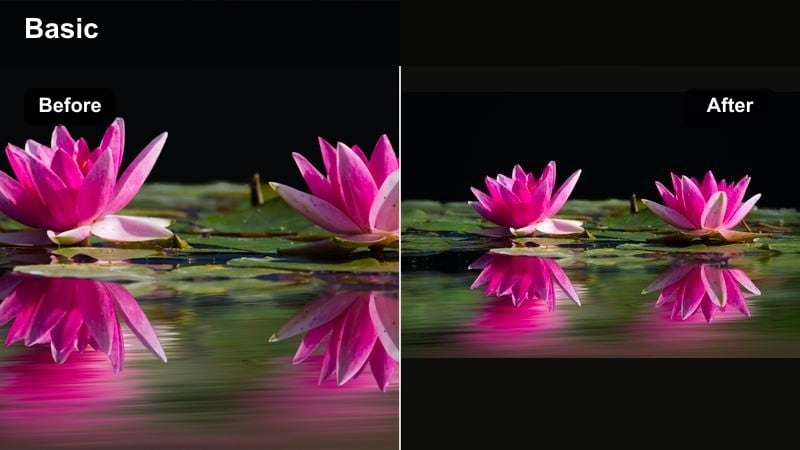
- Effect look: Warm highlights and slightly cool shadows for balanced depth on trails
- Best for: Tree-lined paths, switchbacks, mixed sun and shade hiking scenes
- Editing tip: Use curves to keep highlight patches from clipping while preserving crisp texture on rocks and dirt.
Sun-Dappled Trail is built for clips with alternating sun and shade, such as wooded switchbacks and tree tunnels. It warms up bright spots on the ground and foliage, while keeping shaded areas slightly cooler for natural depth.
Apply it in Filmora when your scene has uneven patches of sunlight. Use curves and exposure controls to tame any blown-out highlights on rocks or sunlit dust, keeping texture visible while the bright spots still feel warm and inviting.
Pro tip - Tame Patchy Lighting
If the scene has uneven exposure, apply a gentle exposure adjustment before adding the filter to avoid harsh jumps in brightness.
You can also use a gradient mask on the ground to subtly brighten the path and direct the viewer’s eye forward.
Warm Filters for Summits and Big Skies
Golden Ridge Runner
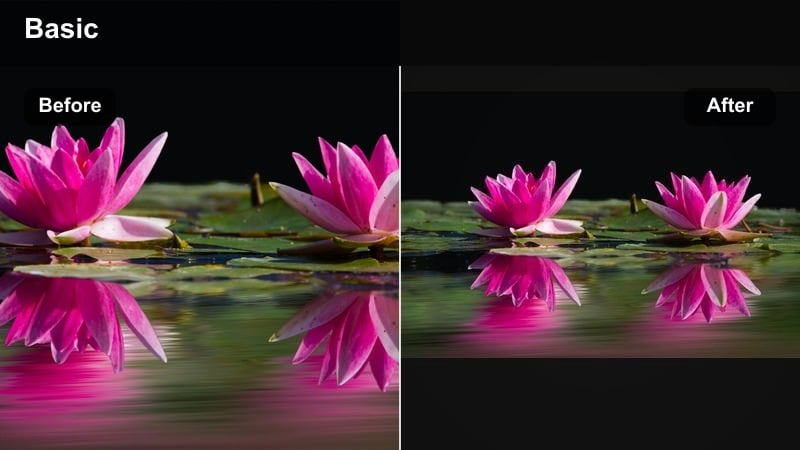
- Effect look: Crisp warm midtones with clear skies and defined ridgelines
- Best for: Trail running on ridges, open plateaus, wide drone shots of hikers
- Editing tip: Add a small boost to clarity and texture on rocks while keeping skies soft to highlight the runner.
Golden Ridge Runner gives your ridge adventures a clean, athletic warmth. It boosts warm midtones in terrain and skin, while keeping skies clear and slightly softer so the action on the ridge stands out.
Use this filter in Filmora on running shots, fast hikes, and drone passes along exposed ridgelines. Combine it with moderate clarity and texture on rocks so the terrain looks sharp and dynamic, while the sky remains smooth and distraction-free.
Pro tip - Highlight Motion Without Noise
Avoid over-sharpening; instead, boost midtone contrast so movement feels dynamic without introducing grain into the sky.
If your drone shots show too much haze, add a light dehaze before the filter so the warm tones stay clean and clear.
Sunset Ridge Ember
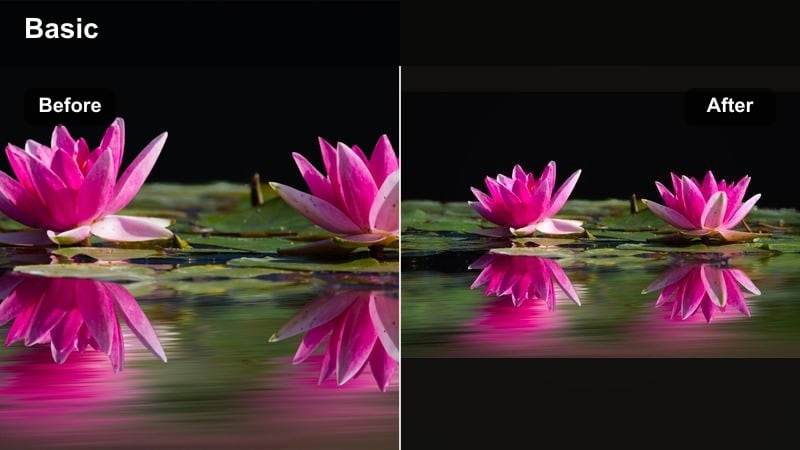
- Effect look: Deep orange-pink gradient in the sky with warm silhouettes on the horizon
- Best for: Sunset ridge lines, silhouettes of hikers, farewell-to-the-day shots
- Editing tip: If the sky becomes too intense, slightly reduce saturation in magentas and oranges while keeping luminance high for glow.
Sunset Ridge Ember is focused on dramatic sky color, turning clouds and horizons into glowing orange-pink embers. It enhances silhouettes of hikers and peaks, making your end-of-day shots feel like cinematic closing scenes.
Apply it in Filmora to ridge walks at dusk, farewell group poses, and slow pans across fiery skies. If colors start to look oversaturated, back off magenta and orange saturation while maintaining brightness so the sky stays luminous without banding.
Pro tip - Preserve Gradient Detail in the Sky
Work with a slightly lower contrast curve to prevent banding and keep smooth color transitions in the sunset gradient.
If horizon details disappear, lift shadow detail slightly so rocks and distant trees remain visible against the sky.
Amber Cloud Walk
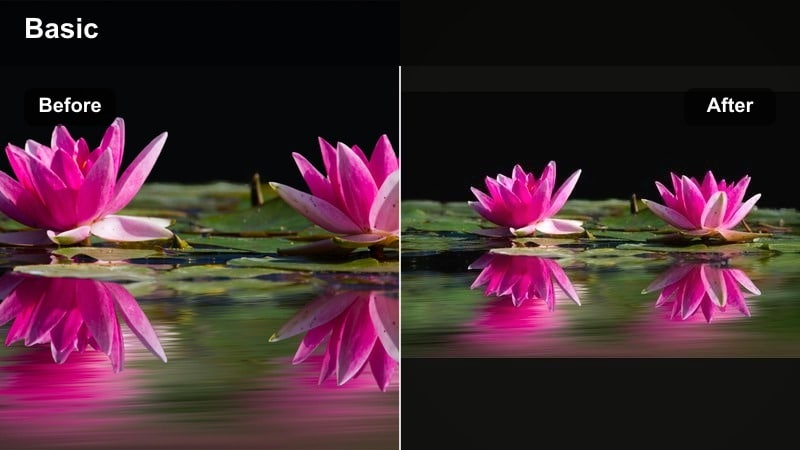
- Effect look: Soft amber wash across clouds with gentle warmth in highlights
- Best for: Cloudy-day hikes, ridge walks in overcast weather, moody travel views
- Editing tip: Increase vibrance instead of saturation to keep cloud detail natural while adding warmth to the overall frame.
Amber Cloud Walk transforms gray, overcast skies into softly glowing, cinematic backdrops. It adds a light amber wash to clouds and warms highlights just enough to lift the mood without losing the moody character of a cloudy hike.
Use it in Filmora for overcast ridge walks, coastal trails, or city-to-trail transitions on cloudy days. Boost vibrance more than saturation to preserve cloud texture and avoid flat, washed-out skies while still warming the overall scene.
Pro tip - Lift Mood on Overcast Days
Start by slightly lifting exposure and midtones before adding warmth so the scene feels inviting, not flat.
Use selective color controls to keep blues in distant mountains while warming only the cloud and skin-tone ranges.
Warm Filters for Travel and Lifestyle Moments
City-to-Trail Warmth
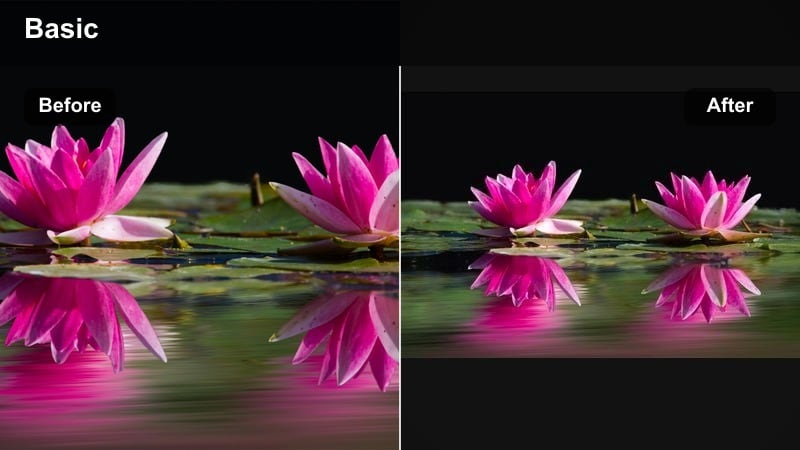
- Effect look: Balanced street and nature warmth with gentle contrast and clean whites
- Best for: Travel transitions from urban streets to hiking trails and nature spots
- Editing tip: Use keyframes to slightly adjust warmth as you cut from city scenes to mountains so the transition feels intentional.
City-to-Trail Warmth keeps both urban shots and outdoor clips looking cohesive in a single travel story. It adds a controlled warmth that works on concrete, buildings, and trail landscapes while protecting whites from turning orange.
In Filmora, apply this filter across your entire vlog, then keyframe minor warmth changes between city and mountain segments. Adjust exposure and white balance per scene so everything shares the same inviting, golden tone without losing natural color accuracy.
Pro tip - Match Mixed Locations in One Story
Apply this filter as a base look to all clips, then fine-tune exposure and white balance per scene so the overall warmth stays consistent.
Keep whites neutral in signs, clouds, and building details to avoid an artificial orange cast in city sequences.
Backpacker’s Golden Journal
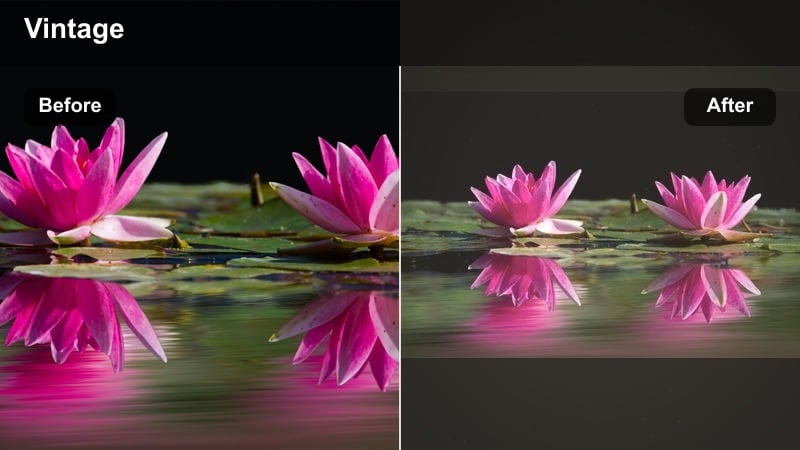
- Effect look: Soft vintage-style warmth with slightly faded blacks and gentle grain
- Best for: Travel diaries, handheld hiking clips, journal-style storytelling
- Editing tip: If footage is already noisy, reduce or disable grain inside the preset to keep the image clean on low-light shots.
Backpacker’s Golden Journal adds a nostalgic, diary-like touch to your hiking videos. With soft warmth, lightly faded blacks, and gentle grain, it makes your adventures feel like memories captured on old film.
Use it in Filmora on vlog entries, handheld point-of-view shots, and reflective moments at overlooks. If your camera footage is already noisy, dial down the grain component so the look stays intentional and cinematic rather than messy.
Pro tip - Use Warmth to Enhance Storytelling
Combine this filter with slower cuts and natural sound to emphasize reflective moments in your hiking journeys.
If faces appear too flushed, slightly cool the temperature while leaving the faded contrast and grain intact.
Golden Trail Companion
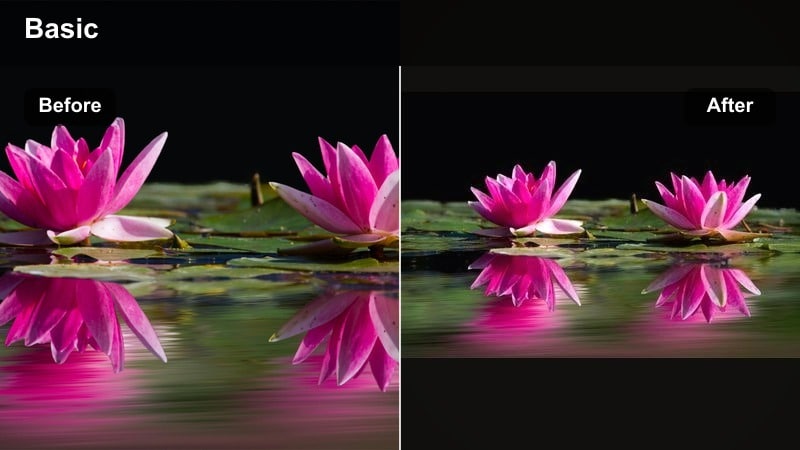
- Effect look: Clean warm midtones that flatter skin tones and outdoor gear colors
- Best for: Talking-to-camera trail updates, gear reviews on location, group hiking shots
- Editing tip: Apply light face smoothing and lift exposure slightly on close-ups to keep hikers looking fresh and well-lit.
Golden Trail Companion is tuned for faces, making it ideal for vlogs and to-camera updates on the trail. It adds a gentle warmth that flatters skin and gear colors without pushing tones too red or orange.
In Filmora, apply this filter to interviews, gear breakdowns, and group selfies. Combine it with subtle face smoothing and a small exposure lift on close-ups so everyone looks fresh, bright, and ready for the next climb.
Pro tip - Prioritize Skin Tones in Outdoor Vlogs
Use a skin-tone mask to slightly reduce saturation just on faces if the overall scene needs strong warmth for the environment.
Add light background blur or reduce sharpness behind the subject so viewers stay focused on your story, not the busy trail.
Tips for Using Outdoor Warm Filters in Filmora
- Shoot slightly cooler in-camera and add warmth later with filters to avoid locked-in orange footage.
- Use keyframes to gradually increase warmth as you approach sunset for a more natural transition.
- Lower overall saturation when applying strong amber filters on brightly colored hiking gear.
- Keep an eye on skin tones and adjust midtones first if faces start looking too red or orange.
- Save custom warm presets for specific locations so you can quickly match color on return trips.
- Balance warm highlights with neutral shadows to keep depth and avoid a flat, monochromatic look.
- Test your warm grade on both phone and desktop screens to make sure it feels natural everywhere.
- Combine warm filters with subtle vignettes to guide the viewer’s eye toward hikers and trail details.
Warm outdoor video filters are a simple way for hikers and travelers to turn raw trail clips into golden, story-driven adventure films.
Start with the Warm Outdoor Filter. Golden Adventure preset in Filmora, then tweak intensity, contrast, and color balance so every hike, camp, and summit moment feels naturally warm and memorable.
secure downloadNext: Explore Cool Outdoor Video Filters for Crisp Mountain Air
