

 100% Security Verified | No Subscription Required | No Malware

Selfie video filters for Instagram can turn quick Stories and everyday selfie updates into polished, on-brand content without heavy editing. The right filters keep your skin natural, your features flattering, and your overall feed cohesive.
Below are 12 creator-friendly selfie video filters inspired by Filmora’s style options, designed for Instagram creators and lifestyle influencers who want a soft social glow, clean aesthetics, and fast, repeatable looks for Stories and Reels.
In this article
Soft Natural Glow Filters for Everyday Selfie Videos
Sunlit Porch Glow
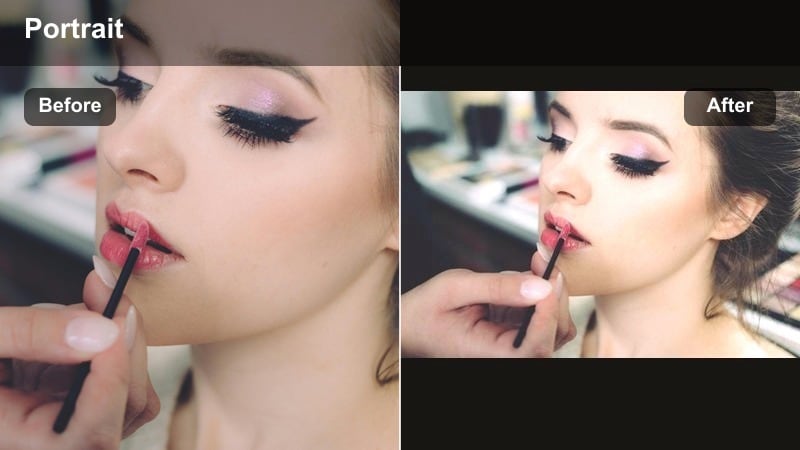
- Effect look: Soft skin smoothing with warm highlights that mimic late-afternoon sun on your face.
- Best for: Casual talking Stories, cozy lifestyle check-ins, and coffee chat selfie updates.
- Editing tip: Lower intensity to around 60% if you are near a window to avoid over-bright foreheads and cheeks.
Sunlit Porch Glow wraps your face in a subtle golden-hour warmth, smoothing skin just enough to soften fine lines while keeping features clear. The warm highlights act like a built-in window light booster, so your selfie videos feel inviting and flattering without looking obviously filtered.
In Filmora, apply this look to front-camera clips shot near natural light, then gently dial back the effect when your forehead or cheeks start to look too shiny. Combine the filter with mild exposure tweaks and Filmora masks to keep most of the warmth on your face, while toning it down in the background if walls or decor start turning too yellow.
Keep Your Selfie Colors Consistent With AI-Powered Palettes
Filmora’s AI tools help you keep skin tones and background colors consistent across your selfie videos, so every Story and Reel feels like it belongs on the same feed. When you are testing warm filters like Sunlit Porch Glow, AI can quickly align clips shot on different days or in slightly different lighting.
Once you find a selfie video filter that matches your brand, save it as a preset and then use AI color matching to apply a similar palette to future clips. Even if you record in new locations or at different times of day, your Instagram aesthetic will remain cohesive and on-brand.
Open Filmora, import three to five of your favorite selfie shots, and let AI guide you toward a palette that fits your Instagram aesthetic.
 secure download

Preview Selfie Filters on Multiple Clips Before Posting
Instead of guessing how a filter will look in motion, use Filmora to apply it to a short sequence of clips that includes both close-up and mid-shot selfies. Testing on different angles and distances helps you see whether smoothing, warmth, and contrast stay flattering from hook to outro.
This quick demo pass lets you confirm that skin tones look natural, your background stays on-brand, and there are no surprises once the video is uploaded to Instagram. You can fine-tune intensity or color with Filmora’s controls before you commit the look to your next batch of Stories or Reels.
Drag three recent selfie clips into a Filmora timeline, apply a filter preset, and watch them back vertically to see how they will feel in Stories or Reels.
secure downloadTurn Your Favorite Selfie Filter Into a Reusable LUT
If you land on a perfect selfie look in Filmora, you can translate those color decisions into a LUT-style preset that is simple to reuse in future edits. Once saved, this reusable style keeps your skin tone, contrast, and background colors aligned every time you shoot.
Over time, using the same LUT-like filter for your face content creates a recognizable visual identity that followers instantly connect with your profile. You can still tweak exposure or intensity per clip, but the overall selfie Instagram social vibe will stay consistent.
Save your most flattering selfie adjustments as a custom preset in Filmora so you can reapply the same vibe with one click on every new Instagram video.
secure downloadBare Skin Real
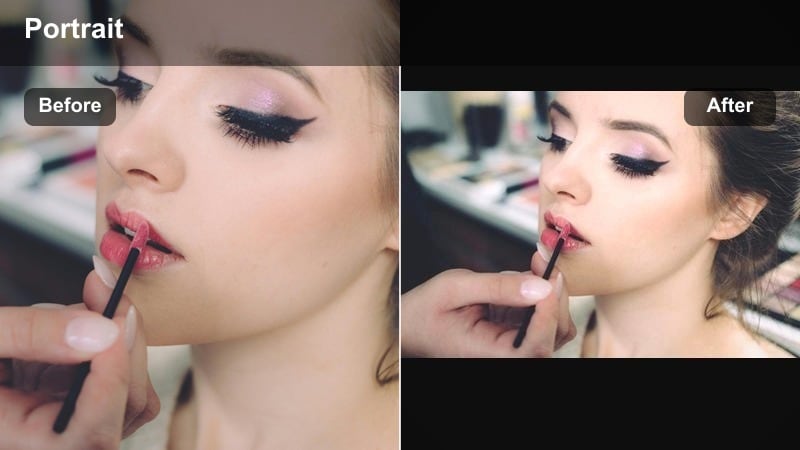
- Effect look: Ultra-light skin blurring with neutral tones that keep freckles, texture, and pores visible.
- Best for: Authentic vlog-style selfie videos, GRWM updates, and mental health or real-talk Stories.
- Editing tip: Pair with a tiny contrast boost so your eyes pop while your skin still feels honest and unfiltered.
Bare Skin Real keeps your selfie videos grounded and authentic by preserving freckles, pores, and natural texture while only gently softening edges. It is ideal when you want to show up as yourself, but still smooth out the harsher lines that smartphone cameras can exaggerate.
Inside Filmora, combine this filter with small boosts to contrast or clarity focused around your eyes, while leaving cheeks and forehead mostly untouched. This balance makes your gaze and expressions stand out on Instagram without losing the raw, relatable feel that builds trust with your audience.
Soft Bedroom Mist
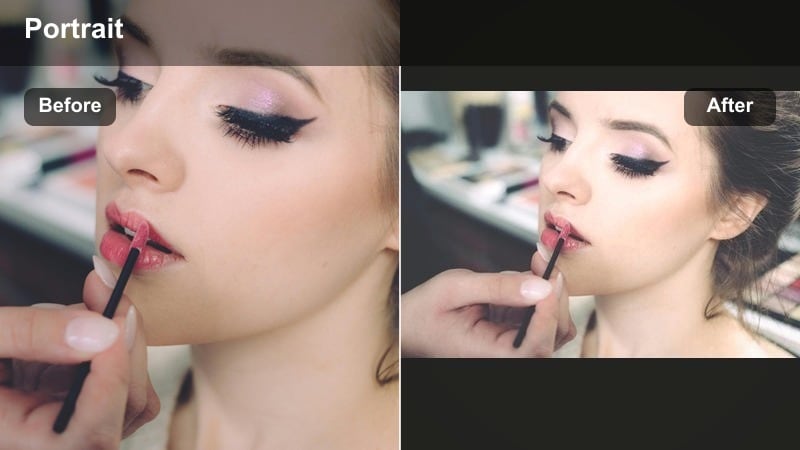
- Effect look: Low-contrast, slightly hazy filter that adds a gentle pastel softness across the frame.
- Best for: Morning-in-bed selfie clips, night skincare routine Stories, and calm check-ins.
- Editing tip: Lower sharpness by a small amount in Filmora and keep noise reduction light so the misty look does not turn muddy.
Soft Bedroom Mist lays a subtle haze over your selfie frame, dialing down contrast to create a soft-focus, diary-style atmosphere. It works especially well in low-key bedroom scenes or slow morning routines where you want everything to feel gentle and low pressure.
In Filmora, reduce overall sharpness slightly so the haze feels intentional, then use masking or keyframing to keep a touch more detail in the eyes. This way, your audience can still connect with your expression while the rest of the frame floats in a calm, pastel softness that suits self-care and nightly wind-down content.
Clean Aesthetic Filters for On-Brand Selfie Feeds
Neutral Feed Polish
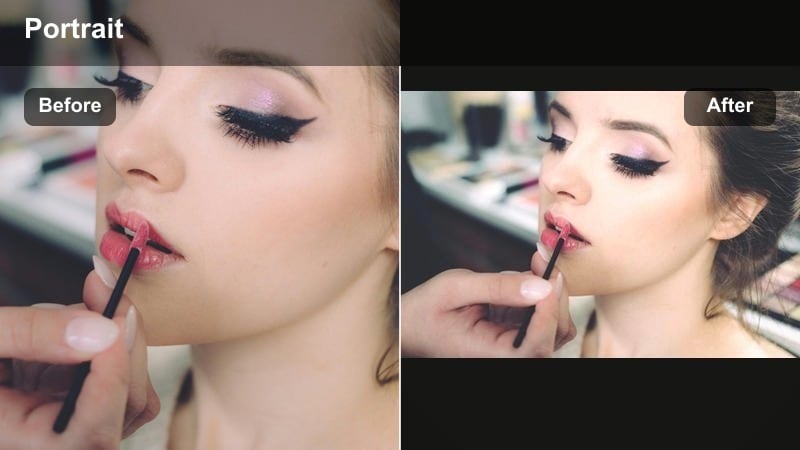
- Effect look: Balanced whites, soft contrast, and very light skin smoothing for a clean, editorial feel.
- Best for: Feed-facing selfie videos, pinned Story Highlights, and brand collabs that need a consistent aesthetic.
- Editing tip: Lock your white balance in-camera, then apply this filter so every selfie Story stays consistent with your grid.
Neutral Feed Polish gives your selfie clips a bright, editorial finish with soft contrast and clean whites, helping them blend seamlessly into a carefully curated Instagram grid. Skin looks refined but not plastic, which is ideal for collabs, sponsored mentions, and Stories you plan to highlight.
In Filmora, apply this filter across a batch of clips and use color tools to keep whites neutral rather than blue or yellow. Once you like the result, save it as a preset so every new selfie video for brand work or highlight covers maintains the same professional, on-brand tone.
Soft Beige Editorial
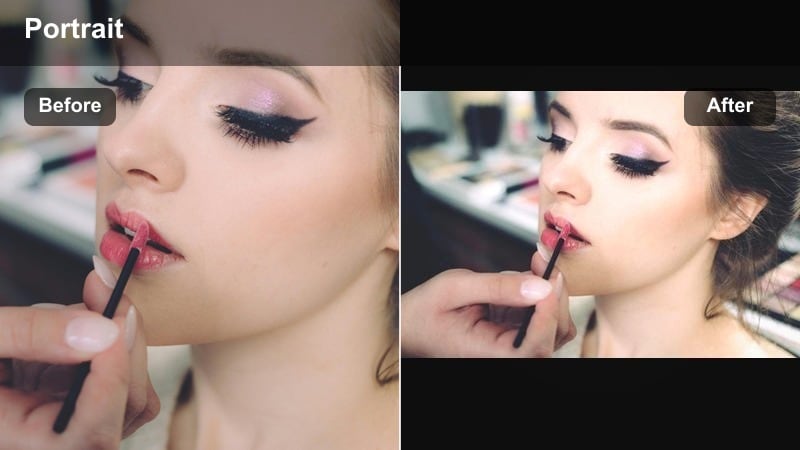
- Effect look: Beige-tinted highlights and slightly desaturated colors for a minimal, fashion-mag vibe.
- Best for: OOTD mirror selfies, outfit breakdown Reels intros, and aesthetic Story sequences.
- Editing tip: Desaturate strong reds and blues just a touch in Filmora to keep the beige mood from clashing with bold colors.
Soft Beige Editorial leans into neutral tones, turning bright scenes into calm, magazine-style frames with creamy highlights and gently muted colors. It is especially flattering for fashion content, where beige, white, and camel pieces become the quiet stars of your selfie videos.
Use Filmora’s HSL or color adjustments to tease down loud reds and blues so they do not steal attention from the beige aesthetic. Apply this filter to mirror selfies, outfit explainers, and aesthetic room shots to give your followers a continuous, minimal mood across Stories and Reels.
Cool Loft Minimal
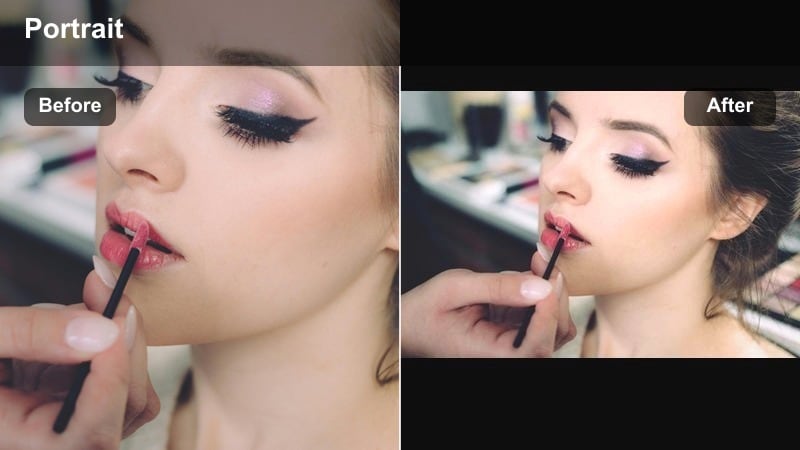
- Effect look: Cool whites, crisp edges, and subtle clarity for a modern, city-apartment aesthetic.
- Best for: Techy creator intros, desk setup Stories, and apartment tour selfie commentary.
- Editing tip: Nudge shadows slightly up in Filmora so your background does not become too harsh against your face.
Cool Loft Minimal shifts your selfie videos into cleaner, cooler territory, perfect for creators who film in white-walled apartments or minimalist studios. The added clarity and crispness make your space feel intentional and styled, even if you are just shooting beside your desk.
Inside Filmora, lift the shadows lightly so your features do not disappear against darker furniture or window frames, and keep saturation modest to emphasize line and structure. This filter pairs well with workspace tours, remote work updates, and any content where you want your environment to look as curated as your outfit.
Social Beauty Filters and Story Selfie Effects
Story Beauty Balance
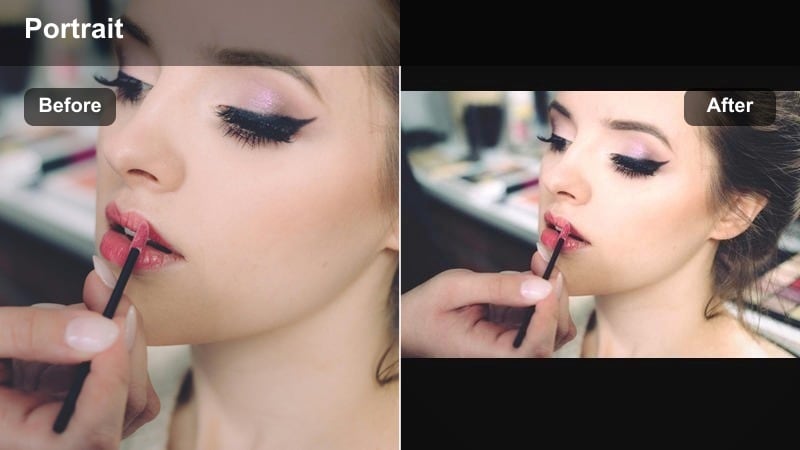
- Effect look: Balanced skin smoothing, eye clarity, and lip subtlety for everyday social beauty.
- Best for: Daily face Stories, Q&A bubbles, and quick updates where you want to look put together fast.
- Editing tip: Keep sharpening focused around eyes and brows while leaving cheeks softer for a believable beauty look.
Story Beauty Balance is your everyday social beauty filter, adding gentle polish to skin while quietly lifting eyes and lips. It is designed for quick selfie clips when you want to look awake and camera-ready without spending time on full glam or detailed color grading.
In Filmora, pair this filter with selective sharpening on the eyes and brows using masks or adjustment layers. Keep the effect strength moderate so skin still looks like skin on Instagram Stories; that way your audience sees a polished version of you that is still realistic and trustworthy.
Blush Story Pop
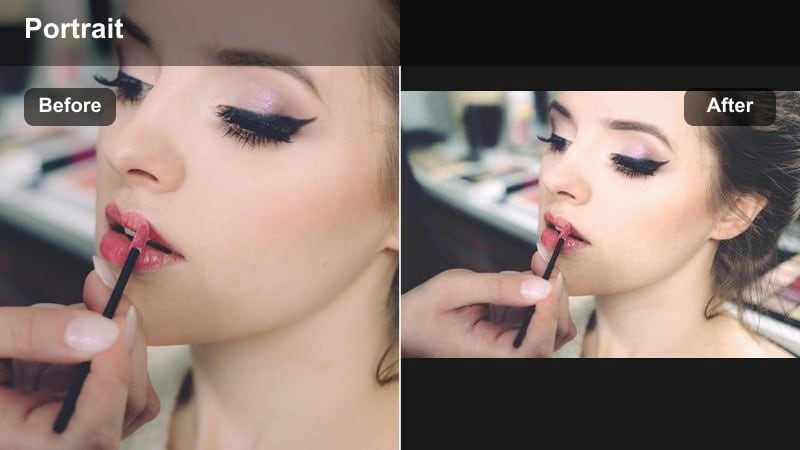
- Effect look: Soft pink lift in midtones that mimics fresh cream blush and a hint of lip tint.
- Best for: Playful selfie updates, close-up product mentions, and GRWM Story segments without full makeup.
- Editing tip: If your skin pulls too red, reduce saturation in reds and oranges while keeping the filter glow intact.
Blush Story Pop adds a gentle rosy tint to your cheeks and lips, creating a healthy, just-applied-cream-blush look even on no-makeup days. It works well for close, chatty Stories where you want more life and color in your face without worrying about detailed beauty routines.
Use Filmora’s color controls to tame reds and oranges if you notice your skin leaning too warm or flushed, especially under strong lighting. Applied at a moderate intensity, this filter gives your selfie videos an instant soft glam glow that still feels casual enough for everyday posting.
Smooth Social Focus
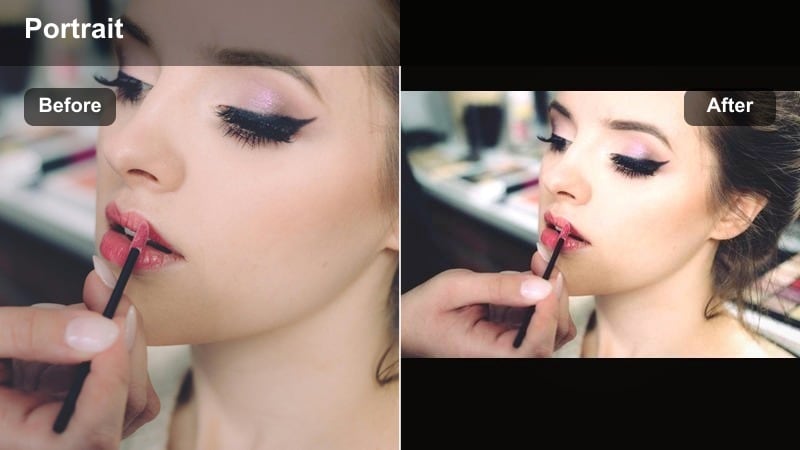
- Effect look: Subtle background de-emphasis with slightly stronger face smoothing to keep attention on you.
- Best for: Busy location Stories, event check-ins, and selfie clips in cluttered rooms.
- Editing tip: Use Filmora’s background blur or vignette lightly to complement the filter without making the shot look fake.
Smooth Social Focus helps your face stand out by gently downplaying busy backgrounds and adding a bit more polish to your skin. It is ideal when you are filming in cafes, events, or messy rooms and want viewers locked on your expression rather than the clutter behind you.
In Filmora, lightly stack this filter with a soft background blur or vignette to strengthen the separation between you and your surroundings. Keep these effects subtle enough that movement and detail still feel natural, so the final Instagram Story or Reel looks elevated but not obviously edited.
Reels-Ready Selfie Video Filters With Extra Pop
Reels Cinematic Selfie
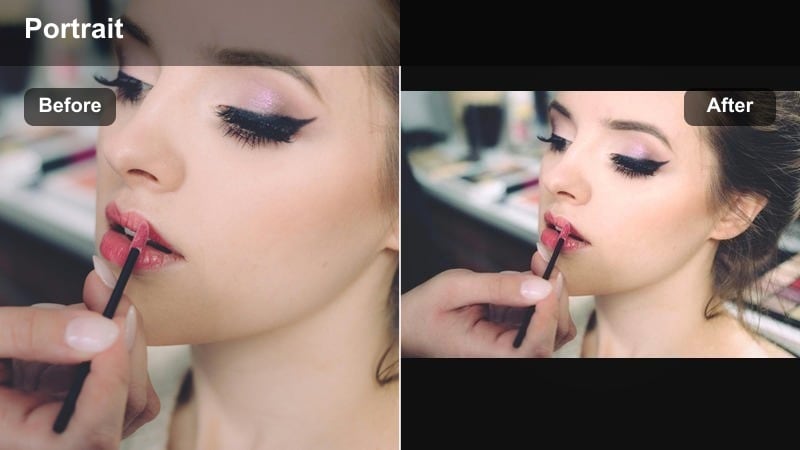
- Effect look: Slight letterbox vibe with moody contrast and refined skin tones for cinematic selfie storytelling.
- Best for: Voiceover Reels, day-in-the-life intros, and storytelling selfie hooks.
- Editing tip: Layer gentle film grain in Filmora for vertical Reels so the cinematic look feels intentional, not overly filtered.
Reels Cinematic Selfie pushes your vertical videos toward a filmic look, deepening contrast and refining skin tones while suggesting a subtle letterbox feel. It suits narrative Reels where you open with an emotional or intriguing selfie shot before cutting to B-roll.
Within Filmora, combine this filter with a light film grain overlay and careful exposure control so shadows stay rich but not muddy on mobile screens. Use it on your first two or three clips in a Reel to hook viewers instantly, then maintain similar color and contrast through the rest of the sequence for a cohesive cinematic story.
Vibrant Weekend Stories
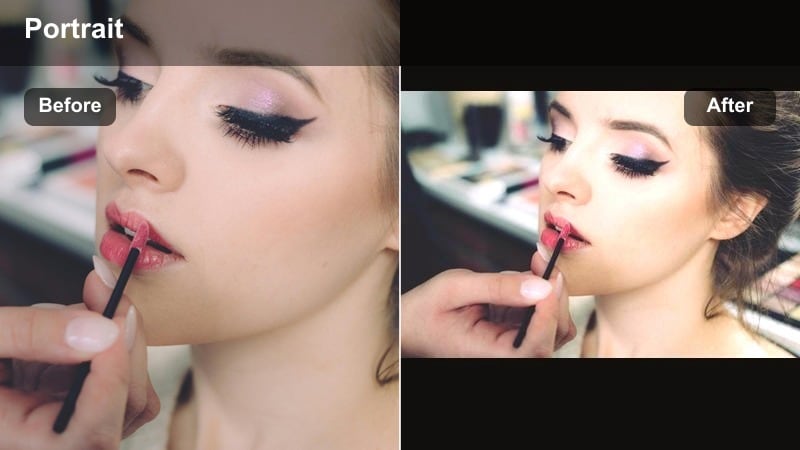
- Effect look: Punchy saturation and bright warmth that make skin glow and backgrounds feel energetic.
- Best for: Weekend recap Reels, brunch selfie clips, and outdoor event Stories.
- Editing tip: Pull back saturation in greens to stop grass and trees from overpowering your face in outdoor shots.
Vibrant Weekend Stories amps up saturation and warmth so every clip feels like a highlight moment, perfect for brunches, festivals, and outdoor hangs. Skin tones get a bright, cheerful lift, while skies, drinks, and decor pop enough to sell the fun of your day.
In Filmora, watch the greens and yellows when filming in parks or gardens, and lower their saturation slightly if they start fighting your face for attention. Use this filter on fast cuts, laughs, and cheers in your Reels so each frame feels alive, while keeping intensity just under the point where details begin to clip.
Night Mode City Glow
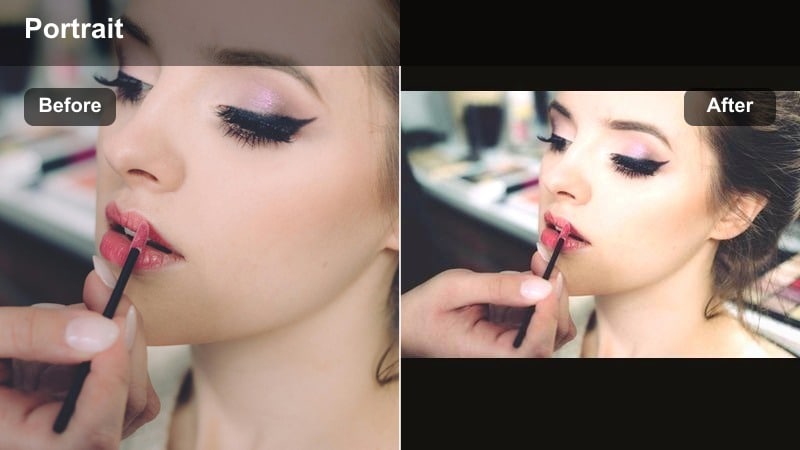
- Effect look: Lifted shadows, reduced noise, and warm highlights that keep your face visible in low light.
- Best for: Evening city walks, rooftop drinks, and late-night candid Reels.
- Editing tip: Use Filmora’s noise reduction gently; too much will make the filter look plastic in darker areas.
Night Mode City Glow is built for low-light selfie videos, brightening shadows and smoothing noise so your features remain clear against city lights. Warm highlights keep streetlamps and signage flattering instead of harsh, giving your nighttime Stories and Reels a cozy, cinematic glow.
In Filmora, apply this filter to your evening clips and then add only a light touch of noise reduction, focusing on the darkest zones of the frame. Face one dominant light source when recording, and the filter will help you maintain visibility and warmth without turning the image flat or plastic-looking on Instagram.
Tips for Using Selfie Instagram Social Filters in Filmora
- Shoot selfie videos in vertical orientation and keep your eyes about one third from the top of the frame so filters flatter your face shape.
- Lower filter intensity for close-up shots where skin details are more visible, and raise it slightly for wider shots so the look still reads on mobile.
- Lock exposure and white balance on your phone camera before recording so Filmora filters do not have to fight shifting color and brightness.
- Test each selfie video filter for Instagram with both front and back cameras; the extra sharpness of the rear camera often pairs well with softer looks.
- Save two or three go-to selfie video filters in Filmora and rotate them instead of changing styles daily, so followers recognize your visual identity.
- Batch-edit a week of selfie Stories in one Filmora project so you can quickly copy and paste your favorite social beauty filter settings across clips.
- Use Filmora masking to keep extra sharpness or contrast on your eyes while letting skin smoothing and glow stay softer on cheeks and forehead.
- Preview your edits on a phone screen before posting; what looks subtle on a desktop monitor can feel stronger on small vertical displays.
Selfie video filters for Instagram work best when they enhance the real you, keep your feed consistent, and save you time on everyday Stories and Reels.
Pick two or three of these styles, turn them into presets in Filmora, and use them as your base for polished, reliable selfie content that feels on-brand and effortless.
secure downloadNext: Selfie Video Filters for TikTok: Trendy Pop Colors and Viral Face Effects
