

 100% Security Verified | No Subscription Required | No Malware

Selfie videos run TikTok, and the right filter can turn a simple front camera clip into a scroll‑stopping moment. With on‑trend color styles, viral face effects, and smooth skin tuning, you can keep reaction videos and dance clips looking polished while still feeling authentic.
Below are 12 selfie video filters for TikTok inspired by todays most popular looks. Use them as creative directions you can quickly rebuild in Filmora, tweak for your own vibe, and reuse as presets across all your short‑form content.
In this article
Soft Glow Aesthetic Selfies
Pastel Skin Softener
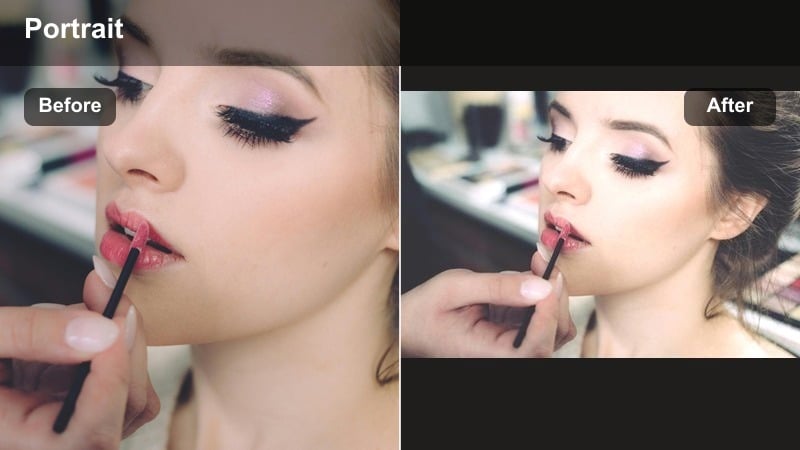
- Effect look: Low‑contrast pastel tones with gentle skin smoothing and lifted midtones
- Best for: Calm storytime selfie videos and aesthetic lip‑syncs filmed on the front camera
- Editing tip: In Filmora, slightly lower sharpness and add a soft glow effect at 10–20% to avoid plastic‑looking skin.
Pastel Skin Softener is all about turning harsh phone footage into a dreamy, airy selfie look. By dropping contrast and gently lifting the midtones, your skin takes on a pastel, cloudlike feel that flatters texture without erasing it. Paired with low sharpness, it smooths pores and softens edges for TikToks where you want viewers to focus on your story rather than imperfections.
In Filmora, start by lowering sharpness a little, then add a soft glow at around 10–20% intensity to get that subtle haze. Keep highlights under control so details in eyes, lashes, and hair do not disappear. For extra polish, slightly lift exposure and fade the blacks so your selfie feels light and aesthetic, perfect for slow lip‑syncs or calm bedtime updates.
Pro tip: Keep eyes crisp while skin stays soft
Use Filmoras masking to keep eyes and brows slightly sharper than the rest of the face so the filter still feels high‑quality.
Duplicate your selfie layer, sharpen the top layer, then mask only the eyes and brows for a subtle but premium look.
Use Filmoras AI tools to match TikTok selfie trends fast
Instead of guessing settings, start from an AI‑powered color suggestion that already fits the TikTok vibe you want, from neon dance looks to soft aesthetic storytimes. This gives you a balanced base before you fine‑tune details like glow, contrast, or saturation.
Filmora can analyze your selfie clip, suggest balanced exposure and color, and give you a clean base to build each trendy filter preset on top of. That means less time tweaking sliders and more time recording new selfie TikToks that match current trends.
Open your selfie in Filmora and try an AI‑driven color adjustment before you add any manual tweaks.
 secure download

Preview selfie filters in real time before posting
Filmoras real‑time preview lets you see how each filter idea will look on a full clip, not just a frozen frame. You can test soft glow, grain, or color shifts while you move, lipsync, or react, making sure your chosen look still feels clean and flattering in motion.
Scrub through your timeline and watch how glow, grain, and color changes react to head turns, hand moves, and big facial expressions. This helps you avoid weird frames where skin suddenly looks too smooth or colors clip to neon in the middle of your TikTok.
Drop a few different filters on adjustment layers and toggle visibility on and off while you play the clip.
secure downloadSave your selfie styles as reusable Filmora presets
Once you dial in a selfie look that hits on TikTok, turn it into a reusable preset so you can apply it again with one click. Filmoras custom effects let you save your glow, color, and sharpening settings into a single style you can drop on any new front camera clip.
You can even treat these presets like LUT‑style looks by applying them across different videos and then slightly tweaking for lighting changes. This keeps your personal brand recognizable and makes it easy to match new trends while staying visually consistent.
After finishing a favorite filter, save it as a custom effect in Filmora so you can apply it across your entire short‑form content library.
secure downloadCream Tan Brightener
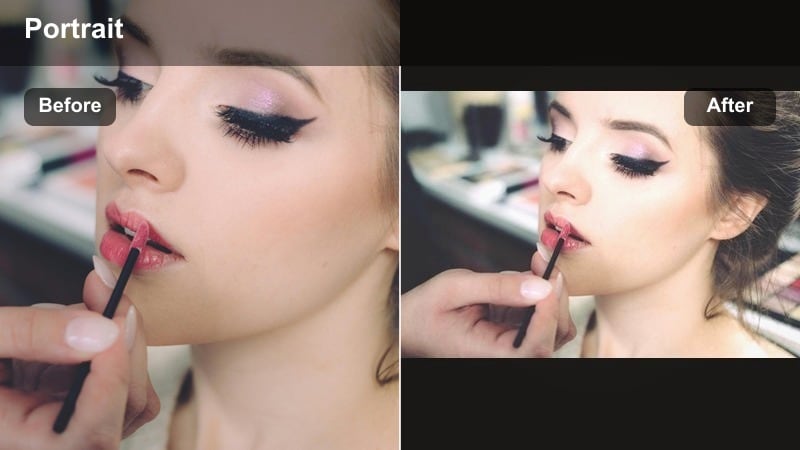
- Effect look: Warm beige and tan tones with bright but soft highlights that flatter most skin tones
- Best for: GRWM TikToks, mini vlogs, and mirror selfies where you want a sunlit vibe indoors
- Editing tip: Boost warmth slightly, then lift shadows just enough to keep details in hair and lashes.
Cream Tan Brightener fakes that golden hour wash even when you are filming under basic room lights. It leans into beige and tan hues, brightening your face while keeping highlights gentle so you do not look oily or overexposed. This is ideal for GRWM, outfit checks, and chill vlogs where a cozy, sunlit aesthetic makes everything feel more inviting.
In Filmora, raise the temperature and nudge the tint slightly toward magenta if your lighting is too green. Lift shadows to keep depth in hair, and lower contrast a touch so your brighter skin still looks smooth. Use the HSL panel to pull down blue and green saturation in the background so the warm glow on your face remains the focal point.
Pro tip: Match your background to your skin tone
Use HSL in Filmora to gently desaturate busy background colors so your face remains the brightest part of the frame.
Pull down saturation on blues and greens a little; this keeps walls and decor from competing with your skin glow.
Soft Rose Blur
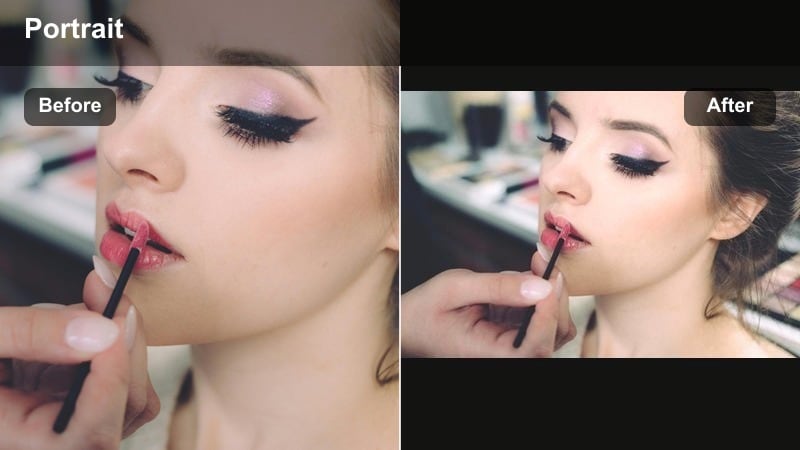
- Effect look: Rose tinted highlights with a hint of background blur and subtle vignette
- Best for: Romantic lip‑syncs, POVs, and duet reaction selfies that need a cinematic feel
- Editing tip: Add a slight vignette in Filmora, but keep intensity low so it frames your face rather than darkening the clip.
Soft Rose Blur wraps your selfie in a gentle pink cast for a romantic, cinematic feel. The rose tint warms up skin, while a hint of blur on the background separates you from the room and brings more focus to your expression. The look is perfect for POV storytelling, soft love‑song lip‑syncs, and dramatic duets where you want everything to feel intimate and dreamy.
In Filmora, introduce a light pink tone in highlights and midtones, then use a Gaussian blur on a duplicated layer, masking it away from your face so only the background softens. Finish with a low‑strength vignette that slightly darkens the corners to guide attention to your eyes without crushing shadow detail.
Pro tip: Guide the eye with subtle vignette
Use Filmoras vignette tool to darken corners just enough that your eyes become the visual focal point.
Test on a paused frame; if you instantly look at your own eyes, the vignette strength is dialed in correctly.
Vibrant Pop Colors for Dance Clips
Neon Pop Selfie
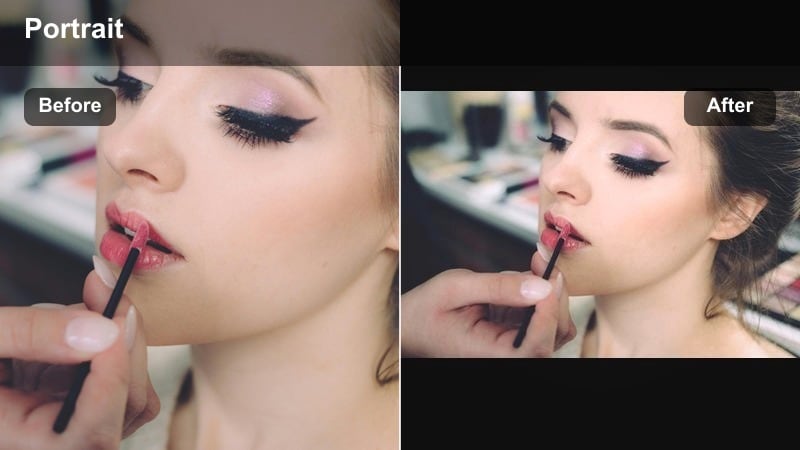
- Effect look: Punchy saturation with neon blues and magentas that stand out on the For You feed
- Best for: High‑energy dance clips and transitions with LED strips or RGB room lights
- Editing tip: In Filmora, increase saturation but reduce contrast slightly so skin tones stay smooth under bold colors.
Neon Pop Selfie is built for RGB rooms, LED strips, and high‑energy dance trends. It pushes blues, magentas, and cyans to eye‑catching levels so your background lights and outfits explode on screen. At the same time, carefully controlled contrast keeps your face from turning into a block of pure color.
In Filmora, boost saturation and use the color wheels to emphasize cool and magenta hues. Then lower contrast just a bit and soften highlights so facial features remain readable. You can also selectively desaturate oranges if your skin starts to look overly red, keeping the neon vibe focused on your environment and clothing.
Pro tip: Keep neon fun but not crunchy
Use the color wheels in Filmora to gently pull neon highlights away from pure white to avoid harsh clipping.
Lower highlights just a bit and raise midtones so both your face and lights stay detailed at the same time.
Retro Pop Film
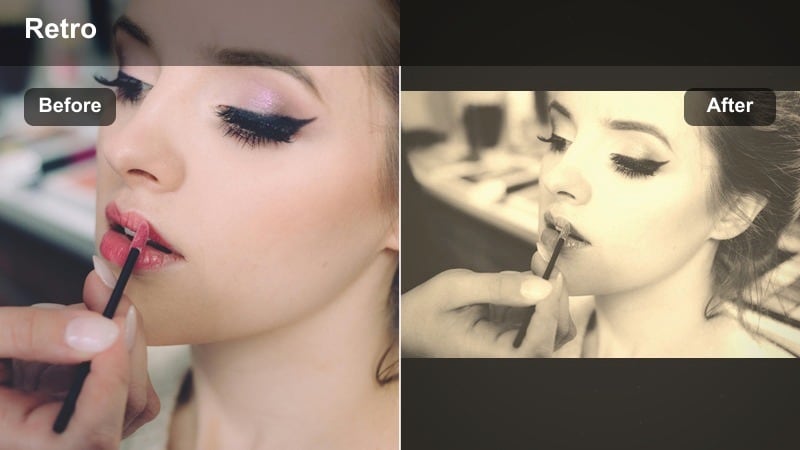
- Effect look: High‑contrast pop colors with a film‑style fade and slight grain on the selfie
- Best for: Throwback trend dances and meme reaction shorts with a retro twist
- Editing tip: Add Filmora grain at very low intensity and lift blacks to get that vintage TikTok look without losing clarity.
Retro Pop Film combines bold colors with a faded, nostalgic finish that feels like an old music video. Blacks are lifted, colors are punchy, and a touch of grain adds texture that plays well with throwback songs and meme formats. It is ideal for dance challenges using older tracks or skits where a vintage TikTok aesthetic sells the joke.
In Filmora, raise contrast to make colors pop, then add a curves adjustment to lift the black point for that filmic fade. Apply a subtle grain effect at low intensity so your footage feels organic but not noisy. Finally, tap in a tiny bit of clarity on your face to keep it sharp against the softly faded background.
Pro tip: Balance retro fade with modern sharpness
Keep your subject sharp by adding a touch of clarity in Filmora before you apply grain or fade effects.
This way your reaction and dance moves still feel crisp even while the colors lean vintage.
Electric Edge Outline
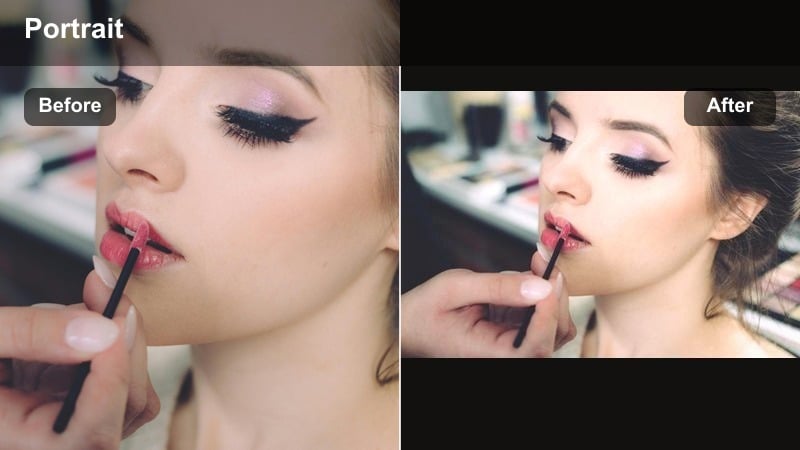
- Effect look: High‑contrast selfie with subtle edge glow tracing your face and hairline
- Best for: Fast choreography cuts and transitions where you snap into frame on the beat
- Editing tip: In Filmora, stack a duplicate video layer and apply a glow effect, then offset and blend it to create an electric outline.
Electric Edge Outline adds a sleek neon aura around your silhouette so every movement feels more dynamic. By tracing your hairline and shoulders with a soft glow, it emphasizes jumps, head turns, and snap transitions that hit on the beat. It is especially effective in darker rooms or with solid color backgrounds where the outline can really stand out.
To build it in Filmora, duplicate your selfie track and apply a glow effect to the top layer. Slightly offset the duplicate or adjust the blending mode to separate the glow from your original edge, creating a thin electric border. Tune the color of the glow to match your LED lights or outfit for a unified aesthetic.
Pro tip: Sync the edge glow with your moves
Keyframe the glow strength in Filmora so it peaks on beats or transitions for extra impact.
Raise the glow right when you hit a pose or head turn, then drop it during calmer moments in the clip.
Viral Face Effects for Reaction Videos
Anime Eye Highlight
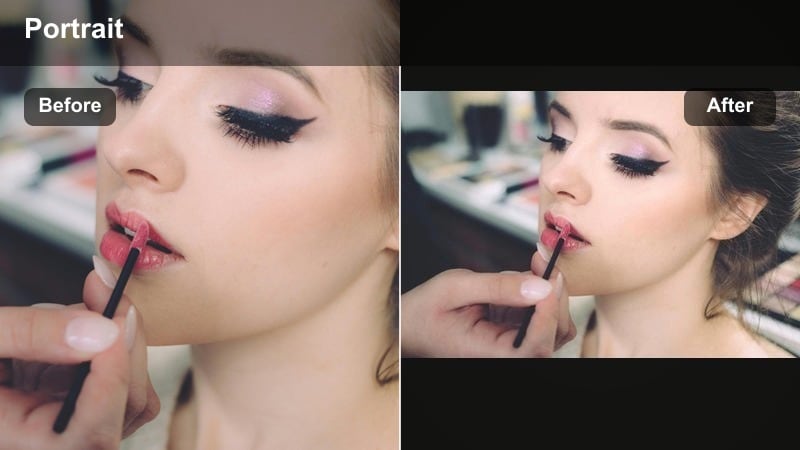
- Effect look: Brightened whites, enhanced eye reflections, and subtle desaturated background
- Best for: Over‑the‑top reaction selfies, duet stitches, and shocked face close‑ups
- Editing tip: Use Filmoras keyframing to slightly increase brightness on your eyes during big reactions for a cartoonish pop.
Anime Eye Highlight makes your eyes the star of the frame, perfect for dramatic reactions and duet punchlines. By brightening the whites and boosting reflections, it gives your gaze a cartoon‑like sparkle without crossing into uncanny territory. A softly muted background keeps attention on your expressions.
In Filmora, create a mask around your eyes and raise exposure, highlights, and saturation just a touch. You can keyframe these settings so the eyes get a bit brighter exactly when your reaction peaks. Meanwhile, desaturate and slightly blur the background to push even more focus toward your exaggerated expression.
Pro tip: Draw attention to your eyes during punchlines
Add a mask around your eyes and animate slight exposure changes in Filmora right as the joke lands.
This micro flash effect helps highlight your reaction and keeps viewers locked on your face.
Smooth Meme Face
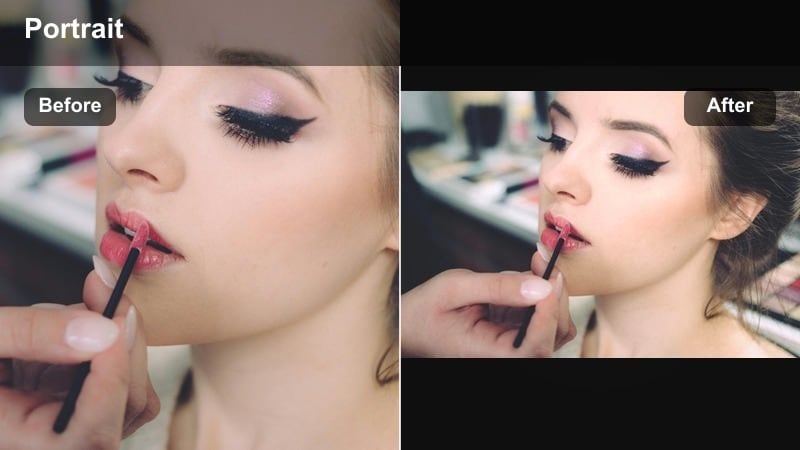
- Effect look: Even skin tone, softened pores, and boosted contrast in eyebrows and lips
- Best for: Talking head stitches, meme commentary, and green screen reactions
- Editing tip: Combine Filmoras skin smoothing with a slight clarity boost on brows and lips to keep expressions readable.
Smooth Meme Face gives you that clean, screenshot‑ready look so every paused frame works as a reaction image. It gently evens out skin tone and softens pores while sharpening key features like eyebrows and lips. The result is a face that looks polished but still animated enough for meme commentary and stitched responses.
In Filmora, apply skin smoothing at a moderate level, then use a second layer or selective masking to add clarity and contrast to brows, eyes, and lips. This combination keeps micro‑expressions readable, making your eye rolls, side‑eyes, and smirks pop on the For You page and in shared screenshots.
Pro tip: Avoid over‑smoothing on expressive clips
Dial skin smoothness down until laugh lines and dimples are still visible so reactions feel real.
Check a paused frame while laughing; if everything looks flat, lower the smoothing in Filmora by a few points.
Comic Outline Face
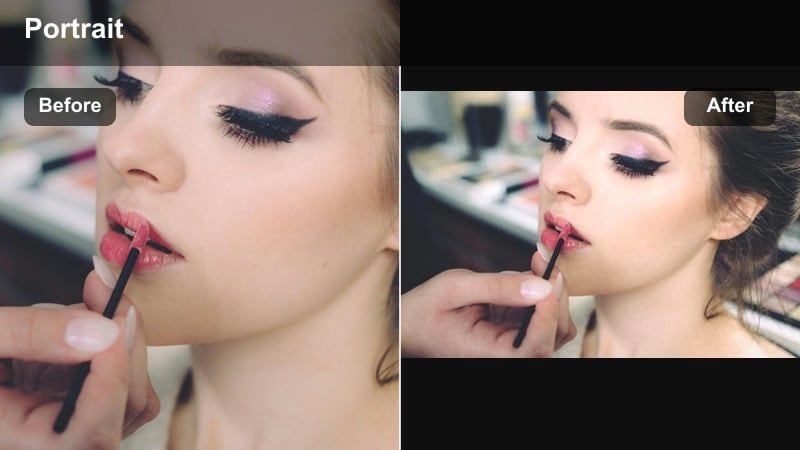
- Effect look: Subtle ink‑style outlines on facial features with slightly muted background colors
- Best for: Storytime rants, POV comedy, and duet reactions where you want a playful cartoon vibe
- Editing tip: Use Filmoras stylized effects on a duplicate layer and mask them to your face so the environment stays realistic.
Comic Outline Face turns your expressions into something that feels ripped from a graphic novel panel. Thin ink‑style lines trace your eyes, nose, and mouth, exaggerating movements like eyebrow raises and smirks. Because the background stays mostly realistic, the cartoon look stays fun and not overwhelming.
In Filmora, duplicate your clip and apply a stylized or sketch effect to the top layer. Mask that layer so only your face is affected, then lightly desaturate the background on the base layer. Adjust line intensity so the outlines are visible but do not overpower your features or turn the entire frame into a drawing.
Pro tip: Keep the comic look focused on your expressions
Apply the outline effect only to your face using Filmoras masking tools, so backgrounds do not become distracting.
Feather the mask edges so the cartoon lines blend smoothly into real‑life surroundings.
Clean Natural Front Camera Filters
HD Natural Selfie
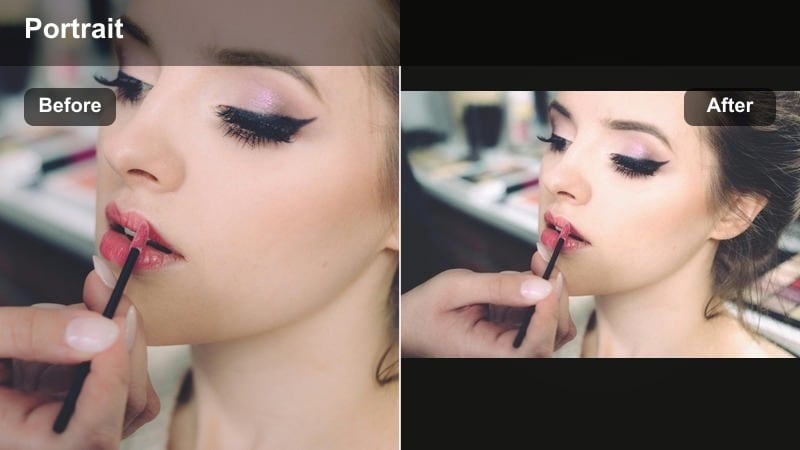
- Effect look: Neutral color grading, soft contrast, and gentle sharpening on eyes and hair
- Best for: Daily vlog check‑ins, Q and A clips, and casual dance trends in regular room light
- Editing tip: Use Filmoras auto color balance first, then fine‑tune contrast so your skin looks accurate on any device.
HD Natural Selfie is your go‑to everyday look when you want to appear like yourself, just slightly more polished. Colors stay neutral and true to life, contrast is soft, and details in hair and eyes are gently sharpened. It works across almost any TikTok format, from quick updates to casual dances in normal room lighting.
In Filmora, start with auto color balance to correct any strong color casts, then gently adjust contrast and exposure to keep skin natural. Add a slight sharpness boost to eyes and hair, and leave saturation close to default. Once dialed in, save this as a baseline preset you can apply before layering stronger, trend‑driven filters.
Pro tip: Build a base preset for your whole channel
Save this natural look as a custom preset in Filmora so all your TikTok uploads feel visually consistent.
Once your base is set, you can stack stronger filters on top for special trends without losing your core style.
Subtle Warm Glow
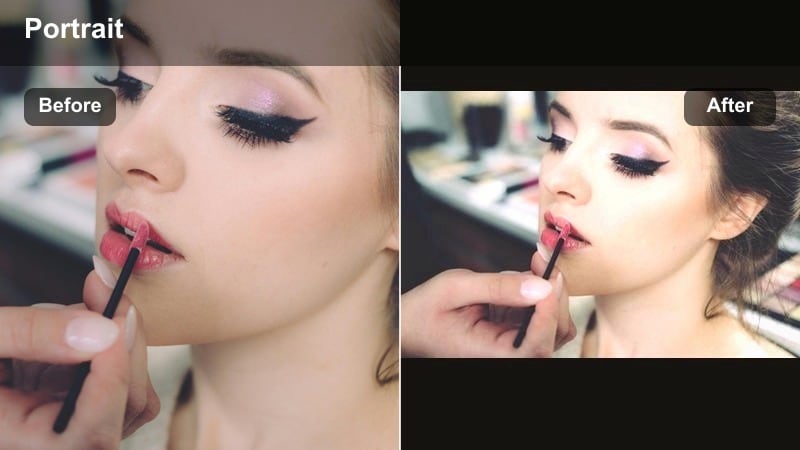
- Effect look: Slight warmth, softened shadows, and a minimal glow on cheeks and nose bridge
- Best for: Morning routines, skincare updates, and friendly talking head TikToks
- Editing tip: Push temperature and tint only a little in Filmora, then add a light bloom effect<
focused on midtones.
Subtle Warm Glow mimics that gentle morning light coming through a window. It adds a hint of warmth and glow to your skin, especially on cheeks and the bridge of the nose, while keeping shadows soft and low contrast. This works beautifully for routine‑style content, skincare check‑ins, and soft, friendly talking videos.
In Filmora, carefully nudge the temperature slider warmer and adjust tint until skin loses any green or blue cast. Add a low‑intensity bloom or glow effect limited to the midtones so your face looks lit from within, not hazy. Keep saturation moderate so the final look remains clean, not overly filtered.
Pro tip: Use warm glow as a layering base
Apply this filter first, then stack bolder color effects on separate layers in Filmora when you need trendier looks.
Keeping a warm base underneath helps skin stay flattering even with heavy creative filters on top.
Cool Crisp Daylight
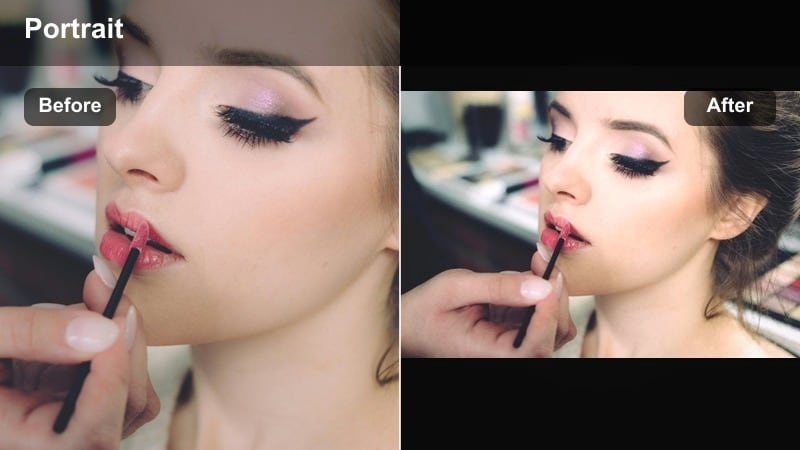
- Effect look: Cooler white balance, clean highlights, and slightly lifted clarity for detail
- Best for: Desk setups, study vlogs, and tech or gaming commentary filmed in front of a monitor
- Editing tip: In Filmora, cool the temperature until whites look clean, then drop saturation just a touch to avoid blue skin tones.
Cool Crisp Daylight is ideal for content filmed at your desk, in front of a monitor, or under daylight bulbs. It pushes your whites toward a clean, cool tone, sharpens details, and cuts any yellow cast from room lighting. The result feels modern and techy without making your skin look gray or lifeless.
In Filmora, reduce color temperature until whites look neutral, then slightly decrease saturation to control any intense colors from screens or LEDs. Use HSL to protect reds and oranges so your skin retains healthy color even as the overall image cools down. A touch of clarity will help bring out texture in hair, clothing, and desk accessories.
Pro tip: Keep cool tones flattering on skin
Use HSL in Filmora to protect reds and oranges so your skin does not drift too blue or gray.
If lips or cheeks look faded, nudge red saturation back up slightly until they feel natural again.
Tips for Using Selfie Tiktok Trendy Filters in Filmora
- Film in the highest front camera quality your phone allows so your selfie filters have clean detail to work with.
- Keep your face near a window or soft light source; good base lighting always beats aggressive smoothing.
- Use adjustment layers in Filmora so you can turn a filter on and off without affecting your original clip.
- Test how your selfie filter looks on both bright and dark parts of the video to avoid weird color shifts.
- Save two versions of your favorite filter, one stronger and one softer, so you can match different TikTok trends fast.
- Combine Filmoras masking with keyframes to target eyes, skin, or backgrounds separately for more precise selfie looks.
- Preview edits on your phone screen before posting, since TikTok viewers mostly watch on mobile displays.
Selfie video filters for TikTok work best when they fit both your personality and the vibe of the trend, from pastel storytimes to neon dance clips and exaggerated reaction faces.
Build a few core looks in Filmora, save them as presets, and you will be able to match any new front camera trend in seconds while keeping a recognizable, consistent style across all your short‑form content.
secure download