

 100% Security Verified | No Subscription Required | No Malware


 ChatGPT
 Perplexity
 Gemini
 Claude
 Grok
Grok
Moody sunset video filters can turn flat golden-hour footage into atmospheric dusk sequences with deep shadows, rich color contrast, and a cinematic edge. Instead of bright and cheerful tones, these looks lean into dark sunset drama and subtle color casts that feel more like a film scene than a vacation clip.
This guide walks photographers and filmmakers through 12 curated moody sunset styles built around the Moody Sunset Filter. Dark Dusk preset. Use them to shape exposure, contrast, and color so every moody sunset scene carries emotion, not just pretty colors.
In this article
Deep Dusk Tones for Darker Sunsets
Moody Sunset Filter. Dark Dusk
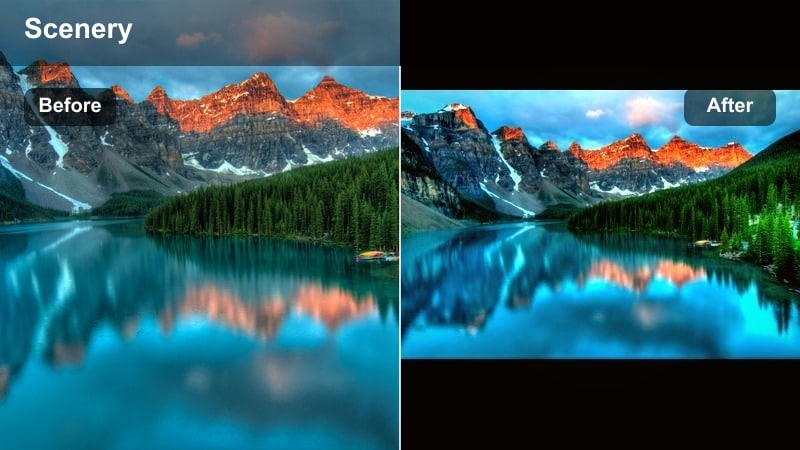
- Effect look: Softly crushed shadows, muted highlights, and a cool-magenta cast that pulls bright orange sunsets into a darker, story-driven mood.
- Best for: Narrative sequences at sunset, introspective travel vlogs, and B-roll where you want the sky to feel heavy and cinematic.
- Editing tip: Lower overall exposure slightly, then raise midtones to keep skin visible while preserving a dark sunset sky with rich silhouettes.
The Moody Sunset Filter. Dark Dusk preset is your fastest route to a dramatic, atmospheric dusk look in Filmora. By gently crushing shadows and softening highlights, it turns bright, cheerful sunset captures into moody frames that feel closer to a feature film than a quick handheld clip.
Apply this filter to your sunset track in Filmora, then fine-tune exposure and midtones using the color panel. Keep a close eye on silhouettes and horizon detail, adjusting curves so the sky holds texture while the foreground drops into a rich, cinematic darkness that still preserves key subject detail.
Pro tip: Protect detail in the shadows
After applying Moody Sunset Filter. Dark Dusk, check waveform or histogram to make sure your shadows are not clipped beyond recovery.
If they are, slightly raise shadows and lower contrast, then add a subtle vignette to keep the frame dark while preserving fine detail in foreground elements.
Use AI Tools to Find Your Perfect Moody Sunset Balance
Filmora’s AI-driven color tools can quickly analyze your sunset footage and suggest grading baselines that emphasize either dark sunset drama or softer atmospheric dusk. This is ideal when you want every clip in a sequence to share the same overall mood without manually matching each shot from scratch.
Start with the Moody Sunset Filter. Dark Dusk preset, then let AI-assisted adjustments refine contrast, temperature, and saturation so every clip shares the same cinematic identity. From there, you can make small per-clip tweaks for skin tones, foreground subjects, or important details in the clouds.
 secure download

Preview Moody Sunset Filters in Real Time
Filmora lets you preview moody sunset video filters directly in the viewer, so you can compare dark, cool, and warm dusk options across your timeline. This makes it easy to establish a consistent visual language for your project before diving into detailed color grading.
Scrub through a sequence, swap between Deep Dusk Tones, Cool Atmospheric Dusk, and Warm Moody Sunset presets, and instantly see which treatment best matches your story. Once you find a look you like, copy and paste the filter or use adjustment layers to apply it consistently across your edits.
secure downloadCombine Filters and LUTs for Richer Dusk Grades
For advanced workflows, pair moody sunset video filters with creative LUTs to refine color separation and simulate film stock behavior. This layering approach lets you start with a strong stylistic base and then add subtle finishing touches without overcomplicating your grade.
Apply your preferred moody sunset filter first, then layer a subtle LUT at low intensity, adjusting curves and saturation so the sky, skin tones, and shadows stay balanced. In Filmora, you can save these combinations as custom presets for quick reuse across future dusk projects.
secure downloadCrimson Horizon Gloom
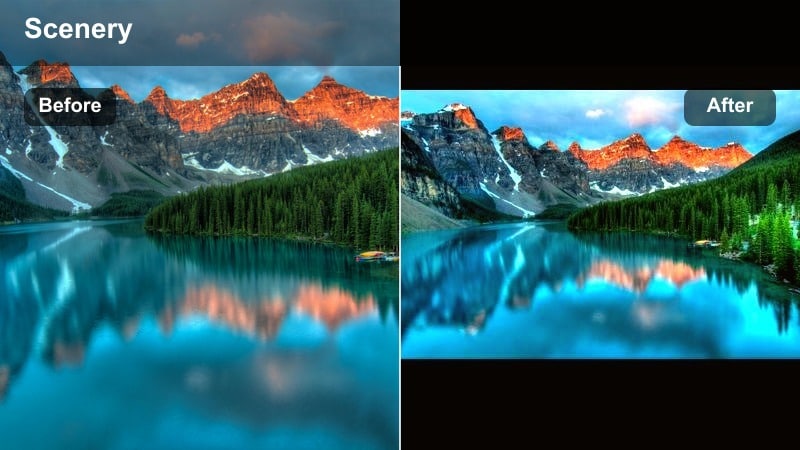
- Effect look: Deep reds and burnt oranges with a lowered white point, giving the horizon a brooding glow and the foreground a near-silhouette.
- Best for: City rooftop sunsets, skyline time-lapses, and music videos that need a dark, romantic end-of-day feel.
- Editing tip: Use selective color to tame overly saturated reds around the sun so they do not clip, keeping gradients smooth and cinematic.
Crimson Horizon Gloom leans hard into red and orange channels to build a heavy, glowing horizon while the rest of the frame falls toward shadow. In Filmora, this instantly turns a plain skyline into a brooding, almost apocalyptic dusk that fits music videos and stylized city sequences.
Layer the filter on your rooftop or cityscape clips, then jump into HSL and color curves to separate sky tones from any visible faces or architectural highlights. This lets you keep the rich, crimson horizon while preventing important subjects from turning overly red or losing natural color balance.
Pro tip: Balance skin tones against red skies
When faces are in frame, use Filmora’s HSL or color calibration tools to separate red skies from skin tones.
Reduce saturation in reds and oranges slightly while adding a touch of warmth to skin so talent does not blend into the background glow.
Ashen Dusk Fade
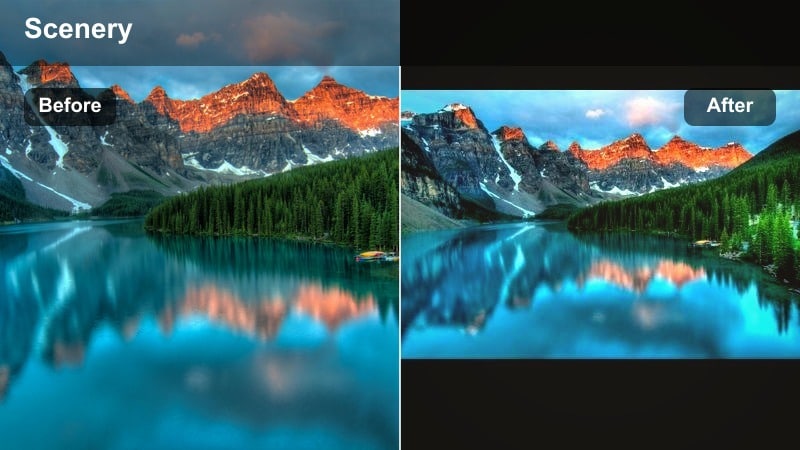
- Effect look: Low-contrast, slightly washed shadows with a charcoal tint, turning saturated sunsets into a subtle, melancholic haze.
- Best for: Emotional storytelling, reflective travel montages, and minimalist landscapes where mood matters more than color intensity.
- Editing tip: Gently fade the blacks while adding a touch of clarity to keep fine details visible inside the lifted shadows.
Ashen Dusk Fade is designed for projects where you want the sunset to feel muted and introspective rather than bold and punchy. It mutes saturation and softens contrast, giving your footage a charcoal-tinted, diary-like mood that works well over voiceovers and reflective scenes.
In Filmora, apply this filter and then slightly adjust the contrast and clarity sliders so that while blacks are lifted, key elements like mountain edges, trees, or buildings still retain definition. This ensures your scenes stay readable on smaller screens while preserving the soft, melancholic character of the grade.
Pro tip: Use fading to unify mixed footage
Apply Ashen Dusk Fade to shots captured under slightly different lighting to create a consistent, soft dusk baseline.
Fine-tune contrast per clip afterward so cuts feel seamless while the overall project keeps a unified moody character.
Cool Atmospheric Dusk Moods
Blue Hour Melancholy
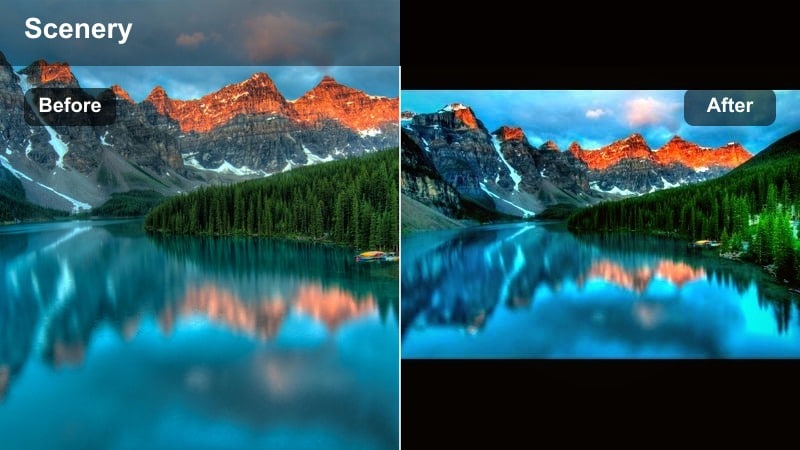
- Effect look: Cool, desaturated tones with subtle cyan in the shadows that pull golden light toward late blue hour moodiness.
- Best for: Seaside sunsets, reflective walking shots, and narrative transitions from day to night.
- Editing tip: Dial down saturation in yellows and oranges while boosting blues to gently push the scene toward an after-sunset atmosphere.
Blue Hour Melancholy is perfect when you captured footage a bit earlier than you wanted but still need a late-evening mood. It shifts the color temperature cooler, reduces saturation, and adds cyan into shadows so warm sunset clips feel closer to true blue hour.
Use this in Filmora on coastal or city sequences that bridge from daytime scenes into nighttime events. Start with the filter, then refine white balance and HSL to balance skin tones while letting skies and water trend toward cooler, moodier hues.
Pro tip: Create a believable day-to-night arc
If you have multiple sunset clips, apply stronger Blue Hour Melancholy settings on later shots to gradually cool the color temperature.
This staged cooling visually sells the transition from warm evening to nocturnal ambiance without needing time-lapse footage.
Misty Harbor Dusk
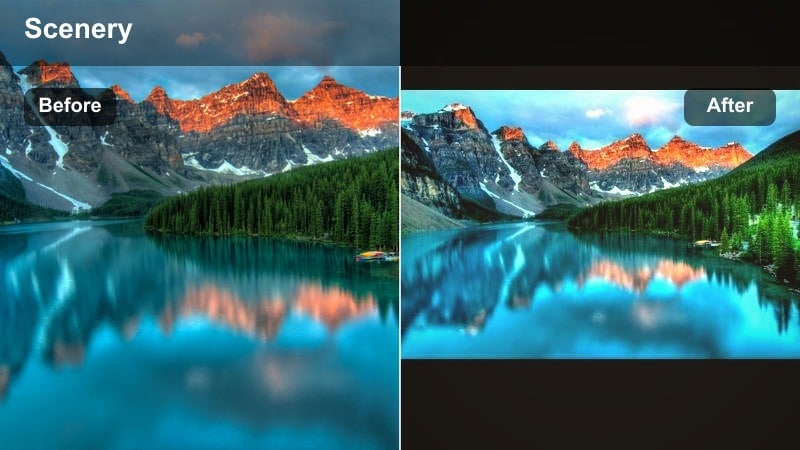
- Effect look: Softened contrast with a hint of haze in the highlights and cool shadows, giving dusk scenes a foggy, dreamlike finish.
- Best for: Harbors, lakesides, and riverfront sunsets with reflections and slow camera movement.
- Editing tip: Add a subtle glow or bloom around bright reflections to emphasize the misty atmosphere without losing clarity.
Misty Harbor Dusk simulates the feeling of light passing through thin fog, introducing delicate haze and cooling the overall palette. It keeps the mood gentle and cinematic, especially when reflections on water are an important part of the composition.
In Filmora, apply this filter to your harbor or lakeside clips, then fine-tune highlight bloom and sharpness. A small amount of added glow on bright areas, combined with selective sharpening on boats or subjects, can give you a dreamy yet clean look that still reads well on larger displays.
Pro tip: Use blur sparingly to avoid softness
Avoid overusing gaussian blur on the entire frame; keep haze in highlights and upper parts of the frame to maintain sharp subjects.
Combine Misty Harbor Dusk with selective sharpening on the focal subject to retain depth and visual interest.
Steel Shadow Sundown
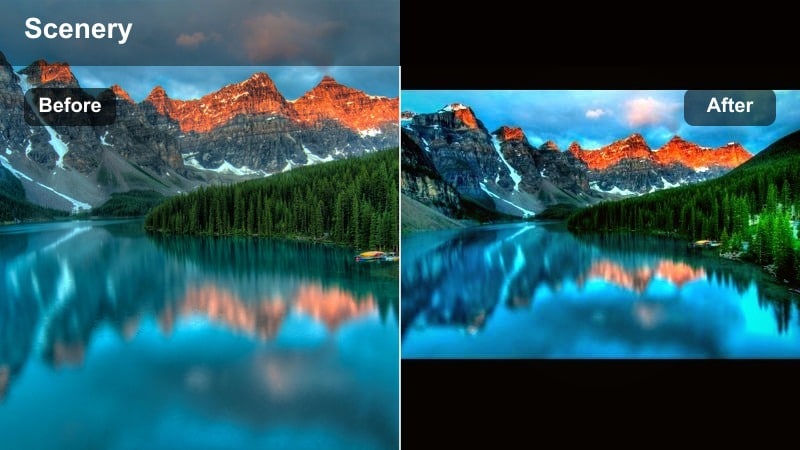
- Effect look: Dark, steely blues in shadows with slightly underexposed midtones, turning bright sunsets into gritty, urban dusk visuals.
- Best for: Street films, skate or urban lifestyle videos shot against a fading sunset sky.
- Editing tip: Lower midtones and add a subtle vignette around the frame to pull eyes toward subject silhouettes against the sky.
Steel Shadow Sundown helps transform colorful city sunsets into colder, more hard-edged street visuals. By emphasizing steel-blue shadows and lowering midtones, it adds grit and weight, ideal for skate edits, urban lifestyle content, or narrative scenes in city environments.
Apply it in Filmora to footage with strong lines and textures, like streets, bridges, and buildings. Then adjust vignetting and midtone contrast so your subjects stand out clearly while the city around them sinks into a cool, cinematic dusk.
Pro tip: Control noise in deep blue shadows
Cool, underexposed shadows can reveal sensor noise, especially in handheld dusk footage.
Apply gentle noise reduction on shadow regions only, then restore structure with precision sharpening so the image stays clean but detailed.
Warm Yet Moody Sunset Styles
Ember Glow Mood
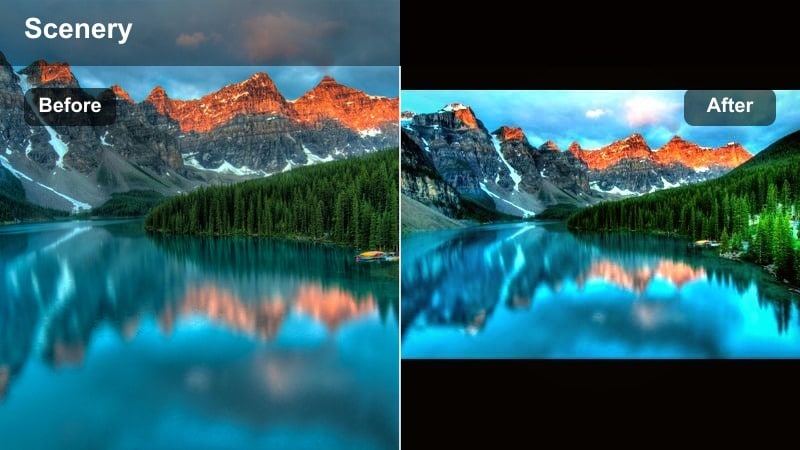
- Effect look: Deep amber highlights and warm shadows with soft roll-off, combining warmth with a restrained, introspective tone.
- Best for: Couple portraits at sunset, nostalgic vlogs, and handheld travel stories with close-up emotion.
- Editing tip: Push orange saturation slightly while keeping luminance low so the glow feels rich, not neon or overly bright.
Ember Glow Mood brings warmth and intimacy to your sunset scenes without tipping into overly bright, happy tones. It enriches amber highlights and shadows, giving a gentle, cinematic warmth that pairs beautifully with close-up shots and emotional storytelling.
In Filmora, apply this filter to portrait or couple footage shot against a sunset. Then adjust saturation and luminance of oranges and yellows to keep skin looking natural while still letting the sky and background light feel like glowing embers behind your subjects.
Pro tip: Keep skin tones natural in warm grades
Use selective HSL controls to separate skin from background oranges so your subject does not look overly tanned or orange.
Subtly shift skin hue toward neutral while preserving the strong amber tones in clouds and horizon light.
Burnt Gold Dusk
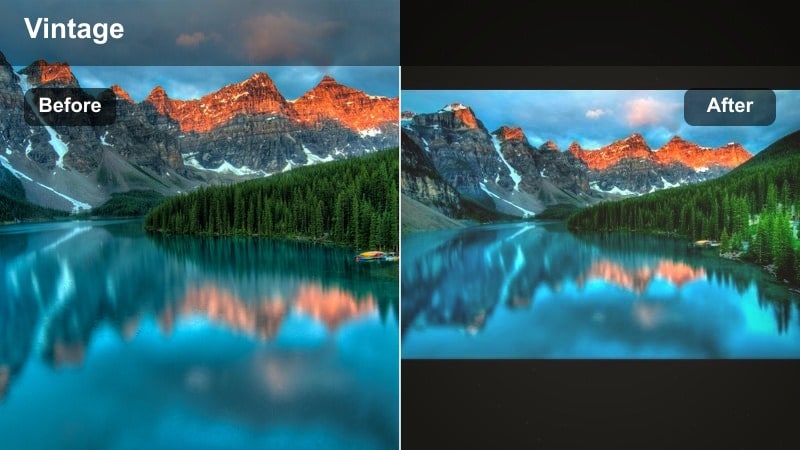
- Effect look: Burnt gold and brown-tinted highlights with darker, earthy shadows that give sunsets a vintage, filmic patina.
- Best for: Short films, cinematic B-roll, and outdoor fashion shoots where you want a timeless dusk color palette.
- Editing tip: Add a slight film grain overlay to complement the vintage feel and hide minor banding in gradient skies.
Burnt Gold Dusk offers a timeless, slightly nostalgic feel by pushing highlights toward brownish gold and grounding the frame in earthy shadows. This works especially well for cinematic B-roll, fashion pieces, and story-driven shorts that need a consistent, film-like dusk grade.
Apply the filter in Filmora, then introduce light film grain and subtle vignette to complete the vintage impression. Keep an eye on skies and smooth gradients; if you see banding, a small boost of grain and a tiny contrast adjustment will help mask artifacts and keep the image organic.
Pro tip: Use grain to unify disparate clips
A consistent grain layer can make footage from different cameras or lenses feel cohesive under the same Burnt Gold Dusk look.
Apply grain near the end of your grade so intensity remains consistent across all color-adjusted clips.
Rusted Horizon Dream
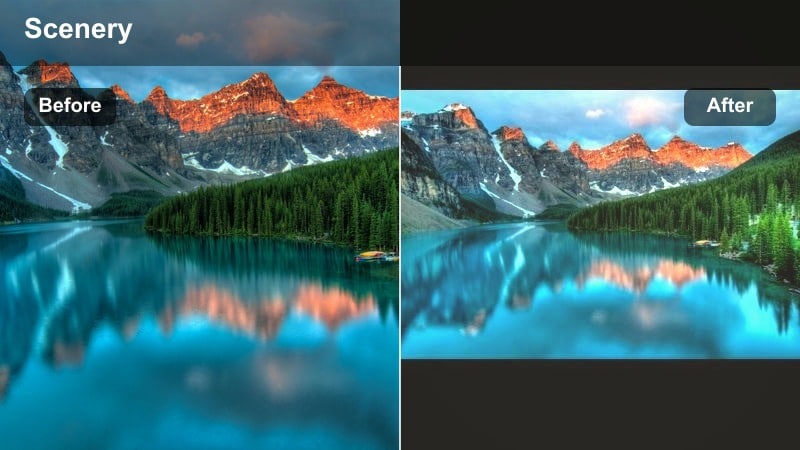
- Effect look: Rusty oranges, deep browns, and slightly softened edges that transform clear sunsets into dreamy, melancholic vistas.
- Best for: Landscape montages, aerial drone passes, and slow-motion b-roll over deserts or coastlines.
- Editing tip: Use a small amount of motion blur or smoothing to complement the soft-focus feel without losing subject definition.
Rusted Horizon Dream wraps your entire frame in a rusty, memory-like color cast, softening edges just enough to feel dreamy while keeping shapes recognizable. It is an excellent choice for drone shots, slow pans, and scenic montages where atmosphere matters more than clinical sharpness.
In Filmora, combine this filter with slight motion blur or smoothing on wide shots to intensify the dreamlike quality. If you have important subjects in the frame, use masking or local sharpening so they remain crisp against the softened, rust-tinted environment.
Pro tip: Match softness across lenses
If you shoot on multiple lenses, adjust sharpness and clarity per clip so they all share a similar level of softness under this filter.
Consistent softness helps the Rusted Horizon Dream look feel intentional instead of like lens or focus errors.
Cinematic Silhouette and Story-Driven Sunsets
Noir Sunset Silhouette
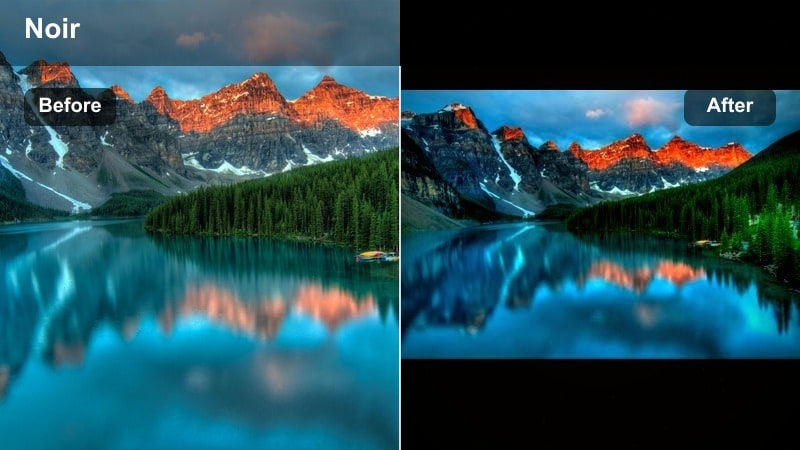
- Effect look: High contrast with crushed shadows, allowing only outlines of subjects while holding color and detail in the sky.
- Best for: Story-driven silhouettes, title sequences, and music videos with strong character outlines against sunset skies.
- Editing tip: Use curves to deepen shadows while carefully protecting sky midtones so clouds retain shape and texture.
Noir Sunset Silhouette is built for bold storytelling through shape and contrast. It pushes shadows deep into black so characters and objects become striking silhouettes against a richly graded sky, perfect for openings, endings, and visual motifs.
In Filmora, apply this filter to clips where subjects are cleanly framed against the horizon. Then refine curves and exposure so the sky keeps detail while everything below the horizon line drops into near-complete black, creating powerful graphic compositions.
Pro tip: Compose for clean outlines
When planning silhouettes, position subjects against open sky rather than cluttered backgrounds to maximize the filter’s graphic impact.
Encourage strong poses and side profiles so the outline tells a clear story even without visible facial detail.
Twilight Road Cinema
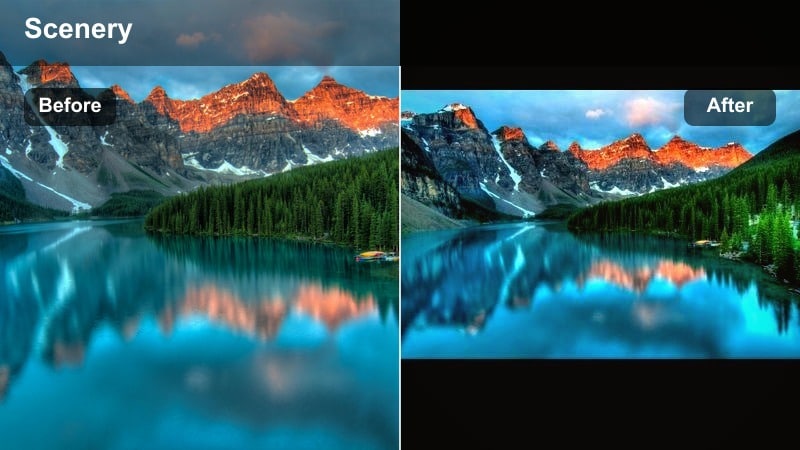
- Effect look: Deepened blues and oranges with filmic contrast and subtle halation around headlights and streetlights.
- Best for: Driving scenes, road trip films, and moody travel vlogs captured at the tail end of sunset.
- Editing tip: Add a gentle highlight bloom to car lights and distant lamps to complement the cinematic dusk atmosphere.
Twilight Road Cinema enhances the relationship between cool asphalt and warm sunset skies, adding a hint of halation that makes headlights and streetlights glow. It is ideal for road trip edits and narrative driving scenes where the road becomes a key visual element.
Apply the filter in Filmora to your driving footage, then add subtle highlight bloom or glow around lights for a more filmic feel. Use leading lines and camera motion to draw the viewer into the frame, letting the grade amplify that sense of movement and distance.
Pro tip: Use leading lines in road scenes
Frame roads as leading lines that draw the viewer’s eye from the bottom of the frame into the sunset horizon.
The Twilight Road Cinema filter enhances this depth, especially when combined with slow forward camera movement.
Shadowed Coastline Tales
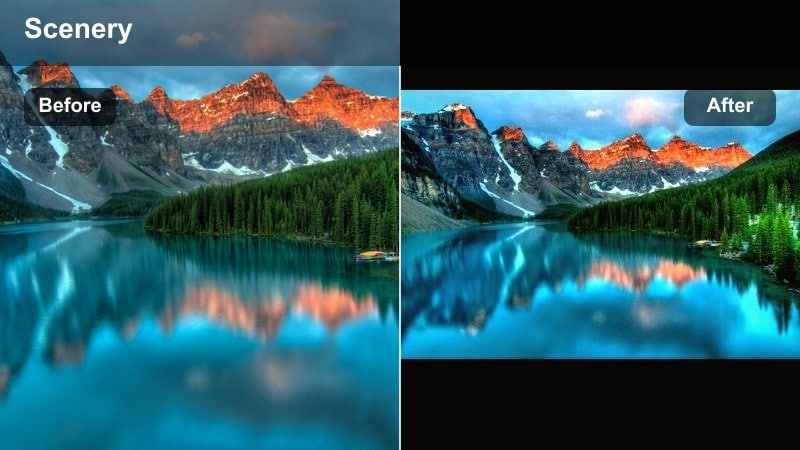
- Effect look: Dark, cool foregrounds with slightly warm skies and moderate grain that makes coastal sunsets feel like scenes from a mystery film.
- Best for: Narrative sequences by the sea, contemplative walking shots, and drone passes over cliffs at dusk.
- Editing tip: Underexpose the shoreline slightly and lift highlights in the clouds to heighten separation between land and sky.
Shadowed Coastline Tales plays with contrast between nearly black landmasses and softly glowing skies, adding grain for an understated cinematic texture. It works especially well on coastal cliffs, rocky beaches, and solitary figure-in-landscape shots.
Use it in Filmora on your seafront footage, then tweak exposure and contrast locally so the coastline falls into moody shadow while the clouds retain soft warmth. Moderate grain helps tie the scene together and reinforces the feeling of watching a frame from a mystery or drama film.
Pro tip: Guide the viewer with contrast
Place the strongest contrast where you want attention, often where the sea meets the sky or near a small silhouetted subject.
The Shadowed Coastline Tales filter responds well to local contrast adjustments that subtly spotlight your narrative focus.
Tips for Using Sunset Moody Filters in Filmora
- Shoot sunsets slightly underexposed so moody filters have highlight detail to work with instead of blown-out skies.
- Keep white balance consistent across all sunset shots before adding filters to avoid jarring color shifts between clips.
- Use adjustment layers for global dusk grading so you can tweak one filter and update the entire sequence at once.
- Combine moody sunset filters with subtle camera movement or slow motion to emphasize atmosphere and emotion.
- Always check skin tones after heavy sunset grading; they should look intentional, not overly red, orange, or grey.
Moody sunset video filters turn ordinary golden-hour clips into atmospheric dusk sequences that feel cinematic and emotionally driven. By carefully shaping contrast, color temperature, and saturation, you can decide whether your sunset reads as hopeful, nostalgic, or dark and mysterious.
Experiment with Filmora’s Moody Sunset Filter. Dark Dusk preset and the related dusk styles in this guide, then refine them with AI tools, curves, and selective color until each moody sunset scene perfectly matches the story you want to tell.
secure downloadNext: Explore Warm Sunset Filters for a Softer Cinematic Glow
