

 100% Security Verified | No Subscription Required | No Malware


 ChatGPT
 Perplexity
 Gemini
 Claude
 Grok
Grok
Warm sunsets are already magical, but on camera they often lose the depth, glow, and emotion your eyes remember. With the Warm Sunset Filter. Golden Glow preset in Filmora, you can instantly restore that soft radiance, deepen the oranges, and wrap your footage in cinematic warmth.
Whether you are a traveler capturing last-light landscapes, a photographer turning reels into behind-the-scenes stories, or a vlogger filming cozy evening moments, these warm sunset video filters help you create consistent, golden tones across sunset photography edits and evening vlogs.
In this article
Signature Warm Sunset Filters for Golden Glow
Warm Sunset Filter. Golden Glow
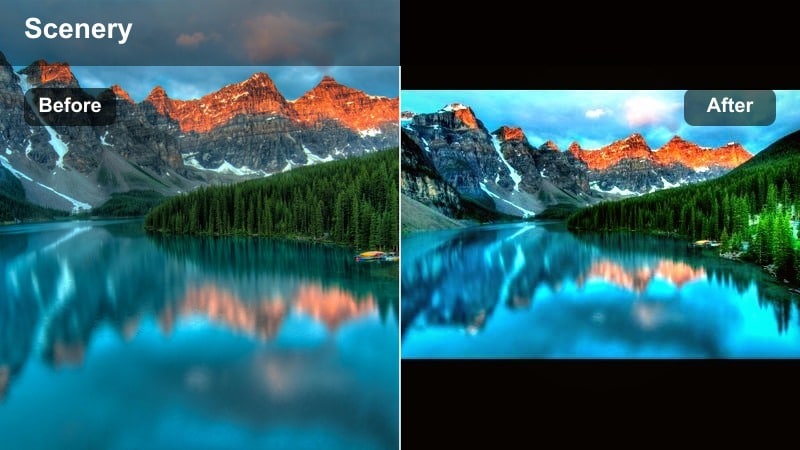
- Effect look: Soft golden cast with lifted shadows, gentle contrast, and rich orange highlights that keep skin tones natural.
- Best for: Travelers filming wide beach sunsets, photographers turning BTS clips into warm reels, and vloggers capturing calm evening walks.
- Editing tip: Lower the filter intensity slightly and add a subtle vignette to keep viewers eyes on the brightest area of the sky.
A balanced golden filter that enhances sunset color without overpowering the natural scene, Warm Sunset Filter. Golden Glow is ideal when you want your footage to look cinematic but still true to life. In Filmora, you can apply this preset with one click to instantly lift flat evening clips, restoring depth in the sky and warmth across the frame.
After applying the filter, fine-tune intensity and exposure to match different shots from the same location. Use Filmora masks to apply stronger warmth to the horizon while keeping faces natural, then add a light vignette so the viewer naturally focuses on the brightest part of the sunset.
Pro Tip: Match glow to skin tone
If people are in the frame, slightly reduce saturation in reds while boosting orange luminance to keep skin warm but not overly red.
Use Filmora s HSL controls after applying the filter to fine-tune oranges so both sky and faces share a cohesive golden tone.
Fine-tune Warm Sunset Tones with AI Color Tools
Filmora s AI-driven color tools help you refine your warm sunset video filters in seconds. Automatically balance exposure, lift shadows, and protect highlights so your golden sunsets stay rich without losing detail.
You can start with the Warm Sunset Filter. Golden Glow preset, then let AI assist in evening out skin tones, taming overly bright skies, and matching the mood between different clips shot at slightly different times of day.
Apply a warm preset, then let Filmora s AI color tools perfect your sunset mood.
 secure download

Preview Warm Sunset Looks in Real Time
With Filmora s filter previews, travelers and photographers can quickly scroll through warm sunset video filters and see how each look transforms orange skies, warm dusks, and reflective water scenes.
Real-time playback lets you compare subtle, soft warmth against bolder orange sky styles before you commit, so your evening vlogs and sunset photography edits always match the emotion you want.
Load a sunset clip and audition several warm filters side by side before choosing your favorite.
secure downloadSave Your Warm Sunset Style as Reusable Looks
Once you have tuned your warm sunset filter with exposure, contrast, and color adjustments, you can save the look for future projects. This keeps your travel series and sunset reels visually consistent.
Export or reuse these settings as custom presets so every beach sunset, mountain dusk, and city skyline can share the same recognizable warm signature.
Turn one perfect warm sunset grade into a reusable look for your entire travel channel.
secure downloadSoft Amber Haze
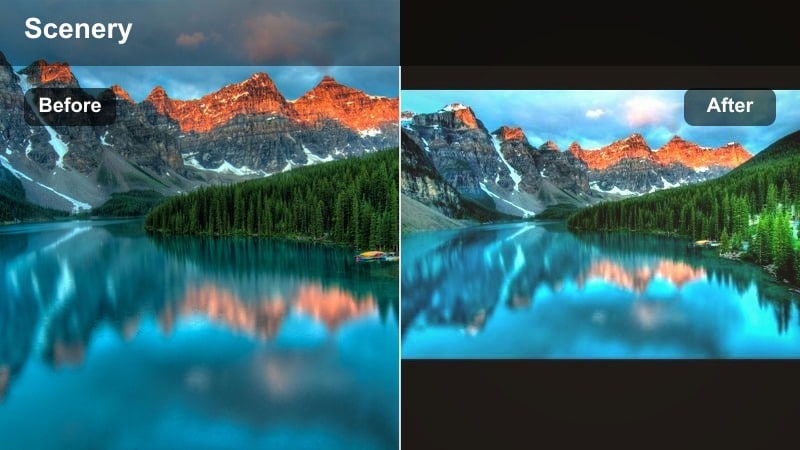
- Effect look: Dreamy, low-contrast warmth with a gentle amber veil and softened highlights for a hazy evening feel.
- Best for: Romantic travel montages, slow-motion skyline shots, and storytelling b-roll during blue-to-gold hour transitions.
- Editing tip: Reduce clarity or sharpness slightly after applying the filter to keep the hazy, film-like texture.
Soft Amber Haze wraps your sunset footage in a dreamy glow, lowering contrast and softening edges for a nostalgic, film-inspired feel. In Filmora, this works beautifully on skyline pans, bridge views, and street shots where the light is shifting from blue hour to gold.
To keep the mood gentle, dial down clarity and sharpness, then add slow motion or cross-dissolve transitions between clips. This combination makes your sunset b-roll ideal for travel montages, cinematic intros, or reflective storytelling sequences.
Pro Tip: Use foreground silhouettes
Place people or objects in the foreground as silhouettes to give your hazy amber scenes shape and depth.
Slightly deepen blacks to ensure silhouettes stay defined even while the overall image is soft and warm.
Deep Orange Horizon
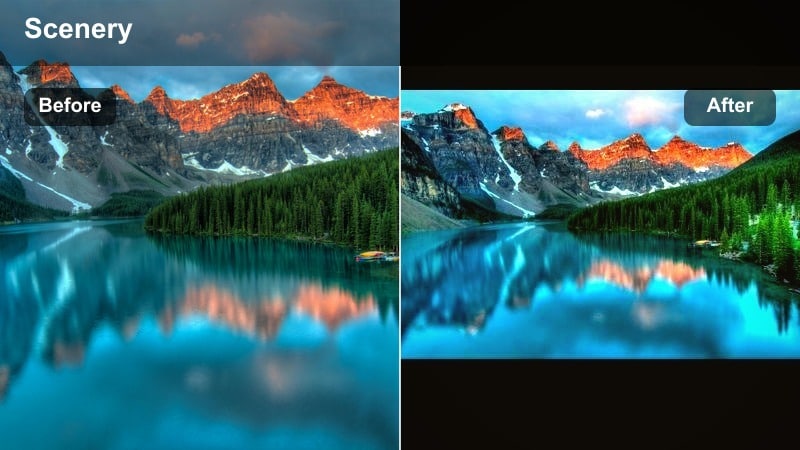
- Effect look: Bold, saturated oranges in the sky with deeper contrast and a cinematic fade in the shadows.
- Best for: Dramatic seascapes, mountain sunsets, and high-impact travel transitions that need strong color.
- Editing tip: Mask the sky and increase saturation there while keeping the foreground slightly less intense for balance.
Deep Orange Horizon is designed for those wow-factor sunsets where the sky is the star of the show. In Filmora, it pushes oranges and reds in the clouds while maintaining a pleasing fade in the shadows, perfect for seascapes, mountain peaks, and drone reveals.
Use Filmora s masking tools to target the sky, so the foreground remains controlled and not overly saturated. Combine this with smooth transitions or speed ramps for dramatic travel edits that open or close your video with a powerful, cinematic horizon.
Pro Tip: Protect highlights in bright clouds
Reduce overall exposure a touch, then raise shadows to maintain detail without clipping the brightest cloud edges.
Use Filmora s highlight control to roll off extreme whites so your dramatic orange gradients stay smooth.
Warm Sunset Filters for Portraits and Evening Vlogs
Sunset Skin Soft Warm
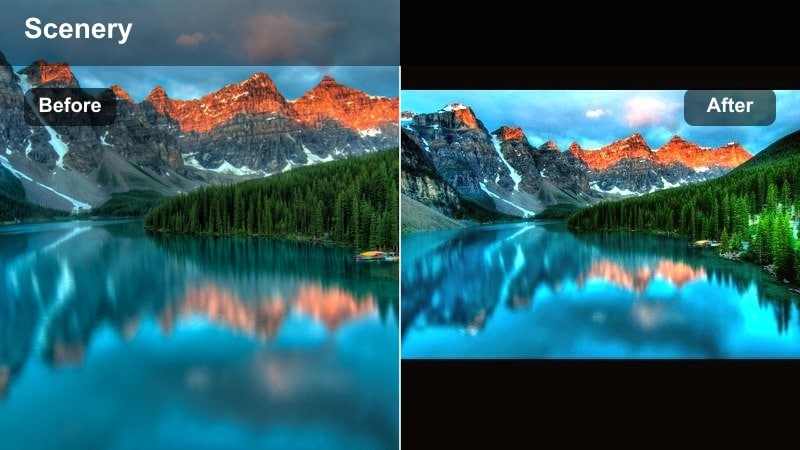
- Effect look: Gentle warmth focused on midtones with soft contrast that flatters skin while keeping the sky glowing.
- Best for: Talking-head evening vlogs, travel storytelling at golden hour, and handheld portrait clips.
- Editing tip: Apply the filter, then slightly lower saturation in magentas to avoid overly pink skin in mixed lighting.
Sunset Skin Soft Warm is built to put people first, wrapping faces in flattering warmth while allowing the sky to stay luminous. In Filmora, this preset is ideal for vloggers who speak directly to camera with a sunset backdrop or for creators capturing casual portraits at the end of the day.
After applying the filter, refine skin tones using Filmora s HSL controls, reducing magenta and fine-tuning oranges. Add subtle background blur with depth-of-field effects or bokeh overlays so your audience naturally focuses on the storyteller, with the warm sky as a supporting character.
Pro Tip: Balance sky and face brightness
Use keyframed exposure or brightness on the face area if the sky is significantly brighter than your subject.
Keep the face slightly brighter than the background so viewers connect with the storyteller first, then the sunset.
Cozy Evening Vlog
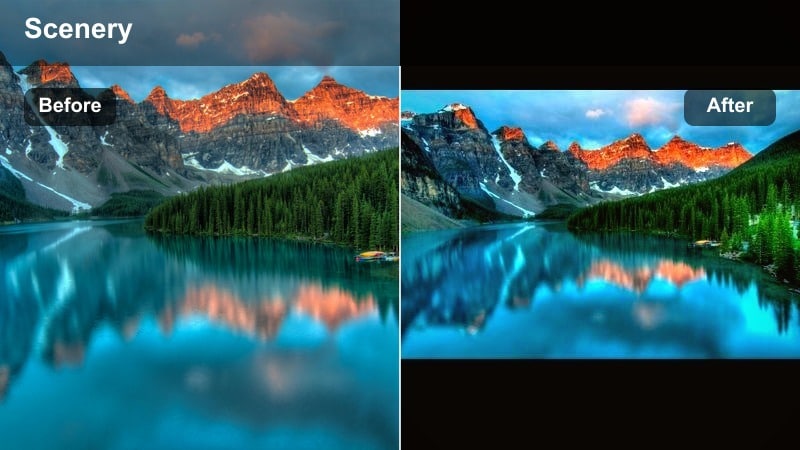
- Effect look: Warm midtones with a slight fade in shadows, creating a cozy, diary-style evening atmosphere.
- Best for: Lifestyle evening vlogs, city-street sunsets, and casual travel recaps filmed in low light.
- Editing tip: Raise shadows a bit after applying the filter to reduce noise visibility in darker areas.
Cozy Evening Vlog gives your clips a laid-back, journal-like mood with gentle warmth and softened shadows. In Filmora, this filter is perfect for handheld walks through city streets, dinner scenes by windows, or relaxed talking-head segments outdoors at dusk.
Because many of these scenes are shot in lower light, lightly lifting the shadows after applying the preset helps reduce the appearance of noise. Pair the look with Filmora s stabilization and gentle background music to complete a calm, intimate evening vibe.
Pro Tip: Stabilize handheld shots
Use Filmora s stabilization to smooth handheld clips, then apply the cozy warm filter so motion feels intentional, not shaky.
Combine gentle stabilization with subtle background music to reinforce the relaxed evening mood.
Golden Backlight Portrait
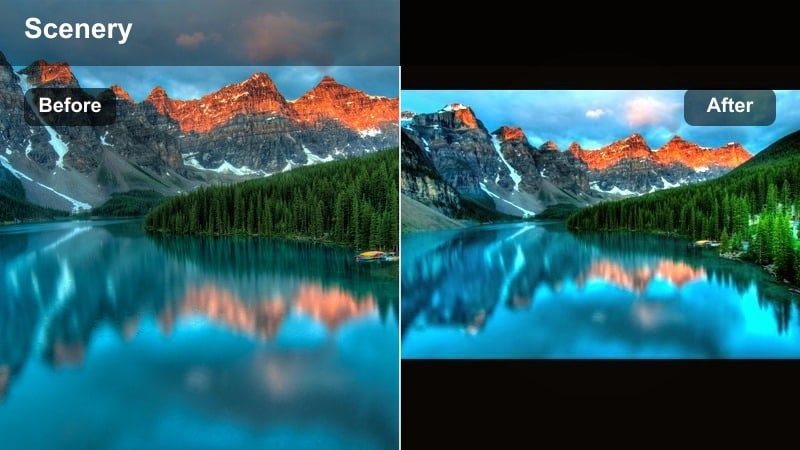
- Effect look: Bright warm highlights and softened contrast that emphasize backlit hair and edges around your subject.
- Best for: Backlit portraits, silhouettes with rim light, and walking shots where the sun is behind the subject.
- Editing tip: Slightly decrease blacks to keep the outline of the subject crisp against a glowing sky.
Golden Backlight Portrait is all about enhancing rim light the glowing edge that appears when your subject is between the camera and the sun. In Filmora, this preset brightens warm highlights and carefully softens contrast to keep the halo effect smooth and flattering.
Use it on walking shots, candid portraits, or silhouette moments where hair and edges catch sunlight. After applying, nudge the blacks slider down a bit to sharpen the outline of your subject against the bright sky, and consider adding a subtle lens flare overlay for extra cinematic flair.
Pro Tip: Shoot slightly underexposed
Capture your footage a bit darker in-camera to preserve highlight detail, then brighten midtones during editing.
This gives the filter more room to create a glowing halo without blowing out the sky around your subject.
Warm Filters for Travel and Landscape Sunsets
Golden Travel Postcard
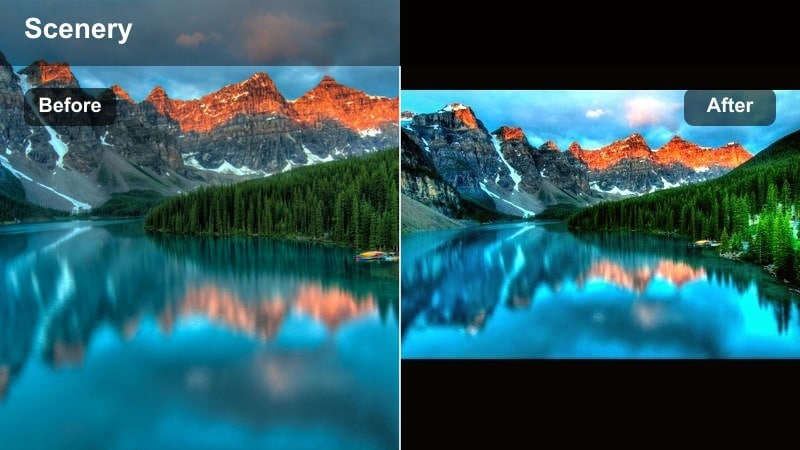
- Effect look: Punchy, postcard-style warmth with vivid colors and slightly increased clarity in details.
- Best for: Wide establishing shots, drone passes over coastlines, and iconic travel landmarks at sunset.
- Editing tip: Add a gentle push to saturation only in the oranges and yellows to highlight sunset tones without oversaturating greens.
Golden Travel Postcard is made for share-ready landscapes that look great on social feeds and thumbnails. In Filmora, it boosts clarity and saturation just enough to make coastlines, cityscapes, and landmarks pop while keeping the image crisp.
Apply this preset to your wide shots and transitions, then fine-tune saturation mainly in the orange and yellow ranges. By leaving greens and blues more controlled, your sunsets look vibrant without crossing into artificial or cartoonish color.
Pro Tip: Use as a series look
Apply the same filter across multiple clips from one location to give your travel reel a consistent visual identity.
Fine-tune exposure per clip, but keep color consistent so the entire sequence feels like one golden story.
Amber Dunes and Peaks
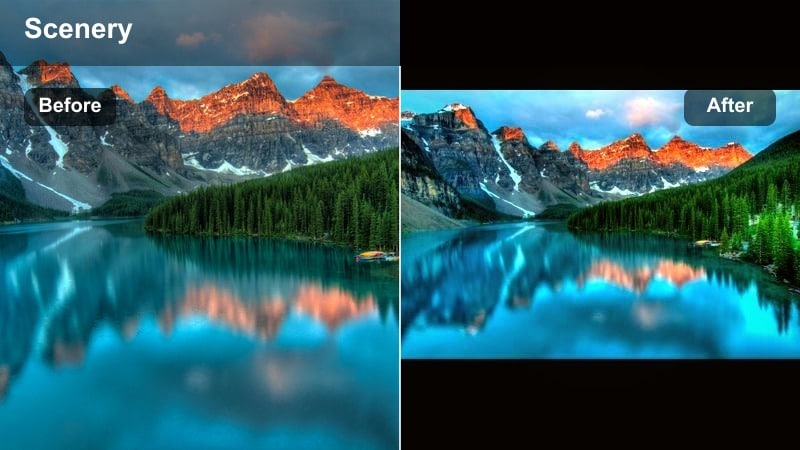
- Effect look: Rich ambers and deep warm shadows with a subtle matte finish for rugged outdoor scenes.
- Best for: Desert dunes, rocky coastlines, valleys, and mountain ridges at late golden hour.
- Editing tip: Increase local contrast or clarity in the midtones after the filter to emphasize texture in rocks and sand.
Amber Dunes and Peaks adds a cinematic, earthy character to your outdoor footage, deepening warm tones and giving shadows a gentle matte feel. In Filmora, this works especially well on textured scenes like sand dunes, cliffs, and mountain ridgelines.
After you apply the preset, increase midtone clarity or local contrast to bring out fine detail in rocks and terrain. Gradients can help darken the lower part of the frame, making the horizon and sky glow more intensely, which guides the viewer s eye into the distance.
Pro Tip: Guide the eye with contrast
Use gradients to slightly darken the lower part of the frame so the viewer s attention moves toward the glowing horizon.
Combine this with the warm filter to create a natural leading line from foreground shadows to the orange sky.
Harbor Orange Glow
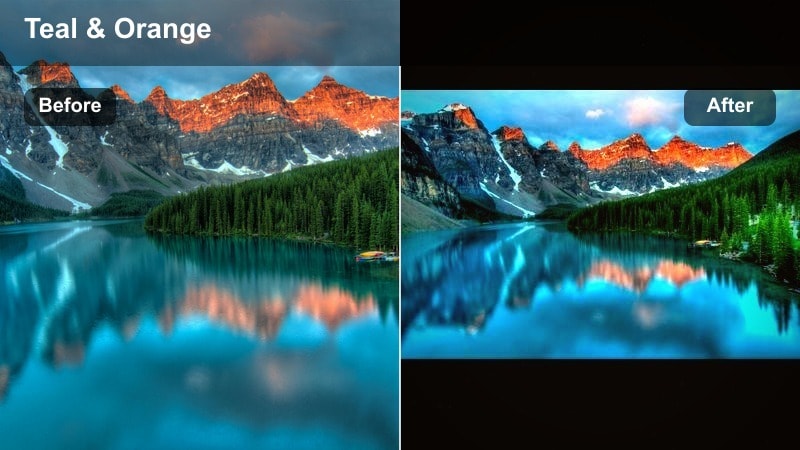
- Effect look: Balanced orange and teal mix, warming skies and reflections while keeping water tones deep and cool.
- Best for: Harbors, lakes, and rivers at sunset, especially where lights and sky reflect on the water surface.
- Editing tip: Gently increase saturation in blues and cyans to contrast against the warm sunset reflection.
Harbor Orange Glow gives you the popular orange-and-teal style, tailored for water scenes. In Filmora, the preset warms the sky and reflections while preserving rich, cool tones in lakes, rivers, and harbors, perfect for boats, piers, and waterfront skylines.
Boost blue and cyan saturation just a bit to strengthen the contrast between sky and water. Then, use a bottom-up gradient to darken the water slightly, which makes reflections more pronounced and adds depth to your composition.
Pro Tip: Emphasize reflections
Add a slight gradient from the bottom of the frame upwards to darken water and make reflections more vivid.
Keep horizon lines straight in-camera so reflections and warm tones feel calm and intentional.
Creative Warm Dusk and Orange Sky Moods
Twilight Warm Fade
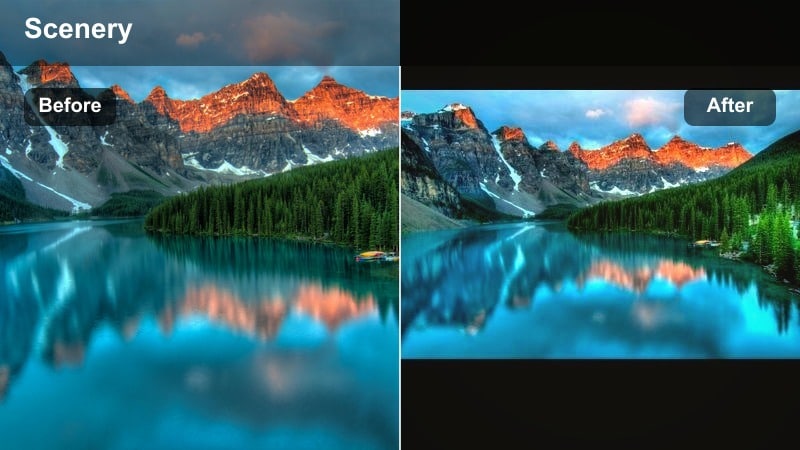
- Effect look: Subtle, low-saturation warmth with a gentle fade in blacks for a calm, cinematic dusk mood.
- Best for: Late blue hour clips, city skylines, and quiet travel transitions after the sun has dipped below the horizon.
- Editing tip: Slightly increase midtone contrast to keep the scene readable while preserving the soft, faded style.
Twilight Warm Fade bridges the gap between bright sunsets and night scenes with a soft, understated warmth. In Filmora, it gently lifts blacks and mutes saturation so your dusk footage feels calm and cinematic rather than overly colorful.
Use this look in transition sequences, end-of-day montages, or reflective voice-over moments. A small boost in midtone contrast keeps buildings and subjects readable while the overall frame stays relaxed and slightly faded.
Pro Tip: Use for scene transitions
Place this look between bright sunset clips and full-night scenes to create a smooth emotional and visual transition.
Pair it with slower cuts and gentle ambient sound so the audience feels the day naturally slipping into night.
Orange Sky Storyteller
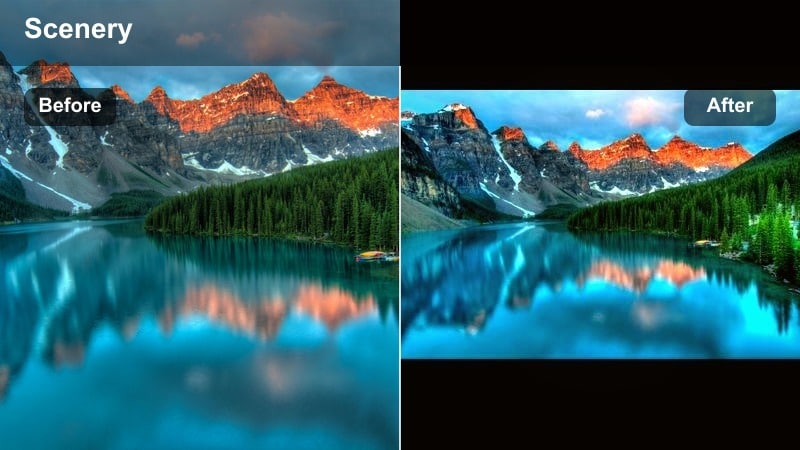
- Effect look: Story-driven orange and gold emphasis with slightly muted greens and blues to keep focus on the sky.
- Best for: Voice-over travel recaps, cinematic b-roll of skylines, and montage sequences at warm dusk.
- Editing tip: Lower saturation in the foreground foliage so the orange sky remains the clear visual hero.
Orange Sky Storyteller is designed to make the horizon the emotional anchor of your scene. In Filmora, it intensifies oranges and golds while subtly toning down greens and blues, ensuring the viewer s attention stays locked on the sky.
Apply this look to skyline silhouettes, mountain ranges, or city roofs when you are narrating a story or recap. Reduce saturation in foliage and foreground objects so the sky acts as a strong visual backdrop to your voice-over or soundtrack.
Pro Tip: Cut to the beat of music
Align your skyline and sky shots with beats or swells in your soundtrack so each orange sky reveal lands with impact.
Hold on the most dramatic frames just a little longer to let the color sink in before moving to the next shot.
Campfire Sunset Mix
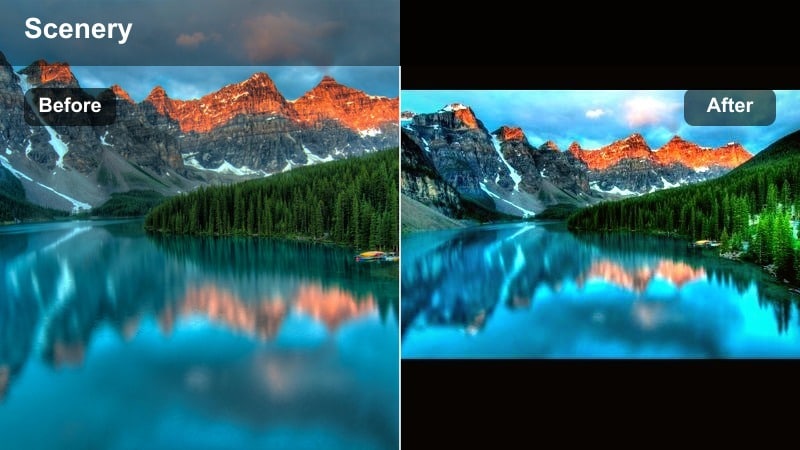
- Effect look: Warm orange and red mix that connects sunset skies with campfire or streetlight tones in the same frame.
- Best for: Camping vlogs, rooftop gatherings, and evening street scenes where natural and artificial warm lights blend.
- Editing tip: Drop overall saturation slightly, then selectively boost oranges and yellows to keep warmth focused on key light sources.
Campfire Sunset Mix unifies natural sunset light with artificial warm sources like campfires, string lights, or street lamps. In Filmora, it enhances oranges and reds across the frame so the entire scene feels cohesive, cozy, and intimate.
Lower global saturation a bit, then selectively boost oranges and yellows around the key light sources using masks or color tools. This keeps warmth where it matters most while preventing skin tones and backgrounds from becoming overly intense.
Pro Tip: Protect skin near strong warm lights
If faces are close to fire or warm bulbs, bring down highlight saturation to avoid oversaturated orange skin.
Use subtle masks on faces to keep them natural while the surroundings glow warm and rich.
Tips for Using Sunset Warm Filters in Filmora
- Shoot sunsets slightly underexposed to protect bright cloud detail, then brighten midtones in Filmora before adding warm filters.
- White-balance your footage a little cooler in-camera so the warm filter has room to add rich gold without pushing colors too far.
- Use tripod or in-app stabilization for slow pans across the horizon so your warm sky gradients look smooth and cinematic.
- Apply masks to keep faces natural while boosting saturation and warmth mainly in the sky and distant landscape.
- Create a short sequence from pre-sunset to blue hour using different warm filters that gradually soften and darken.
- Reduce global saturation a touch before stacking multiple warm filters or adjustments to avoid color clipping.
- Use subtle vignettes on wide sunset shots to draw focus toward the brightest part of the sky.
- Match color temperature between clips by adjusting white balance before applying the same warm sunset preset.
Warm sunset video filters in Filmora help you turn everyday golden hours into cohesive, cinematic stories, whether you are filming wide landscapes, intimate portraits, or relaxed evening vlogs.
Start with the Warm Sunset Filter. Golden Glow preset, then explore the other warm dusk and orange sky styles to build a signature look that your audience instantly recognizes across all your sunset photography edits and travel videos.
secure downloadNext: Try Cool Sunset Filters for Moody Blue and Purple Skies
