

 100% Security Verified | No Subscription Required | No Malware


 ChatGPT
 Perplexity
 Gemini
 Claude
 Grok
Grok
Cool sunset video filters are ideal when your sunset or blue hour footage feels too warm, noisy, or flat. By cooling down the color palette and adding subtle contrast, you can highlight deep blues and violets while keeping silhouettes crisp and dramatic.
Whether you are a traveler capturing coastal sunsets or a photographer filming city skylines at blue hour, these Filmora filters will help you craft calm, cinematic twilight sequences with just a few clicks.
In this article
Core Cool Sunset Video Filters
Cool Sunset Filter. Twilight Blue
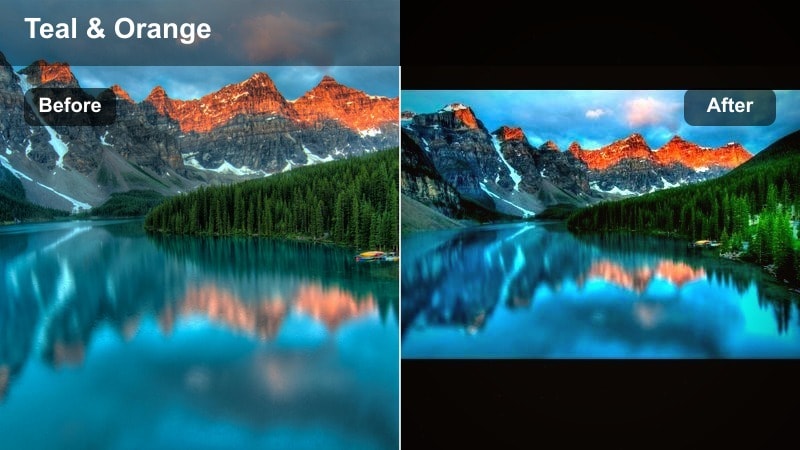
- Effect look: Soft teal shadows, deeper sky blues, and gentle highlight roll-off that keeps the sun glow subtle instead of fiery.
- Best for: Open horizon sunsets at the beach, lakeside reflections, and drone shots where the sky takes up most of the frame.
- Editing tip: Lower saturation slightly, then raise midtone contrast to keep faces and silhouettes from looking washed out in the cooler palette.
This signature Cool Sunset Filter. Twilight Blue preset in Filmora shifts overly warm sunsets into a calm twilight blue palette without crushing detail in clouds and water. Oranges and reds soften into teal and blue, while the gentle highlight roll-off prevents the sun from blowing out into a harsh, fiery spot.
Use it on beach horizons, lakes, and high-altitude drone shots where the sky dominates the frame to get a rich dusk aesthetic in seconds. After applying the filter, adjust saturation and midtone contrast so silhouettes stay strong and storytelling elements like people, boats, and coastlines remain clear against the cooled-down sky.
Pro tip: Balance skin tones in cool sunsets
If your subject is close to the camera, cool filters can make skin tones appear too cyan. After applying the preset, use Filmora s color tools to gently warm the midtones.
Target the orange and red channels with minimal adjustments so you restore natural skin while keeping the background sky and water in that deep twilight blue.
Speed up grading with Filmora s AI color tools
Instead of manually chasing the perfect blue dusk or cool twilight balance on every clip, let Filmora s AI-powered color tools give you a fast starting point. The AI can intelligently read your scene and suggest balanced temperature, tint, and exposure values that suit calm, cool sunset visuals.
Apply a cool sunset video filter like Cool Sunset Filter. Twilight Blue, then fine-tune temperature, tint, and exposure with AI suggestions so your travel sequences stay consistent from shot to shot. This is especially useful when your travel vlog mixes beach horizons, city skylines, and street scenes under different lighting conditions.
 secure download

Preview cool sunset filters in real time
Filmora lets you hover over filters to preview them instantly on your clips, so you can compare different cool sunset video filters before committing. This makes it easy to test whether a deep twilight blue, a lighter cyan dusk, or a moody silhouette look works best for your specific scene.
Play through your sunset scenes, from first orange glow to deep blue hour, and test how each preset handles skies, skin tones, and city lights. By quickly previewing options, you can match the mood of your soundtrack and pacing without spending extra time on manual grading.
secure downloadCombine filters with LUTs for advanced looks
If you want even more control, you can stack Filmora filters with LUTs to create layered cool sunset styles tailored to your camera and location. A gentle LUT can normalize contrast and color first, which makes the final sunset filter behave more predictably.
Apply a subtle LUT first to normalize footage, then add a cool sunset filter for mood, adjusting opacity so the final look stays natural. This workflow is ideal when matching blue dusk scenes shot on different days, or mixing action cam, phone, and mirrorless footage in one travel film.
secure downloadOcean Breeze Dusk
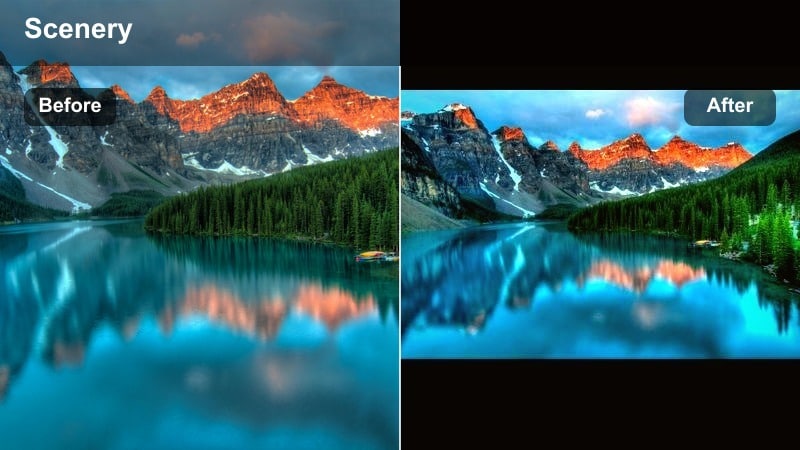
- Effect look: Soft cyan highlights with slightly lifted shadows, giving the whole frame a breezy, airy dusk vibe.
- Best for: Coastal walk footage, harbor scenes, and handheld clips where waves and reflections play a big visual role.
- Editing tip: Add a subtle vignette to draw focus toward the brightest part of the horizon and reduce distraction from foreground clutter.
Ocean Breeze Dusk wraps your footage in light cyan tones and gently lifted shadows, which helps water surfaces feel airy and open. It softens harsh oranges while retaining enough detail in boats, piers, and distant skylines for a travel-documentary style look.
Apply it to harbor walks, seaside cafes, or marina b-roll, then add a small vignette in Filmora to center attention on the brightest horizon area. The filter is forgiving on handheld clips, especially when paired with stabilization tools to keep ripples and reflections smooth.
Pro tip: Use motion to enhance the breeze effect
Combine this filter with Filmora s speed ramping on slow wave movements for an even more relaxing feel.
Keep camera movement smooth or stabilized so the gentle cyan tones and reflections become the visual focus instead of shaky motion.
Cityline Blue Hour
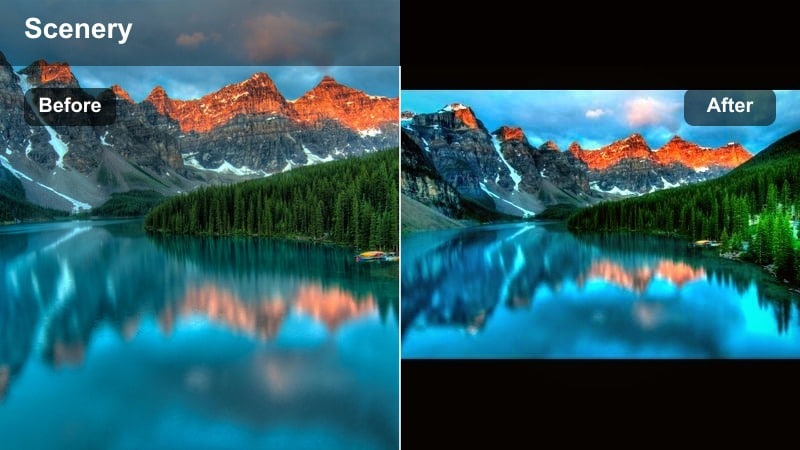
- Effect look: Punchy deep blues with enhanced contrast on buildings and lights, creating a clean, modern city twilight grade.
- Best for: Skyline time-lapses, rooftop views, and street-level b-roll as city lights start to glow after sunset.
- Editing tip: Boost clarity slightly to sharpen building edges, but avoid heavy sharpening that can introduce noise in darker areas.
Cityline Blue Hour lends a bold, modern feel to urban sunsets by deepening blues and making building edges and light sources stand out. It works especially well when city lights are just switching on, adding a crisp contrast between the cool sky and glowing windows.
Use it on time-lapses, rooftop reveals, or street-level b-roll to give your city travel vlog a cinematic polish. After applying the filter, increase clarity just enough to emphasize architecture, and keep an eye on noise in darker corners by moderating sharpness.
Pro tip: Accentuate light trails and neon signs
Record with a slower shutter or use time-lapse to emphasize movement in car lights and billboards under this cool grade.
In Filmora, pair the filter with slight glow or highlight softening to give neon signs a more cinematic, atmospheric look.
Blue Dusk and Cool Twilight Moods
Whispering Dusk
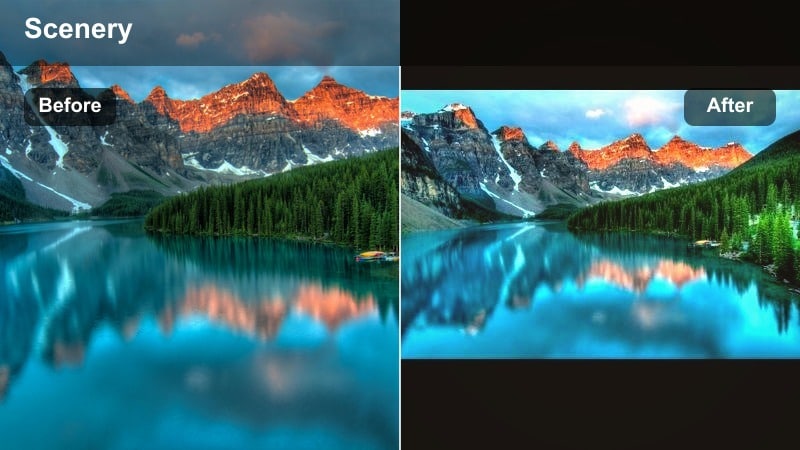
- Effect look: Muted blues and desaturated oranges for a gentle, almost pastel twilight mood.
- Best for: Quiet lakes, mountain silhouettes, and reflective travel vlogs with voice-over narration.
- Editing tip: Lower overall saturation, then nudge vibrance up a touch to protect subtle color in the sky without overboosting everything.
Whispering Dusk softens your palette into pastel blues and subdued oranges, ideal for introspective or story-driven sequences. It reduces visual intensity so viewers focus more on narration, voice-over, or subtle natural sounds.
Apply it to calm lakes, mountain views, and meditative walking shots, then tweak saturation and vibrance in Filmora to keep the sky gently alive without overwhelming the frame. This filter pairs well with slower pacing and delicate music beds.
Pro tip: Match pacing to the muted mood
Use slower cuts and longer shots in your edit so the soft colors have time to sink in for the viewer.
Add light ambient sound or gentle music instead of heavy beats to keep the audio aligned with the quiet dusk look.
Twilight Silhouette Glow
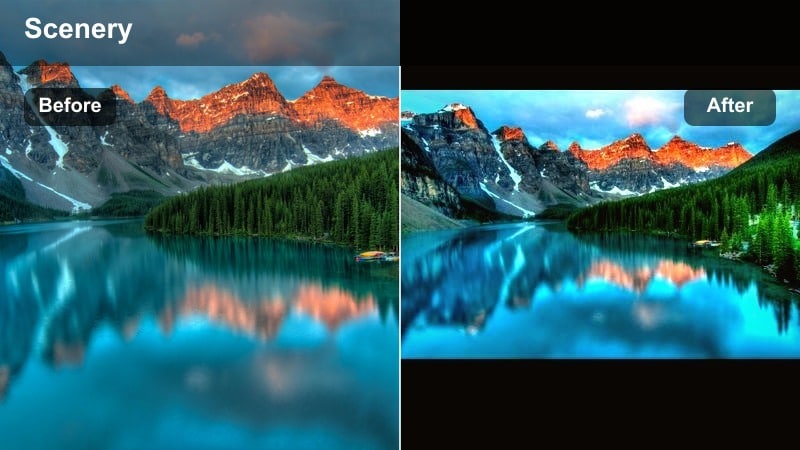
- Effect look: Deeper shadows for pronounced silhouettes with a cool gradient sky from cyan to navy.
- Best for: People standing against the horizon, trees, or cityscapes where shapes and outlines are the main subject.
- Editing tip: Pull shadows down slightly more after applying the filter so silhouettes look intentional, not accidentally underexposed.
Twilight Silhouette Glow is designed to carve your subjects into bold, graphic outlines against a striking cool sky gradient. It deepens shadows while preserving smooth transitions from cyan to navy across the horizon.
Use it for hero shots on cliffs, desert dunes, city rooftops, or tree lines when you want form and pose to be the focus. In Filmora, gently lower shadows and adjust exposure so silhouettes look deliberate, then refine framing to remove distractions around your subject.
Pro tip: Guide the eye with negative space
Frame your subject off-center and leave plenty of empty sky so the silhouette pops against the gradient.
In Filmora, crop or reframe clips slightly to remove clutter that breaks the clean silhouette effect.
Nordic Evening Calm
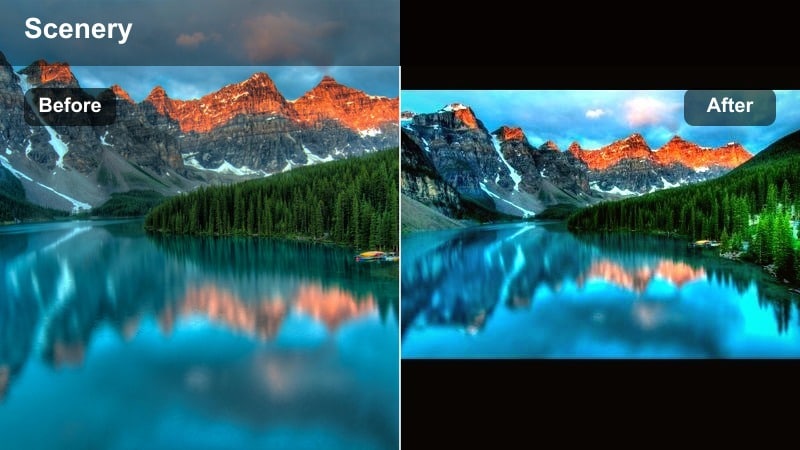
- Effect look: Cool, soft contrast with gentle blues and neutral highlights, inspired by northern summer nights.
- Best for: Countryside roads, forests, and cabin exteriors filmed just after sunset or under lingering twilight.
- Editing tip: Reduce contrast if your camera already captured high dynamic range, then use Filmora s HSL to cool just the greens slightly.
Nordic Evening Calm brings a naturalistic, documentary style to your twilight scenes, emphasizing gentle blues and softly balanced highlights. It is ideal when you want your footage to stay believable while still leaning into a cool, serene mood.
Apply it on forest drives, rural cabins, and quiet roadside shots, then fine-tune contrast so foliage and sky remain detailed. With Filmora s HSL controls, you can nudge greens cooler for that northern-evening feeling without making the entire scene look overly stylized.
Pro tip: Preserve a documentary feel
Avoid heavy stylization on this preset so the footage still feels real and grounded, especially for travel guides.
Lightly adjust white balance instead of extreme color shifts when matching clips across different cameras.
Evening Calm Aesthetic Filters
Calm Bay Haze
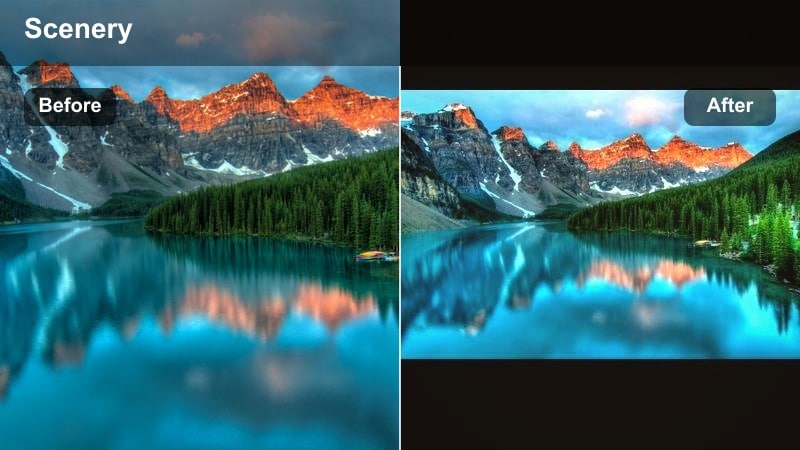
- Effect look: Softened highlights with cool haze and slight fade in the blacks for a dreamy, relaxed coastal atmosphere.
- Best for: Harbors, marinas, and seaside cafes where light bounces off water and glass surfaces.
- Editing tip: Combine with Filmora s subtle blur or bokeh overlays at the frame edges to enhance the dreamy feeling.
Calm Bay Haze adds a veil of cool haze over your footage, fading blacks slightly and softening highlights to create a dreamy, relaxed atmosphere. It is perfect when you want evening harbor scenes to feel slow, romantic, or reflective.
Use it on dockside walks, cafe terraces by the water, or boats gently rocking in the bay. In Filmora, enhance the mood with mild blur or bokeh overlays near the frame edges, and watch your exposure to avoid washing out important details under the added haze.
Pro tip: Mind the brightness of the haze
If the scene is already bright, keep exposure slightly lower so the added haze does not wash out details.
Use keyframes on exposure in Filmora when moving from darker alleys to open water to keep the mood consistent.
Serene Pier Blue
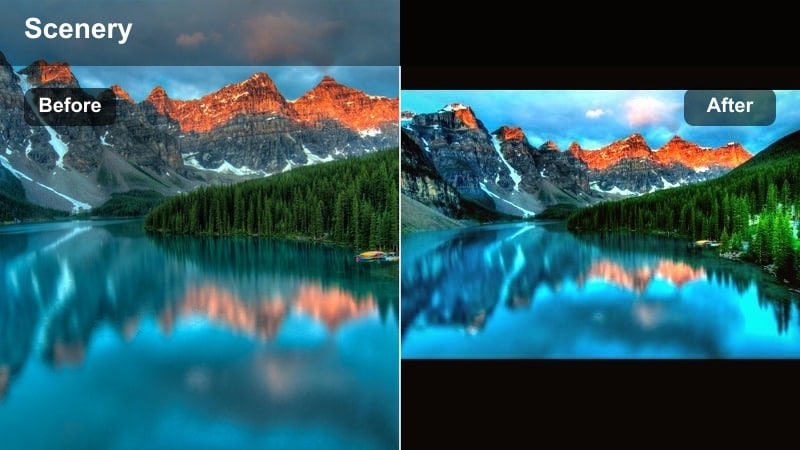
- Effect look: Neutral blues with lifted mids and gentle warming in the brightest highlights for a balanced, peaceful tone.
- Best for: Piers, boardwalks, and handheld walking shots facing the horizon or shoreline.
- Editing tip: Add a slow zoom-in or zoom-out with Filmora s pan and zoom to accentuate the calm walking pace.
Serene Pier Blue balances cool blues in the environment with subtle warmth in the brightest highlights, giving your scenes a friendly, approachable twilight vibe. It works well for travel intros, outro walks, or sequences where a subject moves calmly toward the horizon.
Apply it on piers, promenades, and boardwalks, then use Filmora s pan and zoom to introduce a slow push or pull movement. This gentle motion, combined with lifted midtones, reinforces the peaceful, reflective pacing of your evening story.
Pro tip: Keep horizon lines stable
Use stabilization to remove small shakes in handheld pier shots so the quiet mood carries through.
Align the horizon carefully in Filmora s crop tools to avoid tilted frames that distract from the serene aesthetic.
Evening Cafe Chill
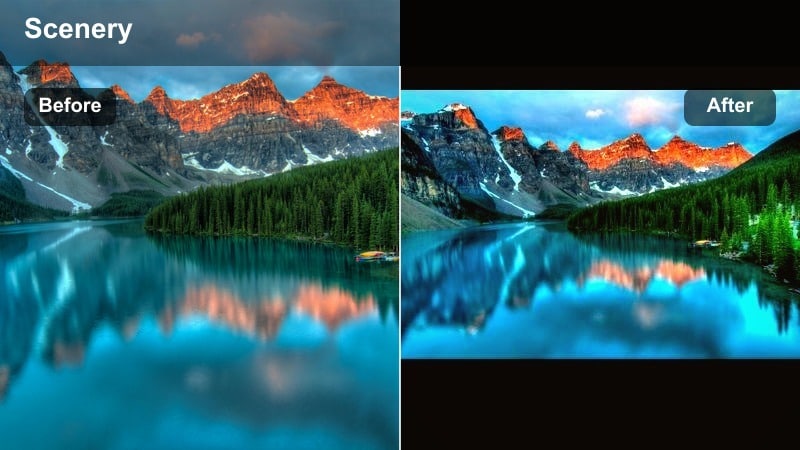
- Effect look: Cool background environment with slightly warmer, cozy tones preserved in practical lights and candles.
- Best for: Outdoor cafes, street food markets, and nightlife b-roll just after the sun goes down.
- Editing tip: Keep exposure low enough that string lights and windows look rich, not blown out, then add gentle film grain if desired.
Evening Cafe Chill creates a dual-tone look, cooling the overall environment while protecting the inviting warmth of lamps, windows, and candles. It is ideal for nightlife vlogs and city evenings when you want cozy lights to stand out against a cooler dusk backdrop.
Use it on outdoor cafes, food stalls, and street scenes, then carefully manage exposure so practical lights stay rich and detailed. A hint of film grain in Filmora can add texture and a relaxed, cinematic café atmosphere.
Pro tip: Protect warm light sources
After applying the filter, use highlight control to keep bulbs and candles from turning pure white.
Mask key light sources if necessary so their warmth stays intact while the rest of the frame remains nicely cooled.
Travel-Focused Blue Hour Specials
Airport Window Blue
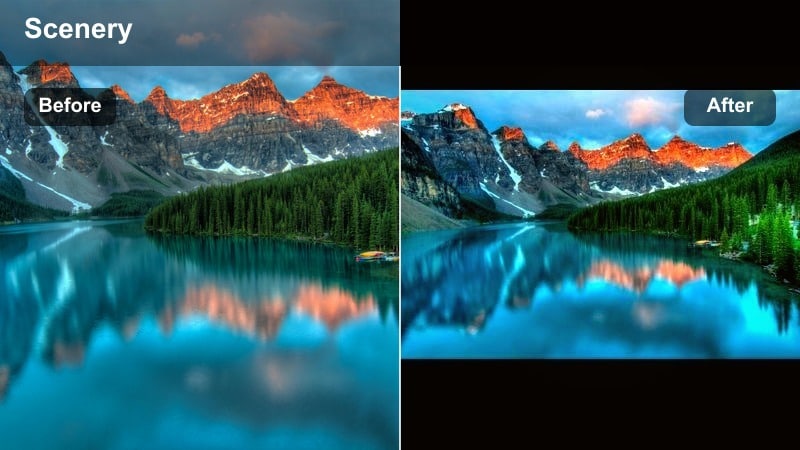
- Effect look: Clean, cool airport glass reflections with subtle cyan tint and boosted clarity on planes and runways.
- Best for: Airport layover b-roll, plane spotting, and departure or arrival sequences filmed through windows.
- Editing tip: Lower highlights slightly to keep runway lights visible, and use Filmora s de-noise when filming in low light.
Airport Window Blue is tuned for shots through glass, emphasizing clean cyan reflections while sharpening planes and runway details. It instantly turns casual layover clips into cohesive transition sequences between destinations.
Apply it on terminal windows, boarding gates, or plane-spotting shots, then dial down highlights to retain runway lights and signage. If your footage is noisy from low light, combine the filter with Filmora s de-noise to keep the cool look smooth and polished.
Pro tip: Avoid heavy reflections
Angle your camera slightly and get close to the glass to minimize reflections before applying the filter.
If reflections remain, reduce exposure and contrast a bit so they blend more softly into the cool background.
Mountain Pass Twilight
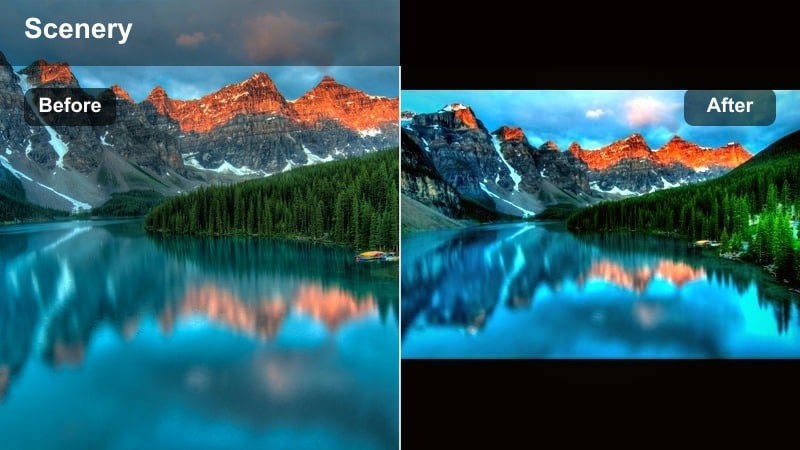
- Effect look: Deep navy skies with crisp cool shadows on ridgelines, plus subtle clarity for rock detail.
- Best for: Road trips through mountain passes, hiking trails, and drone reveals over valleys at late dusk.
- Editing tip: Increase local contrast with Filmora s sharpness and clarity tools sparingly to avoid visible noise in dark slopes.
Mountain Pass Twilight dramatizes ridgelines and peaks with rich navy skies and clean, cool shadows that emphasize texture. It is perfect for moody mountain drives, hikes, or drone shots that reveal vast valleys below.
Use it on late dusk adventures where silhouettes of mountains dominate the frame, then refine local contrast in Filmora just enough to bring out rock detail. Keep an eye on noise in darker slopes and avoid over-sharpening to maintain a cinematic, noise-controlled finish.
Pro tip: Emphasize scale with composition
Include a small car, hiker, or road section to give a sense of size against the dramatic blue mountains.
Use Filmora s slow zoom-out or drone-style transitions to reveal more of the landscape gradually.
Harbor Lights Blue Hour
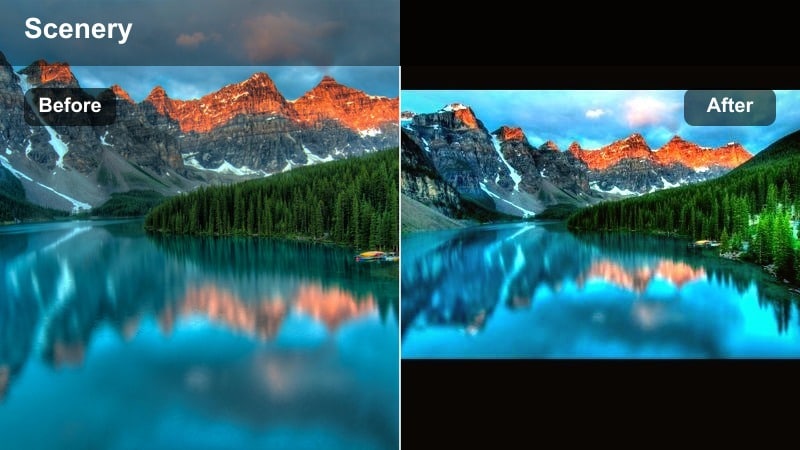
- Effect look: Rich blue water with enhanced reflections of city lights and boats, plus smoothed highlights for a glossy finish.
- Best for: Port cities, marina night walks, and cruise departure or arrival scenes at blue hour.
- Editing tip: Slow down footage slightly in Filmora to accentuate ripples and reflections under this glossy blue look.
Harbor Lights Blue Hour emphasizes glossy reflections on water, deepening blues and smoothing highlights for a luxurious city-port aesthetic. It makes boat lights, skyline glows, and docked ships feel polished and cinematic.
Apply it on marina walks, cruise departures, or waterfront skylines, then slow your clips slightly in Filmora to let ripples and reflections linger on screen. Stabilization can further refine the smooth, mirror-like water surface for high-end travel visuals.
Pro tip: Stabilize handheld harbor shots
Use stabilization to reduce handshake that can break up clean reflections on the water surface.
If you shot from a moving boat, combine stabilization with modest cropping in Filmora so the frame remains steady and cinematic.
Tips for Using Sunset Cool Filters in Filmora
- Shoot in a slightly flatter picture profile so cool sunset filters have more dynamic range to work with in the sky and shadows.
- Bracket exposure or record a touch darker than usual to protect sunset highlights that cool filters can later bring back in the mids.
- Use a tripod or stabilization when filming blue hour scenes, because low light combined with cool filters exaggerates any motion blur.
- Match white balance across your clips before applying filters so the cool sunset look stays consistent through the whole sequence.
- Keep an eye on skin tones and warm light sources; lightly re-warm faces and lamps after applying cool filters to avoid a lifeless feel.
- Test several cool presets back-to-back on the same clip in Filmora s preview to quickly compare mood, contrast, and skin tone handling.
- Save your favorite cool sunset adjustments as custom presets in Filmora so you can apply a consistent blue dusk style across future projects.
Cool sunset video filters are a powerful way to turn ordinary evening clips into calming blue dusk visuals that feel cinematic and intentional.
Experiment with several presets, then fine-tune exposure, saturation, and skin tones in Filmora until your sunset and blue hour shots match the exact mood you want to share from your travels.
secure downloadNext: Explore Aesthetic Sunset Filters for Warmer Golden Hour Vibes
