

 100% Security Verified | No Subscription Required | No Malware


 ChatGPT
 Perplexity
 Gemini
 Claude
 Grok
Grok
This teal and orange cinematic LUT-style filter collection is designed for content creators who want a bold, blockbuster look in seconds. With a mix of strong contrast, soft fades, and subtle tonal shifts, you can instantly balance cool shadows with warm highlights for that classic Hollywood color grade.
Use these filters on travel vlogs, city b-roll, short films, or social content whenever you need cool teal depth in the background and rich, glowing orange skin tones in the foreground for a cinematic, story-driven mood.
In this article
Golden Hour Street Cinematics
Sunset City Rush
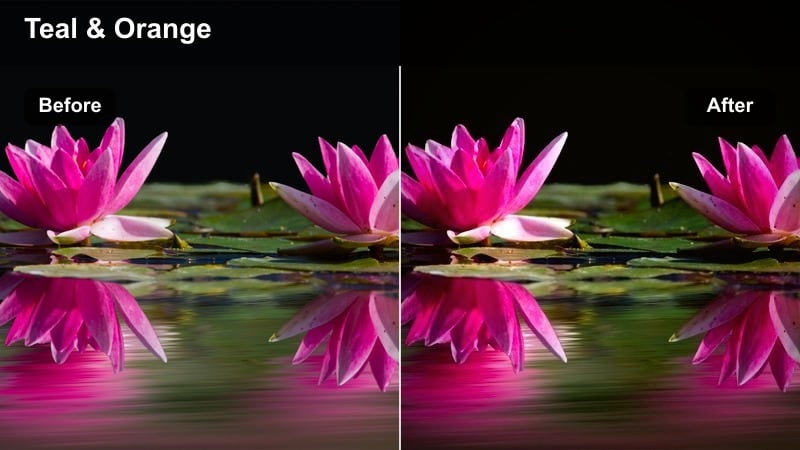
- Effect look: Bold teal shadows with glowing orange highlights and punchy contrast for dynamic city motion.
- Best for: Street vlogs, urban b-roll, fast-paced walk-and-talk scenes filmed around golden hour.
- Editing tip: Lower the contrast slightly if your footage was shot under harsh direct sun to keep skin tones natural.
Sunset City Rush is designed to turn busy streets into high-energy frames with crisp teal shadows and vibrant orange highlights. In Filmora, this look instantly gives your golden hour footage a cinematic LUT-style punch, separating your subject from the background while preserving detail in buildings, sidewalks, and traffic.
Apply this filter to handheld vlogs, hyperlapse city walks, or bike-ride sequences, then fine-tune contrast and exposure using Filmoras color controls. If motion is intense, pair the look with a bit of motion blur or speed ramping so the bold teal and orange palette feels like part of the action instead of overwhelming the viewer.
Match Your Teal and Orange Palette with Filmora AI
Filmoras AI color tools help you quickly refine teal shadows and orange highlights so your cinematic LUT-style filters stay consistent across every clip in a sequence. You can keep skin tones believable while still pushing the stylized blockbuster palette as far as your story needs.
Use AI color matching to analyze a hero shot, then sync the same teal and orange balance across all your city, travel, or studio angles without manual tweaking on every clip.
 secure download

Preview Teal and Orange Filters in Real Time
With Filmoras filter panel, you can audition teal and orange cinematic looks on top of your raw footage in real time. This lets you compare intense blockbuster styles against softer, pastel variations before you commit to a final grade.
Stack multiple filters on a test clip, adjust their opacity, and use split-screen or before-and-after previews to lock in a teal and orange grading style that matches your pacing and lighting.
secure downloadCombine Filters with LUTs for a Deeper Film Look
For creators who want a true film-look stack, Filmora lets you combine teal and orange filters with cinematic LUTs in a single timeline. Filters give you the broad teal shadows and orange highlights, while LUTs add nuanced contrast, halation, and subtle color shifts.
Experiment with different LUTs on top of your base teal and orange grade, then refine intensity with opacity sliders and keyframes so every scene flows smoothly from shot to shot.
secure downloadDusty Avenue Glow
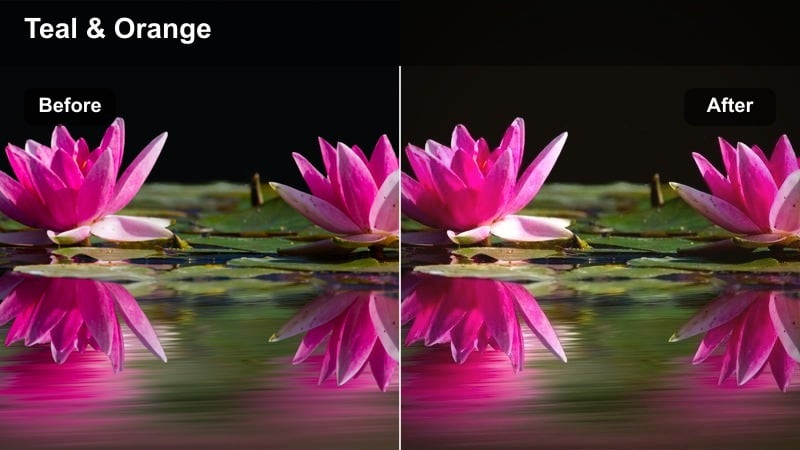
- Effect look: Soft, hazy teal and orange treatment with lifted blacks and a gentle bloom in highlights.
- Best for: Slow street montages, character intros, and quiet walks during late afternoon light.
- Editing tip: Add a subtle vignette and reduce clarity to emphasize the dreamy, nostalgic street atmosphere.
Dusty Avenue Glow introduces a hazy, nostalgic version of the teal and orange look, ideal when you want emotion over intensity. The lifted blacks and softened highlights create a gentle filmic wash that flatters faces and adds a romantic tone to everyday streets.
In Filmora, combine this filter with a mild vignette and reduced clarity to lean into the dreaminess without losing important detail. It works especially well for slow-motion b-roll or character intros, where the soft teal shadows and orange light let your story breathe between dialogue-heavy scenes.
Alleyway Embers
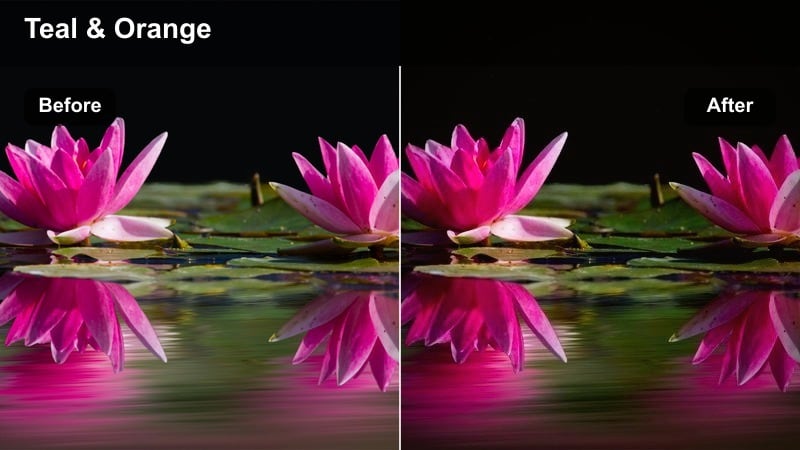
- Effect look: Crunchy teal in the shadows with deep orange midtones, giving alleys and side streets a dramatic flare.
- Best for: Narrative shorts, moody character scenes, and handheld alley sequences at blue hour.
- Editing tip: Slightly desaturate other colors like greens and purples so teal and orange remain the clear focus of the palette.
Alleyway Embers pushes the teal and orange contrast harder, giving narrow spaces and side streets a striking, almost graphic-novel intensity. The crunchy teal shadows carve out depth, while rich orange midtones set the stage for characters and key props.
Use this look in Filmora for blue-hour scenes, thriller beats, or emotionally charged walk-and-talks. By taming competing hues in the HSL controls while this filter is active, you can keep attention locked on the teal alley backgrounds and glowing orange windows, making every frame feel like a still from a cinematic trailer.
Neon Nights and City Skylines
Neon Teal Lights
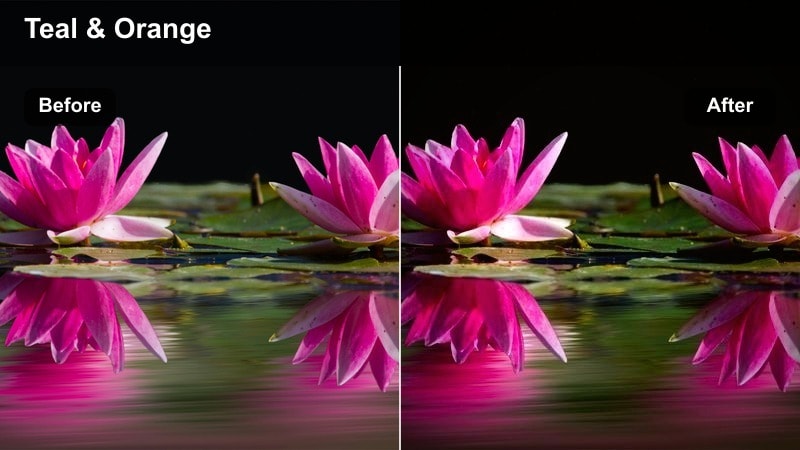
- Effect look: High-contrast teal and orange with saturated neon highlights and cool, glossy streets.
- Best for: Night cityscapes, neon sign close-ups, and rainy street reflections.
- Editing tip: Reduce overall exposure a touch so neon details stay crisp and avoid clipping in bright signage.
Neon Teal Lights transforms your night footage into a stylized neon playground, emphasizing teal reflections on wet streets and orange glows from windows and traffic. The high contrast accentuates detail in signage and puddles, helping even simple walk-bys look like polished music video shots.
Apply this filter in Filmora to rainy-night b-roll, time-lapses, or cyberpunk-inspired sequences, then nudge exposure and highlights down to protect neon text and graphics. A small amount of film grain can further break up smooth gradients, adding grit and depth to your teal blues and warm oranges.
Rooftop Copper Sky
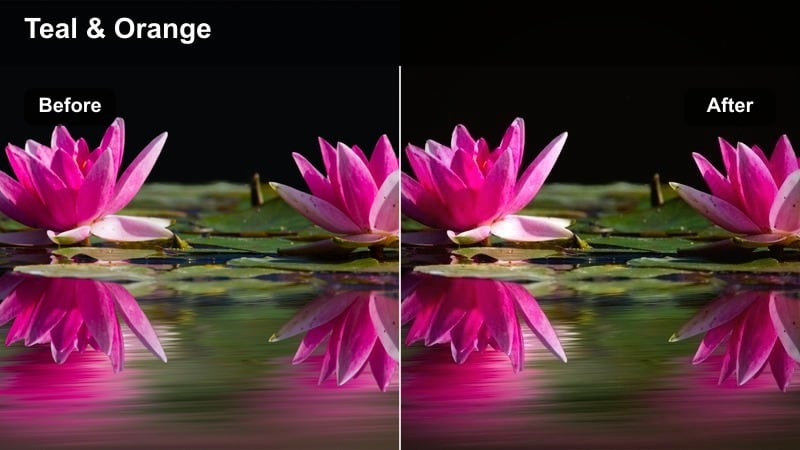
- Effect look: Balanced teal skyline with soft orange glows on faces and building edges for rooftop conversations.
- Best for: Dialogue scenes, rooftop dates, and reflective monologues against the city skyline.
- Editing tip: Dial back saturation on the sky if the blue becomes too heavy, keeping attention on the warm subject in foreground.
Rooftop Copper Sky is tuned for talking-head moments and close interactions framed against a city backdrop. The skyline leans cool teal, while faces and edging lights carry a softer orange, creating separation without distracting from performance.
In Filmora, use this filter on dialogue scenes where you want the city to feel present but not overpowering. If your sky or buildings become too saturated, gently reduce blue and cyan saturation, then refine skin tones with selective color so the warm subject remains the emotional center of the scene.
Midnight Crosswalk
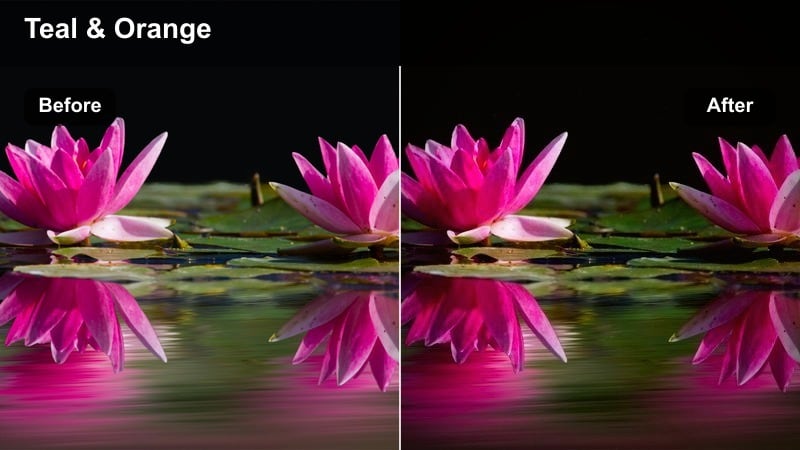
- Effect look: Gritty teal pavement, deep shadows, and warm orange traffic lights for late-night street scenes.
- Best for: Solo city walks, thriller sequences, and contemplative night footage at intersections.
- Editing tip: Introduce a slight fade in the blacks to keep detail in dark clothing and avoid overly harsh contrast.
Midnight Crosswalk brings a moody, thriller-ready take on teal and orange, perfect for empty intersections and solitary walks. The asphalt turns cool teal while traffic and street lights glow orange, setting a tense or introspective tone depending on your pacing and sound design.
Apply this look in Filmora to shots that rely on negative space and shadow, then slightly fade your blacks so clothing, hair, and environment detail do not disappear. This keeps your image cinematic yet readable, especially when combined with subtle noise reduction and a careful balance between midtone contrast and shadow detail.
Daylight Travel and Adventure
Coastal Freeway Ride
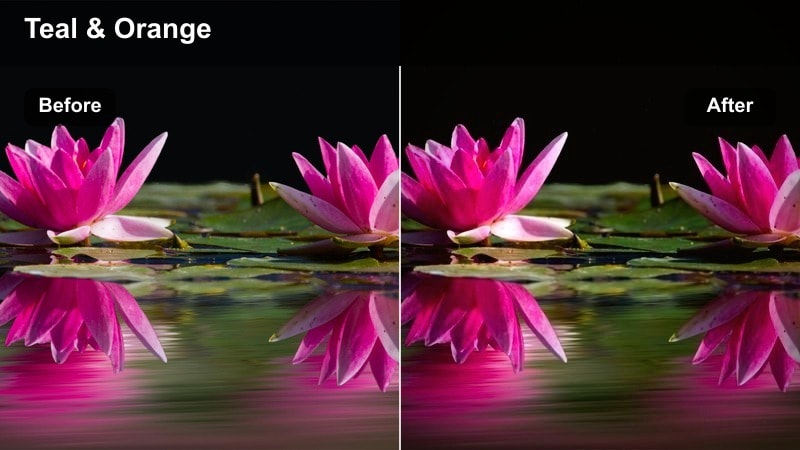
- Effect look: Clean teal skies and roads with sun-kissed orange highlights for travel montages and car shots.
- Best for: Road trips, coastal drives, and drone footage following cars or buses in daylight.
- Editing tip: Increase saturation slightly in teal while holding luminance steady so skies look rich without appearing cartoonish.
Coastal Freeway Ride is built for bright daytime adventures, turning skies, roads, and oceans into clean teal while preserving golden orange light on vehicles and landscapes. It delivers the classic travel-commercial vibe without requiring complex grading knowledge.
In Filmora, drop this filter onto car rigs, dashboard shots, and drone passes along highways, then lightly boost teal saturation if your sky feels washed out. Keep luminance stable to avoid banding or overly stylized skies, and use gentle speed ramps or music-synced cuts to match the energetic color with dynamic pacing.
Old Town Wander
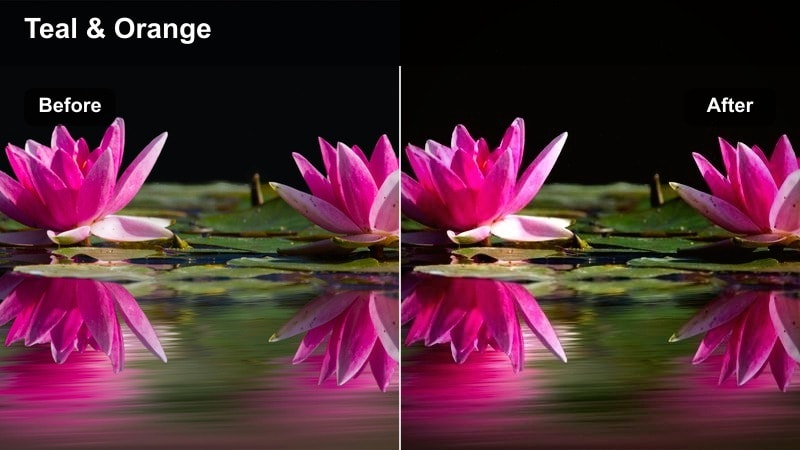
- Effect look: Warm orange bricks and facades contrasted with soft teal in shadows for historic streets.
- Best for: Travel vlogs, walking tours, and handheld explorations through old city districts.
- Editing tip: If brick walls turn too saturated, pull back orange saturation slightly and rely on contrast to keep them prominent.
Old Town Wander leans into earthy architecture, enhancing brick, stone, and painted facades with inviting orange warmth while letting shadows drift toward a soft teal. This creates a story-rich palette that works beautifully for narrated tours and cultural explorations.
Use this filter in Filmora when your footage features alleys, plazas, and old buildings, then fine-tune saturation so walls and doors stay rich but not overpowering. Paired with slower camera moves and longer cuts, the teal and orange interplay helps viewers focus on details and anecdotes you share about each location.
City Park Escape
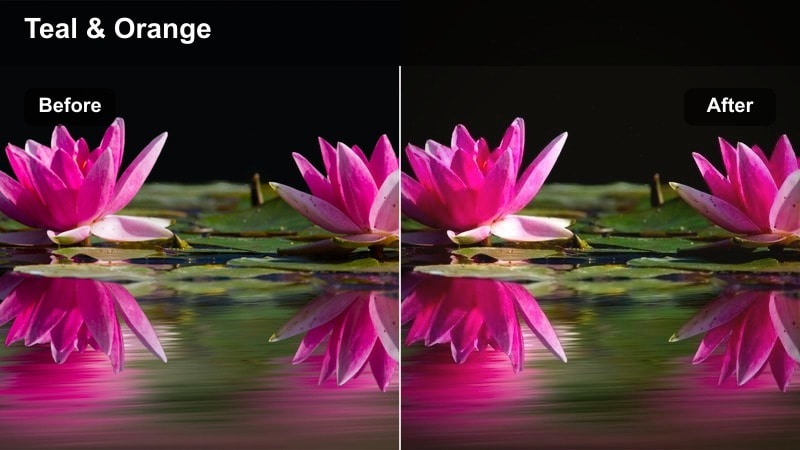
- Effect look: Gentle teal in shaded areas with light, pastel-like orange highlights that keep daylight scenes soft.
- Best for: Daytime picnics, park b-roll, and lifestyle shots in open urban green spaces.
- Editing tip: Lower overall contrast slightly to avoid harsh lines on faces and keep the scene airy and relaxed.
City Park Escape is a softer, lifestyle-friendly take on teal and orange, designed for casual daytime scenes with friends, families, or solo relaxation moments. Shaded areas lean into a mild teal while sunlight lifts into airy orange tones, preserving an easygoing, approachable look.
In Filmora, this filter works well on picnic sequences, park workouts, and lighthearted montages. Reduce overall contrast and keep saturation moderate so the grade complements your content rather than turning it into a heavy stylistic statement, especially for longer vlogs or social content.
Indoor Stories and Character Moments
Window Teal Haze
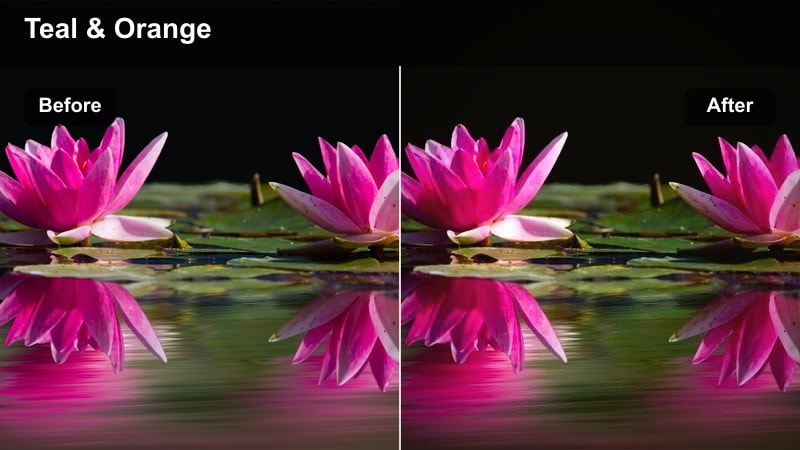
- Effect look: Cool teal from windows and screens contrasted with soft, warm orange on faces and interior lamps.
- Best for: Desk setups, talking-head scenes, and reflective character moments near windows.
- Editing tip: Use masks or keyframes to keep warmth mainly on skin and tabletops, while windows stay richly teal.
Window Teal Haze is optimized for interior scenes where natural light and screens form the backdrop. It cools exterior views and monitor glows into teal while letting lamps, wooden surfaces, and skin tones carry a gentle orange warmth that flatters faces.
Apply this look in Filmora for YouTube commentary, journal-style monologues, or productivity setups by a window. Use masks or keyframed color adjustments to keep warmth focused on people and workspace surfaces, maintaining a clear separation between the teal outside world and the cozy interior story space.
Studio Copper Frame
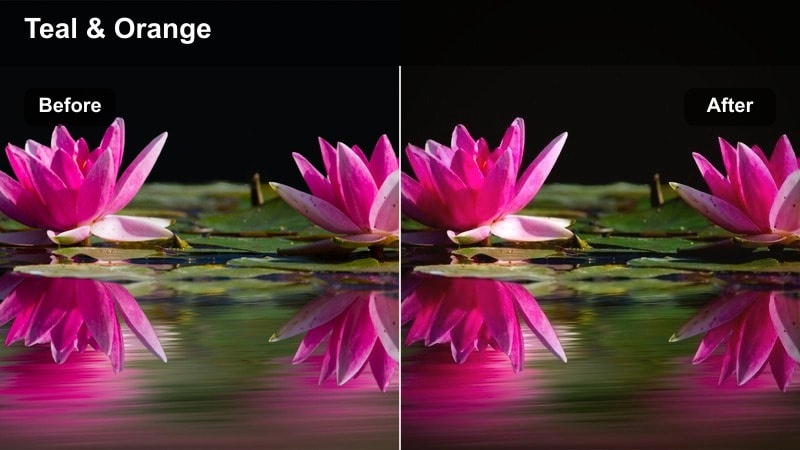
- Effect look: Polished studio-style teal and orange with clean lines and slightly increased micro-contrast.
- Best for: YouTube intros, product shots, and creator studio setups with controlled lighting.
- Editing tip: Fine-tune white balance before applying the filter so teal and orange land exactly where you expect them.
Studio Copper Frame is tailored for controlled studio environments, giving LED backgrounds a cool teal cast while keeping hosts, products, and key props in an elegant orange glow. The slight micro-contrast boost sharpens edges and text, making overlays and graphics feel crisp and professional.
In Filmora, set your white balance first, then apply this filter to intros, tutorials, and branded segments. Save your final combination of exposure, color tweaks, and this filter as a custom preset so every episode or product video retains the same polished teal and orange studio identity.
For cross-project or cross-software use, Filmora can separately export the compatible color adjustments from a selected clip as a standard .cube LUT for Filmora, DaVinci Resolve, Adobe Premiere Pro, or Final Cut Pro.
Coffee Shop Chapters
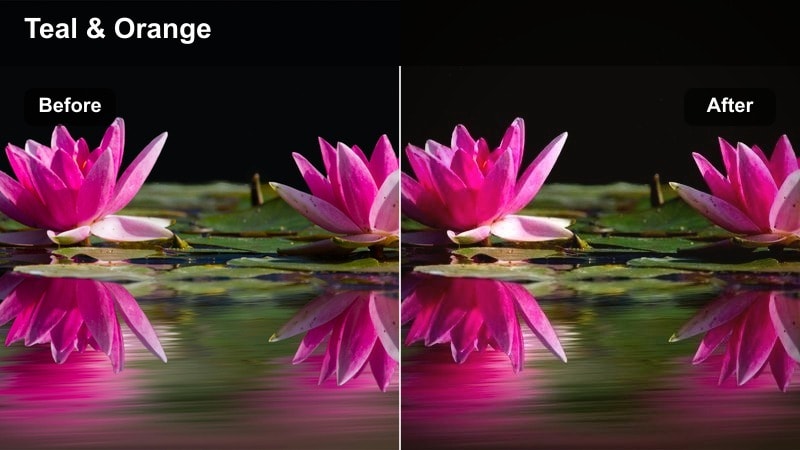
- Effect look: Muted teal in the background with cozy orange over tables and faces for intimate conversations.
- Best for: Podcast clips, interview segments, and narrative scenes set inside cafes or small venues.
- Editing tip: Lower saturation on distracting background colors so the warm subject in the foreground remains the clear focus.
Coffee Shop Chapters is built around intimate, conversation-driven scenes, muting teal in the background while emphasizing warm oranges on people and tabletops. It makes cafes, bars, and small venues feel inviting and cinematic without overpowering the dialogue.
Use this filter in Filmora for podcast clips, interview reels, or character-driven café sequences, then selectively lower saturation on busy decor elements so they fade softly into teal. A mild vignette and subtle background blur help ensure the teal and orange palette supports, rather than competes with, what your subjects are saying.
Tips for Using Teal And Orange Cinematic Lut Filters in Filmora
- Shoot with a slightly flatter picture profile so teal and orange filters have more dynamic range to work with and retain highlight detail.
- Avoid heavy in-camera sharpening, since strong teal shadows and orange highlights can accentuate halos and make footage look less cinematic.
- Use masks in Filmora to keep skin tones warm and natural while allowing teal to dominate backgrounds, shadows, and less important areas.
- Adjust the opacity of each teal and orange filter to suit the mood of each scene instead of leaving every look at 100 percent strength.
- Combine these cinematic filters with gentle camera movement from sliders, gimbals, or handheld stabilization to reinforce the filmic feel.
- Fine-tune hue and saturation of teal and orange in Filmoras color tools so different cameras and lenses match seamlessly in the same timeline.
- Watch your scopes when grading; keep skin tones on a natural line while pushing teal and orange into stylized territory around them.
Teal and orange cinematic LUT-style filters give content creators a fast path to bold, story-driven color without needing advanced grading skills. By starting from a curated preset, you can transform flat footage into something closer to a feature film or high-end commercial in just a few clicks.
Choose a filter that fits your scene, then refine contrast, saturation, and skin tones in Filmora until the teal shadows and orange highlights feel perfectly tuned to your story. With consistent use and a bit of customization, this classic palette can unify your channel, series, or brand into a recognizable cinematic look.
secure download