

 100% Security Verified | No Subscription Required | No Malware


 ChatGPT
 Perplexity
 Gemini
 Claude
 Grok
Grok
Aesthetic urban street filters can turn harsh city footage into soft, dreamy visuals with pastel urban tones and gentle contrast. With the right presets, your everyday streets, alleys, and neon corners start to look like a cinematic dream city.
This guide showcases 12 aesthetic urban street filters tailored for content creators and street photographers who want subtle, soft street looks. Use them to build a cohesive visual style for vlogs, reels, and aesthetic street edits without spending hours on manual color work.
In this article
Soft Urban Dreams: Gentle City Vibes
Aesthetic Urban Filter. Dream City
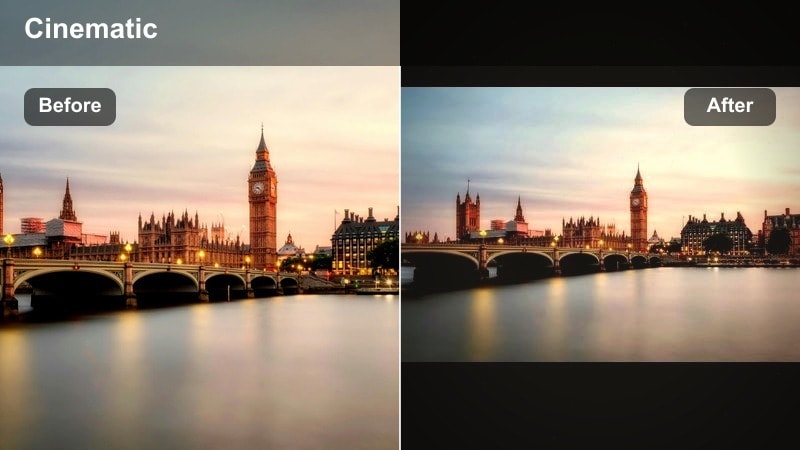
- Effect look: Soft, pastel urban tones with lifted shadows and gentle bloom in highlights for a dreamy, cinematic city feel.
- Best for: Evening walk vlogs, city lifestyle B-roll, aesthetic street edits with slow camera moves and handheld shots.
- Editing tip: Lower contrast slightly and reduce clarity on faces to keep skin soft while using a subtle vignette to guide focus toward the center.
This signature gentle pastel filter turns everyday streets into a dreamy, cinematic urban scene, perfect when you want your city to feel like a soft-focus memory instead of a harsh, hyper-real capture. In Filmora, it gently lifts shadows, smooths highlight transitions, and wraps your frame in a pastel wash that works especially well during blue hour or on lightly overcast days.
Apply the Aesthetic Urban Filter. Dream City preset to your base footage, then fine-tune with Filmora tools like contrast, clarity, and vignettes. Keep motion slow and stable for walk-and-talks or lifestyle B-roll so the soft street aesthetic has room to breathe, and use minor exposure tweaks per shot to maintain a consistent dreamy mood across your entire edit.
Pro tip: Match your lighting to the Dream City look
Shoot during blue hour or on lightly overcast days so the filter can lean into soft, even light without fighting harsh sun or deep shadows.
If your source footage is very contrasty, slightly lower highlights and raise shadows before applying the filter to keep the final look gentle, not crunchy.
Lock in a Consistent Urban Aesthetic with AI
Use Filmora s AI-driven color tools to turn your favorite aesthetic urban street filters into a consistent palette for your entire channel. Once you dial in a look you love, you can quickly match new clips to that style for every vlog, reel, or short film.
Save your favorite soft street and pastel urban grades as custom presets so you can apply them in one click, then let AI fine-tune exposure and white balance shot by shot. This keeps your Dream City base look cohesive, even when you are working with mixed cameras or lighting conditions.
 secure download

Preview Aesthetic Street Filters in Real Time
Filmora s filter preview makes it easy to scan through multiple aesthetic urban street filters directly on your footage. You can compare soft, gentle looks side by side before committing to a full-grade direction.
Test different presets on the same clip, from pastel rooftop views to softened neon alleys, and quickly decide which filter best fits your story, platform, and aspect ratio. This speeds up your workflow while keeping your color choices intentional.
secure downloadBlend Filters with LUTs for Cinematic Depth
Combine Filmora s aesthetic urban street filters with gentle cinematic LUTs to add depth while keeping your color palette soft and cohesive. Filters handle the mood, while LUTs fine-tune contrast, saturation, and tonal curves.
Start with your preferred soft street filter, then layer a low-intensity LUT on top to introduce subtle film-style contrast. This makes your edits feel more polished and cinematic without losing that dreamy city feel you created with your base preset.
secure downloadPastel Crosswalk Glow
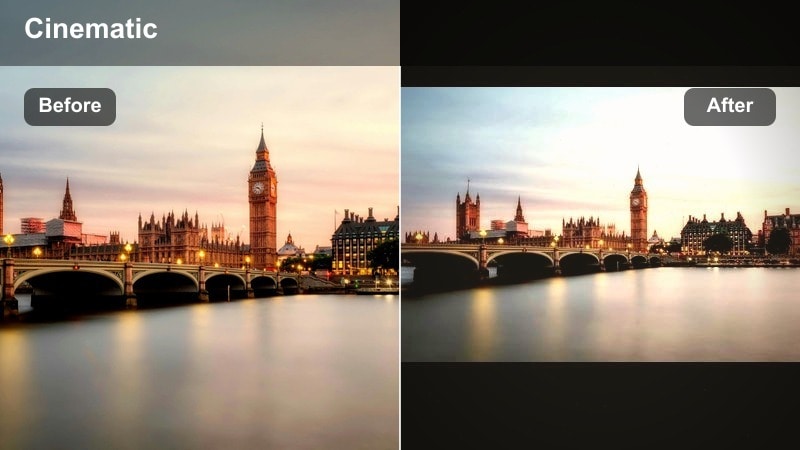
- Effect look: Muted primaries, pastel highlights, and a light peach glow that softens asphalt and concrete textures.
- Best for: Wide street scenes, crosswalk shots, and static frames with people moving through the city.
- Editing tip: Slightly reduce saturation for reds and oranges to avoid oversaturated skin while keeping the pastel glow in the midtones.
Pastel Crosswalk Glow wraps busy intersections in a warm, inviting atmosphere that makes hard lines and rough surfaces feel much softer. It mutes bold primary colors so traffic lights, billboards, and signage do not overpower your frame, while a peachy highlight glow adds a subtle cinematic sheen.
In Filmora, apply this filter to wide shots where people cross or wait at intersections, then adjust HSL to pull down red and orange saturation for natural skin tones. Pair it with static tripod shots or gentle pans so the viewer can enjoy the soft pastel palette and the ebb and flow of pedestrians without visual chaos.
Pro tip: Balance skin tones with street colors
Use HSL controls to gently pull red and orange saturation down so skin looks natural against pastel sidewalks and buildings.
If the scene feels too warm, nudge the global temperature slightly cooler instead of lowering saturation to keep the pastel glow intact.
Gentle Backstreet Mist
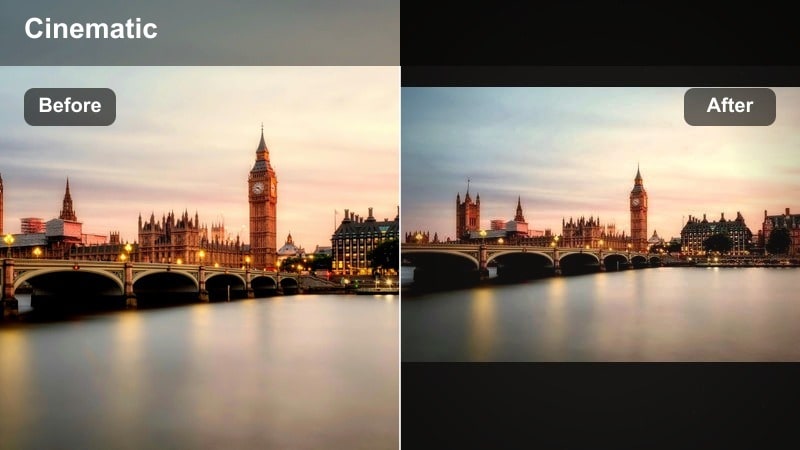
- Effect look: Soft haze in the highlights, desaturated shadows, and cooler midtones that make tight streets feel airy.
- Best for: Narrow alleys, backstreets, stairways, and static or slow push-in shots.
- Editing tip: Add a light film grain on top to bring subtle texture back after the haze softens the scene.
Gentle Backstreet Mist is designed to turn cramped, cluttered alleys into dreamy, atmospheric spaces. The filter lowers contrast and desaturates darker areas while adding a soft highlight haze, so even busy backgrounds feel quieter and more cinematic.
In Filmora, combine this filter with slow push-ins or static frames where your subject stands deeper in the scene. Add a touch of film grain after grading to reintroduce texture that the haze may have softened, and use a bit of background blur or depth-of-field effects to further separate your subject from the misty environment.
Pro tip: Use depth to enhance the haze
Frame subjects deeper into the alley and keep foreground elements darker so the misty highlights in the distance feel more pronounced.
Combine with a very subtle blur on background layers to reinforce the dreamy backstreet mood without losing subject clarity.
Pastel Urban Tones: Soft Color Stories
Rooftop Pastel Blues
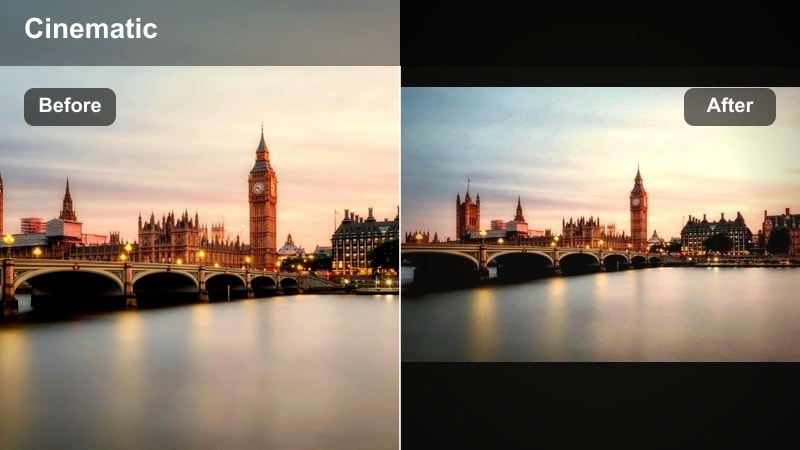
- Effect look: Cool pastel blues in the sky and buildings with softened whites and a delicate teal shift in shadows.
- Best for: Rooftop views, skyline reveals, balcony shots, and drone passes over urban areas.
- Editing tip: Boost luminance in blues to brighten the sky without clipping highlights, keeping a soft, airy feel.
Rooftop Pastel Blues cools down your cityscapes with minimal, clean pastel tones that are ideal for modern, design-driven content. Whites are softened, skies lean into baby blue, and shadows carry a faint teal tint that keeps the grade stylish without going full teal-and-orange.
Inside Filmora, apply this filter to wide skyline or rooftop angles, then use color controls to increase blue luminance if the sky needs more lift. Keep clarity moderate so distant buildings read as gentle shapes rather than razor-sharp edges, and avoid heavy contrast increases that would break the pastel, airy mood.
Pro tip: Keep horizons gentle and clean
Straighten your horizon and reduce clarity on distant buildings so the pastel blues read as smooth gradients, not hard lines.
If the sky looks flat, add a soft vignette from the corners inward instead of raising contrast, preserving the pastel look.
Soft Street Peach
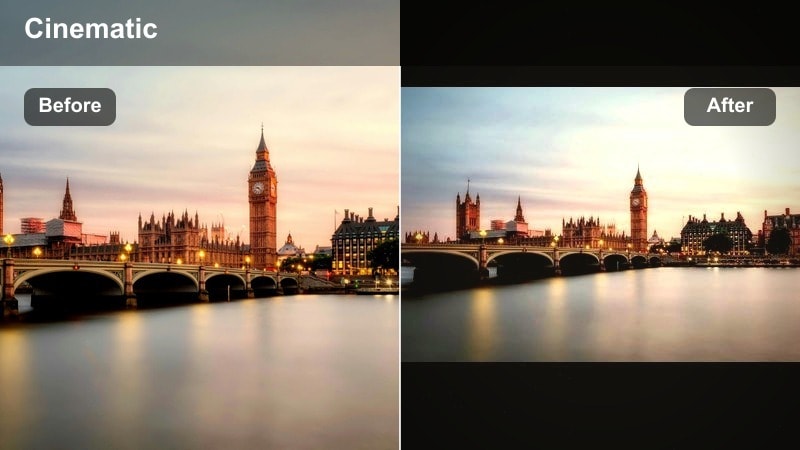
- Effect look: Warm peach-tinted highlights with gentle magenta shadows for a cozy pastel urban palette.
- Best for: Cafes, storefronts, sidewalks, and everyday lifestyle footage on city streets.
- Editing tip: Subtly lift blacks to avoid heavy shadow blocks and keep the whole frame feeling light and soft.
Soft Street Peach is made for cozy street corners, cafes, and lifestyle content where warmth and intimacy matter. Highlights lean peach, shadows gain a subtle magenta hue, and the overall contrast stays low, giving your scenes a soft, welcoming atmosphere.
Use this filter in Filmora for vlog openers, coffee run sequences, and storefront B-roll. Lift blacks slightly to prevent shadows from turning harsh, and if whites start to drift too warm, adjust magenta levels in the midtones rather than changing global white balance, so you keep the pastel vibe intact.
Pro tip: Protect highlights on signs and windows
Lower highlight roll-off before applying the filter so text on signs and reflections in windows remain legible.
If whites start to look too pink, gently reduce magenta in the midtones instead of changing overall white balance.
Subtle Sidewalk Pastel
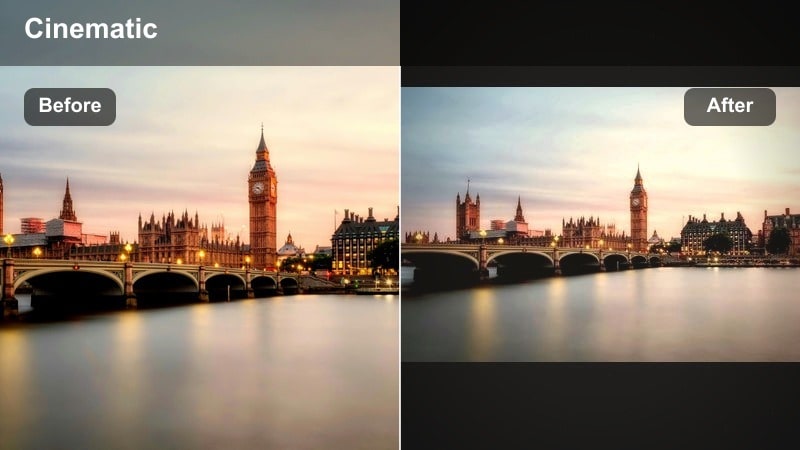
- Effect look: Lightly faded colors with pastel greens and soft beige tones that flatten harsh pavement textures.
- Best for: Walking shots, gimbal tracking, and low-angle street perspectives with lots of pavement in frame.
- Editing tip: Add a gentle blur to the far foreground and couple it with this filter to keep attention on the subject instead of the ground.
Subtle Sidewalk Pastel is ideal for everyday walk-and-talk vlogs where sidewalks dominate the frame. It gently fades colors, shifts some tones toward pastel greens and beiges, and smooths out rough pavement, helping your subject stand out against a calmer background.
In Filmora, combine this filter with slow gimbal moves or low-angle tracking shots to turn simple walks into stylish sequences. Add a slight blur to the extreme foreground and keep saturation low so eyes stay on your subject, not on concrete details or busy textures.
Pro tip: Use movement to sell the aesthetic
Pair the filter with slow, stable motion like gimbal walks or smooth pans so the viewer can relax into the gentle colors.
Avoid rapid zooms and heavy shake, which can clash with the soft pastel energy of the grade.
Night Lights Softened: Gentle Neon Streets
Neon Cloud Soft
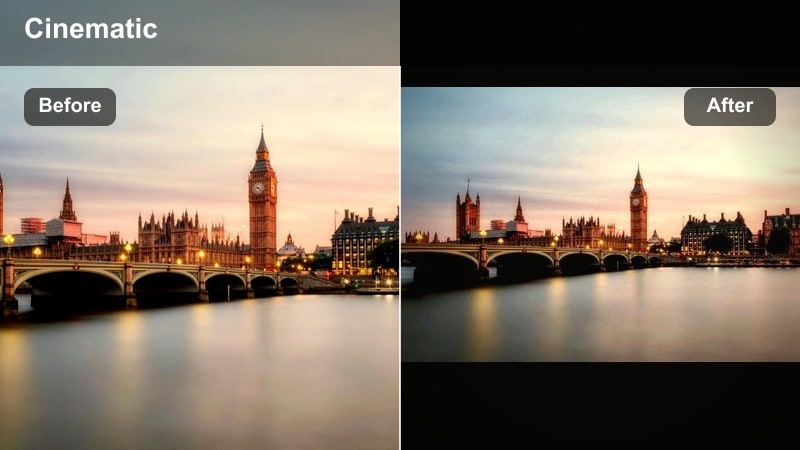
- Effect look: Diffused neon colors with slightly lowered saturation and a glowing bloom around bright signs.
- Best for: Night markets, neon alleys, car trails, and handheld night B-roll.
- Editing tip: Add a small fade to the blacks to keep neon from feeling too harsh and to maintain a soft cloud-like atmosphere.
Neon Cloud Soft turns intense city lights into watercolor-like clouds of color, perfect for night markets and neon-soaked alleys. Saturation is gently pulled back so hues do not clip or overpower, while a blooming effect around bright signs adds a dreamy, cinematic glow.
Apply this filter in Filmora to handheld night B-roll, slow city drives, or market walkthroughs. Slightly fade the blacks and avoid aggressive sharpening so the soft neon edges stay creamy, and consider underexposing your footage a touch before grading to hold onto detail in the brightest signs and billboards.
Pro tip: Expose slightly darker for neon
Underexpose your night footage by about half a stop before applying the filter to preserve detail in bright signs.
After grading, raise mids instead of highlights if you need more brightness, so the neon glows without clipping.
Gentle Midnight Lane
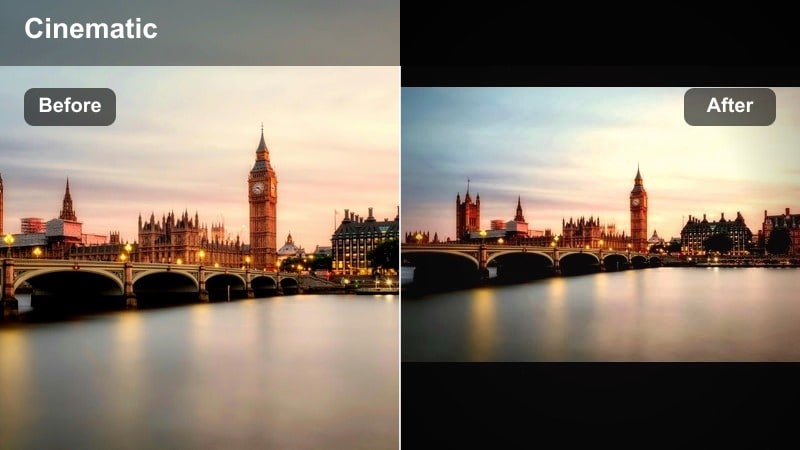
- Effect look: Cool-toned shadows with soft cyan tints and controlled highlight roll-off for subtle night contrast.
- Best for: Quiet backstreets, alleys, minimal traffic scenes, and moody character walks.
- Editing tip: Keep noise reduction mild to avoid plastic-looking shadows; the soft grade already hides minor grain.
Gentle Midnight Lane cools and softens your night scenes without pushing them into heavy noir territory. Shadows take on a cyan tint, highlights roll off smoothly, and overall contrast is restrained, making dark lanes feel calm and cinematic rather than harsh.
In Filmora, use this filter for character walks, introspective B-roll, or establishing shots of empty streets. Apply only light noise reduction to preserve organic texture, and let small pools of practical light from lamps or windows guide your viewer s eye through the frame.
Pro tip: Shape the light with practicals
Frame street lamps, shop windows, or car headlights in the background so the filter has small light sources to soften.
Let your subject pass through pools of light to create a subtle rhythm between lit and shadow areas in the scene.
Late Night Pastel Rush
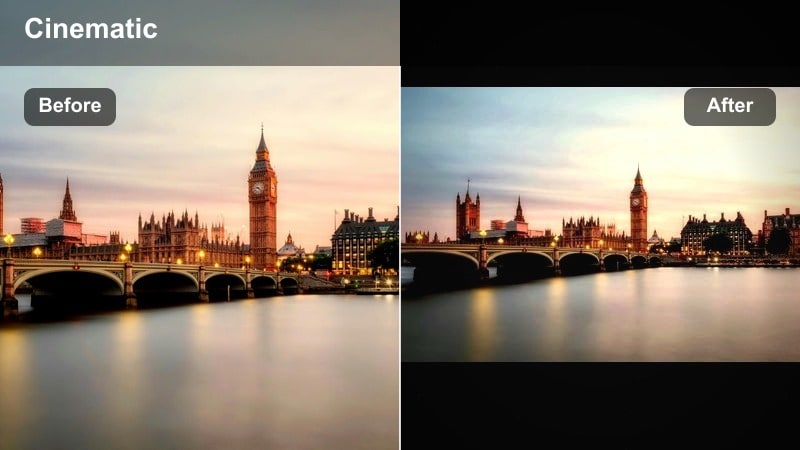
- Effect look: Desaturated primaries with pastel magenta and teal accents on lights and reflections, plus soft motion-friendly contrast.
- Best for: Car window shots, moving train views, and fast-paced night city montages.
- Editing tip: Use a slightly slower shutter when shooting to introduce gentle motion blur that complements the soft pastel grade.
Late Night Pastel Rush is tailored for motion-heavy night scenes viewed from cars, trains, or bikes. It cools and desaturates primaries, then adds pastel magenta and teal to highlights and reflections, creating a dreamy stream of color that pairs nicely with fast cuts and movement.
In Filmora, apply this filter to your travel montages or commute sequences, and consider adding a bit of motion blur in post if your footage is too crisp. Keep contrast modest so light streaks stay soft, and let the pastel accents on wet streets, windows, and reflective surfaces carry the visual energy.
Pro tip: Lean into reflections and glass
Shoot through windows, mirrors, or wet streets so the filter can spread neon colors across reflective surfaces.
If reflections get muddy, increase local contrast slightly in those areas while keeping global contrast low.
Cinematic Street Stories: Narrative-Friendly Looks
Storylane Soft Cinema
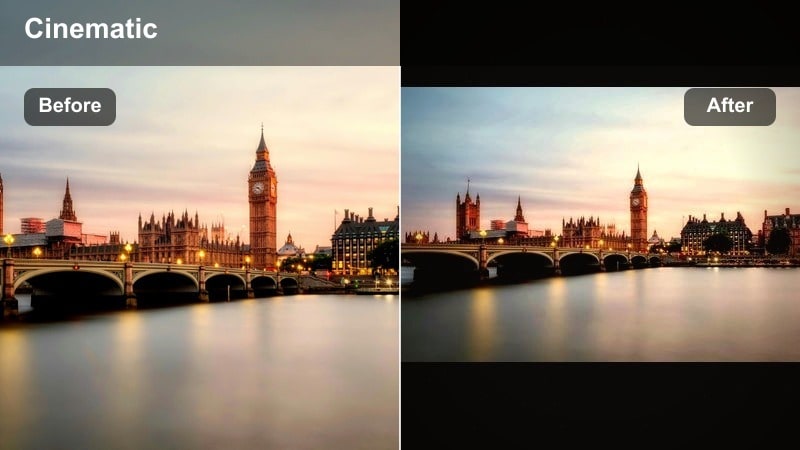
- Effect look: Film-inspired contrast with softened highlights, muted saturation, and a subtle warm tint for narrative street scenes.
- Best for: Short films, story-driven vlogs, dialogue scenes, and cinematic B-roll in the city.
- Editing tip: Dial down sharpness and add a light vignette to emphasize faces and hands in storytelling shots.
Storylane Soft Cinema gives your urban narratives a cohesive, filmic foundation. Highlights are gentle, saturation sits slightly below normal, and a warm tint ties together skin tones and street colors, making it ideal for dialogue-driven sequences and emotional beats.
Use this filter inside Filmora as your project-wide base grade for short films or cinematic vlogs. Apply it to all clips, then perform minor shot-by-shot exposure and white balance tweaks to maintain continuity. A light vignette and reduced sharpness on faces help your characters feel grounded and cinematic in the urban environment.
Pro tip: Use this as a project-wide base look
Apply the filter to every clip in a sequence, then make small per-shot exposure tweaks so your project feels unified.
Keep text overlays and titles minimal and clean so they match the understated cinematic mood of the grade.
Soft Commute Journal
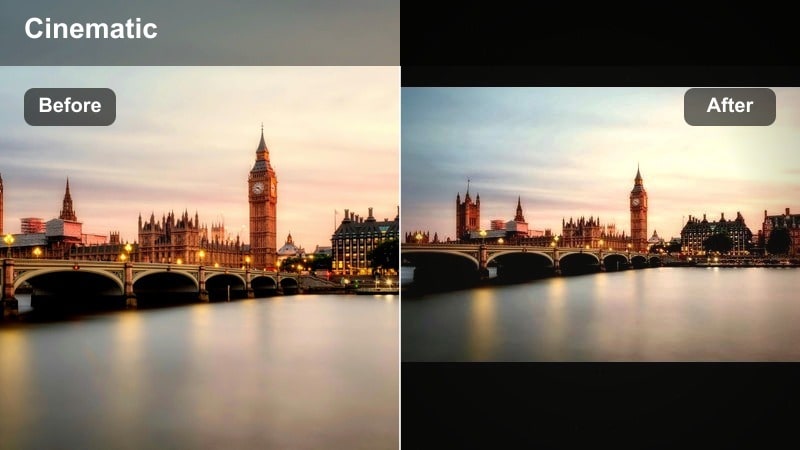
- Effect look: Lifted blacks, gentle midtone contrast, and calm colors that turn everyday commutes into relaxed visual diaries.
- Best for: Bus, metro, and bike rides, daily commute vlogs, and travel transition shots.
- Editing tip: Cut to the rhythm of your music and let the filter maintain visual coherence across mixed lighting situations.
Soft Commute Journal transforms daily travel into a reflective visual diary. Blacks are lifted to avoid heavy blocks of shadow, colors remain calm and understated, and midtones hold enough contrast to keep subjects clear without feeling harsh.
In Filmora, apply this filter across metro, bus, or bike clips to smooth out the differences between window light, station lighting, and street lamps. Edit to your soundtrack s tempo, trusting the filter to unify disparate shots so your commute sequence feels like one continuous, relaxed journey.
Pro tip: Handle mixed lighting gracefully
When moving between warm and cool lighting, do small white balance adjustments per clip before applying the filter.
If certain clips still look off, tweak temperature and tint after the filter, not before, to keep the aesthetic consistent.
Quiet Corner Gentle Focus
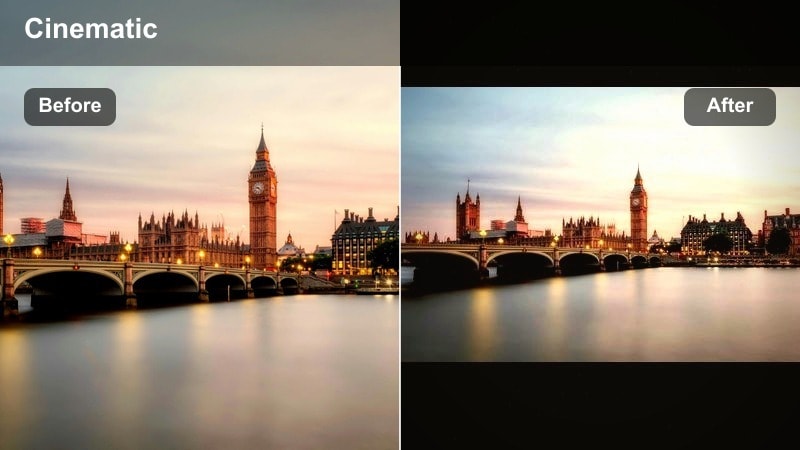
- Effect look: Soft center focus feel with muted backgrounds, desaturated colors, and a slightly warm skin tone bias.
- Best for: Close-ups, portraits, coffee shop corners, and reflective street moments.
- Editing tip: Mask around the subject to keep them a touch brighter than the environment while preserving the overall soft grade.
Quiet Corner Gentle Focus is a character-first filter that subtly separates your subject from a muted urban backdrop. Background colors are desaturated and softened, while skin tones gain a delicate warmth that draws attention without looking overly stylized.
In Filmora, combine this filter with simple masks or shape overlays to keep your subject slightly brighter and more contrasted than their surroundings. Add a mild radial vignette and avoid aggressive sharpening, letting the gentle focus illusion guide your viewer s eye to expressions, gestures, and small details.
Pro tip: Guide the viewer s eye with subtle contrast
Increase midtone contrast slightly on the subject while leaving the background flatter and softer.
Add a very light radial vignette centered on the subject to support the gentle focus illusion without making it obvious.
Tips for Using Urban Street Aesthetic Filters in Filmora
- Shoot during overcast days or golden and blue hour to get naturally soft lighting that matches pastel urban filters.
- Slightly lower contrast and clarity in-camera when possible so your footage accepts gentle filters more gracefully.
- Keep wardrobe and props in neutral or muted colors so the filters can shape the mood without clashing hues.
- Stabilize handheld shots to match the calm, gentle feel of aesthetic street grades.
- Use consistent white balance across a sequence to avoid jarring shifts when applying the same preset.
- Export test clips for social platforms and check how compression affects subtle pastel tones before final delivery.
Aesthetic urban street filters give content creators and street photographers a fast way to craft soft, dreamy city visuals that feel cohesive and cinematic.
Start with the Aesthetic Urban Filter. Dream City preset as your base, then mix in complementary filters from this collection to build a distinctive, gentle urban style for all your aesthetic street edits.
secure download