

 100% Security Verified | No Subscription Required | No Malware


 ChatGPT
 Perplexity
 Gemini
 Claude
 Grok
Grok
Moody urban street filters are perfect for turning ordinary city shots into cinematic scenes packed with grit, atmosphere, and emotion. With the right mix of contrast, tone, and color, you can turn rainy sidewalks, neon lights, and quiet alleyways into storytelling frames that feel straight out of a film.
Designed for photographers and filmmakers who love moody street scenes, the Moody Urban Filter: Dark Alley preset and its companion looks help you quickly craft dark, atmospheric city vibes in Filmora without overcomplicating your workflow.
In this article
Dark Alleys and Nighttime Corners
Moody Urban Filter: Dark Alley
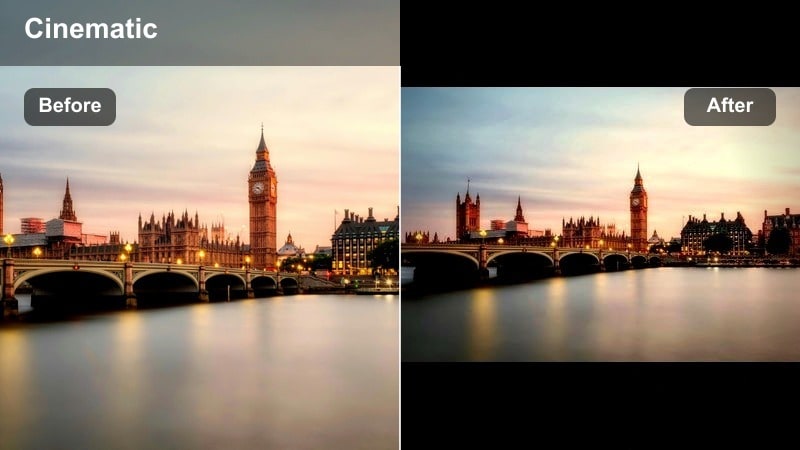
- Effect look: Deep contrast with muted highlights, lifted blacks, and a subtle green undertone for a gritty, cinematic alleyway mood.
- Best for: Moody street scenes, dimly lit alleys, underpasses, and parking garages with mixed light sources.
- Editing tip: Lower overall exposure slightly, then selectively brighten faces or key subjects with masks to keep the frame dark but readable.
The Moody Urban Filter: Dark Alley preset is built to turn your darkest corners into rich, cinematic frames. Its deep contrast, lifted blacks, and hint of green in the shadows make concrete, brick, and metal textures feel dense and atmospheric instead of simply underexposed.
In Filmora, apply this filter to alleyways, side streets, or underground passages, then refine it with masks on faces and key details so your subject stands out from the heavy shadows. Combine exposure tweaks with local adjustments to headlights, street lamps, or windows so these practical light sources carve out just enough definition in your moody city scenes.
Pro tip: Control Your Shadow Detail
Push the blacks down for depth, but use Filmora’s shadow slider and masks to keep important textures from disappearing completely.
For video, balance noise reduction and grain: denoise first, then add a gentle grain overlay to maintain a cinematic, filmic night look.
Dial In Moody City Tones With AI Color Tools
Filmora’s AI color tools help you keep a cohesive moody urban palette, even when your footage comes from different cameras or mixed city lighting. Start with the Moody Urban Filter: Dark Alley to lock in your base look, then let AI handle the heavy lifting of matching tone and contrast across clips.
Once your hero shot is graded, you can use AI-powered color matching to push B roll, close ups, and wide establishing shots toward the same dark, atmospheric mood in just a few clicks. This keeps your entire night sequence feeling intentional instead of patchwork.
 secure download

See Moody Urban Street Filters in Action
To find the perfect moody urban street aesthetic, apply different filters to the same clip and compare before and after results. Neon heavy streets, empty alleys, and rainy sidewalks will each respond differently to contrast, saturation, and color shifts.
In Filmora, drop your clips onto an adjustment layer so you can audition several looks non destructively. This lets you toggle filters on and off, or swap between options, without ever touching the original footage on your timeline.
secure downloadBlend Filters and LUTs for Deeper Mood
Filmora includes 1000 plus video filters and 3D LUTs you can stack with your moody urban street looks for extra nuance. Use the filter to establish overall atmosphere, then layer a subtle cinematic LUT on top to refine contrast curves and color separation.
By dialing back LUT intensity and adjusting saturation and exposure, you can create a custom signature style that still starts from simple, repeatable presets. This workflow is ideal for building a consistent series of night city edits or entire narrative projects.
secure downloadNeon Grit Contrast
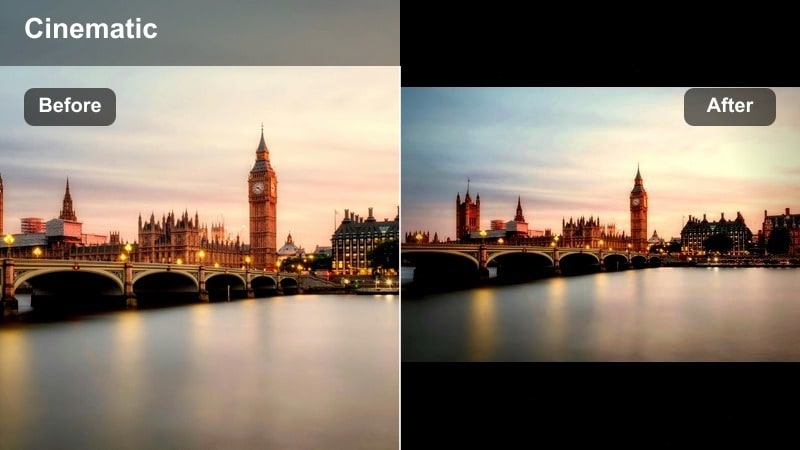
- Effect look: Punchy contrast with cool shadows and saturated neon highlights that make colored signs and lights pop.
- Best for: Streets with neon signs, storefronts, nightlife areas, and rainy city nights with reflective surfaces.
- Editing tip: Increase saturation in magentas and cyans while keeping skin tones slightly warmer to avoid an overly synthetic feel.
Neon Grit Contrast is tailored for nightlife energy, pushing cool shadows and vivid neon colors to create a stylized cyberpunk inspired tone. It is ideal for shots where signage, billboards, and LED strips dominate the frame.
In Filmora, use this filter on sequences that feature wet pavement or glass so the boosted neon highlights can reflect across the scene. Fine tune the HSL controls to keep skin tones natural while letting magentas, cyans, and blues drive the overall color story.
Pro tip: Lean Into Reflections
Crop to include puddles, windows, and car roofs so the neon reflections multiply across the frame.
For video, add a subtle slow motion effect to passing cars and footsteps to give the neon grit time to breathe on screen.
Shadow Lane Muted
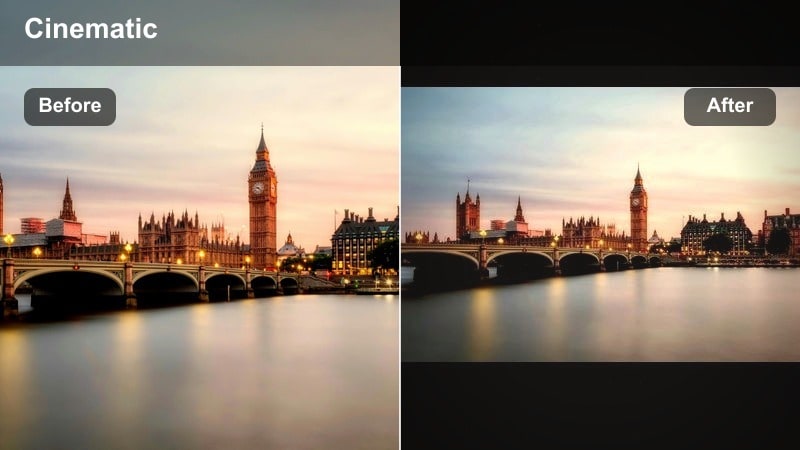
- Effect look: Soft, lowered contrast with desaturated colors and gentle fade in blacks for a quiet, melancholic mood.
- Best for: Empty side streets, early morning or late evening walks, and introspective character portraits in the city.
- Editing tip: Dial back clarity slightly and add a subtle vignette to pull focus toward the subject in the center of the frame.
Shadow Lane Muted softens edges and pulls saturation down to create a contemplative, almost nostalgic feel in otherwise ordinary streets. Faded blacks and controlled contrast keep details visible while de emphasizing harsh city lights.
In Filmora, pair this filter with slower pacing, gentle camera moves, and more negative space in your framing. A small vignette and reduced clarity will help central subjects feel isolated within their environment, perfect for reflective or character driven story beats.
Pro tip: Use Negative Space
Frame your subject small within large walls, streets, or sky to highlight isolation and mood.
Keep camera movement slow and minimal in video so the muted tones and negative space feel intentional, not accidental.
Rainy Nights and Reflective Streets
Wet Asphalt Mood
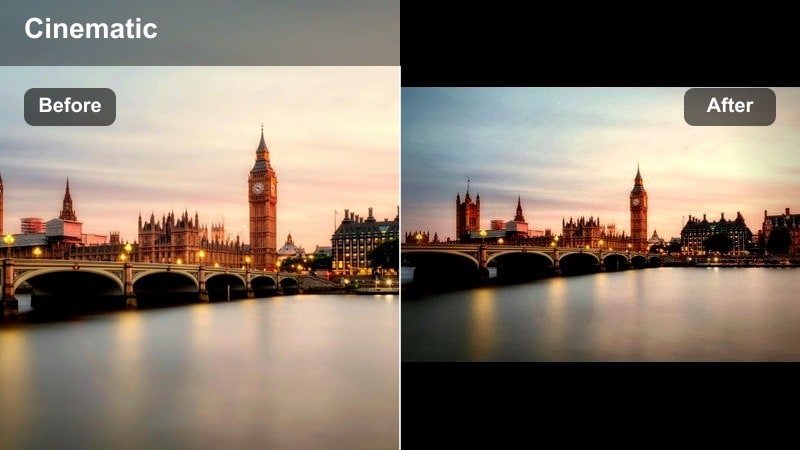
- Effect look: Dark, glossy look with boosted contrast in midtones and subtle blue tint in shadows that makes wet streets shine.
- Best for: Rainy nights, freshly washed roads, and scenes with car headlights reflecting on the ground.
- Editing tip: Increase local contrast on the ground area and add a slight glow to highlights to make reflections feel more cinematic.
Wet Asphalt Mood is designed to turn rain soaked streets into glowing ribbons of light. The subtle blue tint in shadows and added midtone contrast help headlights, taillights, and signage shimmer across the pavement.
Inside Filmora, apply this filter to shots captured just after rain or during active drizzle, then use masks or adjustment layers to selectively enhance the road surface. A touch of highlight glow can transform ordinary traffic into a richly cinematic visual motif that ties your night sequence together.
Pro tip: Expose for the Highlights
Underexpose slightly in camera and in Filmora keep highlight detail intact so reflections stay rich, not blown out.
Use keyframes in video to subtly ramp contrast and saturation as more light sources appear in frame.
Umbrella Noir
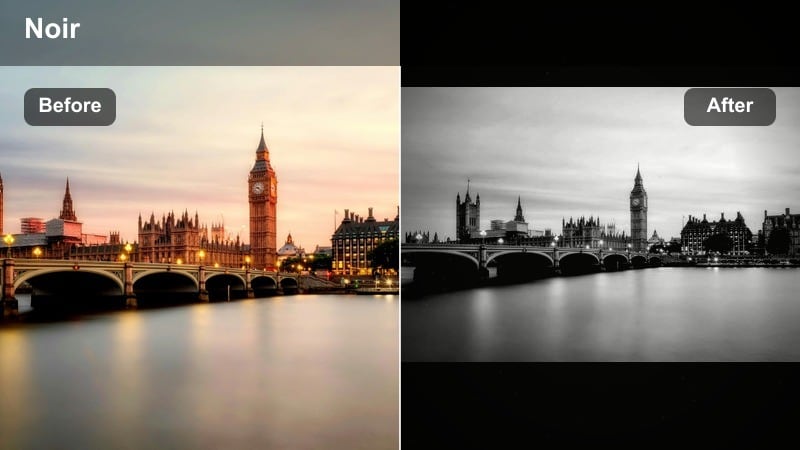
- Effect look: High-contrast, nearly monochrome look with selective color retained in reds or yellows for a graphic, noir-inspired frame.
- Best for: Rainy urban scenes with umbrellas, crosswalks, and backlit silhouettes against bright storefronts.
- Editing tip: Desaturate most colors and preserve just one accent color to guide the viewer’s eye through the composition.
Umbrella Noir strips your palette down to bold blacks and whites with a single accent hue, echoing classic noir while still feeling modern. This makes umbrellas, traffic lights, or a bright raincoat the visual anchor in an otherwise stark frame.
In Filmora, combine the filter with targeted HSL adjustments to decide which color survives the monochrome treatment. For narrative work, keeping the same accent color across a sequence can become a powerful storytelling device tied to a character or theme.
Pro tip: Shoot for Silhouettes
Place subjects against bright signage or car lights and expose for the background to create strong silhouettes.
Add a subtle film grain layer in Filmora to sell the noir vibe and make the selective color look more organic.
Misty Crosswalk Fade
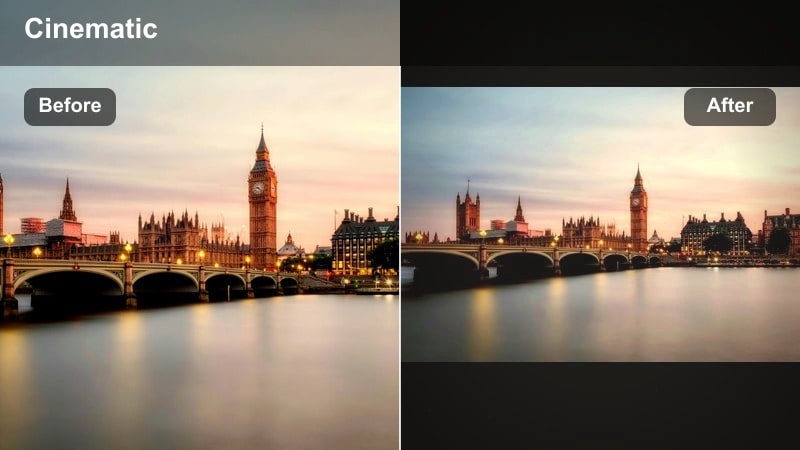
- Effect look: Low contrast with lifted blacks, soft highlights, and a cool haze that simulates light fog or drizzle.
- Best for: Foggy intersections, early morning traffic, and slow-paced street sequences with soft backlight.
- Editing tip: Use Filmora’s blur or glow effects subtly at the edges to mimic atmospheric haze without losing subject clarity.
Misty Crosswalk Fade leans into softness and atmosphere, giving intersections and traffic scenes a dreamy, almost surreal quality. Lifted blacks and diffused highlights keep the frame gentle while still clearly readable.
In Filmora, apply this filter to transitional shots or reflective moments where time feels slowed. Edge blurs, light glow, and minimal camera shake will help sell the illusion of light fog or lingering drizzle without needing heavy on set effects.
Pro tip: Layer Haze for Depth
Combine this filter with a very light overlay of smoke or fog footage to deepen the sense of atmosphere.
In video, keep camera moves slow and floaty to match the softness of the look and avoid handheld jitter.
Subways, Stations, and Transit Hubs
Subway Shadow Cyan
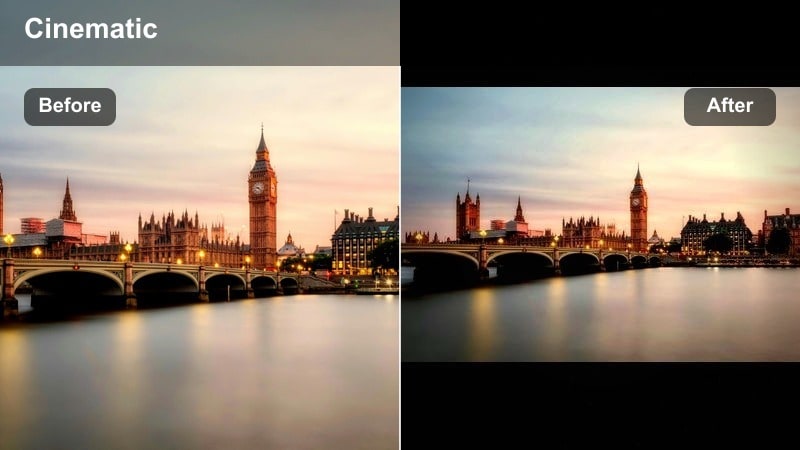
- Effect look: Cool cyan shadows with balanced midtone contrast and slightly desaturated primaries for a stark, underground mood.
- Best for: Subway platforms, underground tunnels, escalators, and dim station corridors.
- Editing tip: Keep white balance slightly cooler than neutral and emphasize leading lines with added clarity and sharpness.
Subway Shadow Cyan casts your transit spaces in a cold, clinical light that reinforces tension and solitude. Cyan tinted shadows help bring out the geometry of tiles, rails, and overhead lights.
Inside Filmora, use this filter on shots with strong vanishing points and repeating patterns like pillars or beams. Boost clarity along leading lines and maintain a cooler white balance so subjects feel small against the stark architecture around them.
Pro tip: Follow the Lines
Position your subject along platform edges, railings, or overhead beams and let the cyan tones guide the eye.
Add gentle motion blur to passing trains in Filmora to contrast with the stillness of your subject.
Platform Lonely WarmCold
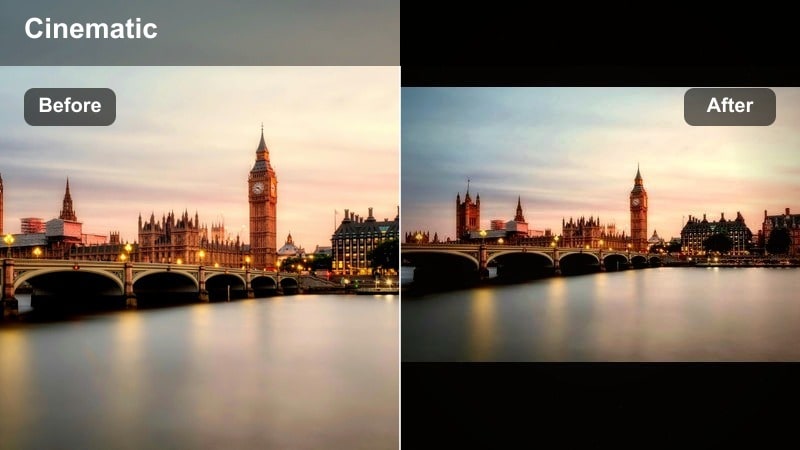
- Effect look: Split-toned look with warm highlights and cool shadows that emphasizes isolation on platforms and bus stops.
- Best for: Single subjects waiting on platforms, bus stops at night, and transitional travel scenes.
- Editing tip: Raise midtones slightly around the subject while letting background fall into cooler, darker tones.
Platform Lonely WarmCold focuses attention on your subject by warming their highlights while pushing the surrounding environment into cooler hues. This warm cold split toning creates emotional contrast between people and the city structures around them.
In Filmora, pair the filter with radial masks that subtly brighten and warm faces or hands, while the platform, tracks, and sky drift cooler. The result is a strong visual metaphor for loneliness or anticipation during travel.
Pro tip: Shape the Light Around People
Use vignettes and radial masks in Filmora to warm the light on faces while keeping the station environment cooler.
Let ambient sound and reverb breathe in video; the color contrast pairs well with echoes and train noises.
Tunnel Motion Drag
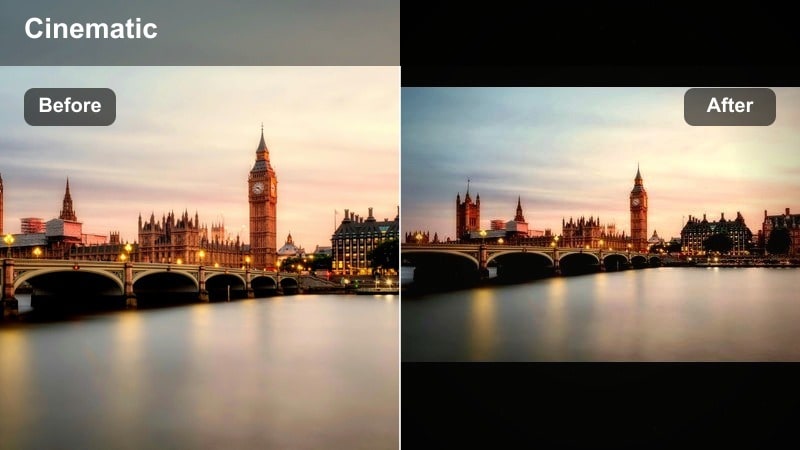
- Effect look: Moody, dynamic look with boosted motion blur, strong contrast, and subtle magenta tint for passing-lights energy.
- Best for: Time-lapses, train windows, driving through tunnels, and fast-paced transit montages.
- Editing tip: Combine this filter with speed ramps and directional blur in Filmora to turn simple clips into kinetic transitions.
Tunnel Motion Drag emphasizes speed and urgency, enhancing streaked lights and motion trails to turn ordinary travel shots into kinetic visual bridges. The boosted contrast and slight magenta tint add a stylized, high energy flavor.
In Filmora, use this filter on footage captured from moving vehicles or platforms, then add directional blur and speed ramps to intensify the sense of acceleration. These clips work especially well as transitions between slower, more static scenes.
Pro tip: Use Speed Creatively
Speed up or slow down different segments of your transit footage and let the filter handle the mood consistency.
Cut on light streaks or train passes; the moody motion look makes these natural points for transitions between scenes.
Urban Portraits and Character Moments
Backlit City Silhouette
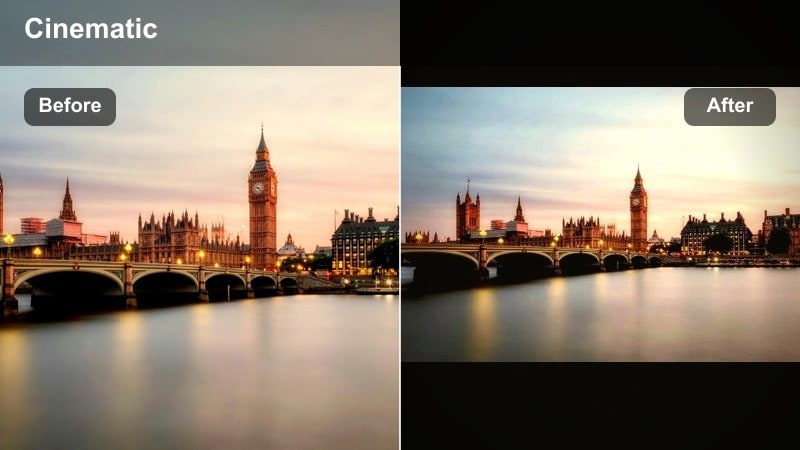
- Effect look: High contrast with crushed shadows and warm backlight glow that outlines subjects against city lights.
- Best for: Backlit portraits near windows, storefronts, and street lamps with visible bokeh in the background.
- Editing tip: Pull highlights down slightly to retain glow detail and add a touch of blur to background light orbs for a dreamy feel.
Backlit City Silhouette sculpts strong outlines around your subjects, using warm backlight and deep shadows to separate them from busy city backgrounds. Crushed shadows keep the figure graphic and bold while preserving a rich halo of light.
In Filmora, drop this filter on portraits framed against distant city lights, then fine tune highlight levels so the glow remains textured, not clipped. A touch of blur on background bokeh makes the entire shot feel dreamy and cinematic without losing subject clarity.
Pro tip: Embrace Bokeh
Shoot wide open and place tiny light sources behind your subject so the filter can enhance bokeh shapes.
In Filmora, stabilize handheld shots slightly to keep the glowing bokeh from feeling too jittery or distracting.
Hoodie Alley Character
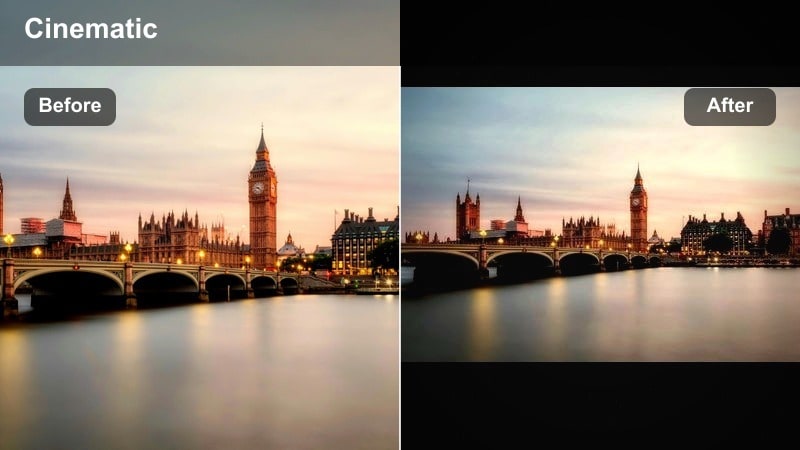
- Effect look: Dark, character-driven look with emphasis on midtones, controlled highlights, and subtle green-yellow cast in streetlights.
- Best for: Character portraits in alleys, stairwells, rooftops, and graffiti-lined backstreets.
- Editing tip: Use Filmora masks to brighten eyes and faces just enough while keeping backgrounds heavily shadowed.
Hoodie Alley Character is all about mood and personality, embracing streetwear, textured walls, and sparse lighting. The slight green yellow cast mimics real sodium vapor or mixed city lights, grounding your portraits in an authentic urban feel.
Within Filmora, apply the filter to close ups and mid shots, using masks to subtly lift facial features and eyes while letting the alley or stairwell remain gritty and dark. This contrast focuses attention squarely on your character’s expression and body language.
Pro tip: Build Layers in the Frame
Place foreground objects like railings or pipes partially between the camera and subject to add depth.
For video, slide the camera slowly around the subject to reveal more alley details while the filter holds the mood together.
Window Glass Reflection
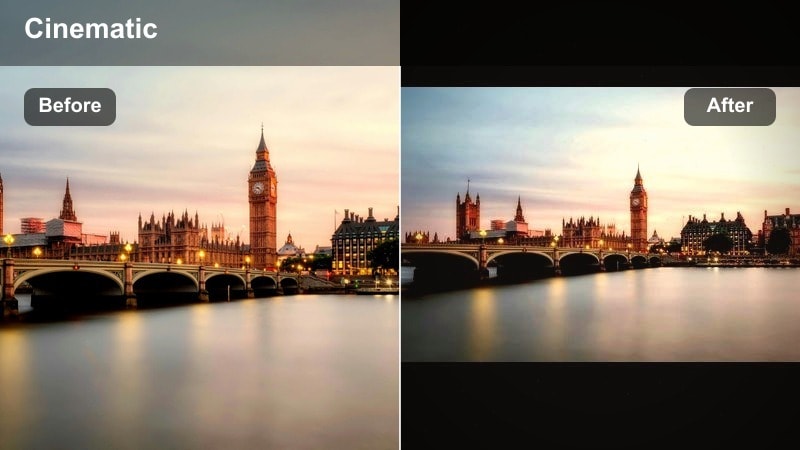
- Effect look: Soft, reflective look with gentle contrast, cool shadows, and slightly warm skin tones behind glass reflections.
- Best for: Intimate portraits through café windows, bus windows, and shopfronts at night.
- Editing tip: Lower clarity on the glass area and keep subject slightly sharper to separate them from layered reflections.
Window Glass Reflection emphasizes layered depth, letting reflections of signs and streetlights float across your subject’s face. Cool shadows balance nicely with slightly warmed skin tones to keep portraits intimate yet undeniably urban.
In Filmora, apply the filter to shots captured through glass, then selectively soften the reflection layer while preserving sharpness on the subject. Gentle rack focus and controlled contrast will help you create emotionally rich, introspective moments framed by the city’s glow.
Pro tip: Play With Layers and Focus
Position subjects close to the glass and line up background lights so reflections overlap their face in interesting ways.
In video, use gentle rack focus between reflections and the subject to fully showcase the layered moody look.
Tips for Using Urban Street Moody Filters in Filmora
- Shoot slightly underexposed in urban night scenes so moody filters have highlight detail to work with.
- Use practical light sources like signs, car lights, and street lamps as natural key lights for subjects.
- Avoid over-sharpening; muted clarity and a touch of grain often look more cinematic in dark street scenes.
- Stack filters with local adjustments and masks instead of pushing a single global filter too far.
- Always check skin tones and make small HSL tweaks so characters still look natural within the moody palette.
Moody urban street filters give photographers and filmmakers a fast way to turn everyday city scenes into atmospheric visuals full of tension, loneliness, or quiet beauty.
Start with the Moody Urban Filter: Dark Alley preset, refine with Filmora’s color tools, and then explore warmer options like the upcoming urban street warm filter to build a complete visual language for your city stories.
secure downloadNext: Explore Urban Street Warm Filters for Softer City Vibes
