

 100% Security Verified | No Subscription Required | No Malware


 ChatGPT
 Perplexity
 Gemini
 Claude
 Grok
Grok
Warm urban street filters are perfect when you want city footage to feel cozy, cinematic, and inviting instead of cold and flat. By leaning into golden and amber tones, you can turn ordinary streets, traffic lights, and building fronts into rich, atmospheric visuals that feel like endless golden hour.
This guide walks street photographers and vloggers through a set of Filmora-friendly warm urban street filters built around the Warm Urban Filter. Golden Street preset. Use these looks to give your street photography edits and urban vlogs a signature warm city style that stands out on YouTube, TikTok, and Instagram.
In this article
Golden City Glow Filters
Warm Urban Filter. Golden Street

- Effect look: Soft golden cast across midtones with a subtle amber lift in highlights and gentle fade in shadows for a filmic street mood.
- Best for: Evening street walks, city b-roll, handheld vlog segments under street lamps, and warm travel diaries.
- Editing tip: Lower contrast slightly and add a touch of film grain in Filmora to keep bright signs from feeling too harsh while preserving glow.
This signature warm urban street filter wraps your entire frame in a golden city atmosphere, giving traffic lights, shop windows, and crosswalks a cohesive cinematic feel. The soft golden cast across the midtones adds warmth without overwhelming your footage, while the subtle amber lift in the highlights creates flattering glow on faces and street lamps.
In Filmora, apply the Warm Urban Filter. Golden Street preset as your base grade, then gently reduce contrast to keep neon signs and bright shop logos from clipping. A light layer of film grain can help tie together mixed camera sources, especially if you combine smartphone footage with mirrorless clips in the same urban vlog.
Pro Tip: Balance golden tones with natural skin
Use the HSL panel in Filmora to slightly desaturate orange and yellow on skin tones while leaving the environment warmer and richer.
If faces look too orange, shift orange hues a few points toward red and reduce saturation before adjusting global warmth again.
Dial in Warm Urban Moods with Filmora’s AI Color Tools
Filmora’s AI-driven color features make it simple to dial in the exact warm urban mood you want, whether your footage comes from a phone or a mirrorless camera. Start by letting AI correct exposure and white balance, then nudge the overall tone toward golden or amber to complement the Warm Urban Filter. Golden Street look.
Once you have a base grade that fits your city, save it as a custom preset so every future street vlog or b-roll sequence can start from the same warm foundation. This keeps your videos consistent and speeds up your color workflow dramatically.
 secure download

See Warm Urban Filters in Action on Real Street Footage
To see how warm grading transforms a scene, drop a short clip of a crosswalk, sidewalk, or cafe interior onto the Filmora timeline and cycle through your warm urban filters. Watch how signs, skin tones, and clouds in the sky shift as you move from subtle warmth to rich amber aesthetics.
Layer simple refinements like vignettes, grain, or focus blur after applying the filter to turn your clip from casual documentation into a crafted street sequence. Even a basic walk-and-talk vlog can feel cinematic once the color and depth are dialed in.
secure downloadPair Warm Urban Filters with LUTs for a Signature Street Style
For an instantly recognizable look, combine Filmora’s warm filters with LUTs that add subtle film grain, teal-and-gold contrast, or creative color shifts. Apply the LUT at low intensity first, then blend in your warm urban filter so the final color stays rich but believable.
When you find a combo that matches your brand, save it as a custom preset and reuse it across street vlogs, b-roll reels, and short verticals. Over time, your viewers will associate that specific golden city palette with your channel.
secure downloadAmber Crosswalk Glow
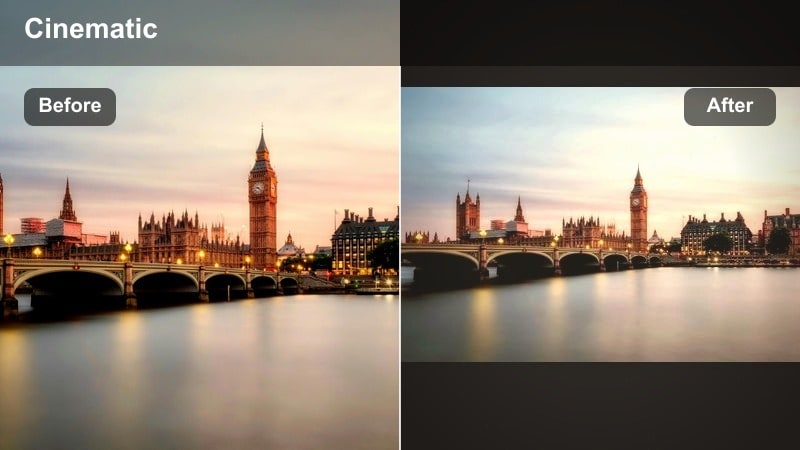
- Effect look: Deep amber glow around street lamps with lifted blacks and a soft matte finish for a dreamy, hazy night city feel.
- Best for: Night street photography sequences, slow-motion people crossing roads, and reflective late-night vlogs.
- Editing tip: Use Filmora’s vignette tool to darken the corners and pull the viewer’s eye toward the warm central lights and faces.
Amber Crosswalk Glow wraps night streets in a deep, hazy warmth that turns ordinary intersections into cinematic stages. Lifted blacks and a matte finish soften harsh contrast, so pedestrians, headlights, and crosswalk stripes feel dreamy instead of gritty.
Apply this filter in Filmora to rainy or humid night footage to emphasize atmosphere and light bloom. Add a gentle vignette and slow-motion playback to accentuate the amber glow around lamps and storefronts, creating reflective, late-night city sequences perfect for voiceovers and personal storytelling.
Pro Tip: Combine glow with subtle motion blur
Add a slight motion blur effect to footsteps and traffic when using this filter so the amber glow feels more cinematic.
Keep shutter-like blur modest so the image stays clean for social media platforms that compress video heavily.
Golden Hour Sidewalk
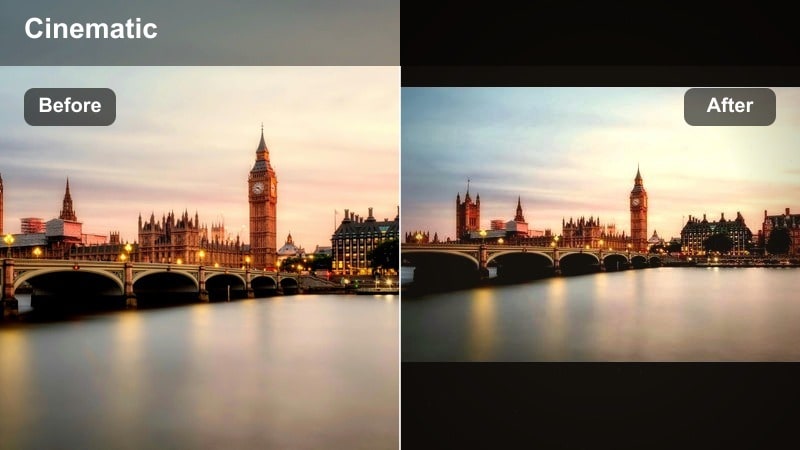
- Effect look: Simulated golden hour with warm highlights, rich contrast, and slightly desaturated blues to keep the sky soft and mellow.
- Best for: Daytime urban vlogs that were shot under flat light, casual walking talks, and static street scenes.
- Editing tip: Increase highlight warmth but lower saturation a bit to avoid orange clipping on bright concrete and painted walls.
Golden Hour Sidewalk is designed to fake late-afternoon sunlight when your footage was captured under dull or overcast skies. By warming highlights and slightly desaturating blues, it creates long-shadow vibes that make buildings and sidewalks look like they were filmed right before sunset.
In Filmora, apply this filter to walking-and-talking vlog segments or static tripod shots of intersections. Carefully adjust highlight saturation so bright concrete, buses, and painted walls stay rich but do not shift into oversaturated orange, keeping your simulated golden hour believable.
Pro Tip: Add depth with subtle local contrast
Use clarity or local contrast tools sparingly to make building textures pop while keeping skin tones smooth.
Mask out the sky when increasing contrast so the golden gradient remains soft and not overly crunchy.
Neon and Warm City Nights
Neon Amber Night
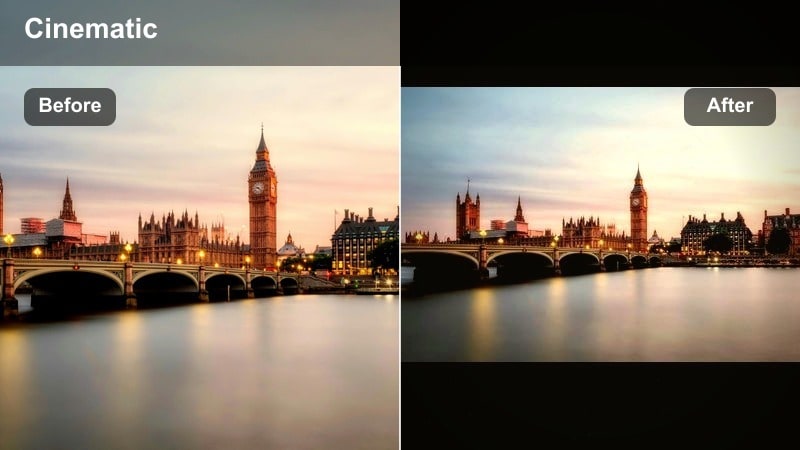
- Effect look: Warm amber glow blended with vibrant neon signs, pushing magenta and orange while keeping shadows deep and moody.
- Best for: Night markets, neon alleyways, rainy streets, and cinematic nightlife vlogs.
- Editing tip: In Filmora, boost saturation selectively in magenta and red while slightly cooling pure blues to maintain color separation.
Neon Amber Night balances glowing amber warmth with the punch of neon signage, turning crowded streets and markets into stylized cityscapes. Deep, moody shadows keep the scene grounded while magenta and orange highlights add an eye-catching cyberpunk edge.
Use Filmora’s HSL and color wheels to selectively push magentas and reds while cooling true blues, so signs and reflections do not blend into a single color wash. This treatment is ideal for nightlife b-roll, alleyway sequences, and rain-soaked pavements where neon reflections carry your visual story.
Pro Tip: Control noise in moody shadows
Apply Filmora’s noise reduction lightly before color grading so the deep shadows stay clean and cinematic.
If footage softens too much, bring back detail using a sharpening filter on just the midtones and highlights.
Subway Gold Tone
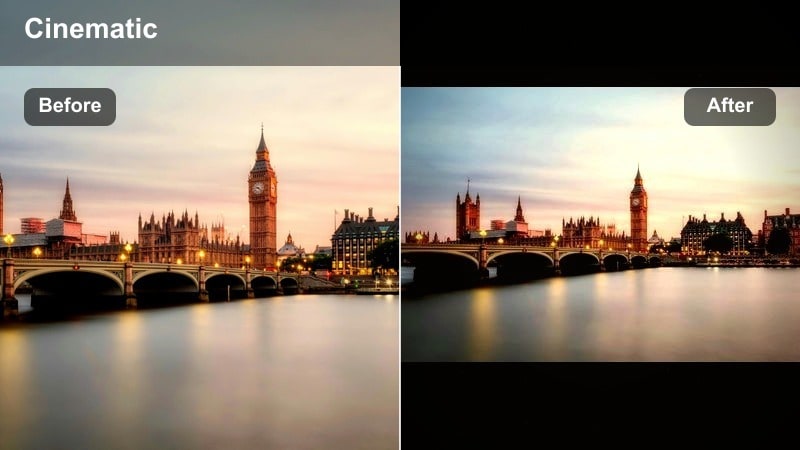
- Effect look: Muted golden wash over harsh fluorescent lighting, softening greens and adding cozy warmth to underground scenes.
- Best for: Subway rides, metro platforms, escalators, underground corridors, and travel vlogs in transit.
- Editing tip: Use white balance in Filmora to pull away from green tint first, then apply the warm filter for a cleaner gold result.
Subway Gold Tone is made to rescue green, unflattering fluorescent lighting and turn it into a cinematic, gold-tinted tunnel. By muting greens and adding a gentle golden wash, metro platforms and train interiors feel more like film sets than security-camera footage.
In Filmora, correct the green cast with white balance and color correction masks around skin tones, then layer the warm filter to achieve a clean, cozy gold. This works especially well in travel vlogs, where you want subway and transit shots to match the warmth of your outdoor city scenes.
Pro Tip: Preserve natural skin in harsh light
Use Filmora’s color correction masks to protect faces before warming the entire frame in green-heavy locations.
Adjust exposure locally around faces so they remain the focal point amid bright signs and train lights.
Rainy Amber Reflections
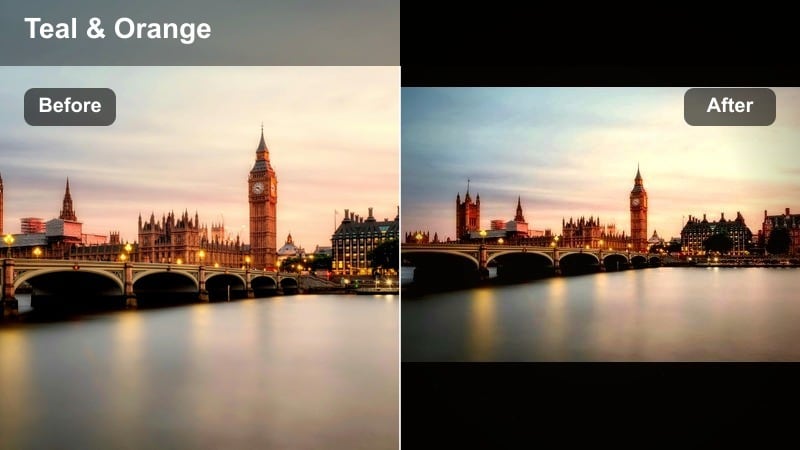
- Effect look: Rich amber reflections on wet streets with increased saturation in warm highlights and a light teal shift in darker areas.
- Best for: Rainy-night b-roll, puddle reflections, umbrella walks, and slow shutter footage of traffic.
- Editing tip: In Filmora, slightly lower overall exposure and then lift highlights to make reflections glow without blowing out car lights.
Rainy Amber Reflections turns wet pavement into a canvas of glowing amber and subtle teal shadows. Car lights, traffic signals, and storefronts stretch across puddles in rich warm tones, while darker areas shift gently toward teal to add contrast and depth.
In Filmora, underexpose the overall image slightly, then raise highlights to let reflections shine while keeping headlamps and signage controlled. Pair this filter with slow motion and stabilization for immersive, detail-rich puddle shots that capture the texture and mood of rainy city nights.
Pro Tip: Use slow motion for reflective drama
Combine this filter with slow-motion clips of footsteps and passing cars to emphasize glowing reflections.
Stabilize handheld shots in Filmora so the viewer can enjoy the texture and color of each puddle reflection.
Daytime Warm City Filters
Warm City Stroll
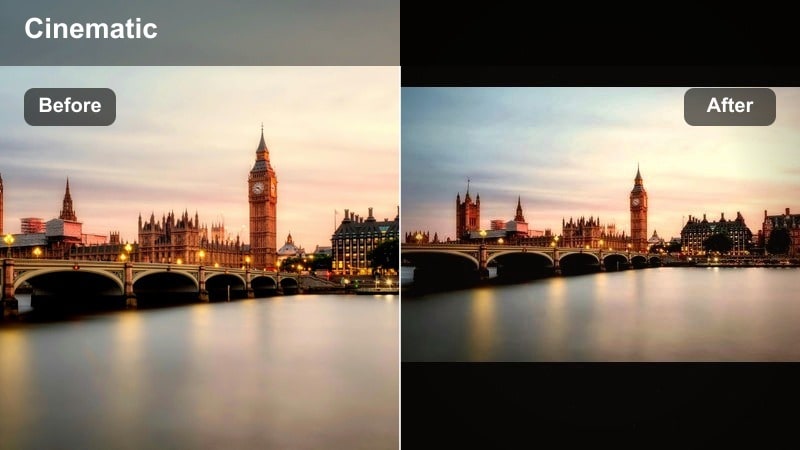
- Effect look: Gentle warm lift in midtones, softer contrast, and slightly muted greens for a relaxed walk-and-talk vibe.
- Best for: Talking-to-camera vlogs on sidewalks, cafe intros, and casual day-in-the-life city edits.
- Editing tip: In Filmora, keep saturation moderate and prioritize clean audio so the cozy color pairs with clear storytelling.
Warm City Stroll delivers a natural, everyday warmth that feels cinematic without looking over-edited. By lifting midtones and softening contrast, it flatters skin tones in bright daylight and tames distracting greens from trees, signs, and storefront decor.
Apply this filter to walk-and-talk segments or day-in-the-life vlog sequences in Filmora to create a cohesive, easygoing city mood. Balance the visual warmth with clean audio and minimal saturation tweaks, so viewers stay focused on your narrative while still enjoying the subtle cinematic polish.
Pro Tip: Match warmth between shots
Use Filmora’s color match tool to quickly copy this warm look across all clips from the same walk.
Fine-tune exposure shot by shot afterward so lighting shifts from clouds or buildings remain smooth.
Cafe Window Gold
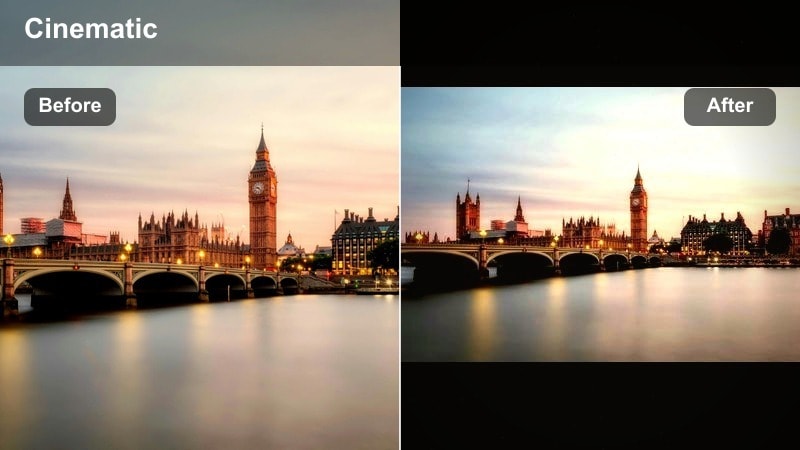
- Effect look: Golden, cozy tones focused on highlights with soft rolloff in the whites and a mild vignette for intimate frames.
- Best for: Cafe b-roll, window seat shots, coffee chats, and product shots on tables near glass.
- Editing tip: Emphasize depth by increasing blur on the background using Filmora’s focus tools while keeping the subject crisp.
Cafe Window Gold brings a storytelling warmth to indoor scenes, emphasizing window light, steam, and tabletop details. Golden highlights and gentle white rolloff create a cozy, intimate mood that is perfect for coffee chats, journaling shots, and product close-ups near glass.
Use Filmora’s focus and blur tools to separate your subject from the background while this filter adds warmth and vignette. The combination of shallow depth-of-field and golden tones makes simple objects like cups or notebooks feel cinematic and brand ready.
Pro Tip: Protect highlights near windows
Lower highlight values slightly before adding this warm filter so you keep texture in clouds and reflections.
If the window is still too bright, use a mask to darken just that area, then reapply the warm grading globally.
Sunny Block Warmth
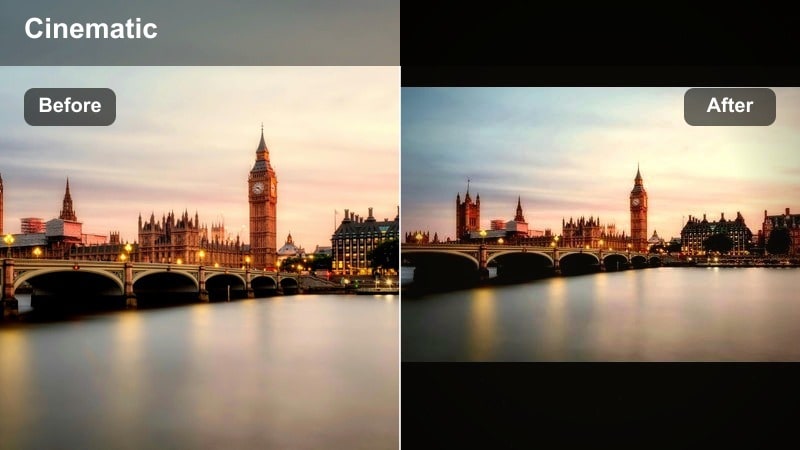
- Effect look: Punchy warm contrast with vivid colors, crisp edges, and a hint of amber in sunlit walls and pavement.
- Best for: Busy daytime intersections, bike rides through the city, and wide establishing shots of urban blocks.
- Editing tip: Dial back saturation in reds to avoid traffic lights and signs overwhelming the frame after the warm boost.
Sunny Block Warmth is built for bright, energetic city days, adding punchy contrast and a touch of amber to sunlit surfaces. It makes intersections, crosswalks, and building facades feel dynamic and bold, ideal for intros, transitions, and establishing wide shots.
In Filmora, apply this filter to dynamic clips like bike rides or bustling corners, then selectively reduce red saturation so traffic lights, signs, and taillights remain readable. Combined with moderate sharpening and a bit of stabilization, you get crisp, high-energy urban visuals that pop on social feeds.
Pro Tip: Avoid over-sharpening in bright sun
Use moderate sharpening only, since the added contrast and warmth already make details look more defined.
If halos appear on building edges, reduce sharpening and rely on contrast curves for perceived sharpness.
Cinematic Warm Street Styles
Amber Film Street
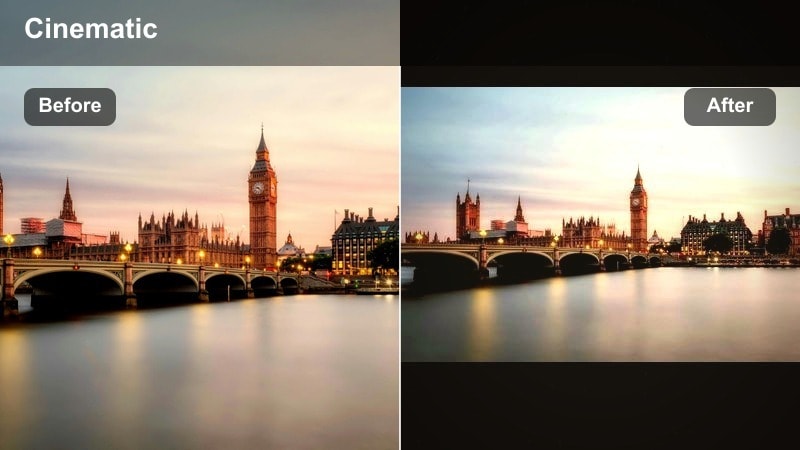
- Effect look: Film-inspired amber tone curve with faded blacks, gentle halation feel around lights, and subdued saturation.
- Best for: Narrative street films, moody b-roll sequences, and stylized YouTube intros.
- Editing tip: Pair this filter with Filmora’s 24 fps playback and a light film grain effect to reinforce the analog look.
Amber Film Street leans into a classic film aesthetic, with lifted blacks, soft highlight glow, and muted saturation that feels deliberate and cinematic. Streetlights and signage take on a subtle halation-style bloom, while the overall amber tone curve adds nostalgic warmth.
Apply this look in Filmora for narrative intros, story-driven b-roll, or any project where you want your city to feel like part of a movie. Combine the filter with 24 fps, gentle film grain, and optional letterboxing to complete the analog-inspired visual language.
Pro Tip: Use consistent framing for a filmic feel
Lock your framing and avoid rapid zooming when using this filter so the film style feels intentional and composed.
Add letterbox bars in Filmora for a widescreen look that complements the amber cinematic grading.
Warm City Contrast
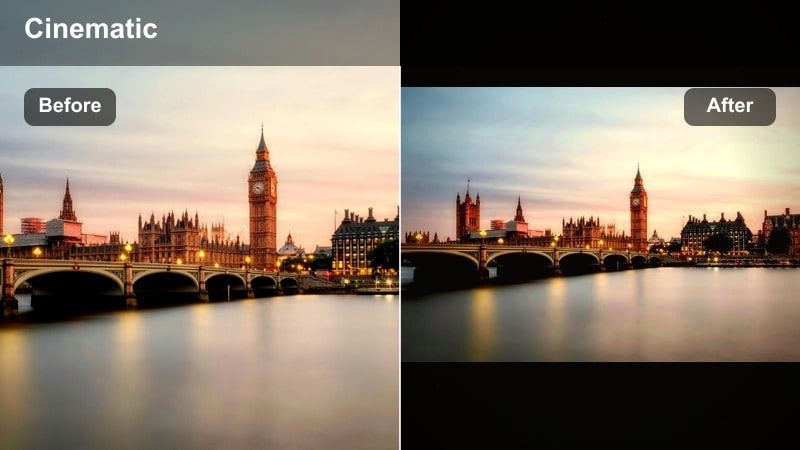
- Effect look: High-contrast warm grading with rich blacks, saturated oranges, and strong separation between light and shadow.
- Best for: Street fashion shoots, high-energy montages, and bold promotional clips in busy districts.
- Editing tip: In Filmora, stabilize handheld shots first so the strong contrast feels polished rather than chaotic.
Warm City Contrast is a bold, editorial-style grade that intensifies shadows and pushes warm tones for dramatic impact. It gives fashion looks, branded street content, and energetic montages a high-end, campaign-like finish.
In Filmora, stabilize your handheld footage before applying this filter so the aggressive contrast looks intentional and glossy. Watch scopes to keep your blacks rich but not crushed, and keep an eye on orange saturation so skin remains flattering even in direct sun.
Pro Tip: Expose slightly darker for this look
Shoot or adjust exposure a bit under so highlights remain controlled when the contrast and warmth are increased.
Use scopes in Filmora to ensure you still retain detail in bright signs and reflective windows.
Twilight Gold Streets
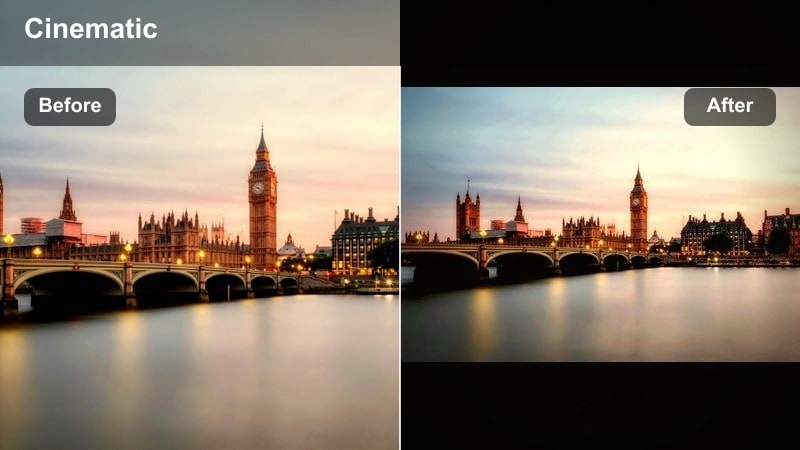
- Effect look: Soft golden highlights mixed with cooler midtone shadows for a warm yet balanced blue-hour palette.
- Best for: Blue-hour cityscapes, skyline shots, rooftop vlogs, and transition scenes from day to night.
- Editing tip: Use Filmora’s color wheels to keep shadows slightly cool while warming highlights, maintaining a cinematic dual-tone style.
Twilight Gold Streets enhances the natural contrast of blue hour by warming window lights and signs while keeping buildings and sky subtly cool. The result is a balanced dual-tone palette where golden highlights stand out against gentle blue midtones and shadows.
Apply this filter in Filmora to rooftop views, skyline timelapses, and transition sequences as day turns to night. Use the color wheels to fine-tune warmth in the highlights only, preserving that cinematic mix of cozy interior glow and crisp evening ambience.
Pro Tip: Shoot during real blue hour when possible
Capture footage just after sunset so the natural color contrast works with this filter instead of fighting it.
If you shot much later at night, reduce saturation in the blues before adding warmth to avoid a muddy mix.
Tips for Using Urban Street Warm Filters in Filmora
- Shoot a gray card or neutral reference in your street scenes so you can quickly correct white balance before adding warm filters.
- Expose slightly darker than usual for bright city signs and then use Filmora’s curves to bring back warmth and midtone detail.
- Keep skin tones in check by adjusting orange and yellow channels separately after you apply a strong golden or amber filter.
- Use masks to warm only specific areas like windows, street lamps, or sidewalks while leaving the sky and shadows more neutral.
- Stabilize handheld vlogs in Filmora before color grading so viewers focus on your warm city mood, not on camera shake.
- Save your favorite warm urban looks as custom presets in Filmora so you can apply a consistent style across all your vlogs and reels.
- Test each warm filter on both wide shots and close-ups to ensure your chosen look flatters faces as well as skyline and street details.
Warm urban street filters help you turn everyday city footage into inviting, cinematic stories that fit street photography and urban vlog styles. With Filmora you can push golden and amber tones just enough to feel intentional while still keeping skin tones and details natural.
Start with the Warm Urban Filter. Golden Street preset, experiment with complementary warm looks, and then build a small set of go-to filters that you reuse on every project. Once your warm city style is locked in, move on to the next step and explore cooler tones in an urban street cool filter workflow to balance your visual toolkit.
secure downloadNext: Urban Street Cool Filter: Crisp City Nights and Moody Blues
