

 100% Security Verified | No Subscription Required | No Malware


 ChatGPT
 Perplexity
 Gemini
 Claude
 Grok
Grok
Warm street portrait filters can transform flat city scenes into glowing, cinematic portraits by enhancing golden highlights, deep shadows, and rich skin tones. These looks are ideal for golden hour photographers, lifestyle portrait creators, and outdoor urban shooters who want consistent warmth across their edits.
Use this guide to find Filmora filters that add golden tones, soften harsh light, and preserve natural skin color for warm city portraits. Each style includes the effect look, when to use it, and a quick editing tip so you can match your filter to golden hour street portraits, warm city photography, and sunset urban shoots.
In this article
Golden Hour Glow Street Portrait Filters
Soft Golden Portrait
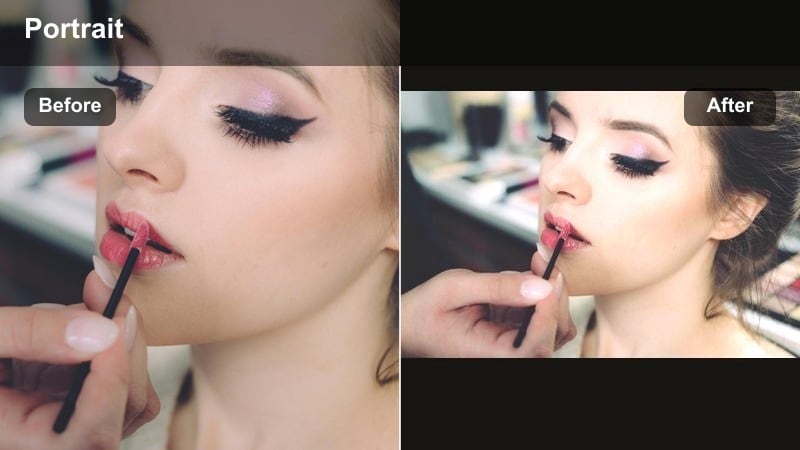
- Effect look: Creamy warm glow that lifts midtones, softens contrast, and adds subtle golden highlights to faces and city details.
- Best for: Backlit golden hour street portraits and lifestyle walks where you want gentle warmth without heavy color shifts.
- Editing tip: Reduce filter intensity to 60-75 percent and slightly lower highlights to keep skin texture natural while retaining the golden feel.
Soft Golden Portrait is ideal when your original footage already has some natural warmth, but faces and sidewalks still look a bit flat. In Filmora, this look adds a delicate layer of glow over midtones and highlights so skin looks luminous and streets pick up a gentle golden sheen instead of a harsh orange cast.
Apply the filter to your clip, then pull the intensity slider back to the 60-75 percent range so details in hair, clothing, and building textures stay clear. Use the highlights and whites controls to tame bright foreheads and reflective windows, and finish with a light vignette to guide the viewer toward the subject while keeping the background softly radiant.
Dial in Your Warm Street Palette with AI
Filmora’s AI color tools help you fine-tune warm street portrait filters so they match your location, skin tones, and time of day. Instead of manually guessing temperature and tint, you can let AI suggest balanced golden looks that still feel natural.
Use AI-driven adjustments as your first step to check whether your warm city portraits lean too orange, green, or washed out. Once the base grade looks clean, stack your favorite warm street portrait filter on top to add glow, contrast, and texture.
 secure download

Preview Warm Street Portrait Filters in Real Time
Filmora’s filter preview lets you compare multiple warm street portrait styles on the exact same frame. You can instantly see how each look changes skin, sidewalks, and skyline highlights just by hovering, before you apply anything to your clip.
Once you find a warm tone that matches your golden hour mood, save it as a preset so you can reuse the same style across future city shoots and keep your portrait work visually consistent.
secure downloadCombine Filters and LUTs for Signature Warm Tones
Warm street portrait filters give you fast, stylized results, while LUTs let you lock in a repeatable color grade across different projects. Using both together in Filmora, you can build a golden hour signature that works on portraits, B-roll, and lifestyle sequences.
Start by adding a subtle warm LUT to set the overall color palette, then layer one of the street portrait filters from this guide to fine-tune how skin, highlights, and ambient glow appear in the final image.
secure downloadIntense Sunset Street
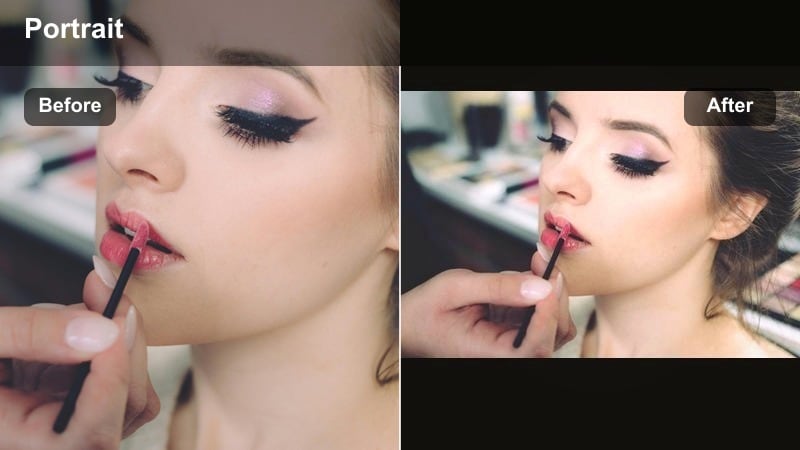
- Effect look: Bold amber and orange tones with deeper shadows, adding strong sunset energy to otherwise neutral street scenes.
- Best for: Dramatic sunset urban shoots, silhouettes, and street portraits framed by buildings or neon signs.
- Editing tip: Raise blacks slightly to avoid crushed shadows and use a bit of clarity to keep facial details sharp under the strong warmth.
Intense Sunset Street is designed for clips where you want the city to feel like it is glowing under a fiery sky, even if the original light was more neutral. In Filmora, this filter pushes oranges and ambers, enriches shadows, and adds punchy contrast so silhouettes, building lines, and reflections look bold and cinematic.
Apply the filter and then gently lift the blacks slider to keep important shadow detail in hair, clothing, and side streets. Add a touch of clarity or texture to keep faces and edges from looking too soft under the heavy warmth, and if skin looks oversaturated, trim down orange saturation in the HSL panel while preserving the overall golden mood.
Golden Film Street
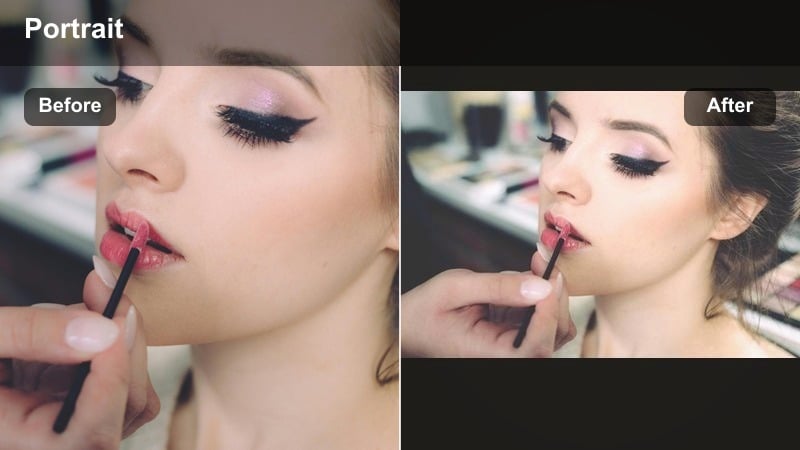
- Effect look: Film-style warmth with soft grain, lifted blacks, and muted highlights that create a nostalgic golden street vibe.
- Best for: Lifestyle city walks, couple portraits, and documentary-style golden hour street photography.
- Editing tip: Add a slight fade in the curves to enhance the film feeling and keep saturation modest so colors stay timeless.
Golden Film Street adds a subtle vintage character to your portraits by softening highlight contrast, lifting blacks, and layering in a gentle golden tint. In Filmora, this filter works especially well on candid city moments, couples walking through alleys, and documentary-style shots that aim to feel like warm memories.
After applying the filter, use the curves tool to create a small fade in the blacks and lower the brightest highlights for a more analog response. Keep saturation restrained, especially in reds and oranges, and add a touch of grain so your golden hour portraits feel like they were captured on film rather than heavily processed in post.
Warm Urban Golden Tones
City Gold Contrast
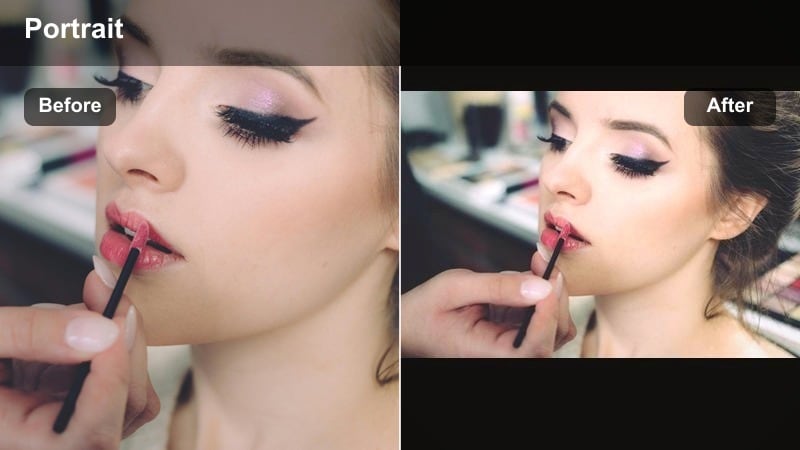
- Effect look: High-contrast warm city filter that brightens golden highlights while deepening shadowed streets and building lines.
- Best for: Architectural street portraits, alleyway shots, and city corners with strong directional light.
- Editing tip: Use local exposure adjustments on faces to keep them bright and clear against the darker, contrasty background.
City Gold Contrast amps up the structure of buildings and alleyways while still bathing your subject in warm, flattering light. In Filmora, it enhances deep shadows along walls and windows, while pushing highlights warmer so sunlit edges and reflective surfaces stand out.
To keep your subject from getting lost in the contrast, add a local adjustment over the face and slightly raise exposure and shadows there. If the scene starts to feel too harsh, ease back overall contrast and use the shadow recovery slider so you maintain detail in clothing, hair, and darker corners of the frame.
Bronze Sidewalk Portrait
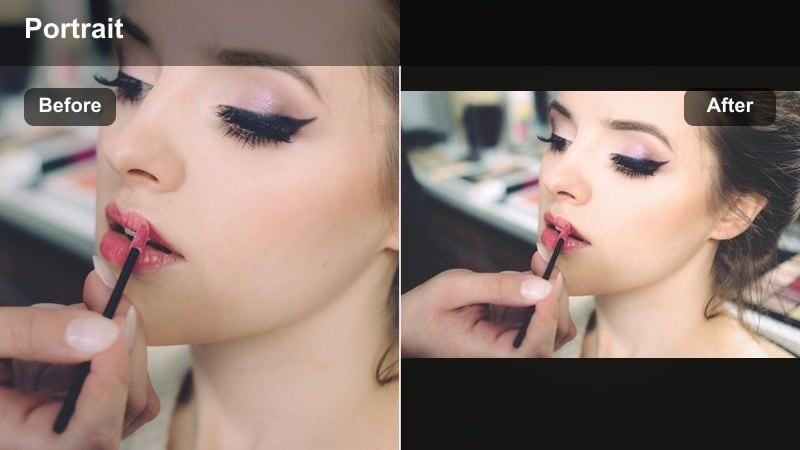
- Effect look: Bronze-tinted warmth that deepens skin tones and adds a metallic sheen to pavement and street structures.
- Best for: Close-up sidewalk portraits, street fashion, and editorial urban looks in late afternoon light.
- Editing tip: Drop vibrance a little while keeping contrast high, letting the bronze tones feel rich rather than oversaturated.
Bronze Sidewalk Portrait is tailored for stylish, editorial images where outfits, accessories, and pavement textures share the spotlight with the subject. In Filmora, this filter leans into bronze and copper hues, enriching skin and giving roads, rails, and building details a subtle metallic depth.
Once applied, lower vibrance slightly so bright colors in clothing do not overpower the bronze palette, and maintain a firm level of contrast for a sharp, fashion-forward edge. Crop a bit tighter around your model to highlight fabrics and expressions, and use directional lighting to make denim, leather, and metal details catch the warm, bronzed glow.
Warm Street Ambient
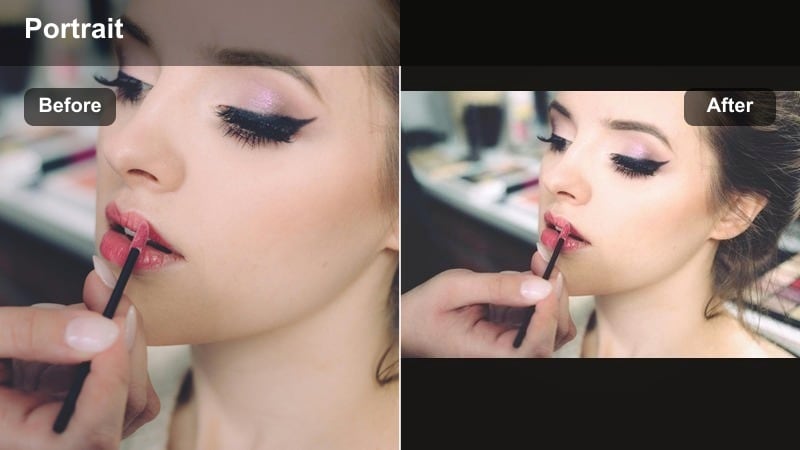
- Effect look: Even, low-contrast warmth that gently lifts overall color and adds a soft amber wash across the frame.
- Best for: Casual city hangs, environmental portraits, and sequences that move from shade to sun.
- Editing tip: Fine-tune white balance per clip so the ambient warmth feels consistent, especially when light changes between streets.
Warm Street Ambient is a subtle choice when you want your footage to feel gently sunlit without a heavy cinematic grade. In Filmora, it adds a light amber layer that smooths transitions between different light sources, making it ideal for vlogs or portrait sequences that move through both shade and open sun.
Apply the filter across your timeline, then adjust white balance individually for clips shot under different conditions so the warmth stays cohesive. Because the look is low-contrast, you can nudge clarity and midtone contrast slightly if the image feels too soft, while still benefiting from the unified, ambient golden wash.
Warm Portrait Focus for Golden Hour
Skin-Friendly Gold
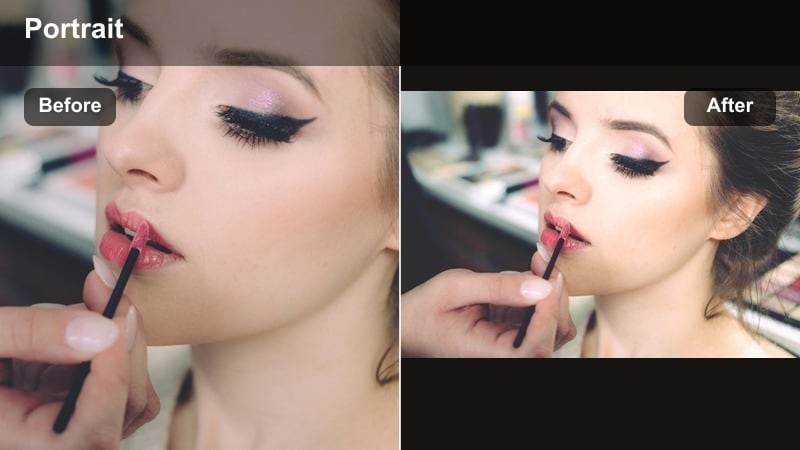
- Effect look: Soft golden warmth that specifically protects skin tones from becoming overly orange while warming the background.
- Best for: Close-up headshots, beauty portraits, and influencer content shot in warm natural light.
- Editing tip: Lightly reduce orange luminance to smooth skin while raising overall exposure for a clean, glow-forward look.
Skin-Friendly Gold is built for portraits where skin accuracy matters as much as a cinematic backdrop. In Filmora, this filter adds warmth mainly to the environment, letting backgrounds glow while faces stay closer to their true tone, ideal for beauty content, creator intros, and profile photos.
After adding the filter, slightly increase overall exposure to emphasize the glow, then refine orange luminance to smooth skin without making it look plastic. If makeup tones shift, adjust individual hues in HSL rather than cooling the entire image, so you preserve that pleasing golden background.
Golden Backlight Bloom
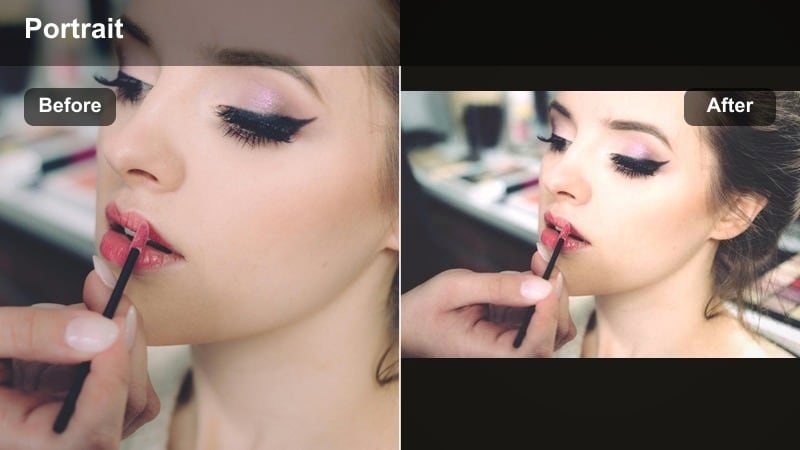
- Effect look: Strong halo around highlights with warm flare, adding dreamlike bloom to backlit hair and edges.
- Best for: Backlit portraits on bridges, crosswalks, and rooftops when the sun sits just behind the subject.
- Editing tip: Lower clarity on the background only to enhance the bloom while keeping the face sharp enough to anchor the frame.
Golden Backlight Bloom emphasizes the magic of shooting directly into the sun, wrapping hair, shoulders, and city edges in a glowing halo. In Filmora, this filter increases highlight bloom and warmth, turning simple backlit shots into dreamy silhouettes or softly lit portraits with strong atmosphere.
Expose for your subject first, then apply the filter and reduce clarity or sharpness selectively on the background to amplify the haze without sacrificing facial detail. If highlights start to clip, pull back the highlight slider and add a gentle glow effect instead of brightening further, keeping the luminous mood under control.
Subtle Golden Clean
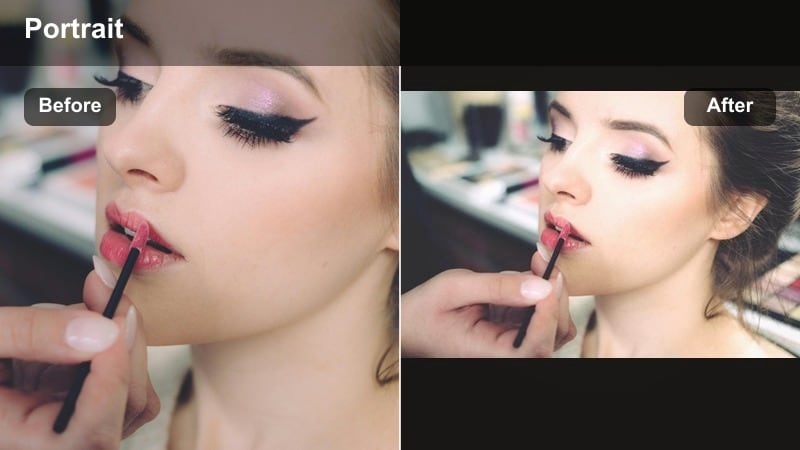
- Effect look: Clean, studio-like warmth with minimal color cast, focusing on soft golden highlights and neutral shadows.
- Best for: Brand portraits, social banners, and profile images shot outdoors but needing a polished, professional tone.
- Editing tip: Keep the filter intensity low and slightly increase sharpness only on the eyes to maintain a crisp, modern style.
Subtle Golden Clean is perfect when you want the benefits of warm light without an obvious filter effect. In Filmora, it adds a light golden tint to highlights while keeping shadows neutral, which works well for LinkedIn photos, website headers, and brand-friendly social content captured on city streets.
Set the filter strength on the lower side, then add targeted sharpening to the eyes and eyebrows so the portrait feels crisp and professional. If you are working with brand colors that skew cool, limit warmth adjustments to skin and highlight regions, ensuring logos and graphics remain true to their original palette.
Warm Sunset Urban Mood Filters
Golden City Neon
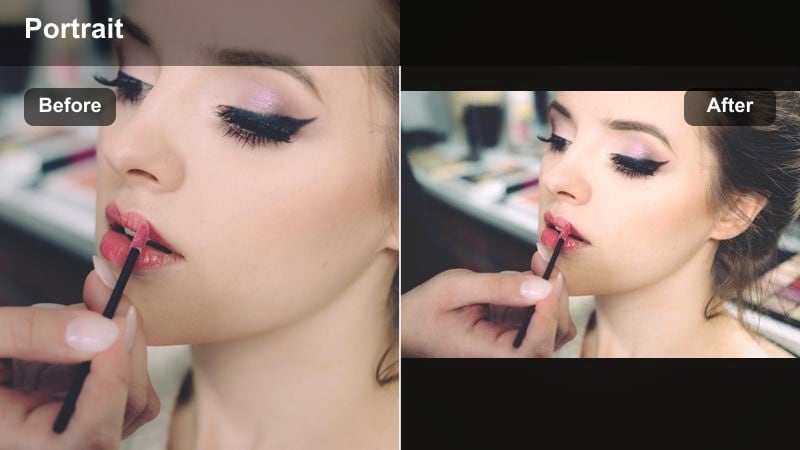
- Effect look: Mixes golden warmth with boosted neon colors, creating a glowing cityscape behind warmly lit portraits.
- Best for: Evening street portraits near signs, storefronts, and light trails at blue hour turning into night.
- Editing tip: Use masks to keep neon signs vibrant while slightly toning down warmth on skin to avoid clashing colors.
Golden City Neon is made for portraits surrounded by colorful lights and signage, balancing vibrant neons with flattering golden skin. In Filmora, this filter boosts saturation and contrast in signs and storefronts while adding a warm, cinematic tone to your subject.
Apply the filter, then use masking to protect skin from becoming too orange next to intense blues, pinks, or greens. Reduce warmth slightly on the subject mask if needed, and darken busy backgrounds with gradients so the brightest neon pockets and your subject’s face become the main focal points.
Amber Haze Street
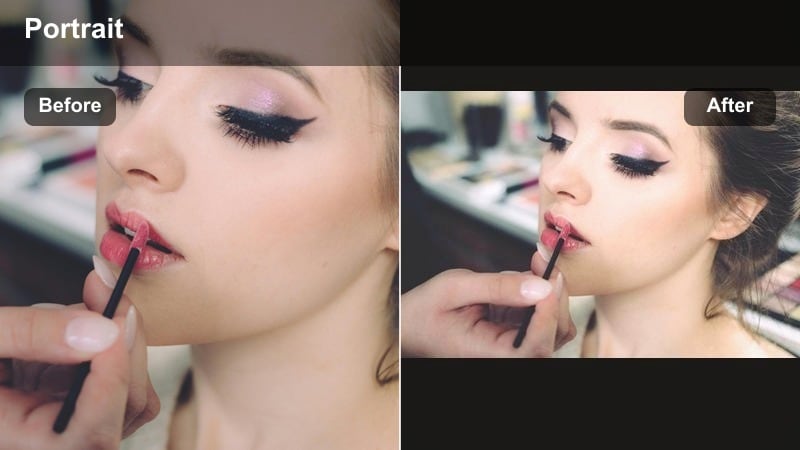
- Effect look: Hazy amber overlay with slightly lowered contrast that smooths hard edges and adds a cinematic veil.
- Best for: Story-driven sequences, slow-motion walk-throughs, and dreamy sunset city portraits.
- Editing tip: Add a small amount of film grain and reduce sharpening to emphasize the hazy, cinematic character.
Amber Haze Street wraps your entire frame in a soft, amber veil that is ideal for introspective or romantic scenes. In Filmora, this filter lowers contrast slightly and smooths sharp lines so streets, cars, and buildings feel dreamy rather than clinical.
Use it on slow-motion walks or narrative B-roll, then add a bit of film grain and reduce global sharpening to lean into the cinematic softness. If the image starts to feel too mushy, bring back selective sharpness on key features like eyes or signage, keeping the rest of the frame in that gentle amber haze.
Golden Hour City Walk
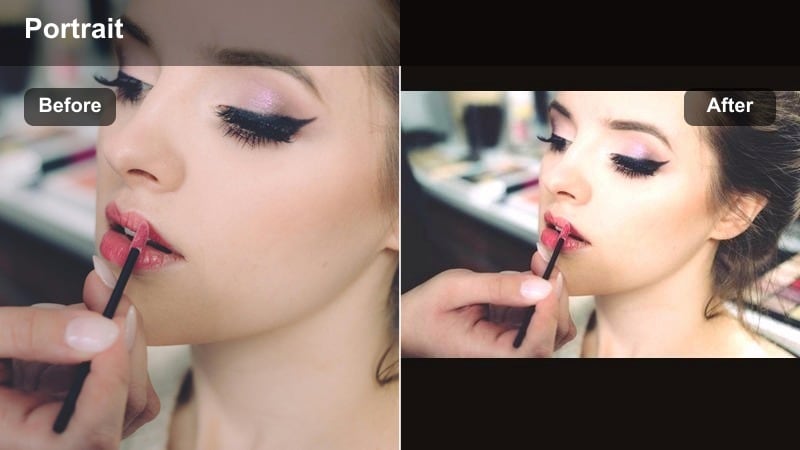
- Effect look: Balanced warm tones that make sidewalks, crosswalks, and building facades glow without losing realism.
- Best for: Story vlogs, casual walk-and-talks, and lifestyle B-roll in warm city light.
- Editing tip: Match exposure between clips first, then apply this filter evenly to keep your entire city walk sequence cohesive.
Golden Hour City Walk is a go-to filter for vloggers and lifestyle creators who film long sequences moving through the city. In Filmora, it maintains realistic colors while gently warming highlights and midtones so pavements, crosswalks, and facades share a cohesive golden sheen.
Before applying the filter across your sequence, even out exposure and white balance between clips so the effect looks consistent. Then, apply the same Golden Hour City Walk settings to your entire timeline and only fine-tune exposure or temperature per clip, keeping the overall warmth unified from the first step to the last.
Tips for Using Street Portrait Warm Filters in Filmora
- Expose for faces first when shooting golden hour street portraits so your warm filters enhance a well-lit subject instead of trying to rescue underexposed skin.
- Watch white clothing, skies, and bright windows; lower highlights or whites in Filmora if they start clipping after you apply strong golden filters.
- Use lower filter intensity for close-up portraits and higher intensity for wide city scenes to keep skin tones looking natural while streets still glow.
- If skin shifts too orange, adjust the orange hue, saturation, and luminance in HSL rather than pulling back the overall color temperature.
- Shoot in slightly flatter camera profiles so Filmora’s warm city portrait filters have more dynamic range to enhance highlights and recover shadows.
- Combine subtle warm LUTs with targeted portrait filters to build a repeatable golden look that works on both photos and video clips.
- Use local adjustment tools on faces and backgrounds separately so you can control warmth and contrast differently for skin and city details.
Warm street portrait filters are a powerful way to turn everyday city scenes into golden, cinematic portraits without losing natural skin tones or architectural detail.
Once you have a warm look you love, save it as a Filmora preset so you can quickly apply the same golden style across future city projects and sunset urban shoots.
secure downloadNext: Try Cool Street Portrait Filters for Night and Blue Hour
