

 100% Security Verified | No Subscription Required | No Malware


 ChatGPT
 Perplexity
 Gemini
 Claude
 Grok
Grok
This curated set of Filmora filters is built around a warm sunset tone video LUT look, giving your footage rich golden hues, soft contrast, and cinematic depth without complicated grading.
Whether you shoot travel vlogs, lifestyle B-roll, or cinematic reels, these filters help you instantly transform flat daylight footage into glowing, sunset-inspired scenes that feel warm, nostalgic, and polished.
In this article
Golden-Hour City Streets
Soft Amber Glow
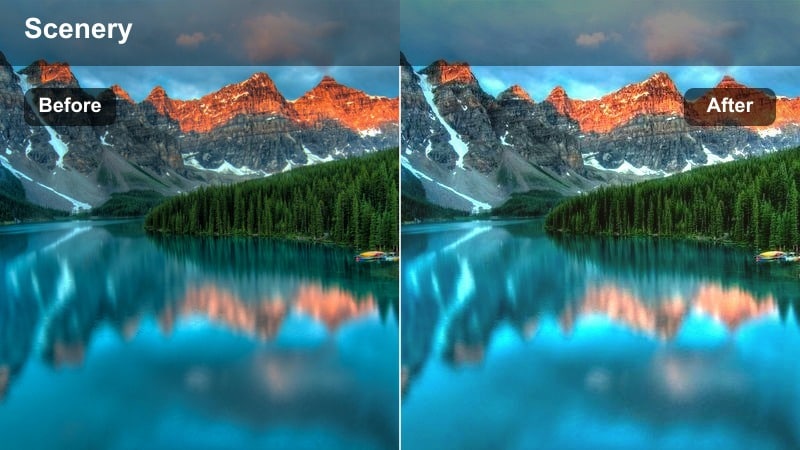
- Effect look: Creamy golden warmth with soft contrast and gentle halation around highlights for a dreamy sunset vibe.
- Best for: Handheld city walks, lifestyle street vlogs, and slow-motion urban B-roll shot near dusk or late afternoon.
- Editing tip: Lower overall saturation slightly and add a subtle vignette to keep attention on faces and bright street lights.
Soft Amber Glow is ideal when you want your city footage to feel like it was captured at peak golden hour, even if you shot in flat daylight. In Filmora, this filter wraps skin tones, pavement, and buildings in a smooth amber haze, softening harsh edges and blooming highlights from street lamps, storefronts, and reflections.
Apply it to vlog sequences, walking POVs, or B-roll of traffic and pedestrians to quickly build a cohesive warm tone across your timeline. For balanced results, pair the filter with Filmora basic color sliders: nudge temperature slightly warm, then follow the built-in advice to cool the image just a touch and reduce orange saturation if faces start to skew too orange, lifting midtones so expressions stay natural and readable.
Instant Warm Sunset Looks with AI Color Tools
Filmora AI color tools can automatically nudge your clips toward a warm sunset tone before you even add a LUT-style filter. With one click, you can correct flat or mixed lighting and then lean into richer oranges and golds without wrestling with complex curves.
After the AI pass, stack a warm sunset filter like Soft Amber Glow at low intensity to refine contrast, highlights, and overall mood. This workflow lets you maintain consistent color across different shots while still customizing the glow and softness for each scene.
 secure download

Preview Warm Sunset Filters in Real Time
In Filmora, you can hover over warm sunset filters and instantly preview how they transform skin tones, skies, and city lights on your selected clip. This makes it simple to compare subtle differences between softer looks and punchier golden-hour grades.
Once you find a base effect you like, tweak intensity, exposure, and color temperature so your scene feels cinematic without losing important detail in faces or highlights. Save your favorite combinations as custom presets for the next project.
secure download1000+ Video Filters and 3D LUTs
Beyond warm sunset tones, Filmora includes a large library of filters and 3D LUTs for cinematic, vintage, stylized, and clean professional looks. You can combine these with your favorite sunset filters to create unique, layered grades that stay consistent from clip to clip.
Experiment with stacking a cinematic LUT for overall color science, then apply a warm sunset filter at reduced strength to unify highlights and midtones. Adjust saturation, HSL, and curves only where needed to keep skin tones and brand colors accurate.
secure downloadHazy Sunset Street
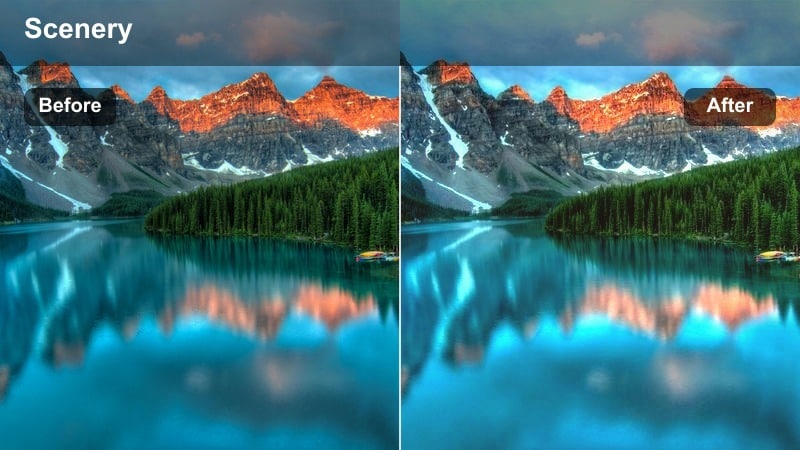
- Effect look: Muted contrast with hazy highlights, lifted blacks, and a pastel orange tint for soft, cinematic city sunsets.
- Best for: Romantic city montages, rooftop scenes, and backlit silhouettes against glowing buildings.
- Editing tip: Reduce clarity slightly and add a touch of film grain to enhance the hazy, nostalgic mood.
Hazy Sunset Street is designed to create a soft, atmospheric cityscape where details gently fade into a pastel glow. In Filmora, this filter lifts the blacks and tones down contrast so that bright skies and windows feel dreamy instead of harsh, perfect for backlit silhouettes and romantic B-roll.
Use it on rooftop shots, skyline cutaways, or walking montages when you want a nostalgic, filmic softness. If the image starts to feel too flat, follow up with a subtle midtone contrast boost and slight grain in the Effects panel to bring back texture while keeping the lifted shadows and hazy highlights intact.
Golden Commute
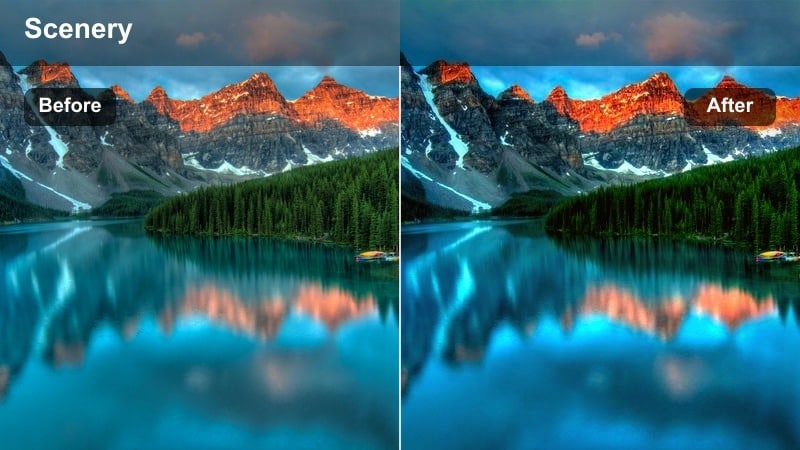
- Effect look: Rich golden midtones, deeper shadows, and punchy highlights that make evening commute scenes feel cinematic.
- Best for: Driving POV clips, train windows, and time-lapse traffic sequences at golden hour.
- Editing tip: Use keyframes to gradually increase intensity as the sky gets darker for a smooth, cinematic transition.
Golden Commute adds extra drama to everyday travel clips by deepening shadows and enriching midtones with a strong amber cast. In Filmora, this works especially well on dashcam shots, train windows, or timelapses where headlights, taillights, and the sun all share the frame.
Apply the filter and then keyframe its intensity over time so the look becomes stronger as the sun sinks and city lights brighten. If the sky or headlights start clipping, lower highlights and whites, then nudge overall exposure back up to keep midtones visible, optionally adding a soft glow effect for more cinematic rolling light.
Coastal Sunset Travel Scenes
Shoreline Golden Wash
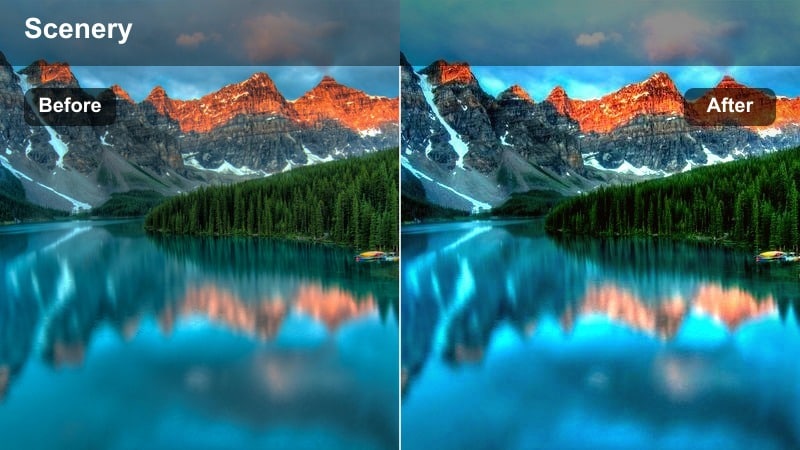
- Effect look: Warm golden wash over midtones with softened blues in the shadows for a sun-kissed beach vibe.
- Best for: Coastal drone shots, boardwalk walks, and travel vlogs along the shoreline at sunset.
- Editing tip: Lower blue saturation slightly to avoid color clashes and let the warm tones lead the scene.
Shoreline Golden Wash is tailored for travel creators who want their beach and ocean clips to feel sun-drenched and relaxed. In Filmora, it layers a gentle golden tone over midtones while taming cooler blues in the shadows so sand, skin, and wooden boardwalks blend into a cohesive warm palette.
Use it on drone flyovers, walking POVs, and establishing shots of the coast to quickly create a consistent sunset mood across your edit. If the water starts to lose definition, increase midtone clarity or local contrast, and slightly cool only the deepest shadows to restore separation between sea and sky without sacrificing the overall warm atmosphere.
Sunset Travel Postcard
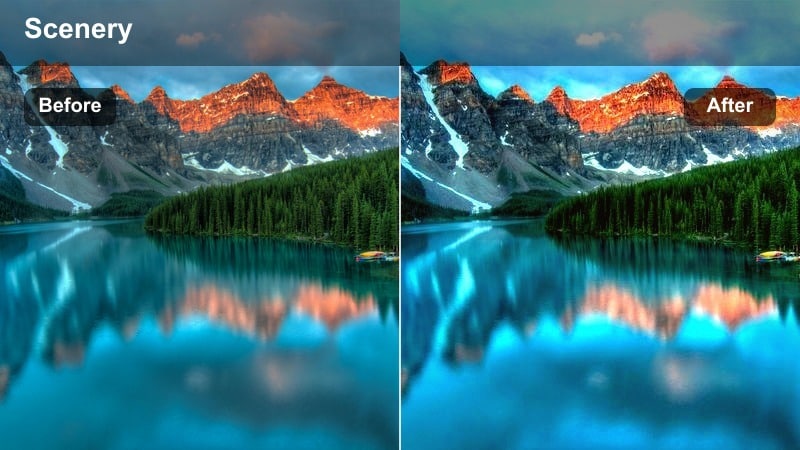
- Effect look: High-saturation oranges and warm highlights with gentle vignette for postcard-style travel shots.
- Best for: Travel reels, destination intros, and hero shots of coastlines and piers at golden hour.
- Editing tip: Use this filter lightly on skin tones; dial intensity down to keep faces natural while backgrounds stay vibrant.
Sunset Travel Postcard is built to make your hero shots look like they belong on a travel brochure or thumbnail. In Filmora, it pushes oranges and warm highlights for dramatic skies and glowing horizons, while a subtle vignette guides the eye toward your main subject or landmark.
Apply it to wide landscape reveals, cliffside poses, or key B-roll moments you want to feature in intros and social trailers. To keep people looking natural, reduce filter intensity on talking-head or close-up shots, and fine-tune orange and red saturation in the color settings so the background stays vivid without oversaturating skin.
Last Light Waves
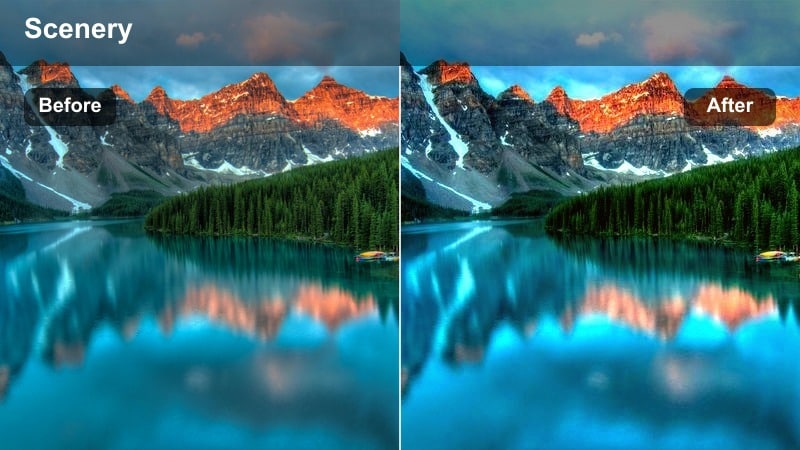
- Effect look: Warm highlights with slightly cooler, deeper shadows to emphasize the last rays of light on waves and rocks.
- Best for: Slow-motion waves, rocky shorelines, and low-light handheld clips just after sunset.
- Editing tip: Increase shadow noise reduction slightly if shooting at high ISO in low light conditions.
Last Light Waves captures the moody transition from golden hour into blue hour, highlighting warm reflections on water while allowing shadows to deepen. In Filmora, it gives wave crests, wet rocks, and the distant horizon a lingering amber glow, while cooler shadows keep the scene grounded and cinematic.
Use it for slow-motion water shots, tide pools, and shoreline details filmed in low light. If noise becomes noticeable due to higher ISO, add gentle noise reduction and then reintroduce a light film grain effect to preserve texture. Lift midtones instead of shadows to maintain the late-evening mood while still revealing important details.
Cozy Indoor Evenings
Living Room Sunfall
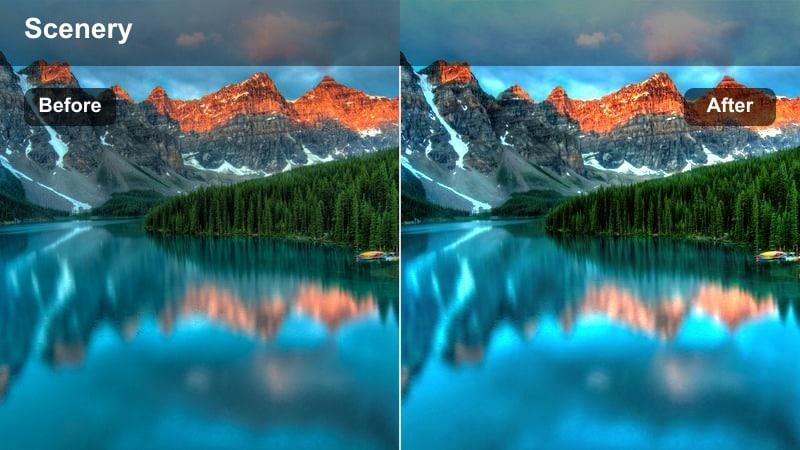
- Effect look: Soft golden midtones with gentle contrast and warm highlights mimicking sunbeams spilling into a room.
- Best for: Cozy home vlogs, desk setups, and lifestyle content shot near windows at late afternoon.
- Editing tip: Add a subtle directional light flare overlay from the window side to enhance the illusion of real sunbeams.
Living Room Sunfall is crafted for lifestyle and home content where you want interiors to feel naturally sunlit and welcoming. In Filmora, it gives window light a gentle golden boost, flattening harsh contrast slightly so furniture, decor, and people all share the same soft glow.
Apply it to couch conversations, room tours, and aesthetic B-roll around your space. To sell the late-afternoon illusion, match your in-camera white balance as closely as possible, then fine-tune in Filmora by slightly cooling overly yellow lamps and adding a directional flare overlay or lens light from the window side.
Golden Desk Setup
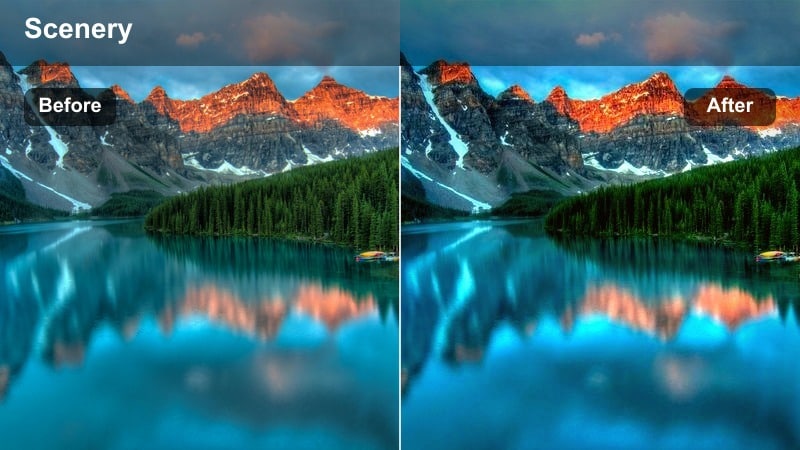
- Effect look: Warm but controlled highlights with subtle contrast and clean shadows ideal for product and desk shots.
- Best for: Product B-roll, creator workspace tours, and overhead shots of gear in warm evening light.
- Editing tip: Boost micro-contrast around edges slightly so small objects and textures stay crisp within the warm look.
Golden Desk Setup focuses on keeping your workspace and product shots clean while adding a hint of sunset-inspired warmth. In Filmora, this filter balances warm highlights with neutral, controlled shadows so keyboards, gadgets, and packaging retain detail and true-to-life structure.
Use it when filming desk tours, flat-lay gear shots, or small product demos you want to feel cozy but still professional. If brand colors or UI elements shift, reduce saturation in specific hues or mask key objects and gently lower filter intensity inside the mask, ensuring logos and screens remain accurate while the rest of the frame stays warmly stylized.
Evening Storytime
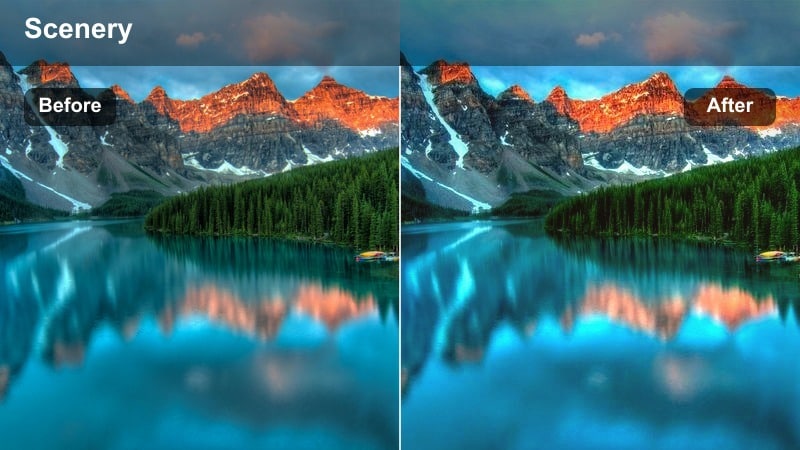
- Effect look: Soft, low-contrast warmth with a gentle fade in shadows for an intimate, storytelling atmosphere.
- Best for: Talking head videos, storytelling content, and podcasts filmed indoors near sunset.
- Editing tip: Add a slight blur to the background and keep sharpening light on the subject to draw attention to expressions.
Evening Storytime is tuned for close-up, conversational content where mood and skin rendering matter most. In Filmora, it lowers contrast and lifts shadows just enough to flatter faces, while a warm tint evokes the feeling of a quiet evening chat.
Apply it to podcasts, storytelling vlogs, and Q and A videos where the subject fills most of the frame. To enhance focus, blur or soften the background using Filmora tools and keep sharpening slightly higher on the subject only. If cheeks or noses appear too red, reduce red saturation a bit and raise midtone brightness so the warmth feels intentional, not overpowering.
Urban Silhouettes and Skylines
Copper Skyline
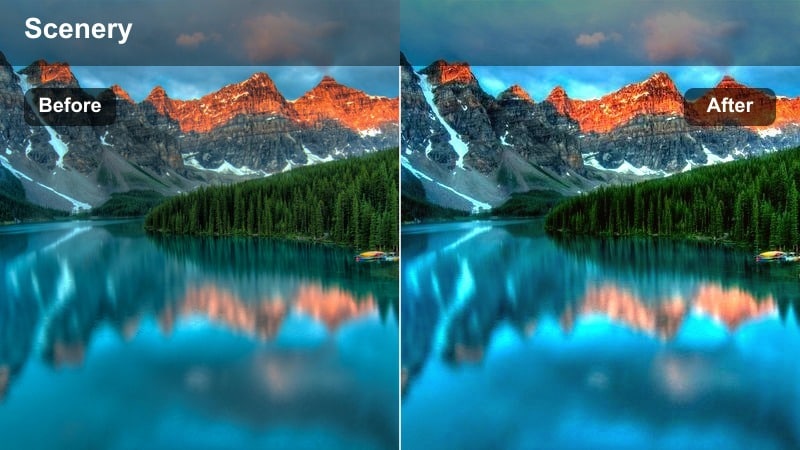
- Effect look: Deep copper and orange highlights with strong contrast that makes building edges and silhouettes stand out.
- Best for: City skyline time-lapses, drone or rooftop shots, and architectural reels at sunset.
- Editing tip: Use a gradient mask to keep the lower part of the frame slightly darker so the glowing sky remains the star.
Copper Skyline is all about bold, graphic silhouettes against richly colored skies. In Filmora, it pushes contrast and copper hues in the highlights, turning otherwise ordinary skylines into dramatic shapes framed by intense sunset color.
Use it for time-lapses, drone passes, and establishing shots where buildings are more shapes than detailed subjects. If the silhouettes crush too dark, raise shadows slightly or selectively brighten key structures with masks, and drop sky saturation or highlights if gradients start to band or lose detail.
Sunset Bridge Crossing
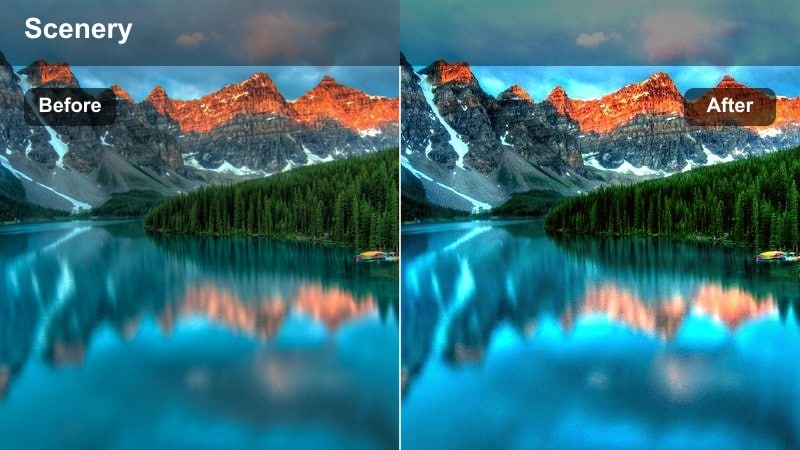
- Effect look: Warm orange glow on the horizon with neutral midtones and subtly cooled shadows for contrast and depth.
- Best for: Bridge crossings, walking POVs, and bike rides across urban bridges right before sunset.
- Editing tip: Add a touch of motion blur or directional blur to emphasize movement across the bridge.
Sunset Bridge Crossing balances a warm horizon glow with more neutral midtones so paths, railings, and people stay readable. In Filmora, this filter subtly cools shadows, adding depth and separation between the foreground bridge and distant city skyline.
Use it for POV walks, cycling clips, or gimbal shots moving across bridges as the sun sets behind the buildings. To guide the viewer along your path, apply a light vignette, increase central exposure, and optionally add directional blur or motion blur aligned with the movement so lines and railings lead naturally toward the glowing sky.
Rooftop Golden Social
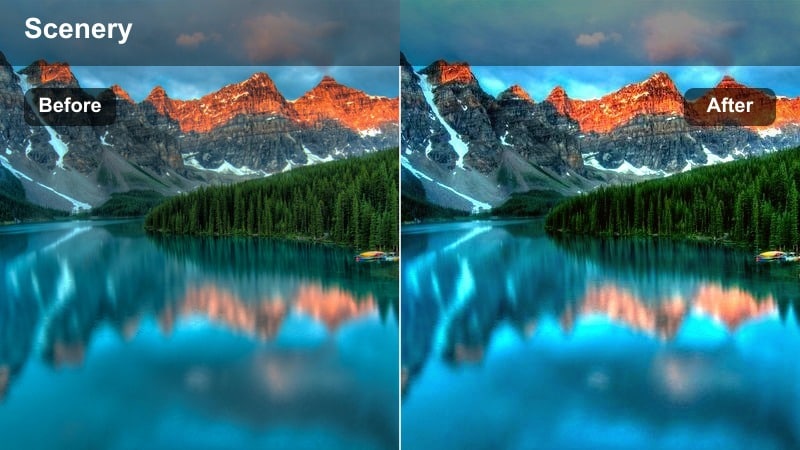
- Effect look: Warm, flattering highlights with lifted shadows and gentle color contrast for groups on rooftops against sunsets.
- Best for: Group hangout clips, rooftop parties, and social moments with the skyline in the background.
- Editing tip: Lower overall contrast slightly if multiple faces are in the frame to keep everyone evenly exposed.
Rooftop Golden Social is tuned for group shots where you need flattering warmth on faces but still want a dramatic skyline behind them. In Filmora, it lifts shadows so no one disappears into darkness while maintaining enough contrast to show the city outline and sunset color.
Apply it to party clips, cheers moments, and social B-roll where friends gather on terraces or rooftops. If the sky turns too bright, reduce highlights and then gently raise overall exposure until skin looks natural. For extra atmosphere, add a soft backlight glow or light leak from the horizon side to reinforce the feeling of the sun setting behind the group.
Tips for Using Warm Sunset Tone Video Lut Filters in Filmora
- Shoot slightly underexposed during bright sunsets so Filmora filters have room to preserve sky detail and smooth highlight gradients.
- Keep your in-camera white balance close to neutral; you can always warm the image further with Filmora color tools and sunset filters in post.
- Use masks to apply stronger warmth to skies and backgrounds while keeping foreground skin tones more natural and balanced.
- Adjust filter intensity on a clip-by-clip basis instead of using a single global value so you can match changes in lighting and exposure.
- Combine a cinematic LUT with a warm sunset filter at lower opacity to get both consistent color science and stylized golden tones.
- Add subtle film grain and a light vignette to enhance the cinematic mood of sunset footage without drawing attention away from the story.
- Keyframe exposure and filter strength during time-lapses so the grade evolves naturally as the sun sets and city or street lights appear.
With the right warm sunset tone video LUT style filters in Filmora, you can turn ordinary daylight or overcast shots into glowing, cinematic scenes that feel like they were captured at the perfect golden hour.
Experiment with intensity, masking, and basic color adjustments, then save your favorite combinations as presets so every new vlog, reel, or travel video keeps that signature warm sunset look.
secure download