

 100% Security Verified | No Subscription Required | No Malware


 ChatGPT
 Perplexity
 Gemini
 Claude
 Grok
Grok
Warm travel video filters are perfect for turning ordinary trip footage into golden, sun-kissed memories that feel cinematic and nostalgic. By pushing gentle oranges, soft yellows, and creamy highlights, these looks make beaches, deserts, and city sunsets feel immersive and inviting.
This collection of warm travel video filters for Filmora is tailored to travel vloggers and photographers filming in sunny destinations and warm climate locations. Use these presets as a fast starting point for your sunny video color grade, then fine-tune exposure and color to match your unique style.
In this article
Sunrise and Golden Hour Warm Filters
Sunrise Soft Glow
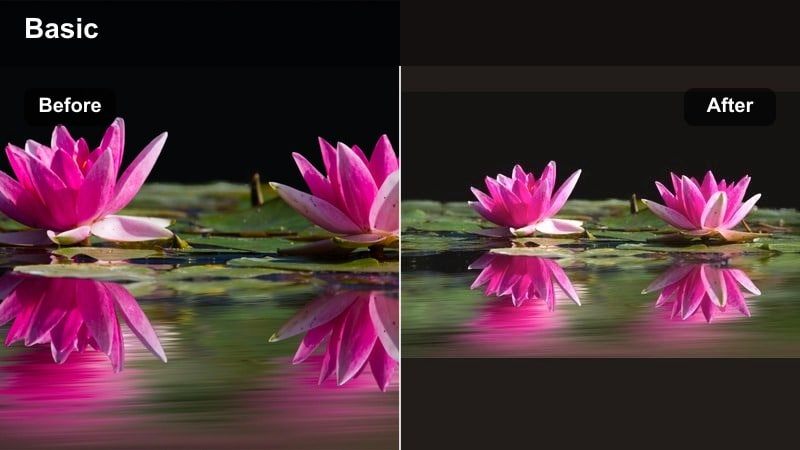
- Effect look: Gentle pastel warmth with lifted shadows and a soft glow around highlights to mimic early-morning sun.
- Best for: Calm sunrise beach walks, quiet city streets at dawn, and handheld storytelling shots with skin tones in frame.
- Editing tip: Lower contrast slightly and add just a touch of film grain to avoid banding in bright skies while keeping the image dreamy.
Sunrise Soft Glow is the kind of warm travel video filter that turns pale, low-contrast dawn footage into soft, peachy memories without overcooking the sky. It gently lifts shadows and wraps highlights with a subtle glow, so breaking waves, rooftops, and early-morning clouds all feel cohesive and romantic.
Inside Filmora, drop this filter onto your sunrise clips, then fine-tune with the basic color controls to keep exposure in check. If your camera captured strong contrast, back it off slightly, add a touch of film grain, and use the curves tool to shape the highlight roll-off so skies stay smooth and cinematic rather than harsh or banded.
Pro tip: Balance warmth with exposure at sunrise
If your sunrise footage is already bright, slightly lower overall exposure before applying this warm filter so the added glow does not blow out the sun and clouds.
Use Filmora’s curves to gently pull down the top of the highlights after adding the filter, keeping texture in clouds while still enjoying a golden warm travel look.
Let AI Find the Perfect Warm Travel Palette
If you are unsure how warm your footage should be, use Filmora’s AI-driven color tools to generate a balanced warm base before layering these filters. The AI will analyze each frame, even out strong color casts, and set a natural starting point for your golden grades.
Once AI has unified white balance and exposure across your edit, any warm travel video filter you add will look more consistent from clip to clip. That means fewer manual tweaks and a smoother sunny video color grade throughout your entire vlog.
How to use it in Filmora: Open your travel project, select your clips, and run the AI color adjustments before you start testing specific warm looks.
Open your travel project in Filmora and let the AI tools even out exposure and color, then apply your favorite warm travel video filters.
 secure download

Preview Warm Filters on Your Travel Clips
Filmora makes it easy to test multiple warm looks before you commit, so you can see subtle pastel warmth next to bold golden grades. By duplicating clips on the timeline and applying a different filter to each version, you can quickly spot which style fits the mood of your vlog.
This side-by-side comparison workflow is perfect when you are balancing sunrise, beach, and city footage in a single episode. Instead of guessing, you will know exactly how each warm filter behaves on your specific camera and destination.
How to use it in Filmora: Copy your favorite test clips to several tracks, drag a different warm filter onto each one, and compare them in the preview window.
Drag each warm filter onto a duplicate of your clip, compare side by side, and keep the version that best fits your travel story.
secure downloadCombine Warm Filters with LUTs for Signature Looks
Filmora includes 1000 plus video filters and 3D LUT options you can stack together to build a recognizable travel aesthetic. If you already have a favorite warm travel LUT, use it as a base look, then mix in Filmora’s golden and sunny filters at low intensity for final polish.
This layered workflow lets you adapt one core style to many destinations. You can keep your brand consistent while still fine-tuning highlights, midtones, and shadows for beaches, cities, or deserts simply by adjusting filter strength.
How to use it in Filmora: Apply your LUT first, adjust exposure, then slowly raise the opacity of a warm travel filter until you hit the sweet spot between cinematic and natural.
Apply your LUT first, then slowly mix in a warm travel video filter at 20–40 percent strength until the look feels cohesive.
secure downloadGolden Hour Vibes
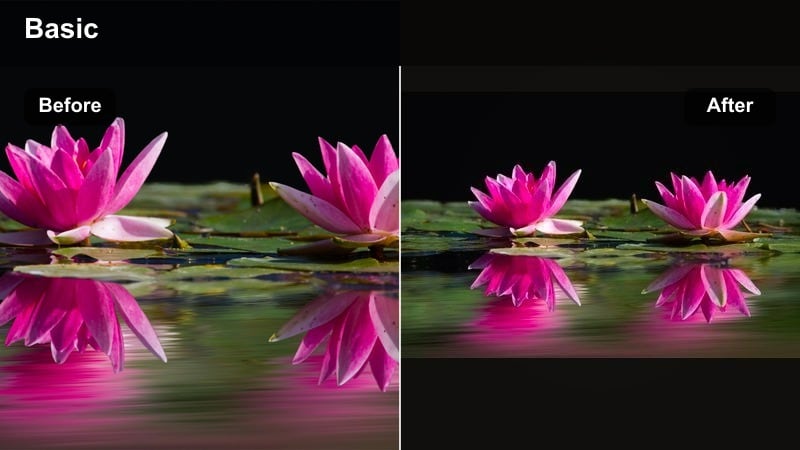
- Effect look: Rich golden highlights with warm mids and slightly muted blues to emphasize late-afternoon sunlight.
- Best for: Golden hour city b-roll, rooftop cafes, desert overlooks, and handheld portraits against the setting sun.
- Editing tip: Increase saturation in the orange and yellow channels only to keep skin tones healthy while preventing grass and foliage from turning neon.
Golden Hour Vibes amplifies those last rays of daylight, adding depth and glow so your travel vlogs feel like cinematic postcards. It enriches oranges and yellows while pushing blues into a softer, more sophisticated tone, which is ideal for skylines, rooftops, and backlit portraits.
In Filmora, combine this filter with targeted HSL adjustments to protect skin while keeping the environment glowing. Boost oranges and yellows for the sky and buildings, but keep saturation in greens and blues under control so parks and water do not distract from your subject.
Pro tip: Protect skin tones in golden hour shots
If skin starts to look too orange with this filter, slightly desaturate the orange hue in Filmora’s HSL controls while keeping yellows vibrant.
You can also shift orange tones a few steps towards red for a more natural sun-kissed complexion that still looks warm and flattering.
Amber Morning Trails
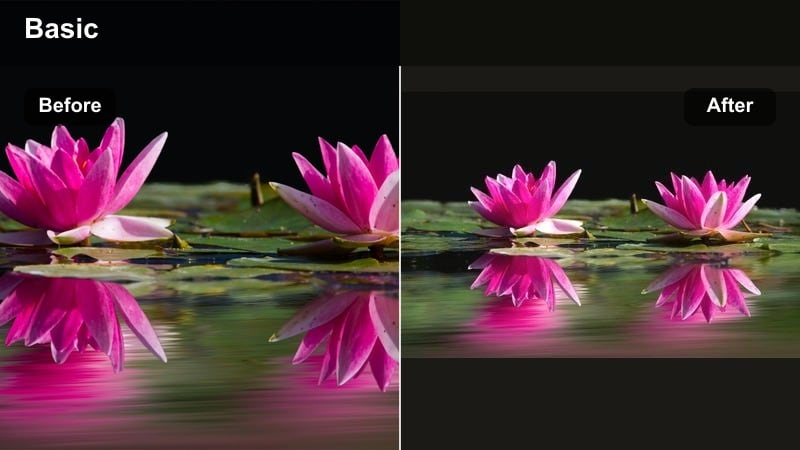
- Effect look: Soft amber warmth with balanced shadows, giving hiking paths and mountain ridges a hazy, early-morning glow.
- Best for: Mountain hikes, forest trails, and drone shots over warm, misty landscapes in the early morning.
- Editing tip: Add a slight vignette and reduce clarity just a little to enhance the dreamy, hazy feeling in wide establishing shots.
Amber Morning Trails brings gentle warmth to greens and earth tones, making hillsides and forest paths feel like they are lit by a low, amber sun. It is particularly effective on drone or wide-angle shots where mist and haze are present, subtly enhancing depth without crushing shadows.
When editing in Filmora, place this filter on your establishing shots and then add a faint vignette to pull attention toward the center of the frame. Reducing clarity slightly can emphasize atmosphere, while a touch of sharpening on the subject layer (via masking) keeps hikers or foreground details crisp.
Pro tip: Use haze to guide the viewer’s eye
Combine this filter with a gentle blur or lowered clarity in the background while keeping your subject sharp to draw attention to the foreground.
In Filmora, use masking to apply extra blur only to the sky or distant hills, reinforcing depth and atmosphere in your travel video.
Midday Sun and Beach Warm Filters
Tropical Gold Beach
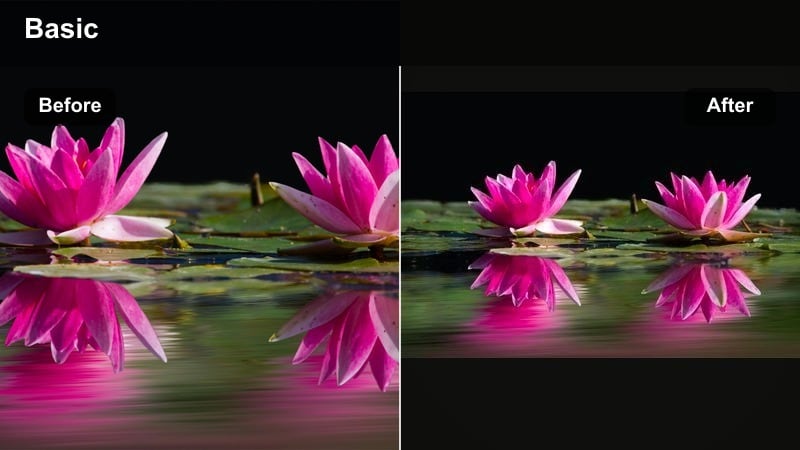
- Effect look: Warm, golden sand tones with slightly teal-shifted water for a classic tropical postcard aesthetic.
- Best for: Sunny beach destinations, island hopping, and snorkeling transitions where sand and sea dominate the frame.
- Editing tip: Lower overall contrast and pull highlights down to control harsh midday sun, then increase local contrast in midtones for extra punch.
Tropical Gold Beach is designed for bright, cloudless days when the sun is directly overhead. It warms sand into rich golden tones, while shifting ocean hues toward teal for a modern, travel-influencer look that feels polished but still inviting.
In Filmora, apply this filter to all your daytime beach sequences, then use the highlight and white-level sliders to tame specular reflections on water and sand. After that, gently raise midtone contrast so your subject, umbrellas, and palm trees stand out without making the scene feel harsh.
Pro tip: Tame harsh midday light on beaches
Pair this filter with Filmora’s highlight recovery and lower white levels so bright reflections on water and sand stay detailed.
If the sky clips to white, add a soft gradient mask at the top of the frame and reduce exposure only in that region.
Sunny Coastline Pop
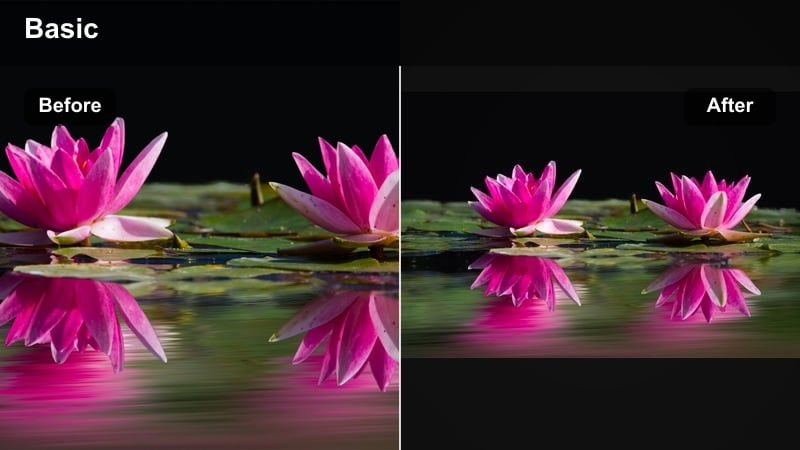
- Effect look: Vibrant warm mids with crisp contrast and rich cyan skies, designed for energetic seaside travel vlogs.
- Best for: Action shots on the coast, drone flyovers, and fast-paced vlog sequences with lots of movement.
- Editing tip: Increase saturation moderately but keep an eye on red and magenta channels so sunburned skin does not look overly intense.
Sunny Coastline Pop is all about energy, making cliffs, boats, and ocean spray look bold and dynamic. The filter intensifies warm tones in rocks and buildings while giving skies and water a vivid cyan punch that plays well with upbeat music and quick cuts.
Within Filmora, use this look on your most active coastal moments, such as jumping from boats or running along piers. Adjust saturation slowly and monitor the red and magenta channels in HSL if your skin or life vests start to look too intense, dialing them back for a balanced, professional finish.
Pro tip: Match filter intensity to camera profile
If you shoot in a flat or log-like profile, add a basic contrast and saturation boost before this filter so the colors respond predictably.
For already baked-in phone footage, reduce the filter strength slightly in Filmora to avoid overly crunchy contrast.
Warm Sand Journal
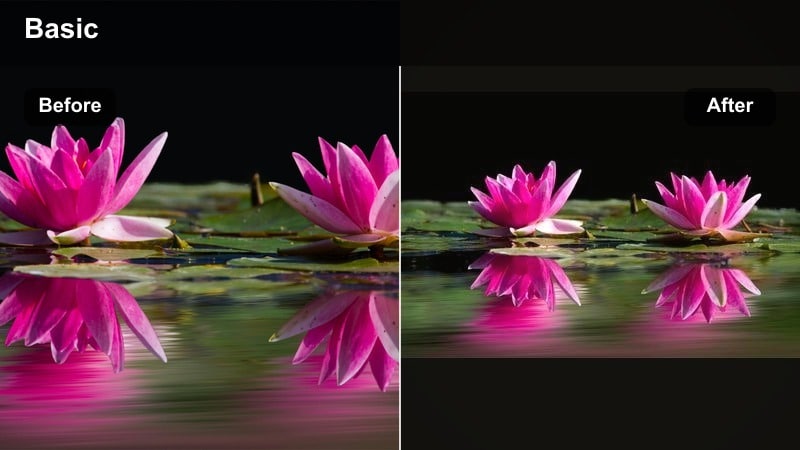
- Effect look: Creamy warm highlights and soft shadows that give beach b-roll a gentle, diary-style mood.
- Best for: Slow-motion sand details, footprints, beach cafes, and close-up travel journal shots shot in warm daylight.
- Editing tip: Slightly fade the blacks and add a minimal film grain layer to get a nostalgic, analog travel diary vibe.
Warm Sand Journal shifts your beach footage away from loud, saturated colors into a softer, story-driven aesthetic. Creamy highlights and lifted shadows give small details like footprints, coffee cups, and hands writing in a journal a warm, intimate feeling.
In Filmora, pair this filter with gentle slow motion and close-up compositions. Fade your blacks a bit in the color panel, add a light grain overlay, and keep transitions soft so these clips feel like personal memories tucked between your louder, more energetic beach sequences.
Pro tip: Use warm tones to frame story moments
Anchor your narrative scenes with this softer filter, reserving punchier looks for wide establishing shots so viewers feel a change in mood.
In Filmora, keep transitions gentle around these clips, using dissolves or slow zooms to support the reflective tone.
Urban Streets and City Warm Filters
Golden City Walk
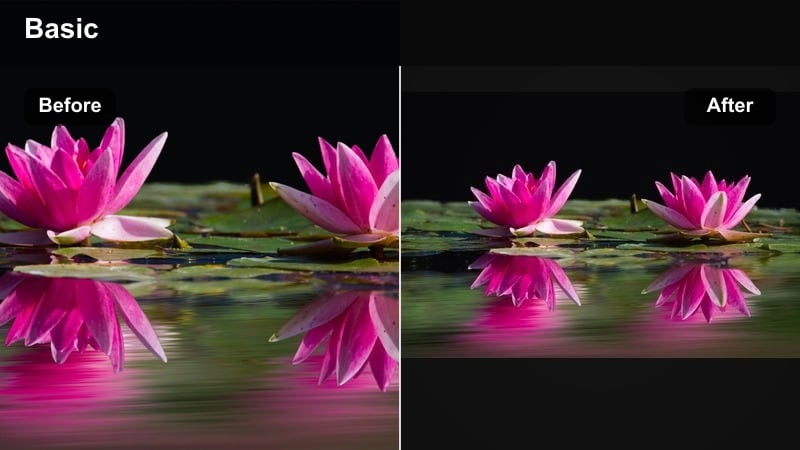
- Effect look: Rich golden highlights with slightly desaturated shadows to keep buildings and streets looking chic and cinematic.
- Best for: City strolls during warm afternoons, market alleys, and handheld walk-and-talk vlogs.
- Editing tip: Add subtle motion blur or use speed ramping with this filter to give fast-paced city movement a polished, cinematic flow.
Golden City Walk turns ordinary pavement and facades into sunlit, cinematic streetscapes. By keeping shadows slightly muted and highlights golden, it adds polish to everyday travel b-roll, from crosswalks and coffee stops to handheld walk-and-talk shots.
In Filmora, layer this filter over your urban sequences and then enhance flow with speed ramping and motion blur effects. This combination of smooth movement and warm color grading helps your city scenes feel intentional and high-end without requiring complex manual color work.
Pro tip: Control mixed lighting in cities
City scenes often mix daylight, neon signs, and window reflections; after applying the filter, fine-tune the blue and magenta channels so lights stay vibrant but not distracting.
If signs glow too strongly, use a mask to lower saturation only in those high-contrast regions while keeping the rest of the frame warm and inviting.
Sunny Street Market
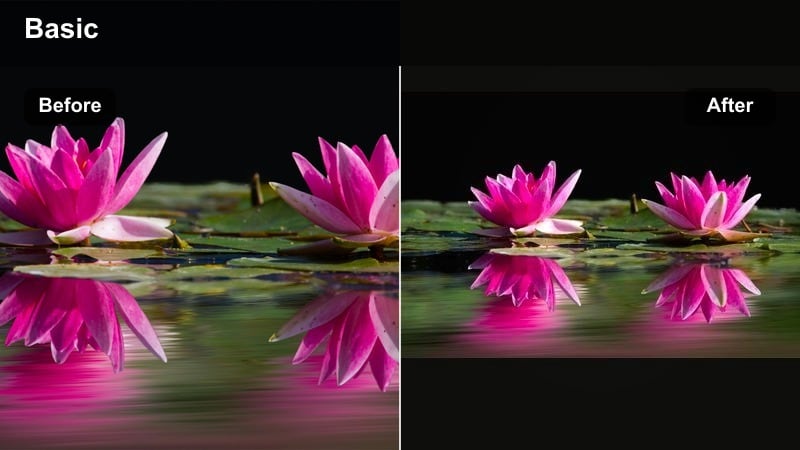
- Effect look: Warm, saturated colors with lifted midtones that make food, textiles, and people in markets appear vivid and alive.
- Best for: Outdoor bazaars, food stalls, craft markets, and street festivals filmed in sunny conditions.
- Editing tip: Use Filmora’s HSL panel to selectively boost reds and yellows for food while slightly toning down greens if produce starts to look overly neon.
Sunny Street Market is crafted for locations bursting with color and texture. It adds warmth and midtone lift so fruits, spices, fabrics, and street food steam all feel vibrant, bringing out the character of busy markets without losing detail in faces.
Inside Filmora, apply this filter to your market b-roll, then open the HSL panel to fine-tune individual hues. Boost reds and yellows to make food more appetizing, dial back greens if herbs or vegetables look too neon, and keep overall saturation at a level where movement and detail remain easy to read.
Pro tip: Keep movement and color readable
When many colors compete in frame, use this filter at medium strength and rely on slightly lower saturation overall to keep the scene readable.
You can also add a gentle blur to the background using depth-of-field effects, letting your subject and warm tones stay in focus.
Copper City Haze
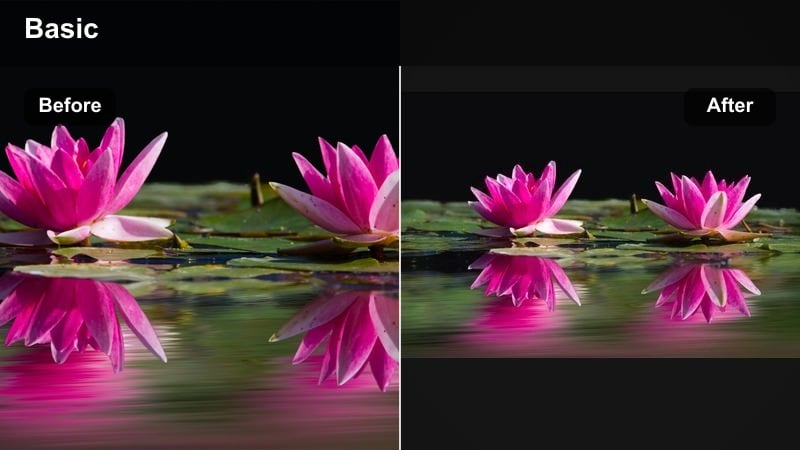
- Effect look: Coppery warm midtones with a soft haze that turns busy streets into moody, cinematic backdrops.
- Best for: Backlit city shots, reflections in windows, and slow, contemplative walking sequences in warm climates.
- Editing tip: Reduce clarity slightly and fade the blacks to complement the copper warmth, then sharpen just the subject with masking for contrast.
Copper City Haze leans into deeper, more atmospheric warmth, turning window reflections and backlit streets into moody interludes in your vlog. Copper midtones and subtle haze give a filmic character that is ideal for slower sequences and transitions between big locations.
In Filmora, use this filter on shots where you want viewers to slow down and absorb the environment. Lower clarity a touch, fade the blacks, and then create a mask over your main subject to sharpen them slightly so they stand out against the softened, hazy city around them.
Pro tip: Use copper warmth for story transitions
Apply this filter to bridging shots between locations to signal a change in mood or time without spelling it out in narration.
In Filmora, you can also slightly slow down these clips and layer gentle ambient audio to deepen the reflective feeling.
Desert, Sunset, and Golden Travel LUT-Style Filters
Desert Gold Rush
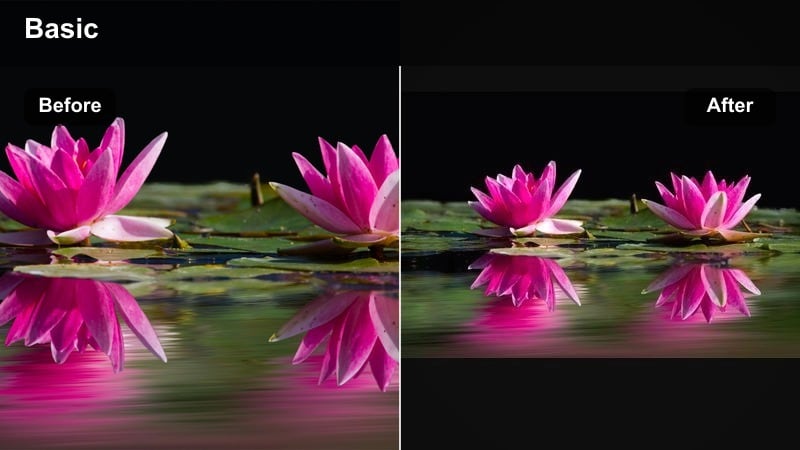
- Effect look: Intense golden and amber hues with lifted warm shadows, giving sand dunes and rocky landscapes a glowing, cinematic punch.
- Best for: Desert road trips, canyon overlooks, and off-road adventures shot in harsh or late-afternoon light.
- Editing tip: Dial back saturation slightly after adding the filter, then selectively re-boost oranges to keep dunes rich but skies controlled.
Desert Gold Rush is built for dramatic landscapes where rock and sand dominate the frame. It pushes golden and amber tones hard, lifting warm shadows so dunes, canyons, and dusty roads look like scenes from a movie poster.
In Filmora, apply this filter to your desert sequences and then refine it by dropping global saturation a bit. After that, selectively increase orange saturation so dunes glow without turning the sky nuclear, and use the color wheels to keep overall contrast and depth in check.
Pro tip: Avoid muddy warm shadows
Warm filters can easily turn shadows brown and muddy; in Filmora, slightly cool the shadows while keeping mids and highlights warm to maintain contrast.
Use the color wheels to add a hint of blue to shadows and yellow to highlights, balancing warmth without losing depth.
Sunset Travel Glow
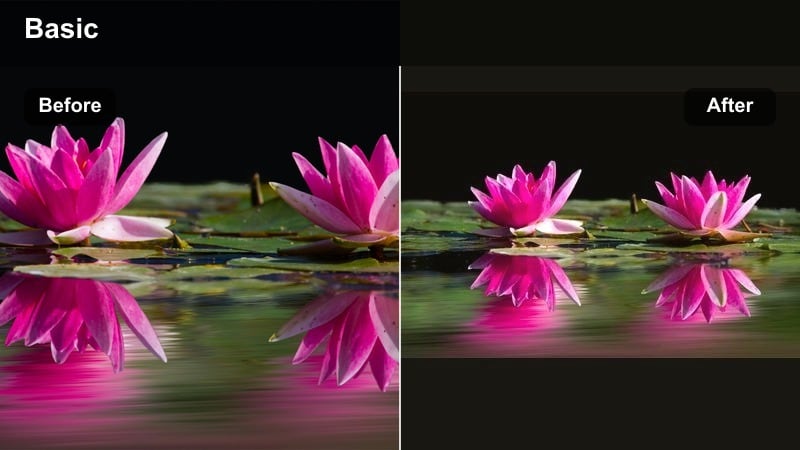
- Effect look: Sunset-driven warmth with pinkish highlights and gentle oranges ideal for romantic, end-of-day sequences.
- Best for: Couple travel scenes, city skyline sunsets, and closing shots that wrap up a warm travel vlog episode.
- Editing tip: Slow your footage slightly and add subtle lens flares in Filmora to emphasize the glow while keeping contrast modest.
Sunset Travel Glow focuses on soft oranges and pinkish highlights, enhancing the natural beauty of the sky while keeping silhouettes and foreground elements clean. It is perfect for final scenes, rooftop farewells, and reflective beach walks at the end of the day.
Within Filmora, pair this filter with gentle slow motion and minimal, tasteful lens flare overlays. Keep contrast moderate so the glow remains smooth, and use cross-dissolves to transition into these shots, signaling to your audience that the chapter is winding down.
Pro tip: Use warm sunsets as emotional anchors
Plan your edit so this filter appears at emotional peaks or conclusions, letting the warm tones carry a sense of closure.
Cross-dissolve into these shots from cooler scenes to make the warmth feel like a deliberate, emotional shift.
Golden Memoir Look
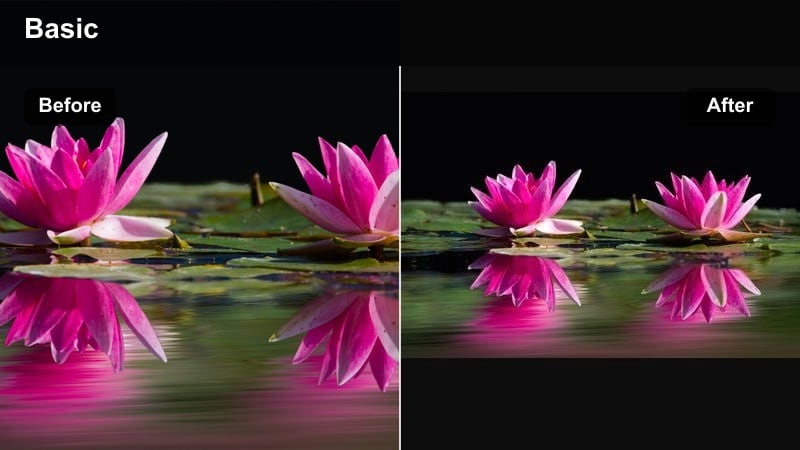
- Effect look: Film-inspired golden warmth with slightly faded blacks and subtle halation around bright areas, reminiscent of a warm travel LUT.
- Best for: Montages, memory sequences, and recap edits that summarize a trip through warm, nostalgic visuals.
- Editing tip: Stack this look with a light vignette and a gentle fade-to-white at the end of your sequence to enhance the nostalgic memoir feel.
Golden Memoir Look emulates the softness of film with faded blacks, gentle halation, and rich golden tones. It is ideal for recap sequences, highlight reels, or any part of your vlog meant to feel like a cherished memory rather than a live moment.
In Filmora, use this filter across a series of short clips in your outro or mid-trip recap. Add a slight vignette, keep transitions smooth, and consider ending the sequence with a slow fade-to-white to mimic the feeling of closing a sunlit photo album.
Pro tip: Build a cohesive trip aesthetic
Use this filter as a unifying look for your entire recap or trailer so a diverse mix of locations feels like one coherent journey.
In Filmora, copy and paste the same color settings to all recap clips, making only small exposure tweaks shot by shot for consistency.
Tips for Using Travel Video Warm Filter Filters in Filmora
- Shoot slightly flatter and a bit underexposed in bright sun so your warm travel filters have room to protect highlights and keep skies detailed.
- Create adjustment layers in Filmora and apply warm filters there, making it faster to tweak intensity across entire travel sequences.
- Use different warm strengths for different times of day, saving subtle warmth for midday and stronger golden tones for sunset and blue hour.
- Always check skin tones after adding warm filters by pausing on a close-up frame and adjusting orange saturation and hue if needed.
- Combine warm filters with gentle sound design and music to reinforce the cozy, nostalgic feeling of sunny destinations and warm climates.
Warm travel video filters are a fast, reliable way to give your trips a golden, sun-kissed personality that matches the feeling of being on the road. By choosing the right style for sunrise, midday, city walks, or desert sunsets, you can keep your entire vlog visually cohesive while still letting each location shine.
As you refine your look, experiment with blending these golden and sunny filters with your existing LUTs and camera profiles, then save your favorite settings as presets inside Filmora. When you are ready to explore the other side of the spectrum, try cool travel video filters to balance your warm edits with fresh, airy tones.
secure download