

 100% Security Verified | No Subscription Required | No Malware


 ChatGPT
 Perplexity
 Gemini
 Claude
 Grok
Grok
This collection of widescreen cinematic LUT-inspired filters is designed for content creators who want their videos to feel like scenes pulled straight from a feature film. Each preset adds letterboxed framing, stylized color, and contrast that instantly push your footage into a more immersive, cinematic space.
Use these widescreen cinematic LUT filters to shape mood, guide your viewer's eye, and give simple shots a polished, professional finish. Whether you shoot travel, vlogs, short films, or client work, you can drop these looks on your clips and fine-tune exposure and color in seconds.
In this article
Dusk City Streets and Neon Storytelling
Neon Noir Bars
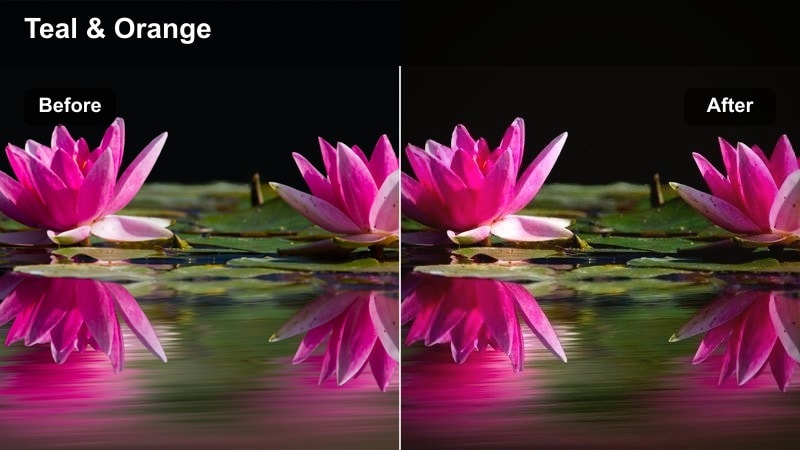
- Effect look: High-contrast, teal shadows with magenta highlights framed by subtle widescreen bars for a moody neo-noir city vibe.
- Best for: Night city B-roll, cyberpunk edits, music videos, and moody street storytelling where light sources are strong and colorful.
- Editing tip: Slightly lower overall exposure and add a touch of film grain so neon signs and car lights glow without clipping.
Neon Noir Bars is ideal when you want your city-at-night footage to feel like a frame from a neo-noir thriller. The teal shadows and magenta highlights accent street lamps, neon signs, and LED displays while the widescreen bars instantly add a cinematic crop, turning casual walk-through shots into stylized sequences.
In Filmora, drop this filter onto your clips, then fine-tune exposure and highlight recovery so the brightest lights retain detail. Combine it with Filmora s grain, glow, and subtle vignette tools to enhance the moody atmosphere and keep your subject separated from the busy background inside the widescreen frame.
Speed Up Cinematic Color with AI Assistance
Combine these widescreen cinematic LUT-style filters with Filmora s AI-driven color tools to get your base exposure and balance right before you stylize. AI analysis helps normalize mixed lighting and white balance so every clip responds predictably when you drop on a cinematic filter.
Once your footage is corrected, you can audition several widescreen looks quickly, saving custom versions that fit your channel identity or series. This workflow keeps your edits fast while preserving a consistent cinematic palette across episodes.
 secure download

Preview Widescreen Filters on Test Clips
Before you lock a look, test different widescreen cinematic filters on short clips that represent your main scenes: interiors, exteriors, day, and night. This mini demo reel will reveal how well one filter can unify your story.
Watch your test sequence full-screen to see how the letterbox bars feel on desktop and mobile, and adjust exposure, contrast, and saturation until every shot reads clearly while still feeling like part of the same film.
secure download1000+ Video Filters and 3D LUTs
Filmora includes a large library of creative filters and 3D LUTs you can stack with these widescreen cinematic looks. From subtle film emulation to bold stylized grades, you can dial in a unique aesthetic without leaving the timeline.
Mix creative filters with your favorite widescreen presets at reduced intensity, then save them as custom presets so your channel or series keeps the same cinematic identity across multiple projects.
secure downloadStreet Chrome Scope
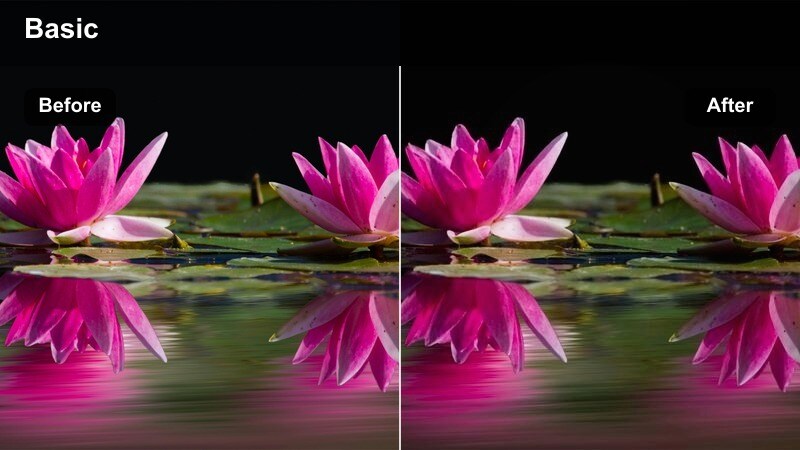
- Effect look: Cool, metallic tones with crushed blacks and clean, thin letterbox bars that give city traffic and glass reflections a sleek cinematic finish.
- Best for: Car scenes, driving montages, glassy skyscraper B-roll, and tech-inspired city transitions.
- Editing tip: Use slower shutter speeds or motion blur with this filter to accent light trails and chrome highlights inside the widescreen frame.
Street Chrome Scope leans into cool metallic blues and silvers, making asphalt, car paint, and glass facades look sharp and high-end. The slender widescreen bars add an understated film look that works well for commercials, tech edits, or channel intros focused on city energy.
In Filmora, apply this filter to your traffic or driving footage, then experiment with speed ramps and motion blur effects to emphasize light streaks along the road. You can layer titles or logo reveals in the center of the frame, letting the cool-toned cityscape and chrome reflections provide a sleek backdrop.
Subway Noir Frame
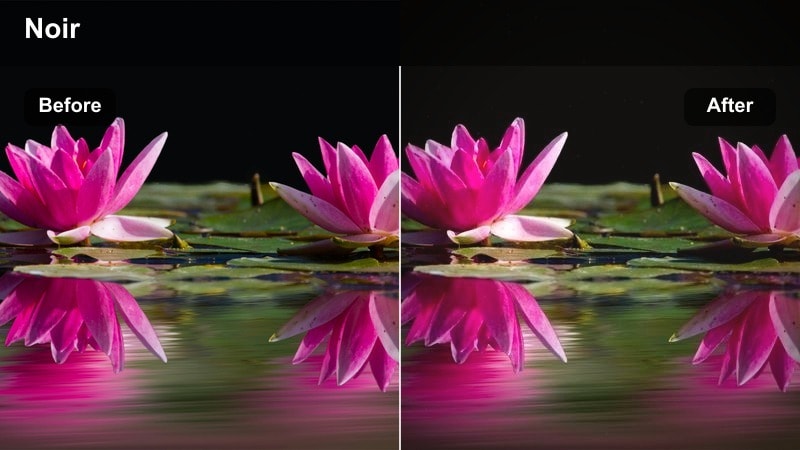
- Effect look: Soft-faded blacks, warm midtones, and gentle widescreen bars that turn underground transit shots into narrative thriller moments.
- Best for: Subway platforms, metro rides, handheld commuter footage, and gritty travel vlogs in big cities.
- Editing tip: Stabilize handheld clips slightly and slow them to 80 90 percent speed so small movements feel intentional within the cinematic frame.
Subway Noir Frame adds a filmic softness to dark areas while lifting midtones just enough to keep faces readable in low-light environments. Warm color shifts make station lights and carriage interiors feel intimate, ideal for storytelling about late-night commutes or character journeys.
Use this filter in Filmora on handheld subway or train clips, then add mild stabilization and slow motion so the motion feels intentional rather than shaky. Combine it with ambient sound recordings, subtle vignettes, and crossfades between shots to build a cohesive, story-driven sequence that feels like part of a longer film.
Golden Hour Rooftops and City Horizons
Rooftop Gold Bars
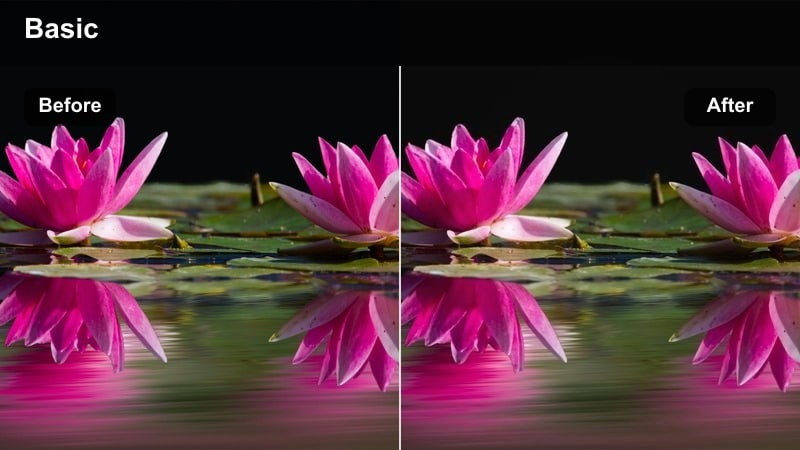
- Effect look: Rich golden highlights, gentle lifted shadows, and bold widescreen bars that turn rooftop sunsets into warm, emotional scenes.
- Best for: Golden hour B-roll, cinematic talking heads, lifestyle vlogs, and fashion shoots on terraces or rooftops.
- Editing tip: Slightly desaturate non-skin colors so faces and the sky become the primary focus in the widescreen frame.
Rooftop Gold Bars pushes warm tones into your highlights while keeping shadows soft, wrapping subjects in flattering golden light. The strong letterbox bars give skyline shots and profile angles a dramatic feel, perfect for hero moments, announcements, or emotional storytelling.
In Filmora, apply this filter to your sunset rooftop footage, then fine-tune saturation on clothing and background elements using color tools so skin and sky remain the heroes. Add slow push-in keyframed zooms and a gentle vignette to keep the viewer focused on your subject within the widescreen composition.
Sunset Silhouette Scope
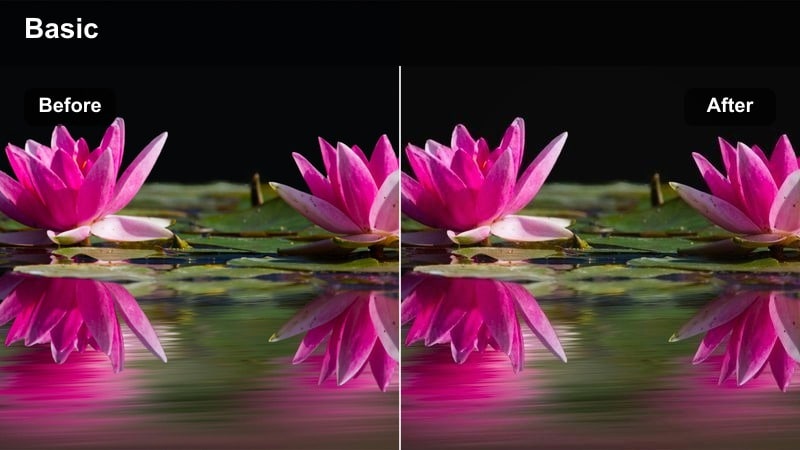
- Effect look: Deep contrast with silhouetted subjects, saturated skies, and strong letterbox bars that emphasize skyline shapes.
- Best for: Dance, performance, or hero pose shots against the setting sun on rooftops, bridges, or open decks.
- Editing tip: Lower blacks to enhance silhouettes and reduce clarity slightly so clouds and haze feel painterly and cinematic.
Sunset Silhouette Scope is built to turn backlit subjects into bold shapes against richly colored skies. With deep contrast and saturated horizons, it emphasizes motion and posture rather than facial detail, making it powerful for dance, fitness, and dramatic reveal shots.
Inside Filmora, use this filter on clips where your subject stands between camera and sun, then refine black levels until the silhouette feels crisp. Add slow-motion and a subtle camera move or digital zoom to accent the skyline and make your widescreen composition feel larger than life.
City Haze Soft Frame
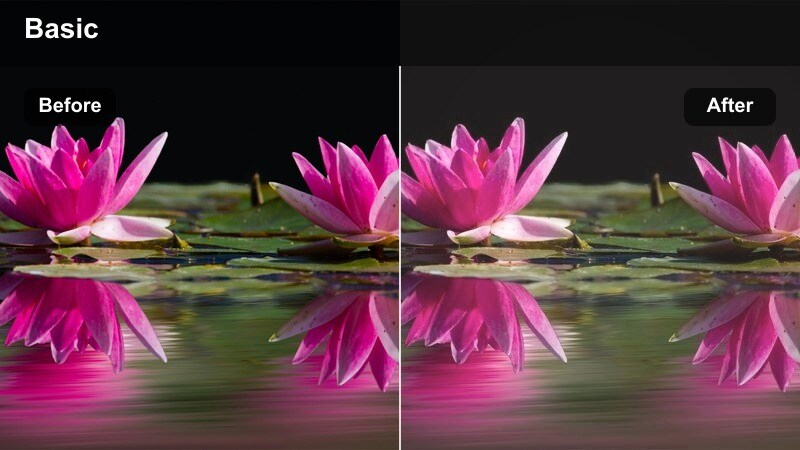
- Effect look: Soft, low-contrast highlights with pastel skies and a gentle widescreen matte that feels like a dreamy epilogue scene.
- Best for: Reflective monologues, slow city pans, travel outros, and emotional recap moments.
- Editing tip: Add a slight slow-motion effect and crossfades between clips so the airy color and framing feel like one continuous moment.
City Haze Soft Frame lowers contrast and softens bright areas to create a pastel, dreamy interpretation of the urban skyline. It works especially well for closing sequences, reflective voiceovers, and end-of-day montages where you want emotion and nostalgia rather than sharp detail.
Apply the filter in Filmora to your twilight city pans and outro shots, then introduce gentle slow motion and crossfades to make the sequence feel like a continuous memory. Layer in soft ambient music and maybe a voiceover, letting the widescreen matte and pastel palette glue the story together visually.
Intimate Interiors and Dialogue Scenes
Apartment Drama Frame
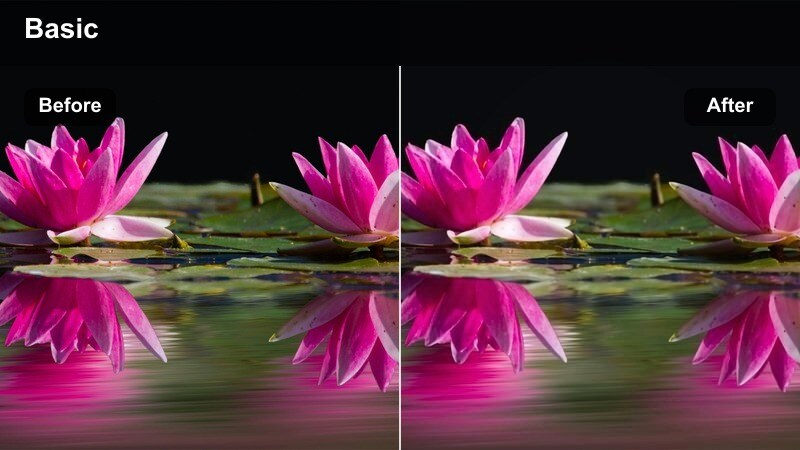
- Effect look: Neutral filmic contrast with slightly warm skin tones and clean letterbox bars built for dialogue and character scenes.
- Best for: Short film interiors, talking head sequences, reaction shots, and narrative vlogs shot in apartments or studios.
- Editing tip: Match color temperature across all angles before applying this filter so conversation cuts feel seamless.
Apartment Drama Frame is tuned for natural-looking interiors, preserving realistic colors while adding a subtle cinematic polish. Warm skin tones and balanced contrast make it ideal for character-driven scenes, interviews, and narrative vlogs set in living rooms, bedrooms, or small studios.
In Filmora, color-match all your camera angles first, then apply this filter across the entire scene to keep cuts consistent. Adjust exposure shot by shot so faces stay evenly lit, and use Filmora s audio and cut tools to focus on reactions and eye lines that the widescreen bars naturally emphasize.
Studio Soft Cinema
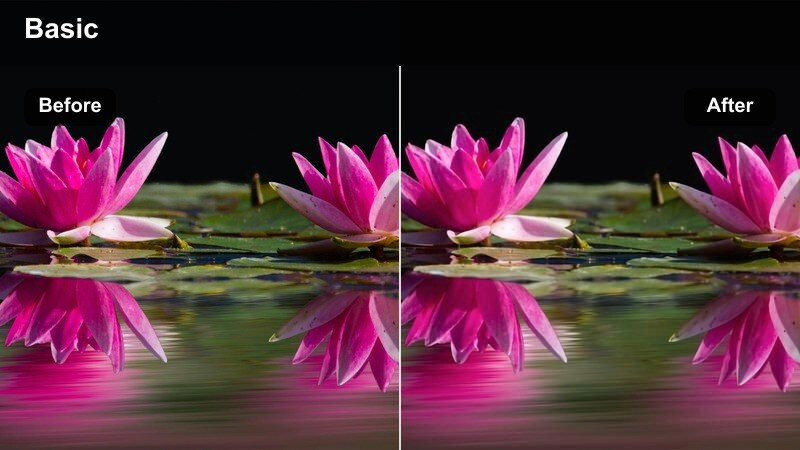
- Effect look: Gentle contrast, softened highlights, and subdued saturation to create a calm, interview-ready widescreen frame.
- Best for: Interviews, educational content, podcast video setups, and brand explainers shot indoors.
- Editing tip: Use shallow depth of field and place your subject on the center third so the bars frame them like a documentary close-up.
Studio Soft Cinema gives your indoor talking-head footage a refined, documentary-style finish with soft highlights and natural tones. It takes the edge off bright lights and colorful backgrounds so the viewer focuses on the speaker, while the widescreen bars add a subtle sense of production value.
Apply this filter in Filmora to all shots from your interview or tutorial, then gently enhance clarity on the subject s face if needed. Combine it with clean audio, simple lower-thirds, and consistent framing to create content that looks ready for professional presentations, brand channels, or long-form educational videos.
Cafe Conversation Scope
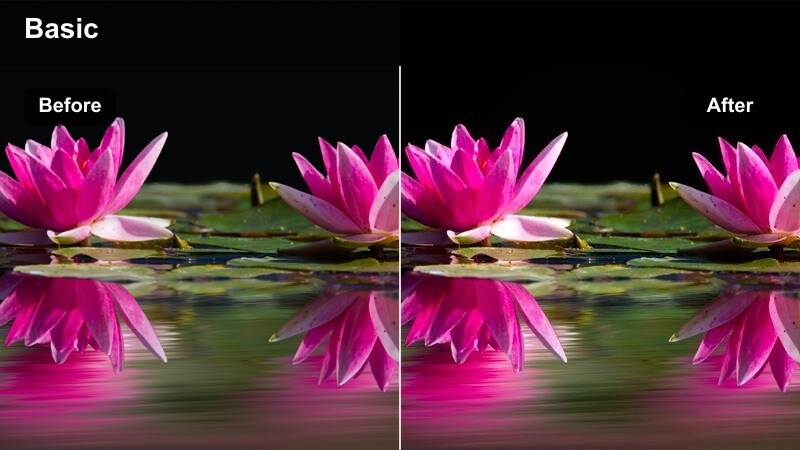
- Effect look: Warm, cozy tones with darkened edges and pronounced letterbox bars that make cafes and coworking spaces feel cinematic.
- Best for: Cafe meetups, laptop work scenes, lifestyle vlogs, and over-the-shoulder conversation shots.
- Editing tip: Lower saturation in the background and slightly brighten faces so viewers lock onto expressions within the framed scene.
Cafe Conversation Scope wraps coffee shops and coworking spaces in warm, inviting tones while subtly darkening the edges of the frame. The strong bars and vignette-like feel pull focus toward the table, laptop, or faces at the center, making everyday hangouts feel like scripted scenes.
Use this filter in Filmora on all your cafe B-roll and dialogue shots, then lift midtones on faces to keep expressions clear against the cozy background. Layer ambient sound like cups clinking and light chatter, and try L-cuts and J-cuts so conversation flows naturally while the widescreen framing maintains a cinematic rhythm.
Night Rides and Fast-Paced City Montages
Ride-Along Cinema Bars
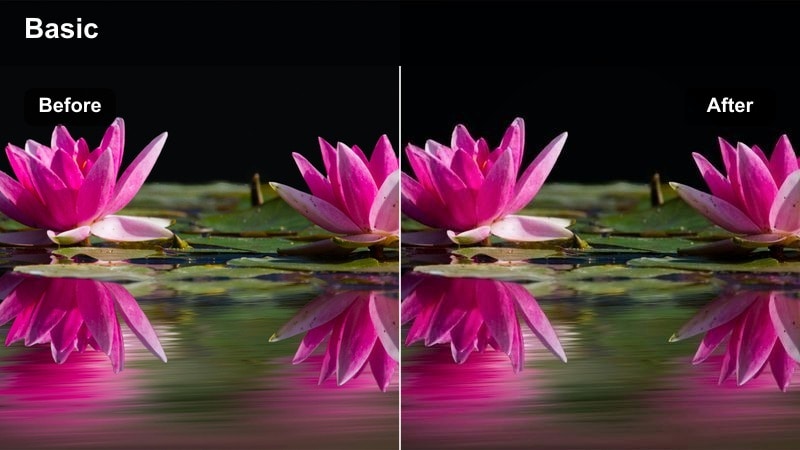
- Effect look: Punchy contrast with cool shadows, sharp street lights, and solid widescreen bars that suit high-energy driving footage.
- Best for: In-car POV shots, bike rides, skateboarding clips, and handheld night walks through busy streets.
- Editing tip: Use hard cuts on the beat of your music and keep movement forward through the frame to amplify the sense of motion.
Ride-Along Cinema Bars is tuned for kinetic travel visuals, pushing contrast and sharpening street lights while keeping shadows cool and dramatic. The solid letterbox bars make POV rides, hood-mounted shots, and handheld city walks feel like sequences from an action film or music video.
In Filmora, apply this filter to your night rides, then sync cuts and speed ramps with your soundtrack to turn simple commutes into high-energy sequences. Keep your ISO low when shooting to avoid heavy noise, and let the filter s contrast carve out detail in the streets and traffic within the widescreen frame.
City Rush Montage Scope
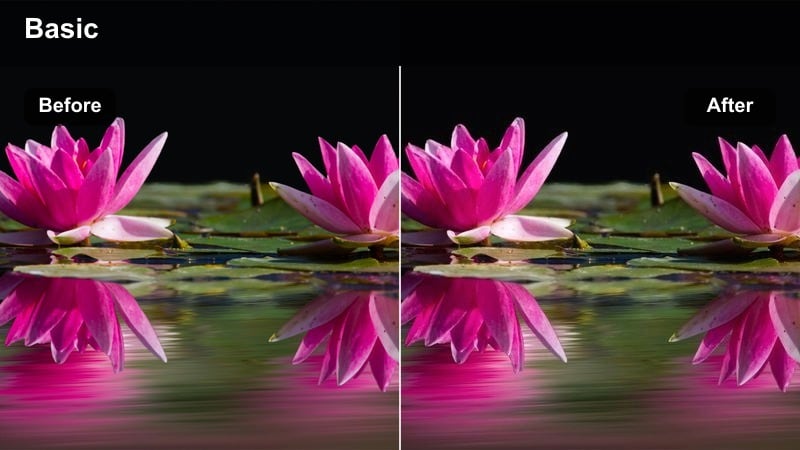
- Effect look: Saturated colors, strong clarity, and crisp widescreen bars that are built for fast-cut montages of urban movement.
- Best for: Time-lapses, hyperlapses, day-to-night transitions, and energetic city B-roll sequences.
- Editing tip: Stack multiple brief clips within one bar of music and keep camera angles varied so the widescreen format never feels static.
City Rush Montage Scope amplifies color and clarity, making traffic, pedestrians, and signage pop with vivid energy. The crisp bars frame your shots like a trailer or title sequence, especially when you cut quickly between angles and locations.
Drop this filter onto your time-lapses, hyperlapses, and quick handheld shots in Filmora, then build rhythmic cuts that hit musical beats rather than just action changes. Repeat a few establishing locations throughout the montage to anchor the viewer, while consistent color and widescreen framing keep the whole edit feeling like one cohesive urban story.
Late Night Reflection Frame
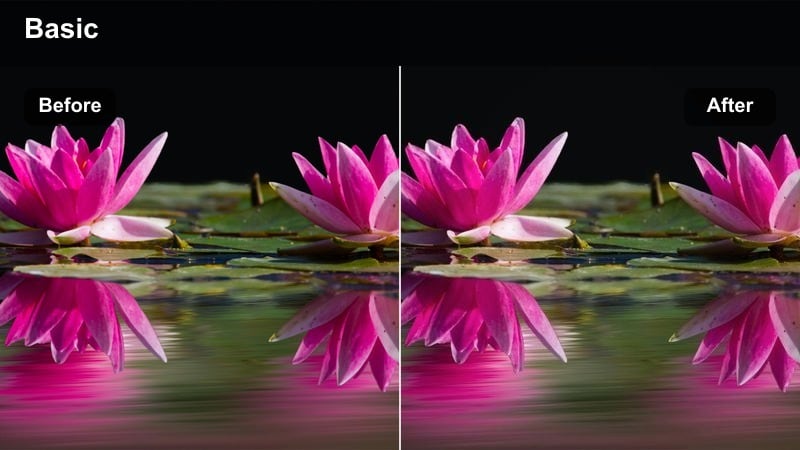
- Effect look: Muted saturation, lifted blacks, and soft widescreen bars that give late-night windows and reflections a introspective mood.
- Best for: Taxi windows, train rides at night, introspective vlogs, and character reflection moments overlooking the city.
- Editing tip: Trim audio to quieter sections and let ambient noise breathe so the subdued visuals feel emotionally grounded.
Late Night Reflection Frame mutes colors and raises blacks to create a soft, contemplative feel around city lights and glass reflections. It is perfect for reflective monologues, late-night taxi rides, and shots where the character is looking out over the city, thinking.
In Filmora, apply this filter to window and reflection shots, then strip back loud music and let quieter ambient audio carry the mood. Cut between close reflections and wide city views using the same look so viewers feel the emotional connection between character and environment throughout the widescreen sequence.
Tips for Using Widescreen Cinematic Lut Filters in Filmora
- Shoot a little wider than usual so the widescreen bars do not accidentally crop out key details or text in your frame.
- Keep your horizon level and avoid extreme tilts; the widescreen bars make crooked lines more noticeable.
- Match color temperature between cameras before applying a widescreen cinematic LUT-style filter to keep scenes unified.
- Use the same widescreen filter on all clips in a scene, then adjust exposure per shot instead of swapping filters constantly.
- Add subtle film grain or noise reduction only after you have locked in your widescreen look to avoid over-processing.
- Test how your widescreen cinematic filters look on phones, tablets, and desktops to ensure important details stay visible.
- Combine widescreen filters with gentle vignettes to guide the viewer's eye toward faces or key objects in the frame.
- Lower music volume slightly during dialogue scenes so the cinematic look supports the story instead of competing with it.
Widescreen cinematic LUT-style filters give content creators a fast, reliable way to turn everyday footage into dramatic, movie-like sequences with consistent framing and mood.
Pick one or two widescreen looks that match your channel's personality, refine exposure and color around them, and your videos will feel more polished, intentional, and ready for big-screen viewing on any device.
secure download