

 100% Security Verified | No Subscription Required | No Malware


 ChatGPT
 Perplexity
 Gemini
 Claude
 Grok
Grok
These Filmora filter presets are designed to mimic the look of YouTube cinematic LUTs for short films, so you can give your story-driven videos a polished, film-like finish without complicated grading workflows.
Whether you are crafting character-driven dramas, urban micro-shorts, or atmospheric b-roll for your YouTube channel, use these filters as fast starting points, then fine-tune exposure, saturation, and contrast to match your narrative mood.
In this article
Soft Morning Light for Emotional Openers
Soft Amber Glow
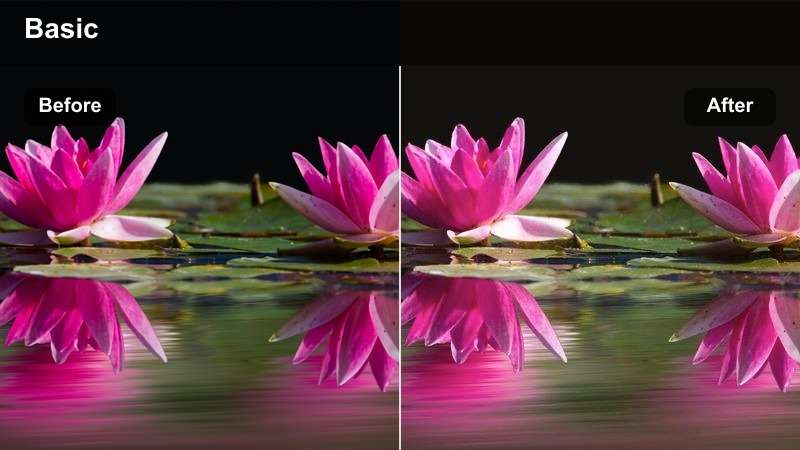
- Effect look: Warm, low-contrast wash that mimics sunrise light with gentle highlights and pastel shadows.
- Best for: Intimate dialogue scenes, reflective morning montages, and character introductions shot near windows.
- Editing tip: Lower overall saturation slightly and add a subtle vignette to keep attention on your subject's face.
Soft Amber Glow wraps your scene in a warm, early-morning atmosphere that is perfect for emotional openers and gentle character beats. In Filmora, it quickly softens contrast and adds a sunrise-style warmth that makes window light and natural practicals feel cohesive and cinematic.
Apply this filter on an adjustment layer over your opening sequence, then fine-tune exposure so skin stays bright without clipping highlights around the windows. Combine it with Filmora vignette controls and slight saturation reduction to keep the viewer locked on your main character while the background falls into a soft, story-friendly haze.
Generate Cinematic Color Starting Points with AI
Filmoras AI-driven color tools can automatically analyze a reference clip from your short film and suggest a balanced base grade that works hand in hand with cinematic filters. This gives you the flexibility of an advanced color workflow without spending hours pushing sliders.
Once you have a pleasing AI-generated palette, stack Soft Amber Glow or any other cinematic filter on top, then adjust intensity, exposure, and white balance until the grade perfectly matches your story mood from shot to shot.
 secure download

Preview Filters on Real YouTube Short Film Scenes
To quickly decide which YouTube cinematic LUT-style filter fits your short film, drop a few urban, interior, and golden hour shots into a test timeline and cycle through Filmoras filters. Seeing each look back-to-back makes it easier to judge how contrast, saturation, and color tone affect your pacing and emotional beats.
Use this test sequence to compare how Soft Amber Glow, moodier indoor filters, or gritty city looks handle your footage before you lock in a visual style for the full edit.
secure download1000+ Video Filters and 3D LUTs
Filmora includes a large library of creative filters and 3D LUTs, letting you mix subtle corrections with bold stylistic grades for your YouTube short films. You can layer cinematic filters, color tools, and LUTs to build a custom film look that stays consistent across every scene.
Combine a gentle base LUT with one of the YouTube cinematic LUT-style filters from this guide, then fine-tune intensity, HSL, and contrast so your finished short looks polished on both mobile and desktop screens.
secure downloadPastel Street Morning
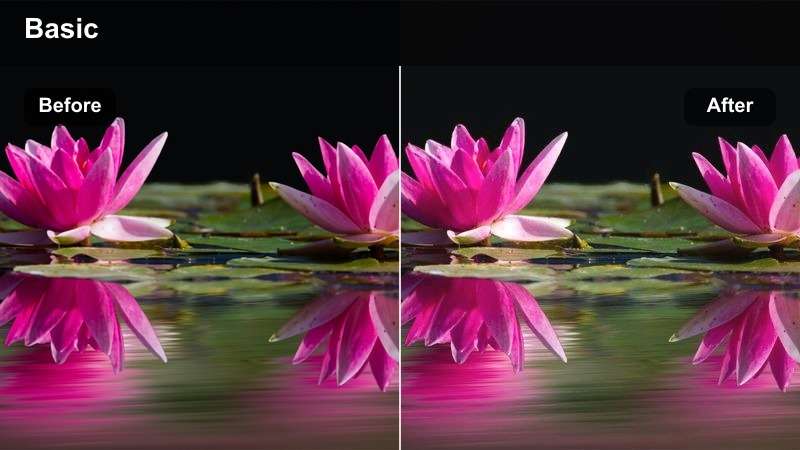
- Effect look: Muted pastel colors with soft contrast that tame harsh edges in early street footage.
- Best for: Quiet city walking shots, establishing shots of neighborhoods, and vlog-style narrative intros.
- Editing tip: Reduce sharpness slightly to enhance the dreamy feel and keep motion blur natural for handheld shots.
Pastel Street Morning smooths out harsh urban tones and compresses contrast to give city locations a gentle, dreamy character. It is ideal for opening walks, establishing shots, or reflective narration where you want the environment present but not overpowering.
In Filmora, drop this filter onto your morning city b-roll, then lightly lower sharpness and clarity so fine details do not distract from your subject. Adjust whites to keep clouds and building highlights clean, and consider matching your text graphics to sampled pastel colors from the scene for a cohesive YouTube cinematic style.
Misty Bedroom Intro
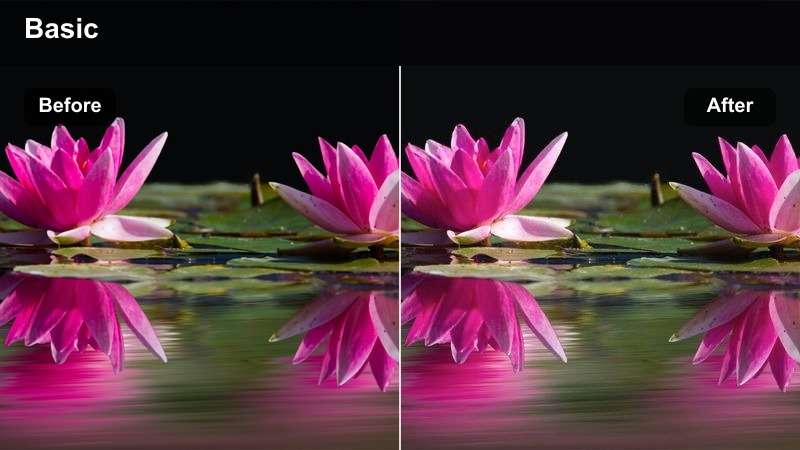
- Effect look: Desaturated, low-contrast filter with lifted blacks to create a hazy, introspective tone.
- Best for: Indoor character moments, waking-up sequences, and voiceover-driven short film openings.
- Editing tip: Lift the blacks a little more for an indie-film look, but keep midtones anchored so faces retain detail.
Misty Bedroom Intro leans into lifted blacks and softened contrast to convey introspection, melancholy, or quiet contemplation. Colors are gently muted so viewers focus on body language, small movements, and sound design rather than bold hues.
Use this filter on interior scenes in Filmora where you rely heavily on voiceover or subtle performance, then tweak the blacks slider until you hit that indie-film haze without losing facial detail. Correct strong lamp color casts beforehand so the final muted palette feels intentionally cinematic instead of accidentally dull.
Gritty City Looks for Tense Story Beats
Neo Noir Alley
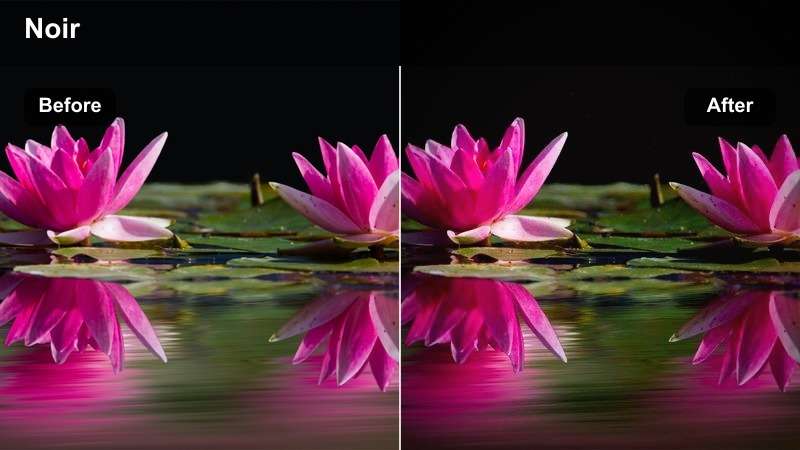
- Effect look: High-contrast, cool-toned look with deep shadows and crisp highlights for a modern noir feel.
- Best for: Alley confrontations, crime-inspired shorts, and suspenseful urban night sequences.
- Editing tip: Crush the blacks only as far as you can still read detail in hair and clothing to avoid muddy shadows.
Neo Noir Alley injects your night streets and back alleys with stark contrast and cool tonal shifts that echo modern noir YouTube shorts. Deep shadows and sharp highlights give a strong sense of danger and mystery, perfect for confrontations or chase setups.
Apply this filter in Filmora to your night exteriors, then refine exposure and black levels until important details in clothing and hair remain readable. Use masks to darken unimportant areas of the frame, and slightly boost practical lights such as signs or windows to add layered depth to your gritty city storytelling.
Subway Steel Cool
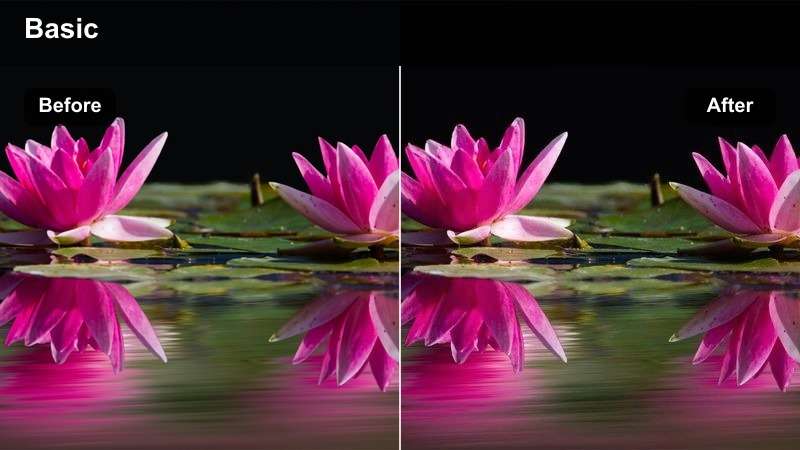
- Effect look: Cool, metallic color grade with boosted clarity and slight desaturation for a hard-edged city vibe.
- Best for: Subway sequences, handheld chase moments, and fast-paced travel shorts shot underground.
- Editing tip: Dial back saturation on greens and yellows to keep fluorescent lighting from looking sickly on skin.
Subway Steel Cool emphasizes the industrial feel of underground spaces with a metallic color cast and heightened detail. It works well for kinetic handheld shots, travel sequences, or tense waiting scenes on platforms where fluorescent lights dominate.
In Filmora, apply the filter to all clips in your subway sequence via an adjustment layer, then selectively reduce green and yellow saturation to keep skin tones natural. Add light stabilization for handheld footage so the grade feels intentionally edgy instead of chaotic, and warm only the skin using HSL tools if faces look too cold against the steel-blue environment.
Rooftop Rust Film
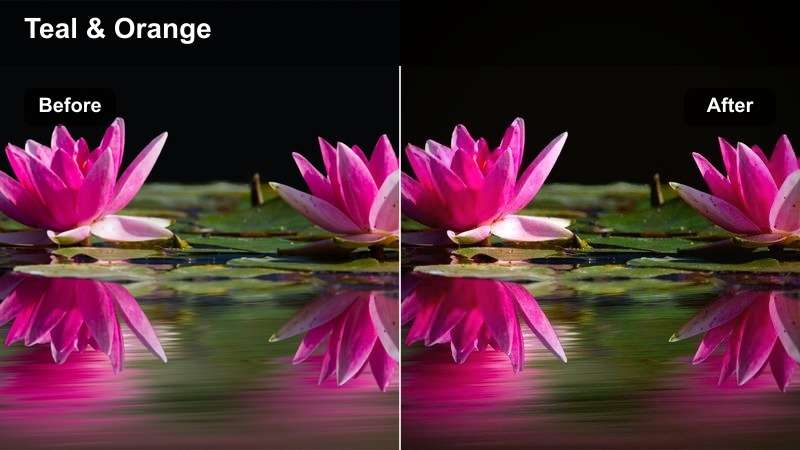
- Effect look: Warm highlights with teal shadows and subtle film grain to echo popular YouTube cinematic LUT aesthetics.
- Best for: Rooftop conversations, city skyline b-roll, and reflective monologues at golden hour.
- Editing tip: Use a gentle push-in or slow pan to complement the filmic texture and keep static rooftop shots engaging.
Rooftop Rust Film brings a classic teal-and-warm style to your skyline shots, wrapping golden hour highlights in warmth while pushing shadows toward teal. Light film grain texture adds a subtle analog feel that pairs well with dialogue-heavy rooftop scenes and reflective b-roll.
Use this filter on golden hour rooftop footage in Filmora, protecting sky detail by slightly lowering highlights before you apply the effect. Consider underexposing your original footage a touch, then lifting midtones and letting the filter handle contrast and warmth; slow camera moves like push-ins or pans will enhance the cinematic grain and keep static frames visually alive.
Golden Hour Character Portraits
Sunset Skin Tone Soft
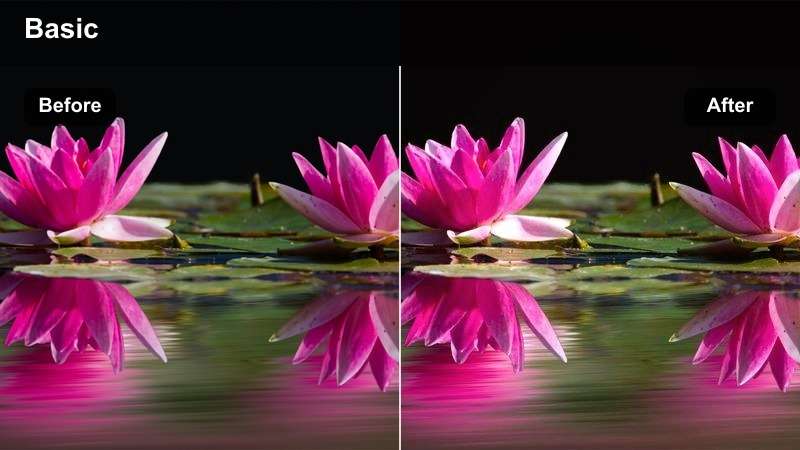
- Effect look: Gentle warm shift with slight contrast boost and smooth roll-off in highlights tailored for faces.
- Best for: Close-up character portraits, emotional confessionals, and outdoor monologues at golden hour.
- Editing tip: Use subtle skin-smoothing only if needed and keep eye sharpness high to preserve emotional impact.
Sunset Skin Tone Soft is tuned specifically to flatter faces, adding a warm glow and soft highlight roll-off that suits confessionals and emotional monologues. It preserves detail in skin while gently boosting contrast so eyes and expressions hold the frame.
Apply this filter to close-ups in Filmora and expose for the face first, even if the sky goes a bit bright. If needed, add light skin-smoothing while sharpening eyes and lashes, and finish with a soft vignette so the audience naturally focuses on your character at the center of the story.
Backlit Flare Cinema
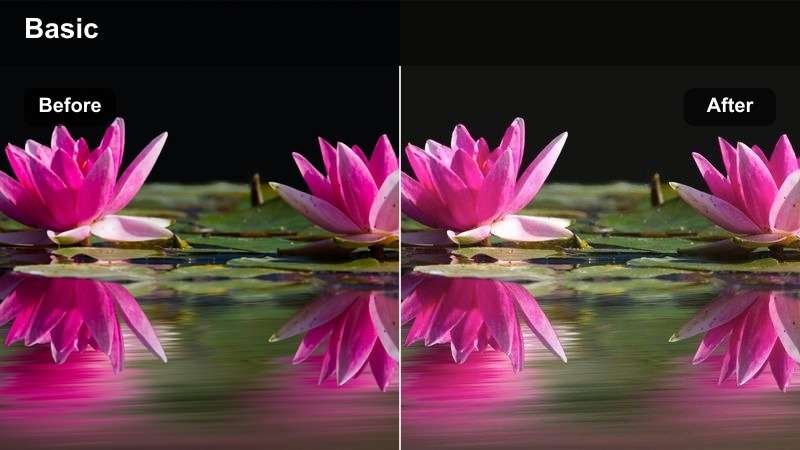
- Effect look: Soft glowing highlights with slightly faded blacks and warm midtones mimicking backlit lens flare.
- Best for: Silhouetted walks, romantic scenes, and contemplative characters moving through warm backlight.
- Editing tip: If the flare is overwhelming, reduce highlight intensity and add local contrast to key subject areas.
Backlit Flare Cinema amplifies warm backlight and flare to give your scenes a dreamy, nostalgic energy. Highlights bloom gently, blacks fade a touch, and midtones warm up to support romantic or reflective character moments.
In Filmora, use this filter when your subject walks through strong sunlight or other backlights, framing the light source just off-screen for pleasing flare. If your subject gets lost, pull down overall highlights and add local contrast around the face or silhouette so the emotional performance still reads clearly against the glow.
Park Poetry Warm
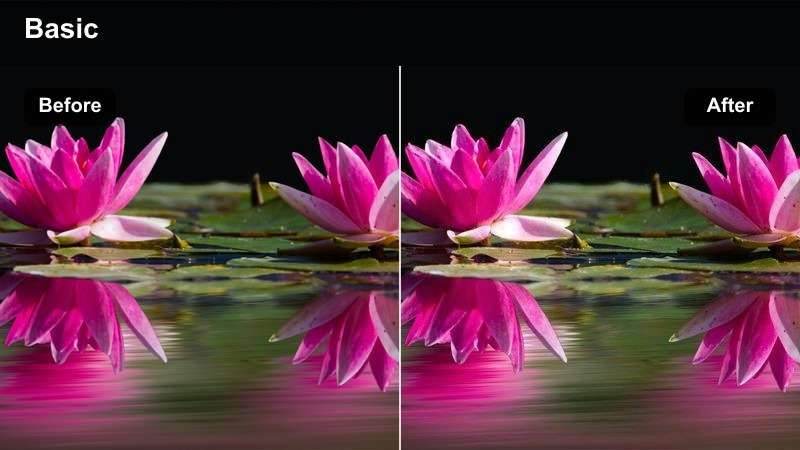
- Effect look: Soft warm cast with slightly lifted shadows and gentle saturation that suits foliage and skin.
- Best for: Park bench dialogues, slow walk-and-talk scenes, and reflective voiceover b-roll in green spaces.
- Editing tip: Reduce green saturation slightly to avoid overly vivid grass and keep the focus on faces.
Park Poetry Warm balances foliage and skin tones with a soft, inviting warmth that feels ideal for outdoor conversations. Shadows lift just enough to keep details in trees and clothing, while saturation remains gentle so the scene does not look like a travel commercial.
Apply this filter across dialogue and matching b-roll in Filmora, trimming green saturation a bit so grass and leaves do not outshine your actors. If lighting shifts between shots, fine-tune white balance clip-by-clip before copying the filter settings to maintain a cohesive, poetic look throughout the entire park sequence.
Stylized Night Montages and Transitions
Electric City Pulse
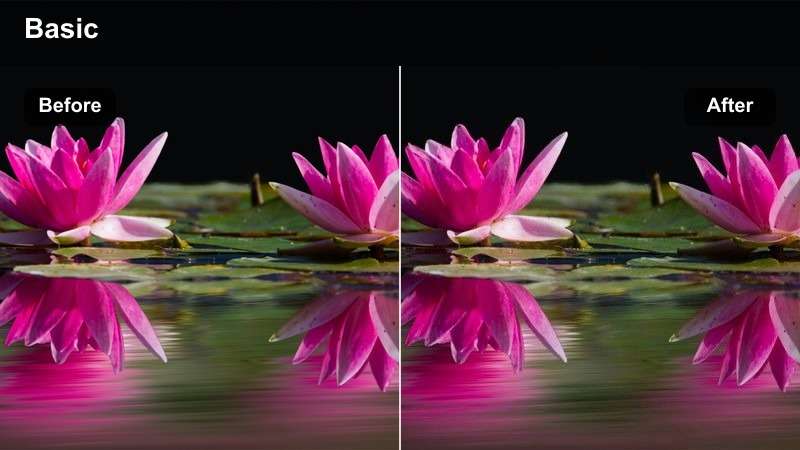
- Effect look: Vibrant neon saturation with boosted contrast and deep blues in the shadows for energetic city nights.
- Best for: B-roll of traffic, time-lapses, and energetic montage sequences between narrative scenes.
- Editing tip: Use this filter sparingly between dialogue scenes to avoid overwhelming your story with intense color.
Electric City Pulse turns city streets into a neon playground, pushing saturation and deepening blues to create high-energy transitions and montages. It is ideal for traffic b-roll, nightlife sequences, or rhythmic cutaways that bridge major story beats in your short film.
In Filmora, use this filter on select montage clips rather than entire scenes, syncing your cuts to music so the intense colors feel motivated. If reds and magentas start to clip, lower their saturation or luminance before export, ensuring your vibrant look survives YouTubes compression without banding or color noise.
Moody Lamp Room
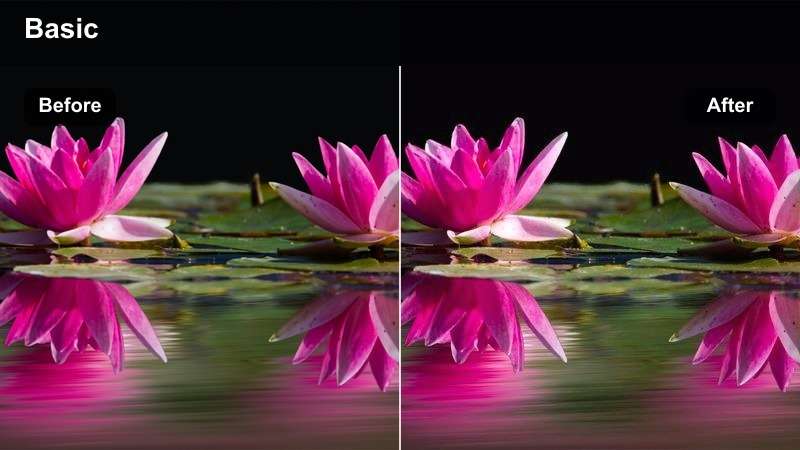
- Effect look: Cinematic low-key look with warm pools of light and heavily darkened backgrounds.
- Best for: Nighttime interior scenes, introspective monologues, and tense conversations in small rooms.
- Editing tip: Use masks around practical lamps to keep them warm while cooling the rest of the frame slightly.
Moody Lamp Room carves your interiors into pockets of warm light surrounded by deep shadow, perfect for intimate or tense nighttime dialogue. It keeps attention on the subject near the lamp while allowing the rest of the room to fall off into cinematic darkness.
Apply this filter to night interiors in Filmora, then use masks to protect the warmth of practical lamps while slightly cooling walls and background elements. If shadow noise appears, run a light denoise pass before adding heavy contrast so your moody grade looks clean and professional on YouTube.
Street Rain Reflections
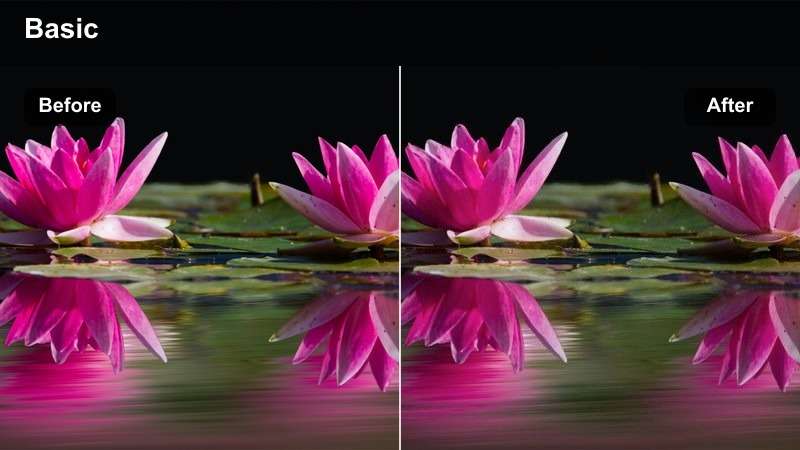
- Effect look: Cool, glossy highlights with emphasized reflections and slightly higher local contrast in midtones.
- Best for: Rainy street walks, reflective character cutaways, and atmospheric city night transitions.
- Editing tip: Slow down select shots or add gentle speed ramps to let reflections and light streaks register for the viewer.
Street Rain Reflections is built to draw out wet surfaces, bright highlights, and color trails in rainy-night footage. It enhances midtone contrast and cool shifts, turning simple puddles and asphalt into visually rich backdrops for transitions and contemplative walks.
Use this filter in Filmora on any shot with wet pavement or strong reflections, then adjust highlight roll-off so streetlights stay bright without blowing out. Adding slow-motion or subtle speed ramps will give viewers time to appreciate the reflections, helping you turn atmospheric b-roll into memorable cinematic punctuation between story beats.
Tips for Using Youtube Cinematic Luts For Short Films Filters in Filmora
- Shoot in flat or neutral picture profiles when possible so these filters have more latitude to create a cinematic look.
- Keep exposure consistent across shots in the same scene before applying filters to avoid visible jumps in brightness.
- Use adjustment layers in Filmora to apply one filter across multiple clips, then fine-tune problem shots individually.
- Always check skin tones after adding a filter, especially in mixed lighting, and correct them before exporting to YouTube.
- Export a short test sequence and review it on both phone and desktop to ensure your cinematic look holds up on different screens.
- Combine subtle LUTs with Filmora filters at low intensity to emulate advanced grading workflows without overprocessing.
- Organize your favorite filter settings as custom presets so you can reuse a consistent film look across future YouTube shorts.
- Balance color and sound design together; adjust filters while listening to your soundtrack to keep visual mood aligned with audio.
YouTube cinematic LUT-style filters in Filmora give short film creators an efficient way to build a consistent visual language across scenes.
Start with the presets that match your story's key moments, tweak them to your footage, and build a repeatable workflow you can use on every new short you release to your channel.
secure download