

 100% Security Verified | No Subscription Required | No Malware


 ChatGPT
 Perplexity
 Gemini
 Claude
 Grok
Grok
This filter collection is built for content creators who want their YouTube documentaries to feel cinematic, cohesive, and emotionally engaging without complex color grading.
Use these filters to quickly echo the style of professional YouTube documentary LUTs, dialing in a cinematic tone that keeps your storytelling front and center.
In this article
City Street Observational Documentary Scenes
Urban Dusk Grit
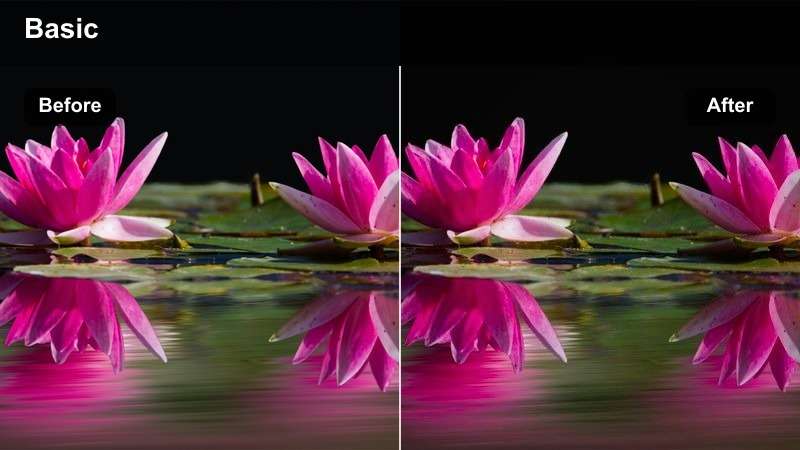
- Effect look: Muted contrast with cool shadows and subtle amber highlights for gritty twilight exteriors.
- Best for: Walk-and-talk interviews, street b-roll, and handheld city explorations shot around sunset.
- Editing tip: Lower saturation slightly and add light film grain to enhance the raw, on-the-ground documentary feel.
Urban Dusk Grit gives your twilight city footage the grounded, cinematic tone often associated with YouTube documentary LUTs. The cooler shadows and selective amber highlights help emphasize streetlights, windows, and car trails, making your frames feel rich without losing the authenticity of real locations.
In Filmora, apply this filter after you have stabilized your handheld clips and adjusted exposure so faces are not lost in the shadows. Then gently reduce saturation and add a touch of film grain from Filmoras effects panel to push the look toward a textured, observational style that still grades quickly on a laptop timeline.
Dial In Cinematic Tone Faster with AI Color Match
Use Filmoras AI color tools to match your footage to reference frames from your favorite YouTube documentaries and lock in a strong base look in seconds. This makes it easier to keep episodes visually consistent, even when they are shot on different days or cameras.
Once your base color is matched, stack cinematic filters like Urban Dusk Grit on top to refine the mood. This workflow separates technical correction from creative styling, so you can spend more time shaping the story and less time tweaking curves.
Import a reference still from a documentary you love and let Filmoras AI guide your base look before stacking these filters.
 secure download

Preview Filters in Real Time on Your Timeline
Filmora lets you audition each documentary filter directly in the preview window so you can see how Urban Dusk Grit, or any other look, affects skin tones, city lights, and skies before you commit. This real-time preview makes it simple to compare options and avoid over-stylizing important scenes.
Drag filters onto clips, toggle them on and off, and fine-tune intensity with the strength slider to keep detail in the shadows and highlights. This quick iteration is ideal when you are assembling fast-paced YouTube docs with tight turnaround times.
Drag a filter onto a clip and use the strength slider to fine-tune the effect for your specific scene.
secure download1000+ Video Filters and 3D LUTs
Beyond this documentary-focused pack, Filmora includes a large library of creative filters, cinematic LUTs, and HSL controls you can combine for custom looks. You can start with subtle tonal shifts and build up to bolder, stylized grades as your series develops.
Save your favorite combinations as presets so future episodes and spin-off videos can instantly match the same YouTube-ready cinematic tone with a single click.
secure downloadMetro Commuter Neutral
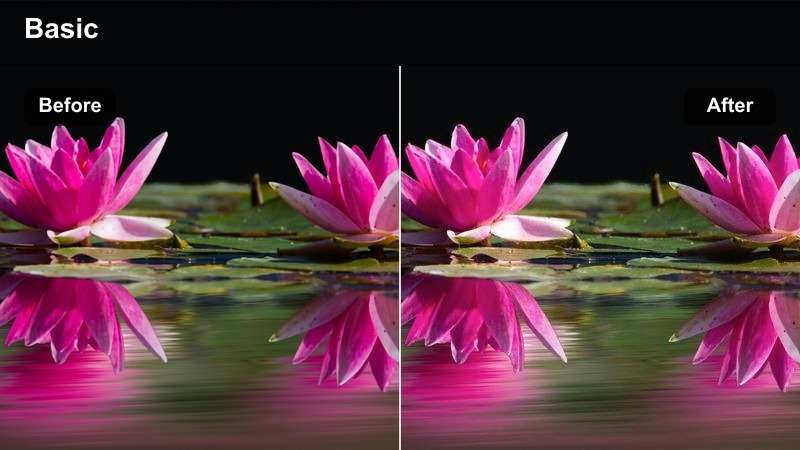
- Effect look: Soft contrast, neutral colors, and gentle highlight roll-off that keep skin tones realistic underground.
- Best for: Subway rides, bus interiors, and commuter interviews in mixed artificial lighting.
- Editing tip: Slightly lift shadows to recover detail in dark corners while protecting midtones for a calm, observational vibe.
Metro Commuter Neutral is designed to tame the unpredictable color of underground and bus lighting while keeping people at the center of the frame. By keeping saturation and contrast modest, it prevents harsh color casts and gives crowded scenes a calm, observational feel that suits serious YouTube documentaries.
In Filmora, expose for faces before applying this filter so midtones fall into a clean range. Then use the tone controls to lift shadows just enough to reveal context around your subjects without pushing noise, maintaining a neutral but polished look that cuts smoothly with daylight and interview scenes.
Rainy Crosswalk Cinema
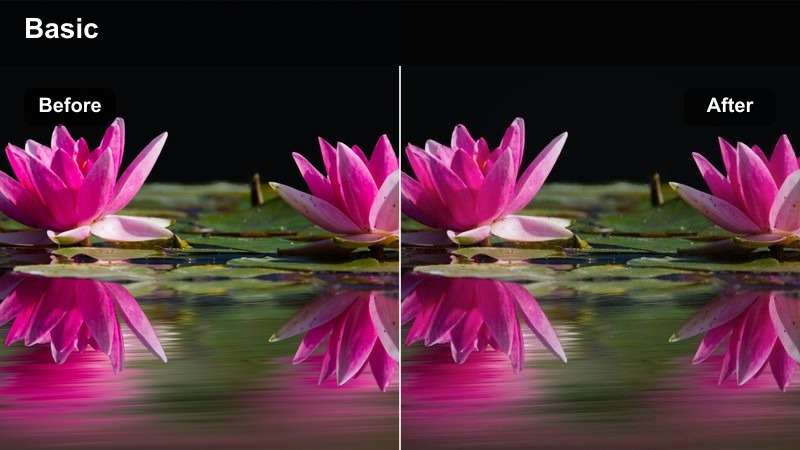
- Effect look: Deep contrast, cool midtones, and glossy reflections for moody wet-street sequences.
- Best for: Nighttime city b-roll, reflective street-level shots, and tension-building transitions.
- Editing tip: Lean into silhouettes and reflections; reduce clarity slightly to avoid harsh digital edges in low light.
Rainy Crosswalk Cinema brings out the drama in wet streets, neon signs, and passing traffic, echoing the moody tone used in many investigative and character-driven YouTube docs. The cool midtones and strong reflections make it ideal for chapter breaks or moments when you want the city to mirror the storys tension.
Apply this filter in Filmora to slightly underexposed clips, where the highlights from streetlights and signage are already defined. Combine it with a subtle vignette and reduced sharpness to soften digital noise, allowing silhouettes, umbrellas, and puddle reflections to carry the visual weight between your interview segments.
Interview-Driven Documentary Stories
Soft Window Interview
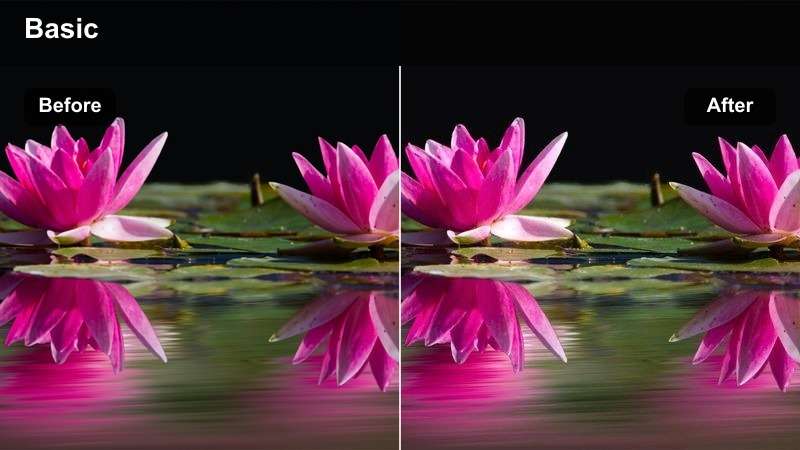
- Effect look: Warm midtones, softened contrast, and clean whites for natural, human-focused interviews.
- Best for: Talking-head setups near window light, personal stories, and character introductions.
- Editing tip: White-balance your clip before applying this filter to avoid color casts on skin in mixed lighting.
Soft Window Interview is built to flatter skin tones while keeping the overall image honest and grounded, making it ideal for first-person storytelling on YouTube. The gentle warmth in the midtones and softened contrast help reduce distractions in the background and focus attention on your subjects expression.
In Filmora, correct white balance first so window light reads as neutral before you add this filter. Then adjust the filter strength to taste, keeping it moderate so wrinkles, textures, and eye detail remain visible, which helps your documentary feel authentic rather than overly polished like a commercial.
Office Doc Neutral
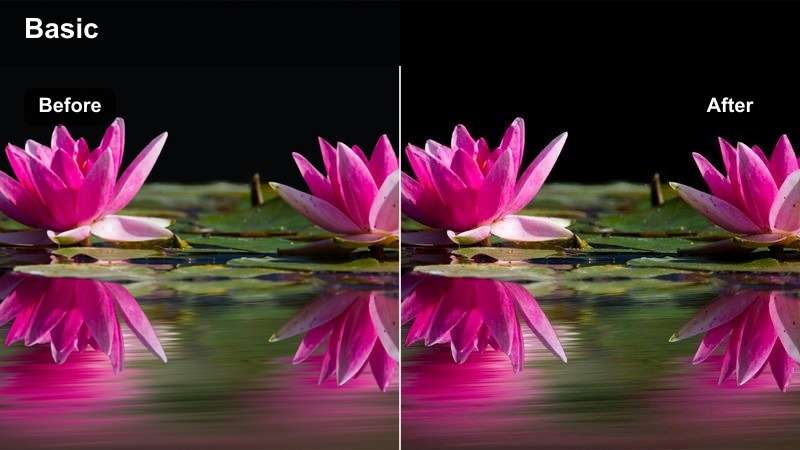
- Effect look: Balanced contrast and slightly cooled highlights that tame fluorescent office lighting.
- Best for: Corporate documentary interviews, workplace walkthroughs, and process explanations.
- Editing tip: Reduce saturation in greens and yellows to control ugly fluorescent casts on walls and desks.
Office Doc Neutral is tuned to balance the harsh, often green or yellow tones created by overhead office lights. It slightly cools highlights and evens out contrast so your footage looks professional and consistent, which is crucial for brand stories and corporate case-study documentaries on YouTube.
Inside Filmora, apply this filter to all angles of a multi-camera interview, then tweak temperature and tint per clip for precise skin-tone matching. Use the color controls to selectively lower green and yellow saturation, cleaning up walls, desks, and office plants so nothing pulls attention away from the speaker.
Intimate Portrait Cine
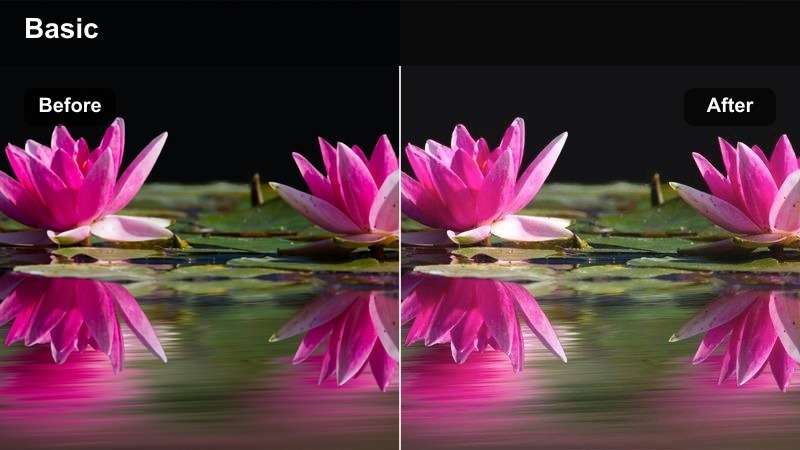
- Effect look: Subtle fade in blacks, warm highlights, and soft roll-off for intimate character portraits.
- Best for: Emotional testimonies, close-ups on expressions, and slow push-ins on key characters.
- Editing tip: Use gentle push-in keyframes and keep background slightly blurred to maximize emotional impact with this tone.
Intimate Portrait Cine gently lifts the blacks and warms the highlights to create a soft, cinematic glow around your subject without looking dreamy or unrealistic. This look is perfect for close-ups where micro-expressions and eye contact are driving the emotional core of your documentary.
In Filmora, pair this filter with slow zoom keyframes or subtle push-ins to draw viewers into the subject. Keep the background slightly blurred, either in-camera or with Filmoras tools, and reduce music levels under these shots so the nuanced color and tone help carry the weight of the story.
Archival Footage and Reenactment Scenes
Subtle Vintage Report
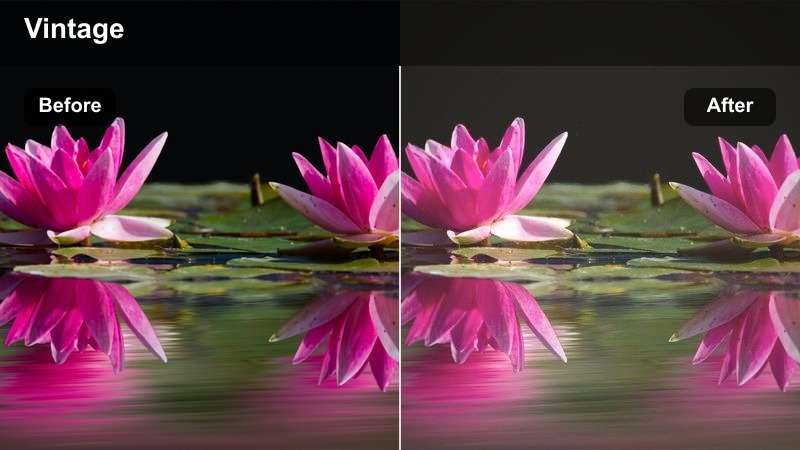
- Effect look: Slightly faded contrast, gentle warm tint, and minimal grain for a modern-yet-historic newsreel feel.
- Best for: Archival photos, historic reenactments, and on-screen newspaper or document composites.
- Editing tip: Use slower cross-dissolves and hold shots longer to let viewers absorb period details with this softer look.
Subtle Vintage Report bridges the gap between true archival sources and modern footage by adding a light fade and warm tint. It is strong enough to suggest age and memory while still sitting comfortably alongside clean interviews and present-day b-roll in a YouTube timeline.
In Filmora, apply this filter to reenactment scenes, scanned photos, and document overlays, then slow your edit pace slightly with longer holds and gentle dissolves. This gives viewers time to read headlines, inspect old images, and absorb context without the image feeling artificially distressed or over-stylized.
Mono Doc Recall
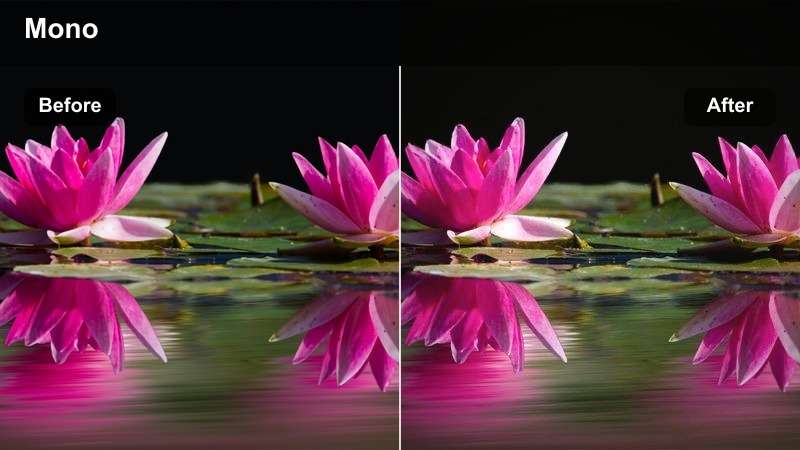
- Effect look: Soft monochrome with balanced midtones and protected highlights for timeless black-and-white sequences.
- Best for: Dramatic reenactments, memory sequences, and reflective voice-over segments.
- Editing tip: Raise midtone contrast and add a slight vignette to steer attention toward the emotional center of the frame.
Mono Doc Recall converts your footage to a soft black-and-white grade that feels timeless and reflective rather than harsh. By preserving highlight detail and shaping the midtones, it emphasizes expressions, textures, and light patterns that suit memory sequences and serious voice-over passages.
In Filmora, use this filter when you cut away from present-day scenes into flashbacks or dramatized moments under narration. Add a gentle vignette and small midtone contrast boost to keep focus on key actions or faces, and pair the visuals with more focused, minimal sound design so viewers immediately sense the shift in time or perspective.
Projector Room Glow
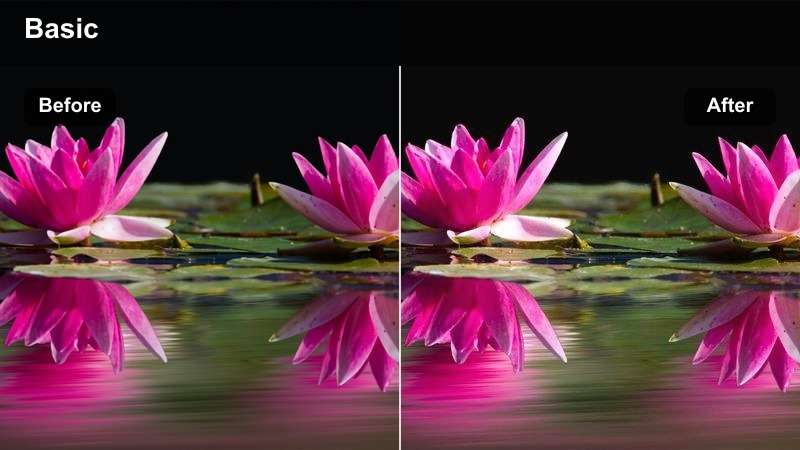
- Effect look: Warm glow in highlights, gentle halation, and slightly raised blacks mimicking projected footage.
- Best for: Shots of screens, projectors, or characters watching archival material in dark rooms.
- Editing tip: Keep exposure modest and avoid crushing shadows so the soft glow around highlights feels intentional, not muddy.
Projector Room Glow recreates the warm, blooming highlights you see when archival footage is projected in a dark room. The raised blacks and halation-style glow help separate lit areas from the surrounding darkness, giving your scenes a nostalgic, introspective mood that works well for investigative and essay-style docs.
Apply this filter in Filmora to shots of screens, projector beams, and subjects lit by those screens. Avoid over-darkening the rest of the room; instead, keep shadows gently lifted so you retain context while the audience naturally follows the brightest, warmest areas on screen and in your characters faces.
Landscape and Transition B-Roll for Docs
Wide Establish Cine
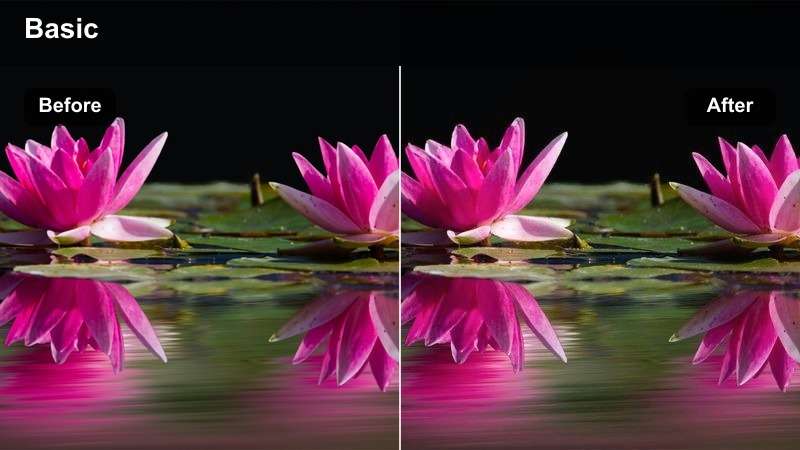
- Effect look: Clean contrast, gentle color boost, and crisp details tailored for wide establishing shots.
- Best for: City skylines, town exteriors, campus grounds, and context-setting wide shots.
- Editing tip: Stabilize footage lightly and trim shots just after camera movement settles to keep transitions feeling polished.
Wide Establish Cine is optimized for big, context-setting shots that open chapters or episodes. It adds just enough contrast and color to make architecture, landscapes, and skylines pop on YouTube without pushing the image into an overly stylized commercial look.
In Filmora, apply this filter to your drone shots, static tripod frames, or slow pans of a new location. Light stabilization and precise trimming at the end of each move help your transitions feel intentional and cinematic, giving viewers a clear sense of place before you cut into interviews or close-up details.
Golden Hour Bridge
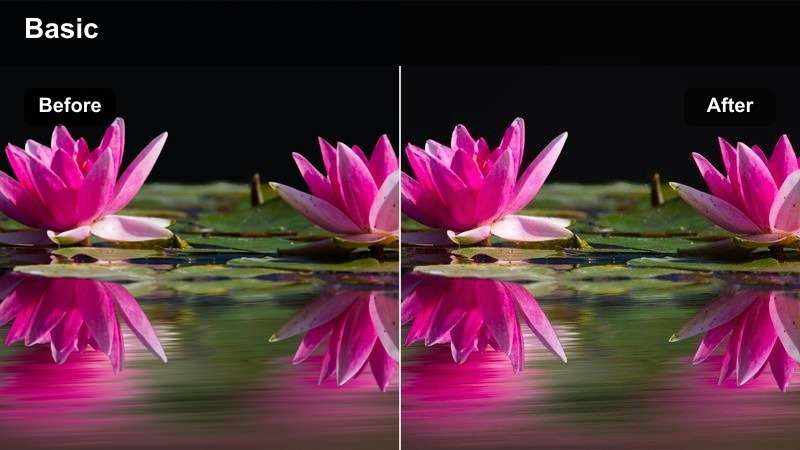
- Effect look: Rich golden highlights, softened shadows, and gentle saturation for late-afternoon warmth.
- Best for: Bridges, parks, and transitional b-roll shot during golden hour or warm sunset light.
- Editing tip: Avoid overexposing clouds and horizons; underexpose slightly to keep the sun's edge controlled with this filter.
Golden Hour Bridge enhances naturally warm light, making late-afternoon and sunset shots feel poetic and reflective. The rich highlights and softened shadows suit transitional moments in your story when narration turns inward or sums up what has happened.
Inside Filmora, underexpose your footage slightly in camera or in post before applying this filter so bright skies and sun flares stay controlled. Then use the filter strength slider to balance warmth with realism, pairing the visuals with soft ambient audio and voice-over to create cinematic breathing room between more information-dense scenes.
Night Drive Passage
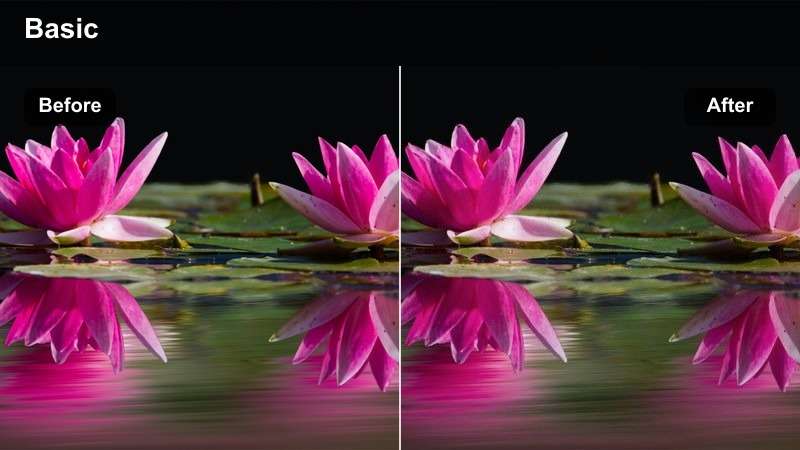
- Effect look: Deep, cinematic shadows with saturated nightlife colors and controlled highlights for driving shots.
- Best for: Car window b-roll, highway timelapses, and transitional night journeys between locations.
- Editing tip: Use slower cuts or gentle speed ramps so light streaks and reflections become part of the storytelling rhythm.
Night Drive Passage is tailored to the look of traveling through a city at night, emphasizing deep shadows and saturated light trails. It works well as visual punctuation between major story beats, implying movement, time passing, or shifts in perspective across your YouTube documentary episodes.
In Filmora, apply this filter to real-time driving shots or timelapses and experiment with slow dissolves or speed ramps to let light streaks and reflections breathe. Keep exposure slightly under control before grading so headlights and signs are not blown out, and consider dialing back music complexity to let the visuals and engine hum form a quiet chapter marker.
Tips for Using Youtube Documentary Luts Cinematic Tone Filters in Filmora
- Always correct exposure and white balance in Filmora before applying cinematic documentary filters or LUTs so skin tones stay natural.
- Keep filter intensity moderate to preserve authenticity in interviews and real locations instead of pushing a heavy, artificial grade.
- Match each filter or LUT to the emotional tone of the scene, using warmer looks for reflective moments and cooler tones for tension.
- Create a short test sequence with key interviews, b-roll, and archival shots, then lock in your preferred filter and LUT combo before grading the whole project.
- Use consistent visual styles for recurring locations and characters so your YouTube documentary series feels cohesive from episode to episode.
- Stack LUTs and Filmora filters strategically, handling technical correction first and reserving filters for final creative polish.
- Save successful combinations as custom Filmora presets so you can apply your documentary look to future edits with a single click.
With the right combination of Filmora filters and YouTube documentary LUTs, you can give your videos a cinematic tone that supports the story instead of distracting from it.
Experiment with these 12 scene-based looks, save your favorite combinations as presets, and build a recognizable visual style that carries across your entire channel.
secure download