

 100% Security Verified | No Subscription Required | No Malware


 ChatGPT
 Perplexity
 Gemini
 Claude
 Grok
Grok
These Filmora filters are designed to give your YouTube interview videos a natural, true-to-life look with clean skin tones and balanced contrast, so your guests look great without appearing over-edited.
Whether you film in a studio, office, living room, or remote setup, use these interview-focused filters as quick starting points to keep your colors consistent, flattering, and professional across your channel.
In this article
Soft Daylight Interviews in Bright Rooms
Soft Window Neutral
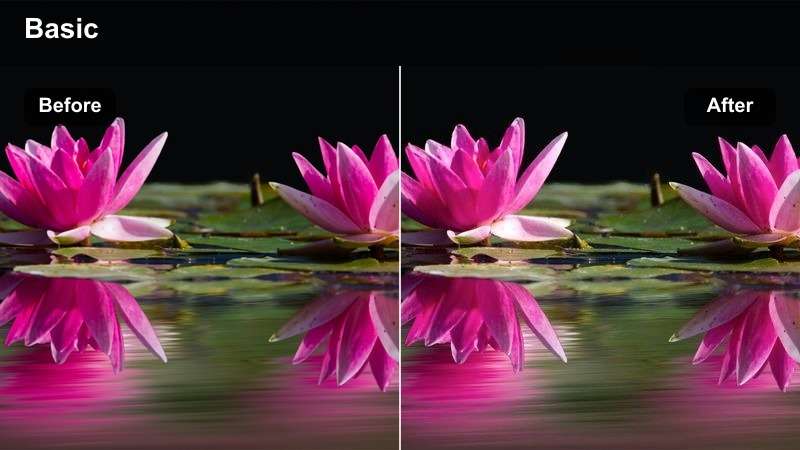
- Effect look: Gentle contrast with slightly softened highlights to keep daylight interviews bright but controlled.
- Best for: Talking-head interviews filmed beside large windows or in bright home studios.
- Editing tip: Lower exposure slightly after applying the filter to avoid blown-out cheeks and foreheads in strong window light.
Soft Window Neutral is ideal when your YouTube interviews rely on bright window light that can easily blow out faces. In Filmora, this filter evens out intense highlights, gently lowers contrast, and keeps skin textures visible so your subject still looks fresh without the plastic look that heavy smoothing can create.
Apply this filter after basic exposure and white balance corrections, then fine tune the exposure slider to pull back any clipped highlights on cheeks and foreheads. For a balanced interview frame, you can also nudge the shadow and black levels so the side of the face away from the window stays readable without lifting the background into a flat gray.
Speed up color matching with AI color tools
Filmoras AI-based color tools can quickly harmonize your natural interview look across multiple cameras, guests, and episodes. Once you have one Soft Window Neutral shot dialed in, you can use AI color matching to transfer that same balance to the rest of your timeline.
This helps you maintain realistic, consistent skin tones from angle to angle, even if slight exposure or white balance shifts happened during recording.
 secure download

Preview interview filters in real-time
Filmora lets you hover over filters to see an instant preview on your interview clip, so you can compare natural looks like Soft Window Neutral, Daylight True Skin, and others without committing. Split-screen preview makes it easy to judge which option keeps your guest looking most authentic.
This rapid auditioning workflow is especially helpful when you batch edit multiple interviews and want a subtle, repeatable YouTube interview style.
secure downloadCombine filters with LUTs for consistent interviews
Filmora includes 1000 plus video filters and 3D LUTs that you can stack with these natural interview looks for fast, consistent grading. Start with a subtle YouTube interview LUT to normalize color, then add a gentle filter layer to fine tune contrast and warmth to match your location.
By saving these combinations as presets, you can switch between studio, office, and living room interview styles in one click while keeping realistic skin tones across your channel.
secure downloadDaylight True Skin
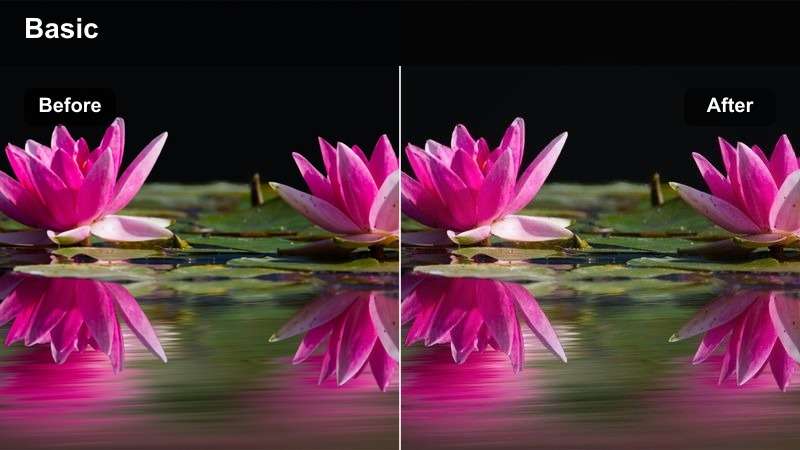
- Effect look: Neutral color balance with a slight warmth boost only in midtones to keep faces lifelike.
- Best for: Natural interview setups in co-working spaces or offices with mixed daylight and overhead light.
- Editing tip: Use the white balance eyedropper on a gray object first, then apply this filter for the most accurate skin tones.
Daylight True Skin is tailored for interview setups where window light mixes with office ceiling fixtures, which often causes strange green or yellow casts. In Filmora, this filter emphasizes a balanced, slightly warm midtone to restore believable skin color without making the entire frame look orange.
Before you apply it, use Filmoras white balance eyedropper on a neutral gray or white object in your frame to remove strong color shifts. After the filter is on, you can fine tune yellows and greens in the HSL or color correction controls to push background fluorescents toward a more neutral tone while preserving healthy, natural-looking faces.
Clean Creator Desk
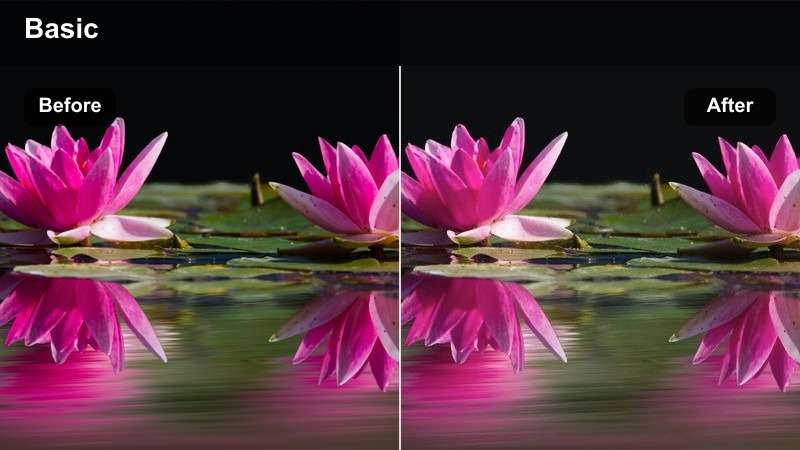
- Effect look: Bright, low-contrast look that makes desk and backdrop colors pop slightly while keeping skin tones soft.
- Best for: Productivity or tutorial-style interviews filmed at a creator desk with monitors and decor.
- Editing tip: Add a small vignette after this filter if your background decor is distracting from the speakers face.
Clean Creator Desk is designed for polished desk setups where you want a modern, friendly look without crunching contrast. In Filmora, it slightly brightens the overall frame and enhances background objects just enough to make your set design noticeable while still keeping the main focus on the speaker.
Once applied, you can add a mild vignette to nudge attention toward the subject or use masking to reduce saturation in particularly bright decor items. This combination works well for tutorial, productivity, or review channels that rely on a neat desk environment but still aim for believable, camera-ready skin tones.
Cozy Indoor Conversations in Living Rooms
Living Room Warm Balance
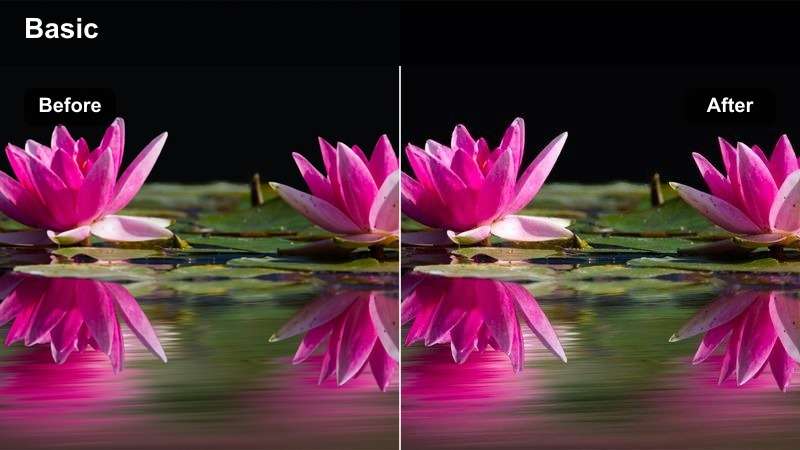
- Effect look: Soft warmth with slightly lifted shadows for a friendly, inviting interview mood.
- Best for: Casual couch interviews and podcast-style conversations in living rooms or home offices.
- Editing tip: Dial back overall saturation by a few points if your wall tones or furniture colors feel too intense.
Living Room Warm Balance brings a gentle, cozy tone to home interviews where practical lamps and ambient light dominate. In Filmora, it subtly warms midtones and lifts shadows so subjects on a couch or armchair feel approachable while avoiding strong, contrasty looks that might distract from conversation.
After applying the filter, check your wall paint, cushions, and wooden furniture; if they jump out too much, slightly lower global saturation or selectively reduce orange and red saturation. This lets you maintain a warm, podcast-style vibe while keeping diverse skin tones from pushing into overly orange territory.
Sofa Soft Neutral
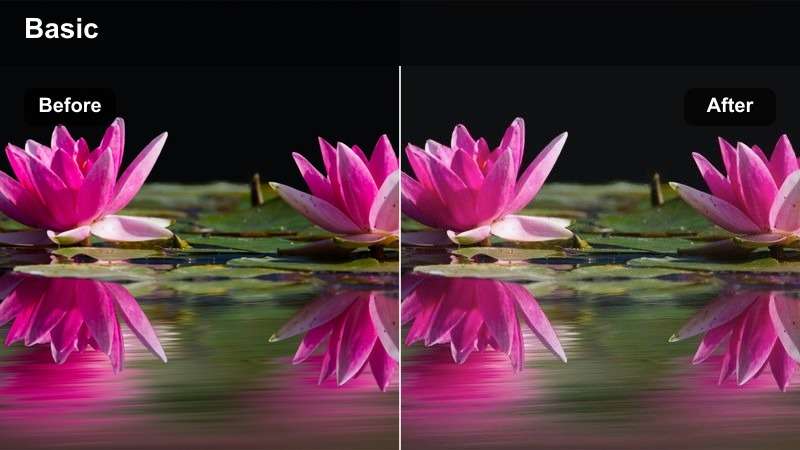
- Effect look: Flattened contrast and slightly reduced saturation for calm, documentary-style living room interviews.
- Best for: Serious or reflective interviews where you want a calm, distraction-free palette.
- Editing tip: Use subtle sharpening on the subjects face after this filter to avoid a washed-out appearance.
Sofa Soft Neutral creates a quiet, understated palette that works well for personal stories, testimonials, or reflective content. In Filmora, this filter gently mutes strong colors and reduces contrast so your viewers focus more on what is being said than on bright decor or dramatic lighting.
Once you have it in place, add a touch of sharpening or clarity around the eyes and facial features to retain a sense of presence. Keep brightness adjustments conservative, and pair the look with smoother cuts and minimal motion graphics to reinforce the documentary-style tone of your YouTube interview.
Lamp-Lit Evening
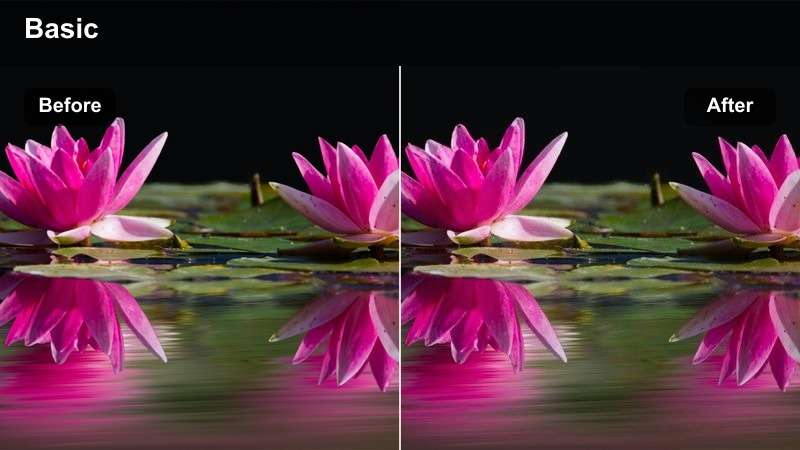
- Effect look: Gentle evening warmth with protected highlights so lamp bulbs and practicals are not overexposed.
- Best for: Interviews filmed at night with table lamps or floor lamps as the main light source.
- Editing tip: Lower highlights slightly after applying the filter to retain detail around lamp shades and glowing bulbs.
Lamp-Lit Evening is built for night-time interviews where table lamps, floor lamps, or string lights create most of the illumination. In Filmora, it maintains a warm, intimate feel while preserving highlight detail so practical lights look natural rather than blown out white spots.
After adding the filter, gently pull down the highlight slider and check bright areas around lamps and windows to ensure detail remains visible. If your camera introduced noise in the darker corners, add light noise reduction and slightly lift the shadow slider so your background feels present but not muddy or grainy.
Office and Studio Interview Setups
Studio Neutral Flat
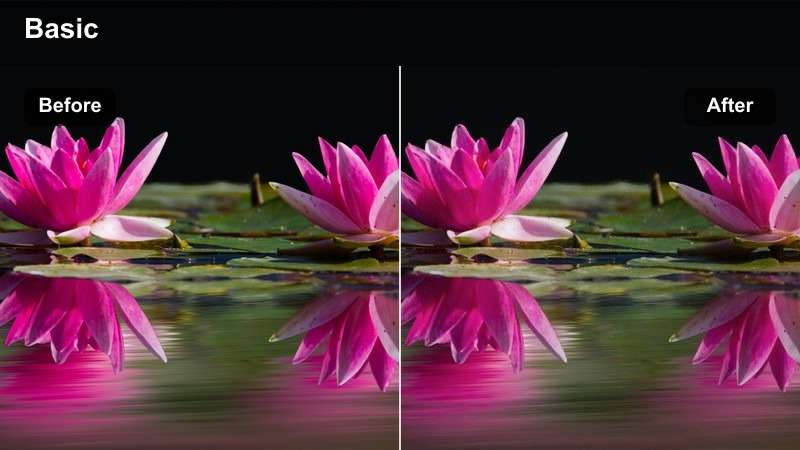
- Effect look: Low-contrast, color-neutral base that is ideal for studio lighting and branded set designs.
- Best for: Controlled studio interviews with softboxes, key lights, or LED panels in YouTube sets.
- Editing tip: Use this as a starting filter, then fine-tune color in the midtones only to keep your brand colors consistent.
Studio Neutral Flat is a technical starting point intended for well-lit YouTube studios where you want full control over the final look. In Filmora, it flattens contrast and keeps color as neutral as possible, giving you room to dial in branded tones, logo colors, and accent lights afterward.
Apply it to a correctly exposed clip from your main studio setup, then adjust midtones, saturation, and hue to match your brand palette while watching how skin tones respond. Once satisfied, save the combination as a custom preset so every future studio interview starts from the same, reliable base grade.
Office Crisp Natural
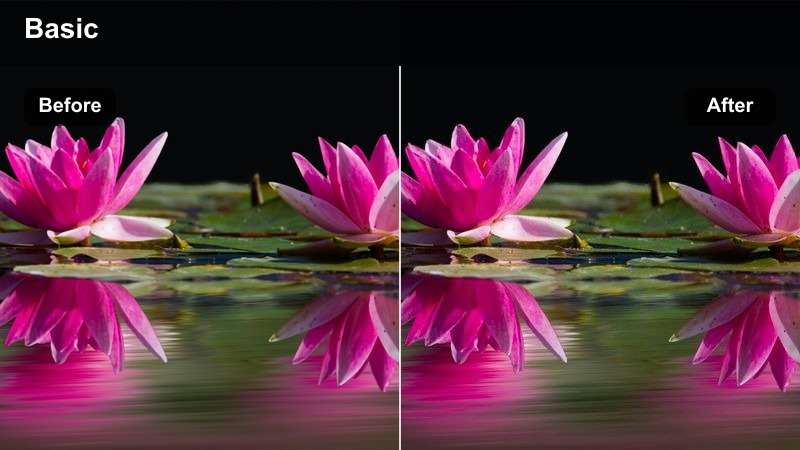
- Effect look: Slightly higher micro-contrast with clean whites for sharp, business-focused interviews.
- Best for: Corporate or educational interviews filmed in offices or meeting rooms for YouTube.
- Editing tip: Be careful not to over-sharpen; keep faces natural by sharpening only around eyes and hairlines.
Office Crisp Natural is tailored for business interviews, client testimonials, and educational content where clarity and professionalism matter. In Filmora, this filter adds a bit of micro-contrast and emphasizes clean whites, which helps office environments look polished without tipping into harsh, high-contrast territory.
After applying the filter, inspect any white shirts, walls, or documents and gently lower highlights if they start to clip. Use targeted sharpening on the eyes, hairlines, and edges of glasses instead of global sharpening to keep the overall impression clean while maintaining natural-looking skin texture.
Creator Studio Soft
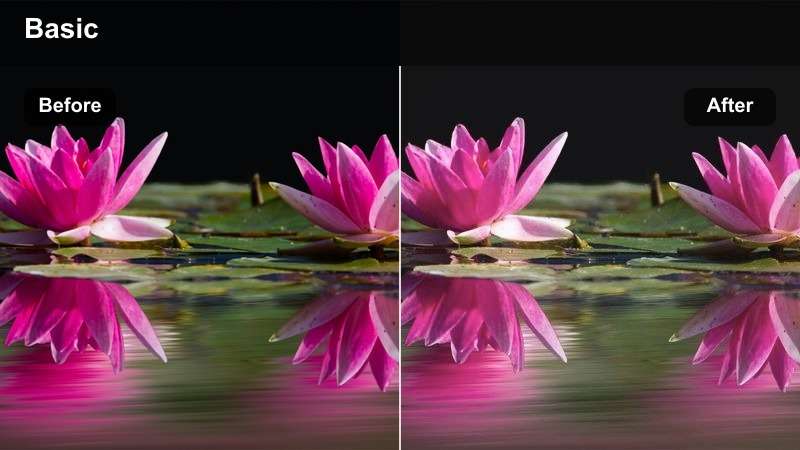
- Effect look: Softened contrast with a very light pastel feel in the background while skin tones stay accurate.
- Best for: Creator studios with LED accent lights, shelves, and subtle decor behind the subject.
- Editing tip: Push background saturation a bit higher than the subject to keep the face natural while the set looks styled.
Creator Studio Soft is great for channels that rely on stylish sets with LED strips, bookcases, and collectibles. In Filmora, it maintains neutral, accurate skin tones while giving the background a slightly pastel, softened look that complements your set design instead of overpowering it.
Once the filter is applied, use masks to separate the subject from the background and carefully boost saturation and brightness behind the speaker. Keeping the faces slightly less saturated than the decor creates a subtle separation, guiding viewer attention to the person talking while your studio still looks carefully curated.
Remote and Low-Budget Interview Setups
Webcam Natural Fix
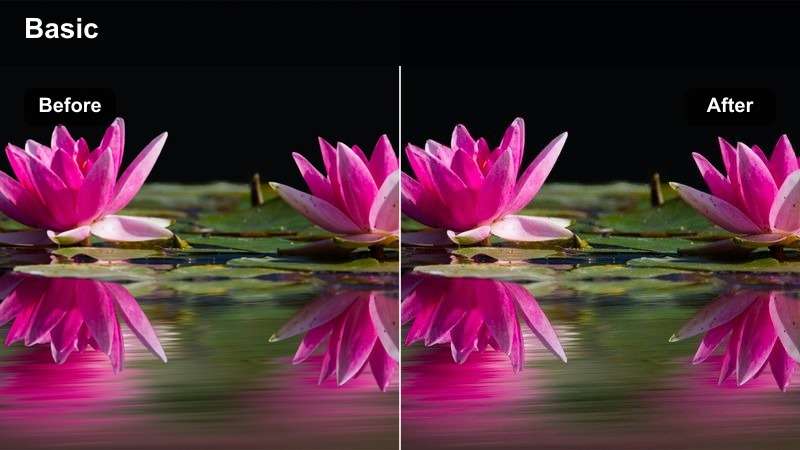
- Effect look: Reduces harsh contrast and digital sharpness common in cheap webcams while neutralizing color casts.
- Best for: Remote interviews recorded through basic webcams or built-in laptop cameras.
- Editing tip: Apply light noise reduction before this filter if the footage was captured in a dim room.
Webcam Natural Fix is designed to tame the overly sharp, high-contrast look that many built-in webcams produce. In Filmora, it softens digital harshness, evens out color casts from mixed room lighting, and brings skin tones closer to what you would expect from a dedicated camera.
For remote interview episodes with multiple guests, apply this filter to each webcam clip after a quick pass of noise reduction if the image is grainy. Then adjust white balance individually so that all participants sit within a similar color range, helping the final YouTube video feel like a cohesive conversation rather than a patchwork of mismatched feeds.
Phone Interview Clean
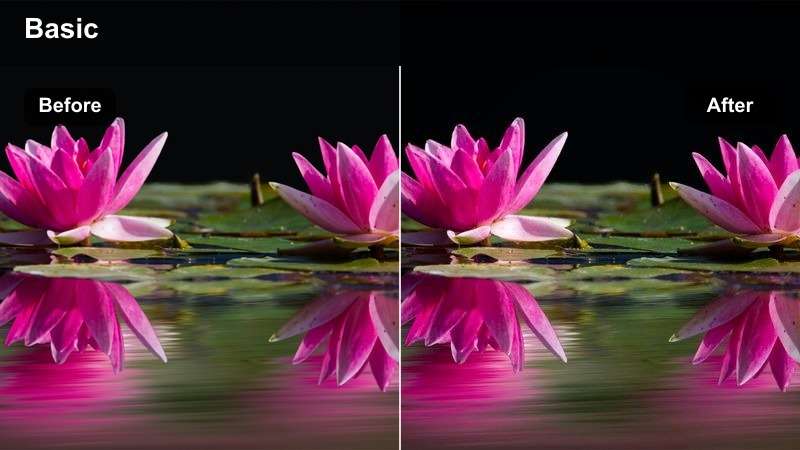
- Effect look: Tightens contrast slightly and reduces over-saturation often seen in phone auto modes.
- Best for: Vertical or horizontal phone-shot interviews in small rooms or improvised spaces.
- Editing tip: Crop and stabilize your clip after applying the filter to give phone footage a more professional framing.
Phone Interview Clean addresses the punchy, over-processed look that smartphone auto modes tend to create. In Filmora, this filter calms down over-saturated colors and refines contrast so that your mobile-shot interviews sit more naturally next to footage from dedicated cameras.
After applying it, crop your frame for better composition and use Filmoras stabilization to smooth handheld jitters. You can then fine tune temperature and tint so the phone clip matches your main camera more closely, and save the combination as a preset for any future interviews captured on the same device.
Low Light Rescue
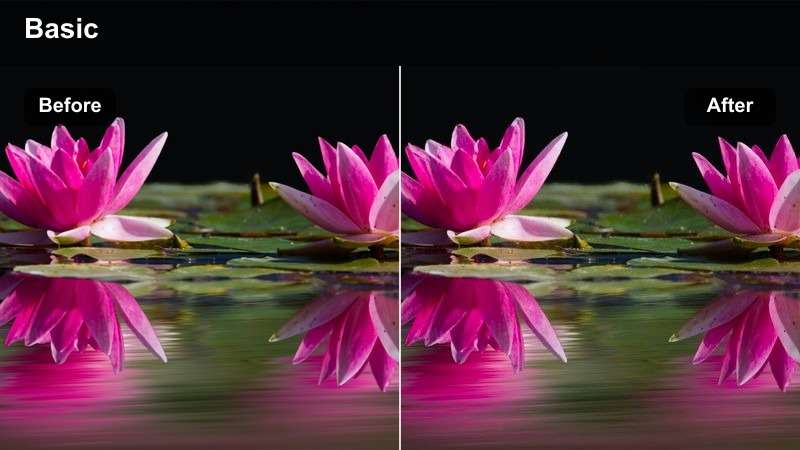
- Effect look: Lifts shadows gently and mutes color noise to save underexposed indoor interviews.
- Best for: Interviews in dark apartments, hallways, or rooms where you could not add more lights.
- Editing tip: Do not push brightness too far; use this filter mainly to even out faces and reduce ugly color blotches.
Low Light Rescue is meant for interview situations where you had no choice but to shoot in a dim environment. In Filmora, it gently raises shadow detail and suppresses distracting color noise so the footage becomes more watchable without looking heavily processed or artificial.
Focus your adjustments on making the subjects face readable and their eyes visible, even if that means leaving parts of the background in deeper shadow. Combine the filter with moderate noise reduction and restrained exposure boosts to avoid creating a flat, grainy image while still giving your audience a comfortable viewing experience.
Tips for Using Youtube Interview Video Luts Natural Filters in Filmora
- Always correct exposure and white balance before applying interview filters so the look stays natural instead of stylized.
- Test your chosen filter on a range of skin tones if you feature multiple guests to make sure it flatters everyone equally.
- Keep contrast and saturation moderate for talking-head content so viewers can comfortably watch long interviews.
- Use masks to adjust only the background or only the subject when a filter affects one area more strongly than you want.
- Save your favorite natural interview filter combinations as presets so every new episode starts from the same baseline.
- Review your graded interviews on both phone and desktop screens to confirm that skin tones stay natural across devices.
Natural-looking YouTube interview videos rely on subtle, consistent color choices that keep attention on the conversation rather than the grading.
Use these Filmora filters as starting points, then refine exposure, white balance, and saturation so your interviews look clean, authentic, and on-brand every time.
secure download