

 100% Security Verified | No Subscription Required | No Malware


 ChatGPT
 Perplexity
 Gemini
 Claude
 Grok
Grok
These neutral-tone filters are designed to mimic popular YouTube product video LUTs, giving you clean, accurate colors and a polished commercial look without over-stylizing your footage.
Use them to keep skin tones natural, product colors true to life, and your overall frame crisp and modern, so your viewers focus on the product and your message instead of distracting color casts.
In this article
Desk Setup and Static Product Showcases
Minimal Desk Neutral
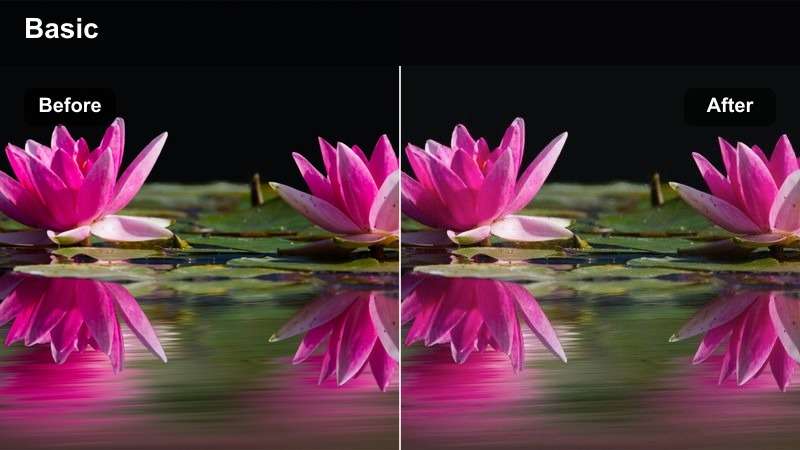
- Effect look: Soft contrast with gentle roll-off in highlights and slightly lifted shadows for a clean, minimal desk aesthetic.
- Best for: Top-down and static desk shots of gadgets, accessories, and clean workspace product layouts.
- Editing tip: Pair with a subtle vignette and lower saturation by 5-10 percent to emphasize product shape and texture over color.
Minimal Desk Neutral gives you that classic overhead tech-YouTuber aesthetic: crisp, bright, and distraction-free. In Filmora, it softens contrast just enough to avoid harsh edges while lifting shadows so dark objects on your desk still retain detail and separation from the background.
Apply this filter to your locked-off or tripod shots, then add a subtle vignette and small saturation reduction to push attention toward the product silhouette and materials. This works especially well for white or light-colored desks where you want surfaces to feel clean and truly neutral, not bluish or yellow.
Start With an AI-Powered Neutral Base
Use Filmora s AI color tools to automatically balance exposure and white balance before applying any neutral-tone product filter. This ensures your base image is clean and consistent, so each filter behaves predictably and keeps colors closer to what you saw in real life.
Once AI correction is applied, layer Minimal Desk Neutral or any other filter from this guide to refine contrast and micro-contrast without fighting incorrect color casts from your camera or room lighting.
 secure download

Preview Neutral Filters on Real Product Footage
Import a few seconds of your typical YouTube product shots into Filmora and quickly cycle through these neutral filters to see how they handle highlights, shadows, and background clutter. Testing on your own footage is the fastest way to find one or two looks that consistently flatter your products.
Build a short test sequence with a mix of desk, talking head, and b-roll clips, then compare variations on the same timeline. This helps you spot which neutral tone works best across different lighting setups and camera angles.
secure download1000+ Video Filters and 3D LUTs
Filmora includes a large library of built-in filters and 3D LUTs, so you can quickly switch from clean, neutral product looks to more stylized grades when your content calls for it. Mix these neutral-tone options with subtle creative filters to define a visual identity that still feels professional.
Once you have dialed in your favorite neutral base, layer additional Filmora effects, light leaks, or overlays on separate tracks to keep your color grade non-destructive and easy to adjust for future uploads.
secure downloadTrue Color Product
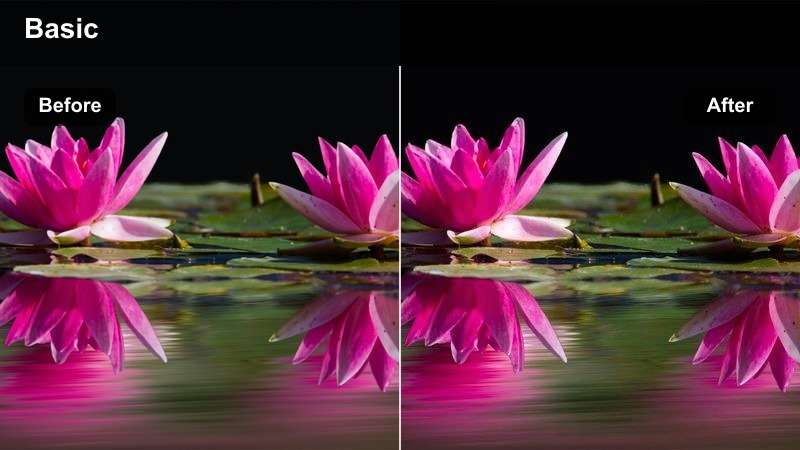
- Effect look: Very balanced contrast and saturation that keeps brand and packaging colors accurate without added warmth or coolness.
- Best for: Product hero shots where exact color matching is critical, such as fashion, tech, or branded packaging.
- Editing tip: Use a subtle sharpening pass on the product only to enhance edges while keeping backgrounds soft and non-distracting.
True Color Product is designed for situations where accurate brand colors matter, such as sponsored tech reviews or cosmetic swatches. In Filmora, it creates a flat, honest palette that avoids trendy teal-and-orange pushes, so logos, labels, and fabrics look like they do in person.
Apply this filter to your hero shots and then use Filmora masks to add a touch of sharpening or clarity just to the product area. Avoid global saturation boosts afterward; instead, let this neutral LUT-style look keep your footage clean, professional, and trustworthy for viewers and brand partners.
Shadow Detail Preserve
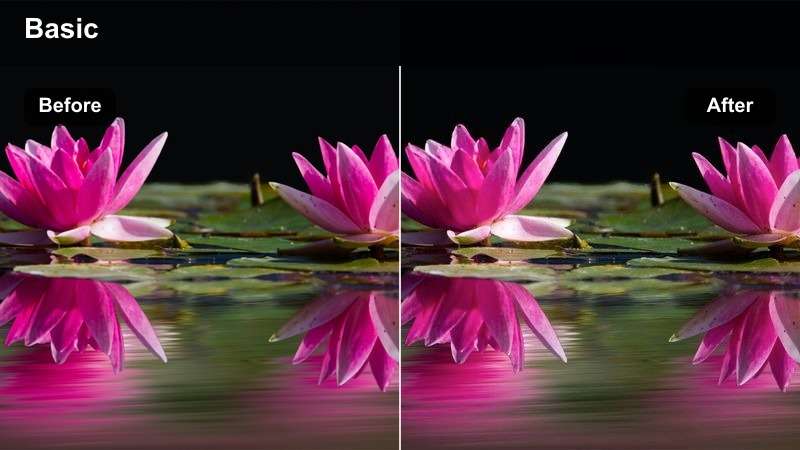
- Effect look: Low-contrast neutral look that gently lifts shadows to reveal details in darker areas around the product.
- Best for: Desk setups with dark accessories, black tech, and moody backgrounds where detail often gets crushed.
- Editing tip: Use this filter and then selectively darken only the background with masks to keep attention on the product while retaining texture.
Shadow Detail Preserve is ideal when you shoot black-on-black setups, like dark keyboards, mice, and laptops on a charcoal desk. In Filmora, it brightens just enough to reveal contours, buttons, and textures while keeping the overall tone calm and neutral.
After applying the filter, add a shape or linear mask to slightly darken the background while leaving your product untouched. This approach gives you a cinematic, moody feel without losing essential detail, which is crucial for viewers comparing finishes and materials in your YouTube product videos.
On-Camera Talking Head Product Reviews
Studio Neutral Face
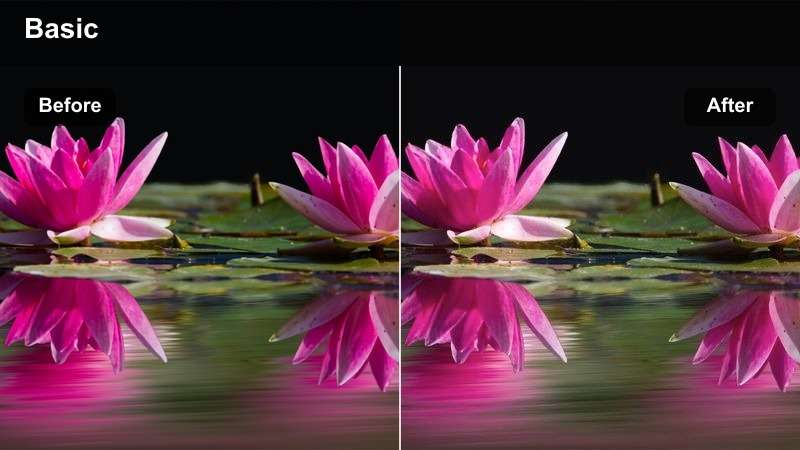
- Effect look: Clean studio look that preserves natural skin tones and flattens harsh color casts from practical lights.
- Best for: Talking head reviews where the creator is holding or demonstrating products in front of the camera.
- Editing tip: Use this filter early in your chain, then fine-tune skin tones with selective HSL adjustments if needed.
Studio Neutral Face is built to keep both your skin and your product looking honest and flattering under typical YouTube studio lighting. In Filmora, it neutralizes strong tints from LED strips or practical lamps so your face does not shift too warm or too green between shots.
Apply this filter as one of the first steps in your color pipeline, then open Filmora s HSL controls to gently nudge skin hue and luminance if required. Because the product remains neutral alongside your face, viewers can focus on your review instead of being distracted by uneven color shifts.
Soft Panel Neutral
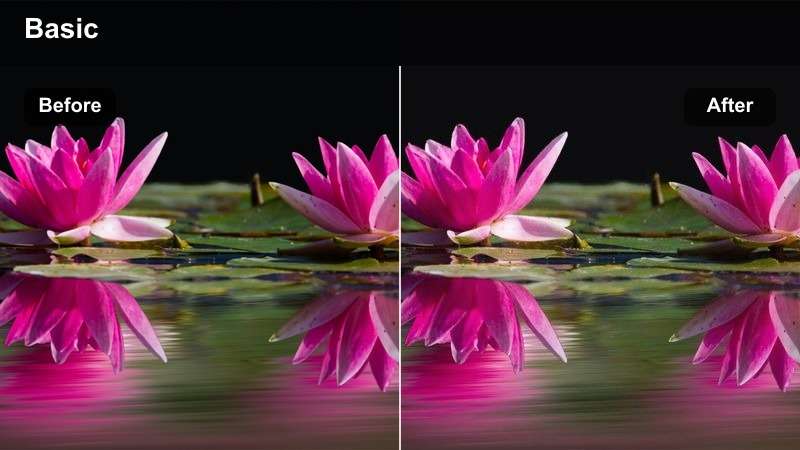
- Effect look: Balanced neutral profile optimized for softbox or LED panel lighting, with slightly reduced highlights on the face.
- Best for: Seated reviews with soft key lighting beside a monitor, TV, or product shelf in the background.
- Editing tip: After applying the filter, slightly darken the background to prevent screens or light strips from grabbing too much attention.
Soft Panel Neutral is tuned for creators who rely on key lights, softboxes, or LED panels for their talking head setups. In Filmora, it gently rolls off facial highlights so your skin does not appear shiny or blown out, while keeping the product and background comfortably neutral.
Use it on any clip where you sit at a desk in front of your setup, then apply a quick exposure or curves adjustment on the background area to prevent bright screens from overpowering your face. The result is a calm, professional look that still lets RGB accents and decor show through without dominating the frame.
Presentation Neutral
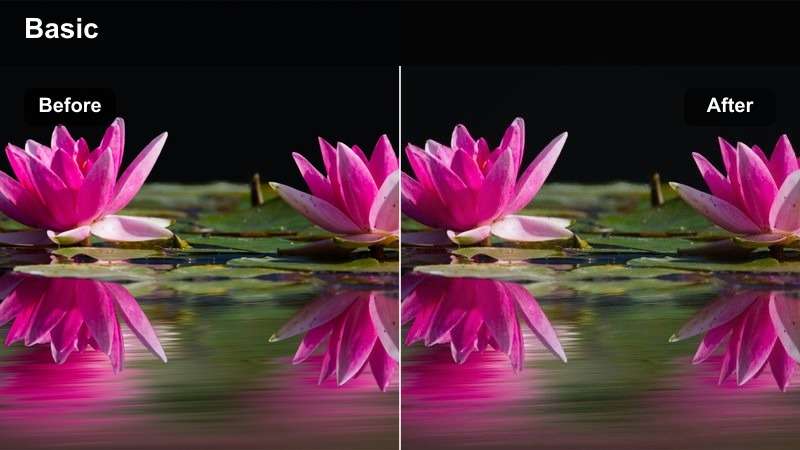
- Effect look: Neutral corporate-style contrast with crisp edges and restrained saturation suited to professional product presentations.
- Best for: Scripted product presentations, pitch-style videos, and explainer segments with overlays or slides.
- Editing tip: Add subtle text and UI overlays after grading to maintain sharpness and prevent color edges from fringing.
Presentation Neutral gives your videos a boardroom-ready finish, perfect for SaaS demos, pitch decks, or more formal product presentations on YouTube. In Filmora, it increases clarity and edge definition slightly while keeping saturation modest so your slides, charts, and callouts remain easy to read.
Grade your footage with this filter before you design overlays, then adjust text colors to complement the neutral background. Because the contrast is controlled, your product, on-screen graphics, and face will all hold up well on laptops, phones, and office projectors without looking oversaturated or harsh.
Dynamic B-Roll and Handheld Product Shots
Handheld Neutral Grip
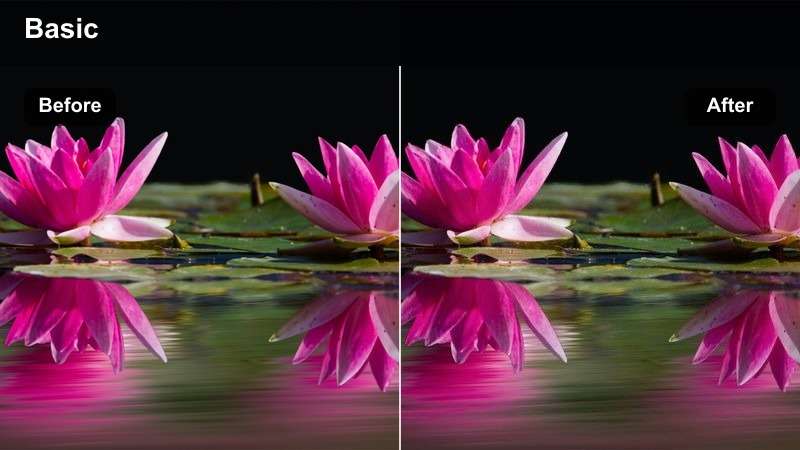
- Effect look: Moderate contrast and clarity that keeps motion shots sharp but avoids crunchy textures and oversaturated edges.
- Best for: Handheld product close-ups, unboxing sequences, and short slider moves showing product features.
- Editing tip: Apply slight motion blur or stabilization after this filter to smooth small jitters while maintaining detail.
Handheld Neutral Grip is built for movement: rotating gadgets in your hands, lifting products out of boxes, or gliding past key features. In Filmora, it adds enough clarity to keep textures sharp during motion, but avoids the crunchy, over-processed look that some LUTs can create.
After grading with this filter, try Filmora s stabilization or a small motion blur effect to smooth handheld jitters without sacrificing detail. Combined with a shallow depth of field and a neutral palette, your b-roll will feel intentional and cinematic while still staying true to the product s real-world appearance.
Texture Focus Neutral
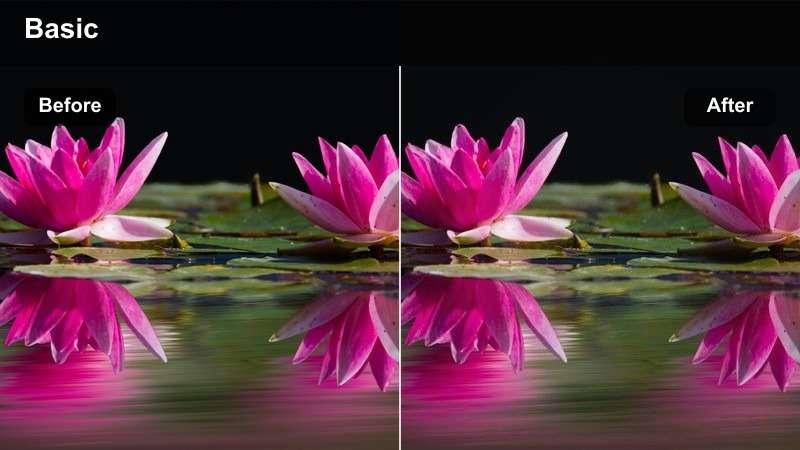
- Effect look: Clean, micro-contrast emphasis that highlights surfaces, textures, and fine engraving without changing color balance.
- Best for: Macro shots of buttons, ports, materials, and close details that sell product quality.
- Editing tip: Use a mask to apply additional clarity to only the product area so hands and background remain soft and flattering.
Texture Focus Neutral emphasizes fine details like knurling, leather grain, or etched logos without shifting overall color tone. In Filmora, it increases micro-contrast selectively, making close-up shots feel more tactile and premium while preserving a neutral base.
Use this filter on macro b-roll, then add targeted sharpening to the product using a mask so your fingers and background stay smooth. This keeps attention on craftsmanship and build quality, which is especially important for high-end tech, watches, or accessories that rely on subtle detail to stand out.
Neutral Slow Pan
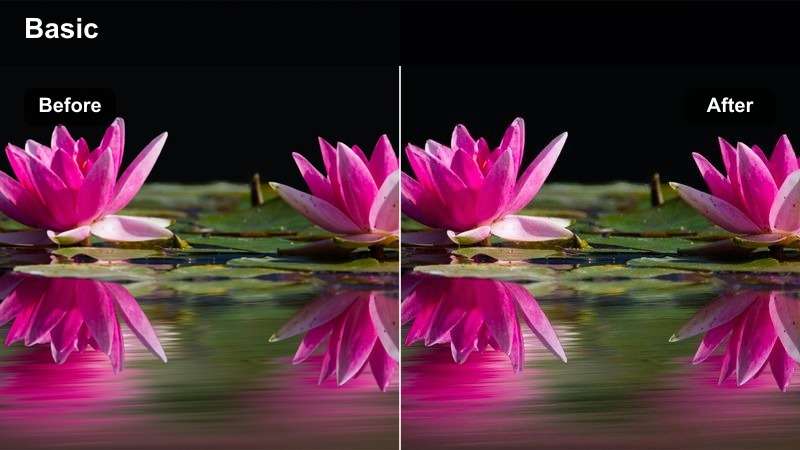
- Effect look: Softened midtones with controlled highlights designed to keep slow panning shots smooth and cinematic.
- Best for: Slow pans across a product lineup, monitor screens, or shelf displays in show-and-tell sequences.
- Editing tip: Combine with a subtle horizontal crop and keyframed movement to reinforce the pan and improve composition.
Neutral Slow Pan is ideal for wide, gliding shots that move across a lineup of products or a full desk setup. In Filmora, it softens midtones and keeps highlights in check so the eye glides naturally through the frame without being pulled to any one hotspot.
Apply this filter to your panning b-roll, then add a slight additional crop with keyframes to polish camera movement. The neutral tone and smooth contrast curve help your shots feel cinematic and cohesive, especially when you cut them between tighter handheld clips or talking head segments.
Ambient Room, Shelf, and Setup Context Shots
Room Context Neutral
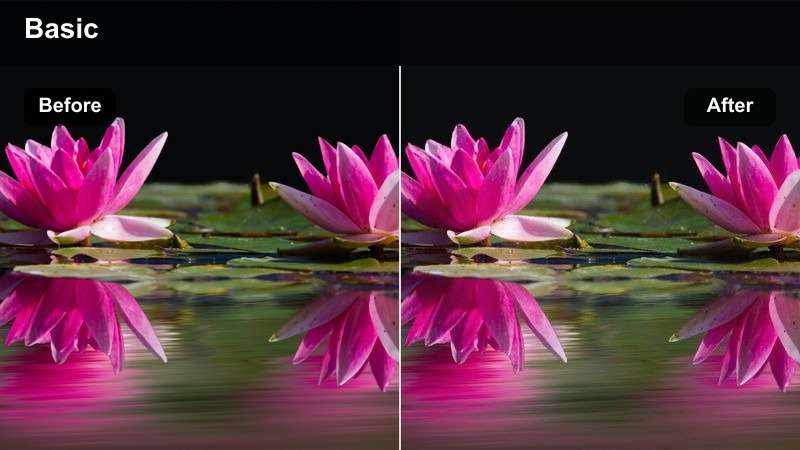
- Effect look: Gentle contrast and neutral white balance that keeps both the product and room decor looking realistic and inviting.
- Best for: Wide shots of your filming space, shelves, and desk setups that show how the product fits into a real environment.
- Editing tip: Slightly desaturate busy background elements like books or posters so the product remains the natural focal point.
Room Context Neutral helps your space look aspirational yet believable, keeping walls, furniture, and decor true to life. In Filmora, it balances the overall white point so neither daylight from windows nor warm lamps dominate, making your product feel naturally integrated into the environment.
Use this filter for introductory and closing scenes that show your full setup, then gently lower saturation on distracting background colors. This keeps the environment engaging without pulling focus away from the product that your video is built around.
Shelf Display Neutral
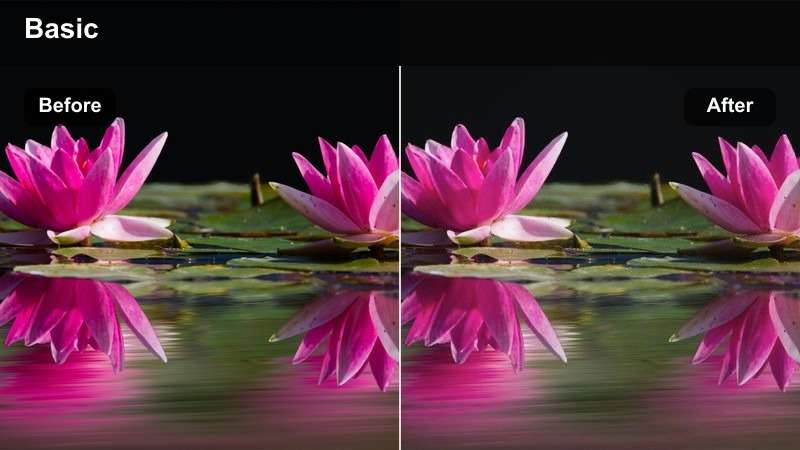
- Effect look: Straightforward neutral palette that subtly darkens backgrounds while keeping featured products bright and honest.
- Best for: Shelf displays, product collections, and side-by-side comparisons arranged in your filming space.
- Editing tip: Use a graduated mask from top to bottom to slightly darken the upper frame, drawing attention to middle-shelf products.
Shelf Display Neutral is tailored for flat, organized compositions where multiple products share the frame. In Filmora, it lightly darkens the overall background while holding midtones on the products, so your collection or comparison layout reads clearly at a glance.
After applying the filter, add a simple gradient mask to shade the top or sides of the shot, pulling the eye toward the central shelf level. This neutral base keeps packaging and labels accurate while reducing the visual noise from walls, decor, or unused items around the edges.
Screen Setup Neutral
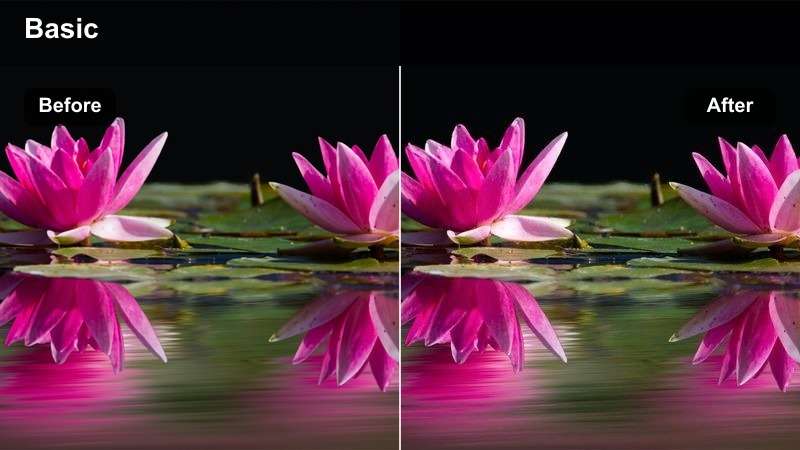
- Effect look: Neutral tone curve optimized for scenes with bright screens and RGB lights, reducing color bleed and glow.
- Best for: Desk setups featuring monitors, TVs, or LED strips where you still want products to read clearly on camera.
- Editing tip: After applying the filter, pull back saturation in the blues and magentas slightly so screens and LEDs do not overpower the product.
Screen Setup Neutral is crafted for modern gaming or editing desks filled with monitors and RGB lighting. In Filmora, it reins in intense blues, purples, and cyans so screen content and LED strips look vivid but not overwhelming, keeping your featured product fully readable.
Apply this filter whenever a display or RGB accents share the frame with your product, then slightly reduce saturation in blue and magenta channels using HSL. This helps prevent color bleeding and blooming while preserving the cool, techy vibe that viewers expect from desk setup and gaming product videos.
Tips for Using Youtube Product Video Luts Neutral Tone Filters in Filmora
- Shoot with the flattest picture profile available on your camera to give neutral filters more latitude and smoother tonal transitions.
- Use a gray card at the start of your recording session so white balance and neutral filters stay consistent between different filming days.
- Avoid mixing too many colored accent lights in the same frame, as even neutral filters may struggle to keep skin tones and product colors perfectly clean.
- Grade one representative clip from your project first, then copy and paste those filter and color settings to the rest of your timeline for consistency.
- Regularly check your scopes in Filmora to make sure your neutral look is not crushing important shadow or highlight details on the product.
- Export a short test segment and watch it on your phone, laptop, and TV to confirm your neutral tones hold up across different screens.
Neutral-tone filters that mimic YouTube product LUTs give your videos a clean, trustworthy look where colors feel accurate and distractions stay minimal.
Build a simple workflow around one or two of these filters, and your product videos will look more polished, consistent, and professional with far less time spent on color grading.
secure download