

 100% Security Verified | No Subscription Required | No Malware


 ChatGPT
 Perplexity
 Gemini
 Claude
 Grok
Grok
This curated set of Filmora filters is designed for creators who want the clean, neutral look of YouTube tech review LUTs without overprocessing or color casts. Each filter favors accurate product color, crisp detail, and a distraction-free finish that keeps the focus on the gear you are reviewing.
Use these scene-based presets to quickly match multi-camera angles, balance mixed lighting, and create a cohesive channel look across all your tech videos. Whether you are shooting phones, laptops, or studio setups, you will find a clean color option that fits your style.
In this article
Desk Setup and Overhead Tech Reviews
Minimal Desk Neutral
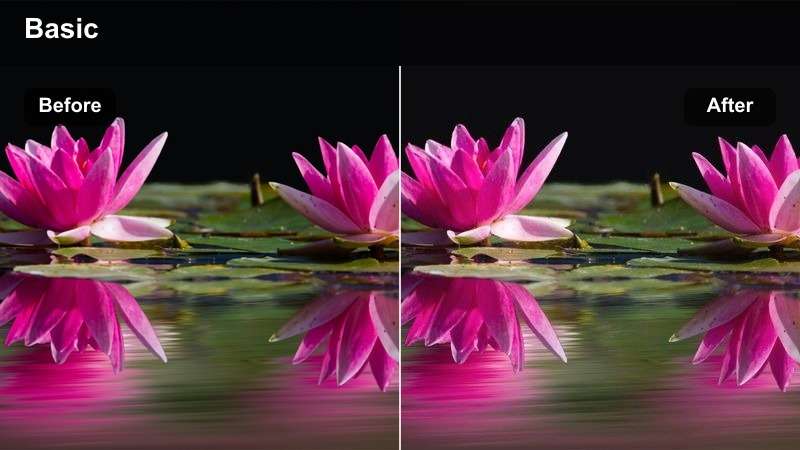
- Effect look: Soft, low-contrast neutral filter that evens skin tones and keeps product colors true to life.
- Best for: Overhead unboxings, desk setup walkthroughs, and static product shots on a light tabletop.
- Editing tip: Pair with a slight clarity or sharpness boost on the product area only to keep hands and background subtle.
Minimal Desk Neutral gives your overhead tech shots the clean, honest look that viewers associate with reliable reviews. In Filmora, apply it to clips where the desk surface, packaging, and product all need to stay believable, especially on white or light backdrops that can easily blow out.
Use masks to target extra sharpness or clarity only on the device so textures and ports stand out without drawing attention to your hands or background clutter. If the tabletop is very bright, nudge exposure down first, then fine-tune highlights to protect labels, icons, and any on-box print from clipping.
Dial In a Consistent Tech Review Look with AI Color Tools
Use Filmoras AI-driven color matching to apply one clean review look across all your clips, even if they come from different cameras or recording sessions. Grade a single reference shot using your preferred neutral desk filter, then let AI automatically bring the rest of your timeline in line with that color profile.
This workflow keeps skin tones, desk surfaces, and product colors consistent from A-roll to B-roll, avoiding the distracting shifts that can make reviews feel less professional. You still keep full control for shot-by-shot tweaks, but AI handles the heavy lifting in one click.
 secure download

Preview Filters on Real Tech Footage Before Committing
Instead of guessing how a filter will react to reflective aluminum, glossy phones, or bright OLED panels, drop a few seconds of real tech footage into Filmora and audition multiple presets side by side. Look for options that keep whites controlled, blacks clean, and brand colors realistic.
Duplicate your clip on the timeline, apply a different neutral filter to each layer, and toggle visibility to compare. This approach helps you lock in a repeatable clean review style without sliding into a stylized or cinematic grade that misrepresents the products.
secure download1000+ Video Filters and 3D LUTs
Filmora includes a large library of video filters and 3D LUTs that you can stack to create your own YouTube tech review look. Combine neutral color presets with gentle contrast, sharpening, and vignette effects to build a style that highlights product truth over heavy aesthetics.
Once you are satisfied, save your combination as a custom preset so every new video starts from the same clean, trustworthy baseline. This gives you the speed and consistency of a dedicated LUT while staying flexible for different lighting situations.
secure downloadMatte Grey Setup
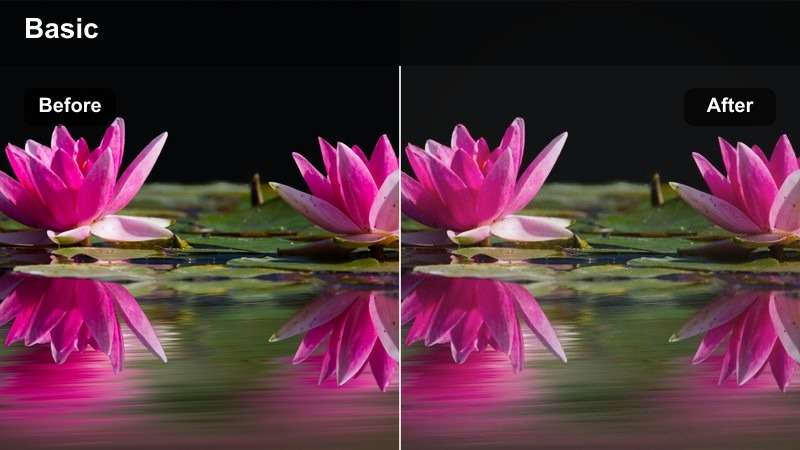
- Effect look: Flat, matte response that tames reflections on metal and glass while preserving neutral color.
- Best for: PC builds, gaming setups, and multi-monitor desk layouts with metal and glossy screens.
- Editing tip: Combine with a small vignette around the desk area to subtly frame the build without darkening the gear.
Matte Grey Setup is built to manage glare and hotspots across complex desk builds, where RGB lighting, glass panels, and bright monitors can easily distract from the hardware. In Filmora, apply it to wide and medium shots of your setup to flatten excessive shine while keeping colors honest.
Add a gentle vignette focused around the main rig or monitor cluster to draw attention without making the room feel dark. For screens that still look too reflective, slightly lower highlights and whites, then use masks to add a touch of extra contrast just on the display area so UI elements remain vivid.
Unboxing Soft Clinical
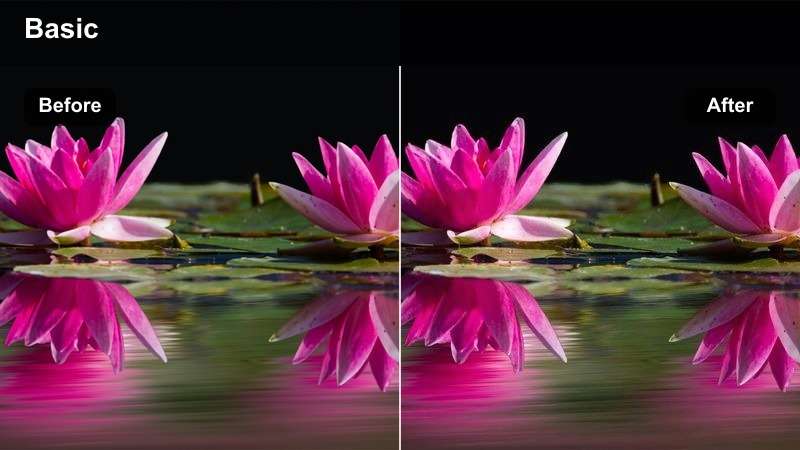
- Effect look: Clean, slightly cool tone with soft contrast for a clinical, trustworthy unboxing feel.
- Best for: Unboxings with white packaging, overhead and side angles in evenly lit desk environments.
- Editing tip: Keep saturation modest; if your packaging is colorful, reduce global saturation slightly to maintain that clinical look.
Unboxing Soft Clinical is ideal when you want your desk to resemble a clean lab bench, giving viewers confidence that what they see is accurate. Apply it in Filmora to overhead and side-angle unboxings to cool down warm desk lamps and keep whites looking fresh without drifting blue.
If you are dealing with mixed window and lamp light, first use Filmoras white balance tools to neutralize the box or instruction manual, then apply the filter. Afterward, subtly nudge the temperature slider warmer if skin tones feel too cool, while keeping the background and packaging in that precise, slightly clinical zone.
Talking Head Studio Reviews
Studio Neutral Skin
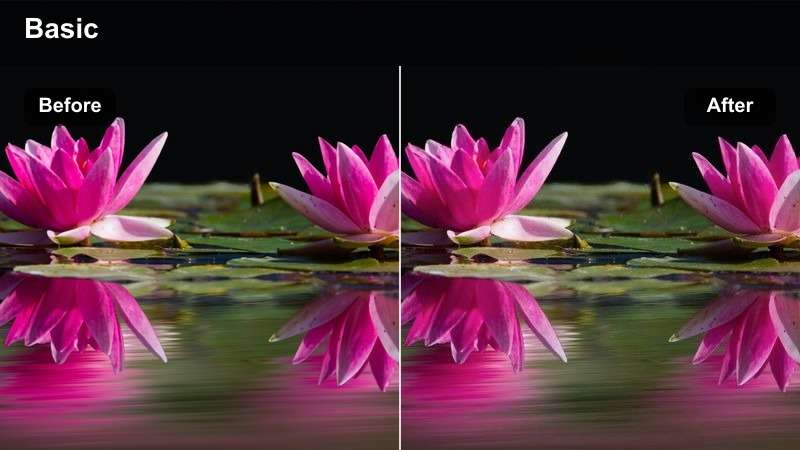
- Effect look: Even, neutral filter that focuses on natural skin tones while preserving accurate product color beside you.
- Best for: A-roll talking head reviews with products on the table or shelf in controlled studio lighting.
- Editing tip: Expose slightly for the face, then use the filter and lightly reduce saturation on the background only for a pro review look.
Studio Neutral Skin is built around the combination most tech viewers care about most: natural faces and true-to-life product color. In Filmora, apply it to your A-roll shots first so your skin tones and the device on your desk or shelf match consistently across the whole review.
Expose for your face while shooting, then use the filter to smooth out minor color shifts and contrast swings between takes. Use Filmoras masking tools to gently drop saturation on shelves and wall decor so the audience focuses on you and the gear, not on colorful props in the background.
Cool Lab Backdrop
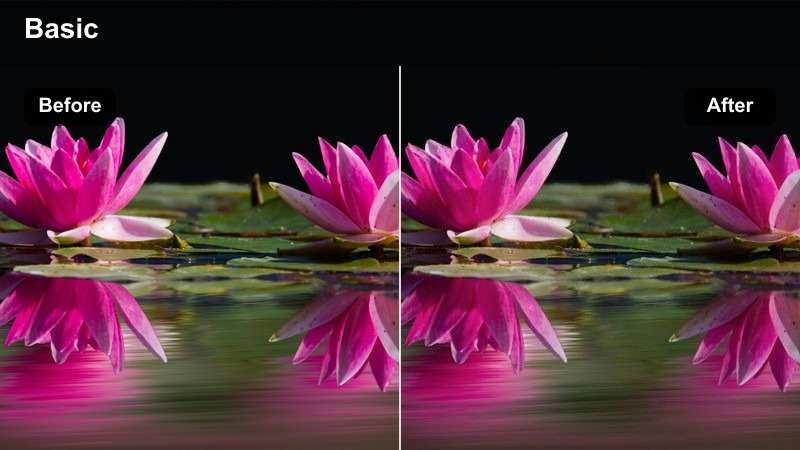
- Effect look: Subtly cool background tones with neutral midtones, mimicking a tech lab without affecting product accuracy.
- Best for: Studio reviews with LED accents, shelves of gadgets, and darker wall colors.
- Editing tip: Keep LED lights at low saturation before adding this filter so subtle color remains and does not dominate the frame.
Cool Lab Backdrop gives your set a light tech-lab atmosphere by cooling backgrounds while preserving accurate midtones on your face and gear. In Filmora, use it for talking-head shots with LEDs, darker walls, or RGB strips where you want the vibe of a tech space but still need neutral products.
After applying the filter, consider adding a mild background blur or depth-of-field effect to enhance separation without cranking up contrast. If your LEDs feel overpowering, open the HSL panel and selectively desaturate blue and magenta so they read as subtle accents instead of stealing focus from your review.
True Color Showcase
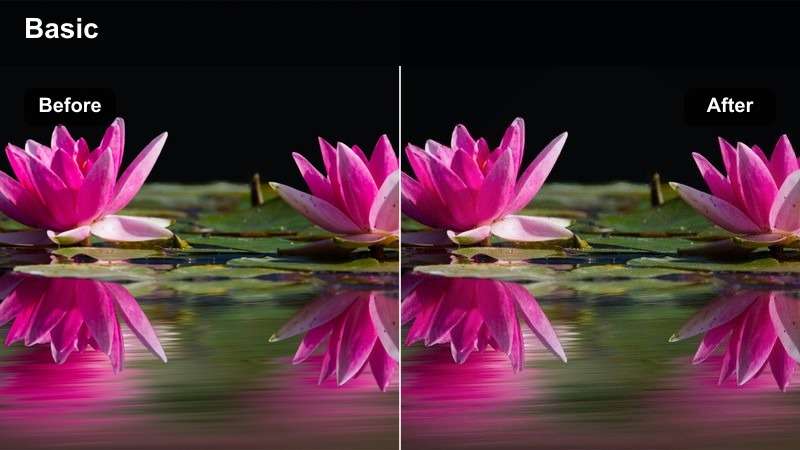
- Effect look: High-accuracy color filter with restrained contrast that highlights the product's real finish and display colors.
- Best for: On-camera showcases of phones, laptops, and monitors where accurate branding and UI colors matter.
- Editing tip: Avoid extra saturation layers; let this filter handle the color so screens and logos do not look artificially punched.
True Color Showcase focuses on getting product finishes and on-screen UI colors as close to reality as possible. Apply it in Filmora when you are holding phones, laptops, or monitors close to the lens and talking directly about color accuracy, brightness, or display quality.
Before grading, fix white balance using a gray card or neutral surface if you have one in the frame. Once the filter is applied, resist the urge to add more saturation; instead, compare your rendered colors with official product images or UI references to ensure logos, icons, and wallpapers look honest and not overhyped.
B-Roll Product Close-Ups and Macro Shots
Edge Highlight Clean
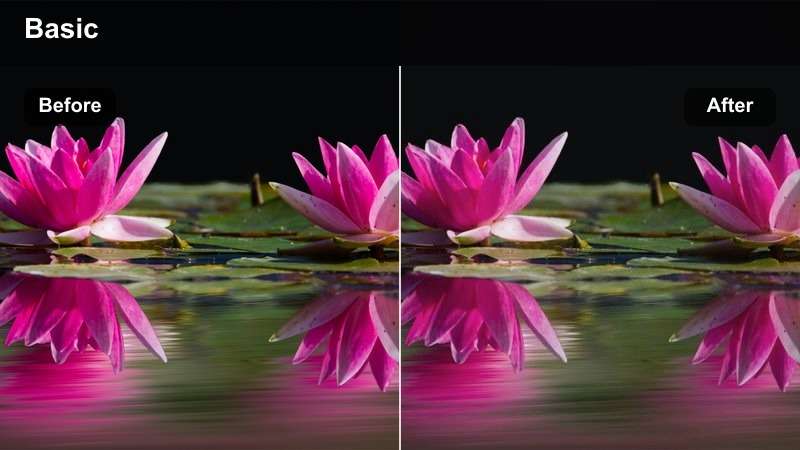
- Effect look: Crisp, micro-contrast boost on edges with a neutral base for sharp hardware close-ups.
- Best for: Macro shots of camera lenses, laptop hinges, ports, and textured materials like aluminum.
- Editing tip: Apply the filter first, then add subtle slow motion and a gentle sharpen to accent ridges and chamfered edges.
Edge Highlight Clean is tailored for B-roll where you want viewers to feel the precision of machining and build quality. In Filmora, drop it onto macro clips of hinges, ports, and sculpted edges to gently increase micro-contrast while holding color completely neutral.
After applying the filter, experiment with slow motion and a light extra sharpen to make ridges and chamfers pop without introducing halos. You can also mask around the product and slightly lower clarity or blur the background so the viewers eye tracks directly along the device edges and not the surroundings.
Screen Clarity Neutral
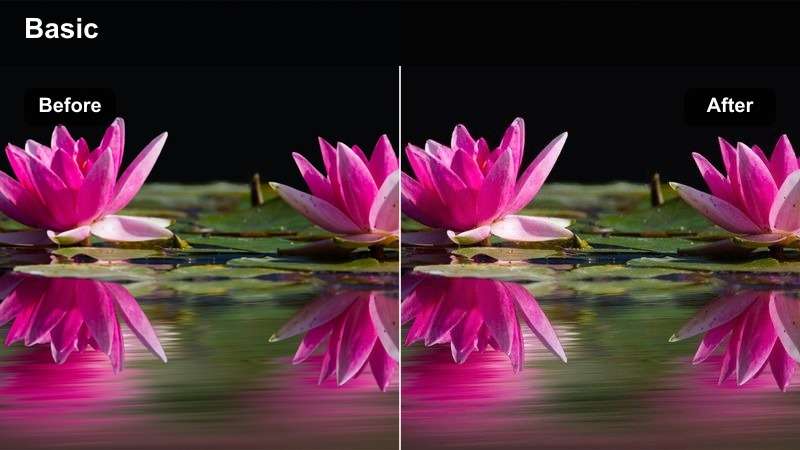
- Effect look: Balanced filter that keeps screens bright and readable while preventing color clipping or haloing.
- Best for: Close-up shots of phone and laptop displays, UI demos, and software walkthroughs on devices.
- Editing tip: Lower exposure slightly before applying, then raise midtones just enough to keep the bezel and hands visible.
Screen Clarity Neutral is tuned to handle bright displays so that text and UI elements remain crisp without blooming or banding. In Filmora, use it on close-ups of apps, menus, and software walkthroughs where you need both accurate color and legible interface details.
Start by lowering exposure a touch if the screen is near clipping, then apply the filter to balance highlights and prevent halos around bright icons. Afterwards, lift midtones gently so bezels, fingers, and reflections stay visible, and avoid strong sharpening, which can emphasize moire or residual flicker from the display.
Texture Focus Neutral
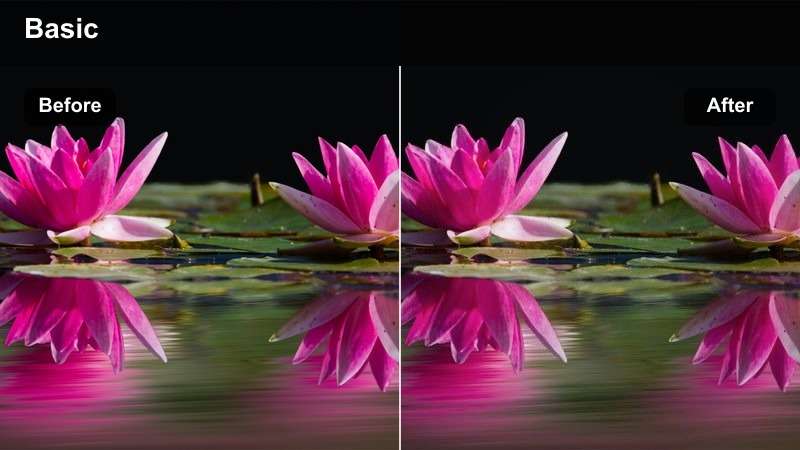
- Effect look: Softly boosted texture and midtone detail with neutral color to emphasize materials and finishes.
- Best for: B-roll sweeps over keyboards, trackpads, textured phone backs, and camera grips.
- Editing tip: Use slow, steady camera moves and keep ISO low; this filter reveals noise as well as detail.
Texture Focus Neutral helps your audience understand how a device feels in the hand by emphasizing subtle surface details. In Filmora, apply it to sweeps across keyboards, knurled dials, rubberized grips, and textured backs where midtone contrast matters more than heavy color stylization.
Because the filter lifts fine detail, try to keep ISO low in your footage; noise will be more visible otherwise. After grading, consider slightly lifting shadows to avoid crushing dark textures, then add local contrast only where you want viewers to focus, such as branding, unique materials, or special design elements.
On-the-Go Tech Tests and Real-World Use
Cafe Field Test Neutral
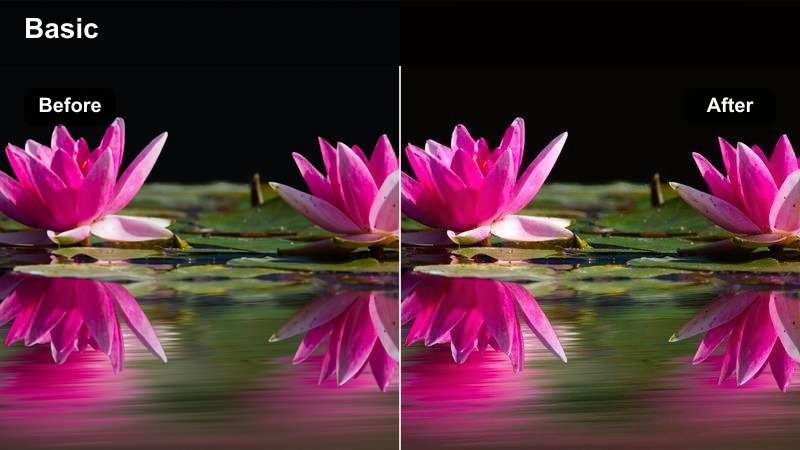
- Effect look: Balanced contrast and neutral color that handles mixed indoor lighting without heavy stylization.
- Best for: Laptop and phone tests in cafes, co-working spaces, and other everyday tech environments.
- Editing tip: White balance for the product first, then apply the filter and slightly reduce saturation of warm ambient lights.
Cafe Field Test Neutral is designed for real-world tech demos in spaces with warm bulbs, windows, and colorful decor. In Filmora, use it on clips where you test laptops, tablets, or phones at a cafe or co-working spot and want the environment to feel natural without shifting product color.
White balance off the device or a neutral surface before grading so the product remains your anchor. After applying the filter, open HSL and gently desaturate orange and yellow to keep overhead or practical lights from casting an overly warm hue across faces, tables, and walls.
Outdoor Contrast Soft
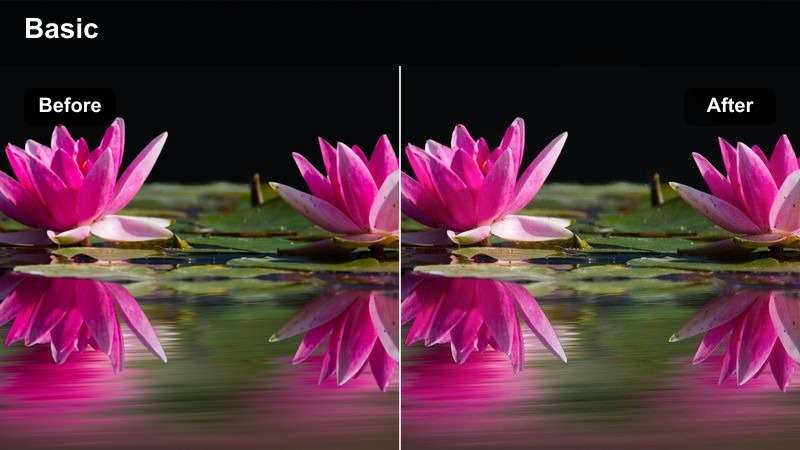
- Effect look: Soft, forgiving contrast that preserves detail in bright outdoor highlights while staying color-accurate.
- Best for: Outdoor camera tests, smartphone daylight demos, and street-level laptop use shots.
- Editing tip: Expose for the product screen outdoors, then use this filter and gently pull down highlights for the sky and pavement.
Outdoor Contrast Soft is built for bright conditions where hard sunlight and reflective screens can blow out detail. Apply it in Filmora to daylight tests of phone cameras, laptops on benches, or street-level device shots to soften contrast and preserve highlight information.
When shooting, expose for the device screen, then in post use the filter to smooth contrast while maintaining neutral color. If the sky or pavement still looks too bright, slightly lower highlights or use masks to darken only the background so that the product remains perfectly readable and naturally lit.
Night Ambient Control
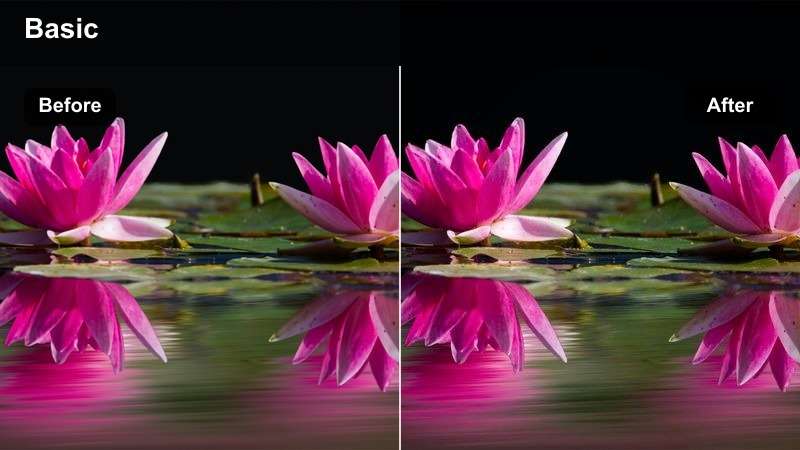
- Effect look: Controlled low-light filter that reduces muddy shadows and tames color noise while staying relatively neutral.
- Best for: Night street tests of phone cameras, low-light laptop demos, and handheld tech use after dark.
- Editing tip: Reduce in-camera sharpening to avoid noisy edges, then apply this filter and selectively lift midtones around your device.
Night Ambient Control is tuned for low-light scenes where street lights, signage, and high ISO can easily muddy your footage. In Filmora, use it on handheld night tests so the environment stays believable while shadows are lifted just enough to see you and the device clearly.
Before grading, avoid strong sharpening in-camera; let the filter do the heavy lifting to control noise and color shifts. After application, lift midtones more than shadows so faces and screens brighten without making the darkest corners look artificially clean, then add a light noise reduction pass only if text and UI remain sharp.
Tips for Using Youtube Tech Review Luts Clean Color Filters in Filmora
- Shoot slightly flatter in-camera so these clean filters have more latitude to recover highlights and protect product color.
- Always set white balance using a neutral surface near your device instead of trusting auto white balance for tech reviews.
- Grade A-roll first, then match B-roll to that look so viewers experience one consistent color story throughout the video.
- Avoid heavy saturation boosts on brand colors or screens, which can mislead viewers about how a product looks in real life.
- Use masks and keyframes to subtly enhance only the product area, leaving the rest of the frame softer and less contrasty.
- Regularly check your video on both phone and desktop screens to ensure your clean color looks trustworthy on different devices.
Clean, neutral filters designed around YouTube tech review LUTs help you show products exactly as they are while still looking polished and professional.
Build a repeatable color workflow in Filmora with these presets so every upload feels consistent, honest, and visually focused on the tech your audience cares about most.
secure download