

 100% Security Verified | No Subscription Required | No Malware


 ChatGPT
 Perplexity
 Gemini
 Claude
 Grok
Grok
These YouTube travel vlog LUT-style tropical filters are designed for creators who want their beaches, islands, and palm-lined streets to explode with color straight out of Filmora.
Use this preset-style guide to quickly pick the right tropical look for sunsets, turquoise water, city-side shorelines, and laid-back island adventures in your YouTube travel vlogs.
In this article
Sunrise Beach Openers and Golden Hour Arrivals
Coral Sunrise Glow
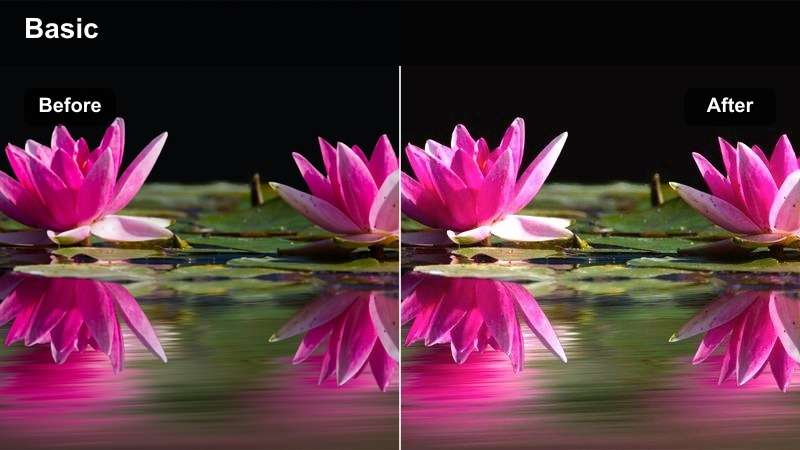
- Effect look: Soft coral warmth that wraps the scene in pastel oranges and pinks while gently brightening skin tones.
- Best for: Early-morning beach intros, drone shots gliding over calm water, and slow-motion sand walk sequences.
- Editing tip: Lower contrast slightly and add a subtle vignette to keep the viewer's eye on your subject during the first hook shot.
In Filmora, Coral Sunrise Glow is ideal for the first hook of your YouTube travel vlog, turning a flat dawn frame into a pastel wash of oranges and pinks. The filter lifts warmth across the scene while giving skin a gentle glow, so you look awake and refreshed even if you shot at 5 a.m.
Apply the filter, then fine-tune it with Filmora's color controls by trimming contrast and adding a light vignette around the frame. If skin starts leaning too orange, tweak the orange channel saturation rather than dropping global saturation, so your sky and reflections keep that dreamy coral character.
Let Filmora's AI Color Tools Speed Up Your Tropical Grades
Instead of manually tweaking every clip, start your edit with Filmora's AI-powered color matching, then layer these tropical-style filters for final polish. Matching color between cameras and angles first keeps your sunrises, beaches, and streets looking cohesive.
Pick a hero sunrise shot with your favorite natural color, run AI color match on the rest of your sequence, and only then apply Coral Sunrise Glow or similar filters. You will get more consistent results from A-roll to B-roll in a fraction of the time.
 secure download

Preview Tropical Filters Directly on Your Travel Clips
Do not rely on thumbnails or LUT names when choosing a look for your island vlog. In Filmora, drag and drop several tropical filters onto duplicated clips so you can compare them side by side on the same sunrise, beach, or scooter shot.
This workflow makes it easy to see which filter best fits your channel, whether that is a soft pastel style or a punchy, contrasty grade. Once you pick a winner, you can apply that look across your sequence for a consistent visual identity.
secure download1000+ Video Filters and 3D LUTs
Filmora comes with a large library of filters and 3D LUTs you can stack with these tropical looks for even more control. Combine color filters with light leaks, film grain, and vignettes to design a unique island style that fits your brand.
After you refine a combo you love, save it as a custom preset so future travel vlogs can share the same cinematic tone. This lets you build a recognizable look across episodes without regrading from scratch every time.
secure downloadGolden Bay Intro
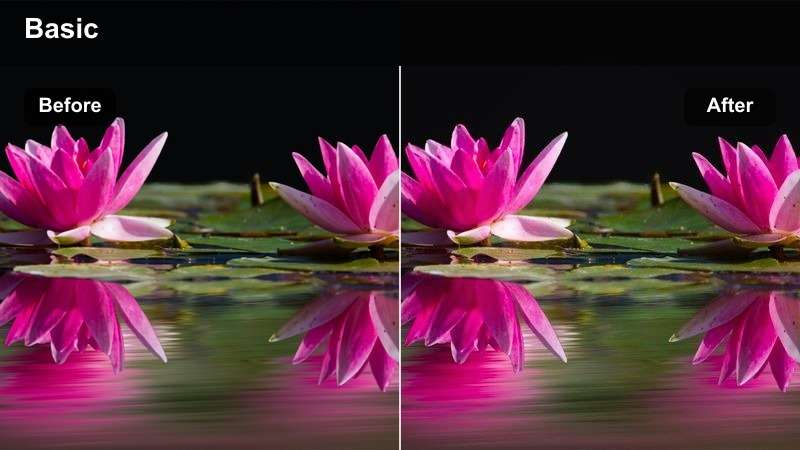
- Effect look: Bold golden highlights with slightly lifted shadows to make the entire bay feel sun-soaked and inviting.
- Best for: Opening sequences where you reveal a new island from a viewpoint or balcony overlooking the water.
- Editing tip: Increase saturation in the yellow channel only to avoid making water look unnaturally neon while keeping sand rich and golden.
Golden Bay Intro in Filmora pushes warm tones in the highlights so your coastline, sand, and buildings feel drenched in sun without crushing detail in the shadows. It works especially well for balcony reveals or drone pull-backs that show an entire bay in one shot.
After applying the filter, go into HSL and nudge the yellow saturation up while protecting aqua and blue, so your water stays believable. Apply this look to both A-roll and B-roll, then slightly reduce its strength on talking-head clips to keep skin tones natural as you describe your arrival on the island.
Soft Dawn Teal
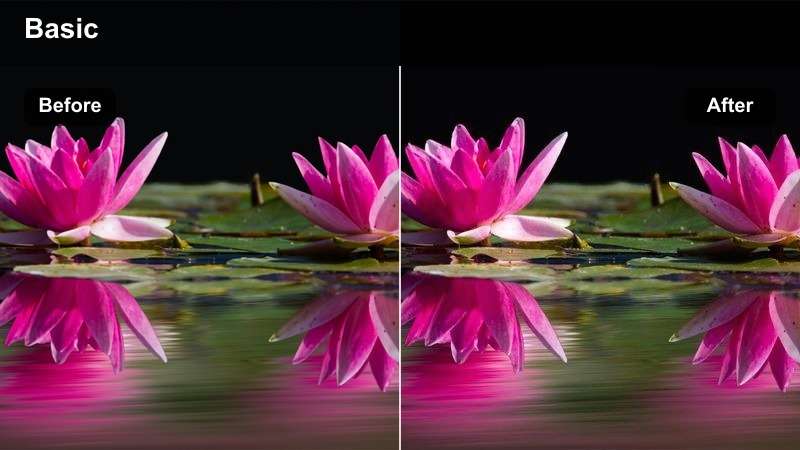
- Effect look: Cool teal shift in shadows with gentle highlights that maintain the early-morning calm of the scene.
- Best for: Quiet pre-sunrise moments, harbor walk-ins, and moody establishing shots before the day gets bright.
- Editing tip: Dial down the filter intensity to around 70 percent on clips where you talk to camera to avoid a cold cast on your skin.
Soft Dawn Teal is perfect in Filmora when you want to show the cooler, more reflective side of tropical travel before the sun peaks. The filter shifts shadows into teal while preserving soft highlights, which keeps harbors, docks, and sleepy streets feeling calm and cinematic.
Use it on your establishing B-roll, then reduce its intensity on any clips where you are speaking directly to camera so your skin does not look too blue. For extra separation, keep your face slightly warmer using HSL or skin tone tools while allowing the background to slide into teal for a subtle, stylized depth.
Midday Lagoon Adventures and Island Hopping
Turquoise Lagoon Pop
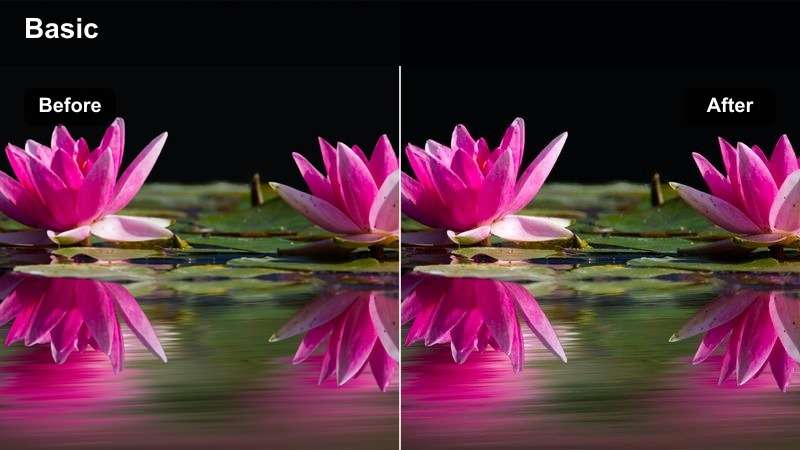
- Effect look: Punchy turquoise water tones with crisp whites and a slight contrast boost for midday clarity.
- Best for: Boat days, snorkeling intros, and shots of bright lagoons taken under harsh midday sun.
- Editing tip: Lower global saturation a touch and push clarity instead so your turquoise stays rich without looking cartoonish.
Turquoise Lagoon Pop is built for those harsh-sun hours when your water looks incredible in person but flat on camera. In Filmora, this filter intensifies aquas and turquoises while keeping highlights clean, so wakes, foam, and boat edges remain crisp and defined.
Once applied, slightly pull back overall saturation and increase clarity or sharpness to keep textures in the water and boat surfaces. Combine it with gentle highlight reduction and raised shadows to soften facial harshness from midday light, preserving both vibrant seas and flattering portraits in your YouTube vlog.
Island Hopper Clean
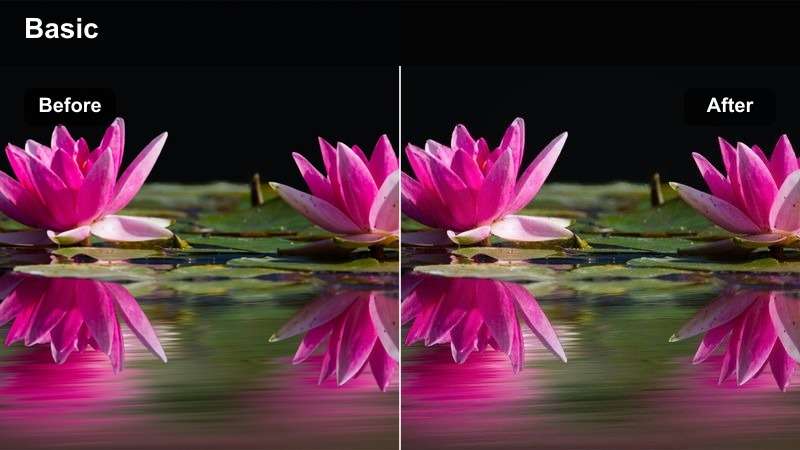
- Effect look: Clean, neutral contrast with a subtle saturation lift that keeps colors true-to-life but polished.
- Best for: Fast-paced island hopping montages, handheld vlog updates on ferries, and mid-trip transitions.
- Editing tip: Use this filter as a base, then add speed ramps and simple cuts to maintain energy without over-stylizing every clip.
Island Hopper Clean acts like a polished base grade in Filmora, giving your clips a gentle saturation bump and balanced contrast without pushing into a heavy look. This is ideal when you are moving quickly between ferries, taxis, and docks and need a dependable everyday style.
Apply it across your daytime A-roll to create a uniform foundation, then save stronger stylized filters for B-roll accent shots. Paired with Filmora's speed ramps, jump cuts, and simple transitions, this clean filter keeps your mid-trip segments energetic but visually consistent from island to island.
Tropical Street Teal-Orange
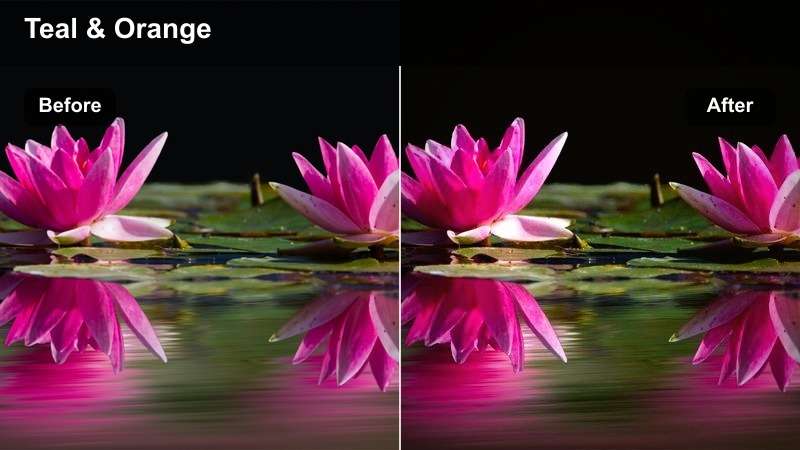
- Effect look: Classic teal-and-orange push tailored to tropical streets, with teal in shadows and warm highlights on buildings and skin.
- Best for: Colorful island town streets, scooter rides, and market walk-throughs under bright skies.
- Editing tip: Apply mask or selective color to keep whites neutral on buildings so the teal-orange look feels cinematic, not overdone.
Tropical Street Teal-Orange gives your island towns a cinematic blockbuster vibe, shifting shadows toward teal while keeping buildings, signs, and skin warm. In Filmora, this creates instant separation between you and the environment, especially during scooter rides or walk-and-talks through busy streets.
Use HSL or masking to protect pure whites on walls and clothing so the grade feels intentional rather than extreme. Because it is a strong look, reserve this filter for narrative peaks, such as arriving in a new town or exploring a famous market, so those segments pop visually in your YouTube timeline.
Sunset Beach Chill Sessions and Evening Walks
Sunset Coconut Warm
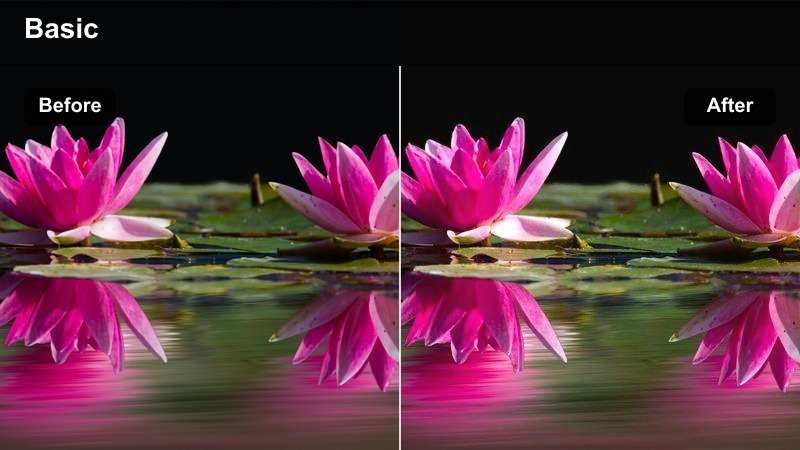
- Effect look: Rich amber warmth with slightly softened contrast to create a relaxed, cinematic sunset feel.
- Best for: Golden hour beach hangs, hammock shots, and closing monologues as the sun drops behind the sea.
- Editing tip: Add a small fade-in at the start of each sunset clip to transition the viewer into a slower, more relaxed pace.
Sunset Coconut Warm is designed in Filmora to turn your golden hour into a cozy, story-driven moment. It deepens ambers and oranges while lowering contrast just enough to smooth skin and sand, making hammock swings and beach conversations feel intimate and cinematic.
Apply this filter consistently across all your end-of-day shots in an episode, from B-roll waves to your final monologue. Add short fade-ins and slower cuts to reinforce the relaxed tone, creating a recognizable visual cue that tells your audience the day is winding down.
Mango Haze Soft
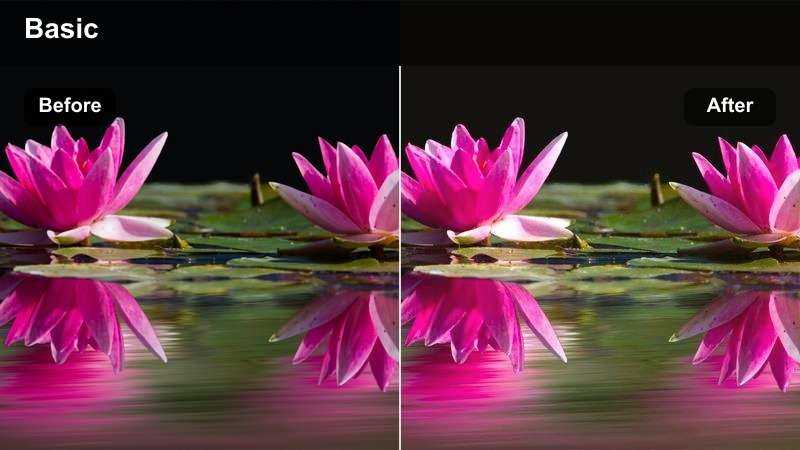
- Effect look: Hazy, low-contrast glow with soft orange and pink tint that gently lifts midtones.
- Best for: Slow-motion sunset B-roll of waves, silhouettes on the shore, and dreamy couple or group shots.
- Editing tip: Combine with a slight slow-motion and ambient music to turn even simple walking shots into emotional cutaways.
Mango Haze Soft wraps your sunset scenes in a gentle glow, reducing contrast and adding a wash of soft orange and pink. In Filmora, this filter is ideal for B-roll sequences of waves, silhouettes, and group walks, giving them an almost nostalgic, dreamlike quality.
Slow your clips slightly and pair the look with ambient or emotional music in the timeline to turn simple actions into powerful cutaways. For extra texture, consider adding a subtle film grain effect so the hazy grade retains depth and does not feel overly smooth or digital in your final YouTube export.
Boardwalk Neon Twilight
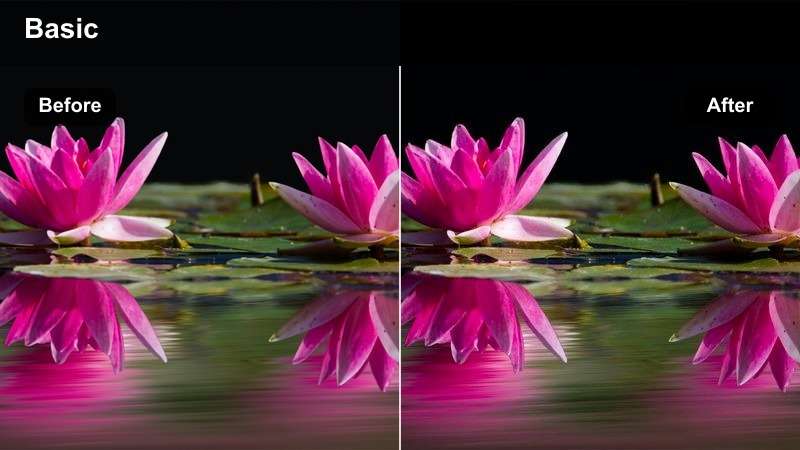
- Effect look: Punchy contrast with lifted saturation in purples and cyans, tailored for neon-lit tropical boardwalks and beach bars.
- Best for: Evening walks through beachfront promenades, bar signs, and city-meets-beach twilight streets.
- Editing tip: Cut your clips on beat with music and apply the filter uniformly so shifting neon colors feel intentional and rhythmic.
Boardwalk Neon Twilight in Filmora is tailored for that magic hour when streetlights and bar signs begin to glow. The filter boosts purples and cyans while adding contrast, making palm silhouettes, signage, and reflections pop along beach promenades and waterfront streets.
Use it on sequences where you are bar-hopping or capturing nightlife energy, and keep the filter uniform across all clips in that segment. Cut your footage to the beat of your soundtrack so the flashing neon colors and edits feel synced, giving your audience a rhythmic, immersive twilight experience.
Night Market City Vibes and Rooftop Views
Tropical Night Film
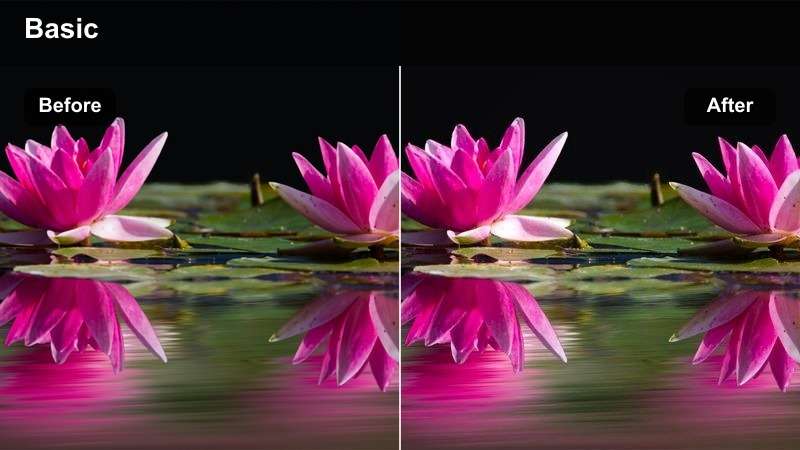
- Effect look: Subtle film emulation with lifted blacks, muted highlights, and gentle color shifts for low-light tropical streets.
- Best for: Night markets, backstreet food stalls, and candid handheld vlog shots under mixed lighting.
- Editing tip: Reduce digital sharpening when using this filter so noise feels more like organic grain than harsh artifacts.
Tropical Night Film helps turn noisy, mixed-light clips into stylized, film-like moments in Filmora. It gently lifts blacks, reins in harsh highlights, and adds a soft color shift that flatters skin while embracing the atmosphere of night markets and street food alleys.
Apply the filter, then back off any heavy sharpening so sensor noise reads as pleasant grain rather than distraction. When cutting your night sequences, lean into the mood by focusing on motion, steam, and lights, trusting this filter to make imperfect footage feel intentional and cinematic.
Rooftop City Tropics
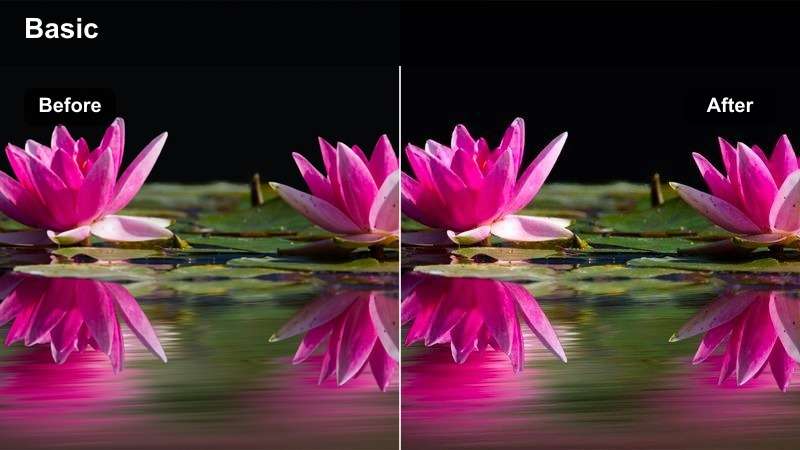
- Effect look: Balanced contrast with rich blues in the sky and warm city lights, designed for tropical skylines and rooftop bars.
- Best for: Rooftop time-lapses, skyline reveals, and outro monologues looking over the tropical city.
- Editing tip: Use subtle camera movements or speed ramps combined with this filter to turn simple skyline shots into dynamic scene breaks.
Rooftop City Tropics is the go-to Filmora filter when you want your skyline and city lights to feel polished but not overdone. It enriches blues in the sky while keeping windows, cars, and streetlights warmly glowing, giving rooftop bars and overlooks a premium, cinematic look.
Apply this filter to time-lapses, slow push-ins, or static wide shots you use as chapter breaks in your vlog. Adding small keyframed zooms or speed ramps on top of the grade can transform a single skyline angle into a dynamic visual marker that separates story beats across your episode.
Harbor Lights Emerald
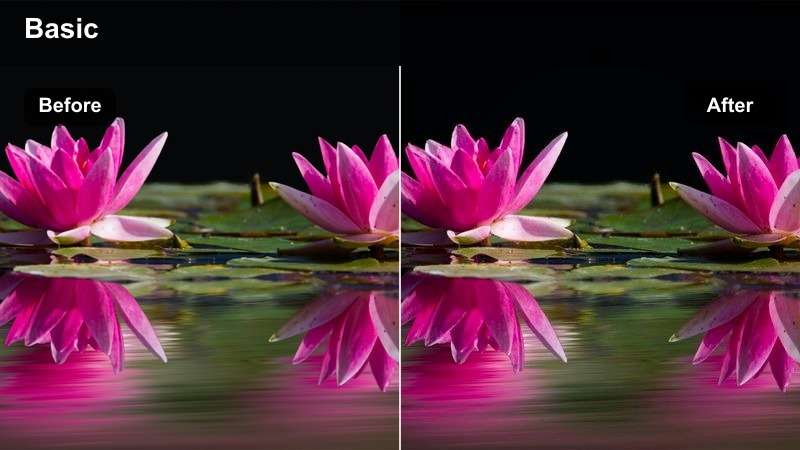
- Effect look: Cool emerald tint in water and shadows with clean, bright highlights on boats and pier lights.
- Best for: Night harbors, marina walks, and low-light B-roll around boats and waterfront bars.
- Editing tip: Apply a slight motion blur effect on handheld shots to turn minor shakes into smooth, dreamy movement.
Harbor Lights Emerald in Filmora casts your marina scenes in a cool emerald wash, particularly in water and shadow areas. Meanwhile, it keeps highlights on boats, masts, and pier lights crisp, making night reflections and ripples pop against the darker surroundings.
Use it on B-roll of docks, boats, and waterfront bars as you transition between story segments or locations. If your handheld shots are a bit shaky, add a mild motion blur or stabilization so the emerald reflections become smooth leading lines that guide the viewer toward your subject or the city glow in the distance.
Tips for Using Youtube Travel Vlog Luts Tropical Filters in Filmora
- Shoot in a flat or neutral picture profile when possible so tropical filters have more room to shape color and contrast.
- Lock in white balance in-camera on the beach to avoid big color shifts between clips that are hard to fix later with filters.
- Use different strengths of the same filter for A-roll and B-roll so your travel vlogs feel cohesive but not over-processed.
- Group similar scenes on your Filmora timeline, then batch apply one filter per group to keep your workflow fast and consistent.
- Start by using Filmora's AI color match on a hero clip so your LUT-style filters look consistent across mixed cameras and angles.
- Always check your tropical grades on a phone screen, since most YouTube viewers will watch your travel vlogs on mobile.
- Save your favorite tropical filter and LUT combinations as custom presets to speed up editing future island episodes.
- Export short test clips at your usual resolution and bitrate to make sure your saturated, contrasty looks hold up after YouTube compression.
With the right set of tropical filters, your YouTube travel vlogs can instantly look more cinematic, colorful, and cohesive from sunrise beach intros to neon-lit city nights.
Test a few of these looks on your next island episode, save the ones that fit your personality, and build a repeatable filter style that viewers recognize every time they click one of your videos.
secure download