100% Security Verified | No Subscription Required | No Malware

These Filmora filters are designed to complement YouTube tutorial video LUTs focused on balanced color, helping you keep skin tones natural, UI elements clear, and overall footage consistent from clip to clip.
Whether you are recording tech walk-throughs, beauty tutorials, or talking head explainers, use these presets as a foundation before or after your LUTs to keep your YouTube videos polished and color-accurate.
In this article
Studio Talking-Head Tutorials
Clean Daylight Talking Head
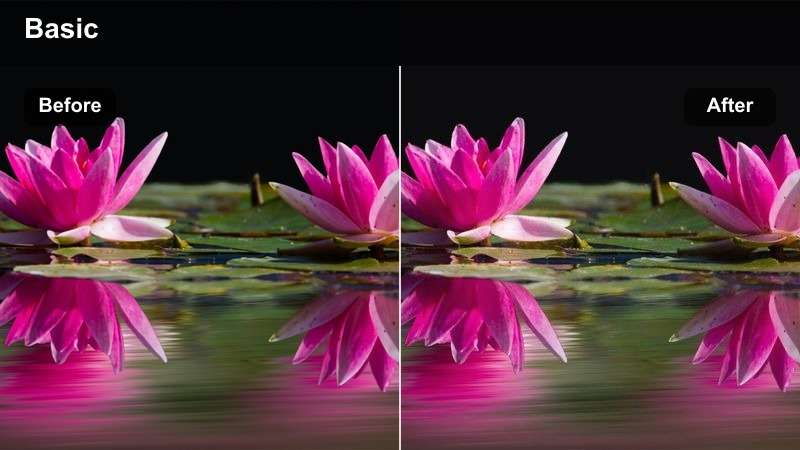
- Effect look: Soft neutral contrast with gentle brightness that keeps indoor daylight shots crisp and true-to-life.
- Best for: Desk or studio YouTube tutorials filmed with window light, softboxes, or ring lights.
- Editing tip: Apply this filter before your YouTube tutorial video LUTs for a clean base, then fine-tune exposure with a slight midtone lift.
Use Clean Daylight Talking Head when you want a balanced, realistic starting point for A-roll footage, especially if you rely on natural window light or soft continuous lighting. In Filmora, dragging this filter onto your clips evens out subtle shifts between takes so jump cuts feel seamless while keeping skin tones neutral and backgrounds clear.
Once the filter is applied, adjust exposure sliders gently, focusing on midtones so faces remain bright without blowing out white walls or screens. This gives your YouTube tutorial video LUTs a stable foundation, helping creative looks stay consistent from clip to clip instead of fighting mixed daylight changes.
Use AI to Lock In Balanced Tutorial Color
Filmora's AI-driven color tools can quickly analyze your tutorial footage and normalize exposure and white balance across different cameras and lighting setups. By letting AI correct large shifts first, you make sure your YouTube tutorial video LUTs balanced color workflows start from a clean, unified base.
After the AI pass, apply your preferred balanced color filters to refine skin tones, screens, and props so every step in your tutorial is easy to follow and visually consistent.
 secure download

Preview Filters on Real YouTube Tutorial Footage
In Filmora, you can drag balanced color filters directly onto your tutorial timeline to see instant before-and-after results on faces, whiteboards, and interfaces. Stacking different options and adjusting intensity lets you fine-tune a look that matches your channel style without hiding important details.
Once you find a combination that works, save it as a custom preset so you can apply the same YouTube tutorial video LUTs balanced color workflow to future videos with a single click.
secure download1000+ Video Filters and 3D LUTs
Filmora includes a large library of video filters and 3D LUTs that you can mix with these balanced color presets to create a cinematic yet accurate look. By placing corrective filters first and then layering creative LUTs at lower intensity, you maintain clear tutorials while still giving your channel a signature style.
You can also combine filters with tools like HSL adjustments to fine-tune specific hues, keeping skin tones, brand colors, and UI elements exactly where you want them for YouTube.
secure downloadSoft Skin Neutral Tutorial
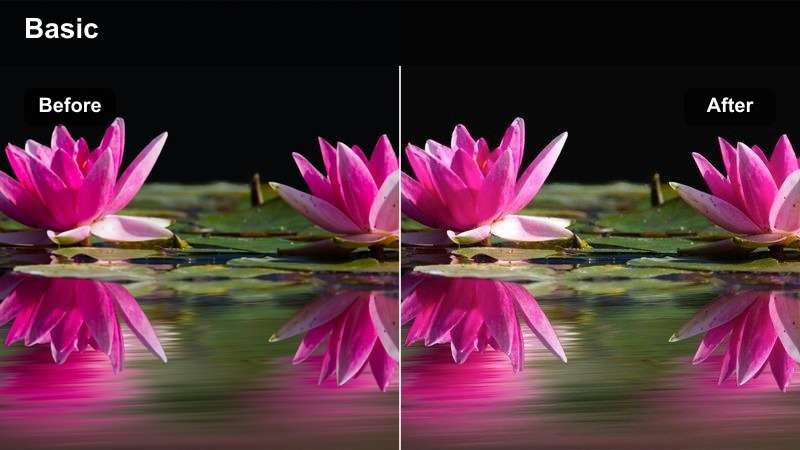
- Effect look: Gently smooths contrast and warms midtones for flattering but realistic skin tones.
- Best for: Beauty, lifestyle, and coaching tutorials where the presenter is the visual focus.
- Editing tip: Place this filter after your balanced color LUT and slightly reduce saturation if lipstick or blush appears too intense.
Soft Skin Neutral Tutorial is ideal when your face is the centerpiece of the video and you want a flattering yet honest look. In Filmora, applying this filter softens harsh contrast, subtly warms midtones, and keeps skin from looking either too cool or too orange after LUTs are added.
Use it on beauty, lifestyle, or coaching content where makeup and facial expressions need to be clearly visible. If colors like lipstick or blush start to pop too much, gently pull back overall saturation to keep the palette grounded while still letting details show.
Monitor-Safe Color Balance
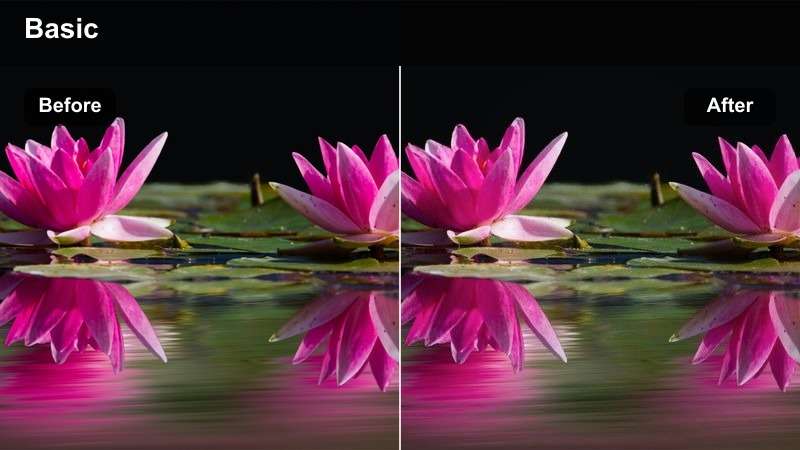
- Effect look: Neutralizes color casts from monitors and LED strips while preserving on-screen UI clarity.
- Best for: Tech tutorials, coding walk-throughs, and screen-based explainers filmed near RGB lights.
- Editing tip: Apply this filter before your LUT to tame strong blues or magentas from screens so the LUT can work on a more neutral base.
Monitor-Safe Color Balance is designed for setups packed with monitors and RGB strips, where screen glow can easily turn your face blue or magenta. Dropping this filter onto your clips in Filmora pulls those extreme tints back toward neutral without washing out the UI on your displays.
Use it on tech and coding tutorials to keep both your face and screens clean and legible. With the worst color casts reduced, your YouTube tutorial video LUTs can add style on top of a stable, neutral foundation instead of amplifying unwanted screen spill.
Desk and Workspace How-To Scenes
Neutral Workspace Walkthrough
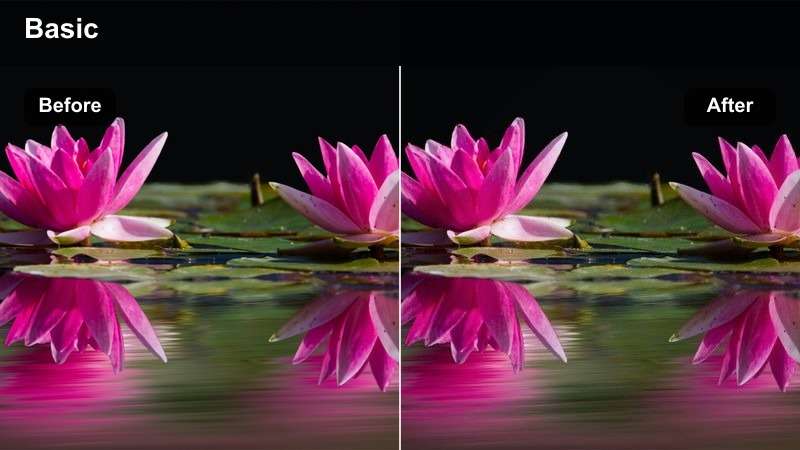
- Effect look: Balanced midtones and softened highlights to keep papers, keyboards, and props clear and readable.
- Best for: Overhead desk tutorials, productivity setups, and unboxing shots with lots of small details.
- Editing tip: Use this filter alongside your LUT with reduced contrast so text on paper or labels remains sharp and legible.
Neutral Workspace Walkthrough is tailored for top-down and desk-level views filled with notes, labels, and small objects. In Filmora, it gently softens highlights on white paper or packaging while holding midtone contrast so fine details and printed text remain clear in YouTube playback.
Apply this filter before or alongside a subtle LUT when filming productivity workflows, gear layouts, or unboxing sequences. Keeping contrast under control prevents important labels and written steps from blowing out, ensuring viewers can pause and read everything they need.
Whiteboard Clean Balance
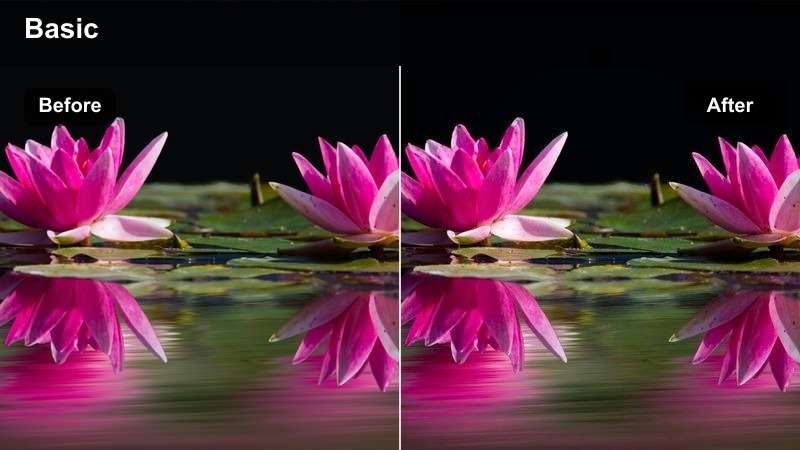
- Effect look: Evens out white surfaces and desaturates color noise for crisp writing and diagrams.
- Best for: Whiteboard or flip-chart educational tutorials with hand-drawn diagrams and notes.
- Editing tip: Apply this filter, then gently nudge the whites toward neutral using temperature controls before adding your LUT.
Whiteboard Clean Balance focuses on keeping bright surfaces consistent so your handwritten notes are easy to see. In Filmora, this filter smooths uneven light across the board, cuts color noise, and prevents markers from bleeding into the background when compressed by YouTube.
After applying it, use the temperature and tint controls to make sure the board looks neutral white rather than yellow or blue. This gives your LUT a reliable base so any final look you add still leaves diagrams sharp and legible on both desktop and mobile screens.
Overhead Craft Balanced Detail
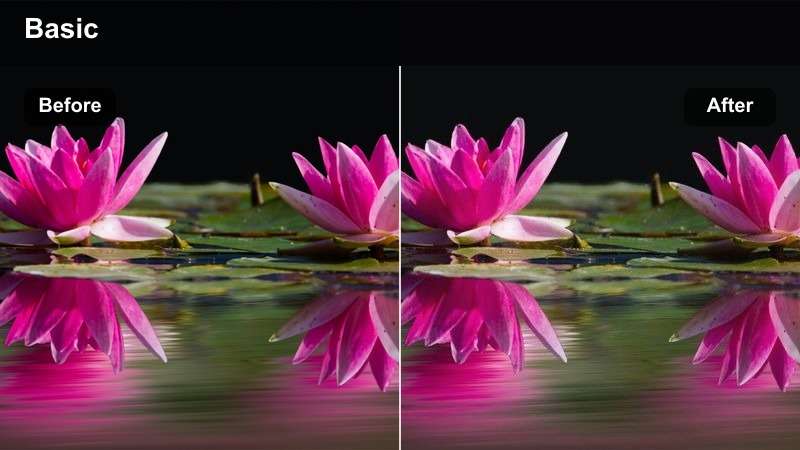
- Effect look: Gentle contrast lift and neutral color that keeps materials and tools accurately represented.
- Best for: DIY, craft, and hand-based tutorials filmed from an overhead perspective.
- Editing tip: Use this filter to even out mixed indoor lighting, then pair with a mild LUT set at low intensity for a subtle creative touch.
Overhead Craft Balanced Detail is built for hands-on tutorials where viewers need to copy exactly what they see. Applying it in Filmora slightly boosts contrast and maintains neutral color so paints, fabrics, and tools look true to life under mixed indoor light.
Use this filter to stabilize skin tones and material colors before introducing a soft LUT at low strength. That way your craft or DIY steps remain precise and trustworthy while the overall frame still feels polished and visually appealing.
Screen Recording and UI Tutorials
UI Crisp Balanced
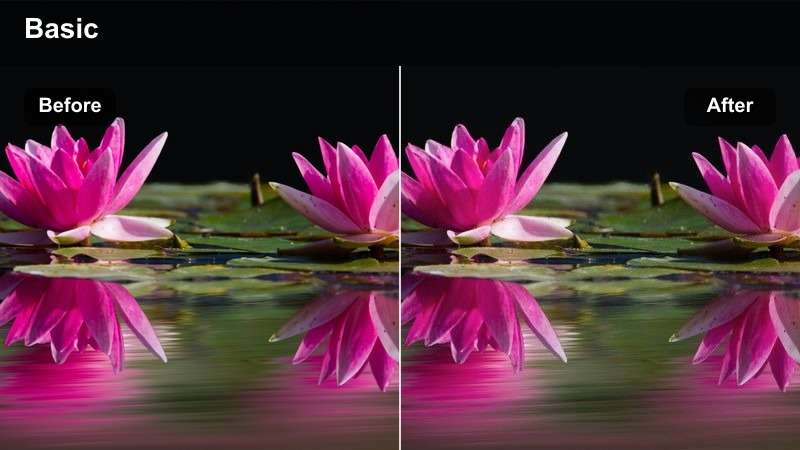
- Effect look: Enhances clarity and edge definition while keeping interface colors accurate and not overly saturated.
- Best for: Software tutorials, app walkthroughs, and browser-based how-to videos.
- Editing tip: Apply this filter after your LUT and reduce saturation slightly so icons and buttons do not appear cartoonishly bright.
UI Crisp Balanced is tailored for pure screen recordings where every pixel of the interface matters. In Filmora, it adds a touch of clarity and micro-contrast so text, icons, and cursor movements remain sharp, even after YouTube compression.
Apply your overall LUT first if you are using one, then drop this filter on top to refine legibility without pushing colors too far. If buttons or accent colors start to look oversaturated, pull saturation back slightly to keep the UI comfortable to view during long tutorials.
Screen Plus Face Balance
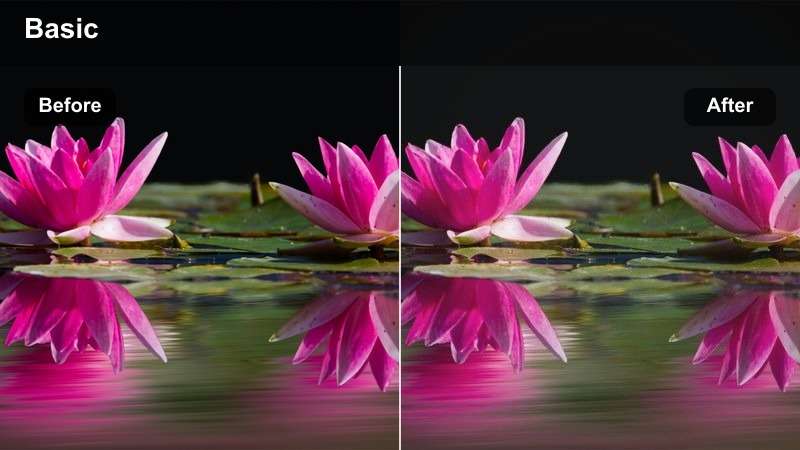
- Effect look: Balances picture-in-picture webcam footage with screen captures so neither looks washed out or too dark.
- Best for: Tutorials combining facecam and full-screen recording in the same frame.
- Editing tip: Match exposure between your webcam clip and the screen recording, then use this filter before LUTs for a cohesive result.
Screen Plus Face Balance solves the common issue of mismatched brightness between your webcam box and screen capture. In Filmora, you can use it on layered timelines to bring both elements into a similar exposure and color range so they feel like part of the same scene.
First, manually adjust each clip so they are close in brightness, then apply this filter to smooth out remaining differences. With a more unified base, your balanced color LUTs will enhance the whole frame evenly instead of making one layer too dark or washed out.
Text Tutorial Neutral Tone
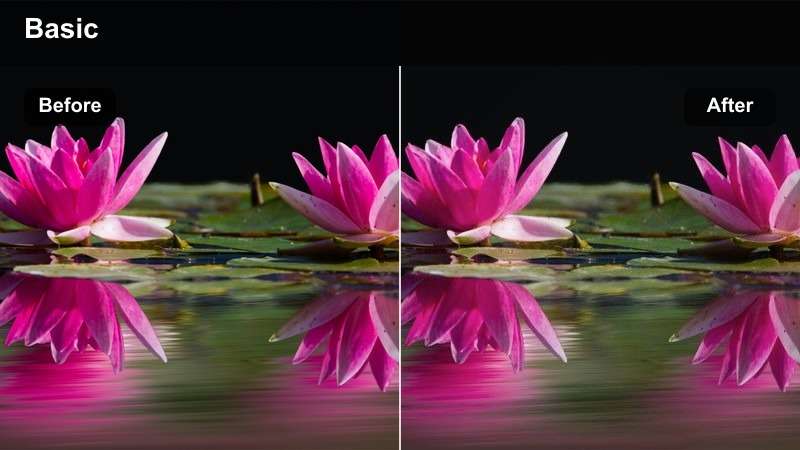
- Effect look: Keeps text overlays, lower thirds, and annotations sharp with neutral backgrounds that do not clash.
- Best for: Text-heavy tutorials, listicles, and step-by-step explainers with bold on-screen titles.
- Editing tip: Apply this filter to your base footage so overlay colors from your brand kit stay accurate after LUTs are added.
Text Tutorial Neutral Tone is designed for videos that rely heavily on on-screen titles, bullet lists, and annotations. When you apply it in Filmora, it subtly neutralizes the background tones so your graphic elements and brand colors can stand out without fighting color casts.
Use this filter before adding lower thirds and callouts, or place it on the base video layer so any overlaid graphics keep their exact hex values. This approach ensures that your YouTube tutorial video LUTs do not unintentionally shift logo or brand colors away from your design standards.
Low Light and Mixed Lighting Tutorials
Warm LED Balanced Studio
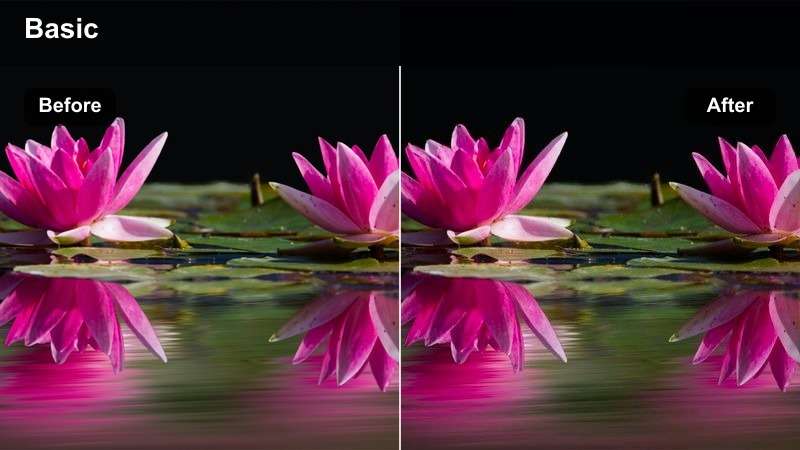
- Effect look: Gently cools overly warm LED or tungsten lights while preserving a cozy studio vibe.
- Best for: Evening tutorials, podcast-style videos, and low-light setups with practical lamps in the frame.
- Editing tip: Use this filter to neutralize orange casts, then add a low-intensity LUT for subtle cinematic contrast without losing realism.
Warm LED Balanced Studio is perfect when you want a relaxed, evening atmosphere without turning skin tones orange. In Filmora, this filter slightly cools strong tungsten or warm LED casts while preserving the glow of practical lamps and background fixtures.
Apply it to podcast-style setups or night-time tutorials where the room lights play a big part in your look. Once the warmth is under control, you can safely layer a gentle LUT for moodier contrast, keeping your YouTube tutorial video LUTs balanced color approach intact.
Mixed Light Rescue
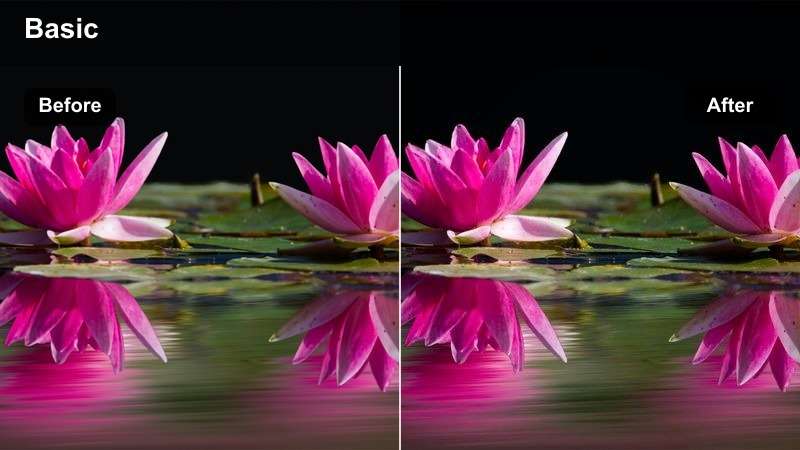
- Effect look: Balances competing color temperatures from windows, lamps, and computer screens for a more unified look.
- Best for: Tutorials recorded in real rooms with daylight plus indoor lights and screen glow.
- Editing tip: Apply this filter early, then adjust white balance toward the presenter's skin tone before layering your balanced color LUT.
Mixed Light Rescue is built for real-world rooms where daylight, ceiling lamps, and monitors all hit your subject at once. In Filmora, adding this filter compresses those competing color temperatures into a narrower, more harmonious range.
Use it as one of the first steps in your color pipeline, then fine-tune the overall white balance while watching skin tones closely. With the most extreme shifts tamed, your chosen LUT can add character without exaggerating the blue of windows or the yellow of indoor bulbs.
Noise-Friendly Balanced Night
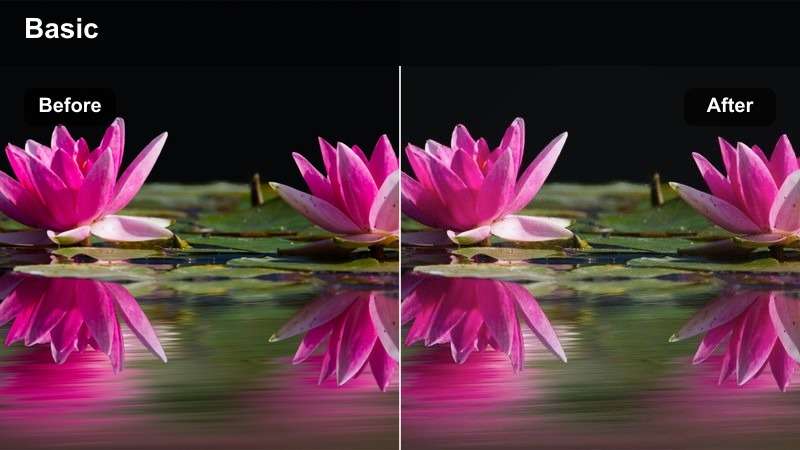
- Effect look: Softens contrast slightly to hide noise and keeps colors restrained for cleaner low-light footage.
- Best for: Nighttime tutorials, webcam lessons, and quick low-light recordings with higher ISO.
- Editing tip: Apply this filter before any sharpening, and avoid heavy LUT contrast which can exaggerate grain in shadows.
Noise-Friendly Balanced Night is designed for clips shot at high ISO where digital noise is hard to avoid. In Filmora, this filter slightly lowers contrast and holds back saturation so grain in the shadows becomes less noticeable without heavy blur or smear.
Apply it early in your grade and resist the urge to add strong sharpening or super-contrasty LUTs afterward. This balanced approach keeps your low-light tutorials watchable and professional-looking, even when recorded quickly on a webcam or compact camera.
Tips for Using Youtube Tutorial Video Luts Balanced Color Filters in Filmora
- Set white balance in-camera as close as possible, then use Filmora filters only for fine-tuning rather than correcting extreme color errors.
- Keep skin tones natural even when you add a cinematic LUT so viewers can trust what they see in tutorials about products, makeup, or interfaces.
- Reuse the same filter and LUT stack across an entire tutorial series in Filmora to build a recognizable, consistent channel aesthetic.
- Avoid clipping highlights on whiteboards, screens, and paper by lowering exposure before grading so text and UI details stay readable.
- When mixing facecam and screen recording, match exposure and color on both clips first, then add filters and graphics on top.
- Dial LUT intensity down to around 40 to 70 percent for educational content so information remains clear and easy on the eyes.
- Test your graded tutorials on a phone to confirm that small text, icons, and diagrams remain legible on smaller displays.
- Use Filmora scopes, like waveform and vectorscope, to double-check that skin tones and midtones stay balanced from clip to clip.
Balanced color is essential for YouTube tutorial videos because viewers rely on accurate visuals to follow every step, and these Filmora filters help you build a clean, consistent foundation for your LUTs.
Start by correcting exposure and white balance, add the filters that fit your scene, then finish with a subtle LUT so your tutorials look polished, cinematic, and trustworthy on any screen.
secure download