

 100% Security Verified | No Subscription Required | No Malware


 ChatGPT
 Perplexity
 Gemini
 Claude
 Grok
Grok
Cinematic YouTube drone footage depends on more than smooth flying; your filters and color style are what turn raw aerial shots into scroll-stopping videos. With the right Filmora filters, you can make drone clips feel like a finished film instead of simple travel b-roll.
Below are cinematic filter presets designed for YouTube drone footage, organized by scene and mood so content creators can quickly match a look to their aerial shots and keep a consistent visual style across an entire channel.
In this article
Golden Hour Cityscapes and Rooftop Flyovers
Warm Urban Glow
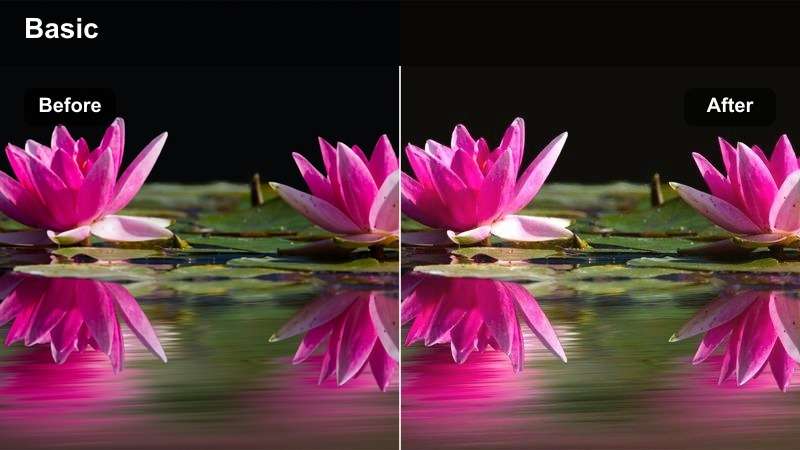
- Effect look: Soft golden contrast that wraps skyscrapers in warm tones and gently lifts shadows.
- Best for: Drone passes over city skylines at sunset, rooftop reveals, and establishing shots for urban vlogs.
- Editing tip: Lower the filter intensity to around 60-70 percent so skin tones in any cutaway shots stay natural while buildings stay warm.
Warm Urban Glow is ideal when your drone footage already has a natural sunset but needs that polished, cinematic finish for YouTube. In Filmora, you can drop this filter on an adjustment layer above your skyline clips to instantly wrap buildings in a golden halo while keeping shadow detail intact.
For mixed edits that cut between aerials and talking-head shots on rooftops, use the filter at a slightly lower strength on clips with people in the frame. This keeps skin from turning orange while still giving your overall sequence a cohesive, warm urban aesthetic that feels like a finished film rather than raw drone capture.
Lock In a Consistent Drone Aesthetic with AI Color Tools
Use Filmoras AI color tools to quickly match the mood of your best-looking drone clip across all your shots. Even if some passes were captured at slightly different times or exposures, AI color matching helps your highlights, shadows, and hues line up for a unified cinematic style.
Analyze a hero skyline or coastal shot, then apply that reference look to surrounding clips so your full YouTube sequence feels like one carefully graded film instead of a patchwork of separate flights.
 secure download

Preview Filters on Drone Footage in Real Time
Filmoras real-time preview makes it easy to audition multiple cinematic filters on the same aerial shot without waiting for exports. You can scrub your drone timeline, switch presets, and instantly see how each look reacts to sky, glass, and water.
Place different filters on stacked adjustment layers, then toggle visibility while you play back your footage. This side-by-side comparison lets you quickly decide whether a warm, cool, or moody grade best fits your channels aesthetic.
secure downloadCombine Filters and LUTs for Signature Drone Looks
For the best balance of technical accuracy and style, start with a neutral LUT to correct your drones flat or log profile, then layer Filmora filters on top. The LUT handles exposure and base color, while the filter shapes mood for each location and time of day.
Save your favorite LUT-plus-filter stacks as reusable presets for city, coastal, forest, and night flights. This lets you build a recognizable visual identity for your channel while keeping grading efficient on every new upload.
secure downloadCity Amber Cinema
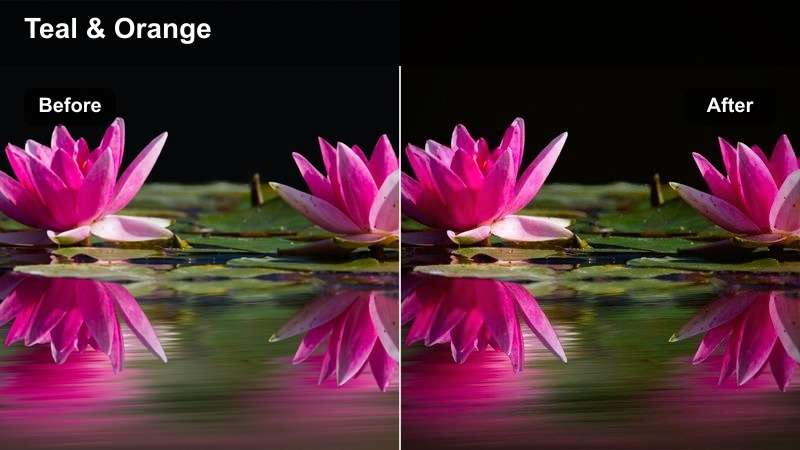
- Effect look: Rich amber highlights with slightly teal shadows for a classic blockbuster city color contrast.
- Best for: Fast drone pushes between high-rises, reveal shots of financial districts, and B-roll for cinematic YouTube intros.
- Editing tip: Add a subtle motion blur effect on fast fly-throughs to accentuate the teal-and-amber color split without making the footage look too sharp and digital.
City Amber Cinema gives your downtown fly-throughs that familiar teal-and-orange feature-film style. When applied in Filmora, glass facades and street shadows lean into cool tones while windows and sunlit surfaces glow in warm amber, helping your subject buildings stand out.
Use this filter on energetic sequences such as channel intros or city B-roll montages. To keep the look refined, reduce overall saturation slightly and adjust exposure with Filmoras color tools before applying the filter so you maintain detail in glass reflections and metallic surfaces.
Hazy Sunrise Overlook
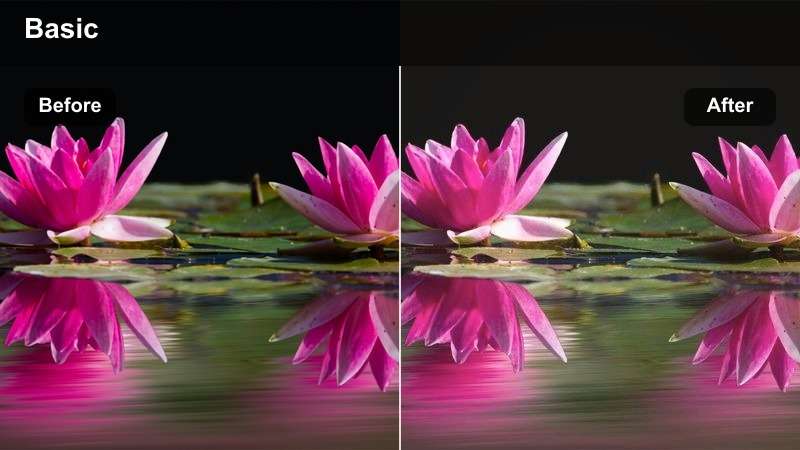
- Effect look: Softened highlights with gentle pastel warmth and reduced clarity for a dreamy overlook feel.
- Best for: Slow orbiting shots over urban parks, bridges, or waterfronts at sunrise with light morning haze.
- Editing tip: Increase local contrast on key buildings after applying the filter so your main subject stays sharp inside the soft, dreamy frame.
Hazy Sunrise Overlook transforms simple early-morning aerials into dreamy establishing shots. In Filmora, the filter blooms highlights slightly and rolls off contrast, turning haze over rivers, parks, and bridges into a soft pastel canvas that feels calm and cinematic.
Apply this look to slower drone moves such as orbits or gentle pulls back from a skyline. Afterward, use Filmoras masking and sharpening tools on a duplicate layer to selectively bring back detail on your main building or bridge so it remains crisp against the diffused surroundings.
Coastal Aerial Journeys and Ocean Flyovers
Aqua Coastline Cinema
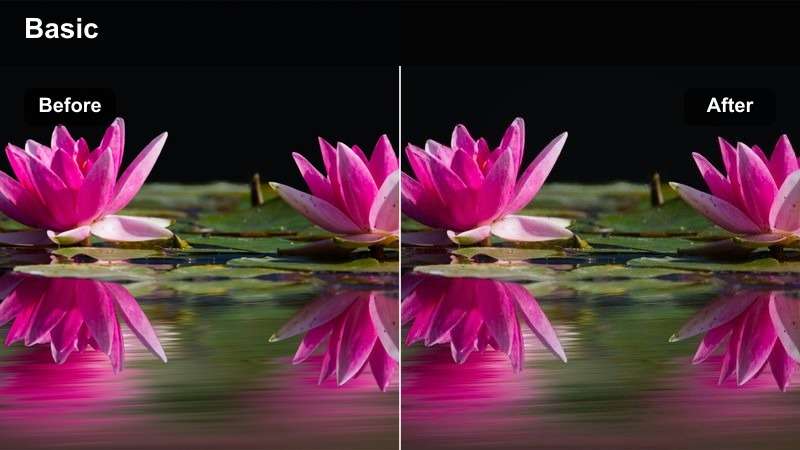
- Effect look: Deepened blues and cyans with slightly lifted shadows for bright, cinematic coastline shots.
- Best for: Drone passes along rugged coastlines, beaches, and seaside cliffs for travel vlogs and YouTube intros.
- Editing tip: Use keyframed filter intensity to keep water color consistent as your drone changes altitude and angle.
Aqua Coastline Cinema is built to make ocean water look rich and inviting without turning it electric blue. In Filmora, the filter enhances cyan and blue channels while lifting shadows slightly, so your cliffs, rocks, and beaches stay readable even when the sea is the brightest element.
As your drone changes angle relative to the sun, the water tone may shift. Use Filmoras keyframing to animate the filters intensity and keep color consistent between passes, then fine-tune exposure with the color wheels so waves retain detailed texture rather than blowing out to pure white.
Misty Harbor Mood
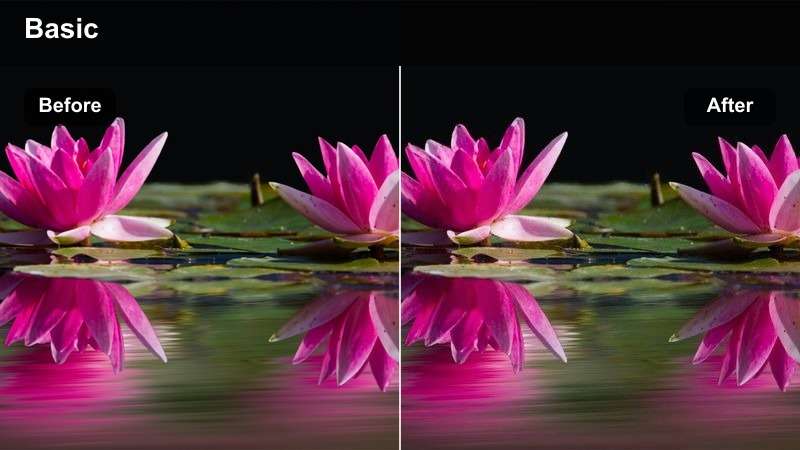
- Effect look: Desaturated blues with a cool, low-contrast wash that enhances overcast seaside atmospheres.
- Best for: Foggy harbor flyovers, moody marinas, and storytelling intros for documentary-style YouTube videos.
- Editing tip: Combine the filter with a subtle film grain to add texture and keep flat, cloudy scenes from feeling too plain.
Misty Harbor Mood leans into overcast weather by cooling tones and lowering contrast, turning gray harbors into atmospheric establishing shots. In Filmora, this filter gently desaturates boats, docks, and water while keeping enough structure so shapes do not collapse into a flat gray mass.
Use it on slow, contemplative aerial moves when you want viewers to feel the quiet of a foggy morning. Layer in Filmoras film grain or texture effects at low strength to add depth, then adjust the curves tool slightly if you need a touch more midtone separation for boats and piers.
Sunlit Bay Travel
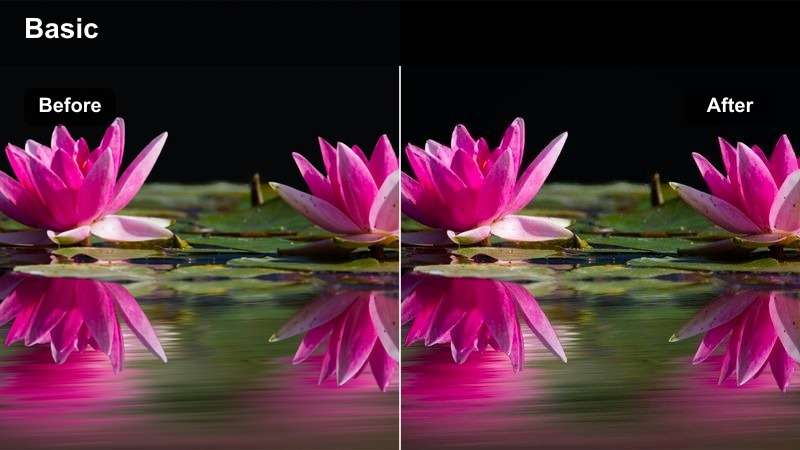
- Effect look: Bright, clean highlights with balanced saturation that make seaside towns look inviting and vlog-friendly.
- Best for: Daytime flyovers of coastal villages, piers, and bays in upbeat travel and lifestyle content.
- Editing tip: Raise midtones slightly to keep buildings and streets visible while letting the water remain the brightest part of the frame.
Sunlit Bay Travel is tailored for cheerful travel vlogs, keeping skies clean and water bright without oversaturating rooftops and streets. In Filmora, the filter boosts overall clarity and warmth in a controlled way, making colorful houses and boats feel crisp but not cartoonish.
Apply it to wide establishing shots and then reuse the same filter on your handheld walk-throughs to maintain a unified look across the episode. Use Filmoras midtone controls to bring out detail in the town itself so viewers can easily read streets, piers, and landmarks beneath the sparkling bay.
Mountain Ridges and Forest Fly-Throughs
Emerald Ridge Cinema
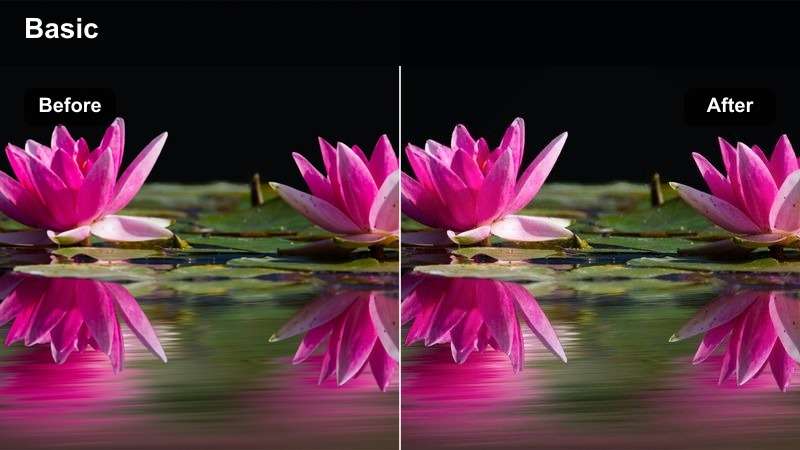
- Effect look: Rich, deep greens with gentle contrast that gives mountain ranges a dramatic cinematic weight.
- Best for: Drone reveals over mountain ridges, tree-lined valleys, and wide-angle landscape openers for cinematic YouTube videos.
- Editing tip: Add a subtle S-curve after the filter to bring back contrast if your original drone footage was shot flat or in a log-style profile.
Emerald Ridge Cinema adds depth and richness to mountain and forest vistas by deepening greens and shaping contrast. In Filmora, it works especially well on footage shot in flatter profiles, turning muted slopes into layered, cinematic landscapes with clear separation between foreground ridges and distant peaks.
Use an S-curve in the color correction panel to fine-tune contrast for your specific camera, then adjust saturation in the green and yellow ranges if foliage starts to look too intense. Combined with a gentle vignette, this filter naturally draws attention toward the central ridge or valley your drone is revealing.
Fogline Forest Drift
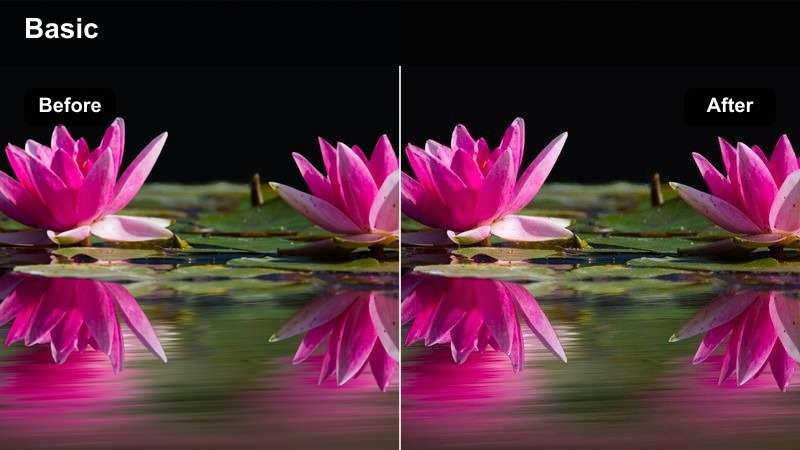
- Effect look: Muted greens and cool highlights that emphasize mist cutting through tree canopies.
- Best for: Slow, cinematic flights through pine forests, low-cloud valleys, and mist-covered hills.
- Editing tip: Use slower playback speeds, like 80-90 percent, to exaggerate the sense of floating through the fog after applying this soft filter.
Fogline Forest Drift cools the scene and mutes saturation so fog becomes the star of your composition. In Filmora, the filter subtly lowers contrast and softens highlights, letting mist layers between trees become more visible and giving your aerials a tranquil, floating quality.
Once applied, experiment with slightly slowed playback and smoother transitions such as cross-dissolves to keep the mood gentle. Use Filmoras white balance controls to align the tone across multiple foggy clips so the mist color does not shift from blue to green between shots.
Sun-Burst Trail
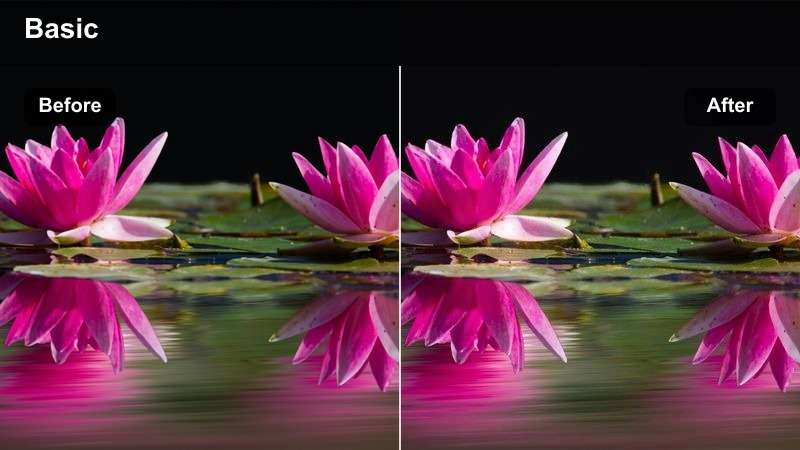
- Effect look: Warm, sun-kissed highlights with soft flares that make forest trails feel adventurous and inviting.
- Best for: Drone tracking shots following dirt roads, hiking paths, or cyclists moving through trees in outdoor adventure vlogs.
- Editing tip: Use keyframed exposure to protect detail whenever the drone passes directly across the sun or bright gaps in the trees.
Sun-Burst Trail enhances natural sunlight streaking through trees, wrapping roads and paths in a warm glow that feels perfect for outdoor adventure content. In Filmora, this filter gently warms highlights and softens transitions between light and shadow so dappled sunlight looks cinematic instead of harsh.
Apply it to tracking shots that follow hikers, runners, or vehicles along winding routes, then keyframe exposure and highlight levels around moments when the sun hits the lens directly. This helps you maintain detail in the trail while still enjoying the flares and golden atmosphere created by the filter.
Night Cityscapes and Light Trail Flyovers
Neon Skyline Flow
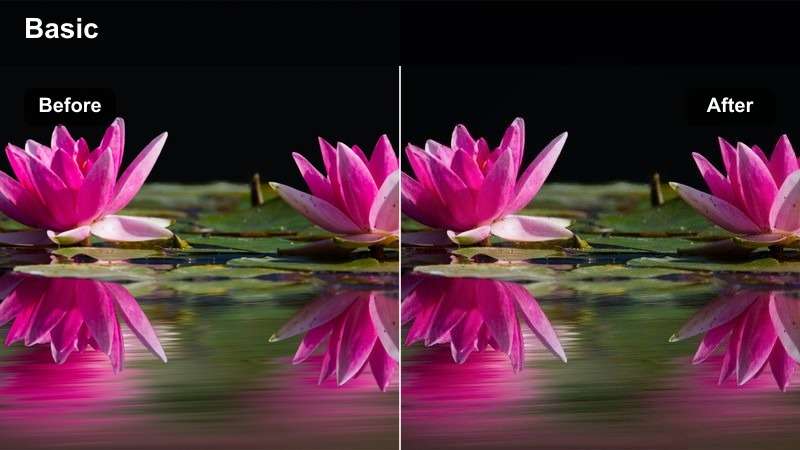
- Effect look: Punchy contrast with vivid neon blues and magentas that make city lights pop in the dark.
- Best for: Nighttime or blue-hour drone shots over downtown skylines, billboards, and neon-lit streets.
- Editing tip: Reduce noise before applying the filter, then lightly sharpen edges so building outlines stay crisp against the dark sky.
Neon Skyline Flow is designed to amplify the color and impact of city lights while keeping skies deep and dramatic. In Filmora, this filter intensifies blues and magentas around signs and windows, making skylines feel more like cyberpunk movie scenes than simple night captures.
Before adding the filter, run Filmoras noise reduction on your low-light clips to clean up grain in the sky and shadows. Afterward, use a light sharpening pass to define building edges so they stand out crisply against the dark background without introducing halos or artifacts.
Urban Light Trails
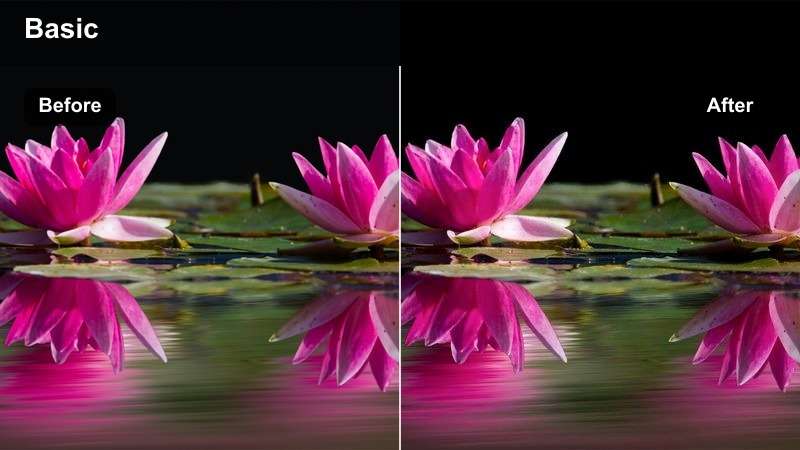
- Effect look: Deep shadows with glowing reds and yellows that emphasize traffic streaks and busy intersections.
- Best for: Top-down shots of highways, roundabouts, and downtown streets with heavy night traffic.
- Editing tip: Speed up static top-down clips by 150-200 percent to enhance the motion of light trails while the filter keeps colors tight and cinematic.
Urban Light Trails heightens contrast between bright vehicle lights and the deep city structure beneath them. In Filmora, reds and ambers from brake lights and streetlamps become vivid strokes that carve through mostly black streets, creating dynamic abstract patterns from everyday traffic.
Apply this filter on locked-off or smoothly drifting top-down shots, then increase playback speed or add time remapping to accentuate motion. Use Filmoras curves or shadow sliders to keep sidewalks and buildings mostly dark so the flowing lines of light remain the primary focus.
Noir Street Cinema
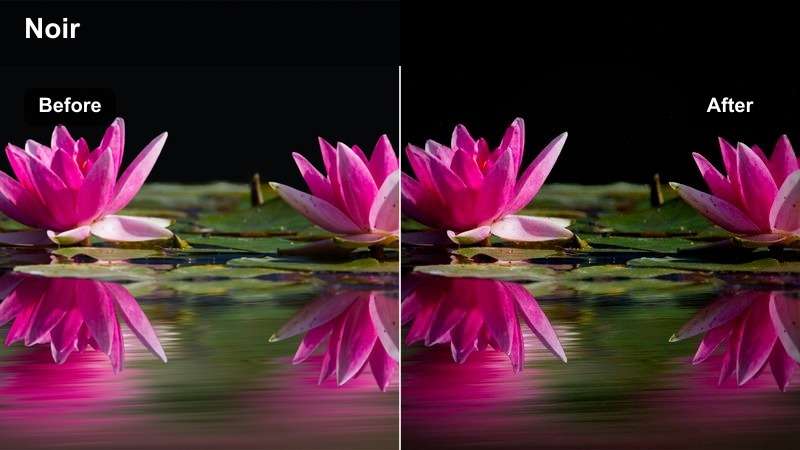
- Effect look: High contrast with muted colors leaning toward cool blues and monochrome shadows for a noir-style city night.
- Best for: Moody overheads of wet streets, alleyways, and older districts in story-driven YouTube films.
- Editing tip: Crush blacks slightly for dramatic silhouettes, but keep midtones raised enough so street lines and building edges remain visible.
Noir Street Cinema brings a classic film-noir atmosphere to your night aerials by muting most colors and leaning heavily into cool, inky shadows. In Filmora, it is especially effective on scenes with wet pavement and sparse pools of light, where reflections help define shapes in the darkness.
Use this filter on narrative or cinematic sequences where mystery and negative space matter more than bright detail. Fine-tune black levels and midtones with the color tools so you retain essential street markings and architecture while embracing deep, moody shadows around the edges of the frame.
Tips for Using Youtube Drone Footage Luts Cinematic Filters in Filmora
- Shoot your drone footage in a slightly flatter picture profile, then rely on Filmoras LUTs and filters to add contrast and saturation for a polished cinematic look.
- Group clips in your timeline by time of day and location so you can apply scene-specific filters consistently to each section of your YouTube video.
- Use adjustment layers in Filmora to apply one cinematic filter or LUT combination across multiple drone clips, keeping your color grade aligned and easy to tweak.
- Color-correct your drone and ground-camera clips first, then apply the same Filmora filter or LUT stack so transitions between air and handheld shots feel seamless.
- Run noise reduction on dusk and night aerials before adding strong contrast filters to prevent sky grain and shadow noise from becoming too visible.
- Keyframe filter intensity around major exposure changes, such as turns toward the sun or dives into shadowy streets, to maintain a smooth and consistent cinematic grade.
- Preview multiple Filmora filters in real time on hero shots, then lock in your favorite look and batch-apply it to supporting clips to speed up your workflow.
Cinematic YouTube drone footage is built on strong shooting technique, but the final polish comes from the filters and color style you choose in post. With the right LUT-and-filter combinations, your aerials can move from flat and functional to expressive and story-driven.
By pairing the right Filmora filters with each aerial scene, you can turn everyday drone clips into cohesive, cinematic sequences that define your channels visual identity. For more refined aerial color, explore YouTube real estate video LUTs that keep interiors and exteriors clean and natural. Switching from wide outdoor scenes to indoor property tours means your color needs change, and real estate-focused LUTs help maintain a crisp, professional look. Next, learn how targeted LUTs can keep windows, walls, and sky balanced in your property walk-throughs.
secure download