

 100% Security Verified | No Subscription Required | No Malware


 ChatGPT
 Perplexity
 Gemini
 Claude
 Grok
Grok
This collection of YouTube real estate video LUT-style filters is designed to give your property tours a clean, bright, and consistent look without heavy color casts or trendy tints.
Whether you film luxury listings or small apartments, these clean filters help you present interiors and exteriors with accurate colors, crisp contrast, and a polished finish that inspires viewer trust.
In this article
Clean Filters for Bright Interior Walkthroughs
Sunlit Open House
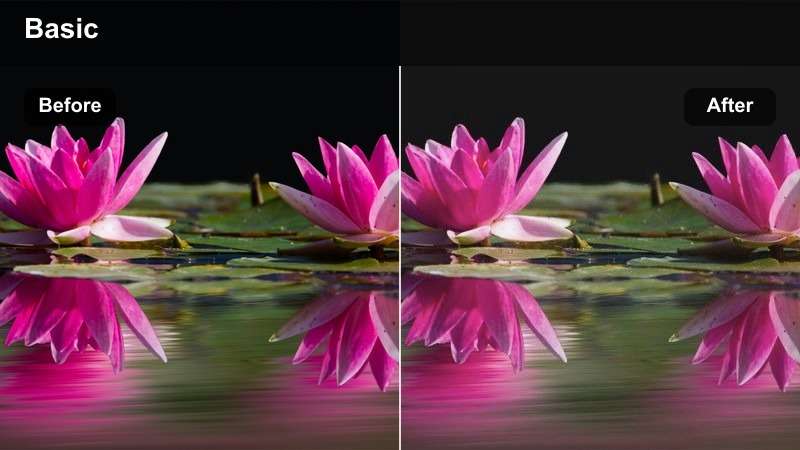
- Effect look: Soft, bright, and neutral with lifted shadows for airy living rooms and kitchens.
- Best for: Wide interior shots of living areas, kitchens, and open-plan spaces with plenty of windows.
- Editing tip: Lower the filter intensity to 60-70 percent if your footage is already bright to avoid washing out white walls.
Sunlit Open House is ideal when you want interiors to feel naturally bright without blowing out highlights or tinting white paint. In Filmora, this filter lifts shadows just enough to open up darker corners while holding onto clean, neutral tones for walls, cabinetry, and countertops.
Apply it to your A-roll walkthrough clips, then fine-tune exposure and highlights in the Color panel to keep window views visible. For cameras that tend to oversaturate, reduce saturation slightly after applying the filter so wood floors, sofas, and decor still look realistic on YouTube.
Let AI Suggest Clean Real Estate Looks
Filmora AI Color tools can scan your real estate clips and suggest clean, neutral palettes that keep interiors bright and walls true-to-life. This gives you a fast starting point before dialing in your favorite YouTube real estate video LUTs clean style.
Test AI suggestions on a few key rooms and exterior shots, then lock in a look that you can reuse across multiple listings for a consistent branded feel.
 secure download

Preview Clean Filters on Real Estate Clips
Before you commit to a final grade, duplicate your key interior and exterior clips in Filmora and stack different clean filters on each version. This lets you see how YouTube real estate video LUTs clean styles handle white walls, window highlights, and flooring.
Toggle clip visibility on the timeline to quickly compare options and choose the filter that feels most accurate and polished for your specific property.
secure downloadOver 1000 Video Filters and 3D LUTs
Beyond these clean real estate presets, Filmora includes a large library of filters and 3D LUTs so you can refine every property tour for your brand. Start from a neutral LUT, then layer a clean filter to keep listings bright, trustworthy, and ready for YouTube.
Save your favorite combinations as custom presets so future listing edits stay consistent, from first impression exteriors to detailed kitchen close-ups.
secure downloadNeutral Showroom
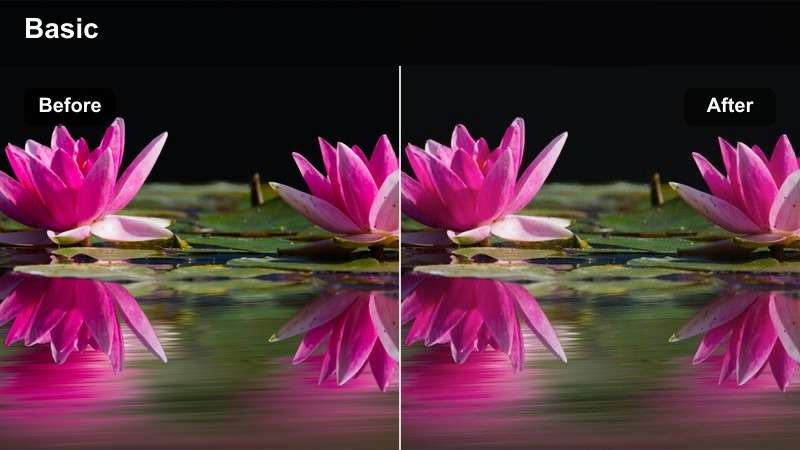
- Effect look: Balanced contrast and true-to-life colors that make interiors look like a polished showroom.
- Best for: Listing videos where accurate representation of paint, flooring, and furniture colors is critical.
- Editing tip: Pair this filter with subtle sharpening and noise reduction for a crisp but natural showroom feel.
Neutral Showroom is designed for agents who want their YouTube real estate videos to match listing photos as closely as possible. It emphasizes clear edges and clean whites without pushing saturation, so buyers can trust that wall colors, countertops, and flooring will look the same in person.
In Filmora, add Neutral Showroom to your base-corrected clips, then apply light sharpening and noise reduction under the Effects or Color panel. Export a short test and compare it to your edited listing photos to confirm that both still and video assets line up in tone and color.
Minimalist Loft
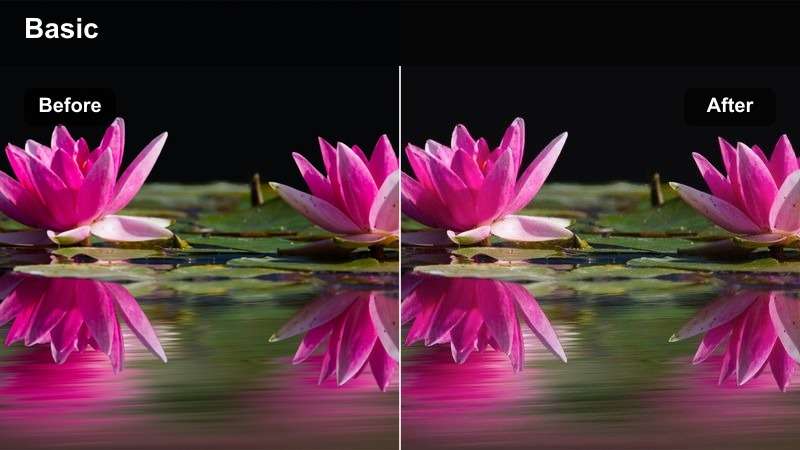
- Effect look: Clean, slightly desaturated interior look with gentle contrast for stylish lofts and condos.
- Best for: Contemporary apartments, lofts, and condos with concrete, metal, and glass finishes.
- Editing tip: Add a small saturation boost to specific colors, like wood tones, using color correction after this filter.
Minimalist Loft dials back saturation just enough to make modern interiors feel sleek and editorial without looking flat. It is especially effective on spaces with a lot of glass, metal, and concrete, keeping reflections tamed and textures refined for a premium feel.
After applying Minimalist Loft in Filmora, use the HSL or Color tools to selectively enhance key accents like warm wood, plants, or artwork. This targeted approach keeps the overall frame calm and clean while still guiding viewers eyes to the most attractive design features.
Clean Filters for Exterior and Curb Appeal Shots
Crisp Curb Appeal
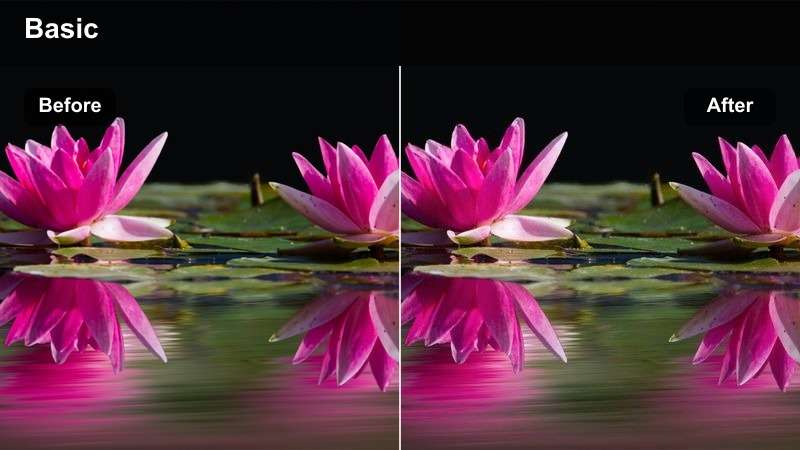
- Effect look: Bright, clear exterior look with clean skies and well-defined building lines.
- Best for: Front-of-house shots, driveway reveals, and establishing shots in daylight.
- Editing tip: Dial back saturation slightly if lawns or trees start to look too neon compared to the property itself.
Crisp Curb Appeal enhances the first impression of any listing by brightening facades and driveways while keeping roof tiles, siding, and brickwork true to life. It adds a subtle punch to skies and greenery so the home stands out without feeling overprocessed.
In Filmora, add this filter to your wide exterior clips and then check scopes or the preview to make sure highlights in clouds and siding are not clipping. If grass or trees appear too intense, nudge saturation down a little so the property itself remains the focal point in your YouTube thumbnail and opening shots.
Neutral Neighborhood
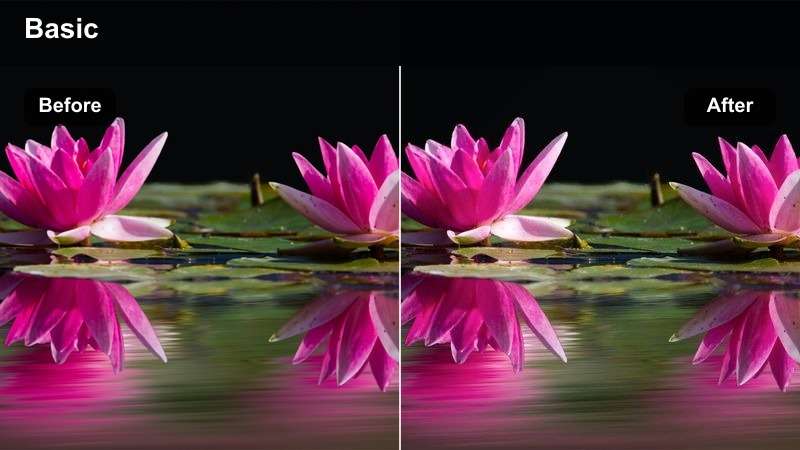
- Effect look: Soft, even exterior grading that keeps streets, sidewalks, and surrounding homes natural.
- Best for: Neighborhood drive-bys, street-level pans, and community overview shots for listings.
- Editing tip: Keep this filter at full strength for overcast days, but reduce to around 70 percent under direct sunlight.
Neutral Neighborhood is built for honest documentation of the area around a property, from streets and sidewalks to nearby houses and amenities. It avoids strong contrast curves, which helps maintain detail in both shaded porches and brighter road surfaces.
Apply this filter in Filmora across all your neighborhood B-roll clips so the entire area feels cohesive and welcoming in your edit. On sunny days, lower the intensity slider slightly to prevent harsh edges or blown-out highlights, keeping the focus on lifestyle and location.
Daylight Drive-By
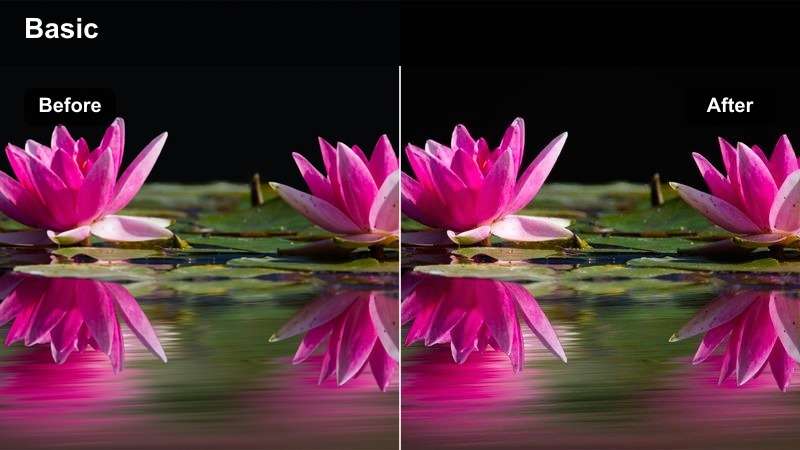
- Effect look: Clean, stabilized color and contrast tuned for moving car or gimbal shots outdoors.
- Best for: Drive-by clips of houses, street reveals, and moving shots filmed from a vehicle or gimbal.
- Editing tip: Apply light stabilization before this filter so the color grading responds evenly frame to frame.
Daylight Drive-By is tailored for motion shots where exposure and framing can change quickly, such as driving past homes or rolling a gimbal down the street. It smooths out small variations in color and contrast, so the sequence feels consistent and easy on the eyes.
In Filmora, first use the stabilization tools on your moving clips and adjust exposure to a reasonable middle point. Then add Daylight Drive-By and, if needed, tweak overall brightness with the Color panel to ensure all homes along the route maintain a clean, neutral real estate look on YouTube.
Clean Filters for Twilight and Mixed-Light Interiors
Twilight Showcase
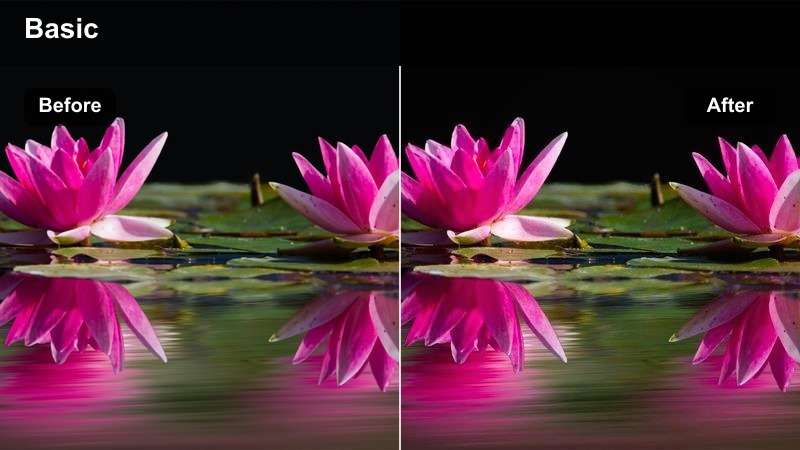
- Effect look: Soft, clean evening look that balances warm interior lighting with cooler outdoor skies.
- Best for: Blue-hour exteriors, window views into lit interiors, and twilight balcony shots.
- Editing tip: Use white balance to push slightly warm before applying this filter for a welcoming twilight feel.
Twilight Showcase helps you capture that desirable blue-hour moment when exterior skies cool down and interior lights glow warmly. It keeps both elements in balance, avoiding overly orange windows or too-blue facades, which is essential for upscale listings and luxury condos.
In Filmora, slightly warm up your footage with the Temperature slider before applying this filter so skin tones and interior lights feel inviting. Then use the Highlights and Shadows controls to fine-tune window detail, ensuring viewers can still appreciate interior styling from outside perspectives.
Mixed Light Balance
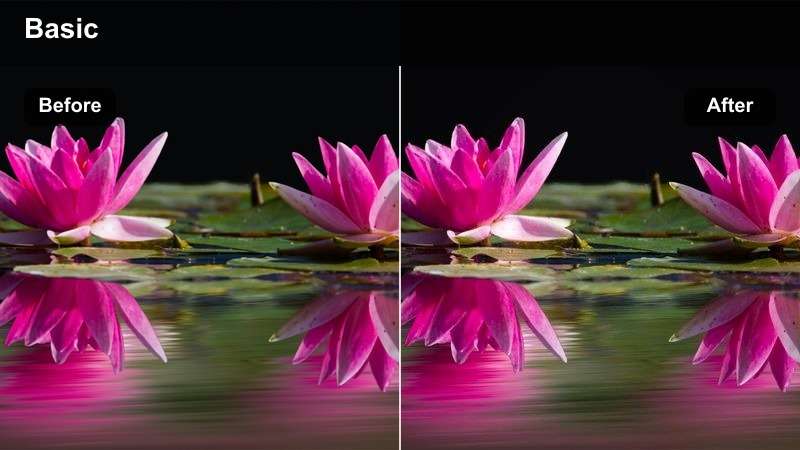
- Effect look: Neutralizes harsh color differences between daylight from windows and indoor bulbs.
- Best for: Rooms where warm ceiling lights mix with daylight, such as bedrooms, offices, and dining areas.
- Editing tip: Fine-tune the temperature slider after applying this filter to match how the space looks in person.
Mixed Light Balance is designed to solve one of the most common problems in real estate videos: walls and furniture looking different colors depending on where you stand. It pulls warm and cool sources closer together so viewers are not distracted by shifting color casts during walkthroughs.
After applying this filter in Filmora, scrub through the entire clip and adjust white balance until the paint and furniture stay consistent from angle to angle. Apply the same settings to all clips from that room so the finished YouTube tour feels cohesive and true to what buyers will see on site.
Hallway Clarity
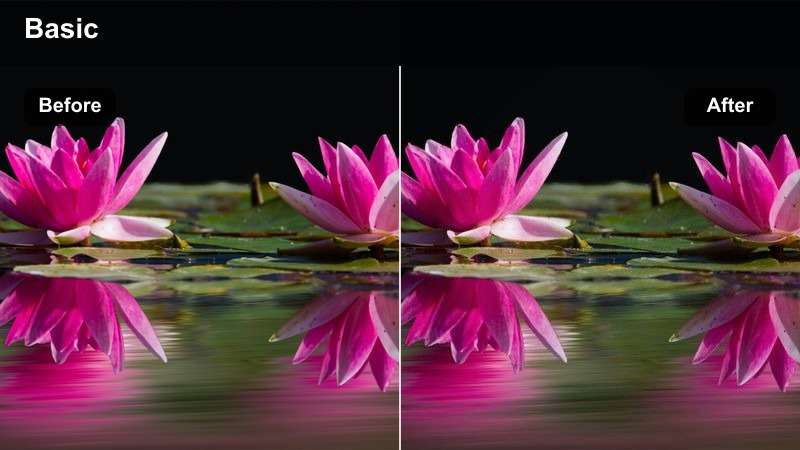
- Effect look: Clean, brightening effect for narrow spaces with minimal natural light.
- Best for: Hallways, entryways, staircases, closets, and interior corridors with soft or artificial lighting.
- Editing tip: Increase exposure slightly before this filter, but watch noise levels in darker corners.
Hallway Clarity targets cramped or darker spaces that can easily feel uninviting on camera. It gently lifts exposure and midtones so viewers can see floor transitions, doorways, and railings, helping them understand how the property flows from room to room.
In Filmora, brighten your hallway clips a touch using the Exposure or Brightness controls, then apply Hallway Clarity to smooth contrast and maintain clean whites. If noise appears in darker corners, add a small amount of noise reduction so the final YouTube export still looks professional and easy to watch.
Clean Filters for Detail Shots and YouTube Delivery
Fixture Focus
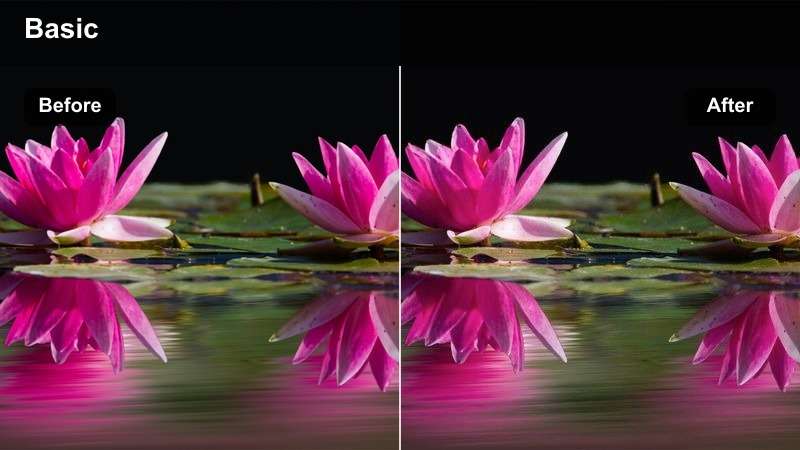
- Effect look: Polished, clean close-up look that emphasizes textures and finishes without oversharpening.
- Best for: Detail shots of faucets, handles, countertops, stair rails, and premium fixtures.
- Editing tip: Combine with a subtle vignette and mild sharpening to draw viewer attention to the subject.
Fixture Focus is tailored for those cinematic cutaways of faucets, hardware, and premium materials that help sell a propertys quality. It gives a refined boost to micro-contrast so textures in stone, metal, and wood stand out without creating halos or harsh outlines.
In Filmora, pair this filter with a gentle vignette and a small sharpening effect on your close-up B-roll clips. Use these polished shots as transitions between rooms in your YouTube real estate video to reinforce craftsmanship and justify the propertys asking price.
Floor Plan Flow
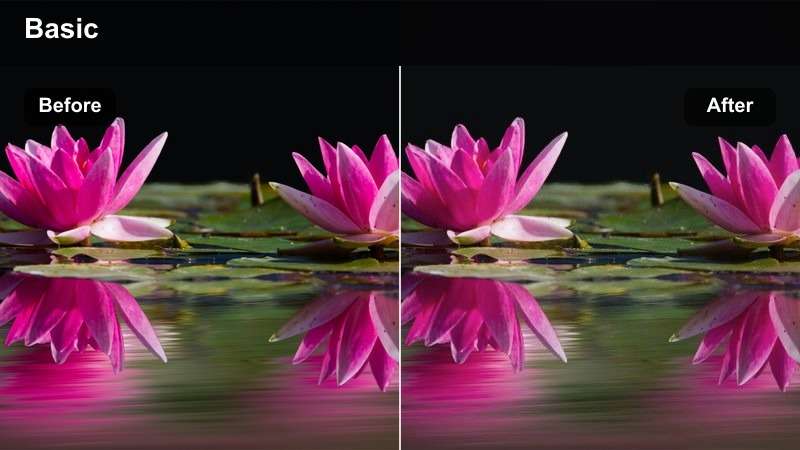
- Effect look: Even, neutral grading that prioritizes visibility and continuity as you move from room to room.
- Best for: Continuous walkthroughs, gimbal tours, and one-take property flow videos on YouTube.
- Editing tip: Apply the same filter settings to all clips in a sequence, then adjust global exposure at the end.
Floor Plan Flow is designed to make long walkthroughs feel seamless so viewers can clearly understand how spaces connect. It keeps color, contrast, and brightness extremely consistent from clip to clip, avoiding jarring jumps when you cut between rooms.
In Filmora, select all clips in your main walkthrough sequence and apply Floor Plan Flow with identical settings. Once the filter is in place, adjust global exposure and white balance on representative clips, then copy and paste attributes so the entire property tour looks unified on YouTube.
YouTube-Ready Clean
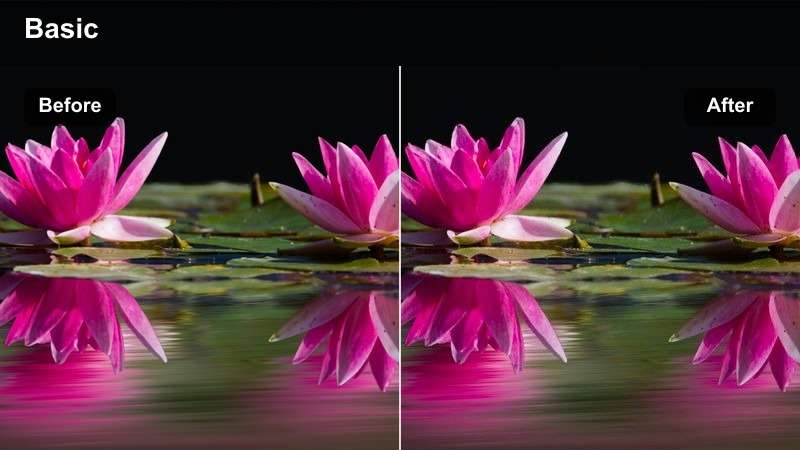
- Effect look: Slightly boosted contrast and clarity tuned for YouTube compression and mobile viewing.
- Best for: Final exports of real estate listing videos, agent walkthroughs, and talking-head intros on YouTube.
- Editing tip: Preview your video on a phone at 720p to confirm that details remain clear with this filter applied.
YouTube-Ready Clean is your final-pass filter for making sure real estate footage stays sharp and readable after platform compression. It adds a touch of contrast and clarity so architectural lines, text overlays, and agent appearances still look crisp on phones, tablets, and TVs.
In Filmora, apply this filter as one of the last steps after you lock your edit, graphics, and music. Export a short test in the same resolution and bitrate you plan to upload, watch it on a mobile device, and, if needed, slightly reduce contrast so interior details do not crush when YouTube re-encodes the video.
Tips for Using Youtube Real Estate Video Luts Clean Filters in Filmora
- Shoot with a neutral picture profile so these clean filters have more latitude to correct exposure and color.
- Lock your white balance when filming interiors to avoid color shifts that become more obvious after grading.
- Capture a mix of wide, medium, and detail shots so the same filter family can tie your whole edit together.
- Avoid extreme saturation for real estate tours; prioritize accurate colors over trendy stylized looks.
- Balance exposure for windows and interiors before applying filters to keep both views usable in your final grade.
- Organize your Filmora timeline by room or area so you can copy and paste filter settings for consistent looks.
- Export in a high bitrate and review your video on both desktop and mobile to confirm the clean look holds up on YouTube.
Clean, consistent grading is one of the fastest ways to make your YouTube real estate videos look professional and trustworthy.
Use these filters as a flexible toolkit to keep interiors bright, exteriors polished, and every property tour ready for YouTubes audience and compression.
secure download