

 100% Security Verified | No Subscription Required | No Malware


 ChatGPT
 Perplexity
 Gemini
 Claude
 Grok
Grok
AI car crash videos are racking up millions of views without big budgets—and you can create them too. Accounts like @realistcaivid prove that short AI crash clips alone can attract massive engagement.
The secret to their success? Realism. These AI car crash videos often look so intense that viewers need a second glance to confirm whether the clip is real. That split-second of uncertainty drives attention and shares.
Want to know how to pull this off? We'll break down the secrets in our guide below.

In this article
Part 1. The Best AI Car Crash Generator for Realistic Results
Wondershare Filmora is your all-in-one AI car crash generator—no complex setup, no juggling multiple tools. Unlike other platforms that force you to switch between different apps for images and videos, Filmora combines AI image-to-video, text-to-video, and image generator in one place, letting you create hyper-realistic car crash content in minutes.
 secure download

Why Filmora Stands Out:
- Generate both images AND videos without leaving the platform
- Fine-tune every detail or let AI do the heavy lifting—your choice
- Professional-quality results that look camera-shot, not AI-generated
- Three flexible methods to match your creative vision
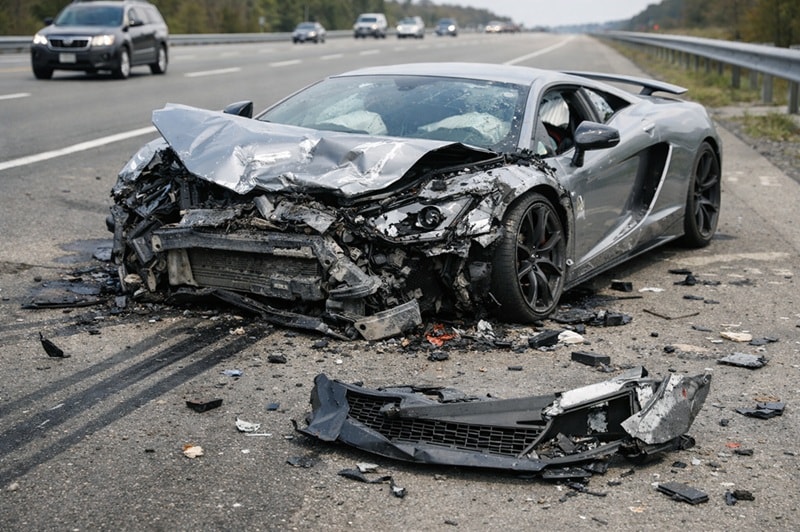
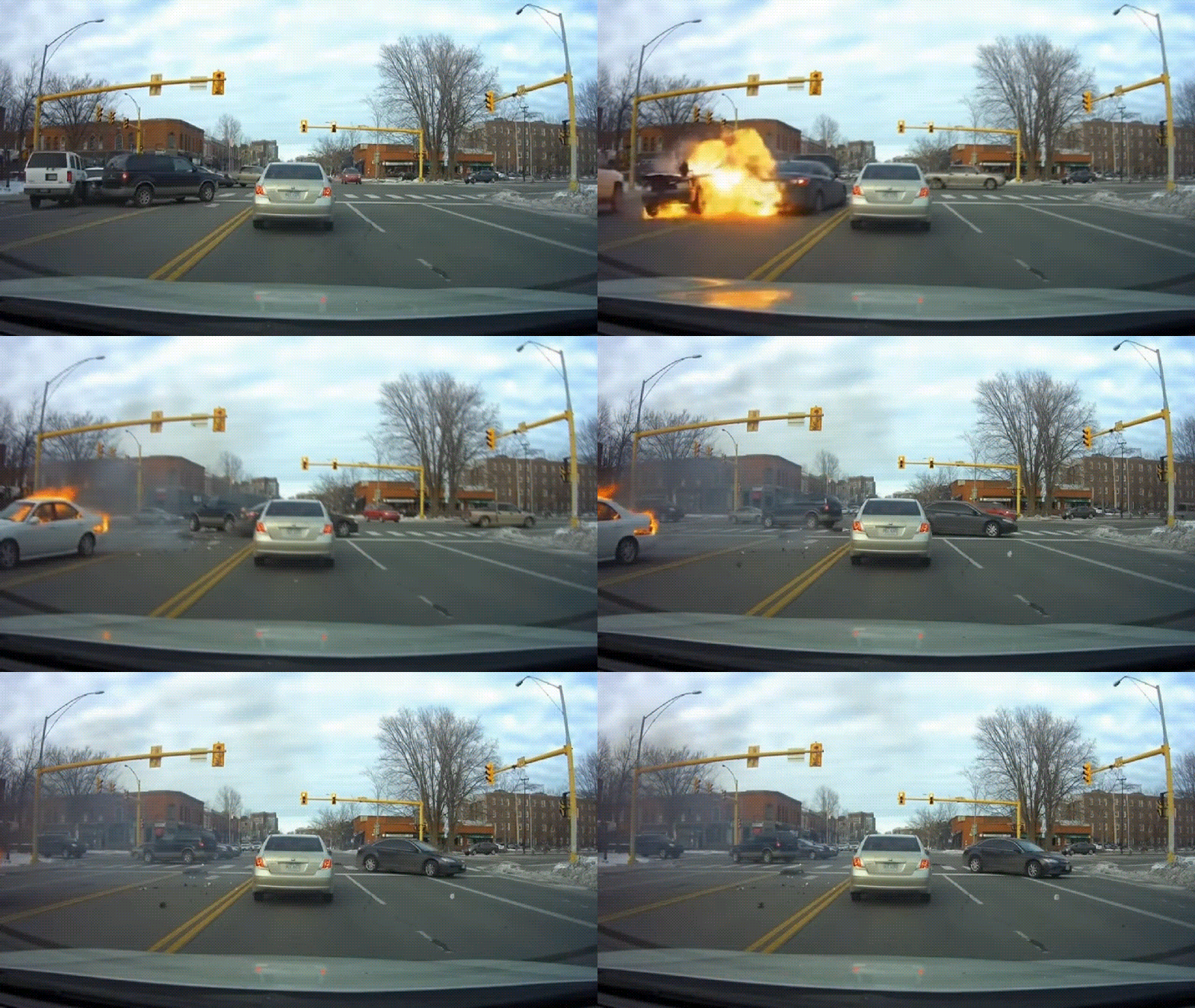
Whether you want a dramatic freeze-frame crash photo or a full motion video that stops viewers mid-scroll, Filmora delivers. Check out these actual car crash scenes created in Filmora—the realism speaks for itself.
1. AI Car Accident Video from a Text Prompt (Text-to-Video)
2. AI Car Crash Video from a Template (Image-to-Video)
3. AI Car Crash Photo by AI Image Generator
The real reason this works so well comes down to Filmora's AI video generation, which is powered by advanced AI models like Sora 2. Sora 2's improved advanced physics system helps your AI car crash videos look more realistic by:
- Making car movement feel natural
- Showing collisions with believable speed, weight, and timing
- Handling impact and momentum that matches real-world motion
- Creating smoother transitions from the moment of the crash to the aftermath
- Reducing odd or exaggerated motion that can break realism
For the image generator, Filmora's AI is powered by Nano Banana Pro. It can generate highly detailed car crash images with realistic lighting, damage, and camera angles.
Part 2. How to Generate a Car Crash Scene with AI
Creating a car crash scene with AI, like the examples above, gives you full control without putting people or vehicles at risk. You can show how impact force affects a vehicle, explain basic crash physics, or highlight safe driving scenarios visually.
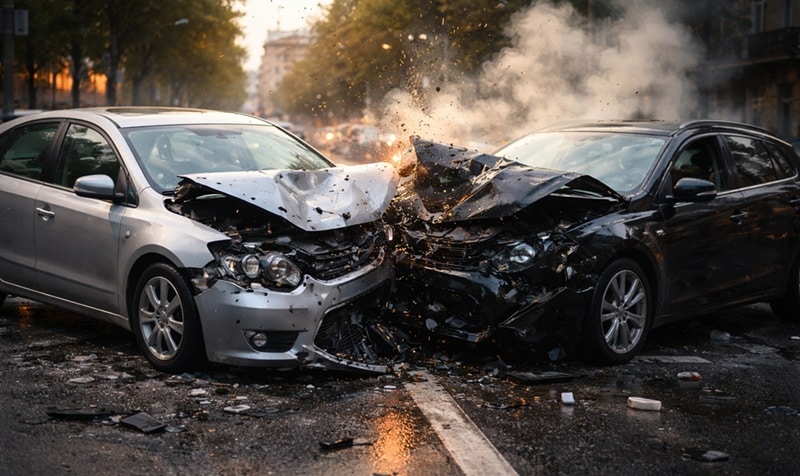
To start creating them yourself, below are the detailed steps on how to create AI-generated car crash photos and videos.
1. How to Make AI Car Crash Videos from Text
Text to video is the fastest way to build a crash scene from scratch. You just write a detailed prompt that spells out the location, camera angle, speed, lighting, and the crash style you want. This method gives you the most freedom because you can describe almost any scenario.
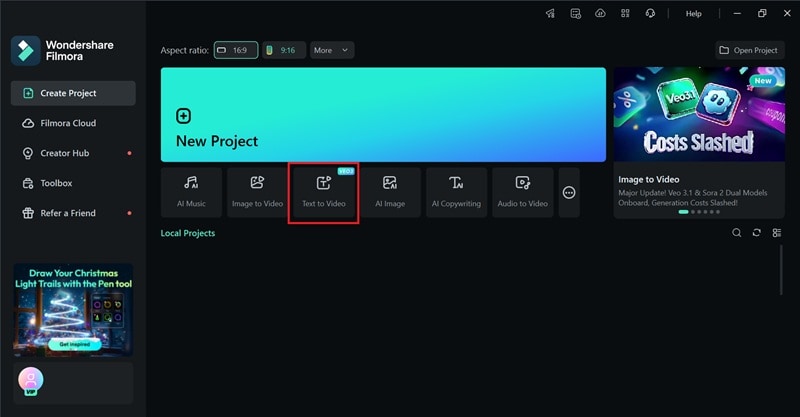
Step 1: Open the Text to Video feature from Filmora's startup screen.
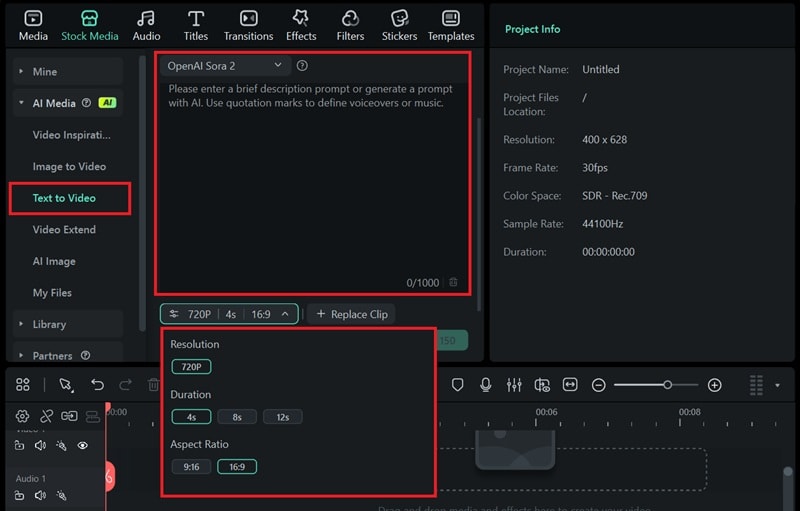
Step 2: Inside the editor, choose the AI model, enter your prompt, and adjust the settings such as video duration, quality, and aspect ratio. Click Generate to start creating the video.
2. How to Use AI Car Crash Video Templates
Filmora also includes AI video templates built for car accidents like explosions, where the car suddenly explodes and catches fire. These templates already have a clear scene, so you do not need to write prompts. You just need to upload your image to create such a scene.
To do it, you can select Video Inspiration under Stock Media > Video Inspiration. Then, look for the “Car Explosion” template, select it, and upload your image.

By clicking Generate, you will have the AI car crash video created and ready to edit on the timeline.
3. How to Create an AI Car Crash Photo
To create an AI car crash photo with Filmora's AI Image generator, you can access it under the same tab (Stock Media > AI Media). Just enter a prompt that describes the scene and adjust the settings.
You can also upload a reference image if you want the result to follow a specific car design or composition.
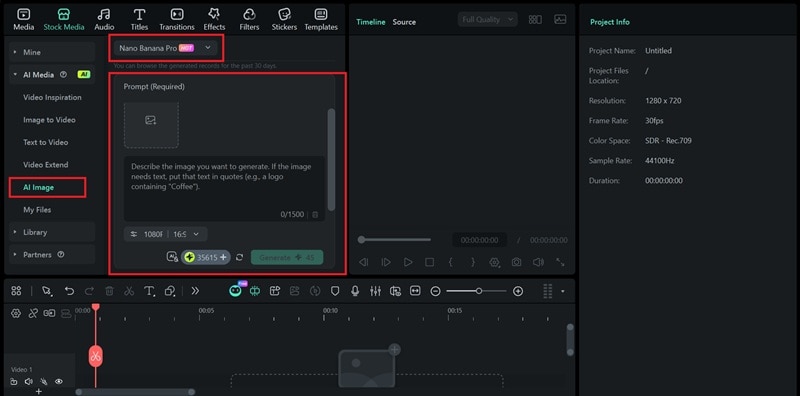
These images can work great as thumbnails, title covers, or starting frames that you can later animate with Filmora's Image to Video. Since you control the prompt, you can match the car type, damage level, road setting, and lighting, instead of settling for random stock photos.
You can generate AI-generated car crash photos, like:
- Car collision moments
- Damaged vehicles after an accident
- Cars engulfed in fire or smoke
- Skid marks and scattered debris
You May Also Like: AI Car Video Generator
Part 3. Enhance the Realism of Car Crash Video with Filmora's Editing Tools
As a car accident generator, Filmora does not stop at AI generation alone. With Filmora's editing tools, you can take the raw AI result and polish it further with sound effects, visual overlays, speed control, and color adjustments, and more that make the scene feel more natural.
1. Add Camera Shake and Visual Effect
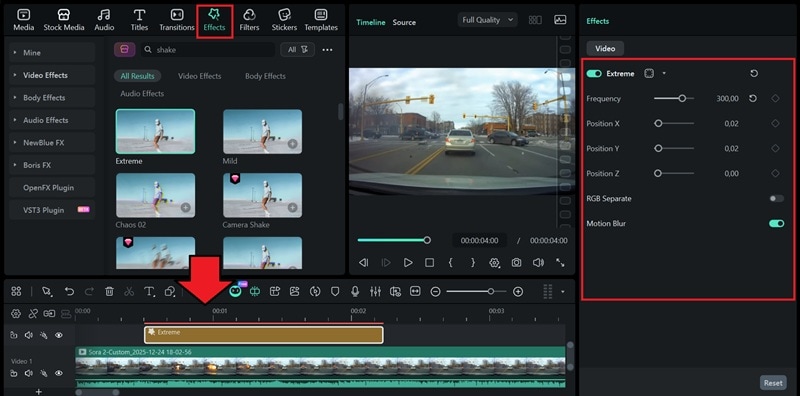
Camera shake helps sell the impact and makes the crash feel less staged. Since the AI-generated clip may look too stable at first, you can add camera shake during editing in Filmora to create a stronger sense of motion and chaos.
Open the Effects tab and search for Camera Shake, Shake, or Motion effects, then apply them to the exact moment where you want the impact to feel stronger.
2. Change the Tone Using Color Grading
The way color is adjusted can completely change how a crash scene feels. By tweaking brightness, contrast, and shadows, you can make the moment look more intense, serious, or grounded. Cooler tones often add tension, while darker grading can make the scene feel heavier and more dramatic.
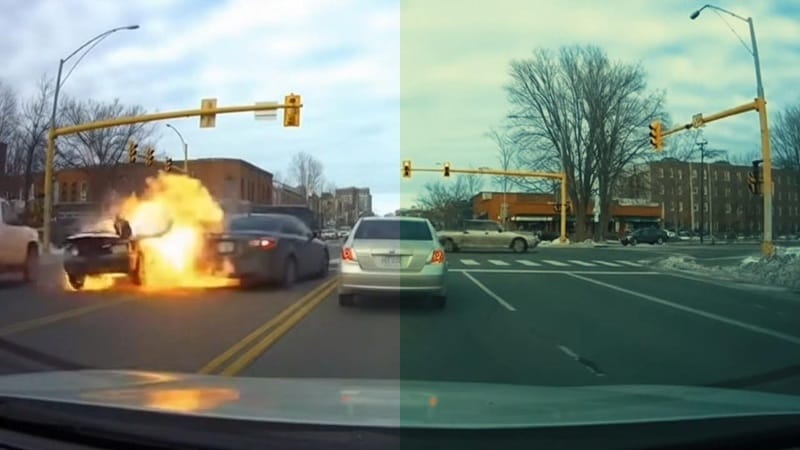
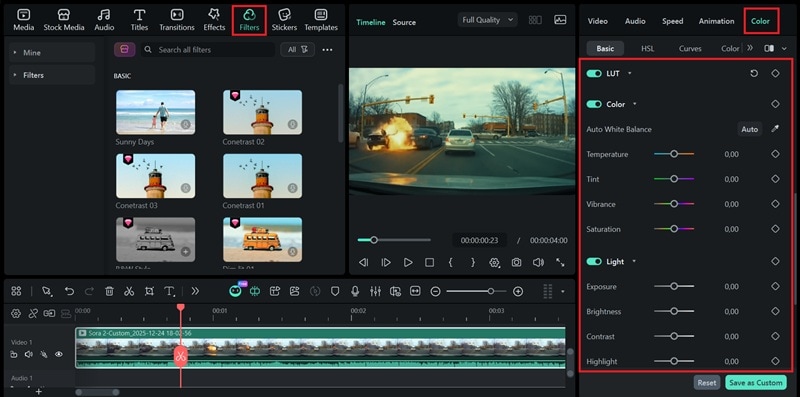
To do it, you can select the clip and head to the Color tab on the properties panel. Fine-tune the settings or use a preset to set the mood. You can also change the look by applying filters.
3. Layer Sound Effects
When you are not satisfied with the original audio, you can add sound effects from Filmora's Audio library. Sounds like screeching tires, metal bending, explosions, fire, or background traffic help the crash feel more real.
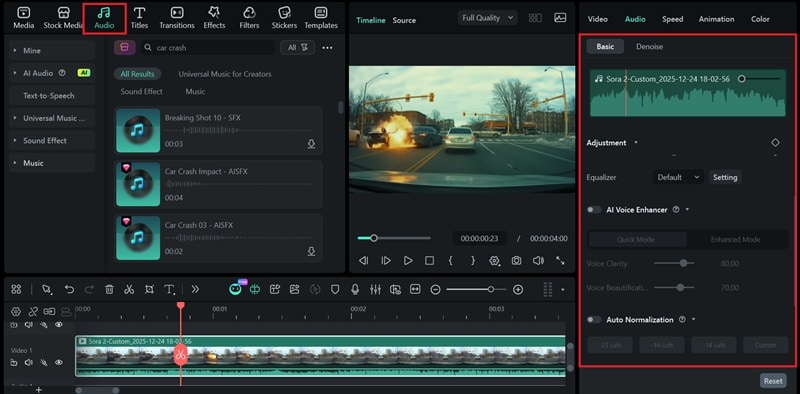
You can layer several effects, adjust their volume, and sync them with key moments so the audio matches what is happening on screen. If there is no suitable sound available, you can generate sound effects using Filmora's AI Sound Effects generator.
4. Use Slow Motion to Add More Drama
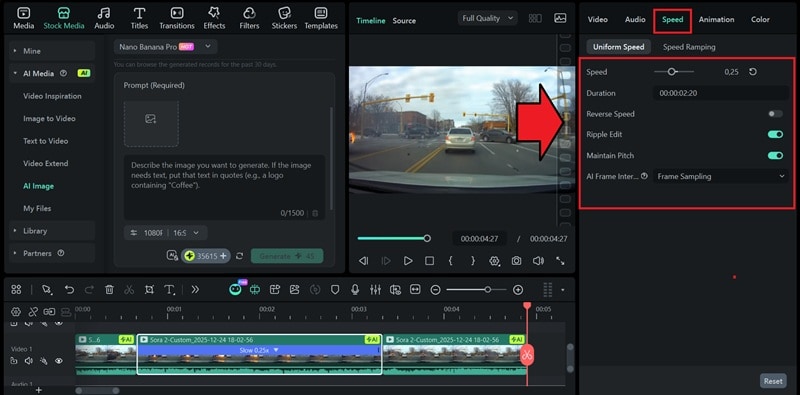
By slowing down the clip right before or during the crash, you can let the viewers see details like debris flying, fire spreading, or metal twisting. Use it only on short sections so the impact feels stronger without making the scene drag on.
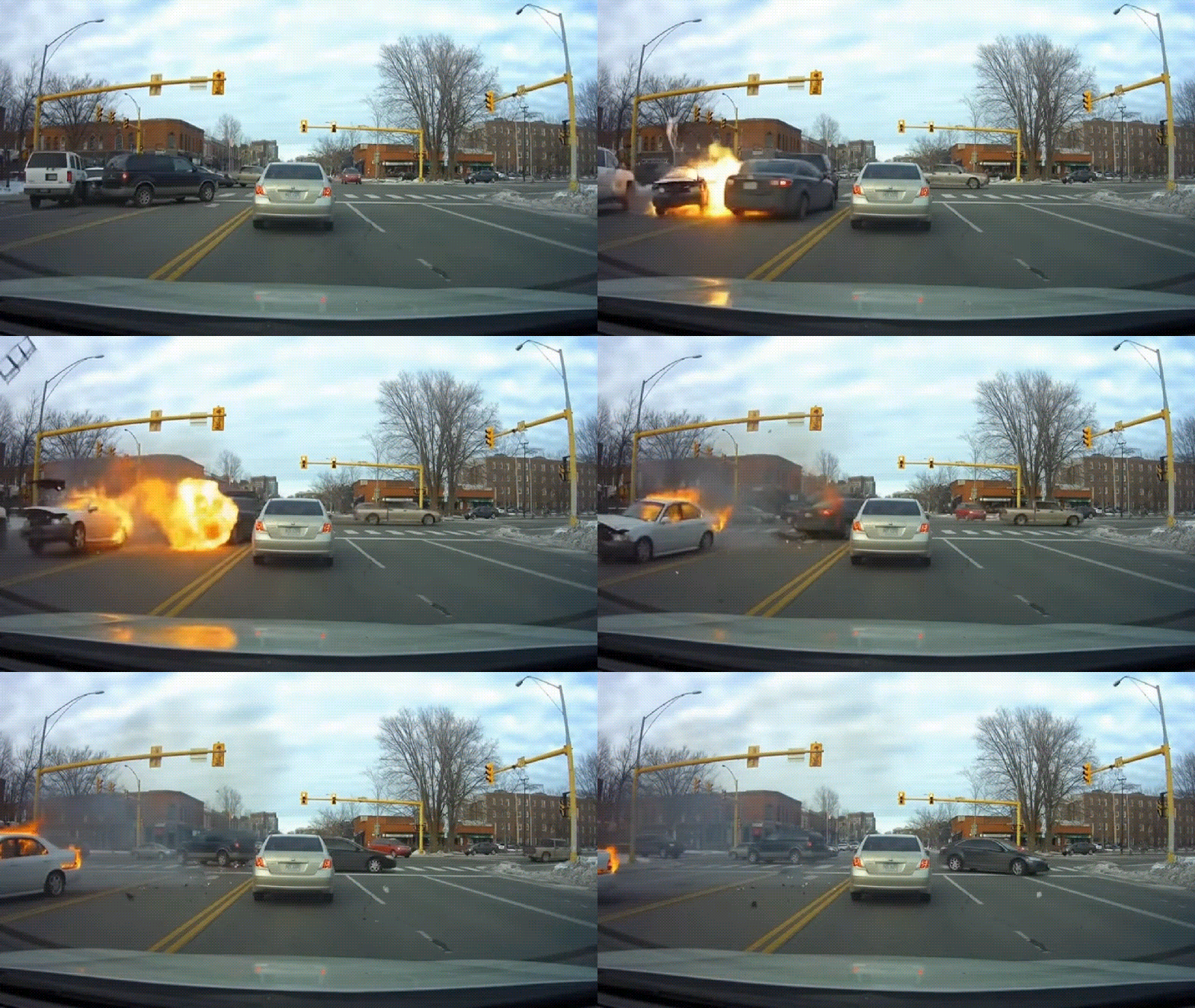
You can slow down your AI car crash video by selecting the clip and heading to the Speed settings on the properties panel. Use the slider and drag it to the left to reduce the speed, or enter a specific value for more precise control.
Conclusion
Creating AI car crash scenes is easy with tools like Filmora. You can either create videos from a prompt, animate an image using built-in AI templates, or create AI car crash photos with the AI Image generator.
After that, use Filmora's editing features to shape the final scene and control how intense it feels. Get the timing right, polish the look, and you'll have a clip that makes people watch and share it around.
 secure download