


 100% Security Verified | No Subscription Required | No Malware


 ChatGPT
 Perplexity
 Gemini
 Claude
 Grok
Grok
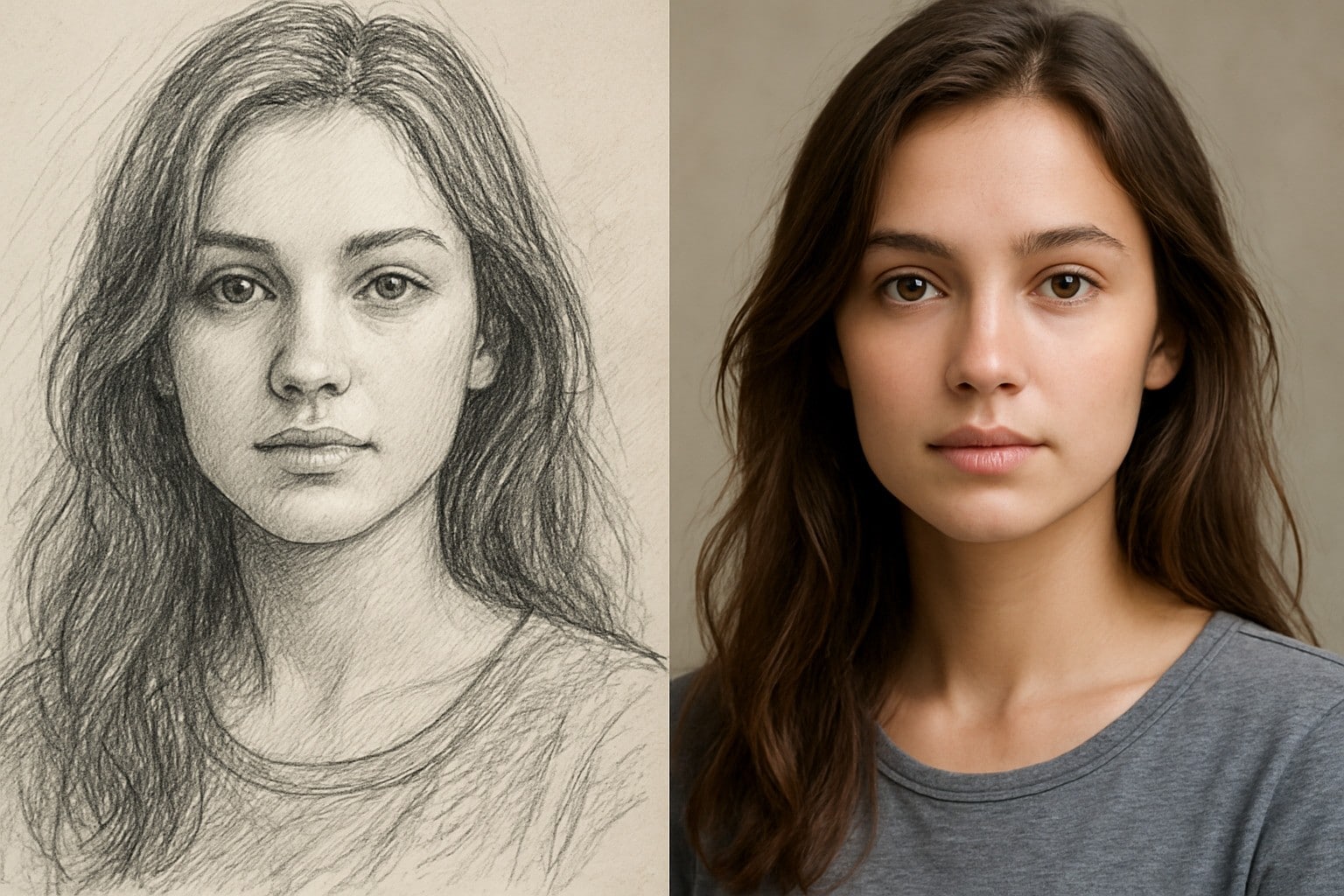
The idea of turning a simple sketch into a real-looking photo isn’t science fiction anymore. Now, it’s real and very easy. With sketch-to-image AI tools growing more powerful and user-friendly, everyday creators and artists can bring their pencil drawings to life as realistic images.
People love this because it makes imagination visible. A quick doodle can become a polished, shareable photo without hours of editing or painting skills. Today, we will show you how you can convert your sketch to images using AI.
Before we get into that, let’s quickly examine what you need to look out for when picking a sketch-to-image AI App.
Part 1: What to Look Out for When Picking a Sketch-to-Photo Converter
There are many sketch to photo converters online today. However, they do not all give the same results. Some tools make clear photos, while others create blurry or strange images. So, it helps to know what to look for when choosing any sketch to image AI tool.
Here are the key things to check:
- Realism: You want the final photo to look real and natural. It should not look fake or overly edited.
- Detail accuracy: A good tool keeps the main lines and shapes from your sketch. This way, the final image stays close to your original drawing.
- High export quality: Some tools only give low-quality images. So, choose one that offers clear and sharp downloads. This is useful if you want to print or share your photo.
- Speed: Long wait times can slow you down. A fast tool helps you try more ideas without wasting time.
- Easy workflow: The tool should be simple to use. You should upload your sketch, pick a style, and get your photo quickly. No confusing steps.
When you keep these points in mind, it becomes easier to pick a tool that works well.
Part 2: Best Tool for Converting Your Sketches to Photos
Looking at what we have discussed so far, one tool that really meets the criteria as the best tool for converting sketches to real images is Wondershare Filmora. Filmora is an all-in-one photo and video editor/editor that has gathered the approval of a lot of pros and beginners over the years.
Now, you might be wondering why we said it is an all-in-one tool. Well, the reason is not far-fetched. Apart from being a media editor, Filmora comes with lots of AI tools that make video and photo creation very easy. This means that you can create and edit right in the app without needing a third-party tool or plugin. And interestingly, it is available for both desktop and mobile device users.
Talking about AI tools, one of Filmora’s AI tools that has really been of great benefit to many content creators is the AI Image tool. With this tool, you can easily create any type of photo by inputting the right prompts. Furthermore, you can upload an image to the tool and ask it to transform it into any image idea you like.
What this means is that you can upload your sketch into Filmora AI Image and ask the AI to convert the sketch into a real photo. And with the integration of the Nano Banana AI model into the tool, image creation just got better and more fun.

Follow the steps below to convert your sketch to a photo using Filmora:
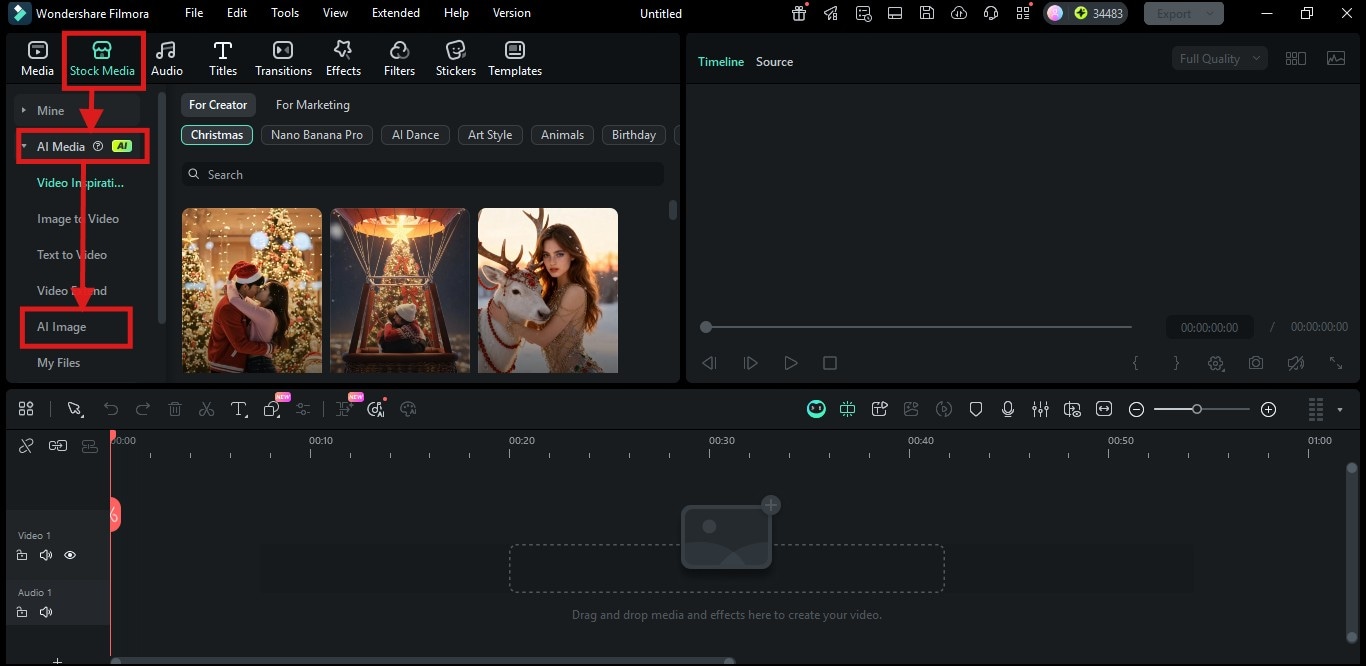
Step 1: Launch Filmora and Access the AI Image Tool
- Open Filmora and click on New Project. This will take you to the editing dashboard.
- Once the dashboard opens, click on the Stock Media button at the top right corner of the dashboard.
- On the left side of your screen, select AI Media from the menu. A dropdown menu will appear.
- From the dropdown, click on AI Image.
 Secure Download
Step 2: Upload Your Sketch and Input a Prompt
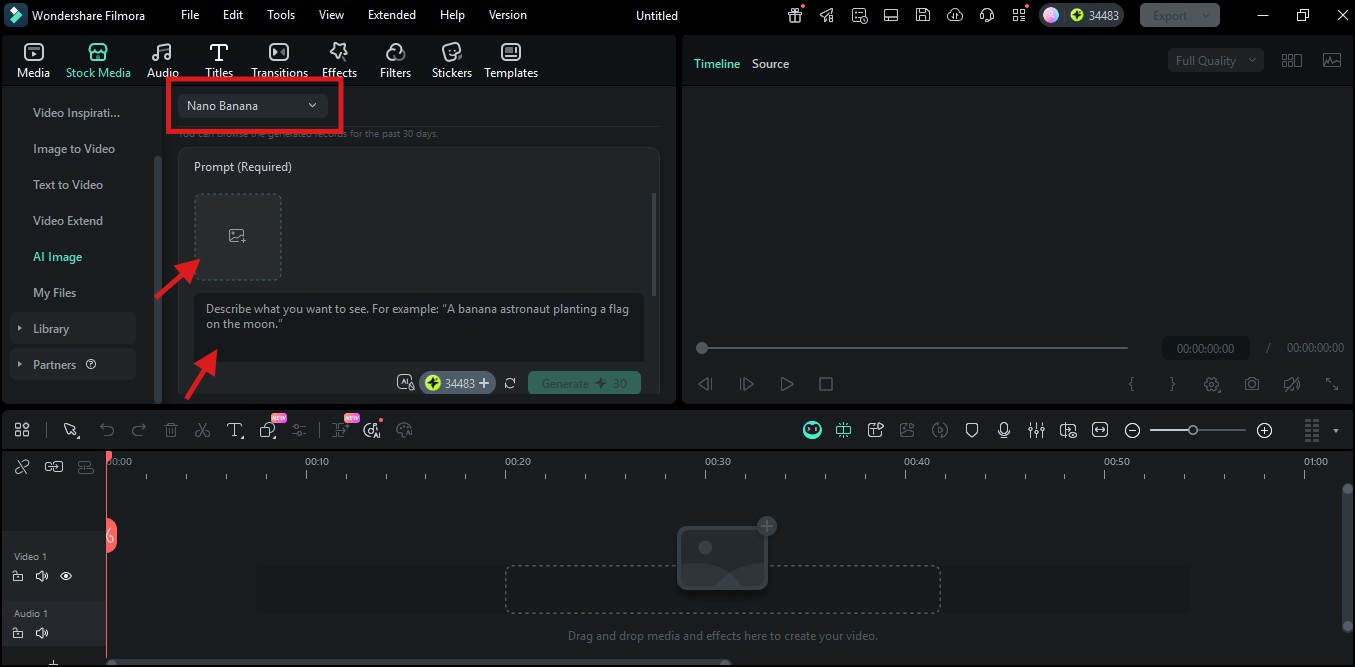
- After opening the AI Image tool, make sure it is set to the Nano Banana model. This gives better results.
- Click the box with the Add Image icon to select and upload the sketch you want to convert from your device.
- Below the upload box, there is a text box for your prompt. Click on it and type what you want the AI to do with your sketch. For example:
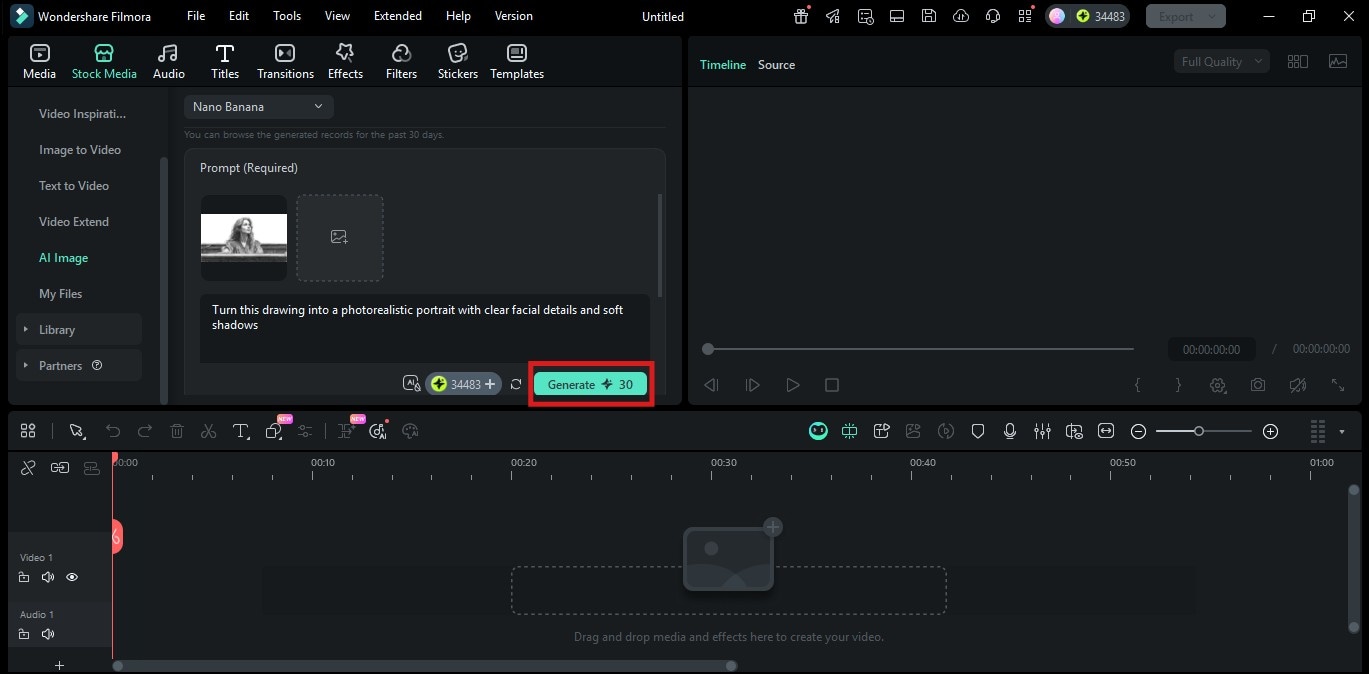
“Turn this drawing into a photorealistic portrait with clear facial details and soft shadows.”
Once your sketch is uploaded and the prompt is added, click the Generate button.
Step 3: Customize and Export
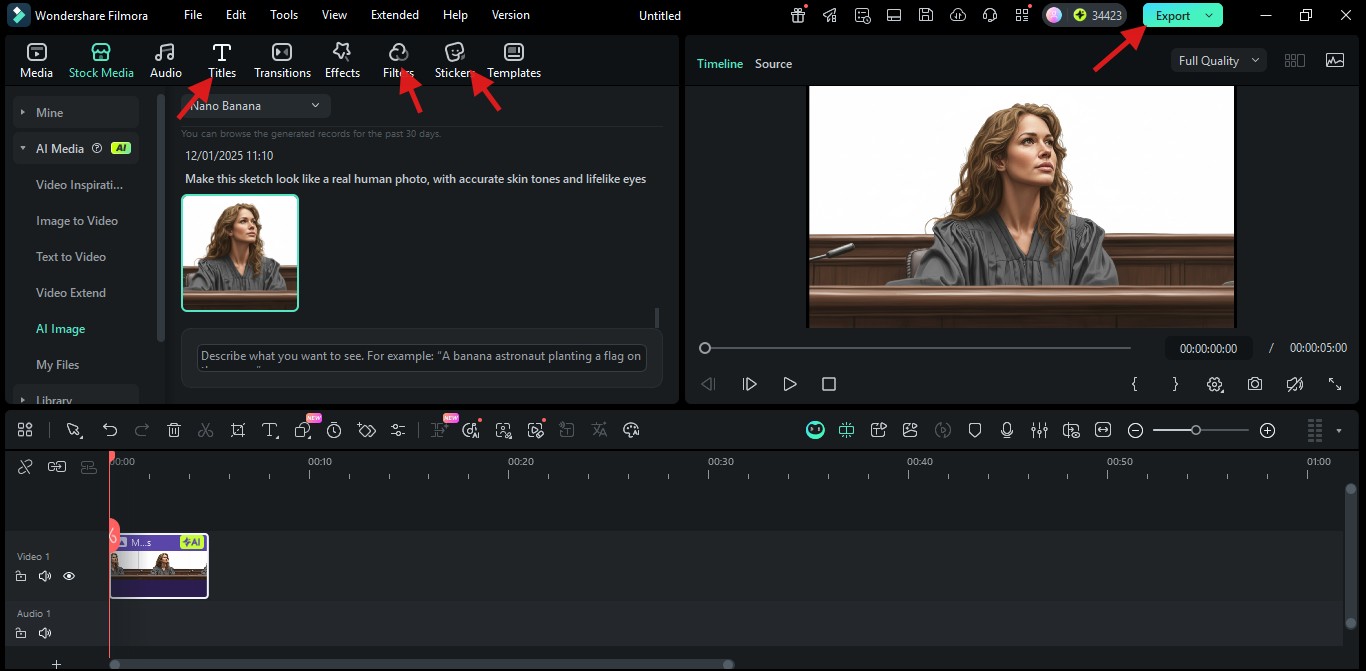
- After your photo has been generated, click on it and drag it to the timeline below the editing screen.
- You can now use the editing tools on Filmora to make adjustments if you want. For example, add text, stickers, or change the color tone.
- When you are ready to save your photo, click the Export
- Then, choose the format you want to save your image in, preferably JPG or PNG.
- Click Export again to save the image to your device.
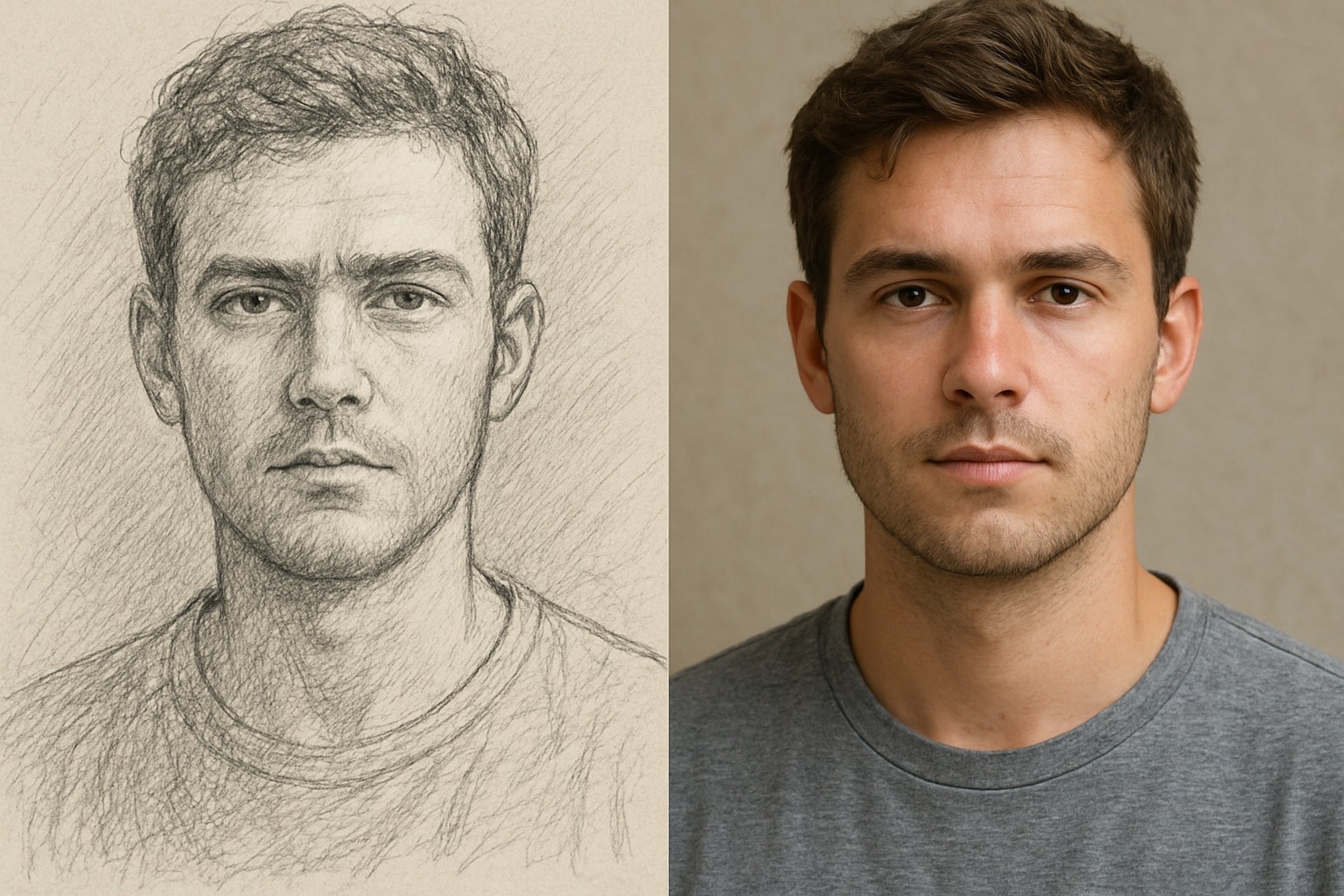
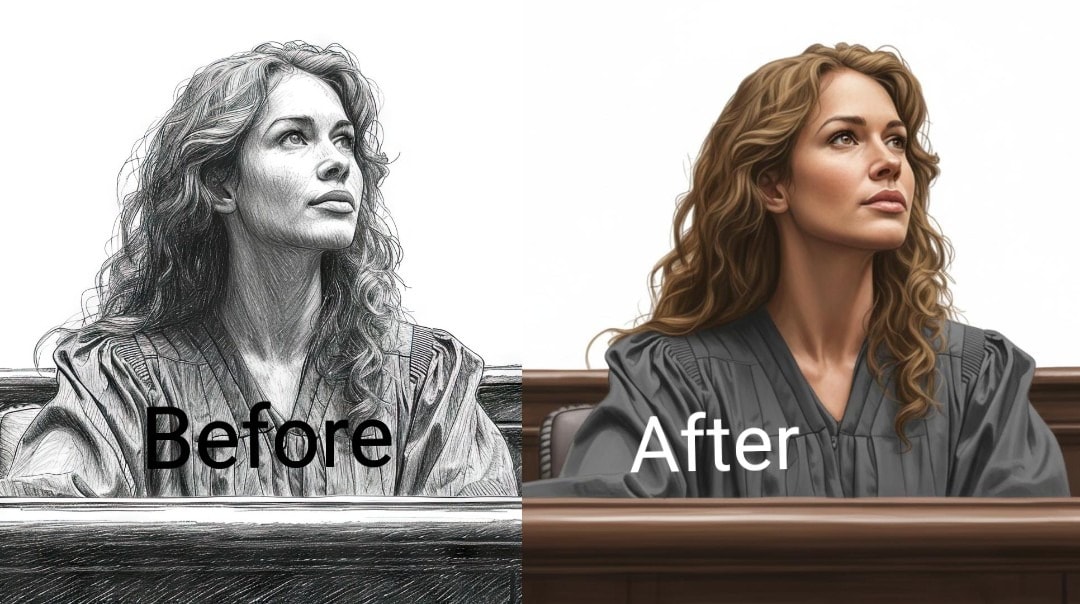
Here is an image showing a sketch that was converted into t photo using Filmora:
Part 3: Transform Your Photos into Cool Clips Using Filmora Mobile
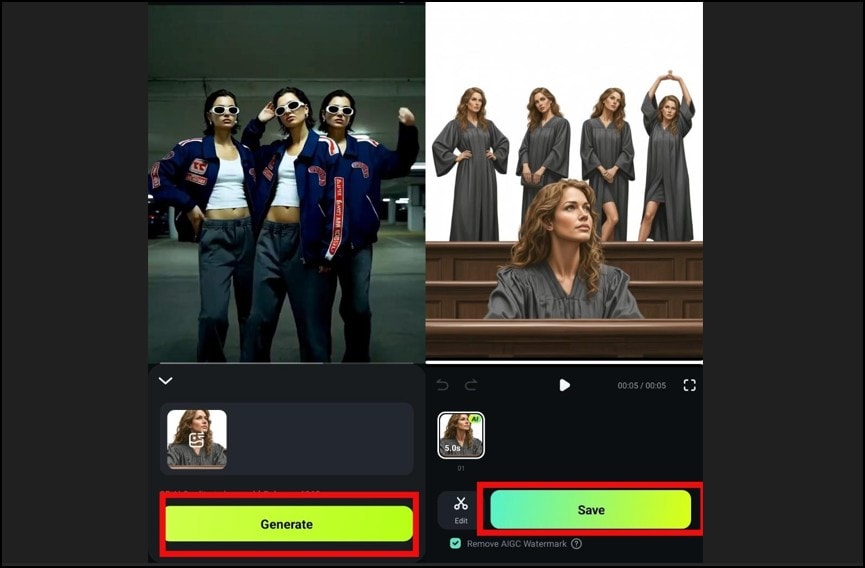
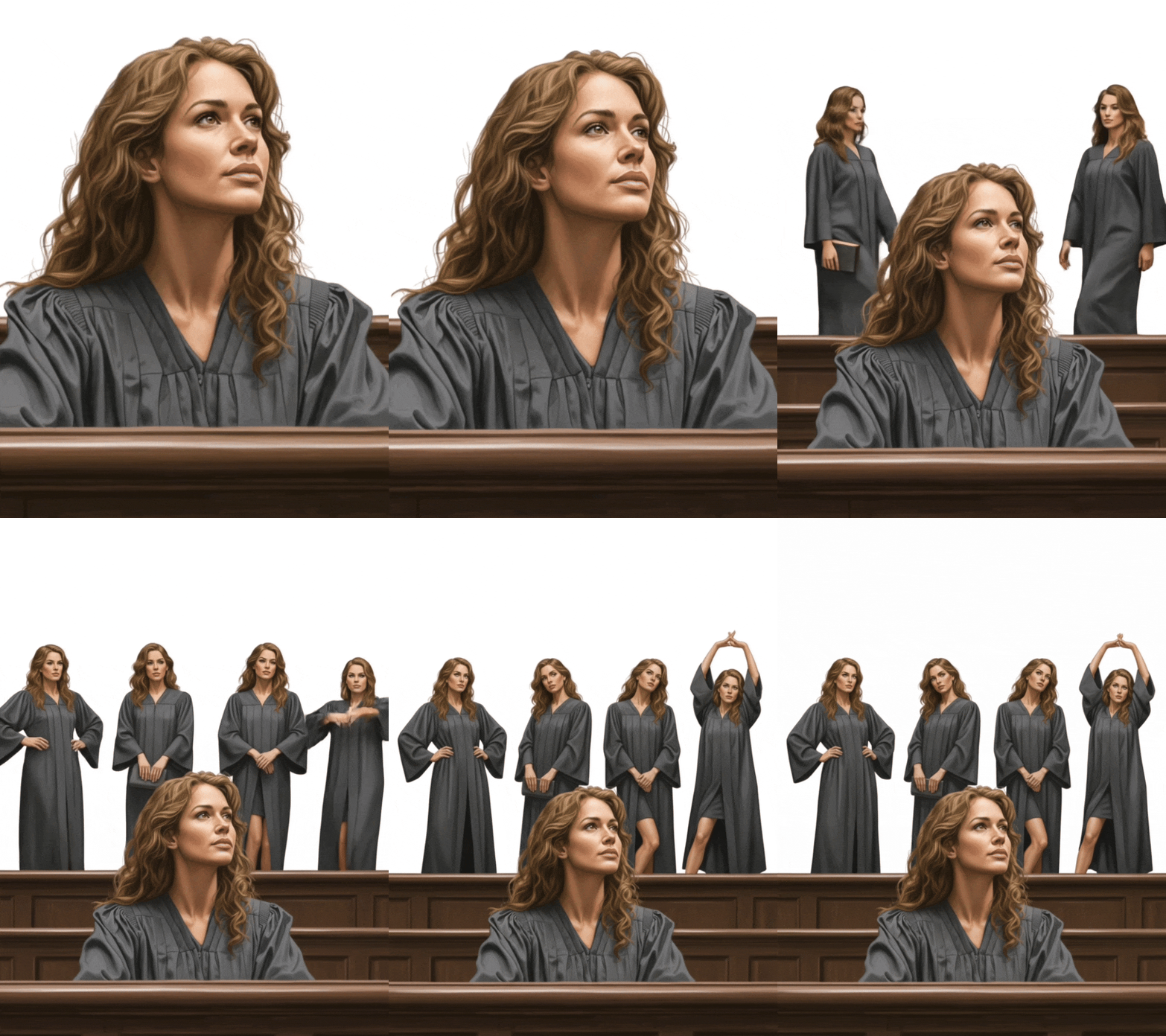
Converting a sketch to a photo is peak fun already. Now imagine how exciting it will be when you transform these photos into cool clips. Fortunately, the Nano Banana Pro AI model on the Image-to-Video tool of Filmora’s Mobile App lets you do this with so much ease.
The beautiful thing about this tool is that you don’t need any editing skills or prompts to use it. All you need to do is upload your photo to the tool, and the AI will transform it into a really cool clip.
Below is a comprehensive guide on how you can transform your photos into clips on Filmora mobile:
Secure Download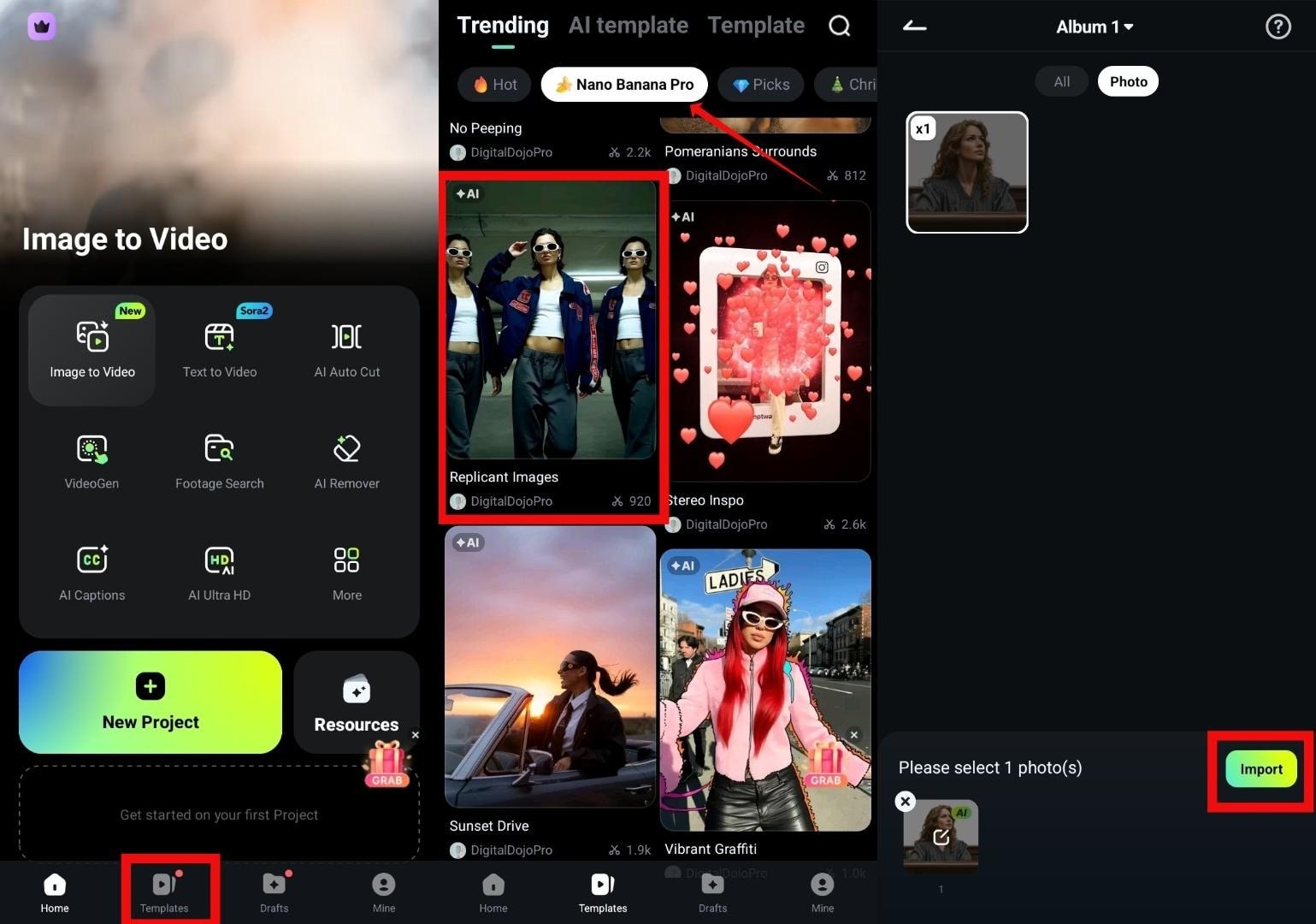
Part 4: Ready-to-Use AI Prompts for Converting Your Sketch Into a Photo
Using the right prompt is very important when it comes to converting a sketch into a more realistic image. However, not everybody knows how to prompt an AI tool properly. If you fall in this category of people, relax – there is no need to panic. We have put together some ready-to-use prompts for you.
Here are some easy, copy-ready prompts your readers can use to convert any sketch into a stunning photo:
- Turn this sketch into a clean, realistic photo with soft lighting and sharp details.
- Convert this pencil drawing into a high-quality photorealistic portrait with smooth skin and clear textures.
- Transform this sketch into a lifelike photo with natural colors and realistic shadows.
- Create a detailed, realistic photo from this line drawing. Keep the facial features accurate and clear.
- Make this rough sketch look like a real photograph with bright lighting and natural tones.
- Turn this simple outline into a realistic photo with fine details and smooth shading.
Conclusion
The process of converting your sketches to photos is now easier than ever. With the right sketch-to-photo tools, you can quickly turn any simple sketch into a beautiful picture. Filmora makes the whole process smooth, fast, and beginner-friendly. You can create photos, turn them into clips, and explore fun AI templates without any editing skills.
So, now that you know exactly how everything works, it’s time to try it yourself. Download Filmora today and start transforming your sketches into amazing photos and videos.

