

 100% Security Verified | No Subscription Required | No Malware


 ChatGPT
 Perplexity
 Gemini
 Claude
 Grok
Grok
A stunning AI-generated artwork appears online, and the desire to recreate a similar style using Stable Diffusion quickly follows. However, writing the right prompt can feel confusing and time-consuming. This is where an image to prompt Stable Diffusion tools becomes extremely helpful. They analyze any image and automatically convert it into a structured, detailed prompt that AI models can understand.
Instead of guessing keywords or descriptions, users receive ready-made prompts instantly. This simplifies the creative process, improves accuracy, and saves valuable time. This article provides all the details that you need to know about Stable Diffusion and the image-to-prompt function.
In this article
Part 1. Can Stable Diffusion Get a Prompt from an Image?
Stable Diffusion itself cannot directly generate a prompt from an image because it is primarily an image generation model, not an analysis tool. It works by creating visuals based on text prompts rather than reverse-engineering them from images. However, the ecosystem around Stable Diffusion image to prompt includes several AI tools and extensions that can perform this task.
Part 2. What a Stable Diffusion Prompt Needs
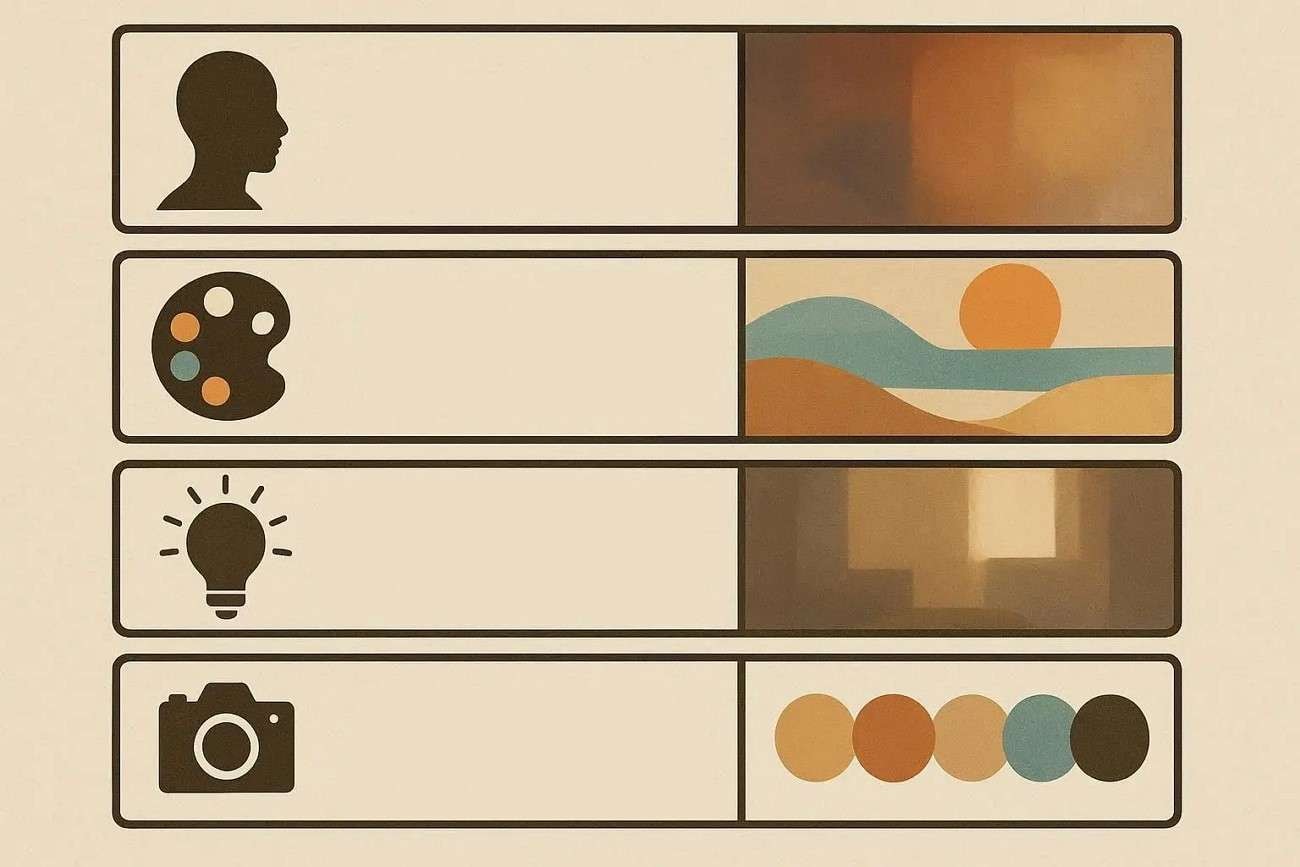
To generate high-quality results in Stable Diffusion, a prompt must be more than just a simple description. It should clearly guide the AI by including key visual and stylistic details. A well-structured prompt helps produce more accurate, consistent, and visually appealing images. Here are the essential components a Stable Diffusion prompt from an image should include:
- Subject Description: This defines what the image is about, such as a person, object, or scene. A clear subject helps the AI understand the main focus of the generation.
- Style Specification: This sets the artistic direction, like realism, anime, cyberpunk, or digital painting. It ensures the image follows a consistent visual style.
- Lighting Details: Lighting describes how the scene is illuminated, such as soft light, cinematic glow, or neon lighting. It plays a key role in setting the mood and depth of the image.
- Composition & Angle: This controls how the subject is framed, like a close-up, a wide shot, or an aerial view. It also defines the camera perspective for better visual structure.
- Color Palette: Colors guide the emotional tone of the image, such as warm, cool, pastel, or vibrant shades. A strong palette makes the image more visually appealing and cohesive.
Part 3. How to Get a Stable Diffusion Prompt from an Image
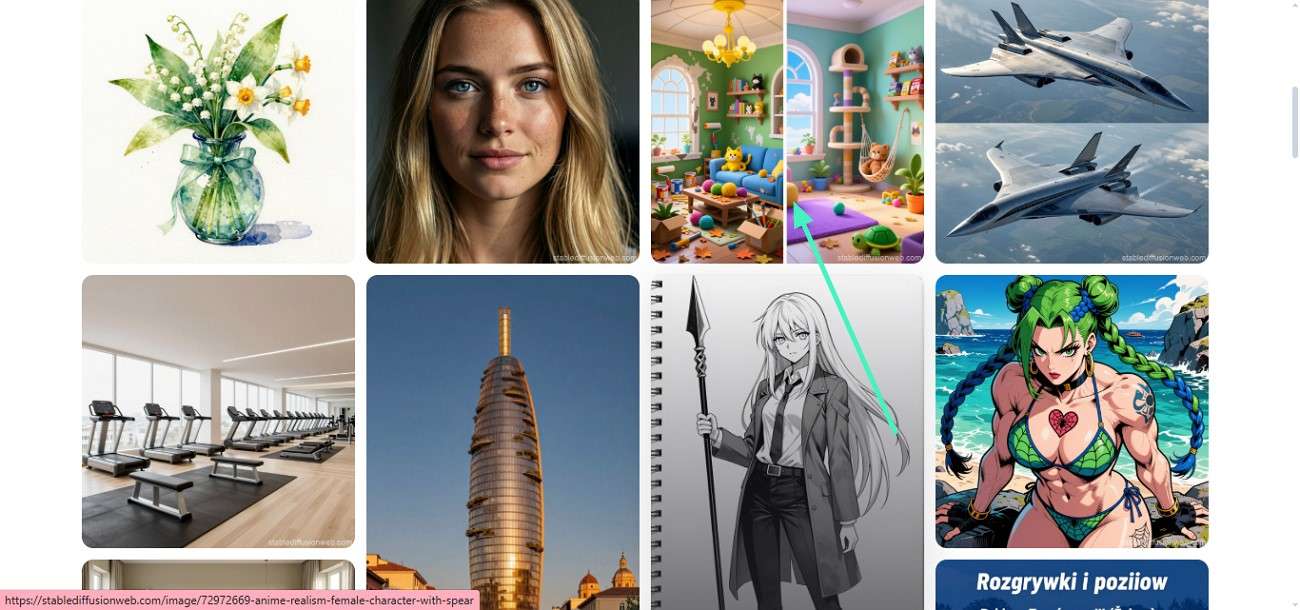
Stable Diffusion does not directly offer built-in image-to-prompt generation, but it does provide access to powerful prompt databases. They help users understand how prompts are structured and how images are created. This database contains a large collection of ready-made prompts paired with example images. It includes styles such as realistic portraits, anime, fantasy, cinematic scenes, and digital artwork. Here is how you can get a Stable Diffusion image to prompt:
Step 1. Access the Stable Diffusion prompt database on your browser and scroll through the images. Choose the image for which you want the prompt and click on it.
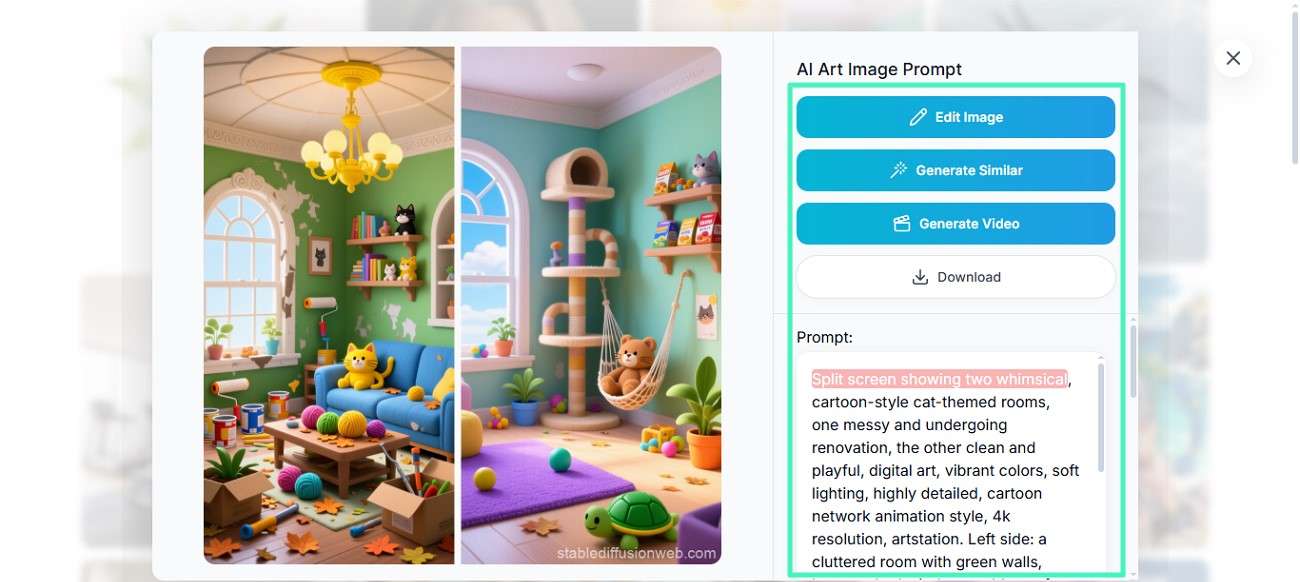
Step 2. Once the image opens, the prompt will appear on the right side, which you can copy and paste wherever you want. You can also generate similar images, videos, and even edit images.
Part 4. How to Pair Stable Diffusion Prompts with Smart Generators
To make the most out of Stable Diffusion image to prompt, combining prompts with smart AI generators can significantly improve both speed and quality. Instead of relying only on manually written prompts, these tools help refine, expand, and optimize prompts for better image results.
Why Filmora Fits This Workflow
One standout option is the image-to-prompt feature in Wondershare Filmora. Instead of manually describing an image or relying on separate prompt generators, this feature automatically analyzes an uploaded image and extracts a structured Stable Diffusion-style prompt. Filmora breaks down key visual elements such as subject, style, lighting, composition, and mood, then converts them into a ready-to-use text prompt.
 secure download

Step-by-Step Guide to Using Filmora with Stable Diffusion Prompts
The following step-by-step guide will show how Filmora can be used alongside Stable Diffusion prompts to streamline the entire creative process:
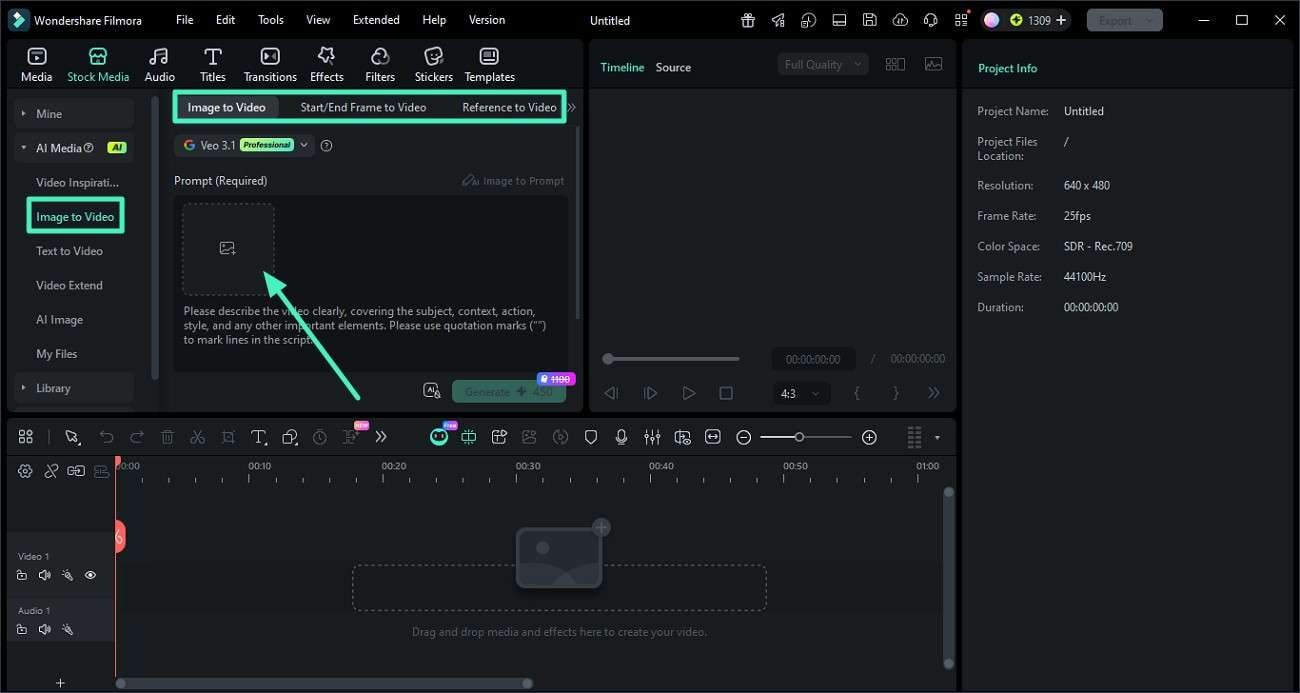
Step 1. Add Your Image to Wondershare Filmora
Launch a new project in Filmora and head to the left-side panel. Select the "Image to Video" option, pick a suitable mode, and upload your image by dragging it into the workspace or browsing from your device.
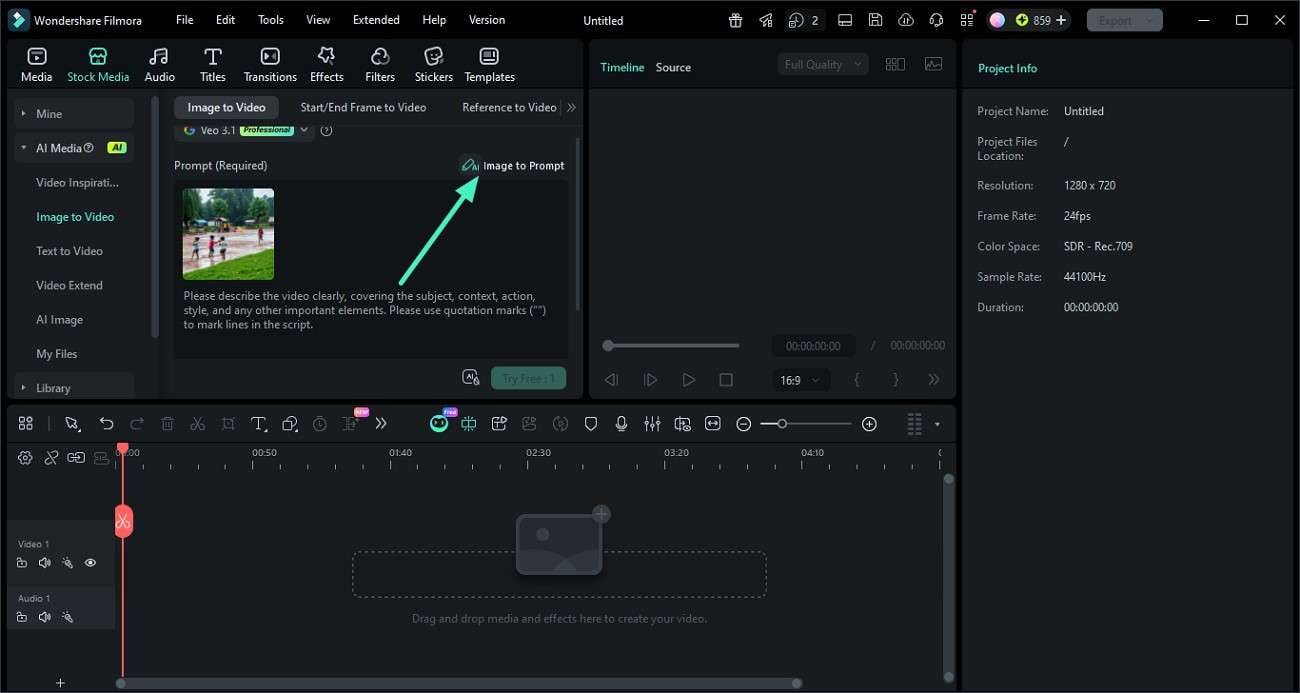
Step 2. Create a Prompt with AI
After uploading, find the "Image to Prompt" feature and activate it. Filmora will analyze the image and instantly generate a detailed prompt based on its visual elements.
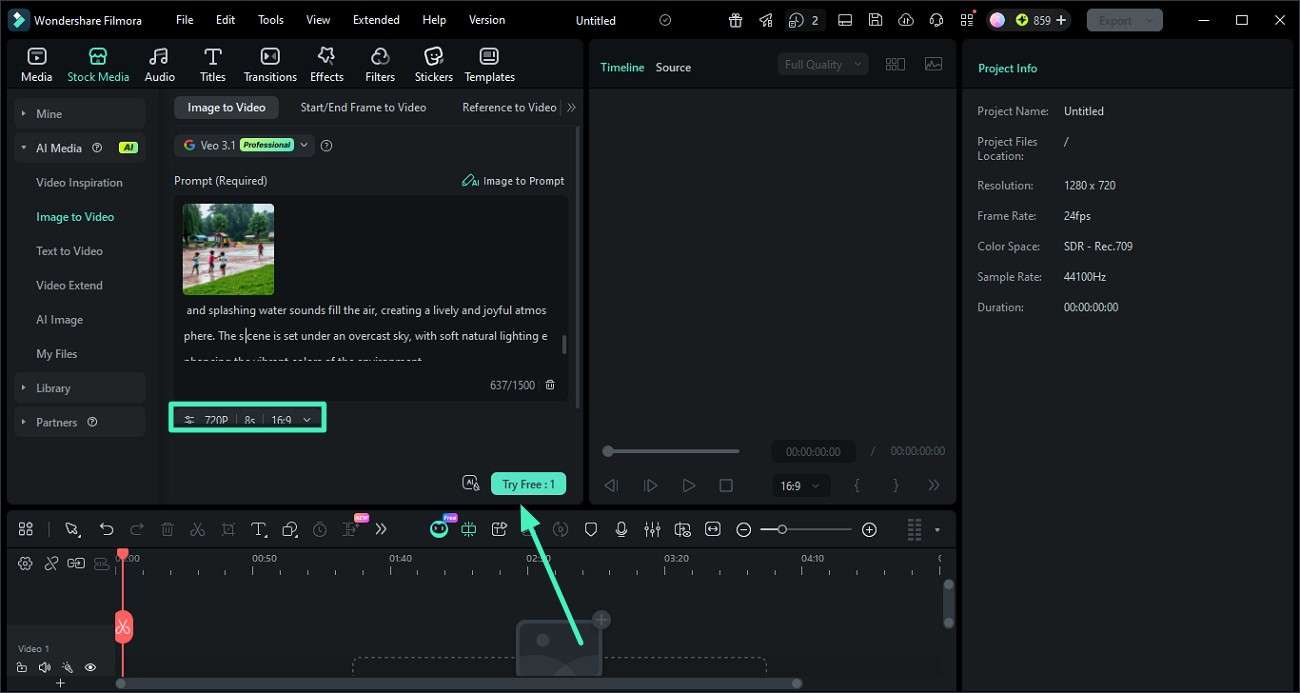
Step 3. Edit the Prompt and Generate
Review the generated prompt and tweak it as needed by adjusting style, tone, or specific details. Once satisfied, click "Generate" to convert the prompt into a video.
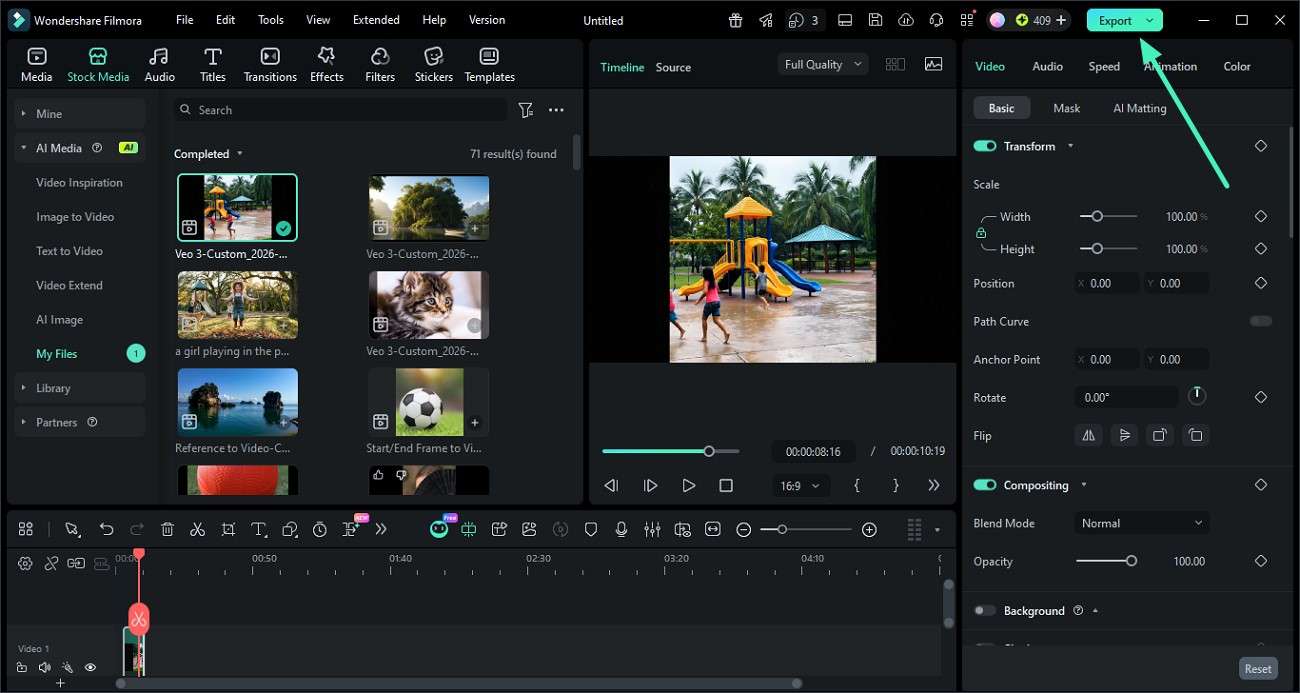
Step 4. Preview and Export
Watch the generated video to ensure it matches your expectations. If everything looks right, click "Export" in the top-right corner to save it in your preferred format.
 secure download
 Part 5. A Copy-Ready Template for Rewriting a Stable Diffusion Prompt
To make prompt creation easier and more consistent, using a structured template can save time and improve results. Instead of writing prompts from scratch, a reusable format helps organize key elements like subject, style, and quality for better image to prompt Stable Diffusion outputs. Here's a simple copy-ready template:
[Subject], [Action/Scene], [Environment/Background],
[Art Style], [Lighting], [Camera Angle],
[Color Tone], [Mood/Atmosphere],
[Details & Textures], [Quality Tags]
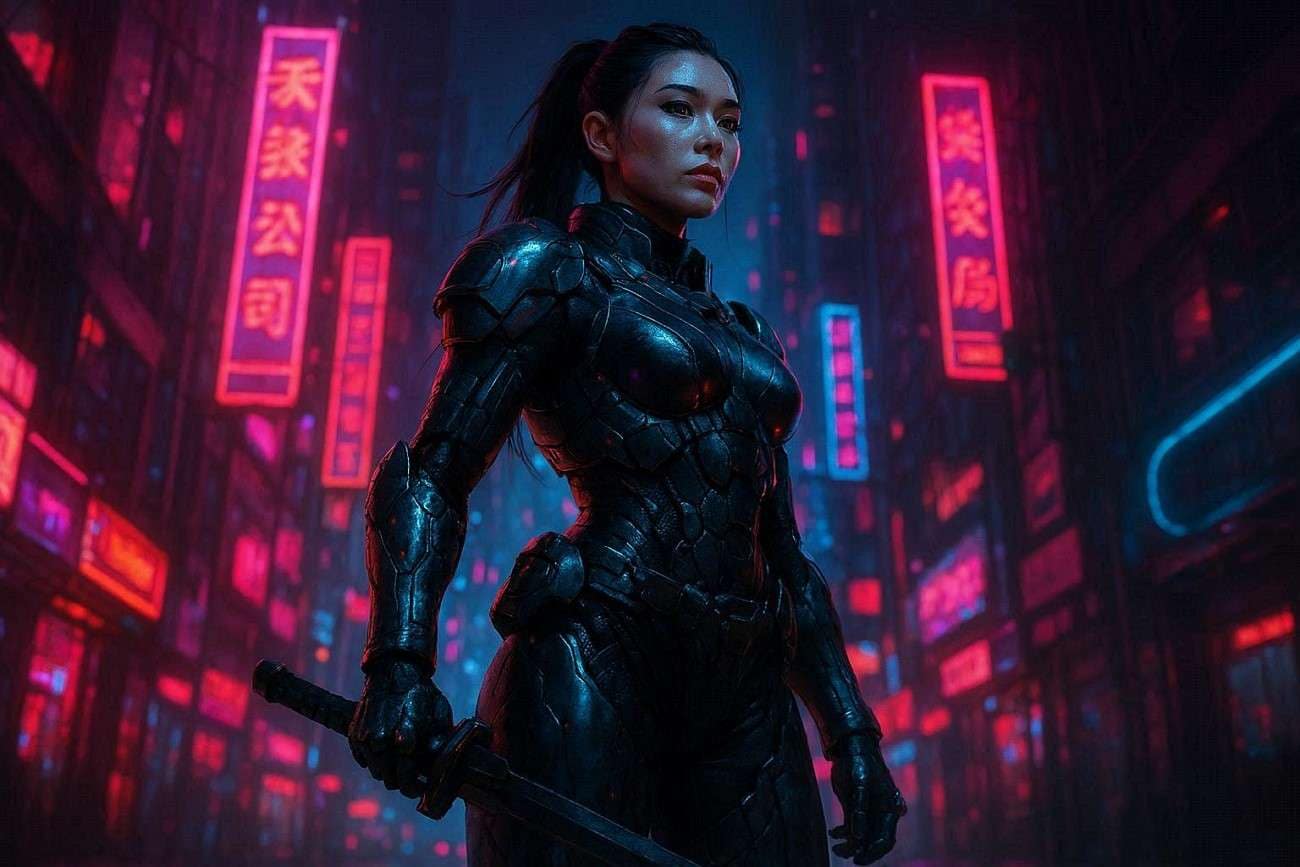
Example: A futuristic female warrior, standing in a neon-lit city, cyberpunk environment, digital art style, cinematic lighting, low-angle shot, vibrant neon colors, intense and dramatic mood, highly detailed armor, ultra-realistic, 8K, sharp focus.
Conclusion
All in all, this article discussed everything about the Stable Diffusion image-to-prompt. From understanding prompt structure to using databases and smart tools, each step helps improve AI image results. To make the process even easier, using the image-to-prompt feature in Wondershare Filmora is highly recommended. It quickly converts images into structured prompts and streamlines your workflow.
secure download Frequently Asked Questions
-
1. What is an image to prompt the Stable Diffusion process?
It is a method of converting an image into a structured text prompt that AI models like Stable Diffusion can understand. This helps recreate similar visuals without manually writing complex prompts. -
2. Can beginners easily generate Stable Diffusion prompts from images?
Yes, beginners can use tools that automatically analyze images and generate prompts. Features like the image-to-prompt tool in Wondershare Filmora make the process simple and beginner-friendly. -
3. How can I improve the quality of my Stable Diffusion prompts?
Focus on adding details like subject, style, lighting, and quality tags. You can also refine AI-generated prompts using tools such as Wondershare Filmora for better accuracy and results. -
4. Are prompt databases useful for Stable Diffusion?
Yes, prompt databases help users explore real examples and understand how prompts are structured. They are a great starting point for learning and improving AI-generated images.
