

 100% Security Verified | No Subscription Required | No Malware


 ChatGPT
 Perplexity
 Gemini
 Claude
 Grok
Grok
Between holiday sales, year-end work, and all the planning that piles up in December, sitting down to design a Christmas poster can feel like tough work. Still, it's something that has to get done.
Marketers need it for their holiday promos, creators want it for their feed, and everyone has their own reason to make one. Whatever it is, there are actually a few easy ways on how to create a good Christmas poster without spending much time. We'll show you how.
In this article
Part 1. Common Types and Essential Elements of Christmas Posters
Posters are essentially digital graphic displays made to catch the eye and deliver a message quickly. For Christmas design posters, they are usually used for things like sales, events, parties, or simple holiday greetings, depending on what you want to use them for.
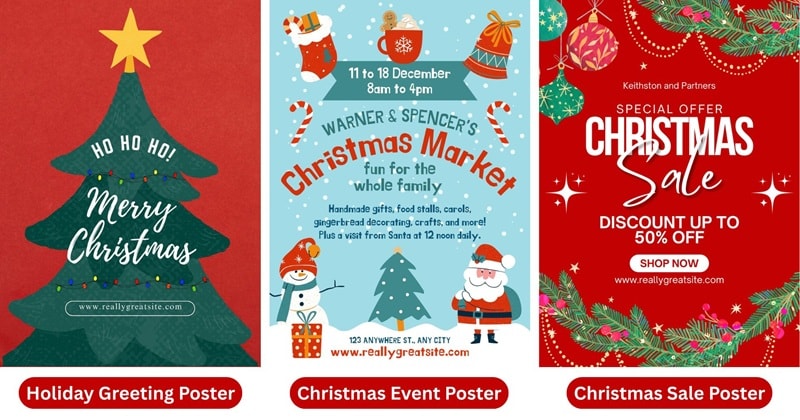
Usually, the main parts of a Christmas poster design must include both design and message elements that work well together. Some of the basics are:
- 🎄 Short and Direct Headline: A poster needs to grab attention fast, so say the main idea in just a few words. Then, add the extra details in a smaller line underneath.
- ❄️ Sprinkle Some Christmas Ornaments: Add little touches like snowflakes, ornaments, trees, ribbons, or twinkly lights. These small elements quickly bring the Christmas feel into your design.
- 🧊 Use White Space or Negative Space: Don't crowd everything together. Leave enough room so your headline and visuals can stand out without fighting for attention.
- 🎁 Clear Details or Call to Action: For Christmas event posters or promo posters, keep key info like dates, locations, or links easy to spot so people know what to do next.
Once you get these basics down, you can move on to creating your poster, starting with the easiest method of them all!
Part 2. Make Christmas Posters with AI – Easy and Fast
For busy people who don't have time to design everything manually, using an AI Christmas poster generator can really save the day. For this reason, we recommend using an AI-powered editor like Wondershare Filmora.
Filmora is not only quick to use, but also gives you plenty of room for full customization. You'll find all the AI tools you need to generate posters, along with a traditional editor and quick templates, in one platform.
 secure download

1. Generate AI Christmas Posters in One Click
Filmora's AI Image generator is now powered by Google's advanced Nano Banana Pro model. You can make use of this feature to create a creative Christmas poster design fast, since the AI understands text, objects, and layouts inside your prompt far better.
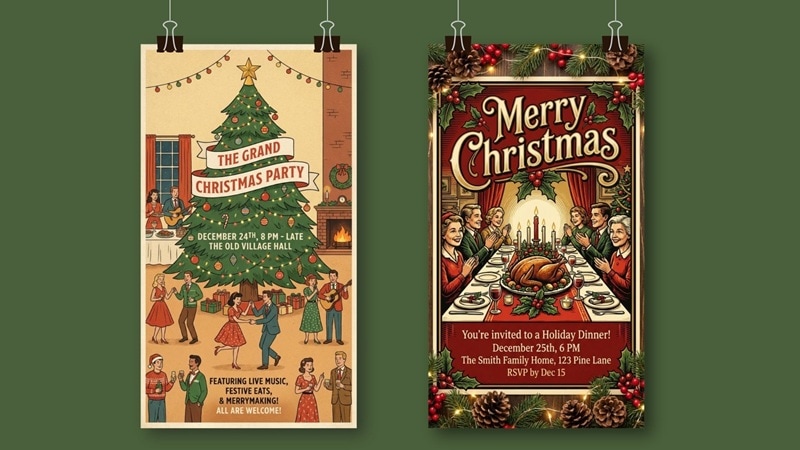
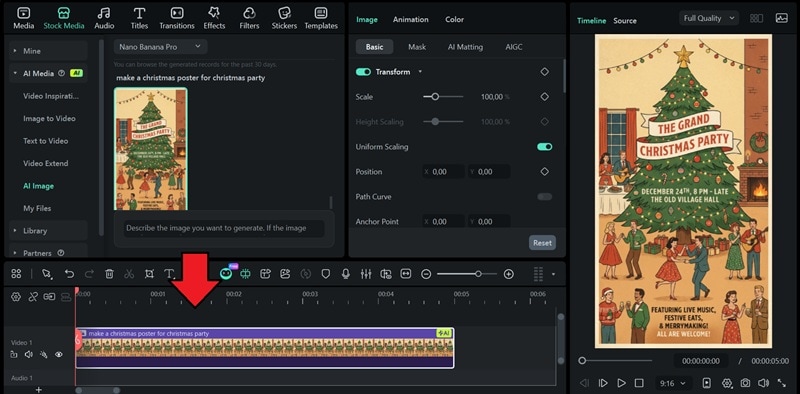
The Christmas poster above was made using Filmora's AI Image in seconds. You can describe the style, colors, elements, and even the wording you want on the poster. Then, the tool builds everything for you.
For more detailed instructions, follow the steps below.
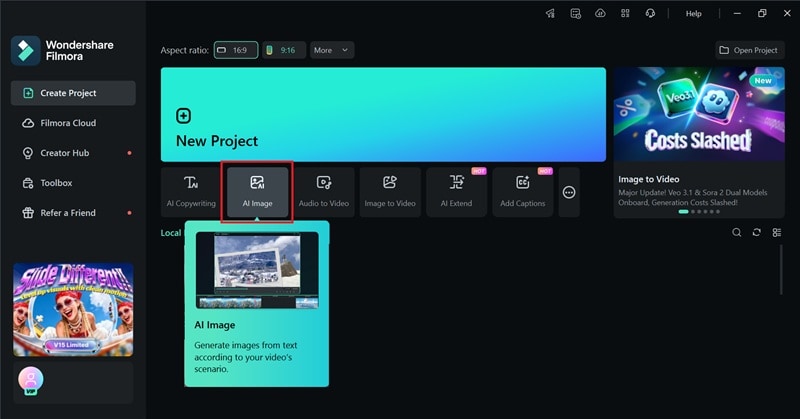
Step 1: Open the AI Image feature in Filmora from the startup screen. If you don't see it right away, find it inside the Toolbox panel.
Step 2: Select Nano Banana Pro as your model and enter a prompt. You can also upload a picture to help guide the AI.
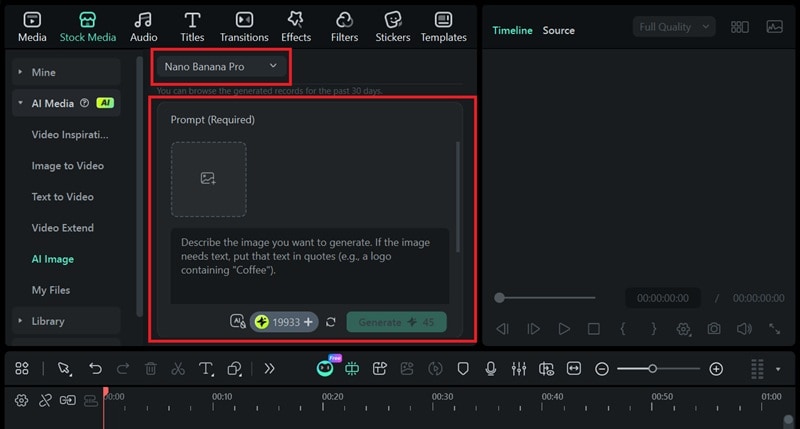
Step 3: Find and download the generated AI Christmas poster. Then, drag it to the timeline to edit it further using Filmora's editing tools. Click Export to save your design.
2. Turn Your Christmas Poster Into a Moving Visual (Optional)
If you want your Christmas poster to stand out even more, especially on social media, you can turn it into a short animated poster video. You don't need to know motion graphics to make it happen. The AI Image to Video tool in Filmora can handle the animation based on the prompts and instructions you give.
Make a Short Christmas Poster Video from an Image
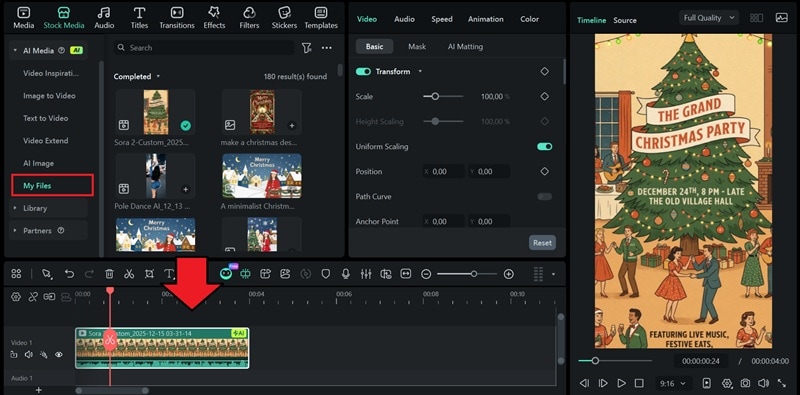
Step 1: Select the Image to Video panel under the Stock Media > AI Media tab.
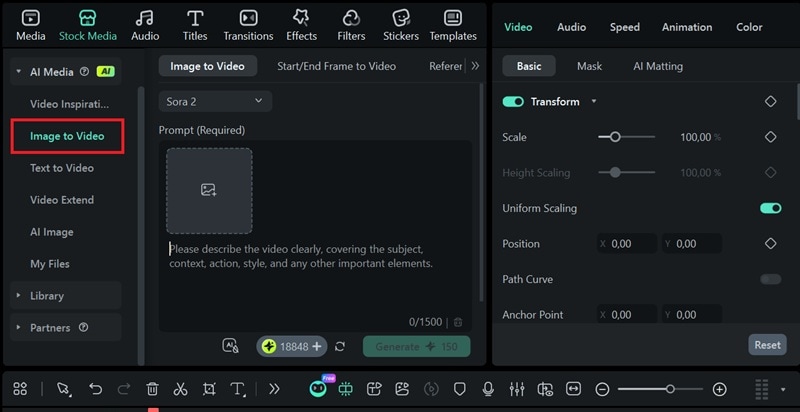
Step 2: Choose your AI model, upload your Christmas poster design, and enter your prompt or animation instructions. Click Generate to create your animated poster video.
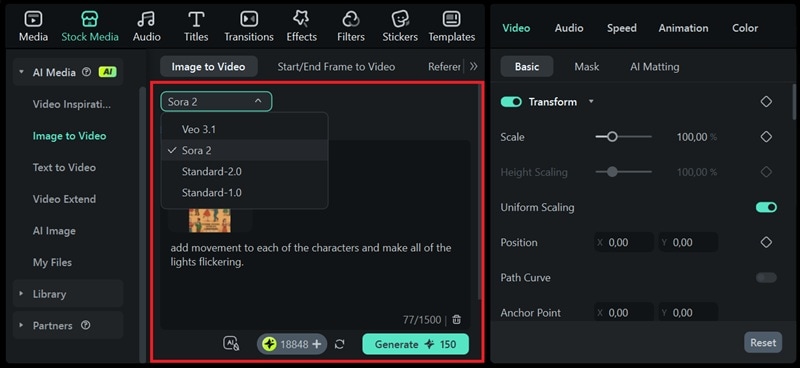
Step 3: Find the result in the MyFiles panel. Drag it onto the timeline to refine it, such as replacing the background music or adding extra effects and text animations.
Part 3. Build a Custom Christmas Poster Step-by-Step
Feeling creative today? Even though Filmora can automate most of the work with its AI tools, you still have the freedom to design everything your way with its full editing toolkit. You can start from a blank canvas, mix different elements, add your own photos, or play around with fonts and colors to create a Christmas poster. Everything is ready to use inside the software.

How to Create a Custom Christmas Poster
Step 1: Browse suitable background in Filmora's Stock Media library or import your own. Add it to the timeline.
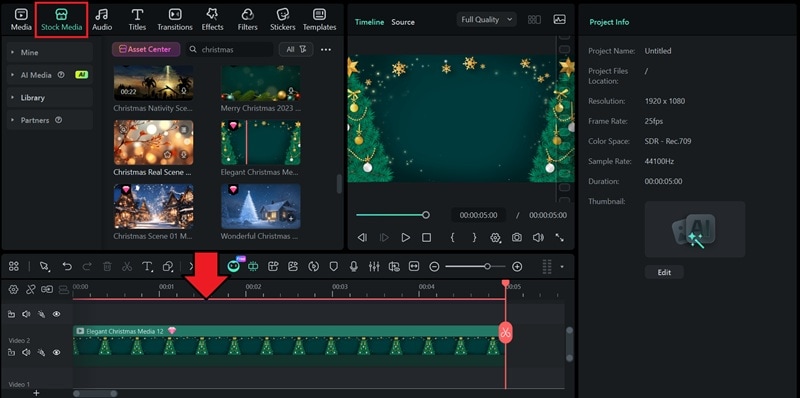
Step 2: Layer your design with another image or clip. Add it on top of your background track.
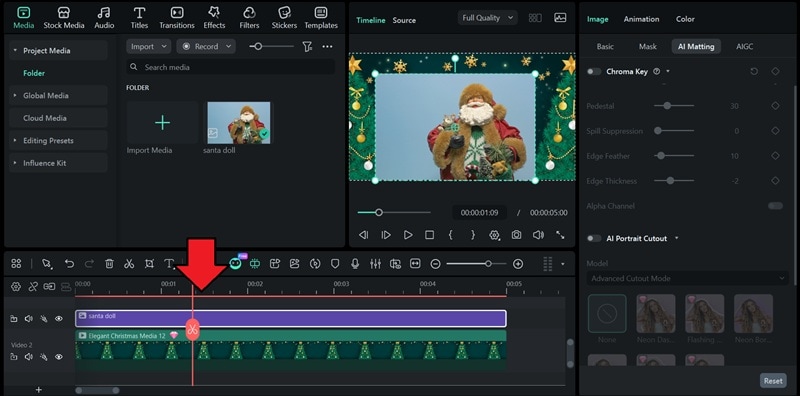
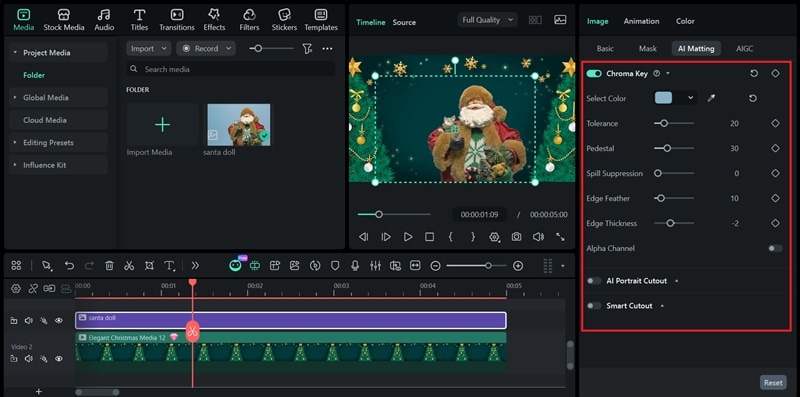
Step 3: To make the composition look seamless, remove the background of your added image using Filmora's AI Matting tools in the Properties panel:
- Chroma Key: Removes a solid background color automatically.
- AI Portrait: Detects the subject and removes the background around it.
- Smart Cutout: Lets you mark the object you want to keep, and the AI handles the cutout for you.
Turn on the toggle to apply the effect. Filmora will remove the background immediately.
Step 4: Add text overlays by selecting the Titles tab. You can browse through Christmas-themed fonts and effects to style your headline, message, or other details.
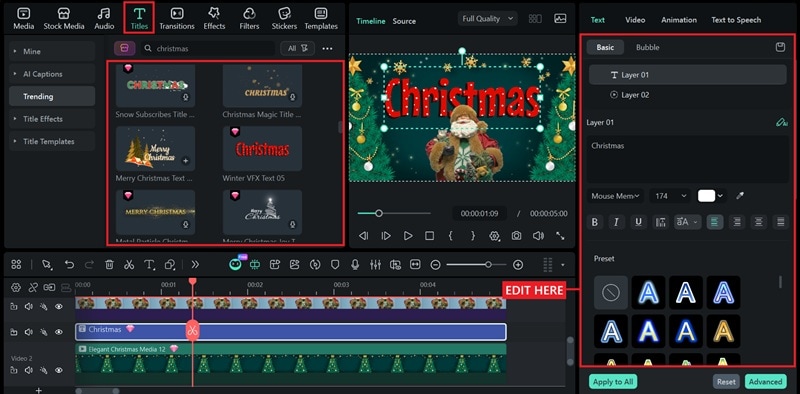
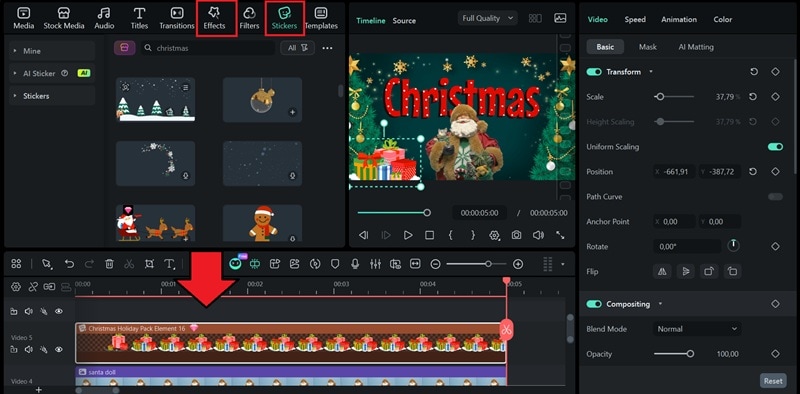
Step 5: Open the Stickers or Effects tab and download any Christmas decorations and overlays you like. Place them around your design. Pay attention to the layers on the timeline so each element appears exactly where you want it.
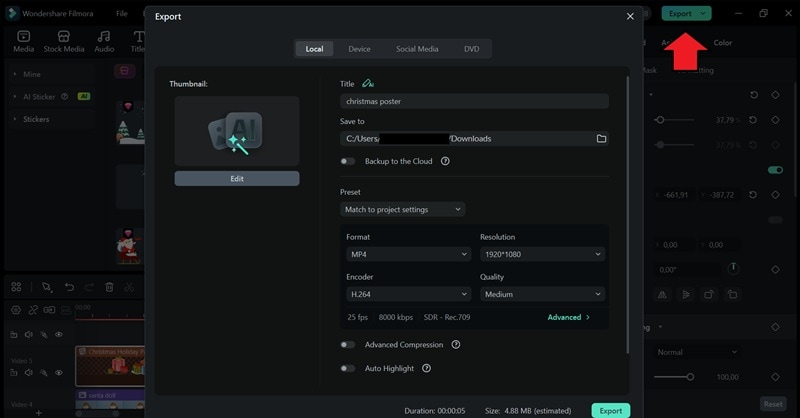
Step 6: Hit Export to save your final design. You can save it as an image or a video format.
Part 4. Christmas Poster Design Templates to Use Right Away
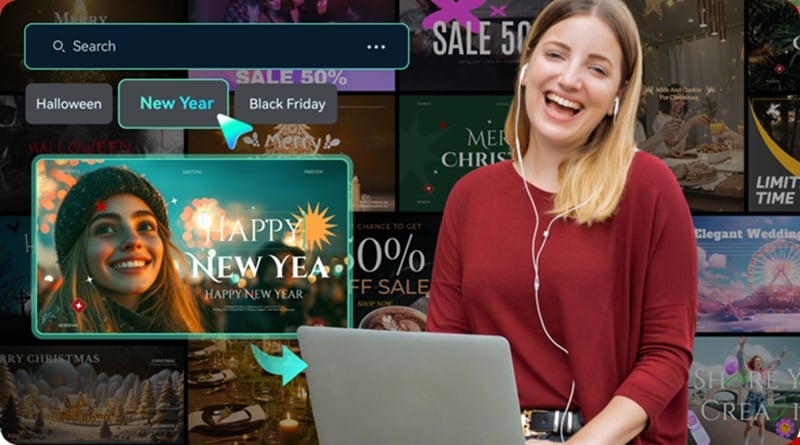
Aside from making your own design, you can also browse Filmora's Templates for ready-made Christmas poster layouts. Just pick a style you like and swap the text or images. You can also use the library to give you some Christmas poster ideas.
This method is perfect when you want something fast without starting from scratch. Some of them are free Christmas poster templates you can use right away.
How to Use Filmora's Christmas Poster Design Template
Step 1: Navigate to the Templates tab and select Christmas from the categories to filter the results. Drag the Christmas poster template to the timeline to start editing.
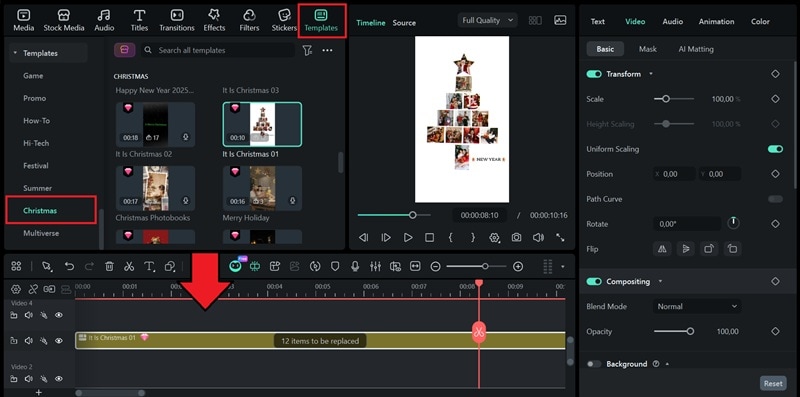
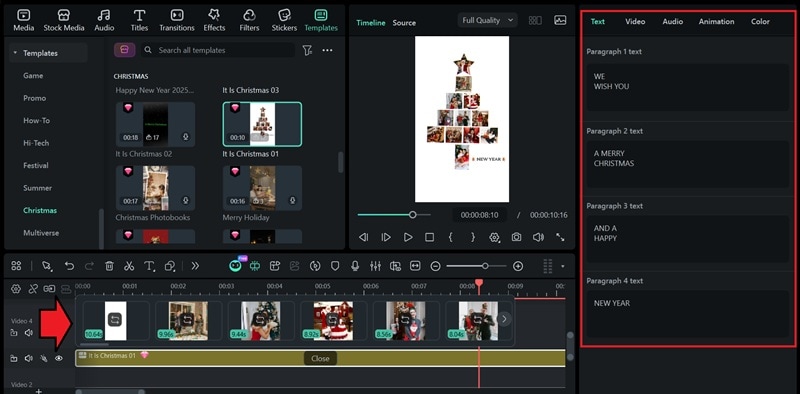
Step 2: Select the "items to be replaced" icon on the timeline, then upload your own asset into the designated spot. To edit the text, open the Text tab on the properties panel.
Conclusion
Your Christmas poster design is now ready to use anywhere! With Filmora, you can build a poster in minutes, customize it as much as you like, and even turn it into a short animated clip if you want something extra for your feed.
Don't forget to try and experiment with other styles and layouts. You'll be surprised at how easy it is and how many Christmas posters you can create in just a short time!
 secure download