

 100% Security Verified | No Subscription Required | No Malware


 ChatGPT
 Perplexity
 Gemini
 Claude
 Grok
Grok
The Busy Traffic Street Vlog Filter pack is designed for creators who film in hectic city environments and want clear, cinematic results straight from the timeline.
These Filmora filters balance neon lights, headlights, street signs, and fast motion so your busy traffic street vlog footage looks sharp, stylish, and easy to watch on any platform.
In this article
City Rush Hour Tones
Neon Commute Glow
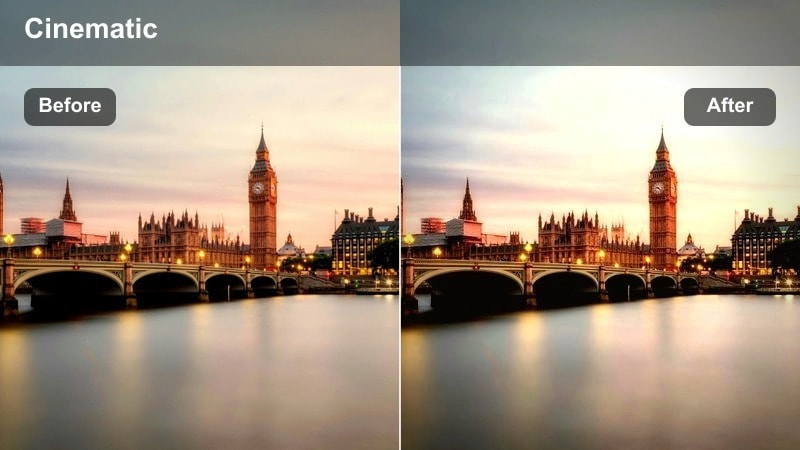
- Effect look: Soft glow on headlights and neon signs with slightly lifted shadows for a polished night commute vibe.
- Best for: Night-time traffic vlogs with lots of car lights, storefront signs, and wet asphalt reflections.
- Editing tip: Lower the filter intensity to around 60 percent if your original footage is already very bright to avoid blown highlights.
Neon Commute Glow is ideal when you want busy nightlife streets to feel dreamy without losing detail. In Filmora, this preset adds a subtle bloom to bright sources like headlights, signage, and reflections, while lifting the shadows just enough so viewers can still see into dark sidewalks and building facades.
Apply it to handheld walk-throughs, car window views, or static shots of intersections, then fine-tune intensity with Filmoras Effects panel. If your footage has strong contrast, slightly reduce highlight and contrast sliders so the glow stays cinematic instead of hazy, and combine it with Filmoras film grain for a polished city-night finish.
Match Your Busy Traffic Street Vlog Aesthetic With AI Color Tools
Filmoras AI color tools make it easy to keep your busy traffic street vlog filter style consistent even when your footage comes from different cameras. Once you dial in a look with Neon Commute Glow or any other preset in this pack, you can treat that clip as your visual reference.
Use AI color matching to copy the look from your best graded rush-hour clip and apply it across crosswalks, highways, and subway shots so every scene feels like part of the same cinematic story.
 secure download

See the Busy Traffic Street Vlog Filters in Action
To understand how each preset treats neon signs, car trails, and building textures, stack multiple busy traffic street vlog filters on the same clip and toggle them on and off. Filmoras real-time preview makes it easy to see how glow, contrast, and saturation shifts affect viewer focus.
Use split-screen preview to compare two or more versions side by side, then save your favorite mix of filter, intensity, and basic color tweaks as a custom preset for repeatable results on future city vlogs.
secure downloadBlend Filters With LUTs for Signature Street Styles
Filmora includes 1000 plus video filters and 3D LUTs, so you can combine this busy traffic street vlog pack with cinematic LUTs for unique city moods. Use a LUT at low strength to set the general color direction, then layer one of these presets on top to refine brightness and contrast for each scene.
This approach lets you create repeatable looks such as cool blue highway nights, warm side-street storytelling, or soft morning commutes, all while keeping skin tones controlled and details clean.
secure downloadAfterwork Hustle Contrast
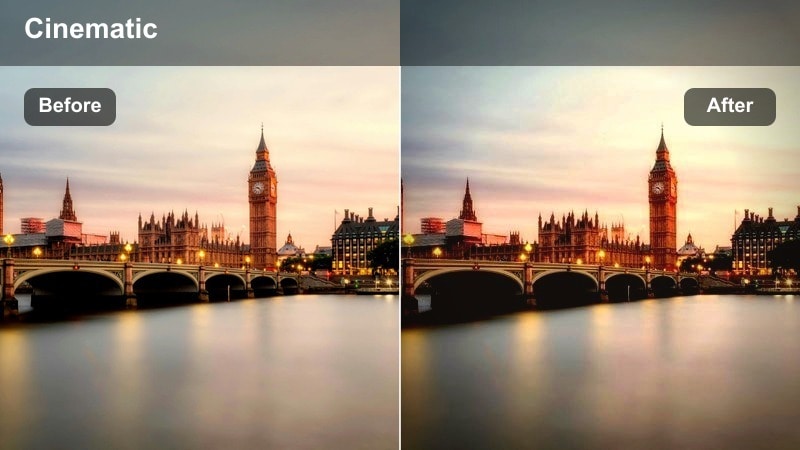
- Effect look: High-contrast, crisp detail with cool shadows and punchy highlights to emphasize movement and edges.
- Best for: Handheld walk-and-talk vlogs during golden hour or early evening in dense business districts.
- Editing tip: Combine with slightly higher shutter speed during shooting to keep moving crowds sharp under this contrasty filter.
Afterwork Hustle Contrast makes city edges pop so skyscrapers, crosswalks, and traffic lanes all appear clean and modern. In Filmora, it adds sharpness and cool-toned shadows that work especially well for office districts and financial streets during rush hour.
Use this preset on walk-and-talk sequences when you want your audience to feel the intensity of crowds moving around you. If your footage starts to look too harsh, slightly lower contrast and clarity in the Color panel and add a subtle vignette so your face remains the brightest, sharpest point in the frame.
Gridlock City Matte
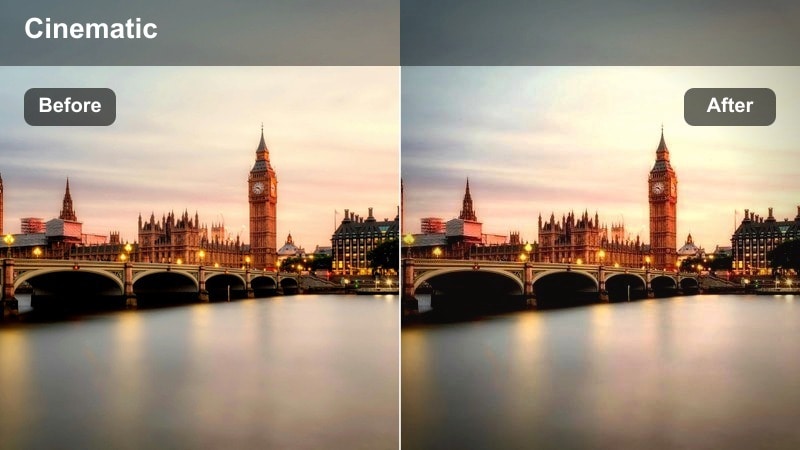
- Effect look: Muted colors with lifted blacks and a soft matte finish that smooths harsh city lights.
- Best for: Static tripod shots of long traffic lines, time-lapses, and reflective city windows.
- Editing tip: Pair with a subtle speed ramp in Filmora to turn simple traffic jams into stylized b-roll sequences.
Gridlock City Matte flattens contrast slightly and softens harsh lights to give traffic jams a filmic, story-driven character. The lifted blacks create a gentle haze that works beautifully on top-down views of congested streets or long-lens shots of brake lights stretching into the distance.
In Filmora, apply this filter to b-roll that bridges between speaking segments, such as cutaways of gridlocked avenues or reflections in office windows. Add slow zoom-in keyframes and occasional speed ramps so even static scenes feel dynamic, then adjust saturation so signage and taillights do not overpower your main narrative.
Daytime Crosswalk Energy
Crosswalk Clear Pop
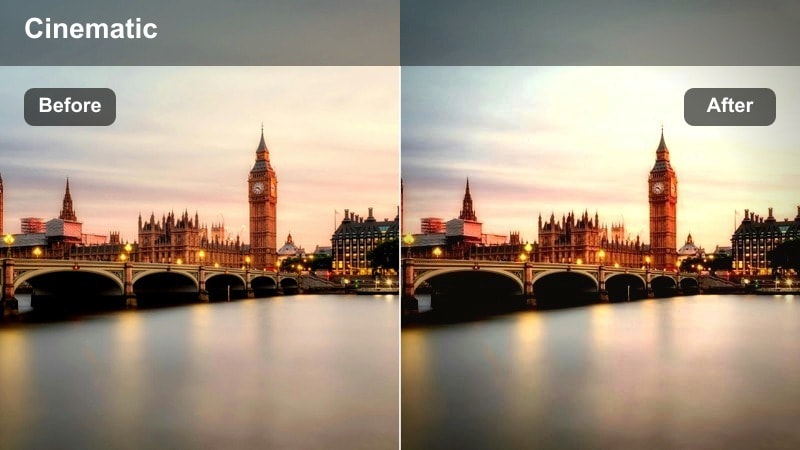
- Effect look: Clean, vibrant colors with bright whites and natural skin tones for sunny city streets.
- Best for: Daytime crosswalk scenes, street interviews, and walk-through city tours.
- Editing tip: Reduce saturation slightly when filming under harsh midday sun to keep crosswalk stripes from clipping.
Crosswalk Clear Pop brightens whites and lifts colors just enough to make daytime city scenes look fresh without turning cartoonish. Sidewalks, storefronts, and traffic signals become more readable on mobile screens, while skin tones remain natural for interviews and monologues.
Use this preset in Filmora on your main A-roll as you cross streets, talk to camera, or guide viewers through busy intersections. If highlights on road markings or signs get too intense, slightly lower overall saturation and dial back filter intensity until the frame looks crisp but not blown out.
Weekday Rush Soft
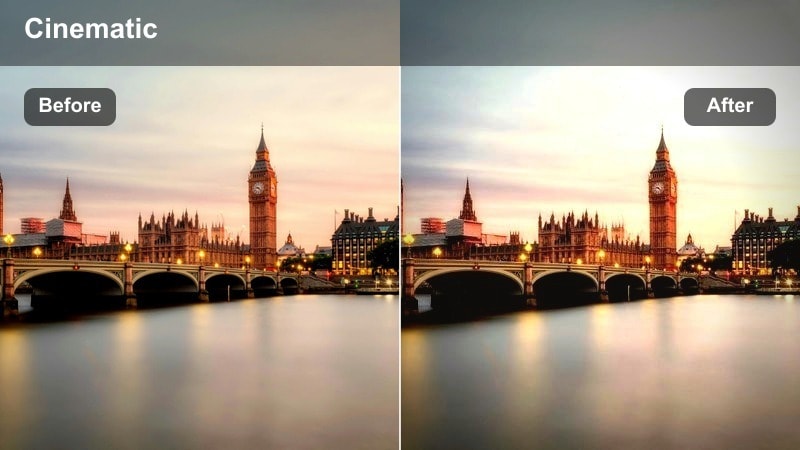
- Effect look: Gentle contrast and slightly warm midtones to calm the chaos of busy sidewalks.
- Best for: Casual talking vlogs while walking next to busy streets, especially in overcast or flat light.
- Editing tip: Add a subtle background blur effect to separate yourself from moving cars when the scene feels too crowded.
Weekday Rush Soft is designed to make hectic daytime traffic feel friendly and approachable. The warm midtones enhance skin and building facades, while the softer contrast reduces the visual noise of cars, signs, and crowds behind you.
Apply this filter in Filmora when filming lifestyle or diary-style vlogs on sidewalks and bus stops. Combine it with a background blur or shallow-depth-of-field effect where possible, and tweak brightness so your face remains gently highlighted while the moving environment stays one step softer in tone and detail.
Sunlit Avenue Crisp
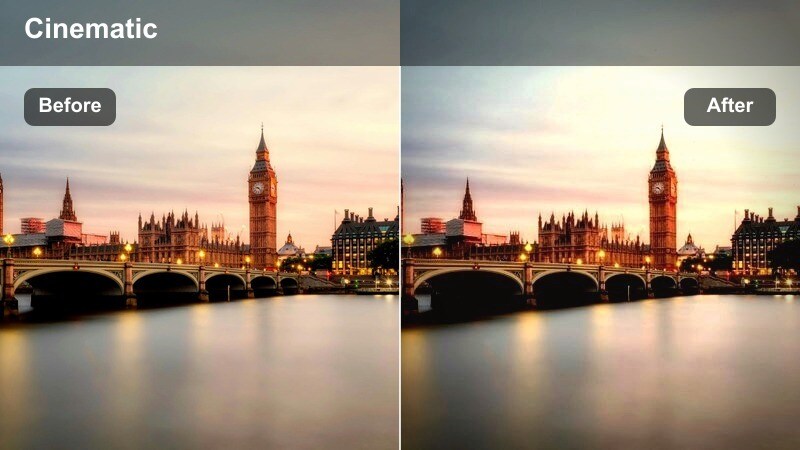
- Effect look: Crisp detail with slightly cooler shadows and enhanced edge sharpness for architectural lines.
- Best for: Wide shots of major avenues, moving vehicle shots, and cityscape establishing scenes.
- Editing tip: Combine this filter with image stabilization in Filmora to keep moving shots smooth and professional.
Sunlit Avenue Crisp emphasizes clean lines and fine detail, making it perfect for establishing shots of long avenues, bridges, and city blocks. The slightly cooler shadows help glass buildings and road surfaces look polished and modern under bright sunlight.
In Filmora, use this preset on drone-like pans, car-mounted shots, or wide tripod views that introduce a new part of the city. Pair it with built-in stabilization and, if needed, reduce sharpness slightly for close-ups to avoid harsh edges on faces while keeping wide traffic scenes looking crystal clear.
Night Rain and Light Trails
Rainy Lane Reflections
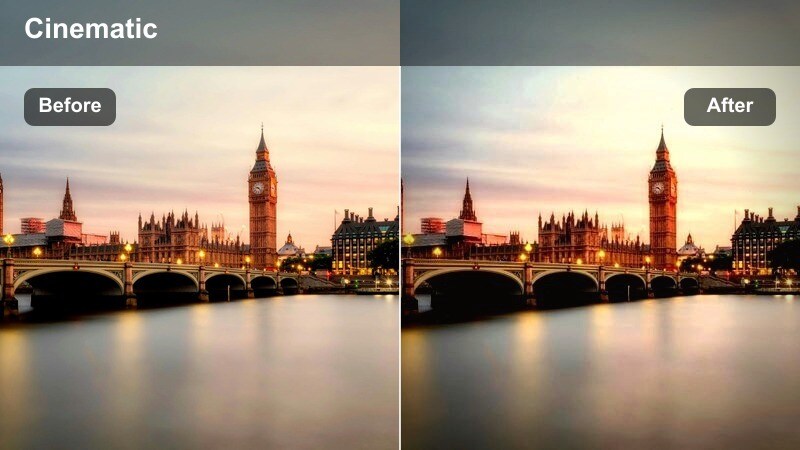
- Effect look: Deep contrast with saturated reflections and rich blues in wet pavement and night skies.
- Best for: Night vlogs after rain, umbrella walks, and reflective puddle shots near traffic lights.
- Editing tip: Slow down clips a little to let the reflections breathe and match the moody pacing of the filter.
Rainy Lane Reflections pushes blues and contrast to transform wet streets into vivid, cinematic surfaces. Puddles, crosswalks, and glossy asphalt pick up car lights and traffic signals, creating painterly streaks of color throughout your frame.
Use this preset in Filmora on slow walking shots, b-roll of tires rolling through puddles, or close-ups of reflections in sidewalks and windows. Experiment with slightly reduced playback speed and gentle music beds, and keep exposure a touch darker in-camera so the filter has headroom to lift highlights in the reflections without clipping.
Highway Light Trails
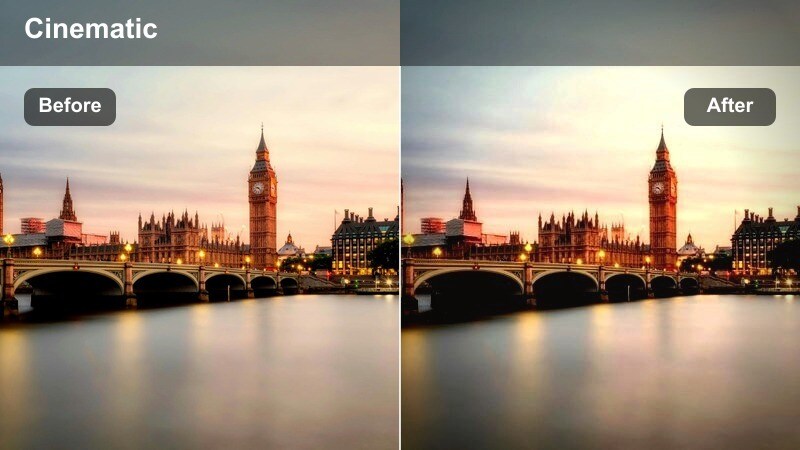
- Effect look: Emphasized light streaks and slightly darker midtones to draw attention to moving car trails.
- Best for: Tripod shots overlooking highways, overpasses, and elevated city roads at night.
- Editing tip: Speed up your clip and add a gentle zoom to make static traffic shots feel like dynamic time-lapse b-roll.
Highway Light Trails is tuned for shots where car headlights and taillights turn into long streaks, whether from long exposure or just busy traffic. Darkened midtones help the glowing lines stand out against the city, making your b-roll feel graphic and stylized.
Apply this filter in Filmora to tripod clips from bridges or rooftops looking down on multilane roads. Try time-remapping to accelerate the motion of the trails, then add a slow digital zoom-in or pan keyframe so even a locked-off shot feels like a cinematic time-lapse sequence.
Night Market Ambient

- Effect look: Warm and colorful tones that emphasize small light sources and signage while keeping shadows soft.
- Best for: Bustling city night markets, roadside stalls, and crowded evening street vlogs.
- Editing tip: Reduce noise with Filmoras denoise tool before applying the filter for cleaner low-light footage.
Night Market Ambient boosts warmth and saturation in small light sources like lanterns, shop signs, and street stalls while avoiding harsh, crunchy shadows. It is ideal for sequences where you are weaving through tight alleys full of vendors, scooters, and slow-moving cars.
In Filmora, run a light denoise pass on your high-ISO clips first so the color work does not exaggerate grain. Then apply this preset and fine-tune intensity to keep skin tones warm but not overly orange, letting the mix of signage, headlights, and shop lighting create a cozy, inviting nighttime atmosphere.
Subway and Side Street Vibes
Subway Arrival Drift
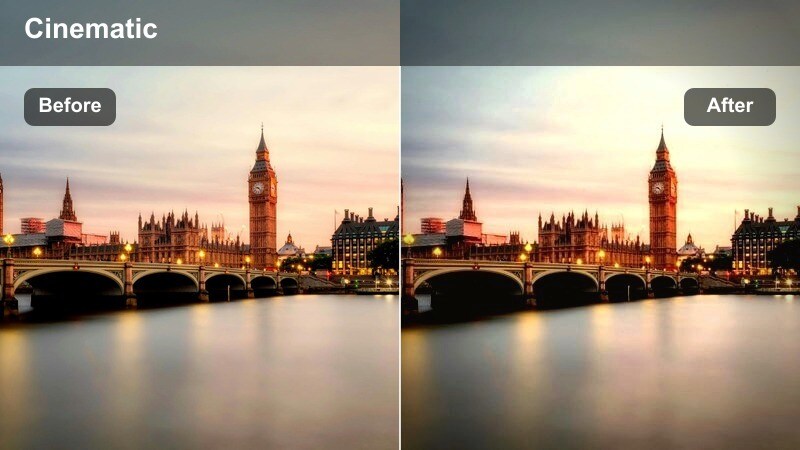
- Effect look: Slight motion blur feel with cool, desaturated tones for underground transit scenes.
- Best for: Subway platforms, train arrivals, and escalator shots leading to busy street exits.
- Editing tip: Use Filmoras motion blur or speed ramp tools with this filter to accentuate the sense of movement.
Subway Arrival Drift cools down colors and pulls some saturation out of the frame, giving underground platforms a sleek, almost futuristic vibe. The look pairs well with clips where trains are rushing past, doors are opening, and commuters are flowing in and out of stations.
Apply it in Filmora to escalator rides, platform waiting shots, and POV walks through tunnels. Layer on motion blur or speed ramps, especially when trains enter or exit, to amplify the sense of speed and transition before you cut back to the brighter chaos of street-level traffic above.
Side Street Cinematic
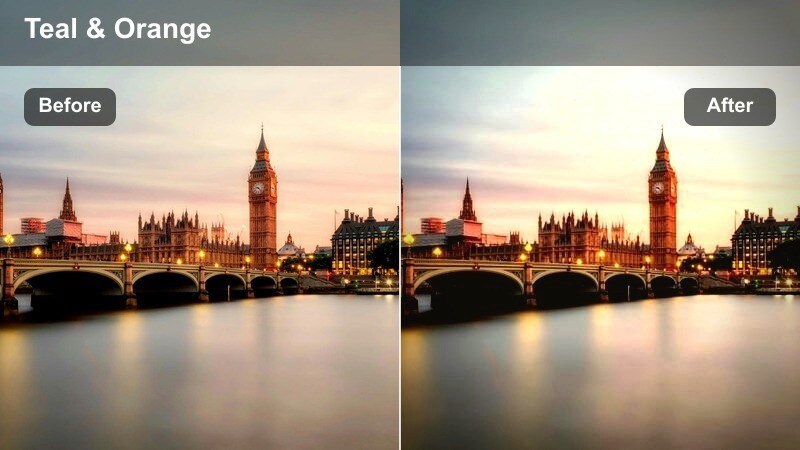
- Effect look: Subtle teal and amber split tones with gentle vignette for narrow urban side streets.
- Best for: Narration or storytelling segments filmed in quieter back streets near busy traffic zones.
- Editing tip: Lower saturation of background elements to keep attention on your face while maintaining city context.
Side Street Cinematic introduces a classic teal-and-amber split tone combined with a soft vignette, turning ordinary alleys and back streets into moody backdrops. It keeps enough detail in parked cars and distant traffic to show context without distracting from your story.
In Filmora, drop this filter on sequences where you deliver important lines away from noisy intersections. Gently reduce background saturation or use masks to keep your face naturally colored while the environment leans more into teal and amber, creating a cinematic but controlled storytelling space.
Overpass Lookdown Perspective
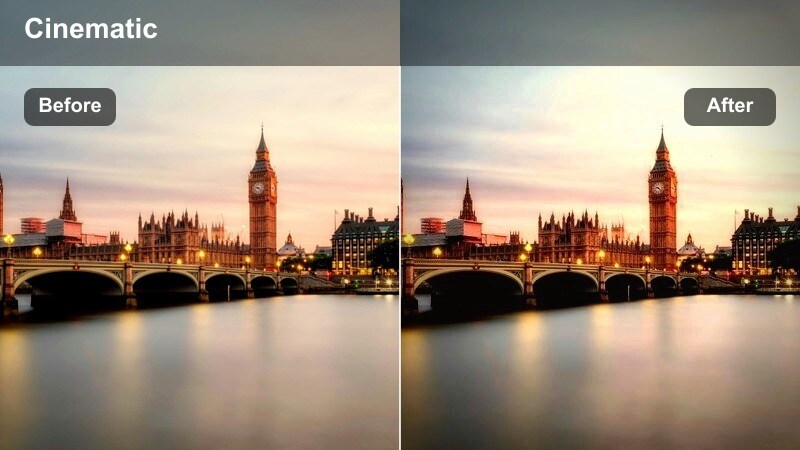
- Effect look: Cool highlights and enhanced clarity that emphasize lines of traffic seen from above.
- Best for: Looking down from bridges, walkways, and overpasses onto intersecting traffic below.
- Editing tip: Add a slow tilt or pan keyframe in Filmora to simulate a drone-like move over the traffic.
Overpass Lookdown Perspective boosts clarity and slightly cools highlights so that lane markings, car roofs, and intersection grids appear clean and structured. This makes overhead traffic shots feel like animated maps that help orient your audience within the city.
Use this filter in Filmora at the start of new chapters or location changes in your vlog. Add a slow digital tilt or pan to mimic drone movement, and cut these clips alongside ground-level footage so viewers always understand how the streets they see from above connect to the sidewalks and crosswalks where you are filming.
Tips for Using Busy Traffic Street Vlog Filter Filters in Filmora
- Shoot with a slightly flatter in-camera profile so the busy traffic street vlog filters have more room to add contrast and color without clipping highlights or crushing shadows.
- Keep your shutter speed high enough when filming fast cars and crowds, because overly blurry motion is difficult for any filter to fix convincingly.
- Use a variable ND filter for bright outdoor scenes so you can maintain proper exposure and let Filmora filters behave consistently across different locations.
- Mix wide traffic and skyline shots with close-up sidewalk and storefront details to give each filter a specific storytelling role in your edit.
- Always preview your color grade on a phone screen, since most viewers will watch your busy street vlogs on mobile devices.
- Lower filter intensity on talking-head segments and raise it on b-roll so your audience stays focused during key dialogue moments.
With the Busy Traffic Street Vlog Filter pack, you can turn hectic city streets, highways, crosswalks, and side alleys into visually coherent stories that match your channels style.
Load these presets in Filmora, test a few combinations, and build a repeatable workflow so every new traffic vlog looks cinematic, consistent, and ready to publish fast.
secure download