

 100% Security Verified | No Subscription Required | No Malware


 ChatGPT
 Perplexity
 Gemini
 Claude
 Grok
Grok
This guide highlights 12 Filmora filters that work beautifully alongside a City Park Walking Vlog LUT, helping content creators shape a consistent, cinematic look through an entire city park walk.
Each preset is tuned for real-world walking vlog challenges like shifting light, mixed urban and greenery backgrounds, and handheld motion, so you can quickly match the vibe of your City Park Walking Vlog LUT and keep viewers immersed in your story.
In this article
Golden Hour Paths and Tree-Lined Walkways
Soft Golden Trail
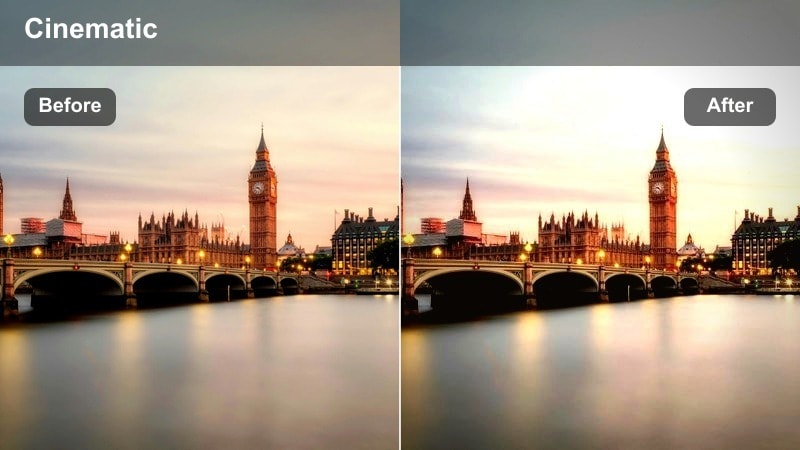
- Effect look: Warm, soft contrast glow that enriches sunset tones while keeping skin natural for walking monologues.
- Best for: Golden hour walks along tree-lined city park paths where sunlight peeks through leaves.
- Editing tip: Lower the filter intensity to around 40-60 percent when combined with your City Park Walking Vlog LUT to avoid oversaturated oranges.
Soft Golden Trail is ideal when your City Park Walking Vlog LUT already gives you a strong base grade but you want that extra, cinematic warmth in the highlights. It gently brightens golden tones in leaves, paths, and building facades while protecting skin from turning too stylized, so your face still looks believable during walk-and-talk shots.
In Filmora, apply your City Park Walking Vlog LUT first, then add Soft Golden Trail and dial the intensity down to a moderate level. If faces lean too orange, fine-tune the yellow and orange saturation in HSL or Color Correction to bring skin back to neutral while keeping the path, trees, and sky glowing in a soft sunset atmosphere.
Pair Filters with Your City Park Walking Vlog LUT
Use Filmoras AI color tools to set your City Park Walking Vlog LUT as the base grade, then layer filters like Soft Golden Trail or Dappled Leaf Shade to solve specific lighting issues along your route. This workflow keeps color harmony locked while you tweak mood and contrast clip by clip.
By establishing a consistent LUT first, each filter only needs to make small, targeted adjustments instead of radically shifting exposure or color. That means faster grading, fewer mismatched shots, and a more immersive park walking experience for your viewers.
 secure download

Preview Filters on Real Park Walking Footage
Before committing to a full-grade, drop a mix of shaded, open, and bench clips onto a short Filmora timeline and apply your City Park Walking Vlog LUT. Then test filters like Soft Golden Trail, Bench Conversation Neutral, and Twilight Park Balance to see how they behave in real motion and lighting changes.
Pay close attention to skin tones, sky detail, and greenery saturation as you toggle filters on and off. This lets you quickly decide which presets belong on walking intros, bench conversations, or evening outros so you can build a consistent filter toolkit for every new park vlog.
secure download1000+ Video Filters and 3D LUTs
Filmora includes a large library of cinematic filters and 3D LUTs you can stack with your City Park Walking Vlog LUT for unique park looks. Mix subtle contrast tweaks, soft-focus effects, and stylized night filters to build a signature style that fits your channel.
Once you find a combination that works, save it as a custom preset so every new city park walking vlog can be graded in just a few clicks, with the same polished finish from first step to final outro.
secure downloadDappled Leaf Shade
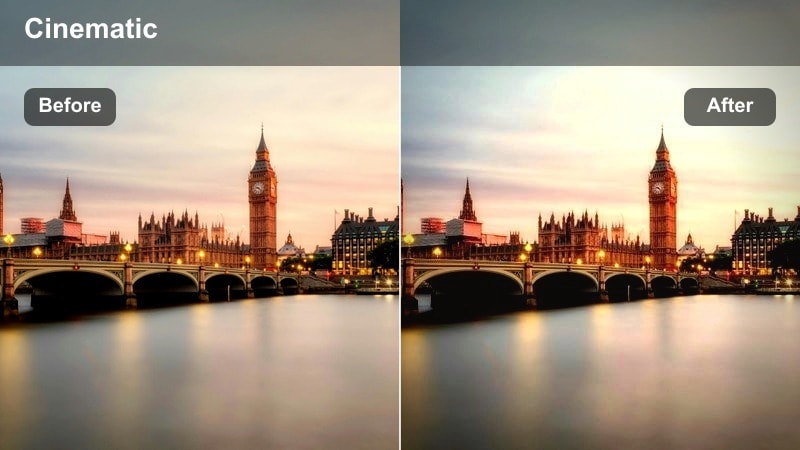
- Effect look: Soft, low-contrast filter that evens out harsh light patches from overhead trees.
- Best for: Walks under dense park trees where the sun creates bright, dappled light on your face and ground.
- Editing tip: Use this filter after applying your LUT and slightly lift the shadows to recover detail under hats or hair.
Dappled Leaf Shade is designed to handle patchy sunlight that often ruins walking vlogs shot under tree canopies. It softens contrast and compresses extreme highlights, so the bright spots on the ground and your face do not blow out while the shaded areas still retain detail and color from your City Park Walking Vlog LUT.
In Filmora, apply your LUT first, then layer Dappled Leaf Shade on clips where sun leaks through branches. After the filter, gently lift shadows and reduce overall contrast if flickering brightness is still distracting. For a more dimensional look, add a touch of midtone contrast while keeping highlights soft to maintain a natural park atmosphere.
Sunny Boulevard Glow
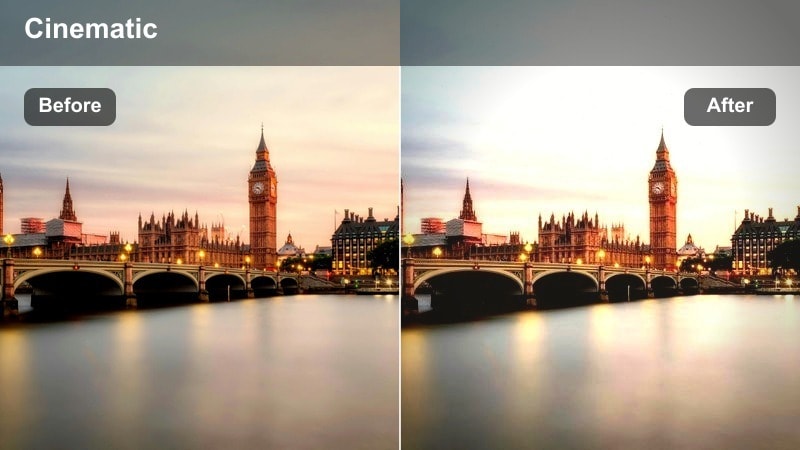
- Effect look: Bright, airy look with a subtle warm glow and gently lifted blacks.
- Best for: Open park boulevards and wide paths near city streets where the sky is very bright.
- Editing tip: Dial down highlight intensity if the background sky turns too white, and let your LUT handle color richness.
Sunny Boulevard Glow works best when you are walking through wide, open park spaces with big skies that tend to overexpose. The filter adds an airy, welcoming feel by slightly lifting blacks and warming the scene, while your City Park Walking Vlog LUT maintains consistent color across the entire route.
Inside Filmora, slightly lower your base exposure to preserve cloud detail, then apply the LUT and add Sunny Boulevard Glow. If the sky or buildings look too washed out, reduce highlight intensity and use highlight recovery controls so you keep a soft glow without losing structure in clouds, skyline, or tree tops.
Urban Park Benches and Chat Segments
Bench Conversation Neutral
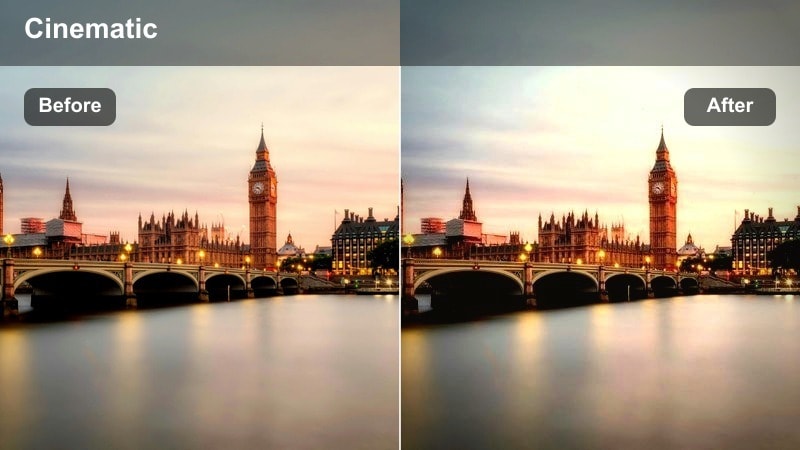
- Effect look: Clean, neutral filter with softened midtones and natural skin tones for talking segments.
- Best for: Sit-down vlog moments on city park benches where you address the camera directly.
- Editing tip: Lower saturation slightly if your LUT is strong, focusing on consistent skin tones between walking and sitting shots.
Bench Conversation Neutral is tailored for dialogue, where viewers care more about your expression and message than heavy stylization. It softens midtones and smooths contrast so facial features are flattering and easy to read, while the City Park Walking Vlog LUT keeps overall color in line with your walking footage.
In Filmora, match white balance between your walking and bench shots first, apply the LUT, then add Bench Conversation Neutral to your sit-down clips. If the background competes with your face, decrease saturation a bit and reduce clarity or sharpness behind you so the viewer naturally focuses on your eyes and expressions.
City Green Soft Focus
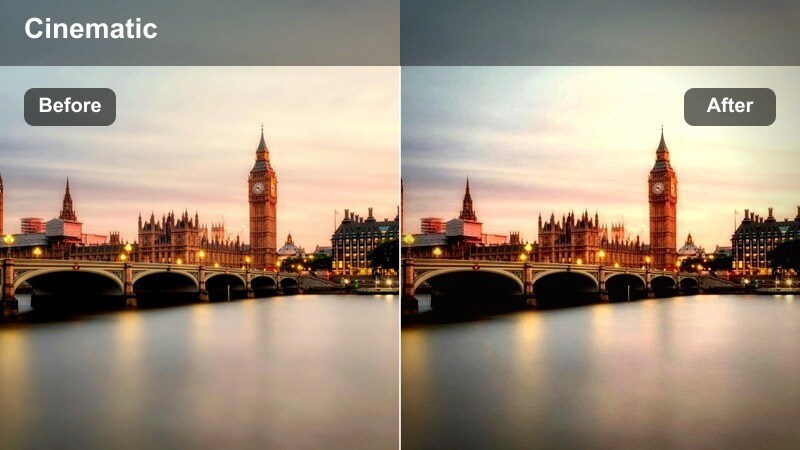
- Effect look: Gentle blur in the background with a slight green lift to emphasize city park foliage.
- Best for: Storytime or Q&A segments where you want the viewer focused on your face, not pedestrians and traffic.
- Editing tip: Apply selectively using keyframes or masks if your composition changes, so the blur stays behind you.
City Green Soft Focus subtly separates you from a busy park environment by softening the background and enhancing greenery. Paired with your City Park Walking Vlog LUT, it keeps foliage rich and pleasant while preventing passing people, bikes, and cars from pulling attention away from your storytime or Q and A.
In Filmora, apply your LUT and then use this filter on clips where you stay relatively still on a bench or near a path. For best results, combine the filter with a slight vignette and, if needed, use masking or keyframing to keep the blur effect anchored behind you as you shift position, ensuring your face remains crisp while the park remains pleasantly soft.
Cafe Edge Park Tone
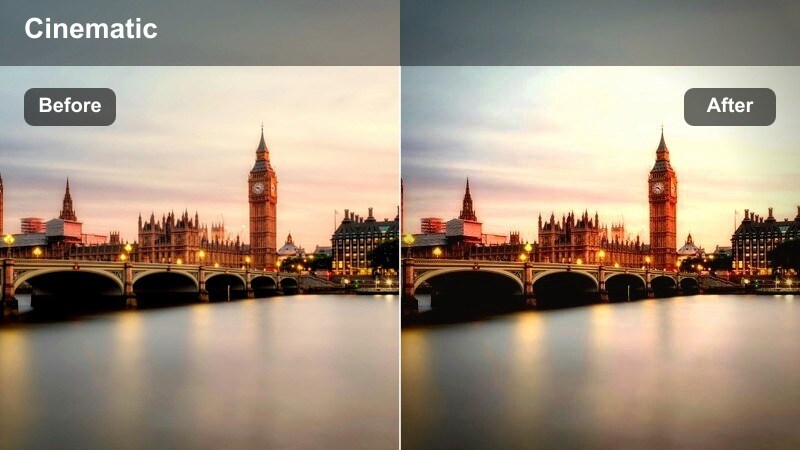
- Effect look: Subtle warm yet urban look designed for benches and railings near park cafes or kiosks.
- Best for: Benches close to city streets, kiosks, or coffee stands that blend park greenery with urban elements.
- Editing tip: Use a touch of sharpening after this filter to bring out details in railings, benches, and brickwork.
Cafe Edge Park Tone bridges the visual gap between natural park scenes and harder city textures like brick, metal, and signage. On top of your City Park Walking Vlog LUT, it lightly warms surfaces and maintains neutral grays so both greenery and urban structures feel cohesive in one frame.
Inside Filmora, use this filter on bench clips filmed near cafes, kiosks, or sidewalks where city life seeps into the park. After the filter, add a bit of sharpening or texture to benches and railings while gently lowering red saturation if signs or taillights become too eye-catching, keeping the focus on you while the city-park mix reads clearly.
Path Transitions and Walking Motion Shots
Steady Steps Soft Contrast
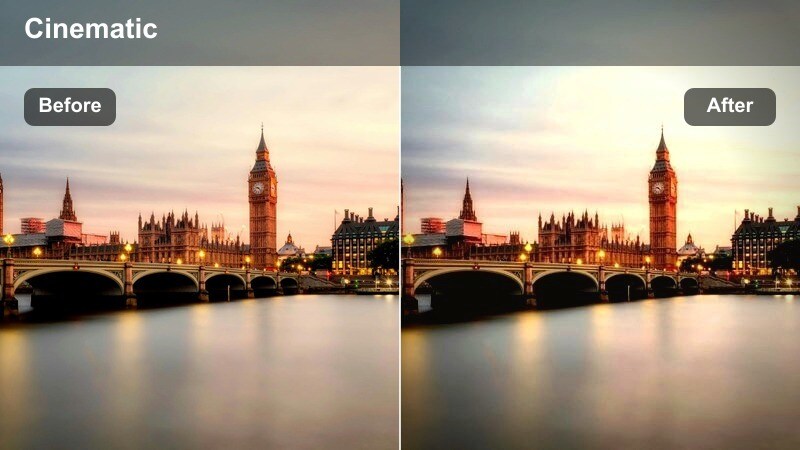
- Effect look: Low-contrast, slightly desaturated look that smooths out handheld walking footage.
- Best for: Continuous walking shots on uneven park paths where motion can feel shaky and harsh.
- Editing tip: Combine with stabilization and avoid heavy sharpening which can exaggerate camera shake.
Steady Steps Soft Contrast is built for long, handheld walking segments that can otherwise feel jarring. Over your City Park Walking Vlog LUT, it reduces contrast and saturation slightly so micro-shakes and rapid lighting changes feel gentler, making the viewing experience more relaxing across extended path sequences.
In Filmora, stabilize your clip first, apply the LUT, then add Steady Steps Soft Contrast to tone down harsh edges and bright peaks. Skip aggressive sharpening, and if the image starts to look too flat, reintroduce a small amount of midtone contrast rather than a global contrast boost, which helps keep movement calm while preserving depth.
City Steps Dynamic Pop
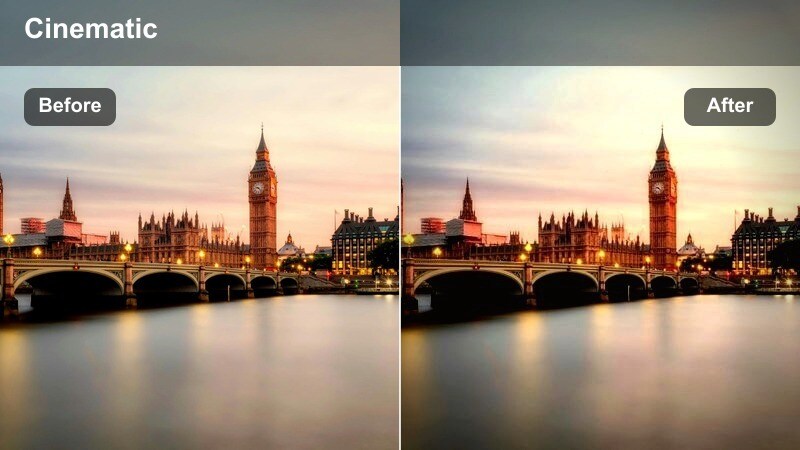
- Effect look: Punchy, higher-contrast filter with crisp edges and mild color pop.
- Best for: Energetic walking sequences where you want the city park to feel lively and vibrant.
- Editing tip: Use sparingly between calmer clips to emphasize energetic transitions, and trim intensity below 60 percent.
City Steps Dynamic Pop adds excitement to moments when your park vlog speeds up, such as entering a busy plaza, passing street performers, or matching an upbeat music section. When layered over the City Park Walking Vlog LUT, it enhances contrast and color without completely abandoning your established look.
Within Filmora, reserve this filter for short B roll bursts or transition montages rather than full conversations. After applying your LUT, set City Steps Dynamic Pop to a moderate intensity under 60 percent and, if needed, gently reduce saturation in highly saturated greens or reds so your city park still appears natural while feeling energetic.
Crosswalk to Park Bridge
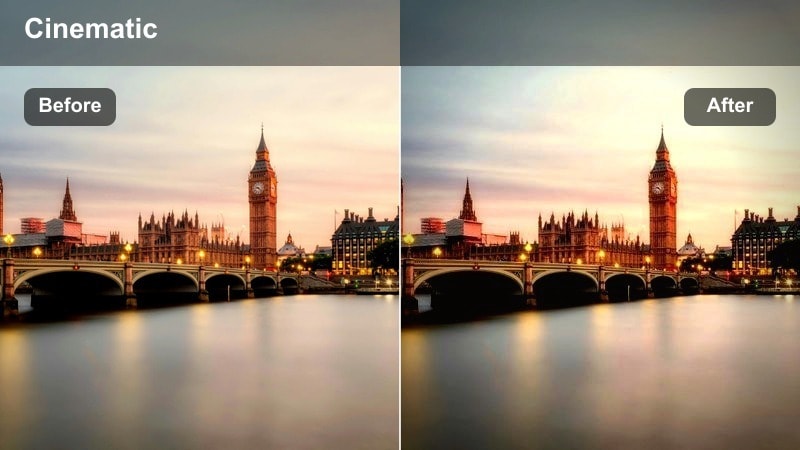
- Effect look: Balanced urban-park look that keeps grays neutral and greens natural when moving between street and park.
- Best for: Transition shots as you cross streets, bridges, or underpasses on the way into or out of the park.
- Editing tip: Apply on both sides of a transition cut to make the move from city sidewalk to park path feel seamless.
Crosswalk to Park Bridge is perfect for clips where your environment shifts from concrete and traffic to trees and paths, or vice versa. On top of the City Park Walking Vlog LUT, it stabilizes grays and greens so asphalt, stone, and foliage share a similar tonal balance, helping transitions feel smooth rather than jarring.
In Filmora, use this filter on both before and after segments of a location change, such as leaving the sidewalk and entering the park gate. If concrete tones skew too cool or green, slightly warm your white balance while keeping the filter active, ensuring both the city and park sides of your route tie into one coherent color story.
Evening Park Walks and City Lights
Twilight Park Balance
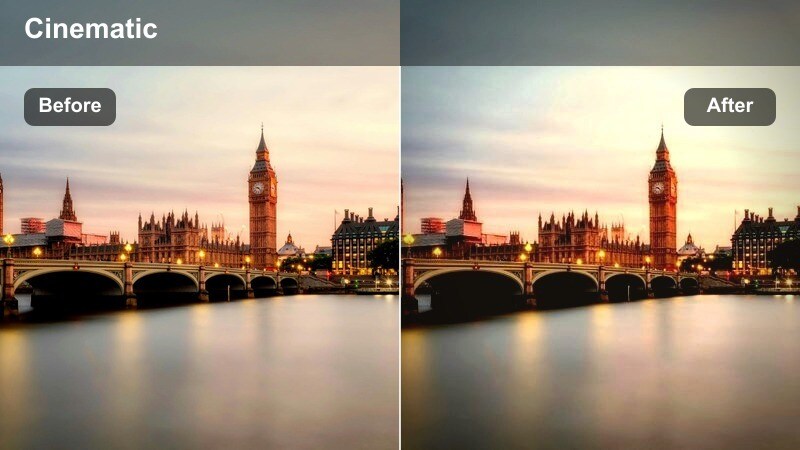
- Effect look: Cooler midtones with gentle noise smoothing to handle low-light city park scenes at dusk.
- Best for: Blue hour walks when streetlights start to glow and the sky is fading.
- Editing tip: Lower contrast slightly and use subtle noise reduction after this filter to keep skin and sky clean.
Twilight Park Balance is engineered for blue hour, when your City Park Walking Vlog LUT might start to show more noise and color shifts in the shadows. It cools midtones to match the evening atmosphere while subtly smoothing noise, keeping both sky gradients and park shadows looking clean and cinematic.
In Filmora, avoid over-brightening dusk footage; instead, set exposure conservatively, apply your LUT, then layer Twilight Park Balance. Follow with gentle noise reduction and a small contrast decrease if needed, and if faces look too cold, selectively warm skin tones with Color Correction while preserving the cool, moody park environment around you.
City Lamp Walk Glow
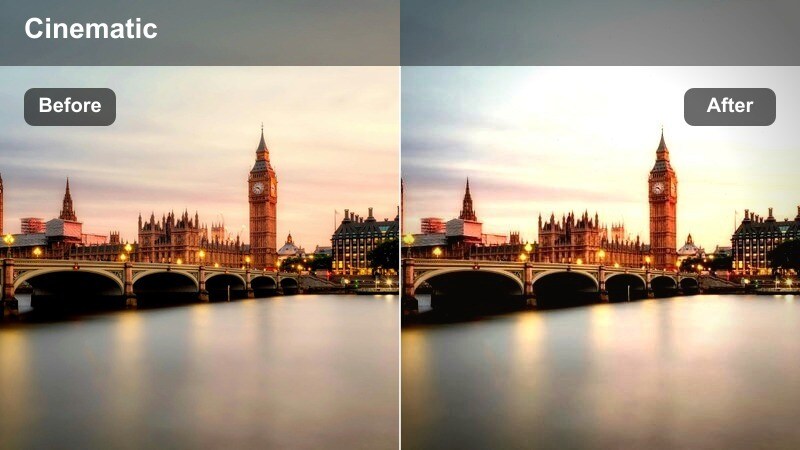
- Effect look: Soft, glowing highlights around lamps and signs with gentle warm tones.
- Best for: Night walks through lit park paths with lamp posts, shop signs, or building lights.
- Editing tip: Reduce highlight intensity if text on signs starts to bloom too much and becomes unreadable.
City Lamp Walk Glow is made for night paths where lamp posts, shop windows, and building lights give your park vlog a cozy, cinematic feel. When used with your City Park Walking Vlog LUT, it wraps lights in a soft glow and adds warmth, helping night scenes feel intentional and inviting instead of harsh or noisy.
In Filmora, correct exposure first so your highlights are not clipped, then apply the LUT and City Lamp Walk Glow. If sign text or bright windows bloom too much, pull back highlight intensity or use highlight recovery to bring clarity back while retaining the warm halo effect that makes evening park walks look cinematic.
Late Night Street Edge
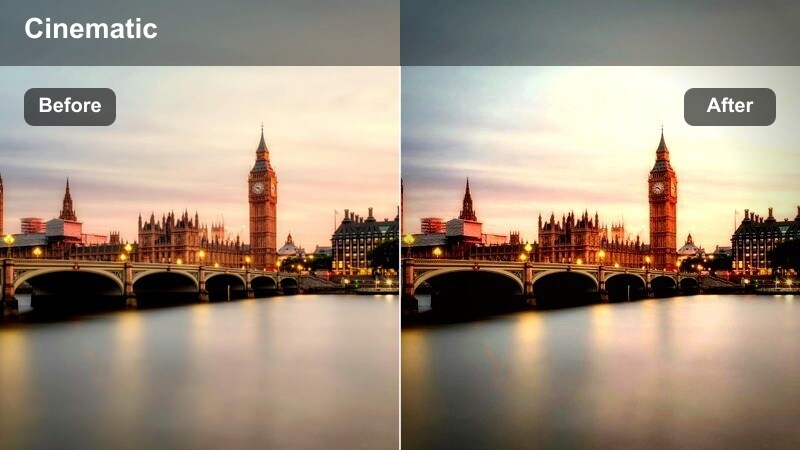
- Effect look: Moody, slightly desaturated filter with deeper blacks and subtle teal shadows for late-night streets near the park.
- Best for: Exits from the park onto nearby sidewalks and streets after dark when the mood turns more urban.
- Editing tip: Use on only a few clips near the end of your vlog to show a tonal shift from relaxed park to city night.
Late Night Street Edge shifts your vlog into a more cinematic, urban tone once you leave the park, adding deeper blacks and cool-leaning shadows. Over the City Park Walking Vlog LUT, it introduces a subtle teal tint in darker areas and reduces saturation a bit, signaling that your story is winding down and the environment is changing.
In Filmora, save this filter for the final shots as you exit the park, applying it at a moderate intensity so your LUT still ties colors together. If the look feels too dramatic, ease off saturation or filter strength, using it as a gentle cue rather than a radical style change so your ending feels cohesive with the rest of the city park walk.
Tips for Using City Park Walking Vlog Lut Filters in Filmora
- Lock in a consistent white balance before applying your City Park Walking Vlog LUT and filters so color shifts do not change mid-walk.
- Group similar locations on your timeline and apply the same filter to each group to keep tree shade, open paths, and bench shots visually coherent.
- Use filters at lower intensities when stacking with a strong LUT so you keep a natural, real-park feeling for your vlog.
- Stabilize walking clips first, then add soft-contrast or motion-friendly filters to keep viewers comfortable while watching.
- Adjust exposure on your face before fine-tuning the background; filters and LUTs will look better when the subject is properly lit.
- Save separate presets for daytime, golden hour, and night segments in the park so you can grade full vlogs quickly.
- Avoid mixing too many different filters in a single vlog; pick two or three that match your City Park Walking Vlog LUT and reuse them.
- Check your vlog on both phone and desktop screens after applying filters to ensure the city park colors feel natural everywhere.
With a solid City Park Walking Vlog LUT as your base and a focused set of Filmora filters, you can handle everything from bright boulevards to shaded benches and moody park exits while keeping a consistent, cinematic style.
Build a simple preset stack from your favorite filters in this guide, and every new city park walking vlog will be faster to edit, easier to match, and more enjoyable for viewers to watch from start to finish.
secure download