

 100% Security Verified | No Subscription Required | No Malware


 ChatGPT
 Perplexity
 Gemini
 Claude
 Grok
Grok
City Video Filters for TikTok: Trending Urban Tones helps TikTok city creators and urban influencers turn everyday streets into scroll-stopping visuals with one-tap looks in Filmora.
Below are curated Filmora filter styles tailored for TikTok city clips and urban lifestyle shorts so you can quickly match the vibe of your city, from neon nights to clean daylight walks.
In this article
Neon Nights City Vibes
Neon Glow Street
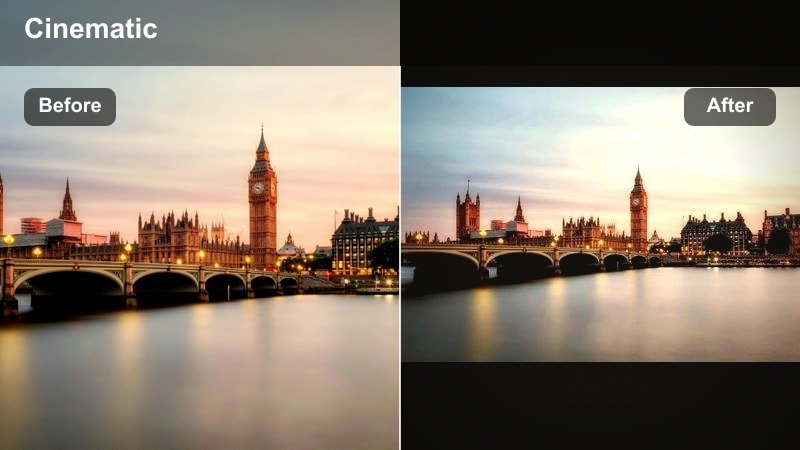
- Effect look: High-contrast city filter with boosted neon signs and slightly softened skin tones for a dreamy nightlife feel
- Best for: Night street walks, rooftop views, club entrances, and city B-roll with bright signage
- Editing tip: Lower the intensity to around 60-70 percent and reduce highlights a bit to avoid blown-out signs in darker alleys
Neon Glow Street is designed to make every neon sign, storefront, and billboard in your TikTok city clips explode with color while still keeping faces smooth and flattering. It pushes saturation and contrast in the brightest areas, turning normal street scenes into stylized nightlife sequences that feel ready-made for trending TikTok sounds.
In Filmora, drop Neon Glow Street onto your vertical clips, then fine-tune intensity until skin tones look natural and the signs behind you still feel punchy. It works especially well when you are walking past colorful storefronts or under LED canopies, giving you a polished, cinematic club-district look with almost no manual color work.
Match Filters to Your City Mood with AI
Filmora’s AI tools can quickly analyze your urban clips and help you pick city video filters for TikTok that match your current lighting and mood. Instead of guessing which look will work, AI considers brightness, color temperature, and contrast before you commit to a style.
Use AI to balance exposure, fix color shifts, and then layer your favorite urban city filter on top so every shot in your edit feels consistent. This keeps your night and day clips aligned, even if they were filmed in totally different parts of the city.
Open Filmora, drop in a few city clips, and let the AI color tools guide you to the filter that fits your story best.
 secure download

Preview City Filters on TikTok-Style Clips
Filmora lets you apply each city filter to short vertical test clips so you can see how it reacts to neon signs, skylines, and moving crowds before exporting. This makes it easy to avoid overdone looks and choose a style that truly supports your story.
Toggle filter intensity, trim a 10-15 second segment, and preview it with your chosen sound to be sure the vibe matches your TikTok vision. You can quickly compare how different filters handle shadows, highlights, and skin tones in the exact framing you plan to post.
Create a quick test timeline with three clips and try three different Filmora city filters side by side before committing.
secure downloadCombine Filters and LUTs for Urban Depth
If you already use an urban TikTok LUT, Filmora lets you stack it under or over these city filters, then fine-tune intensity for a layered look. This gives you the flexibility to build a signature city style that still adapts to different neighborhoods, weather, and times of day.
Use a LUT for broad color shifts and a filter for finishing touches like contrast, glow, or grain so your city shorts feel both stylized and clean. The combination can make your TikTok grid look cohesive while each clip still feels tailored to its exact scene.
Import your favorite urban TikTok LUT into Filmora, apply one of these city filters on top, and adjust opacity until your feed feels cohesive.
secure downloadMidnight Cyber
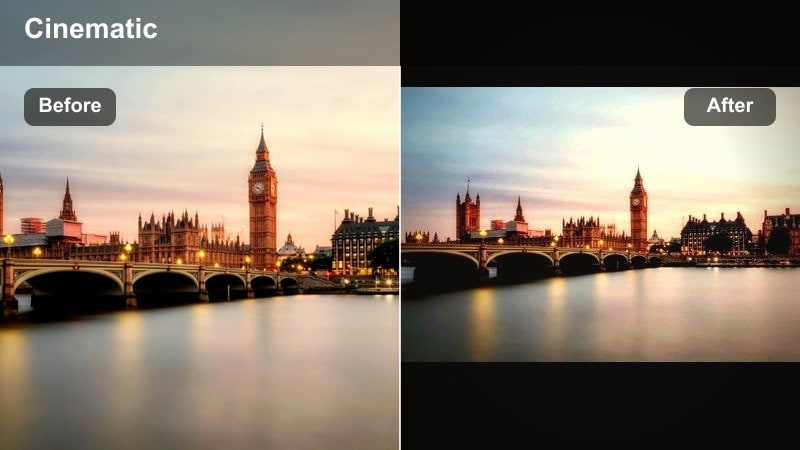
- Effect look: Cool-toned cyberpunk filter with teal shadows, magenta highlights, and deepened blacks for a futuristic street mood
- Best for: Urban tech aesthetics, LED-lit crosswalks, rainy sidewalks, and POV scooter rides at night
- Editing tip: Add a slight vignette and reduce saturation of skin tones to keep faces natural while the city glows in saturated colors
Midnight Cyber leans hard into teal and magenta to give your city nights a futuristic, cyberpunk twist. It darkens blacks for extra depth, then pushes colored lights so your TikTok feels like a scene from a sci-fi movie without complicated grading.
In Filmora, apply Midnight Cyber to clips with LED panels, digital billboards, and wet roads to amplify reflections and color streaks. Dial back skin saturation slightly so your face stays believable while the environment around you becomes a glowing, tech-inspired backdrop that loops perfectly on TikTok.
Urban Night Soft
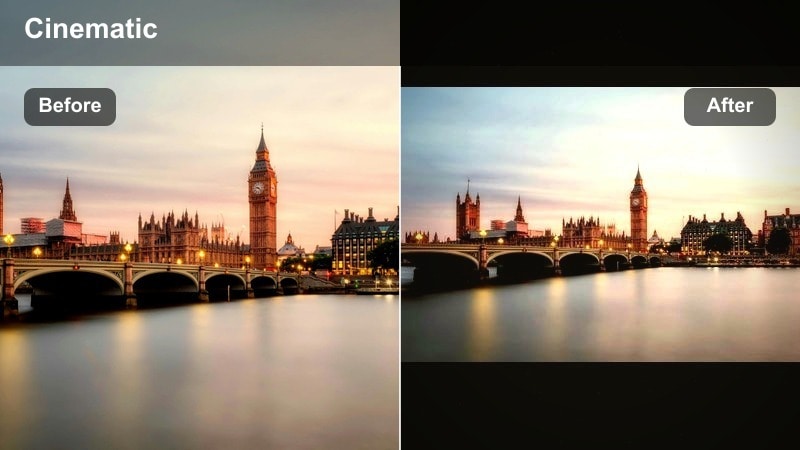
- Effect look: Soft, low-noise night filter with gentle contrast and warm highlights that flatter skin under harsh street lights
- Best for: Night vlogs, food runs, casual city hangouts, and walk-and-talk TikToks under yellow street lamps
- Editing tip: Raise exposure slightly but pull down highlights in Filmora to keep a clean, filmic night look without harsh spots
Urban Night Soft smooths out harsh city lighting so your face and background feel calm and cinematic rather than blown out. It reduces visible noise, adds a bit of warmth, and softens contrast to keep your night vlogs easy to watch.
Use this filter in Filmora when you are filming quick storytime clips, food runs, or late-night check-ins under mixed lighting. A small boost in exposure plus lowered highlights will keep your features clear while storefronts and street lamps glow gently behind you, perfect for casual, talk-to-camera TikToks.
Daytime Street Life Filters
Clean City Day
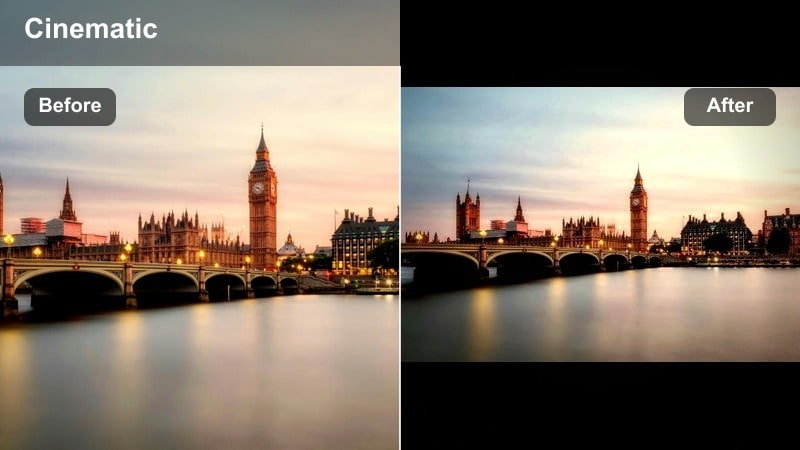
- Effect look: Bright, neutral city filter with soft contrast and crisp details that keeps colors true-to-life
- Best for: Daily TikTok city clips, outfit checks, coffee walks, and quick GRWM transitions outside
- Editing tip: Slightly reduce saturation for buildings while keeping skin tones at default so you stay the focus of the frame
Clean City Day focuses on clarity and realism, giving your daytime TikToks a polished but natural finish. It brightens the frame, tidies contrast, and sharpens details so your city looks clean and modern without sliding into an artificial look.
In Filmora, this filter is ideal for OOTDs, coffee runs, and quick transitions filmed on sidewalks or near storefronts. Lower saturation on buildings a touch and leave skin tones untouched so you stand out clearly against a crisp, neutral city backdrop.
Soft Street Pastel
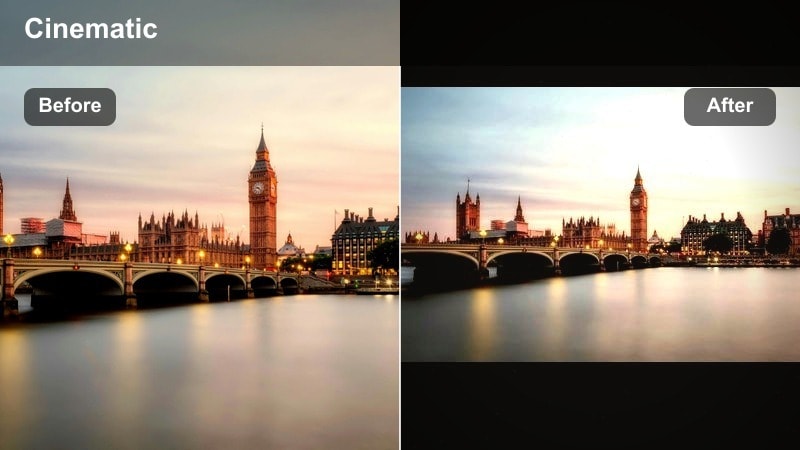
- Effect look: Light pastel city filter with softened contrast, creamy highlights, and a subtle warm lift in midtones
- Best for: Lifestyle city shorts, brunch scenes, flower markets, and slow-motion crowd shots
- Editing tip: Drop clarity slightly and add a tiny blur to the background with keyframing to create a dreamy depth feel
Soft Street Pastel turns busy streets into a gentle, aesthetic background by softening contrast and giving highlights a creamy glow. It lightly warms midtones, making skin subtle and flattering while buildings and crowds behind you feel more like a painting than raw footage.
Use this filter in Filmora for brunch montages, market walks, and calm lifestyle edits. Reduce clarity a bit and animate a slight background blur with keyframes to create depth, so you stay crisp while the city melts into a pastel, TikTok-ready canvas.
Crisp Metropolis
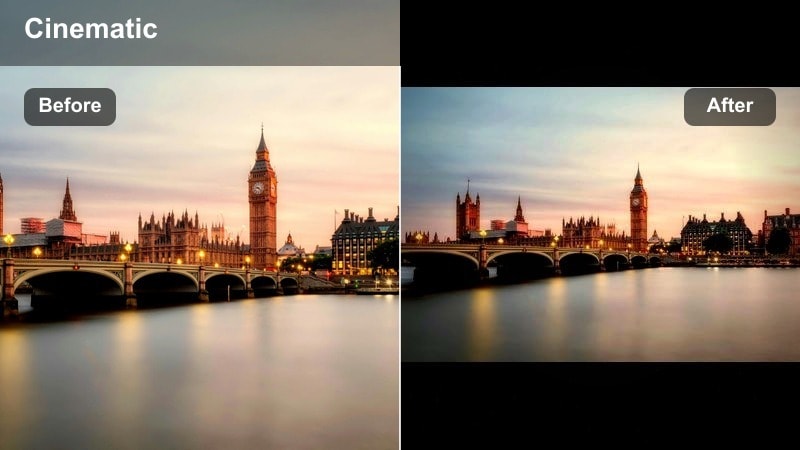
- Effect look: High-clarity, detailed city filter that sharpens edges and cools whites for a modern, editorial style
- Best for: Architecture shots, cityscapes, drone clips, and fast-paced hustle montages
- Editing tip: Keep shots stable or use Filmora stabilization to avoid making the added sharpness feel too jittery
Crisp Metropolis is built for glass, steel, and skyline lines, adding punchy clarity and a cool tint to create an editorial feel. It emphasizes edges and textures so buildings, streets, and reflections stand out in detail-heavy TikTok edits.
In Filmora, pair this filter with stabilized shots, time-lapses, and drone footage to show off your city’s structure. Add beat-synced cuts and minimal transitions so the geometry and sharpness do the visual heavy lifting in your urban montages.
Moody Urban Story Filters
Foggy Downtown
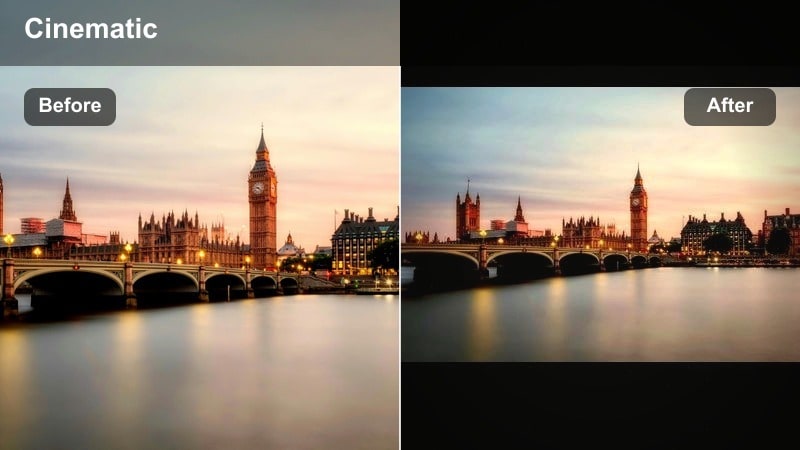
- Effect look: Low-contrast, desaturated city filter with cool shadows and light haze for a reflective, cinematic mood
- Best for: Storytime VO, rainy days, solo walks on bridges, and emotional POV city clips
- Editing tip: Shorten your clips and let each scene linger for a beat to match the slower, introspective feel of the filter
Foggy Downtown mutes colors, lifts a light haze, and softens contrast to turn gray city weather into a cinematic storytelling stage. It is perfect for reflective edits and diary-style TikToks where mood matters more than bright colors.
Use it in Filmora on slow walks across bridges, rainy sidewalks, or window reflections while you add voiceover or large on-screen text. Trim clips so each shot holds for a moment, letting the viewer sink into the mood instead of rushing from scene to scene.
Gritty Subway
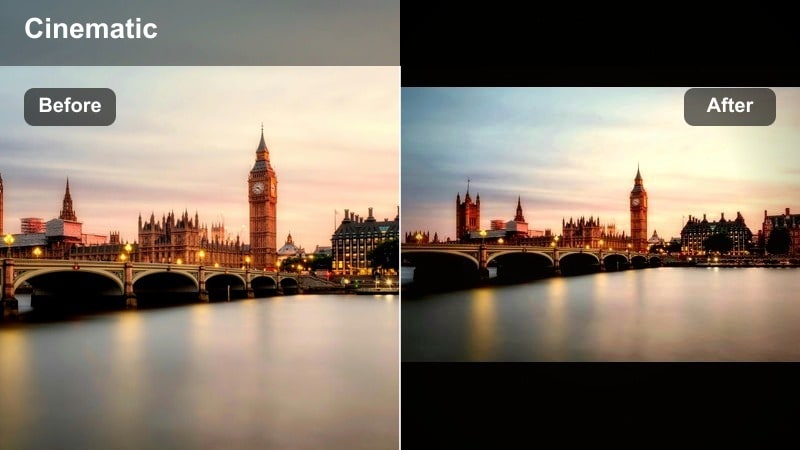
- Effect look: High-grain, contrasty filter with slightly muted colors and warm midtones for a raw underground feel
- Best for: Subway rides, skate edits, alley shots, street art, and streetwear outfit showcases
- Editing tip: Keep exposure balanced; let the grain do the work instead of pushing shadows too dark in Filmora
Gritty Subway adds film-style grain and strong contrast to give underground and alley scenes a raw, analog energy. Colors pull back slightly while midtones warm up, making your TikToks feel like snapshots from a street photography zine.
In Filmora, apply this filter to subway rides, graffiti walls, and streetwear looks to anchor your aesthetic in an urban, documentary vibe. Keep exposure even and avoid crushing shadows so the grain and contrast remain stylish instead of muddy.
Shadow Lane
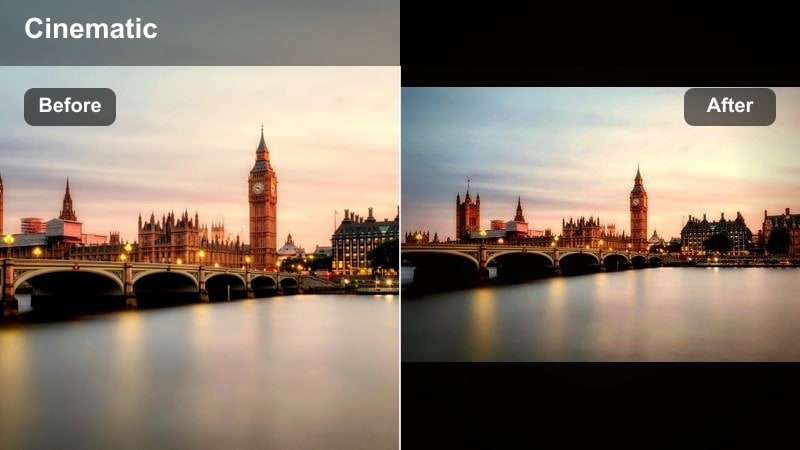
- Effect look: Deep-shadow filter with lifted blacks, warm highlights, and emphasized contrast between light and dark
- Best for: Golden hour sidewalks, long shadows, silhouette shots, and storytelling intros in narrow streets
- Editing tip: Expose for the highlights in camera, then gently lift shadows in Filmora so the filter can sculpt depth cleanly
Shadow Lane leans into the drama of golden hour by deepening contrast between bright highlights and stretched street shadows. It keeps blacks lifted just enough to preserve detail while adding warm glow to sunlit areas for a storytelling-ready look.
Use it in Filmora on narrow lanes, crosswalks, and long-shadow shots where the light naturally creates leading lines. Expose for highlights, then lift shadows slightly so the filter can carve out depth and make your silhouettes feel cinematic on TikTok.
Cinematic Skyline and B-Roll Filters
Sunset Skyline Film
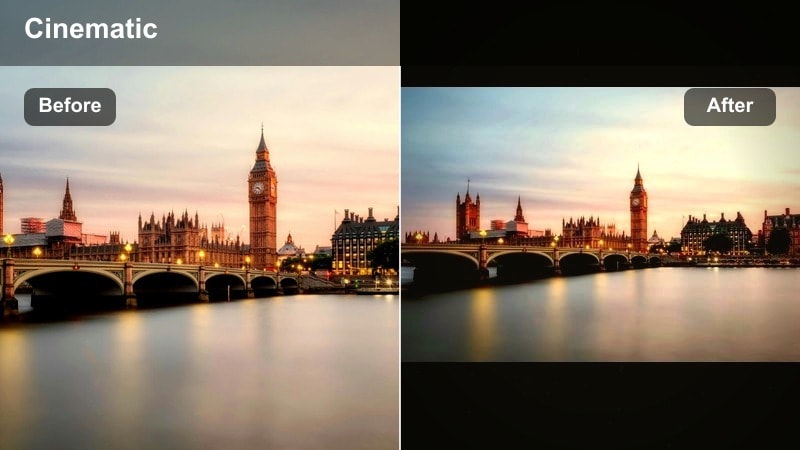
- Effect look: Warm, filmic filter that amplifies orange and pink skies while keeping buildings slightly cooled for balance
- Best for: Golden hour skyline shots, rooftop hangs, drone passes, and end-of-day city recaps
- Editing tip: Slow clips to 0.75x in Filmora and add gentle fade transitions to keep the cinematic sunset flow smooth
Sunset Skyline Film enhances orange and pink tones in the sky while gently cooling buildings, giving your city sunsets a balanced, film-inspired palette. It smooths contrast and adds warmth so your skyline B-roll feels like the closing shot of a movie.
In Filmora, apply this filter to rooftop views, bridge overlooks, and drone passes as the sun goes down. Slow clips slightly to 0.75x and add soft fades or cross-dissolves to create end-of-day TikToks that feel calm, cinematic, and loop-friendly.
Cinema City Teal
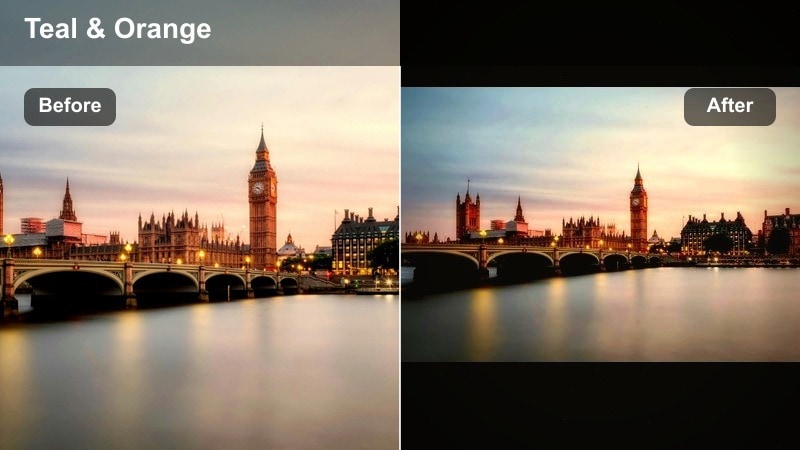
- Effect look: Teal-and-orange-inspired city filter with cinematic contrast and slightly lifted blacks for a movie-like finish
- Best for: Hero walks, dynamic b-roll, commercial-style city intros, and urban lifestyle transitions
- Editing tip: Use this filter on your opening and closing clips only, leaving the middle more natural for a strong hook and ending
Cinema City Teal gives your TikTok city edits a classic teal-and-orange film grade, lifting blacks slightly so details stay visible in both bright and dark zones. It is built to make hero shots, transitions, and main moments feel like trailer highlights.
In Filmora, try using this filter just on your opening, key transition, and closing clips, leaving mid-sections more natural. Add subtle letterbox bars or cinematic text overlays to reinforce the movie-like vibe and hook viewers in the first seconds.
Blue Hour Rush
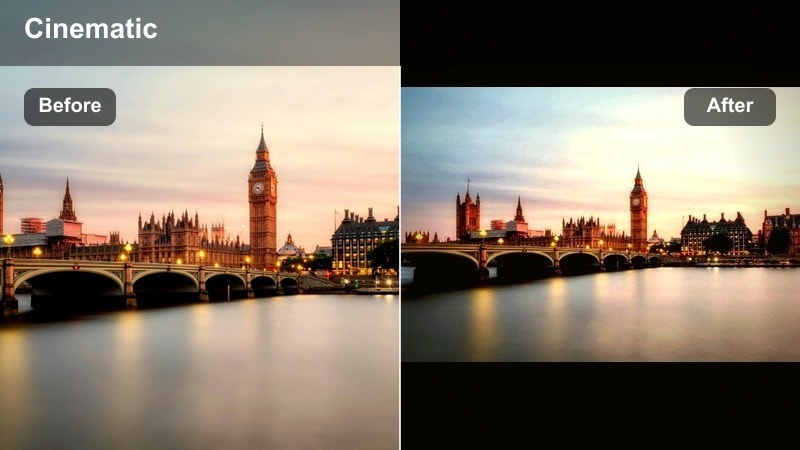
- Effect look: Cool blue city filter tuned for just-after-sunset light with gentle contrast and vivid traffic colors
- Best for: Traffic trails, time-lapses, escalator shots, and busy intersection views at blue hour
- Editing tip: Speed up static scenes slightly in Filmora and align light streaks with the music rhythm to emphasize motion
Blue Hour Rush is tuned for the deep blue tones that appear right after sunset, cooling your city while keeping car lights and signs vivid. It is ideal for capturing movement, from traffic flows to escalators and pedestrian streams.
In Filmora, apply this filter to time-lapses, hyperlapses, and fast-paced B-roll from busy intersections or overpasses. Slightly speed up static frames and sync light streaks or crowd motion with your audio beat to create dynamic, rhythmic TikToks that showcase city energy.
Tips for Using City Video Tiktok Filter Filters in Filmora
- Shoot in slightly flatter camera settings when possible so Filmora’s city filters have more room to shape color and contrast.
- Keep your clips steady or use Filmora stabilization so sharp urban filters like Crisp Metropolis do not exaggerate small shakes.
- Use filters to separate scenes: one look for day, another for night, and a third for B-roll transitions to make your TikToks feel structured.
- Always test a filter on your skin tone and your background; adjust intensity so buildings look rich without making faces look unnatural.
- Batch-edit multiple city clips in one Filmora project with the same filter settings so your TikTok grid feels consistent and branded.
- Preview each filter on a short vertical test clip with your chosen sound to be sure the motion and color style match the track’s energy.
With the right city video filters for TikTok, everyday streets, rooftops, and commutes can become cinematic moments that reflect your personal urban style.
Explore these Filmora filters, fine-tune intensity and exposure, and you will build a recognizable city look that viewers can spot instantly in their TikTok feed.
secure download