

 100% Security Verified | No Subscription Required | No Malware


 ChatGPT
 Perplexity
 Gemini
 Claude
 Grok
Grok
The Clean Skin Tone Video Filter preset in Filmora helps you smooth and balance complexions so every face on screen looks fresh, even, and professional without turning waxy or over-edited.
Below are curated filter variations and scene-based ideas that let content creators quickly dial in flattering skin tones for vlogs, interviews, beauty content, and more while keeping the rest of the frame natural and cinematic.
In this article
Soft Studio Portraits and Talking-Head Shots
Studio Soft Glow
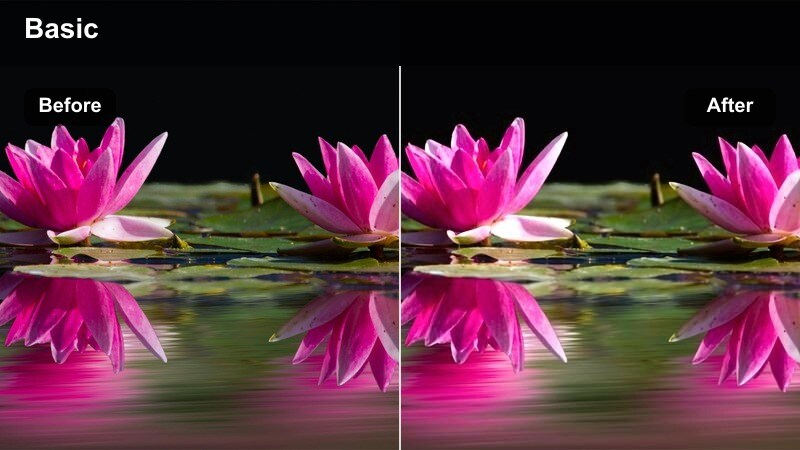
- Effect look: Gentle skin smoothing with a slight warm glow that keeps pores and facial details intact.
- Best for: Beauty tutorials, product explainers, and YouTube talking-head videos shot under softbox or ring lights.
- Editing tip: Lower intensity around 30–40% to avoid shine on oily areas, and pair with a subtle vignette to center attention on the face.
In Filmora, the Studio Soft Glow clean skin tone video filter is ideal when you want faces to look polished yet believable in controlled studio setups. The preset lightly softens fine lines and blemishes while adding a gentle warmth that flatters most complexions without pushing them into an obviously filtered look.
Apply this preset on your main talking-head clips, then fine-tune intensity so skin still shows natural texture around the nose, cheeks, and jawline. Combine it with basic exposure correction and a soft vignette on an adjustment layer to keep viewers focused on your expressions and on-screen explanations instead of minor imperfections.
AI-Assisted Skin Tone Balancing
Filmora's AI-powered color tools can automatically analyze faces in your shots and nudge skin tones toward a natural, healthy look before you even start manual grading. This is especially helpful if your camera or lights introduce subtle color shifts that make complexions look too dull, pale, or uneven.
Turn on AI color correction first, then stack a clean skin tone video filter preset like Studio Soft Glow to refine softness and contrast. The AI gets you close to a neutral baseline, while the preset handles the final polish so you can move faster through interviews, tutorials, and long-form content.
 secure download

Preview Clean Skin Tone Filters in Real Time
With Filmora's real-time filter preview, you can hover over each clean skin tone preset and instantly see how it will affect your clip in the Viewer. This saves time compared with applying and undoing multiple filters just to test a look.
Import a short section of your talking-head or vlog footage, then audition several clean skin tone filters to compare levels of softness, warmth, and contrast. Once you find the preset that best matches your brand and lighting style, you can apply it consistently across your timeline.
secure downloadCombine Filters with Cinematic LUTs
Filmora includes 1000 plus video filters and 3D LUTs that you can stack with clean skin tone presets for a more cinematic or stylized finish. The best workflow is to correct and clean up skin first, then use LUTs to shape the overall mood, contrast, and color in your scene.
Apply your preferred clean skin tone filter to keep complexions natural, then browse through Filmora's LUT library to test filmic looks, fashion-inspired grades, or bold social-media styles. This combination helps you create videos that look professional and on-brand without sacrificing realistic faces.
secure downloadBalanced Talk Show
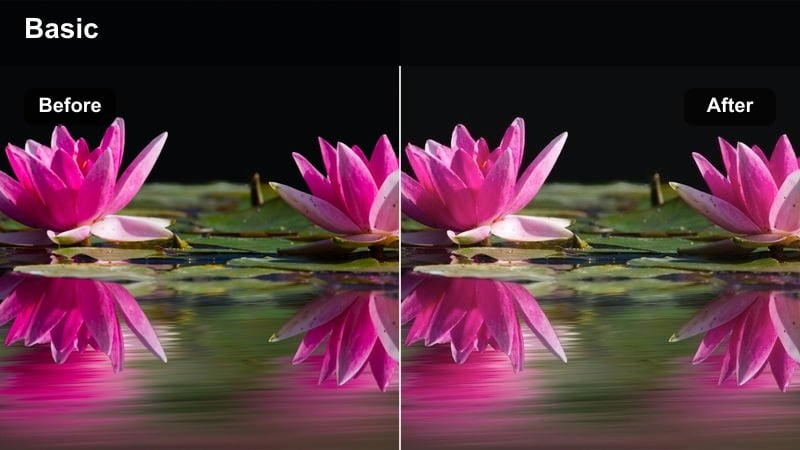
- Effect look: Neutral, broadcast-style skin tone balance with clean midtones and controlled highlights.
- Best for: Podcast video recordings, virtual interviews, and panel discussions where multiple faces share the frame.
- Editing tip: Match exposure between guests first, then add this filter on an adjustment layer so everyone shares the same clean tone and contrast.
The Balanced Talk Show preset is designed to give every guest on screen a consistent, neutral complexion that feels like a professional TV production. In Filmora, place this clean skin tone filter on an adjustment layer above your multicam or A-roll timeline so it affects all faces equally.
First, use basic color tools to match exposure and white balance between cameras and angles. Then apply the Balanced Talk Show filter to refine midtones, rein in bright hotspots, and create a cohesive look across your whole conversation, reducing the need for per-guest corrections.
Minimal Makeup True Skin
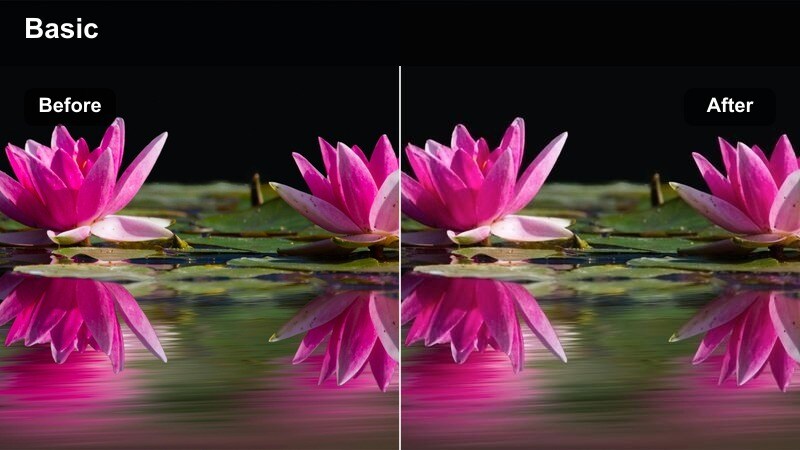
- Effect look: Very light smoothing with accurate skin hue, designed to look like good skin, not heavy makeup.
- Best for: No-makeup makeup looks, skincare videos, and honest review content where authenticity is crucial.
- Editing tip: Reduce saturation slightly while raising clarity in the eyes and lips so viewers notice expressions more than imperfections.
Minimal Makeup True Skin is perfect when your content relies on trust and transparency, such as skincare routines or honest product reviews. The preset offers barely-there smoothing and precise color correction so the audience still sees real texture and results on camera.
In Filmora, apply this clean skin tone filter at a modest intensity, then add subtle sharpness or detail to eyes, brows, and lips to guide attention to your expressions. This balance keeps faces flattering in close-ups while proving that you are not hiding real skin behind heavy digital retouching.
Daylight Vlogs and Natural Window Light
Window Light Fresh Face
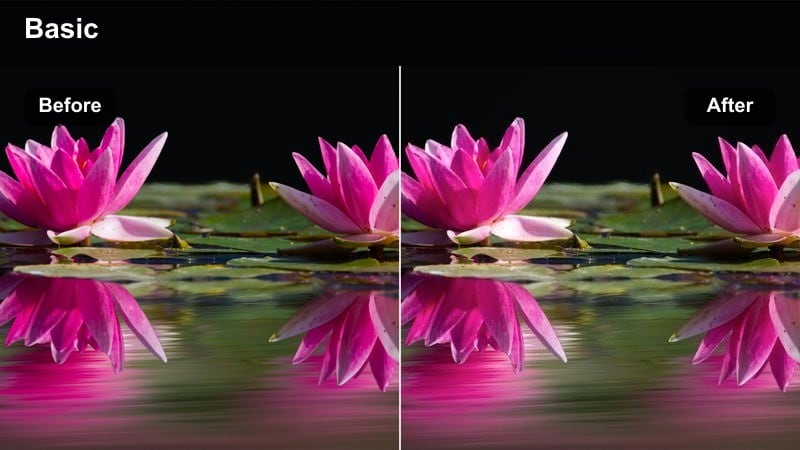
- Effect look: Clean, softly brightened skin tones with gentle contrast for side-lit or backlit window scenes.
- Best for: Lifestyle vlogs, morning routines, and desk setups filmed next to large windows with mixed daylight.
- Editing tip: Lift shadows slightly before applying the filter to prevent harsh contrast on cheeks and under eyes when light hits from one side.
Window Light Fresh Face helps even out the strong directional light that often comes from big windows, which can leave one side of the face bright and the other in deep shadow. The filter subtly brightens skin and smooths contrast, keeping your face readable and flattering in airy, natural scenes.
Inside Filmora, adjust your clip's exposure so skin sits comfortably in the midtones, then apply this clean skin tone video filter to polish cheeks, forehead, and chin. It works especially well for desk vlogs and morning routines where viewers expect a soft, natural, and relaxed atmosphere.
Street Vlog Neutral Skin
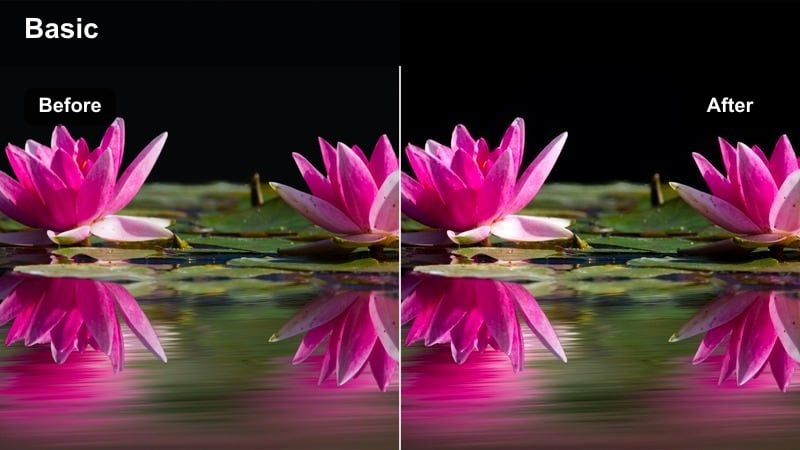
- Effect look: Balanced skin tones with reduced color cast from buildings, cars, and street signs in busy outdoor scenes.
- Best for: City walk vlogs, travel diaries, and on-the-go content where the subject moves through shifting environments.
- Editing tip: Use keyframes on filter intensity as lighting changes from sun to shade so the face remains consistent across the walkthrough.
Street Vlog Neutral Skin is built to fight color spill from bright storefronts, billboards, and vehicles that can tint your face as you walk. The preset prioritizes natural, clean complexions while slightly toning down distracting color contamination from the surroundings.
In Filmora, place this clean skin tone filter on your handheld or gimbal footage, then keyframe its intensity as you move between sunlight, shade, and artificial lights. The result is a vlog where the city stays vibrant, but your skin looks consistent and professional from the first block to the last.
Park Day Soft Balance
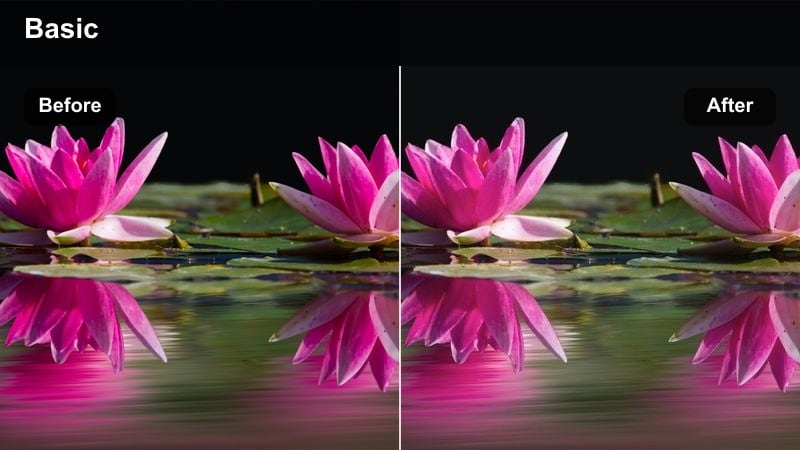
- Effect look: Softened skin with gentle highlight roll-off to control harsh midday sun on faces.
- Best for: Outdoor family vlogs, picnic scenes, and casual talking segments in open daylight.
- Editing tip: Drop highlights and whites slightly, then let the filter restore contrast so foreheads and noses do not blow out.
Park Day Soft Balance is tailored for open, sunny locations where midday light can create blown-out hotspots on foreheads, noses, and cheeks. The filter smooths transitions between bright and shaded areas on the face, producing a more even and relaxed look even under tough lighting.
After you pull down highlights in Filmora's basic color controls, apply this clean skin tone preset to restore gentle contrast while keeping skin detail intact. It is a strong choice for family-oriented vlogs, outdoor chats, and any scene where you want a cheerful vibe without harsh, unflattering sun.
Indoor Mixed Light and Home Setups
Warm Room Even Skin
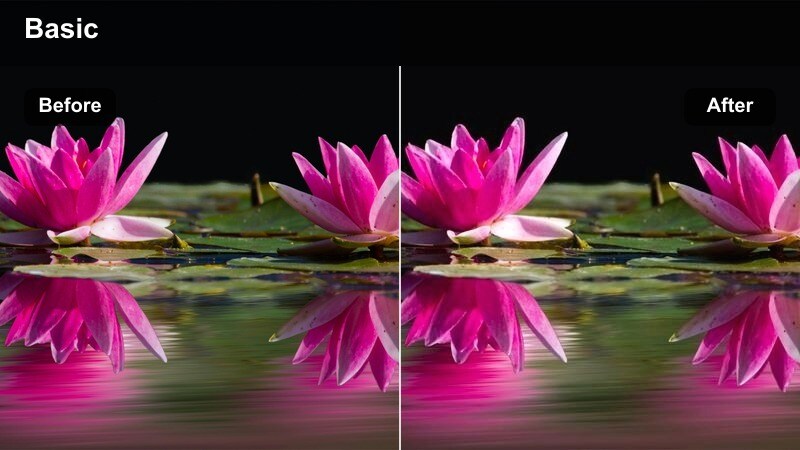
- Effect look: Smooth, cozy complexion that neutralizes heavy orange or yellow casts from indoor bulbs.
- Best for: Evening vlogs, room tours, and sit-down videos in bedrooms or living rooms lit by lamps and LED strips.
- Editing tip: Lower color temperature a bit before applying this filter so faces do not match the hue of tungsten lamps and wall LEDs.
Warm Room Even Skin is made for evenings and cozy interiors where tungsten bulbs and warm LEDs can push skin toward deep orange. The filter reins in those strong color casts, leaving you with a comfortable, inviting warmth that still reads as natural on different screens.
In Filmora, cool your footage slightly with the white balance controls, then apply this clean skin tone filter to fine-tune warmth and smoothing. You keep the bedroom or living-room ambience visible in the background while ensuring that faces look healthy, even, and never pumpkin-colored.
Desk Setup Clean Tone
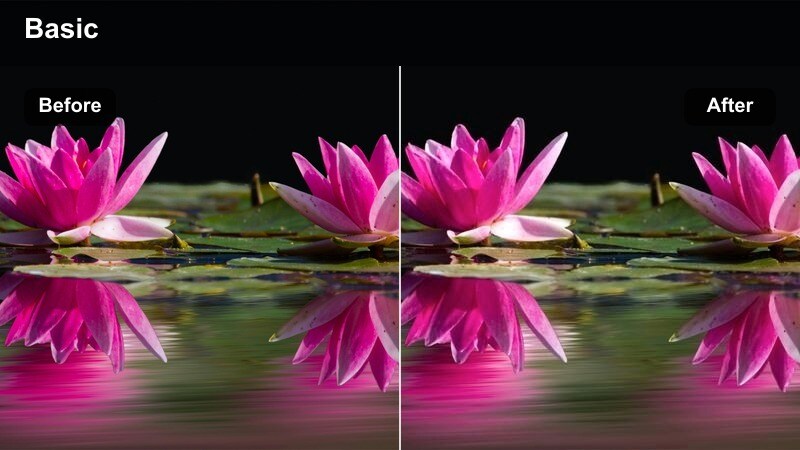
- Effect look: Balanced, slightly cool skin tone that pairs well with monitors, RGB lights, and tech-heavy desk setups.
- Best for: Productivity videos, coding streams, and gaming intros filmed at a computer desk with multiple screens.
- Editing tip: Lower saturation in blues and cyans after applying the filter to prevent screen glow from tinting the face.
Desk Setup Clean Tone helps you look crisp and professional in tech-heavy environments where monitor glow and RGB strips can cast blue or magenta light on your face. The preset leans slightly cool to complement the scene while protecting skin from unnatural color shifts.
Apply this clean skin tone video filter in Filmora, then gently reduce blue and cyan saturation using HSL controls to tame screen spill. Your face will remain neutral and readable even if your background is full of dynamic lighting, making it ideal for streaming intros, productivity explainers, and desk tours.
Kitchen Creator Cleanup
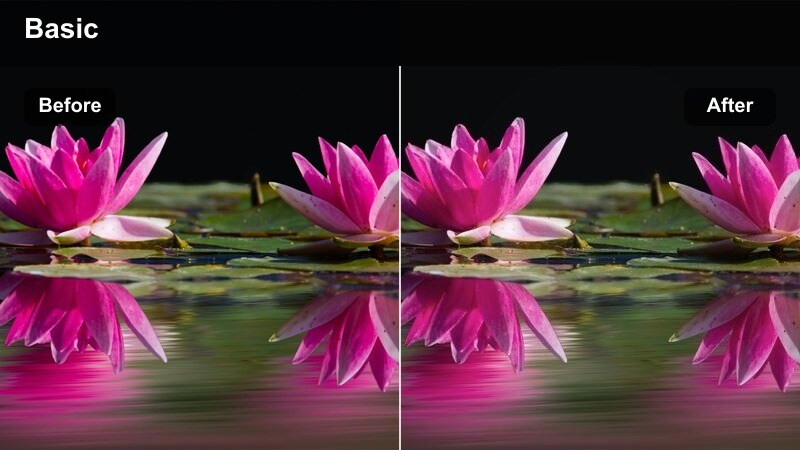
- Effect look: Neutralizes green and yellow shifts from overhead kitchen lights while keeping a bright lifestyle feel.
- Best for: Chatty kitchen vlogs, quick updates, and casual content creators filming near cabinets and countertops.
- Editing tip: Use a subtle skin-tone selective adjustment before this filter if overhead fluorescents push complexions toward green.
Kitchen Creator Cleanup is tailored for overhead-lit spaces where fluorescent or mixed bulbs can make skin appear sallow or slightly green. The filter corrects those color issues while leaving counters, cabinets, and food items bright and inviting for lifestyle viewers.
In Filmora, start by gently correcting any strong green or yellow cast on skin with HSL or color wheels, then drop this clean skin tone preset on top. The result is a kitchen vlog aesthetic where your face looks lively and healthy even under unflattering fixtures, while the rest of the room stays clean and modern.
Cinematic Night Scenes and Stylized Looks
Night City Clean Face
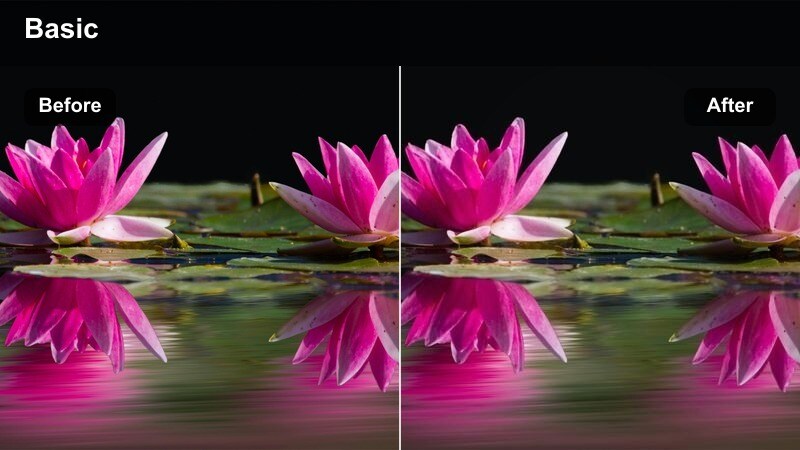
- Effect look: Polished skin with subtle contrast that resists color spill from neon signs and car lights at night.
- Best for: Night street vlogs, cinematic B-roll with a host, and after-dark city explorations.
- Editing tip: Lift midtones slightly and keep blacks rich so the face remains visible against dark streets without losing night mood.
Night City Clean Face is optimized for after-dark shoots where neon signs, storefronts, and traffic lights can strongly tint your complexion. The filter keeps your skin closer to neutral while preserving the rich colors and deep blacks that make night cityscapes so cinematic.
Within Filmora, raise midtones enough that facial features are clear, then add this clean skin tone video filter to control color spill and refine contrast. You can further mask the face if needed, letting the background soak up saturated blues, purples, and reds while your skin stays clean and camera-ready.
Cinematic Soft Portrait
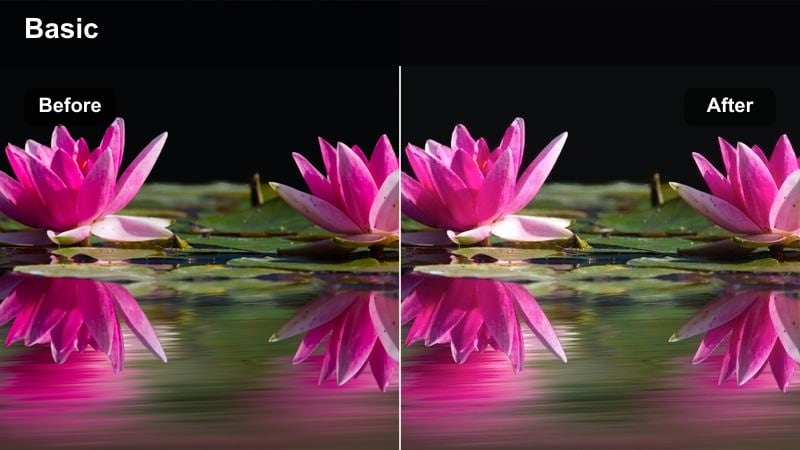
- Effect look: Creamy, film-style skin tones with lowered micro-contrast for a dreamy portrait feel.
- Best for: Emotional short films, narrative close-ups, and storytelling reels focused heavily on expressions.
- Editing tip: Add a slight blur or halation effect to highlights after the filter for a subtle analog film softness around skin.
Cinematic Soft Portrait focuses on creating a creamy, filmic skin texture that works beautifully in narrative pieces and emotional close-ups. It lowers micro-contrast in the skin while preserving larger details, making faces appear dreamy without feeling like a heavy beauty filter.
In Filmora, pair this clean skin tone preset with soft directional lighting and a touch of glow or halation on highlights to complete the cinematic look. You can adjust intensity based on the scene mood, using more softness for tender or nostalgic moments and dialing it back for sharper, more dramatic beats.
Creator Brand Clean Signature
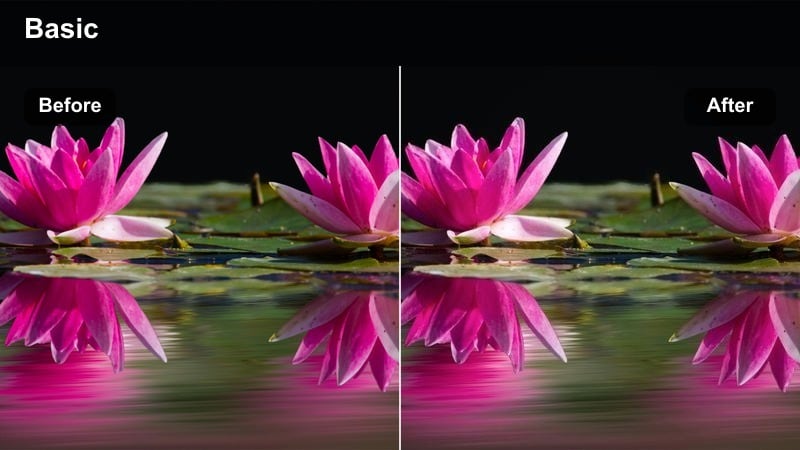
- Effect look: Signature-style clean skin tone with slightly boosted vibrancy and contrast tuned for social platforms.
- Best for: Personal brand intros, channel trailers, and hero shots that repeat across your content.
- Editing tip: Save this as your master preset and keep intensity consistent across episodes so viewers instantly recognize your channel look.
Creator Brand Clean Signature is designed to become your go-to, recognizable complexion look for intros, outros, and hero shots. It gently boosts vibrancy and contrast around your face so you pop on small screens while maintaining natural color and believable skin texture.
In Filmora, fine-tune this clean skin tone filter until it perfectly matches your brand colors and typical lighting, then save it as a custom preset. Reusing it across videos on YouTube, TikTok, and Instagram will give your channel a cohesive visual identity that audiences can recognize at a glance.
Tips for Using Clean Skin Tone Video Filter Filters in Filmora
- Always correct exposure and white balance before applying clean skin tone filters so the preset can work from a neutral starting point.
- Keep an eye on fine details like eyebrows, hairlines, and beards to ensure smoothing does not blur important texture and sharpness.
- Reduce filter intensity on wide shots while using a slightly stronger setting on close-ups where skin is more prominent.
- Create separate adjustment layers for background and subject when possible so you can refine skin without affecting the whole frame.
- Regularly check your grade on both a phone and a laptop screen to confirm skin tones look natural across different devices.
- Combine clean skin tone filters with Filmora's AI color tools to quickly remove color casts before you start styling your final look.
- Use masks around the face when strong colored lights or RGB strips are in the scene so skin stays neutral while backgrounds remain stylized.
Clean skin tone video filters give content creators an efficient way to make every face in their videos look polished, even, and camera-ready without sacrificing authenticity.
By combining Filmora's presets with a simple exposure and color workflow, you can maintain flattering complexions from bright studio shoots to late-night city vlogs and build a consistent visual brand over time.
secure download