

 100% Security Verified | No Subscription Required | No Malware


 ChatGPT
 Perplexity
 Gemini
 Claude
 Grok
Grok
Cool mountain video filters can turn your hiking and travel footage into crisp, cinematic scenes that feel as fresh as the alpine air. With the Cool Mountain Filter. Alpine Breeze preset, you can add a clean blue mountain tone that instantly enhances snowy peaks, rocky trails, and misty valleys.
Whether you are filming a sunrise summit, a forest trail, or wide scenic views, these Filmora filters help you keep colors natural while pushing the cool tone and clarity that mountain landscapes deserve.
In this article
Crisp Alpine Blues for Summit Shots
Cool Mountain Filter. Alpine Breeze
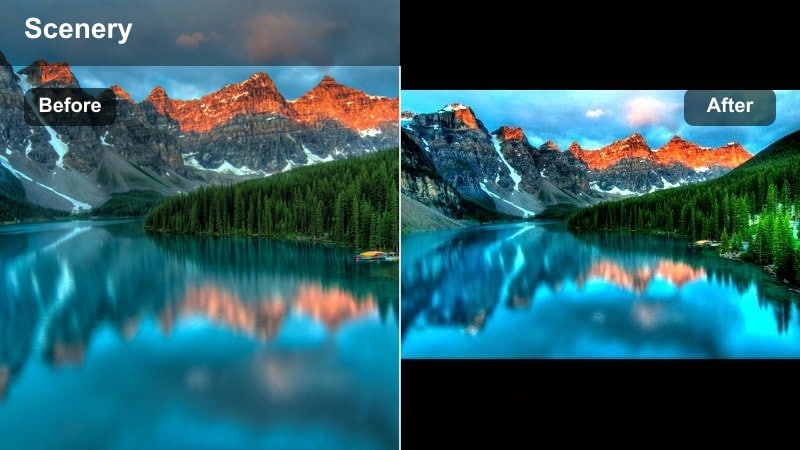
- Effect look: Clean, cool-toned blue mountain look with gentle contrast and soft highlights that keeps skin tones natural.
- Best for: Wide summit reveals, drone passes over ridgelines, and time-lapses of clouds rolling through mountain ranges.
- Editing tip: Lower saturation slightly on greens to avoid neon forests and add a touch of clarity for extra edge detail on rocky textures.
Cool Mountain Filter. Alpine Breeze is your go-to preset for a fresh alpine look that feels crisp without looking overprocessed. It leans into clean blues and soft highlights, so snow, sky, and distant peaks all share a cohesive, cool mountain aesthetic while your subject still looks natural on screen.
In Filmora, apply Alpine Breeze to your summit clips, then fine-tune intensity with the filter strength slider to match different lighting conditions. Use it on wide drone passes, static tripod vistas, and timelapse clouds to keep color consistent across your entire mountain sequence.
Pro tip - Match Alpine Breeze to Time of Day: Use a stronger intensity of the Cool Mountain Filter. Alpine Breeze preset for midday shots when light is harsh and colors feel washed out. For golden hour clips, reduce the filter strength to keep some warm glow in the highlights while still holding a cool mountain base tone.
Let Filmora’s AI Keep Your Mountain Colors Consistent
When you mix sunny ridgelines, foggy forests, and night camps in one travel video, keeping a consistent cool mountain look can be tricky. Filmora’s AI tools help you balance exposure and tone so your adventure feels like one seamless journey.
Use AI-assisted color matching to align your clips with a hero shot graded using the Cool Mountain Filter. Alpine Breeze preset. This ensures blue mountain skies, fresh alpine greens, and skin tones stay cohesive across every scene.
 secure download

Preview Cool Mountain Filters on Your Own Footage
Instead of guessing, drop a few raw hiking and scenic clips onto the Filmora timeline and cycle through these cool mountain video filters to see which style fits your story. You will quickly see how each preset changes the mood of your ridgelines, forests, and travel moments.
Try pairing a cinematic filter for wide vistas with a softer documentary look for trail journals so your edit flows naturally from epic to personal moments.
secure downloadSave Your Favorite Cool Mountain Looks as Reusable Presets
Once you fine-tune a favorite combination of cool tone, contrast, and saturation in Filmora, save it as a custom preset so every new hike or trip can share the same signature look. This helps you maintain a recognizable blue mountain aesthetic across your channel or social feeds.
Creating a reusable cool mountain style means you can edit faster, keep your brand visually consistent, and spend more time exploring than color grading from scratch.
secure downloadBlue Mountain Haze
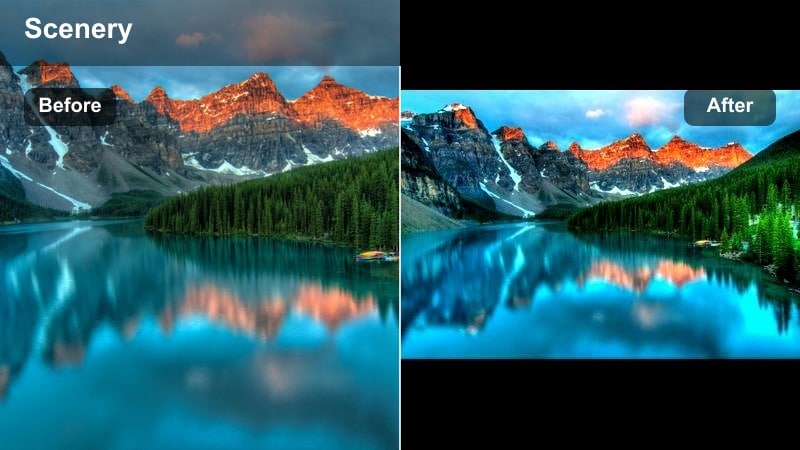
- Effect look: Soft blue wash with light dehaze that gently lifts distant ridges and adds atmosphere.
- Best for: Layered mountain ranges, hazy scenic views, and long-lens shots across valleys.
- Editing tip: Combine with a subtle vignette to draw attention to the central peaks and keep the edges from feeling too washed out.
Blue Mountain Haze is ideal when your scene already has natural mist or distance, but you want clearer separation between mountain layers. The filter adds a controlled blue wash while gently cutting through haze so ridges do not blur into a single flat tone.
In Filmora, apply this preset to telephoto valley shots or panoramic views with stacked silhouettes. Adjust intensity until you see clear depth from foreground to background, then add a soft vignette to keep focus on your hero peak or main subject.
Pro tip - Use Haze to Shape Depth: Increase the effect slightly on clips where foreground and background blend together to separate layers more clearly. If your scene already has strong fog, lower the filter intensity and use selective contrast to avoid losing detail.
Glacier Clarity
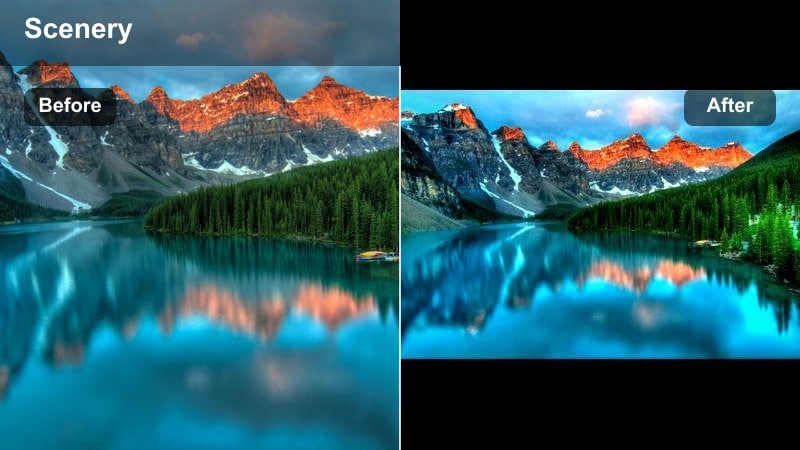
- Effect look: High clarity and cool cyan shift that sharpens icy details and snow lines on peaks.
- Best for: Glacier hikes, snow-covered summits, and shots with lots of ice, rock, and sky.
- Editing tip: Dial back sharpening if you see halos around high-contrast edges, and slightly lift shadows to keep snow from clipping to pure white.
Glacier Clarity emphasizes the crisp, etched textures in ice fields, crevasses, and snow lines. The cyan shift keeps whites feeling cold and clean, making glacier scenes look dramatic and ultra-clear without turning them cartoonish.
Inside Filmora, use this filter on any sequence dominated by snow and rock. Keep an eye on the histogram and pull back on sharpening or highlights if you notice halos or blown-out snow, ensuring your glacier still holds fine detail and contour.
Pro tip - Control Whites in Snowy Scenes: Use the histogram to ensure the brightest snow areas do not spike too far to the right and lose detail. If highlights are already blown out in-camera, slightly reduce exposure before applying Glacier Clarity to recover more texture.
Fresh Alpine Looks for Forest Trails
Alpine Forest Cool
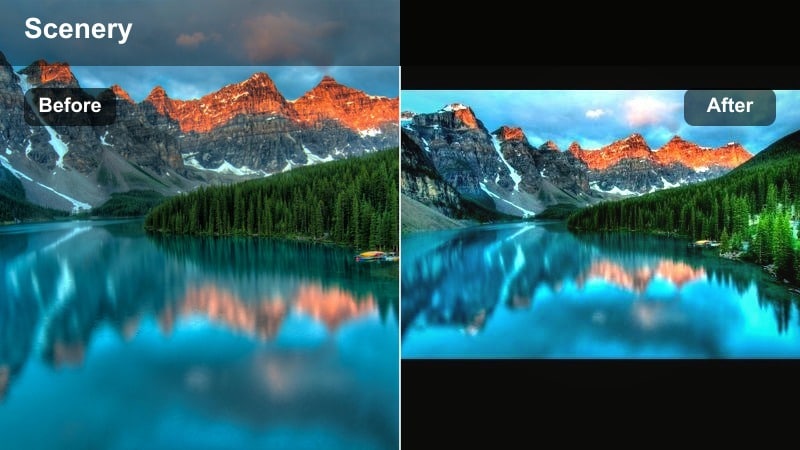
- Effect look: Cool, desaturated greens with a subtle blue lift in shadows for a misty forest vibe.
- Best for: Shaded trails, pine forests, and slow walking shots under tall trees.
- Editing tip: Reduce saturation in the yellow channel to keep grass and leaves from looking overly bright against the cool tone.
Alpine Forest Cool is designed to tame overly vivid greens and give woodland trails a cinematic, misty mood. By cooling shadows and slightly muting foliage, it makes paths feel serene and atmospheric instead of harsh or neon.
Apply this filter in Filmora to any under-canopy shot, from POV hiking footage to gimbal walks through pines. Use HSL to lower yellow saturation further if needed, and gently open the shadows so tree trunks stay detailed without losing the cool forest feel.
Pro tip - Balance Skin Tones in Cool Forests: If faces look too pale after cooling the scene, lightly warm the midtones or add a skin-tone mask to restore natural color. Keep contrast gentle so dark tree trunks retain detail and do not turn into solid black shapes.
Fresh Alpine Stream
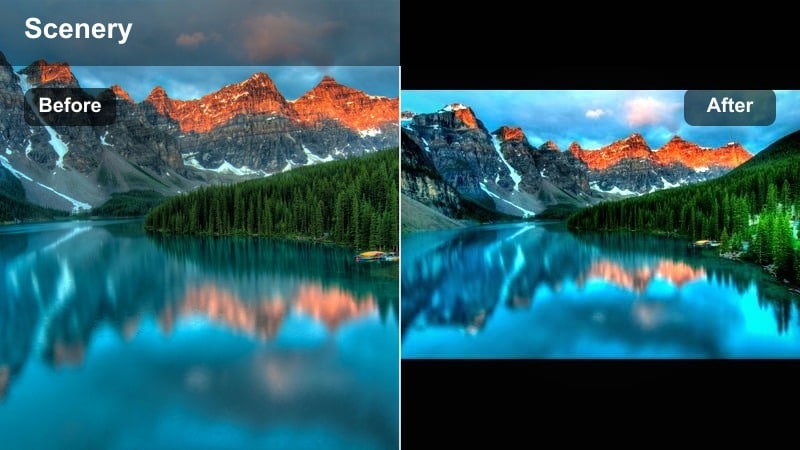
- Effect look: Bright, clean blues in water with softened greens and slightly raised exposure for an airy feel.
- Best for: Mountain streams, waterfalls, riverside camping shots, and handheld B-roll of flowing water.
- Editing tip: Slow your shutter in-camera for motion blur, then add a small contrast boost in Filmora to keep water highlights defined.
Fresh Alpine Stream brings special attention to moving water, making rivers and falls look crystal-clear and inviting. The filter brightens blues while gently calming surrounding greens, creating a fresh, lightweight atmosphere around your subject.
In Filmora, drop this preset onto B-roll of creeks, cascades, and riverside scenes. Combine it with a slower shutter clip for silky motion blur, then fine-tune contrast and exposure so the brightest water streaks guide the viewer’s eye through the frame.
Pro tip - Guide the Eye with Water Highlights: Use keyframed exposure or curves to keep the brightest water patches from pulling attention away from your subject. If the scene feels too cool, add a hint of warmth to the midtones only, so water stays crisp while skin looks natural.
Misty Ridge Walk
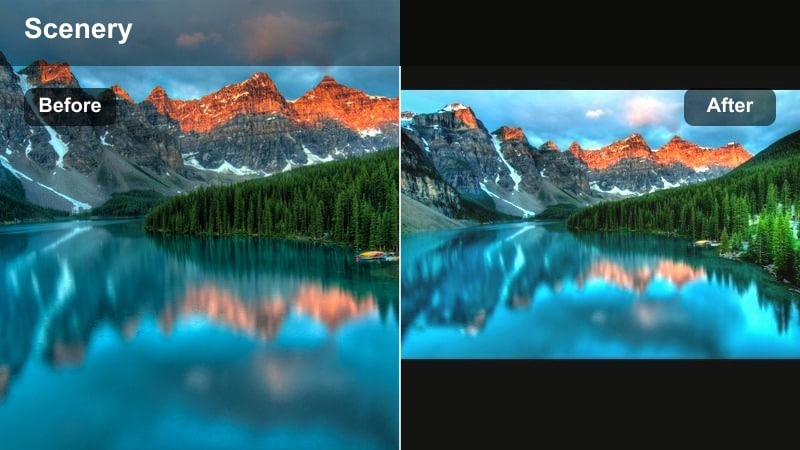
- Effect look: Soft contrast, lifted blacks, and a gentle blue-gray tint for dreamy mountain walks in low cloud.
- Best for: Foggy ridgelines, overcast hiking days, and slow-motion walking shots through low-hanging clouds.
- Editing tip: Raise blacks slightly for a filmic fade, but avoid going too far or you will lose separation between subject and background.
Misty Ridge Walk turns flat gray days into mood-driven, cinematic moments. The lifted blacks and blue-gray tint soften harsh edges so fog and cloud feel dreamy, while your subject still maintains enough contrast to be readable.
Use this filter on any overcast hike footage inside Filmora, especially ridge walks and cloud-chasing clips. Adjust black levels until you get a gentle film fade without losing depth, and pair it with slower pacing or slow-motion to fit the relaxed mood.
Pro tip - Leverage Fog Instead of Fighting It: Lower clarity slightly so the fog stays soft and natural, then add local contrast only to your subject using masks. Use gentle camera movement and slow pacing in the edit to match the relaxed, atmospheric feel of the filter.
Cinematic Scenic Views with Cool Tones
Ridgeline Cinema
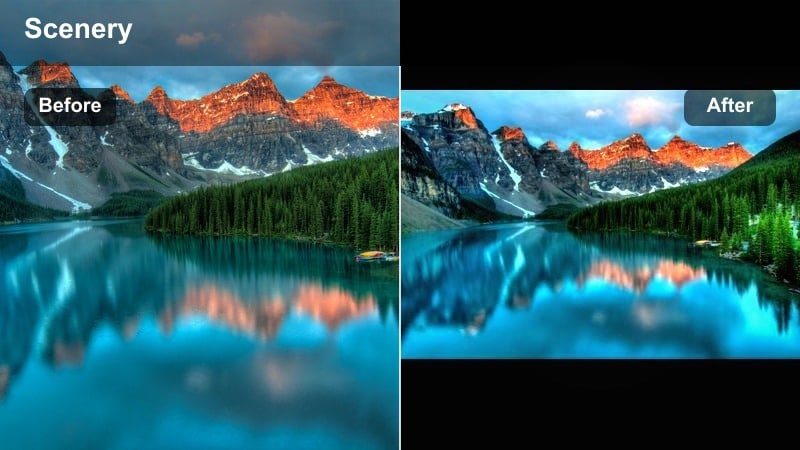
- Effect look: Film-style cool grading with rich midtones, deepened blues, and slightly lifted shadows.
- Best for: Wide establishing shots, drone or panoramic sweeps across multiple peaks, and travel vlog intros.
- Editing tip: Crop to a wider aspect ratio and add a subtle letterbox to reinforce the cinematic feel of this cool mountain grade.
Ridgeline Cinema gives your mountain vistas a movie-like polish, emphasizing rich blue tones and smooth contrast. It is tailored for hero shots that open or close your travel edit and needs only minimal tweaking to look theatrical.
Inside Filmora, apply this filter to your grandest aerials and tripod panoramas, then switch your sequence to a wider aspect or add letterbox bars. Adjust exposure shot by shot so skies sit at a similar brightness, helping your entire scenic sequence feel consistent.
Pro tip - Match Multiple Shots in a Sequence: Apply the Ridgeline Cinema filter to a hero shot first, then copy and paste the settings to matching angles for consistent color. Tweak exposure per clip so skies sit at similar brightness levels across the entire scenic sequence.
Cool Sunset Overlook
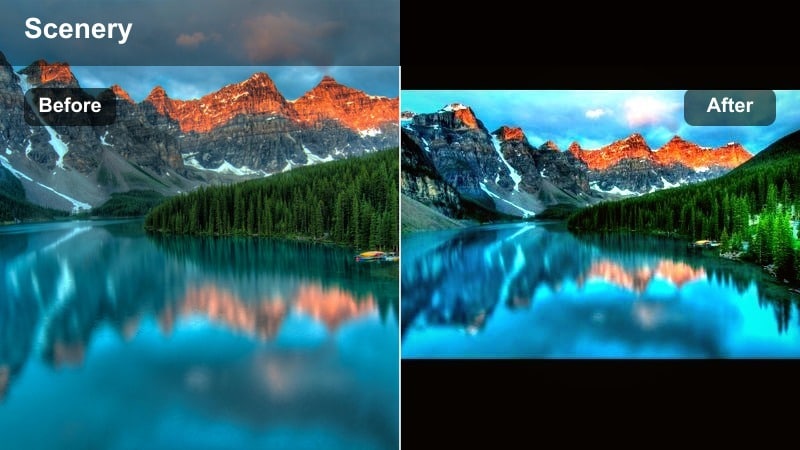
- Effect look: Balanced mix of warm highlights and cool shadows to keep sunset color while maintaining a mountain-cool mood.
- Best for: Sunset viewpoints, campsite scenes, and couples or friends sitting on a cliff edge.
- Editing tip: Use color wheels to add warmth only to highlights while leaving shadows cool for a pleasing complementary color balance.
Cool Sunset Overlook preserves the rich oranges and pinks of sunset skies while keeping your mountains and shadows in a cool palette. This dual-tone look gives your scenes depth and emotional warmth without sacrificing the blue alpine atmosphere.
In Filmora, drop this preset onto golden hour or blue hour clips where sky color matters. Fine-tune highlight warmth with color wheels, and avoid pushing saturation too far so gradients stay smooth and natural across the sky.
Pro tip - Protect the Sky from Banding: Avoid extreme saturation pushes in the sky; instead, use gentle curves and subtle color shifts to keep gradients smooth. If banding appears, add a small amount of film grain to disguise harsh transitions in sunset skies.
Valley Aerial Cool
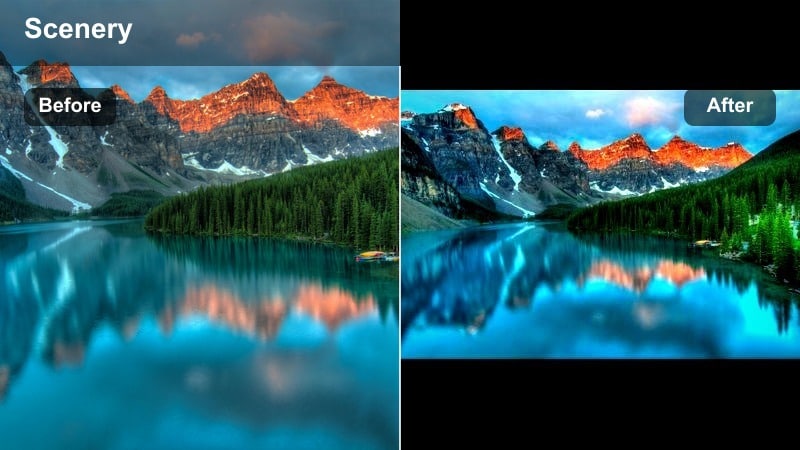
- Effect look: Brightened overall exposure with cool shadows and enhanced microcontrast for aerial valley fly-throughs.
- Best for: Drone shots over alpine valleys, lakes, and towns tucked between high peaks.
- Editing tip: Stabilize clips first in Filmora, then apply the filter, and finally adjust sharpness so houses and trees remain crisp.
Valley Aerial Cool is tailored for drone footage, brightening your landscape while keeping air and shadows feeling crisp and cold. The microcontrast boost helps roads, rivers, and tree lines stand out when viewed from high above.
In Filmora, stabilize your aerial clips before grading, then apply this preset to create a clean, modern valley look. Adjust sharpness sparingly so towns and forests are clear but do not look overly processed or noisy.
Pro tip - Keep Aerial Shots Natural: Avoid over-sharpening drone footage; let the cool tone and contrast carry the look instead of artificial crunch. If the valley floor looks muddy, selectively increase contrast in the midtones to reveal more structure without affecting the sky.
Story-Driven Travel Vibes in the Mountains
Campfire Chill Cool
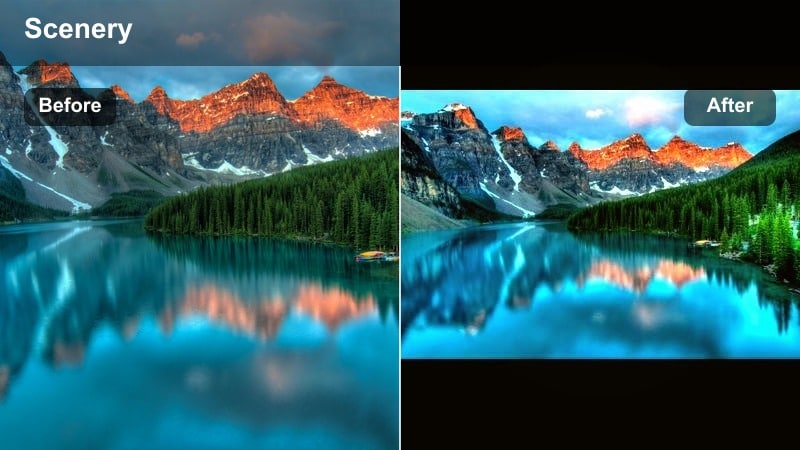
- Effect look: Cool overall grade with protected warm oranges so campfire flames and lanterns still glow.
- Best for: Night camps, tent setups, and storytelling moments around the fire after a long hike.
- Editing tip: Use masks to keep faces bright and warm while the background stays cool and moody for contrast and depth.
Campfire Chill Cool captures the feeling of cold mountain nights with the comfort of warm flames and lanterns. The preset cools the environment while preserving rich oranges, so the fire becomes a natural focal point in your frame.
In Filmora, use this filter on evening campsite sequences, interviews around the fire, or tent B-roll. Combine it with masks or keyframed exposure to keep faces visible and warm while the surrounding forest and peaks fall into a cooler, more dramatic mood.
Pro tip - Expose for Faces First: Lower overall contrast slightly in dark camp scenes so skin tones do not disappear into the night. If fire highlights blow out, reduce highlight levels and add a very light orange tint back into them to maintain color.
Trail Journal Cool Tone
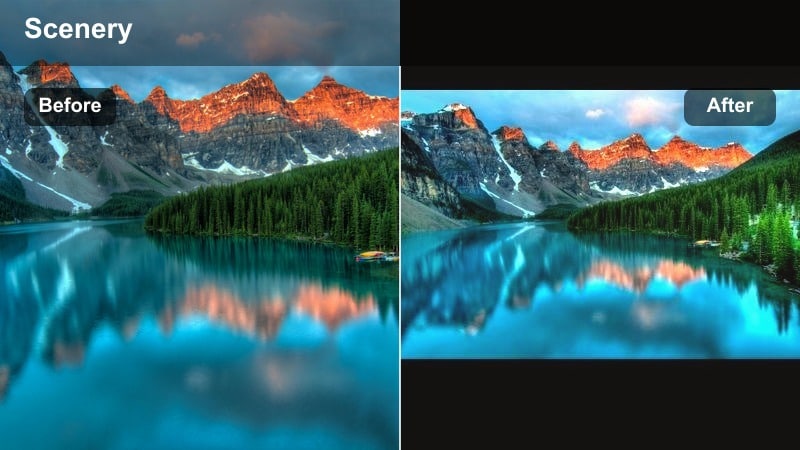
- Effect look: Soft, documentary-style cool tone with lightly faded colors and subtle grain.
- Best for: Vlog-style storytelling, packing sequences, and handheld clips documenting your hiking day.
- Editing tip: Keep transitions simple and let the consistent cool grade and natural sound carry the storytelling.
Trail Journal Cool Tone is built for narrative moments rather than epic vistas. It adds a gentle cool cast, slight fade, and subtle grain so your talking-head clips, packing shots, and journal-style updates feel cohesive and intimate.
Apply this filter across all A-roll and key B-roll in Filmora that involve speaking to camera, gear prep, or travel logistics. By keeping the look consistent, your viewers feel like they are following one continuous journey from trailhead to summit.
Pro tip - Build a Visual Story Arc: Use Trail Journal Cool Tone on all A-roll and key B-roll so viewers feel a continuous journey from trailhead to summit. Arrange clips from preparation to payoff and let changes in light and environment add natural progression to the story.
Summit Hero Shot Cool
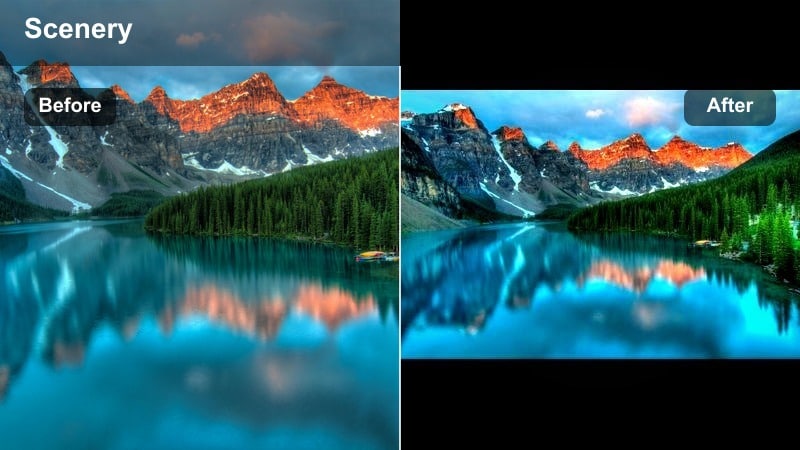
- Effect look: High-impact cool contrast with deep blues and crisp edges designed for final reveal shots.
- Best for: Final summit moments, hero poses on the peak, and thumbnail-friendly wide shots.
- Editing tip: Apply slightly stronger contrast than the rest of your video so the summit reveal feels like a visual climax.
Summit Hero Shot Cool is all about impact. It deepens blues, boosts contrast, and sharpens edges so your final peak moment stands out as the visual high point of your edit, perfect for social cuts and thumbnails.
In Filmora, reserve this filter for your best summit clips: arms raised, 360 spins, or drone pull-backs. Push contrast a bit further than usual and consider using this frame for your video thumbnail to showcase the bold cool mountain look.
Pro tip - Design for Thumbnails and Social Clips: Grab a frame from your summit hero shot and check that the cool tones and contrast still read clearly at small sizes. If the subject blends into the background, slightly darken the sky and brighten the hiker so the silhouette pops.
Tips for Using Mountain Cool Filters in Filmora
- Shoot slightly flatter in-camera so Filmora’s cool mountain video filters have more room to shape contrast and tone.
- Bracket exposure on bright snow or glacier scenes to avoid blown highlights that no filter can fully recover.
- Use tripod or in-camera stabilization on long scenic views so crisp cool tones do not highlight shaky footage.
- Keep white balance slightly warm in-camera when you know you will apply a cool filter to avoid overly blue skin tones.
- Match filter intensity to altitude and weather; stronger cool tones fit glaciers and high peaks, while valleys may need a softer touch.
Cool mountain video filters give hikers and travelers an easy way to turn raw summit shots and scenic views into a cohesive, fresh alpine story. By leaning on presets like Cool Mountain Filter. Alpine Breeze in Filmora, you can achieve a clean blue mountain tone without losing natural detail.
Experiment with different cool tone styles for ridgelines, forests, and camps, then save your favorite combinations as presets so every new trip can share the same recognizable mountain aesthetic filter look.
secure download