

 100% Security Verified | No Subscription Required | No Malware


 ChatGPT
 Perplexity
 Gemini
 Claude
 Grok
Grok
The Night City Light Glow Filter collection in Filmora is built for content creators who love neon streets, moody skylines, and cinematic urban storytelling after dark.
Use these curated glow filters to soften harsh streetlights, boost neon color, and add dreamy halos around highlights so your night city footage looks clean, intentional, and ready to post.
In this article
Neon Avenues and Downtown Storefronts
Neon Halo Walk
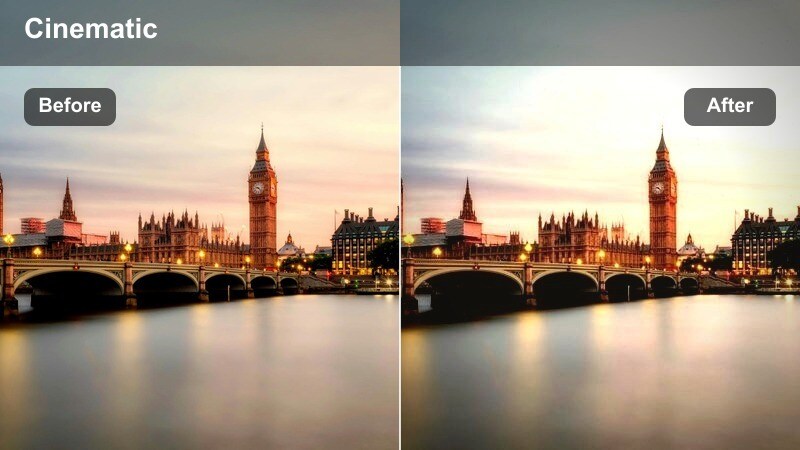
- Effect look: Soft glowing halos around neon signs with a subtle contrast boost.
- Best for: Street vlog shots walking past bright storefronts and billboards.
- Editing tip: Reduce overall brightness slightly so the glow feels rich instead of blown out.
Neon Halo Walk wraps neon signs and bright storefronts in a gentle halo that feels cinematic without turning your frame into a blur. In Filmora, this preset is ideal for walk-and-talk vlogs where you want the background to feel alive and stylized while your subject still reads clearly against the neon glow.
Apply this filter to clips where you move past billboards, LED panels, or busy shop windows, then dial back exposure and adjust contrast in the Color panel so the glow keeps detail in text and logos. Use masks to keep your face or main subject a bit cleaner while letting the surrounding signage bloom beautifully, creating a polished, night-in-the-city aesthetic ready for YouTube, TikTok, or Reels.
Match Night City Glow Across Every Shot with AI
Filmora offers AI-driven color tools that help you keep your night city light glow looking consistent from tight alley portraits to sweeping skyline cuts. Once you find a Neon Halo Walk look you love, you can automatically match other clips so your entire sequence shares the same cohesive mood.
After applying your preferred glow preset, use AI color matching to balance exposure and color temperature between shots, even when they were filmed on different nights or cameras. This saves grading time and keeps your urban visuals feeling like one continuous story.
 secure download

Preview Night City Glow Filters in Real Time
With Filmora, you can preview night city light glow filters in real time while your clip plays back on the timeline. This makes it easy to compare subtle halos versus bolder neon blooms and quickly decide which preset fits the scene.
Use the Effects panel to scroll through glow options, then adjust intensity live to see how far you can push the look before it overpowers your subject. This on-the-fly auditioning keeps your edit fast and visually intentional.
secure downloadBlend Glow Filters with City-Themed LUTs
Filmora includes 1000 plus video filters and 3D LUTs that stack perfectly with your night city light glow presets. You can lock in a bold color grade on top of soft blooms, giving your project a signature look that is easy to reuse.
Apply a glow filter first, then experiment with warm, nostalgic LUTs for diners and crosswalks or cooler, cyberpunk LUTs for tunnels and rooftops. Adjust LUT intensity so it complements your glow instead of overpowering it.
secure downloadWindow Reflection Glow
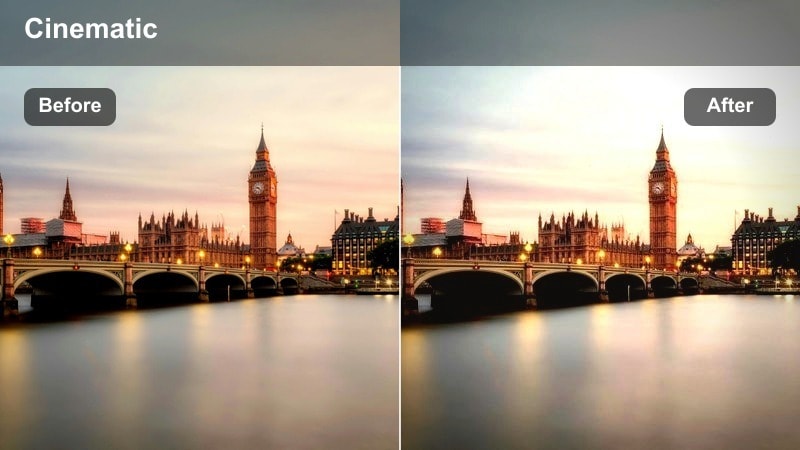
- Effect look: Dreamy reflections with softened highlights in glass and windows.
- Best for: B-roll of shop windows, cafes, and city displays at night.
- Editing tip: Increase saturation slightly to make reflected ads and signs pop through the glow.
Window Reflection Glow focuses on the glass surfaces in your frame, turning hard reflections into smooth, dreamy layers of color. In Filmora, this is especially effective on B roll of cafe windows, boutique displays, and reflective bus stops, where city lights and people overlap in the glass.
Drop the preset on close-up shots of windows, then bump up saturation and fine-tune the Highlights slider so key details in ads and signage remain visible. By combining this glow with gentle camera movement or slow-motion, you can turn simple storefront cutaways into atmospheric transitions between your main scenes.
Arcade Neon Bloom
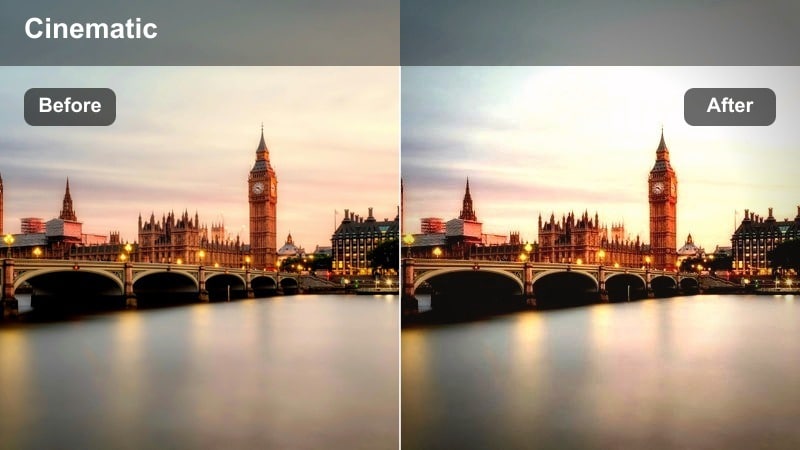
- Effect look: Bright neon colors with strong bloom around colorful signs.
- Best for: Gaming arcades, karaoke streets, and colorful downtown alleys.
- Editing tip: Use this on close-up shots and keep midtones slightly darker for maximum neon impact.
Arcade Neon Bloom is designed for the loudest corners of the city, where RGB signs and animated billboards dominate the frame. The preset pushes saturation and bloom so neon tubes and LED panels expand into bold color fields, perfect for nightlife montages and high-energy intros.
Apply it to tight shots of signage, entryways, or characters framed against arcades, then lower midtones and shadows in Filmora to prevent the glow from washing out the entire image. Sync your cuts to music beats and let the exaggerated neon pulses serve as visual accents that match your soundtrack for gaming, travel, or party content.
Rooftops, Skylines, and Distant City Lights
Skyline Soft Orbit
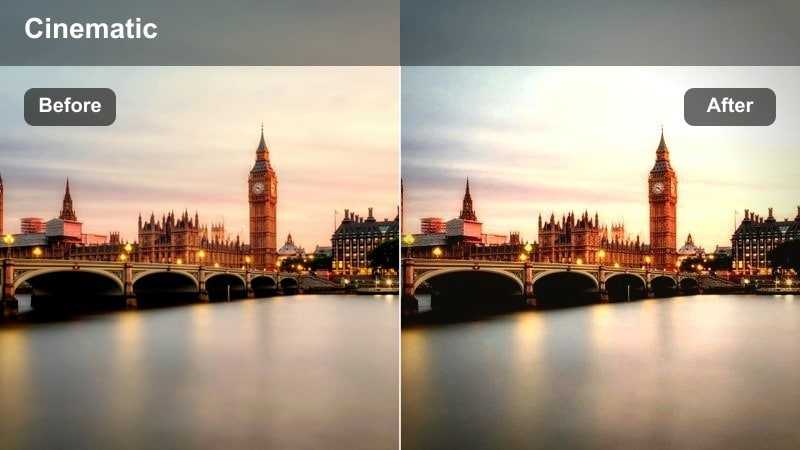
- Effect look: Gentle glow on far city lights with a slight haze over the skyline.
- Best for: Wide rooftop shots and establishing city scenes at night.
- Editing tip: Add a light vignette to keep viewer focus on the glowing skyline center.
Skyline Soft Orbit adds a thin layer of atmospheric haze over distant buildings, turning windows and traffic grids into a unified, cinematic glow. It works best on wide rooftop or balcony shots where the city fills most of the frame and you want a subtle, filmic softness instead of hard digital edges.
In Filmora, use this preset on your opening and closing city views, then layer a mild vignette and adjust contrast so the brightest section of the skyline naturally draws the eye. Slow, stable camera moves like pans or tilts pair especially well with this effect, helping the glow feel like natural night haze instead of an obvious overlay.
Freeway River Glow
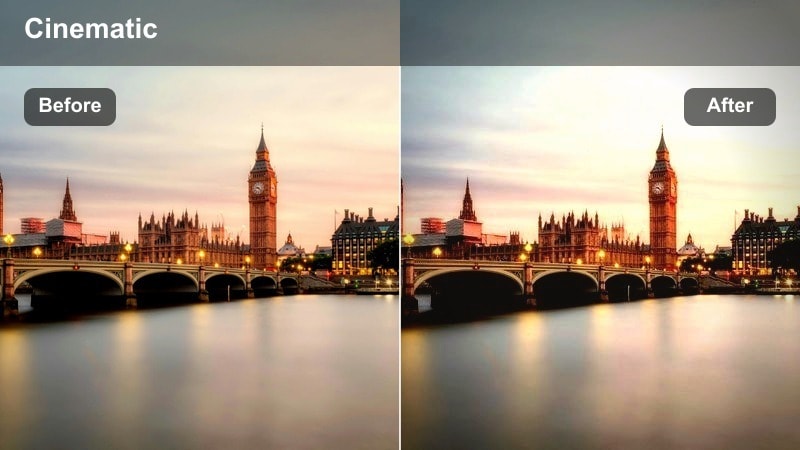
- Effect look: Trailing glow on headlights and taillights creating river-like light streams.
- Best for: High-angle timelapses of freeways and elevated roads at night.
- Editing tip: Speed up your clip and add a slight motion blur to enhance the streaking light effect.
Freeway River Glow transforms dense traffic into flowing streams of red and white, ideal for timelapses and drone-style urban overviews. The glow clings to car lights and emphasizes their motion, making roads feel like illuminated rivers cutting through the city grid.
After capturing high-angle shots, bring them into Filmora, increase playback speed, and apply subtle motion blur before dropping on this glow preset. Fine-tune intensity until the streaks connect smoothly without losing the sense of individual vehicles, and use these clips as dynamic transitions between street-level and rooftop scenes in your edit.
Tower Bokeh Dream
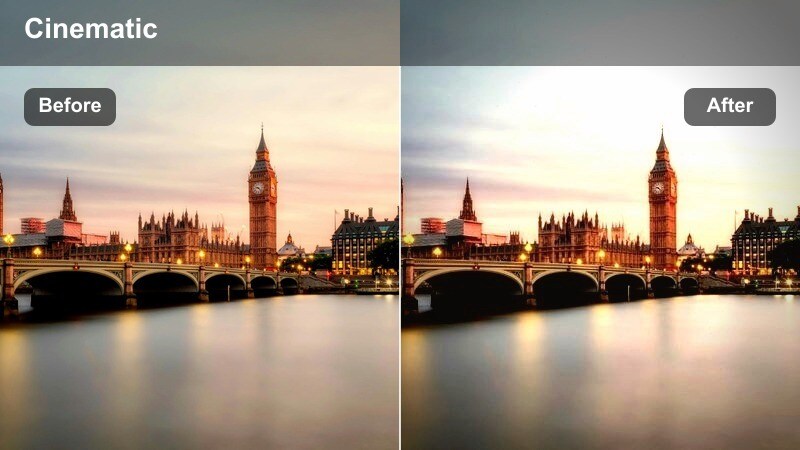
- Effect look: Strong bokeh glow on out-of-focus building lights and street lamps.
- Best for: Telephoto shots of skyscrapers and distant light clusters.
- Editing tip: Use a shallow depth of field in-camera and let the filter exaggerate the glowing bokeh circles.
Tower Bokeh Dream leans into defocus, turning distant windows and signage into big, soft glowing orbs. It is a powerful choice for transitions, overlays, or dreamy cutaways where you want to break from reality for a moment and emphasize mood over detail.
Shoot with a long lens and shallow depth of field, then apply this preset in Filmora to exaggerate the circular bokeh while gently smoothing digital noise. You can cut from a sharp portrait to a Tower Bokeh Dream skyline and back to create a rhythmic, dreamlike flow that elevates music videos, fashion edits, or reflective vlog segments.
Crosswalks, Traffic Lights, and Street Corners
Crosswalk Amber Glow
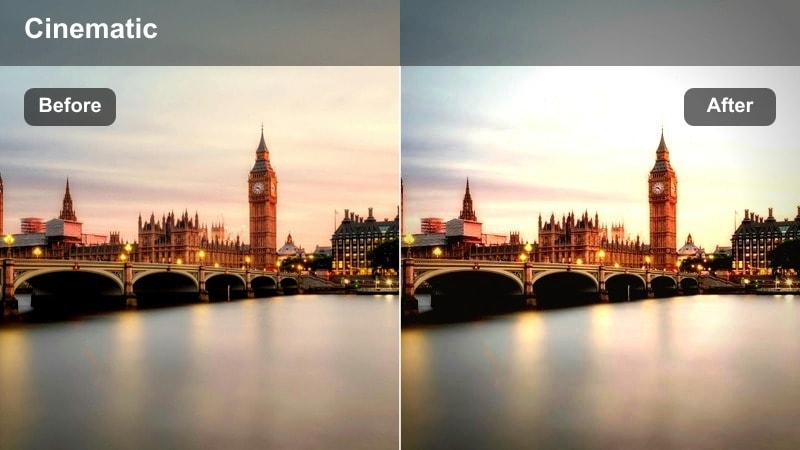
- Effect look: Warm glow from traffic lights and street lamps with soft shadows.
- Best for: People crossing busy intersections and crosswalk B roll.
- Editing tip: Lower the shadows slightly so puddles and road markings still keep detail under the glow.
Crosswalk Amber Glow wraps intersections in a cozy, golden light that flatters skin tones and emphasizes the rhythm of foot traffic. The preset softens harsh overhead lamps and signal lights, making everyday crossings feel like scenes from a narrative film.
Use it in Filmora on wide shots of pedestrians, bicycle lanes, or curbside action, then adjust shadows and contrast to keep lane markings and reflections clear. Cut between wide views and close-ups of shoes or wheels passing through light pools to build energetic sequences that still feel warm and inviting.
Rainy Lane Lustre
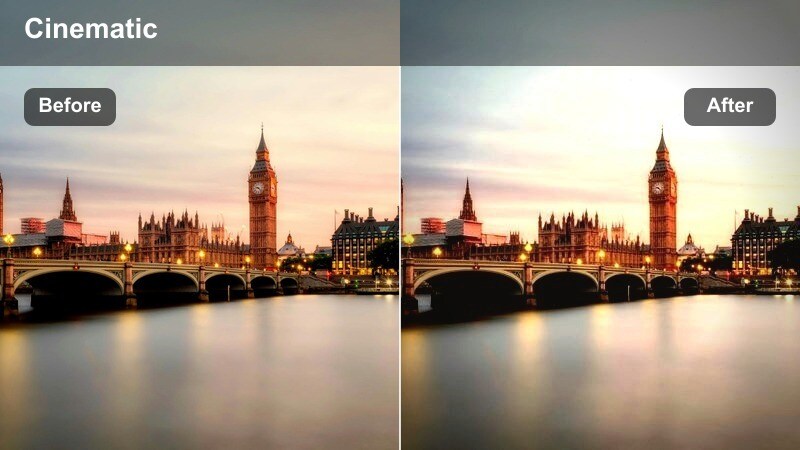
- Effect look: Cool glow on wet asphalt with reflections of streetlights and signs.
- Best for: Night rain shots, reflective sidewalks, and moody alleyways.
- Editing tip: Boost clarity just a little so reflections in puddles stay crisp despite the glow.
Rainy Lane Lustre is tailored for wet streets and sidewalks, where reflections already make the city feel doubled. The filter cools the palette slightly and adds glow to puddles and asphalt, turning passing headlights and signage into painterly streaks across the ground.
In Filmora, pair this preset with low-angle shots that place the camera close to the street surface, then nudge clarity upward to keep ripples and texture visible through the glow. This look works beautifully for atmospheric B roll, melancholic music videos, and narrative scenes that lean on rain as a key storytelling element.
Taxi Signal Flare
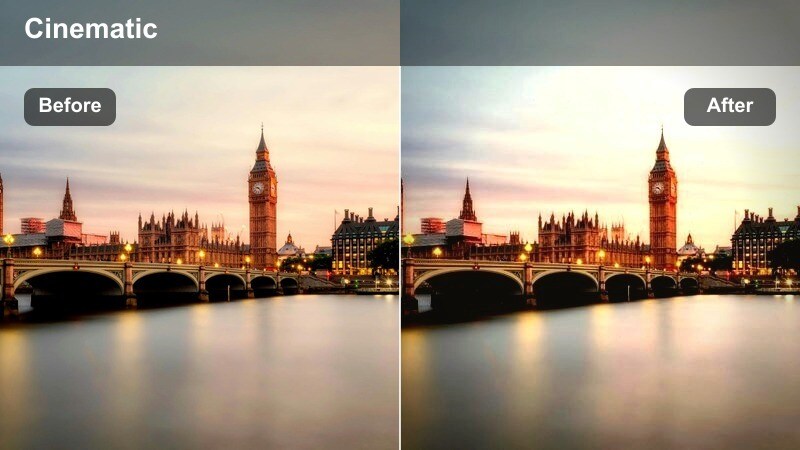
- Effect look: Glowing highlights on taxi signs, brake lights, and turn signals.
- Best for: Drive-by shots, curbside hailing, and traffic-heavy corners.
- Editing tip: Use slow shutter footage when possible so moving lights stretch slightly under the glow.
Taxi Signal Flare draws attention to the moving lights of the city, making roof signs, brake lights, and indicators flare in a stylized way. This preset is perfect for energetic street montages, chase sequences, or any edit where traffic becomes part of the story.
Capture footage with a slightly slower shutter speed to introduce natural streaking, then apply the preset in Filmora and tweak intensity until the flares feel bold but not blinding. Use these clips to guide viewer attention into or out of a scene, cutting on moments when a glowing light crosses frame or fills the image for seamless transitions.
Night Portraits, Alleys, and Side Streets
Alley Backlight Aura
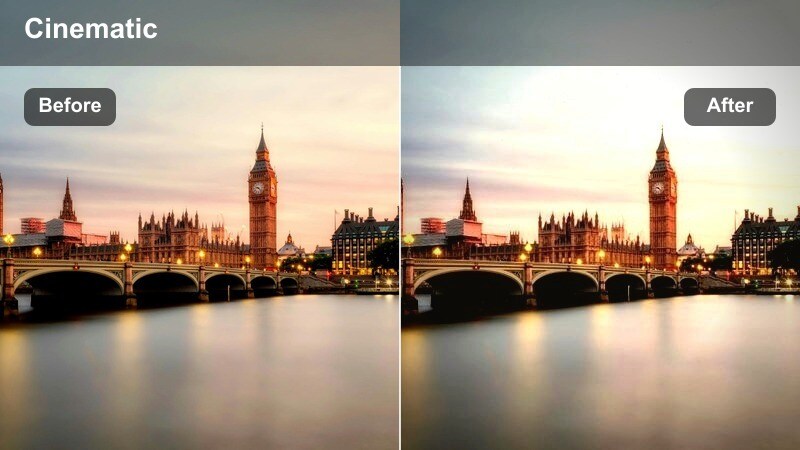
- Effect look: Soft halo around backlit subjects with gentle falloff into shadows.
- Best for: Portraits in narrow alleys with a bright light source behind the subject.
- Editing tip: Lift the blacks slightly so shadow areas keep detail while still feeling cinematic.
Alley Backlight Aura is built for silhouettes and rim-lit portraits, where a strong light source sits behind your subject. The preset creates a smooth, glowing outline around edges while allowing the rest of the frame to fall gracefully into shadow, adding instant drama to character-focused shots.
In Filmora, apply it to alley scenes or backlit doorways, then lift the black levels and refine exposure so you retain just enough detail in hair, clothing, or walls. This look is ideal for thumbnails, intros, and emotional beats where you want the viewer to feel the subject emerging from the city night.
Sidewalk Cyan Haze
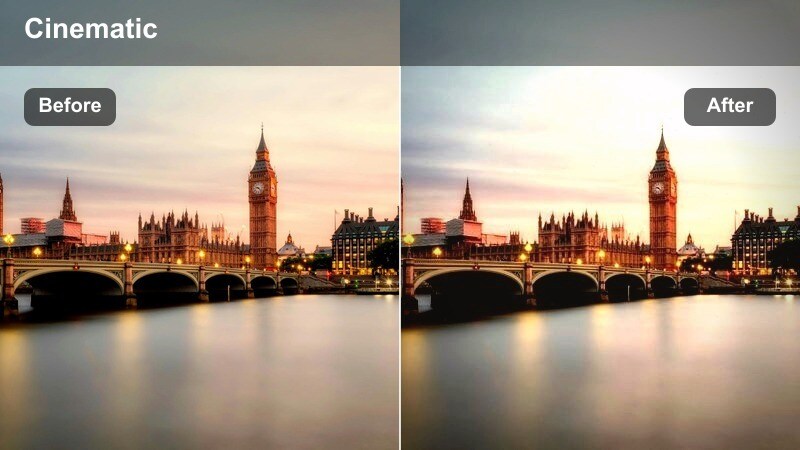
- Effect look: Cool cyan-tinted glow from overhead tubes and light strips.
- Best for: Subway entrances, tunnel walkways, and underpass scenes.
- Editing tip: Desaturate background slightly so the cyan glow around your subject stands out more.
Sidewalk Cyan Haze gives your scenes a futuristic, almost sci-fi edge by tinting overhead and side lighting with a cool cyan glow. It is especially effective in tunnels, underpasses, and modern transit spaces where fluorescent tubes or LED strips already define the architecture.
Use this preset in Filmora on medium and close-up shots of people walking through these spaces, then gently desaturate non-light areas so the cyan hue wraps more distinctly around your subject. Combine with slow push-ins or steady handheld movement to create immersive, tech-inspired visuals for travel vlogs, fashion reels, or urban storytelling.
Corner Diner Sheen
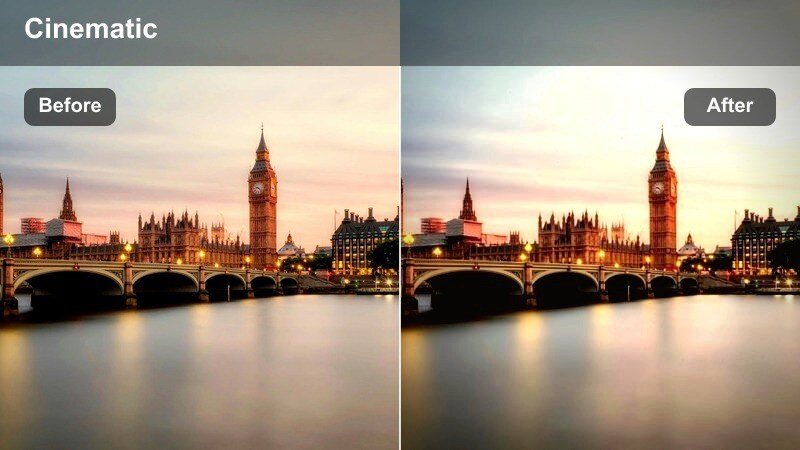
- Effect look: Warm, nostalgic glow from diner signs and interior window light.
- Best for: Intimate conversations by windows, late-night cafe scenes, and street interviews.
- Editing tip: Lower sharpness a touch so the glow and warmth sell a softer, more nostalgic mood.
Corner Diner Sheen channels classic late-night diner vibes, turning window light and signage into a soft, inviting glow. The preset warms up your color temperature and smooths edges slightly, which is perfect for cozy conversations, reflective monologues, or character introductions framed by cafe glass.
In Filmora, apply it to both exterior and interior shots of the same location to create a consistent, nostalgic tone throughout the scene. Reduce overall sharpness a bit and consider adding a gentle film grain to reinforce the timeless, story-driven atmosphere this glow naturally supports.
Tips for Using Night City Light Glow Filter Filters in Filmora
- Shoot your night footage a bit darker than usual so glow filters can brighten highlights without clipping details.
- Start each glow preset around 40 to 60 percent strength in Filmora and adjust by eye to avoid overexposed halos.
- Use masking tools to keep faces, text, and key objects sharper while allowing backgrounds and lights to carry most of the glow.
- Stabilize handheld shots before adding strong bloom so the glow feels cinematic and smooth rather than jittery.
- Combine glow presets with LUTs sparingly, lowering LUT opacity until colors support the glow instead of fighting it.
- Mix different glow strengths across your timeline, reserving the boldest looks for intros, outros, and key emotional beats.
- Experiment with slow motion or timelapse when using traffic and skyline glow filters to emphasize movement in light trails.
- Use vignettes and selective color adjustments to guide the viewer toward the brightest, most important glowing areas of your frame.
Night city light glow filters give content creators a fast way to turn ordinary urban footage into stylized, cinematic sequences.
Experiment with different glow strengths, camera angles, and Filmora LUT combinations until you land on a signature night city look that fits your channel.
secure download