

 100% Security Verified | No Subscription Required | No Malware


 ChatGPT
 Perplexity
 Gemini
 Claude
 Grok
Grok
The Soft Skin Cinematic Video Filter collection in Filmora is designed for content creators who want flattering, cinematic-ready portraits without heavy retouching or complex color grading.
These presets gently smooth skin, refine tones, and add subtle atmosphere so your face-camera content, beauty vlogs, and lifestyle videos look polished and professional in just a few clicks.
In this article
Soft Daylight Portraits
Soft Skin Glow
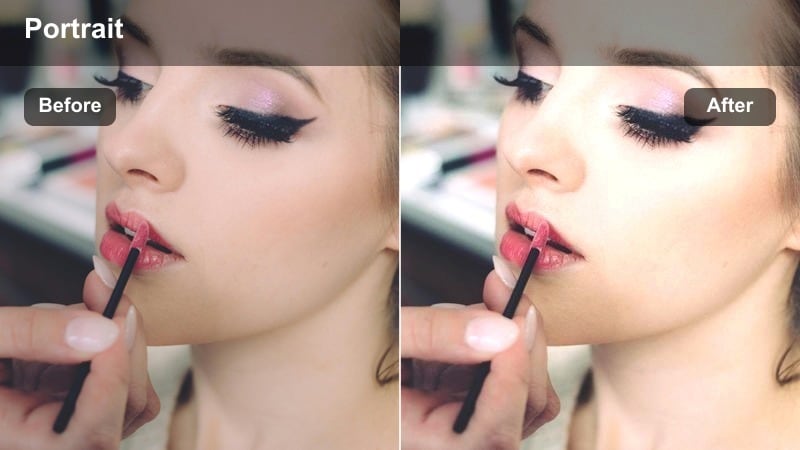
- Effect look: Delicate skin smoothing with a gentle luminous lift in midtones and a light cinematic contrast curve.
- Best for: Natural daylight talking-head videos, lifestyle vlogs, and beauty intros filmed near windows.
- Editing tip: Lower the filter intensity to around 60-70 percent if your footage is already well-lit to avoid over-softening pore details.
In Filmora, Soft Skin Glow is ideal when you want your on-camera portraits to look clean and flattering without losing the natural feel of window light. The preset subtly evens out minor skin texture, lifts midtones, and adds a smooth contrast curve that feels cinematic while still believable for everyday content.
Apply this filter to adjustment layers over your A-roll clips so you can fine-tune the intensity across an entire sequence in one move. For creators who film regular talking-head content, save a custom version of Soft Skin Glow at your preferred strength so your skin tone and contrast stay consistent from video to video.
Pair Soft Skin Filters with Smart Color Balancing
Combine Filmora s soft skin cinematic video filters with AI-driven color tools to keep your portraits flattering and color-true in any lighting setup. Start by correcting mixed or uneven color with AI Color Palette so your skin tones sit in a natural range before you add any smoothing.
Once the base color is balanced, layer your favorite soft skin filter to refine texture and add a cinematic finish. This workflow keeps edits fast and repeatable, especially for creators producing frequent vlogs, reels, and tutorials.
 secure download

Preview Soft Skin Looks in Real Time
Filmora lets you preview soft skin cinematic video filters directly in the timeline so you can see how smoothing behaves during real talking segments and subtle facial movements. This makes it easy to avoid over-processing and keep pores, eyes, and lips looking realistic.
Test several soft skin presets on the same clip, toggle them on and off, and adjust intensity until you find a look that is flattering on your face and matches the overall mood of your edit.
secure downloadCombine Soft Skin Filters with Portrait LUTs
For beauty vlogs and cinematic portraits, you can pair soft skin filters with Filmora s large library of video filters and 3D LUTs to build a signature look. Let the soft skin preset handle texture and subtle glow while portrait LUTs push color toward warm lifestyle tones or cooler editorial styles.
Apply the soft skin filter first, then stack your chosen LUT on top so skin remains flattering and the creative color grade feels cohesive across all your videos.
secure downloadSunlit Portrait Matte
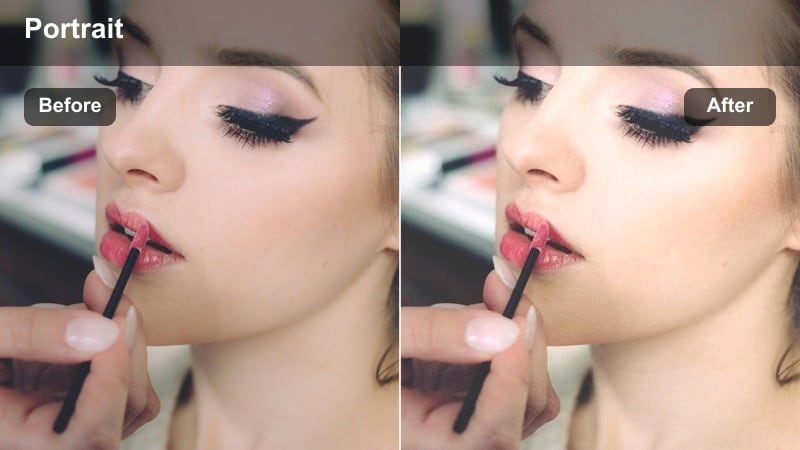
- Effect look: Soft skin refinement with a low-contrast matte finish and warm, sun-kissed highlights.
- Best for: Outdoor beauty vlogs, morning GRWM videos, and soft lifestyle portraits shot in open shade.
- Editing tip: Increase saturation slightly on lips and cheeks to compensate for the matte curve and keep the face vibrant on camera.
Sunlit Portrait Matte in Filmora gives your outdoor portraits a velvety, cinematic feel by gently lowering contrast and taming shine while adding warm highlights. The matte finish is especially helpful in bright sun because it keeps forehead and cheek reflections from looking harsh on 4K screens.
Use this filter on clips filmed in open shade, under trees, or near bright reflective surfaces to create a cohesive warm aesthetic across an entire vlog. For GRWM or outfit videos, duplicate the filter settings between clips to keep skin tone and warmth consistent as you move between locations.
Window Light Veil
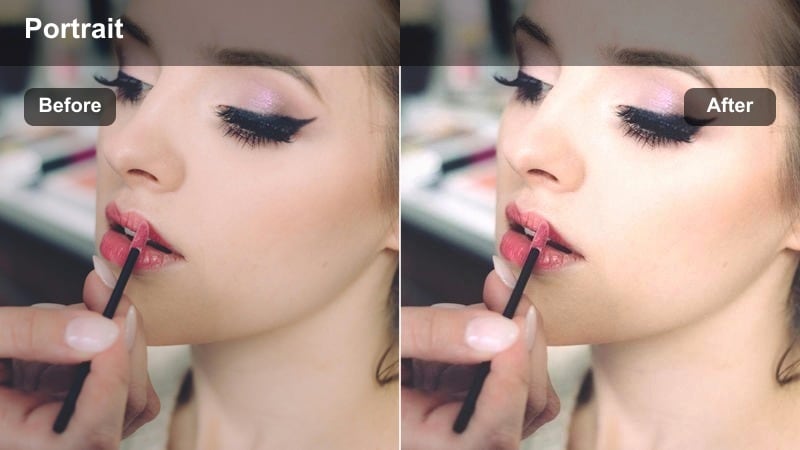
- Effect look: Creamy, low-texture skin with a cool-balanced tint and a subtle haze in the brightest areas.
- Best for: Desk setups, casual chatty vlogs, and tutorials filmed in front of a bright window or sheer curtains.
- Editing tip: Add a slight sharpen to eyes only so they pop through the veil effect while the rest of the skin remains diffused.
Window Light Veil softens your skin and adds a hint of atmospheric haze to bright areas, which is perfect for creators filming against blown-out windows or sheer curtains. The cool-balanced tint helps counter yellow indoor light so your skin tone stays neutral even when daylight shifts during recording.
In Filmora, place this filter on an adjustment layer above your talking-head clips and then add a mask around the eye area for targeted sharpening. This keeps your gaze crisp and engaging while the rest of the frame retains a creamy, cinematic softness that flatters most skin types.
Beauty Vlog Close-Ups
Airbrushed Beauty Lite
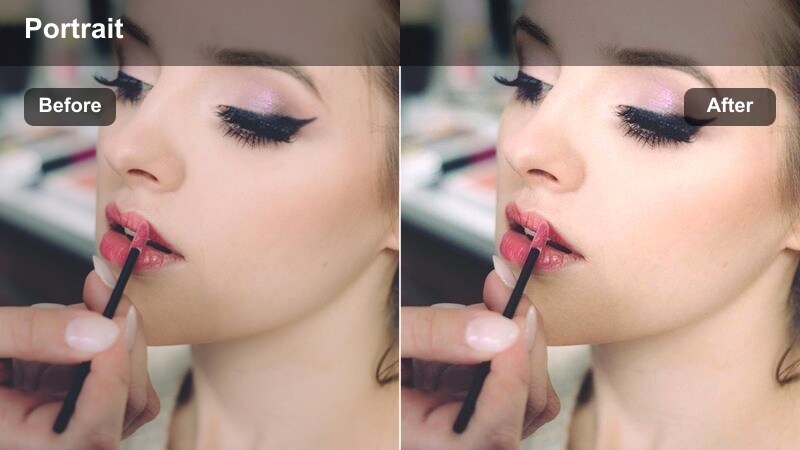
- Effect look: Subtle airbrush-style smoothing with gentle contrast and a slight pink lift in skin tones.
- Best for: Makeup tutorials, product close-ups, and step-by-step beauty routines shot at arm s length.
- Editing tip: Zoom in to check brows, lashes, and hairlines and reduce filter strength until these details remain clearly defined.
Airbrushed Beauty Lite is tuned for close-up shots where your audience needs to see every blend, shimmer, and liner detail. It adds a soft, airbrushed finish to the skin while lifting pink undertones slightly, which helps complexion look lively under bright beauty lights.
When editing in Filmora, apply this preset directly to your A-roll makeup clips and then play them back at full screen to confirm that brows, lashes, and lip lines stay sharp. If you are filming product swatches, use keyframes to gradually fade the filter out on macro shots so texture on hands and arms remains true-to-life.
Studio Ringlight Soft
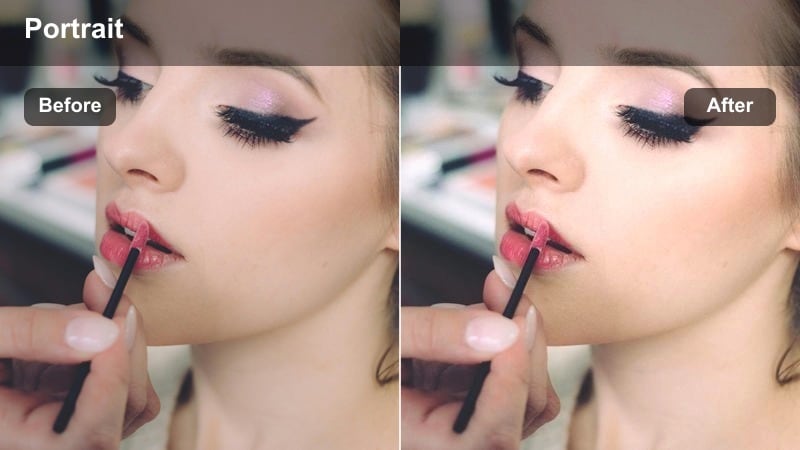
- Effect look: Even skin smoothing optimized for ring light setups with boosted clarity on eyes and lashes.
- Best for: Beauty hauls, unboxings, and skincare demos filmed with ring lights or small LED panels.
- Editing tip: If reflections in the skin look too sharp, slightly reduce contrast while keeping the filter at full strength.
Studio Ringlight Soft is designed around typical ring light lighting patterns, where the face is evenly illuminated but shine and texture can become exaggerated. This preset smooths skin uniformly while protecting fine detail around the eyes and lashes so your catchlights remain bright and engaging.
In Filmora, combine this filter with small highlight and contrast tweaks to tame hot spots on the forehead and cheeks. For long-form beauty hauls, copy and paste the effect across your timeline or save it as a custom preset so every segment of your video maintains the same polished, studio-ready look.
Glam Detail Soft Focus
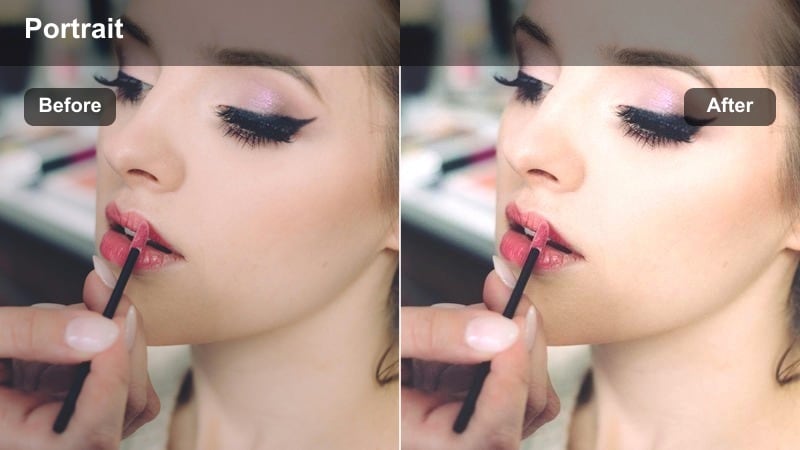
- Effect look: Silky skin with enhanced shimmer on highlight areas and a soft-focus glow around the face.
- Best for: Full glam looks, festival makeup, and editorial-inspired beauty shorts or reels.
- Editing tip: Keep exposure slightly under neutral so the glow effect does not blow out metallic or glitter details.
Glam Detail Soft Focus delivers a polished, editorial-style glow that wraps your face in subtle diffusion while making highlighter and shimmer catch the light beautifully. It is particularly effective for bold looks with metallic shadows, rhinestones, or glitter, where you want skin to look silky but the artistry to remain defined.
Inside Filmora, apply this filter to your most dramatic beauty shots and adjust intensity so edges of eyeliner and lip liner stay crisp. If you are cutting a vertical reel, duplicate the preset onto the reframed clips so your glam soft-focus look remains consistent whether viewers are watching in landscape or portrait mode.
Evening Mood Cinematic Portraits
Golden Hour Soft Portrait
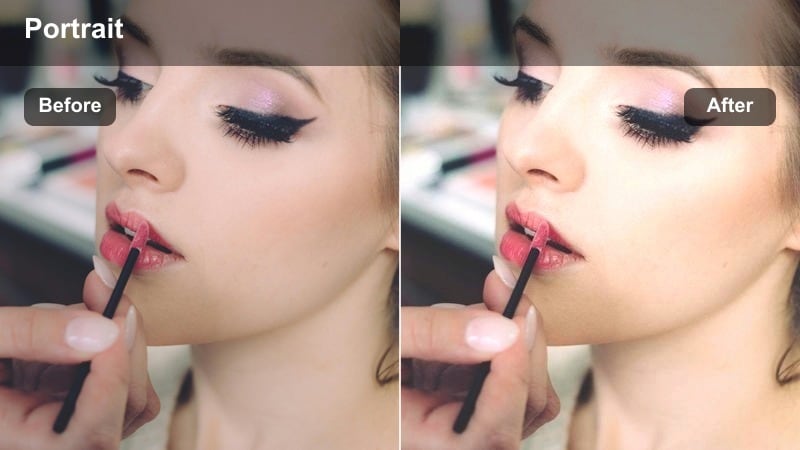
- Effect look: Warm golden tint with delicate skin blur and lifted shadows for softly lit sunset scenes.
- Best for: Sunset walks, rooftop monologues, and golden hour b-roll with face in frame.
- Editing tip: Lower the white balance slightly if your camera already shot very warm to prevent overly orange skin.
Golden Hour Soft Portrait enhances the natural warmth of sunset light while lightly smoothing skin and lifting shadows so your facial features remain clear. The result is a dreamy, cinematic look that flatters most skin tones and keeps your face from sinking into silhouette when the sun is behind you.
In Filmora, use this preset on all your golden hour sequences, then fine-tune white balance to keep skin from turning overly orange or red. For storytelling vlogs, keyframe the filter intensity so it gently tapers off as you move from golden hour into blue hour, preserving a natural transition in your color grade.
City Lights Soft Noir
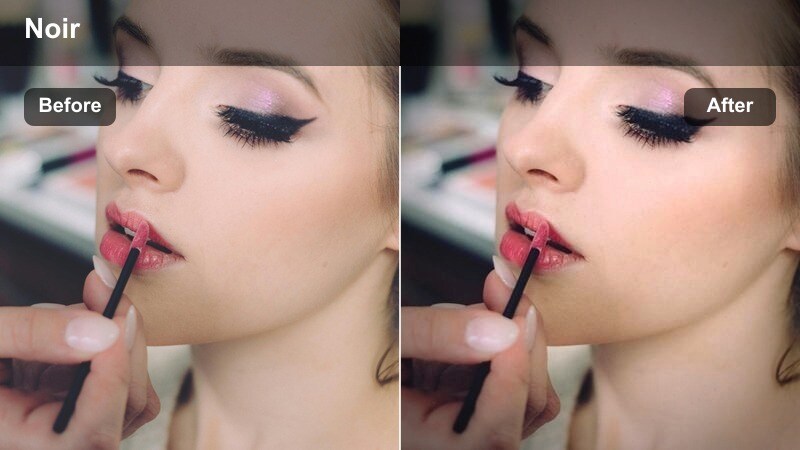
- Effect look: Smooth low-light skin with deep cinematic contrast and muted, cool city color tones.
- Best for: Night street vlogs, urban B-roll with talking segments, and moody late-night confessionals.
- Editing tip: Raise shadows gently so skin does not disappear into the darkest areas while keeping the city background dramatic.
City Lights Soft Noir is built for urban night scenes where neon signs and street lamps can emphasize noise and uneven skin tone. The preset smooths skin selectively, deepens contrast, and cools color slightly to give your footage a modern, cinematic vibe while protecting important details in your face.
When editing in Filmora, apply mild noise reduction to your clips before adding this filter so the smoothing effect looks clean rather than smudged. Use subtle vignettes and masked adjustments around your face to pull attention away from bright storefronts or car lights, keeping viewers focused on your story.
Candlelit Soft Romance
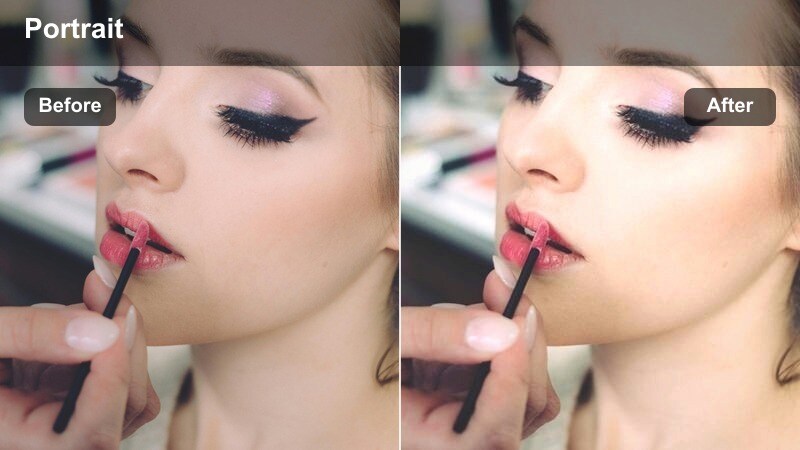
- Effect look: Gentle skin smoothing with warm orange glows and softened shadows for intimate low-light scenes.
- Best for: Storytime videos, date-night recaps, and cozy sit-down vlogs lit by lamps or candles.
- Editing tip: Reduce saturation slightly if your room lighting is very yellow so the soft look feels cinematic, not overly warm.
Candlelit Soft Romance wraps your skin in a warm glow and relaxes contrast, making living rooms and bedrooms feel cozy and cinematic on camera. It softens minor imperfections that can stand out at higher ISOs while keeping enough shadow to preserve the intimacy of low-light storytelling.
In Filmora, use this filter for storytime or chatty sit-down videos where you want viewers to feel like they are in the room with you. Pair it with small saturation and white balance tweaks to keep orange or yellow casts under control, then add subtle background blur so lamps and fairy lights melt pleasantly into the scene.
Professional Creator Setups
Creator Desk Soft Neutral
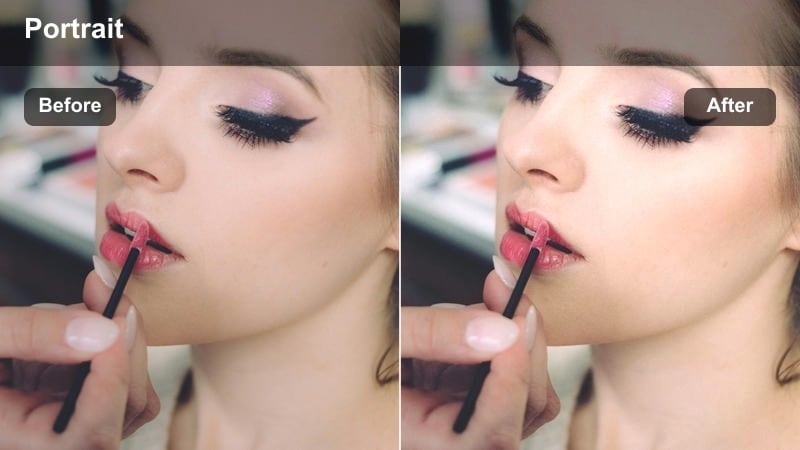
- Effect look: Balanced soft-skin enhancement with neutral color grading and clean midtone contrast.
- Best for: YouTube explainers, tutorials, and tech or productivity channels filming at a workstation.
- Editing tip: Lock white balance in-camera, then use this filter to refine tone instead of trying to correct mixed lighting afterward.
Creator Desk Soft Neutral is a professional-grade preset that lightly polishes skin without changing the overall color identity of your channel. It adds gentle softness and midtone contrast so your face looks clear and rested under softbox or key lights, while leaving graphics, screens, and background gear looking crisp.
In Filmora, this filter works best when applied consistently across all A-roll desk shots in a series or playlist. Save it as part of a custom preset that also stores your preferred exposure and contrast adjustments so every new tutorial or explainer you edit starts from the same, studio-quality base.
Podcast Studio Soft
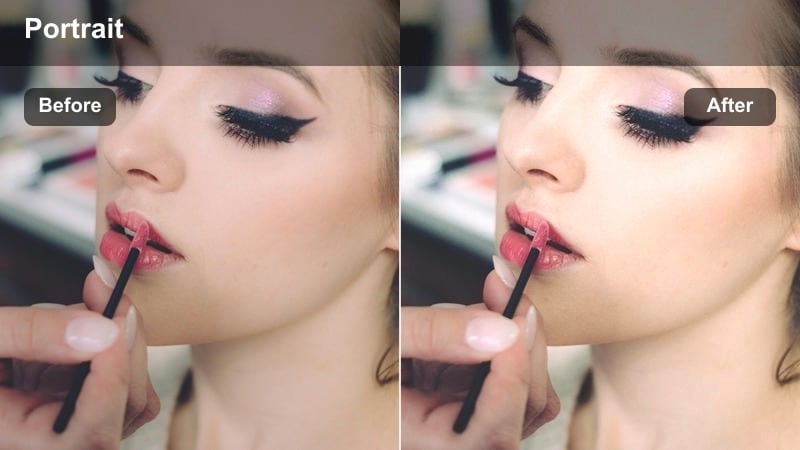
- Effect look: Gentle skin softening tuned for mixed lighting with subtle desaturation to keep faces calm and focused.
- Best for: Video podcasts, interview shows, and dual-host setups recorded in small studios.
- Editing tip: Match exposure between speakers before applying the filter so both faces receive consistent softening.
Podcast Studio Soft is optimized for multi-host or guest setups where several faces share the same frame. It smooths skin evenly and adds a subtle desaturation that reduces color distractions, helping viewers focus on expressions and conversation instead of minor blemishes or redness.
In Filmora, nest your multicam or multi-angle edit into a single sequence, then apply this filter to that nested timeline so every camera angle shares the same treatment. Afterward, fine-tune exposure and white balance per angle only if needed, keeping the skin-softening effect uniform across all guests.
Course Instructor Soft Focus
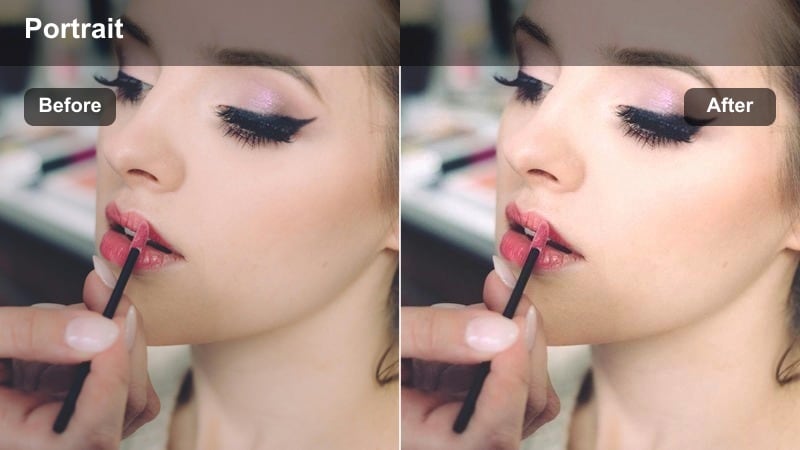
- Effect look: Refined skin smoothing with conservative contrast and a slight clarity boost on clothing and background props.
- Best for: Online courses, educational webinars, and coaching videos where the instructor is on screen for long periods.
- Editing tip: Check long takes in real-time playback to ensure the softening remains consistent across different segments and angles.
Course Instructor Soft Focus is crafted for long-form educational content where viewers may be watching you for 30 to 60 minutes at a time. It gently refines skin while boosting clarity on clothing, whiteboards, and background props so visual aids stay sharp and legible.
In Filmora, apply this preset across every module or lecture to keep your on-screen presence consistent from lesson to lesson. Keep the filter strength moderate so the image does not appear over-processed during extended viewing, and review several segments in real-time playback to confirm the look remains comfortable on the eyes.
Tips for Using Soft Skin Cinematic Video Filter Filters in Filmora
- Always adjust soft skin filter intensity per clip so skin looks polished but still shows natural detail around eyes, lips, and hairlines.
- Lock in stable lighting and white balance during recording; soft skin cinematic video filters work best on evenly exposed, color-consistent footage.
- Use masks or adjustment layers in Filmora to limit stronger softening to the face area and keep hair, clothing, and background elements crisp.
- Preview your edits on both phone and desktop screens to ensure the soft skin filter does not appear too heavy or artificial at different sizes.
- Combine soft skin presets with Filmora s AI color and exposure tools to correct technical issues before you fine-tune beauty and cinematic styling.
- Save custom presets that bundle your favorite soft skin cinematic video filter, exposure tweaks, and a portrait LUT to speed up future edits.
- When editing multi-clip projects like vlogs or courses, apply soft skin filters to adjustment layers so you can fine-tune entire scenes at once.
- Keep an eye on render quality and export settings; higher bitrates help skin-smoothing effects look cleaner and less compressed after upload.
Soft skin cinematic video filters in Filmora give content creators an efficient way to polish portraits, smooth minor imperfections, and achieve a consistent on-camera look across every upload.
Experiment with different presets, fine-tune intensity for your face and lighting, and then combine them with portrait LUTs to build a recognizable, cinematic visual style for your channel.
secure download