

 100% Security Verified | No Subscription Required | No Malware


 ChatGPT
 Perplexity
 Gemini
 Claude
 Grok
Grok
The Urban Nightlife Cinematic Filter preset pack is designed for content creators who film in neon-lit streets, rooftop bars, and night markets but want a polished, movie-like finish without advanced color grading skills.
These Filmora filters enhance city lights, deepen shadows, and fine-tune skin tones so your urban nightlife footage looks intentional, stylish, and consistent across your entire vlog.
In this article
Neon Alleys and Side Streets
Neon Noir Glow
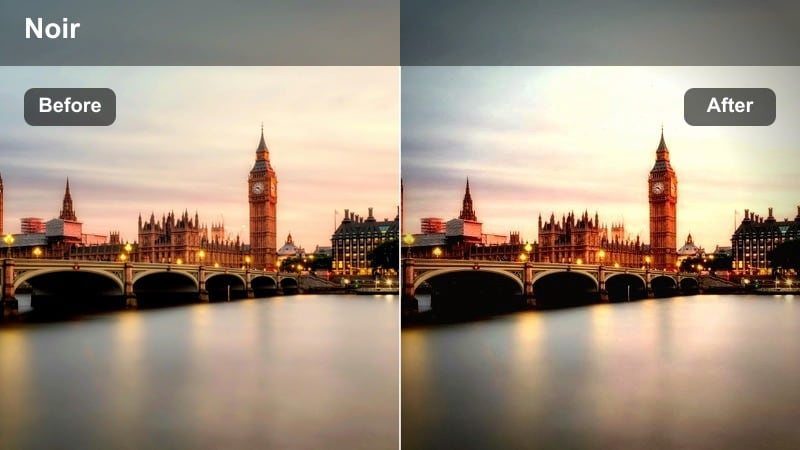
- Effect look: High contrast with glowing neon signs and cool shadows inspired by neo-noir cinema.
- Best for: Handheld walks through narrow alleys filled with neon signs, street art, and reflections in puddles.
- Editing tip: Lower the highlight slider slightly if bright signage clips, and add mild vignette to draw attention to the subject.
Neon Noir Glow gives your alley footage a bold, cinematic punch by intensifying neon colors and deepening cool shadows. In Filmora, this preset adds instant drama to simple walk-through shots, making every sign, reflection, and puddle feel like part of a crafted movie scene instead of raw vlog footage.
Use this filter when you want your subject to stand out against chaotic backgrounds while still preserving the atmosphere of a busy night street. Fine-tune highlights and vignettes in the Color and Effects panels so faces stay readable, neon signs retain detail, and the overall frame keeps that neo-noir storytelling edge.
Match Your Urban Nightlife Aesthetic with AI Color Tools
Filmora s AI-powered color tools make it easy to align every clip with your chosen Urban Nightlife preset so alleys, rooftops, and interiors share a unified aesthetic. After applying Neon Noir Glow to a hero shot, you can let AI Color Match and AI Color Palette bring surrounding clips in line with that core look.
This workflow helps you avoid jarring shifts between cameras or locations, especially when you mix handheld alley walks, skyline views, and indoor segments in a single vlog episode.
 secure download

Preview Urban Nightlife Filters in Real Time
Filmora lets you preview Urban Nightlife filters live while your clip plays in the timeline, so you can quickly compare Neon Noir Glow with more subtle or neutral options. Hovering over each preset in the Effects panel instantly shows how your city night shot will look without committing to any one style.
This real-time feedback is ideal when you are building a vlog sequence and want to test whether a moody alley grade, a clean skyline look, or a retro lounge vibe best supports the story you are telling.
secure downloadCombine Filters and LUTs for Custom Night Looks
With Filmora, you are not limited to a single preset; you can stack Urban Nightlife filters with creative LUTs to refine your final grade. Start with a base preset that shapes contrast and mood, then apply a LUT on top at reduced opacity to introduce subtle color twists or a stronger cinematic palette.
This layered approach is perfect for building a recognizable channel identity, whether you prefer natural city vlog colors or heavily stylized neon cybercity atmospheres.
secure downloadCyan Magenta Drift
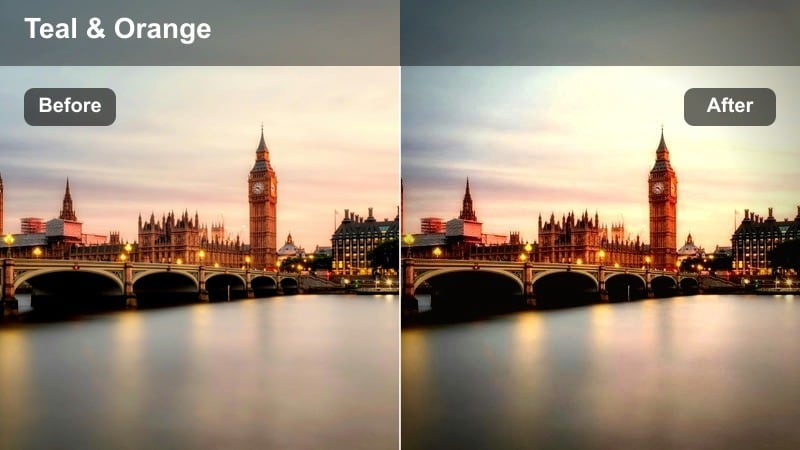
- Effect look: Stylized teal shadows and magenta highlights for a futuristic cyberpunk feel.
- Best for: B-roll of passing cars, glowing billboards, and wide shots of busy nightlife streets.
- Editing tip: Layer a subtle film grain effect on top to keep the futurism grounded and less digital.
Cyan Magenta Drift pushes your city streets into a stylized cyberpunk zone by tinting shadows teal and highlights magenta. In Filmora, it works especially well on scenes with lots of neon signage, car trails, and reflective surfaces that can pick up and exaggerate the color shift.
Apply it to B-roll sequences between talking segments to create high-energy visual breaks that feel like cinematic interludes. If skin tones start to skew too far from natural, use Filmora s HSL and Color tools on a secondary layer or mask so people look flattering while the background stays boldly stylized.
Moody Alley Matte
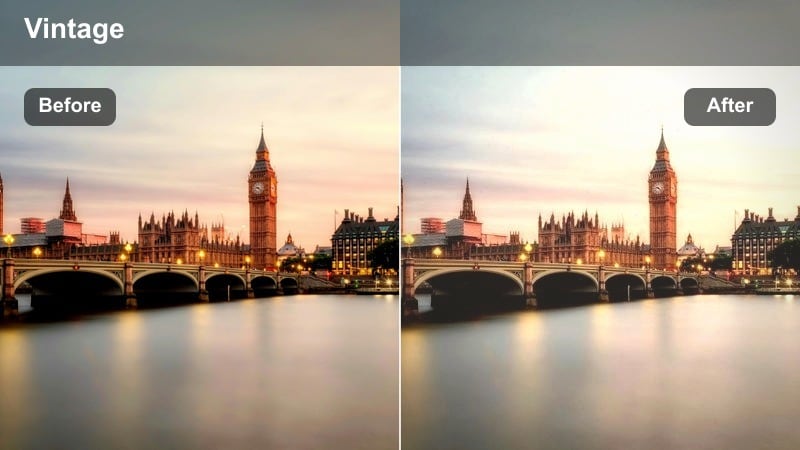
- Effect look: Soft matte blacks and muted colors with a vintage, gritty street-film aesthetic.
- Best for: Narrative-style shots in side streets, stairwells, and quiet back alleys with minimal light.
- Editing tip: Increase local contrast on the subject only so the environment stays washed while the subject remains crisp.
Moody Alley Matte gives your city side streets a restrained, filmic tone by lifting the blacks and muting saturation. In Filmora, this preset is ideal for reflective monologues, introspective cutaways, or narrative-style scenes that need a quieter emotional feel than bright neon shots.
Use it on clips with limited light sources like stairwells or back doors, then enhance your subject with local contrast or masked exposure adjustments. This keeps your talent sharp and engaging while the rest of the frame feels washed, textured, and grounded in a vintage street-film atmosphere.
Rooftop Bars and City Skylines
Skyline Gold Tint
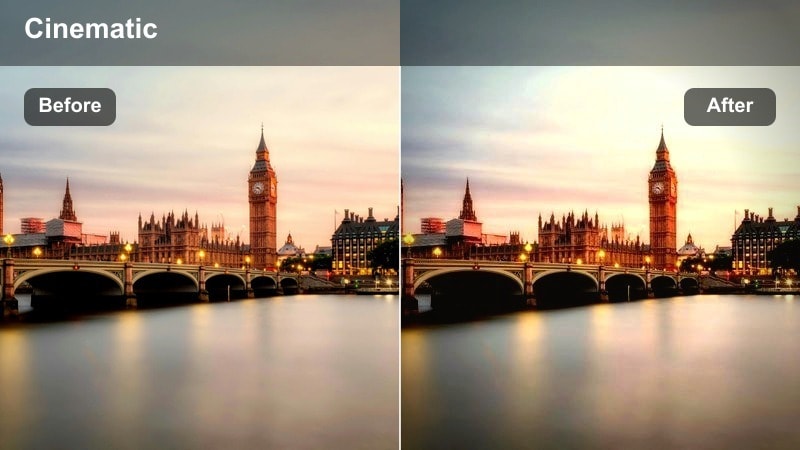
- Effect look: Warm golden highlights with slightly cool shadows for a luxe rooftop bar atmosphere.
- Best for: Rooftop parties, skyline toasts, and lifestyle vlogs filmed near city skylines at night.
- Editing tip: Push saturation on oranges just a bit to make skin tones glow against cooler city backgrounds.
Skyline Gold Tint is designed to separate your subject from the city using warm, flattering highlights and cooler blues in the distance. In Filmora, it turns any rooftop or balcony clip into a high-end lifestyle moment by giving faces a golden glow while preserving the crispness of skyline lights.
Apply this preset to group scenes, toasts, or hero shots where the city is part of the story but not the main character. After adding the filter, adjust the orange and yellow saturation slightly to dial in natural-looking skin, then fine-tune exposure so your friends stand out clearly against the darker skyline.
Glass Tower Clean
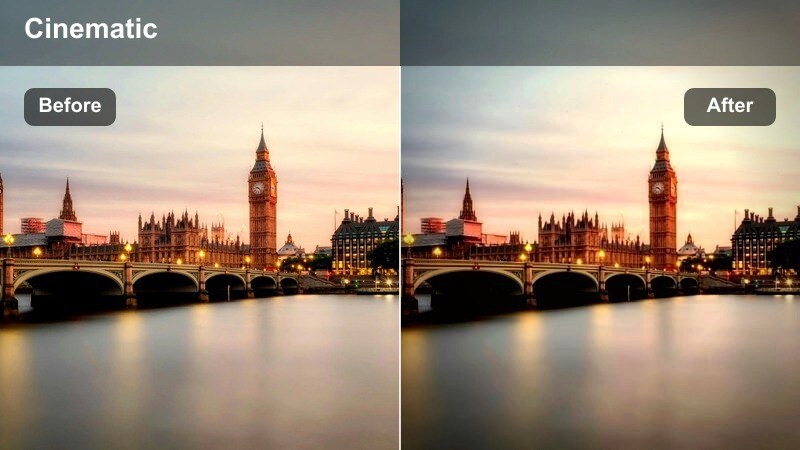
- Effect look: Clean, crisp look with neutral colors and enhanced city light clarity.
- Best for: Establishing shots of skyscrapers, drone footage, and architecture-focused B-roll.
- Editing tip: Boost sharpness slightly on wide shots, but keep it lower on closeups to avoid harsh skin texture.
Glass Tower Clean focuses on clarity and neutrality, making it perfect for night skylines, architecture, and drone passes. In Filmora, this preset preserves natural color while subtly enhancing contrast and sharpness so building edges, reflections, and light patterns look polished and professional.
Use it as the go-to look for opening and closing shots that establish your city setting. Apply the filter across all your wide city views to unify the vlog visually, then adjust sharpness and clarity to taste so the image feels crisp without pushing digital artifacts or noise too hard.
City Bokeh Soft
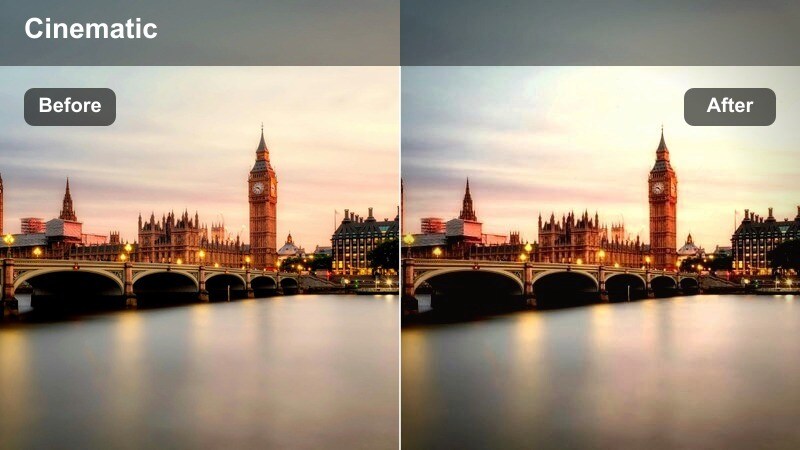
- Effect look: Soft contrast and gentle bloom over bright city bokeh lights with slightly lifted shadows.
- Best for: Portraits shot at wide aperture with blurry city lights in the background.
- Editing tip: Add subtle slow-motion or speed ramping to emphasize the dreamy mood of drifting lights.
City Bokeh Soft enhances night portraits by blooming background lights and slightly lifting shadows to keep details visible. In Filmora, this preset is ideal when you shoot at a wide aperture and want those round, glowing bokeh balls behind your subject to feel dreamy and romantic.
Apply it to closeup talking shots, cinematic intros, or emotional segments where the city becomes a soft backdrop rather than a detailed environment. Pair the filter with gentle slow-motion or minimal speed ramps, then fine-tune exposure on the subject s face so they stay sharp and readable amidst the softened, glowing city behind them.
Street Vlog Walk-and-Talk Moments
Vlog Trail Contrast
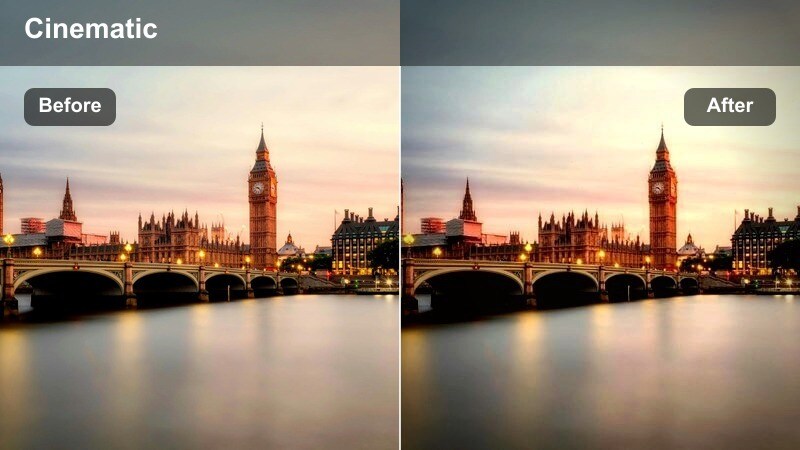
- Effect look: Punchy contrast with balanced saturation that keeps faces clear under mixed street lighting.
- Best for: Walk-and-talk vlog segments through busy city streets and intersections.
- Editing tip: Turn down contrast slightly if you plan to add text overlays so titles stay easy to read.
Vlog Trail Contrast is built to handle the unpredictable mix of street lights, shop signs, and car headlights that hit your face as you walk and talk. In Filmora, this preset adds extra punch to midtones and contrast while keeping saturation controlled so your skin does not blow out or look overly processed.
Use it on any handheld vlog segments where storytelling is the priority and you are moving through different lighting zones. After applying, check your scopes and adjust contrast down slightly if you want to layer subtitles, lower thirds, or social handles so they remain legible on top of the action.
Subway Entry Grit
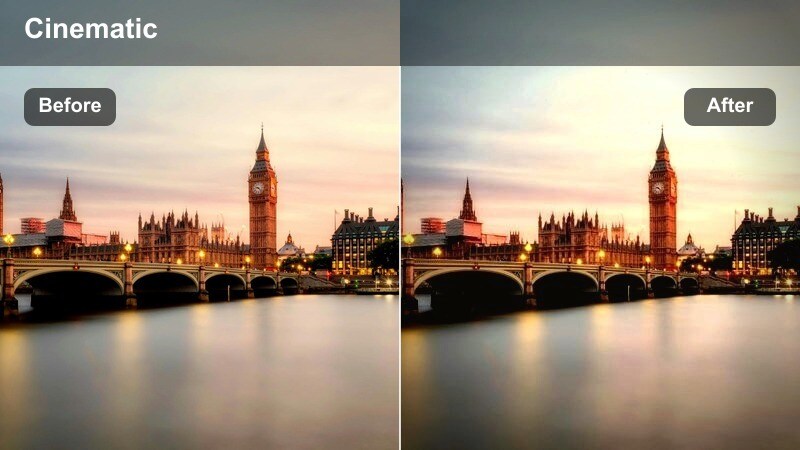
- Effect look: Gritty, slightly desaturated tones with emphasized textures and cool shadows.
- Best for: Entering subway stations, underpasses, and other transition shots between streets and transit.
- Editing tip: Add a quick L-cut with your voiceover to blend the gritty transition smoothly into the next scene.
Subway Entry Grit focuses on textures, stair rails, tiles, and concrete to turn simple transit moments into gritty visual transitions. In Filmora, it cools down shadows and slightly desaturates colors, giving your underground moves a documentary-style feel without looking too dark or muddy.
Apply it primarily on short clips that bridge locations, such as walking down into the subway or through an underpass. Combine the preset with L-cuts, ambient train sounds, or whoosh effects in the timeline to signal a change of scene while keeping your city night vlog flowing smoothly.
Crosswalk Light Pop
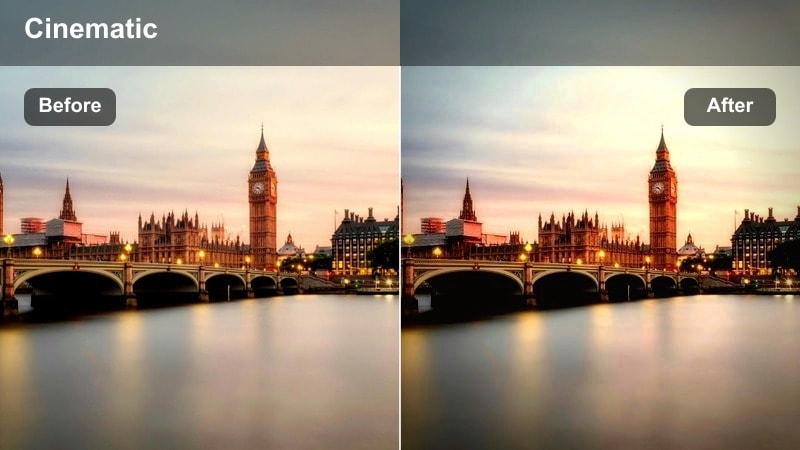
- Effect look: Brightened midtones with vivid traffic light colors and slightly softened shadows.
- Best for: Crosswalk shots, traffic timelapses, and moments where cars and signals dominate the frame.
- Editing tip: Increase saturation selectively on reds and ambers to make brake lights and signals stand out even more.
Crosswalk Light Pop celebrates the movement and color of night traffic by brightening midtones and intensifying signal lights. In Filmora, it makes brake lights, turn signals, and pedestrian indicators pop without crushing surrounding detail, which is great for timelapses or energetic B-roll between talking segments.
Use this preset on clips packed with cars, bikes, and pedestrians to underscore the city s constant motion. After applying, selectively boost reds, ambers, and greens using Filmora s color controls, then experiment with speed ramps to transform ordinary crosswalk shots into dynamic transitions between main scenes.
Night Markets and Lounge Interiors
Market Lantern Mood
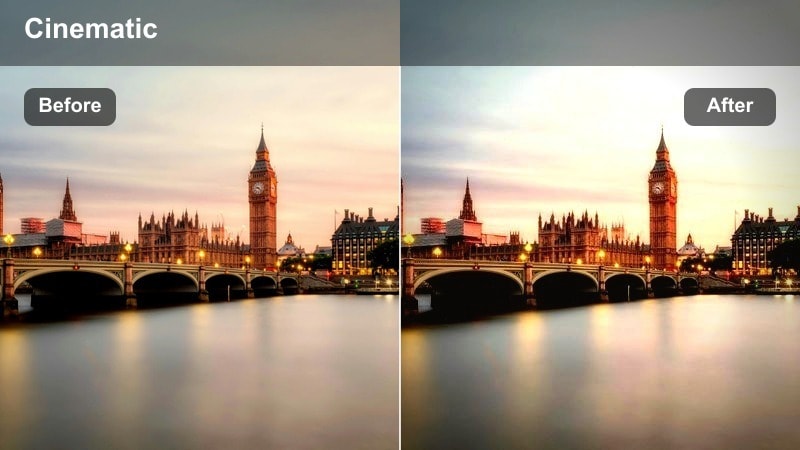
- Effect look: Warm, saturated glow on practical lights with gently muted shadows for a cozy market feel.
- Best for: Night markets, food stalls, and street vendors lit by warm bulbs or lanterns.
- Editing tip: If highlights blow out on bulbs, bring down the highlights slider and increase warmth at the midtones instead.
Market Lantern Mood is tuned for real-world light sources like bulbs, lanterns, and string lights that define night markets and food alleys. In Filmora, it boosts warmth and saturation around these practical lights, creating a cozy, welcoming vibe even in crowded, chaotic settings.
Apply it to vendor closeups, handheld walkthroughs between stalls, and food shots where the glow of the lights is part of the story. Use the highlights and midtone controls to protect bulb detail while keeping faces, dishes, and signage rich and inviting, so viewers can almost feel the heat and energy of the market.
Lo-fi Lounge Shadow
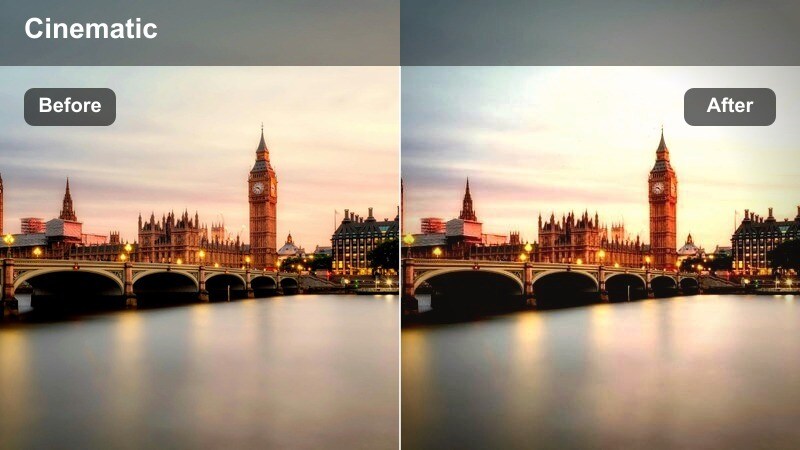
- Effect look: Deep shadows and soft highlights with slightly reduced saturation for an intimate lounge vibe.
- Best for: Bar interiors, lounges, speakeasies, and low-light cafes with minimal light sources.
- Editing tip: Raise exposure just on your subject s face, not the entire frame, to keep the surrounding environment moody.
Lo-fi Lounge Shadow is built for dark, intimate interiors where you want to keep the vibe moody while still seeing your subject. In Filmora, it deepens shadows, softens highlights, and tones down saturation slightly, which helps hide distracting background details and focus attention on key people or objects.
Use it for bar conversations, cafe reviews, or any low-light sit-down moments in your nightlife vlogs. Add masks or face detection to lift exposure only on subjects, avoiding global brightening that introduces noise, and pair the look with slower cuts and relaxed music to enhance the laid-back, cinematic lounge feel.
Vinyl Night Haze
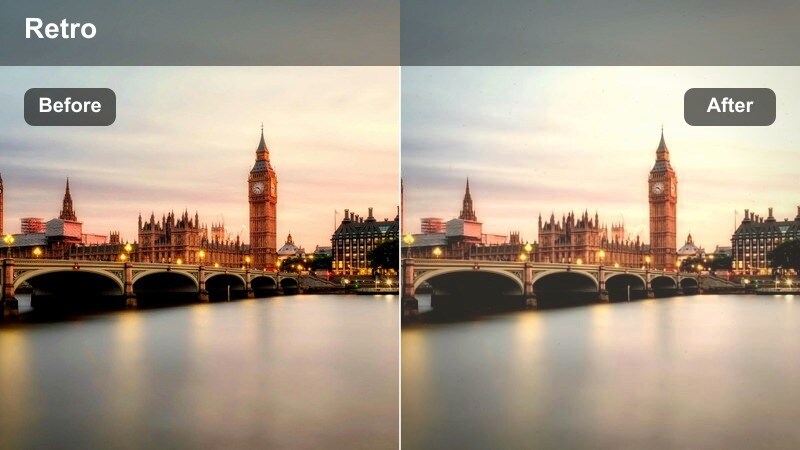
- Effect look: Soft haze over highlights, slightly faded colors, and subtle film-inspired color shifts.
- Best for: Lo-fi vlogs, record shop nights, and chill hangouts shot under mixed colored lighting.
- Editing tip: Add a gentle overlay of ambient noise or city soundscapes to reinforce the nostalgic, analog mood.
Vinyl Night Haze gives your nightlife clips an analog twist with gentle highlight haze, muted colors, and film-inspired color shifts. In Filmora, this preset is perfect for record stores, retro bars, or chill hangouts where you want the scene to feel like it was captured on older film stock rather than a modern sensor.
Apply it consistently across a sequence to create a dedicated flashback or nostalgia segment in your vlog. Combine the look with simple dissolves, static camera angles, and ambient audio layers to reinforce the throwback feel, keeping modern glitchy or hyper-digital effects to a minimum so the mood stays cohesive.
Tips for Using Urban Nightlife Cinematic Filter Filters in Filmora
- Shoot in the flattest picture profile your camera allows so Urban Nightlife filters have more dynamic range to shape contrast and color.
- Slightly underexpose bright neon signs and billboards in camera, then lift shadows in Filmora to protect highlight detail.
- Keep white balance as consistent as possible across clips so your chosen preset grades smoothly without color jumps.
- Stabilize handheld night shots before applying strong contrast filters so motion blur and noise do not become distracting.
- Use masks or face tracking to fine-tune exposure and color on faces when the filter makes the background look great but shifts skin tones.
- Adjust filter opacity instead of deleting a preset if it feels too strong; dialing intensity down often delivers a more natural vlog look.
- Add a light layer of film grain over clean night filters to hide digital noise and introduce a subtle cinematic texture.
- Group similar scenes on your timeline and batch apply the same preset so your entire vlog maintains a cohesive nighttime atmosphere.
The Urban Nightlife Cinematic Filter presets in Filmora make it easy for content creators to turn raw city night footage into cohesive, cinematic vlogs without complex color grading.
Apply a base preset, refine exposure and skin tones, and combine Filmora s AI tools and LUT stacking options to craft a nighttime style that viewers instantly recognize as your signature look.
secure download