

 100% Security Verified | No Subscription Required | No Malware


 ChatGPT
 Perplexity
 Gemini
 Claude
 Grok
Grok
Warm brown tone video filters are perfect for turning everyday footage into cozy, cinematic scenes that feel nostalgic and inviting. By softening highlights and warming midtones, these filters help your videos look cohesive and story-driven in just a few clicks.
Whether you film daily vlogs, city walks, indoor sit-down videos, or cinematic B-roll, the right warm brown filter can add depth, character, and emotional warmth to your content while keeping skin tones natural and pleasing.
In this article
Golden City Evenings and Street Scenes
Amber Street Glow
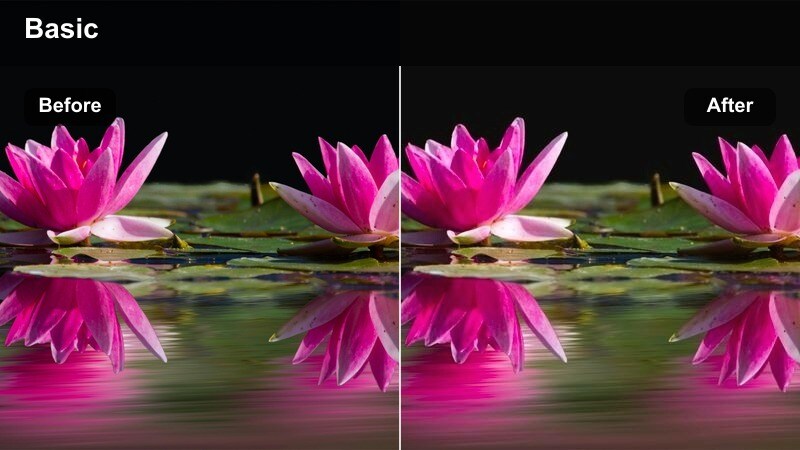
- Effect look: Soft amber warmth with slightly muted highlights and gentle brown shadows that make street lights and storefronts feel cinematic.
- Best for: Evening city walks, handheld street vlogs, and B-roll of urban sidewalks just after sunset.
- Editing tip: Lower contrast slightly and add a subtle vignette to keep focus on faces and illuminated street details.
Amber Street Glow wraps your city footage in a soft amber cast, cooling off harsh digital highlights and shifting shadows into smooth brown tones. Street lamps, storefronts, and car trails pick up a gentle glow, which instantly feels more cinematic than a standard neutral grade in low light.
In Filmora, apply this warm brown tone video filter to your dusk or blue-hour clips, then fine-tune exposure so you keep detail in neon lights and windows. Add a subtle vignette using the Effects or Color tools to pull the viewer toward faces or key street elements, and slightly reduce contrast so the amber mood feels cohesive across your entire sequence.
Build a Consistent Warm Brown Palette with Filmora's AI Tools
Filmora's AI-based color tools help you keep the same warm brown mood across all your city clips, even if they were shot in different spots or at slightly different times of day. Start with a clip that already looks perfect with Amber Street Glow, then use AI color matching to bring the rest of your timeline in line with that reference.
After matching, you can still adjust contrast, saturation, and temperature on each shot so skin tones stay natural while sidewalks, buildings, and lights share the same cinematic brown aesthetic.
 secure download

Preview Warm Brown Filters in Real Time
Filmora lets you scroll through warm brown tone video filters and preview them directly on your footage, so you can compare Amber Street Glow against other looks before committing. This makes it simple to find a filter that matches the level of contrast and warmth you want for your city scenes.
Once you have a favorite, combine the filter with quick color tweaks like exposure, temperature, and tint to adapt it to different camera profiles or lighting setups while preserving your overall brown aesthetic.
secure downloadExplore 1000+ Video Filters and 3D LUTs
Beyond warm brown presets, Filmora includes a large library of filters and 3D LUTs you can stack and customize to build your own signature look. You can start from a brown-toned base, then layer stylized filters or fine-tune HSL and curves for even more control.
Save the combinations you love as reusable presets so future projects can instantly match the same cozy cinematic style, whether you are editing vlogs, travel films, or narrative shorts.
secure downloadBronze City Vlog
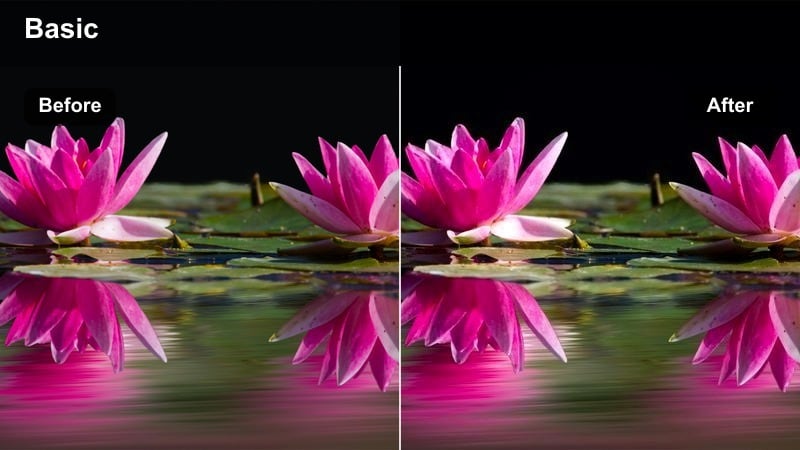
- Effect look: Rich bronze brown tones with lifted shadows and gentle warmth for a soft but polished vlog aesthetic.
- Best for: Talking-to-camera street vlogs, urban lifestyle montages, and day-to-night transitions in the city.
- Editing tip: Boost midtone clarity slightly to keep building lines and outfit textures crisp within the warm palette.
Bronze City Vlog adds a rich bronze wash to your footage, giving buildings, pavement, and clothing a cohesive brown tint while keeping shadows slightly lifted. This creates a vlog-friendly, flattering look where dark areas do not crush, and your viewers can still see details in the background.
In Filmora, apply this filter to your walk-and-talk sequences, then raise midtone clarity to bring out architecture and outfit textures. Use face-brightening masks or AI tools to keep your face a touch brighter than the background so you remain the focus even in busy locations with deep bronze tones.
Subway Caramel Mood
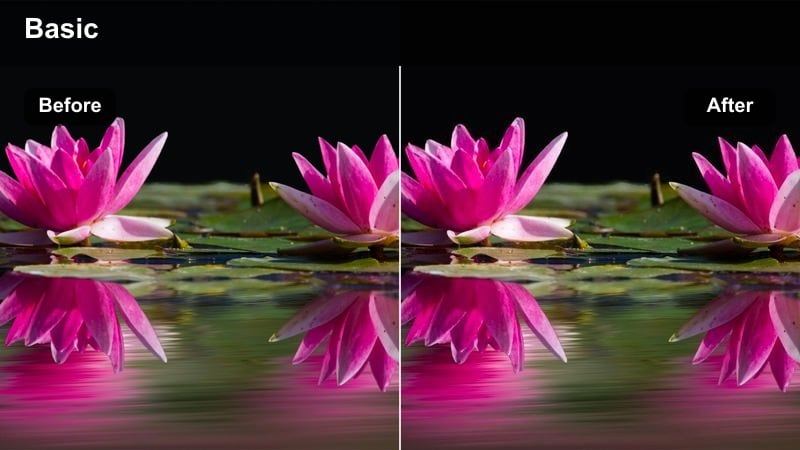
- Effect look: Caramel-tinted warm browns with slightly desaturated colors for moody, underground city footage.
- Best for: Subway platforms, train interiors, and moody underground B-roll in urban environments.
- Editing tip: Reduce saturation on strong greens and blues to prevent subway signs from overpowering the warm brown mood.
Subway Caramel Mood mutes the harshness of fluorescent lighting and wraps tunnels and carriages in caramel browns for a moody, cinematic feel. Colors like red and yellow signage become more subdued, while overall contrast stays controlled so your underground shots look polished instead of noisy.
After adding this filter in Filmora, pull down saturation for green and blue tones to stop directional signs or advertising boards from stealing attention. Adjust white balance just enough to keep walls believable while leaning into the warm caramel cast, then fine-tune shadows so the environment feels mysterious without losing key details.
Cozy Interior Rooms and Sit-Down Videos
Studio Espresso Soft
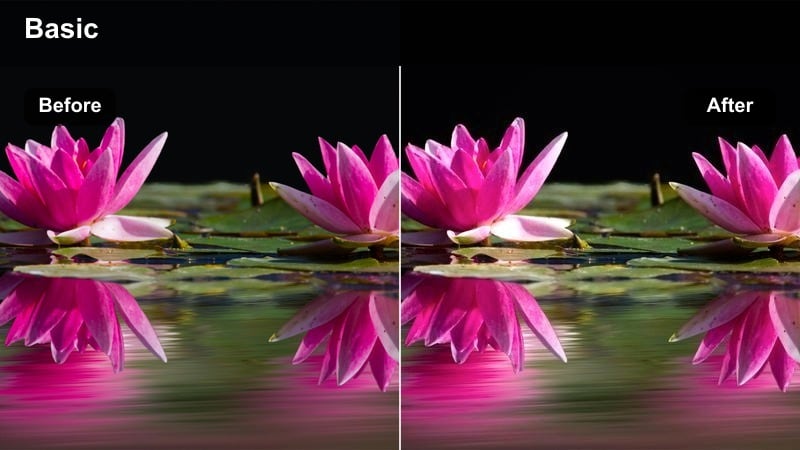
- Effect look: Soft espresso brown shadows with warm midtones that flatter skin and create a studio-like cozy feel.
- Best for: Sit-down YouTube videos, tutorials, and talking-head content filmed in bedrooms, studios, or offices.
- Editing tip: Add a subtle blur or reduce sharpness slightly to enhance the soft, intimate studio look.
Studio Espresso Soft is designed to give your indoor talking-head videos a gentle espresso character, with warm midtones and slightly deepened browns in the background. Skin appears smooth and inviting, while backgrounds like shelves, curtains, and decor blend into a cohesive warm palette.
In Filmora, apply this filter to your main A-roll, then slightly soften overall sharpness or add a tiny blur effect to reduce distractions from texture or minor imperfections. Use a diffused key light during shooting and fine-tune the filter with the Color panel so your face stays natural while the rest of the room leans into that rich espresso tone.
Living Room Cocoa
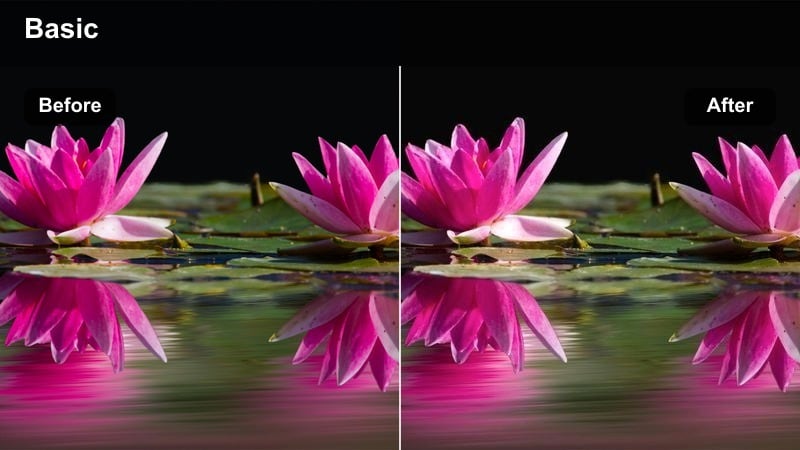
- Effect look: Creamy cocoa browns with lifted blacks and gentle highlight roll-off for a relaxed homey look.
- Best for: Living room vlogs, family moments, and casual lifestyle clips around the house.
- Editing tip: Increase warmth slightly if your room has cool daylight; decrease if tungsten bulbs push the scene too orange.
Living Room Cocoa lifts the darkest parts of your frame and blends them into creamy browns, avoiding overly contrasty shadows that can look harsh in home environments. Highlights roll off smoothly, so window light and lamps feel soft and cozy rather than blown out.
Use this filter in Filmora on vlogs and lifestyle sequences filmed in lounges, dining rooms, or family spaces. Adjust the temperature slider to balance between cool daylight from windows and the orange cast of practical lamps, and gently tweak blacks and shadows so furniture and fabrics retain texture within the cocoa-toned atmosphere.
Desk Walnut Focus
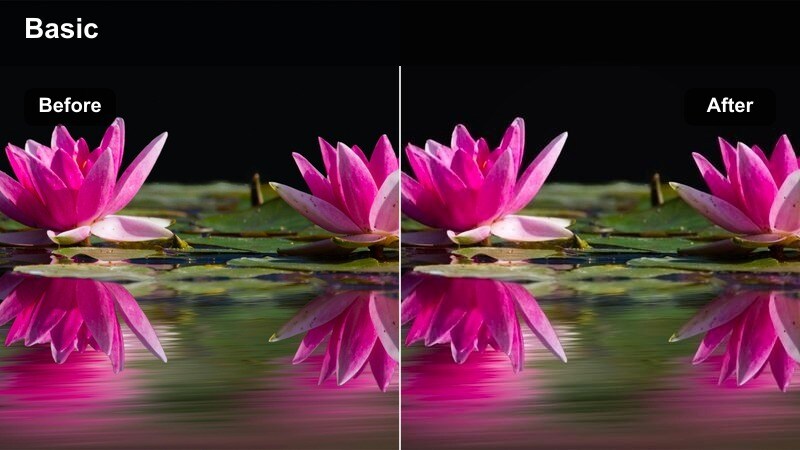
- Effect look: Walnut-toned browns with subtle vignette and focused warmth in midtones for desk and workspace shots.
- Best for: Desk setups, productivity videos, overhead shots of laptops, notebooks, and creative gear.
- Editing tip: Add a slight vignette and lift exposure in the center to keep eyes on your hands, keyboard, or main subject.
Desk Walnut Focus adds a walnut wood-inspired grade that works especially well for flat-lay shots, keyboard close-ups, and workspace tours. The filter naturally darkens the outer edges and enriches browns in desks, accessories, and gear, giving your productivity content a clean, cinematic feel.
In Filmora, combine this filter with a subtle vignette and localized exposure adjustments on your notebook, mouse, or keyboard. This keeps the viewer's attention on what you are doing while the rest of the desk falls into a slightly deeper walnut shade, perfect for tutorials, planning videos, and aesthetic desk b-roll.
Outdoor Golden Walks and Nature Paths
Autumn Trail Hazelnut
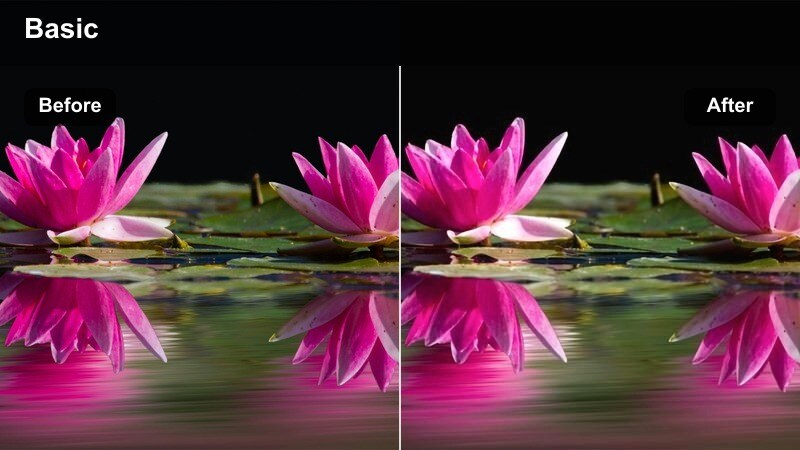
- Effect look: Hazelnut browns with golden highlights and gentle fade in blacks for a nostalgic outdoor feel.
- Best for: Park walks, tree-lined paths, and handheld B-roll of sidewalks and trails in late afternoon light.
- Editing tip: Dial back greens slightly and push them toward yellow to keep the warm hazelnut palette consistent.
Autumn Trail Hazelnut infuses outdoor paths, leaves, and tree trunks with warm hazelnut tones and soft golden highlights, creating a nostalgic, almost film-like vibe. Blacks are lightly faded, which smooths out harsh contrast and gives your footage a gentle, dreamy finish.
In Filmora, apply this preset to your walk-through-the-park clips and then adjust the HSL controls to shift greens toward yellow, enhancing the late-afternoon feeling. Soften highlights and whites for midday footage to avoid harshness, or add a slight contrast boost on cloudy days so your path and subject still stand out within the hazelnut palette.
City Park Cinnamon
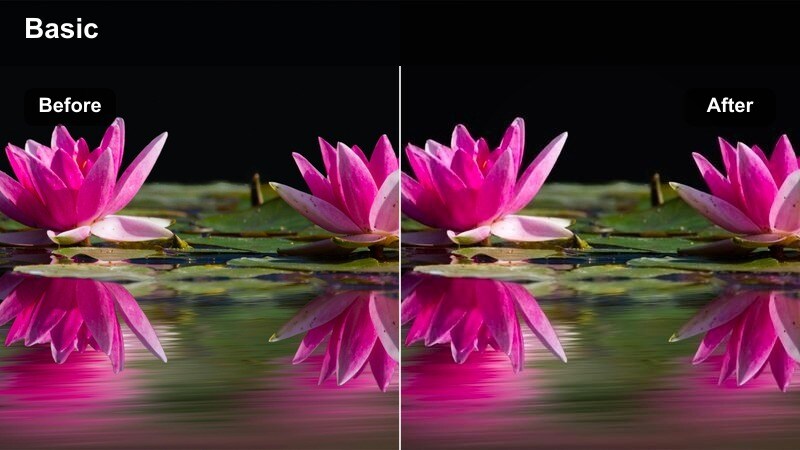
- Effect look: Cinnamon brown midtones with moderate contrast and warm highlights that keep parks and plazas inviting.
- Best for: City parks, plazas, and benches where urban elements meet greenery and walkways.
- Editing tip: Raise saturation just on oranges and yellows to emphasize warm light without overboosting all colors.
City Park Cinnamon leans into warm midtones, giving walkways, benches, and foliage a subtle cinnamon cast that feels inviting without overpowering the frame. Contrast stays moderate so details in trees and buildings remain clear while the overall scene feels sun-kissed.
Use this filter in Filmora when editing park walks or open plaza shots where people, paths, and greenery all share the screen. Slightly increase saturation in the orange and yellow channels to emphasize the warmth of sunlight on skin and stone, while dialing back reds if faces start to drift too warm or saturated.
Boardwalk Chestnut Haze
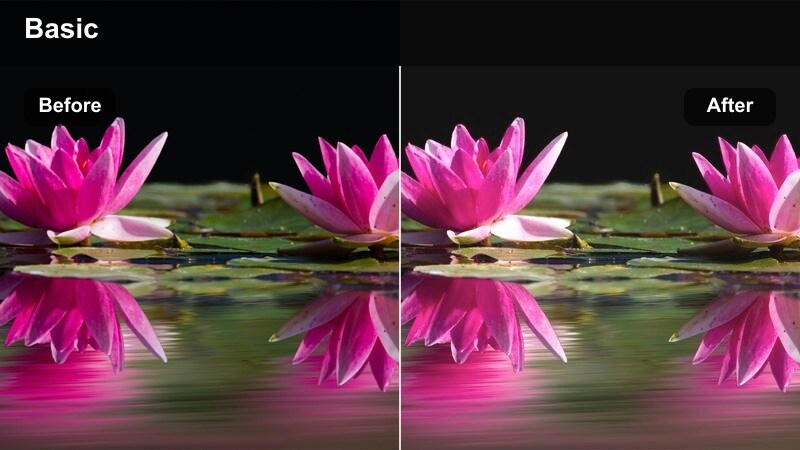
- Effect look: Soft chestnut browns with a light hazy glow that adds dreaminess to long walkways and boardwalks.
- Best for: Boardwalks, riverside paths, and long perspective shots of walkways and railings.
- Editing tip: Lower clarity slightly and add a subtle bloom or glow to lights for a dreamy chestnut atmosphere.
Boardwalk Chestnut Haze introduces a soft chestnut tint combined with a mild haze that works beautifully for long perspective shots. Railings, planks, and distant figures take on a cinematic softness that suits romantic strolls and reflective walking scenes.
In Filmora, pair this warm brown filter with slow tracking moves or stabilized walking footage to enhance the dreamy vibe. Lower clarity a bit and experiment with glow or bloom on highlights to give water, streetlights, or sky reflections a subtle radiance while keeping key details like faces and railings readable.
Cinematic B-Roll and Story-Driven Sequences
Coffeehouse Caramel Cut
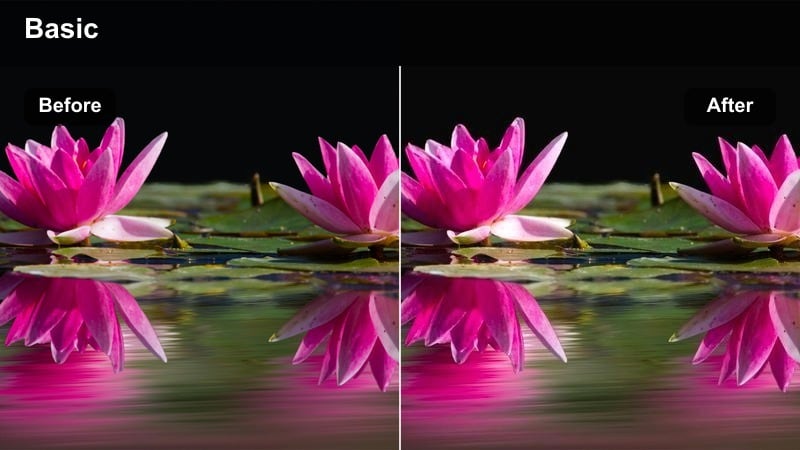
- Effect look: Deep caramel browns with soft contrast and rich midtones that feel like a cozy coffee shop scene.
- Best for: Cinematic B-roll inside cafes, work sessions by windows, and story-driven lifestyle sequences.
- Editing tip: Use slower shutter speeds or gentle slow motion, then apply the filter to enhance the relaxed coffeehouse pacing.
Coffeehouse Caramel Cut is built for indoor b-roll with warm interior lighting and window light. It deepens browns in tables, cups, and decor while softening contrast just enough to create a calm, intimate vibe typical of cozy cafes and work sessions.
In Filmora, apply this filter to close-ups of coffee pours, typing hands, and window silhouettes, then experiment with slow motion or slightly longer clips to match the relaxed pacing. Darken backgrounds slightly and tame the saturation of orange lamp light so your subject near the window becomes the natural focal point in the caramel-colored scene.
Retro Film Brown
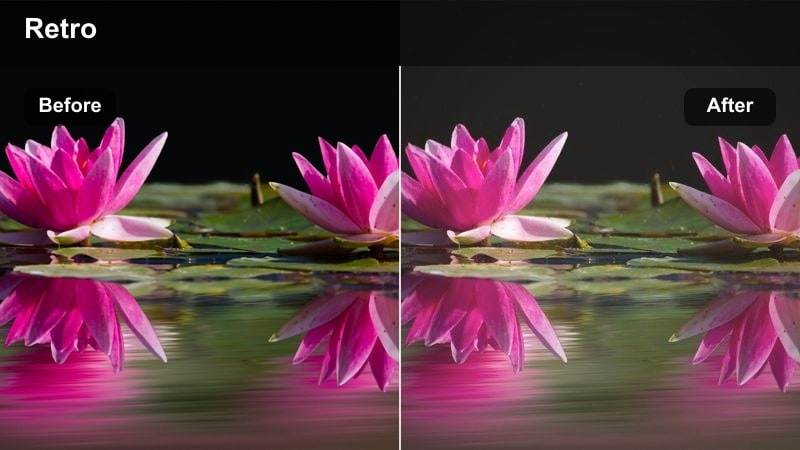
- Effect look: Faded brown film look with slight grain and low contrast for nostalgic, story-driven sequences.
- Best for: Flashbacks, memory sequences, and b-roll of hallways, stairwells, and city corners.
- Editing tip: Add a subtle film grain overlay and slightly lower saturation to sell the retro film aesthetic.
Retro Film Brown mimics aged film stock with a faded brown wash, lower contrast, and a softened tonal range. It is perfect for flashbacks, memory sequences, and character reflections, turning ordinary hallways or stairwells into emotionally charged locations.
In Filmora, stack this filter with a light grain effect and a gentle reduction in saturation to reinforce the analog feel. Use slower cuts and smoother camera moves, and tweak the tone curve so blacks stay slightly lifted while midtones remain soft, helping your scene feel vintage without losing clarity.
Urban Story Mocha
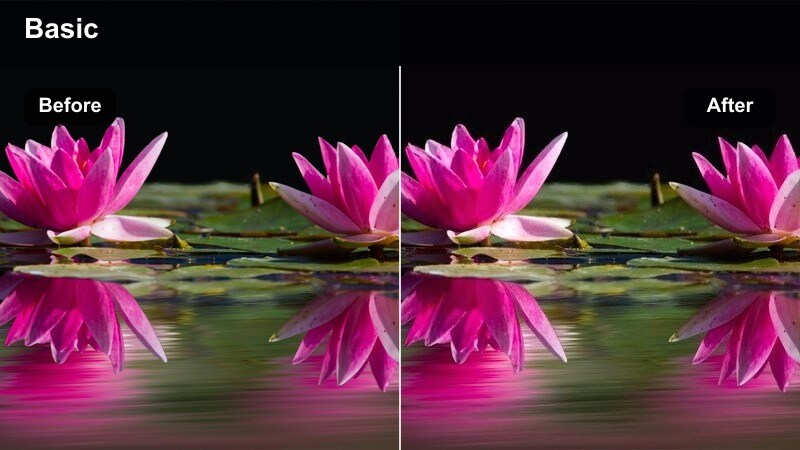
- Effect look: Mocha brown tones with strong midtone presence and controlled highlights for narrative urban sequences.
- Best for: Short films, character walks through alleys, and narrative B-roll around city blocks.
- Editing tip: Use subtle camera shake or handheld movement, then stabilize lightly so the mocha grade feels grounded yet cinematic.
Urban Story Mocha emphasizes midtones and keeps highlights under control, giving walls, streets, and clothing a dense mocha quality that suits character-driven storytelling. The grade helps draw attention to faces and movement without distracting, high-contrast hotspots.
In Filmora, use this filter on narrative sequences where your subject moves through city alleys, staircases, or side streets. Add light stabilization to handheld shots so they still feel organic, then use masks or local contrast adjustments to subtly increase contrast around your character, guiding the audience's eye through the mocha-toned environment.
Tips for Using Warm Brown Tone Video Filter Filters in Filmora
- Shoot with a slightly flatter picture profile or lower in-camera contrast so your warm brown tone video filter has more latitude to shape color and depth in Filmora.
- Monitor skin tones closely when pushing warmth; if faces turn too orange, reduce orange saturation or lower temperature a touch to keep complexions natural.
- Add a subtle vignette to busy city streets or cluttered rooms so your subject stays framed within the warm brown environment without getting lost.
- Match white balance across all clips before applying filters so the same warm brown preset does not look different from shot to shot.
- Stack warm brown filters with gentle film grain and a small fade in blacks to achieve a more cinematic, filmic finish that feels intentional.
- Use Filmora's AI color matching to copy your favorite warm brown look from one hero clip to the rest of the timeline for a consistent aesthetic.
- Adjust HSL channels to tame overly strong greens or blues that can clash with brown tones, especially in subways, parks, and neon-lit streets.
- Experiment with different levels of contrast per scene, keeping interiors softer and exteriors slightly punchier while maintaining the same brown palette.
Warm brown tone video filters help content creators turn everyday scenes into cozy, cinematic stories that feel consistent from clip to clip.
Start with one preset that fits your typical shooting style, adjust it to your camera and locations, then save the look so you can apply your warm brown tone in seconds on every new project.
secure download