

 100% Security Verified | No Subscription Required | No Malware


 ChatGPT
 Perplexity
 Gemini
 Claude
 Grok
Grok
You know that moment when you watch yourself in a video and think, “Did the camera just add ten pounds?” That’s when a video body editor gets its flowers. This is because its duty is to help you refine how your body looks in motion. The software maps your body, detects key points, and reshapes areas like hips or arms without breaking the flow of movement.
At first glance, the magic feels almost unreal, as every curve and motion looks natural. Now, this is the unnerving beauty of modern body editors. Researchers call it a quiet revolution, and they worry these invisible edits could blur the line between truth and illusion. But the truth is, these tools are not villains; beneath the surface lies something more human.
Apps to edit body shape in videos do not hide who you are but help you see your best form, one you can shape with confidence. It is not deception but creative control. So, in this guide, you’ll learn how to use trusted body editing video apps to edit with confidence and style.
Part 1: Pretty Up Video Body Editor: Best App to Reshape Body Parts in Videos
If you record videos and wish your frame looked a little more balanced, you’ll love the Pretty Up video body editor. It’s one of the few video body editor apps built to shape real movement, not just freeze-frame edits. You can adjust your body shape in motion without losing natural flow. The process feels almost like sculpting clay that moves with you.
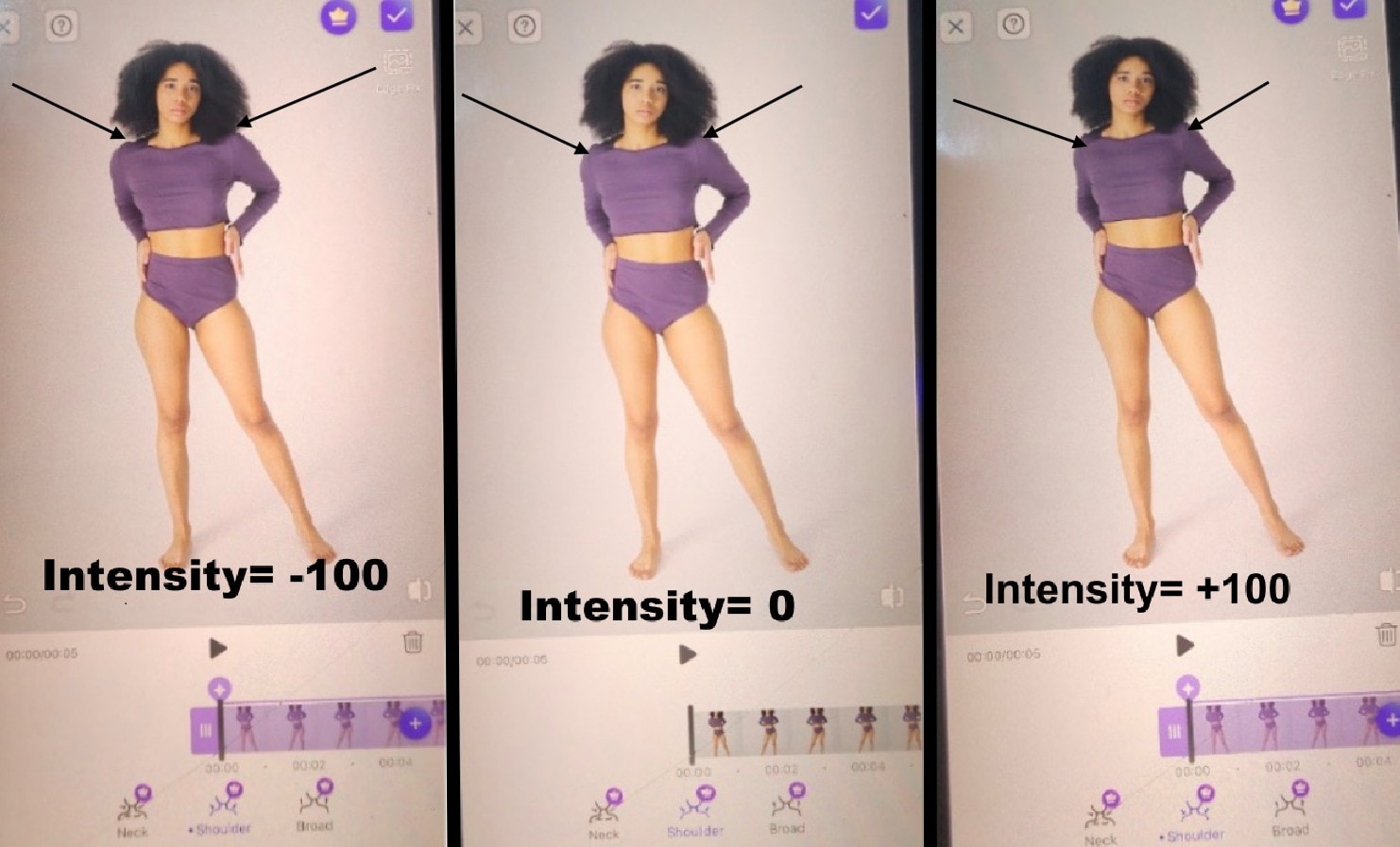
When you open the video editor interface, you find a menu displaying what body parts you want edited. Using the intensity slider, you can control how a particular area of your body is enhanced.
How Pretty Up Video Body Editor Modifies Different Body Parts
1. Hip Enhancement
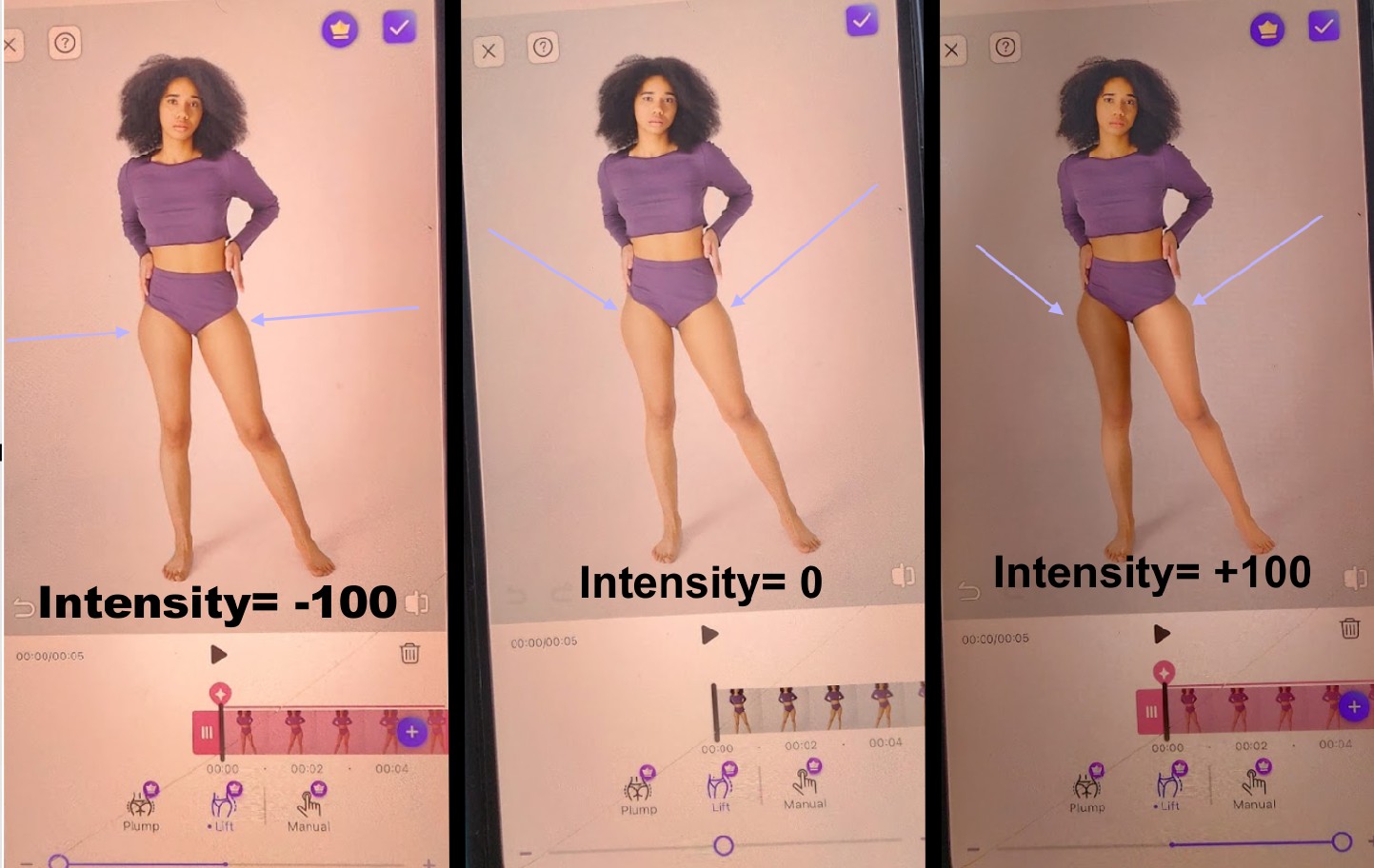
The Pretty Up video body editor refines your curves by either increasing or decreasing hip width to create a neatly defined waistline. This body editor video app adjusts the hip shape without flattening or stretching the surrounding frame, so your background stays intact.
2. Height Enhancement
A pretty up body shape video editor either lengthens or slightly shortens your proportions to appear taller or more natural, depending on the scene. It works by subtly rebalancing head-to-toe proportions while maintaining a realistic perspective. Perfect for when you want to look more statuesque without the image looking manipulated.
3. Leg Enhancement
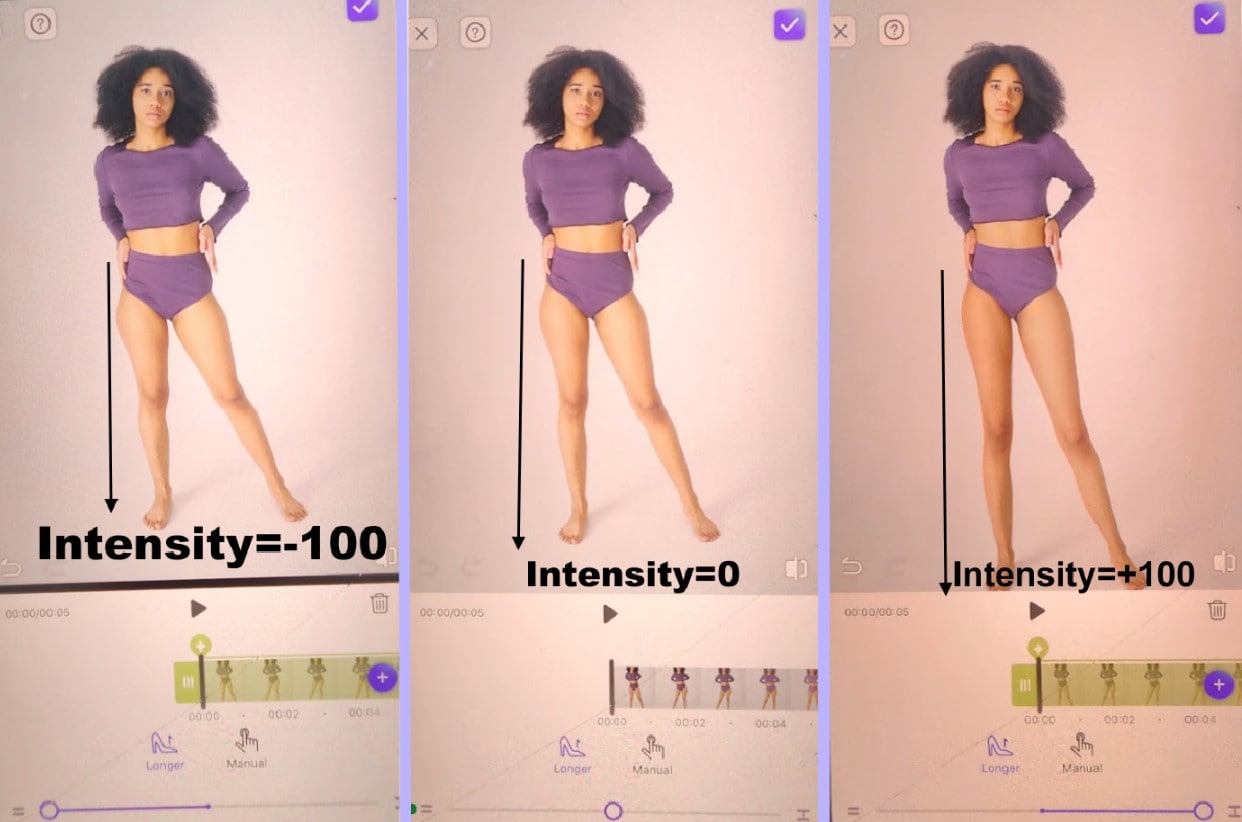
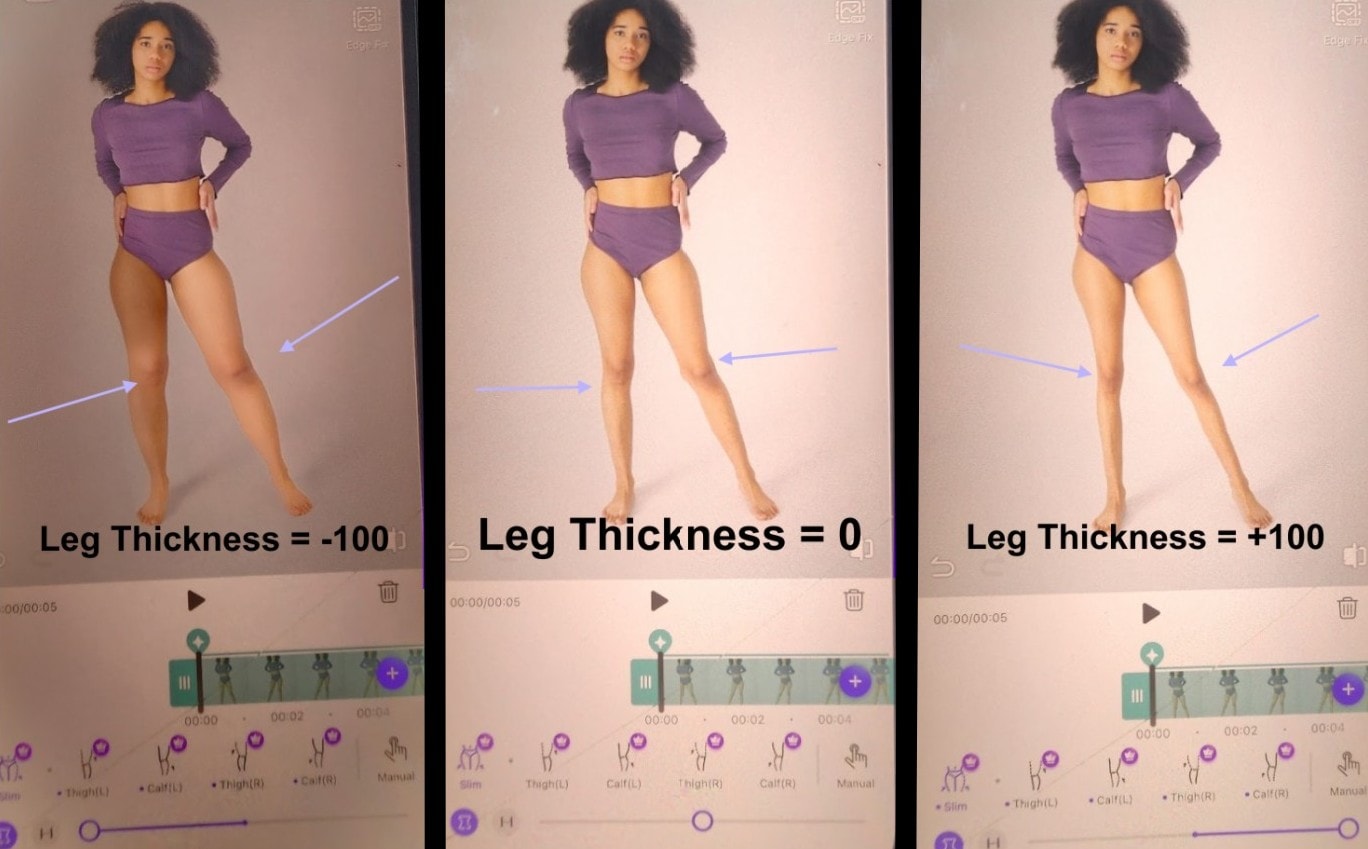
The Pretty up video body editor lets you increase or decrease leg length and/or width to slim down or define your stance. It allows you to lengthen legs for a taller look or trim their width for a more refined silhouette, all without losing natural motion or realism. Ideal for videos where posture and leg shape make a major visual impact.
4. Belly Enhancement
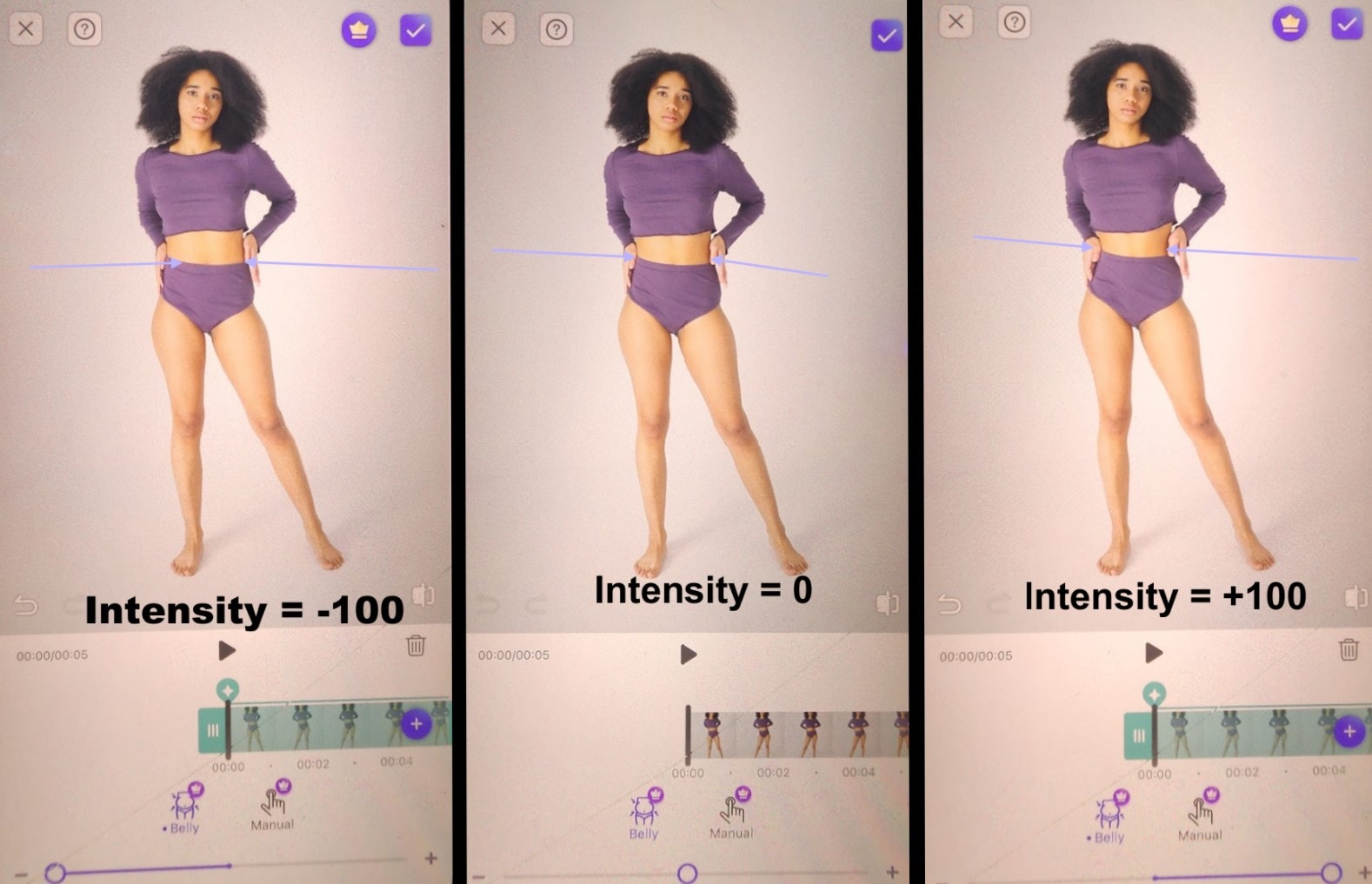
Here you can sculpt your midsection by either reducing belly size for a smoother, flatter look or slightly increasing it for a more relaxed shape. This video body editor app smooths any uneven lines around the midsection while respecting your body’s natural contours.
5. Waist Enhancement
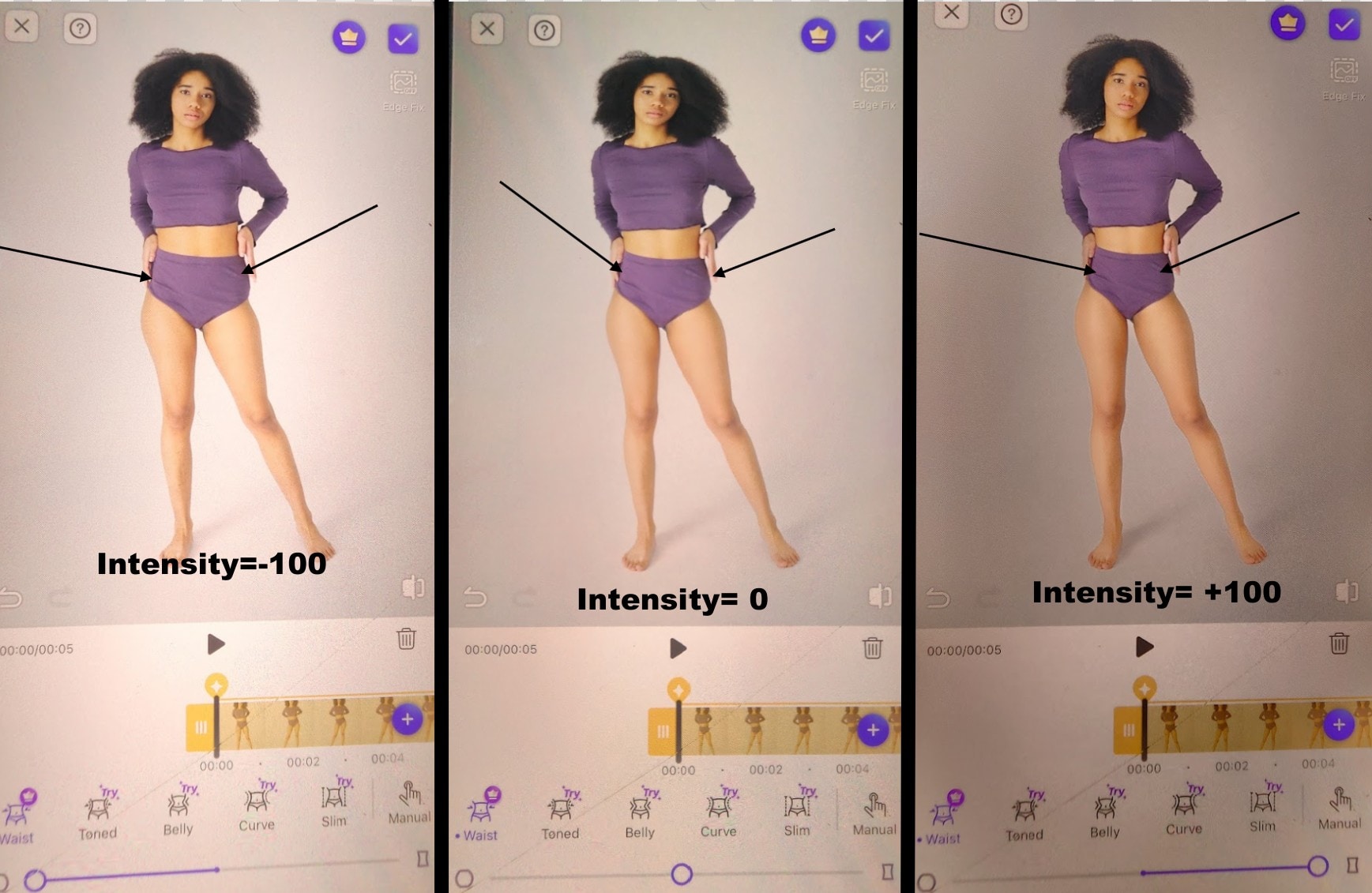
The body editor video app function here is to either narrow or gently widen the waist or clear rough outlines while softening skin tone around that area. The edits provide a professional look without over-focusing or awkward distortion, especially where the waistline is in focus.
6. Arm Enhancement
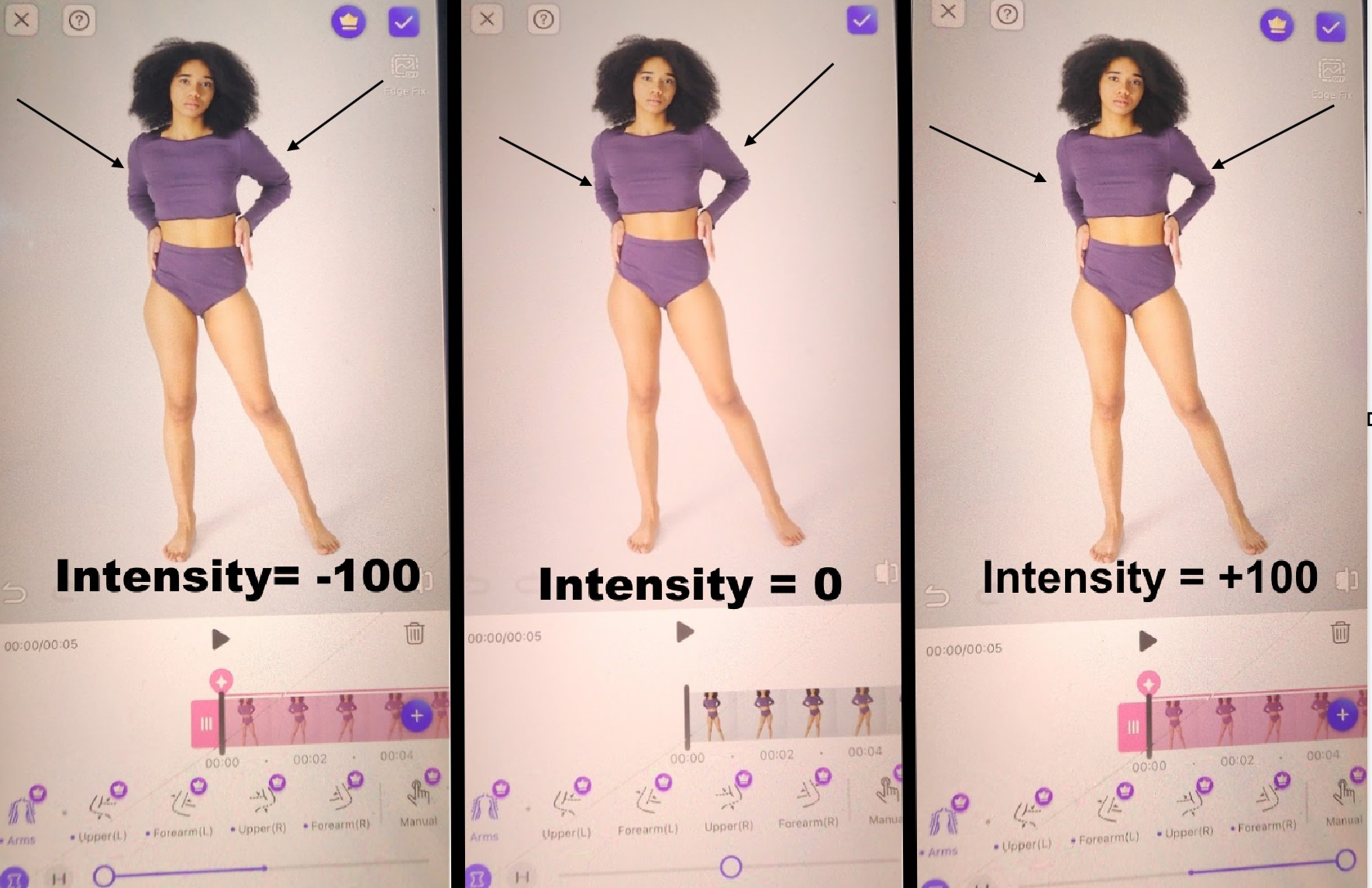
The Pretty up video body editor helps to tone or reshape arms, either decreasing width for sleeker arms or slightly increasing it for more definition. It balances arm shape with the rest of your frame so everything looks proportionate and natural.
7. Shoulder Enhancement
Here, the video body editor app helps you to increase or decrease shoulder width and straighten your posture by fixing uneven angles or slumped shoulders. This enables you to stand taller and more confidently in a video, aligning your body for a more composed and professional look.
Part 2: How to Edit Body Shape in Videos with PrettyUp
Editing your body using a pretty up video body editor is straightforward. The AI tool presents tracks every frame, so your edited body moves smoothly without awkward bends. Below is how to do this.
Step 1: Open the body shape video editor app on your phone and click on the Start button, and import your image or clip.
Step 2: Select the part that you want to refine, like hips, belly, waist, or legs.
Step 3: Adjust the slider either to the left or right, depending on what you want to achieve. Until you find a natural look.
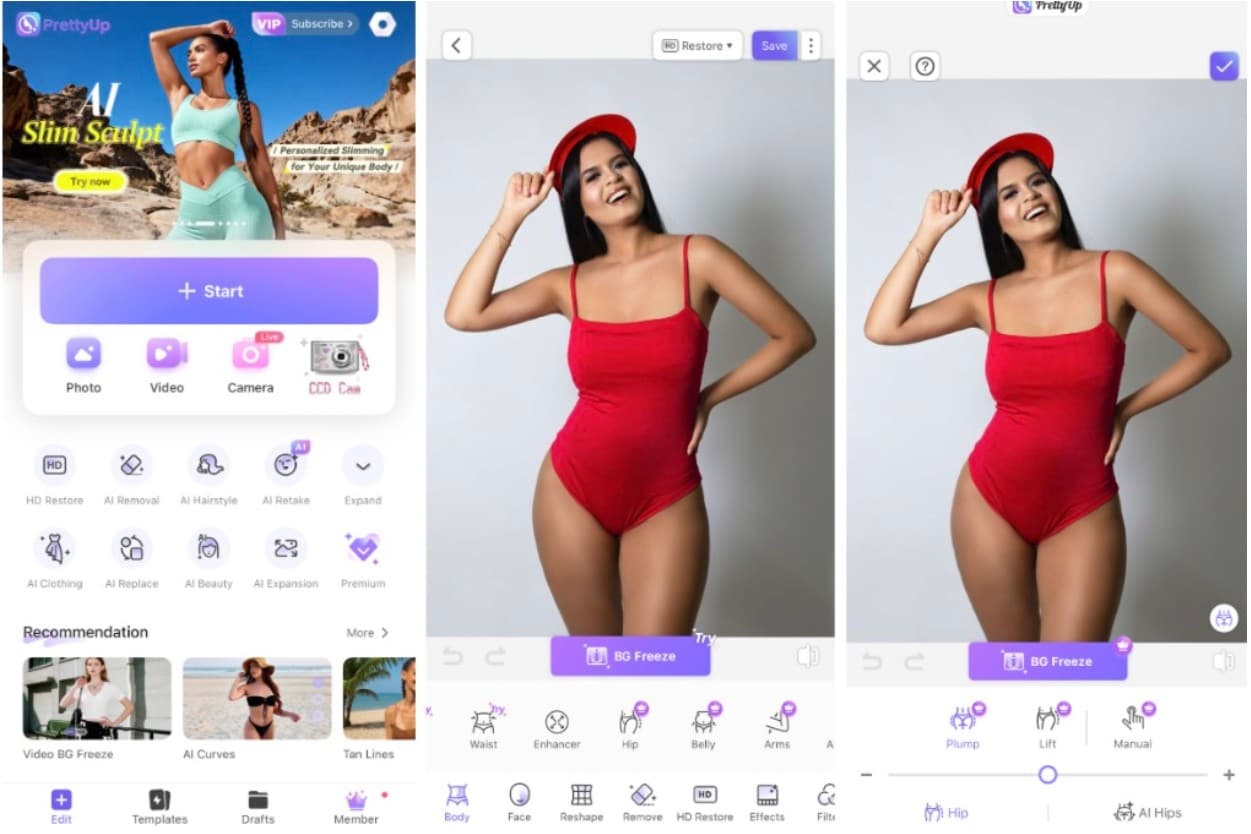
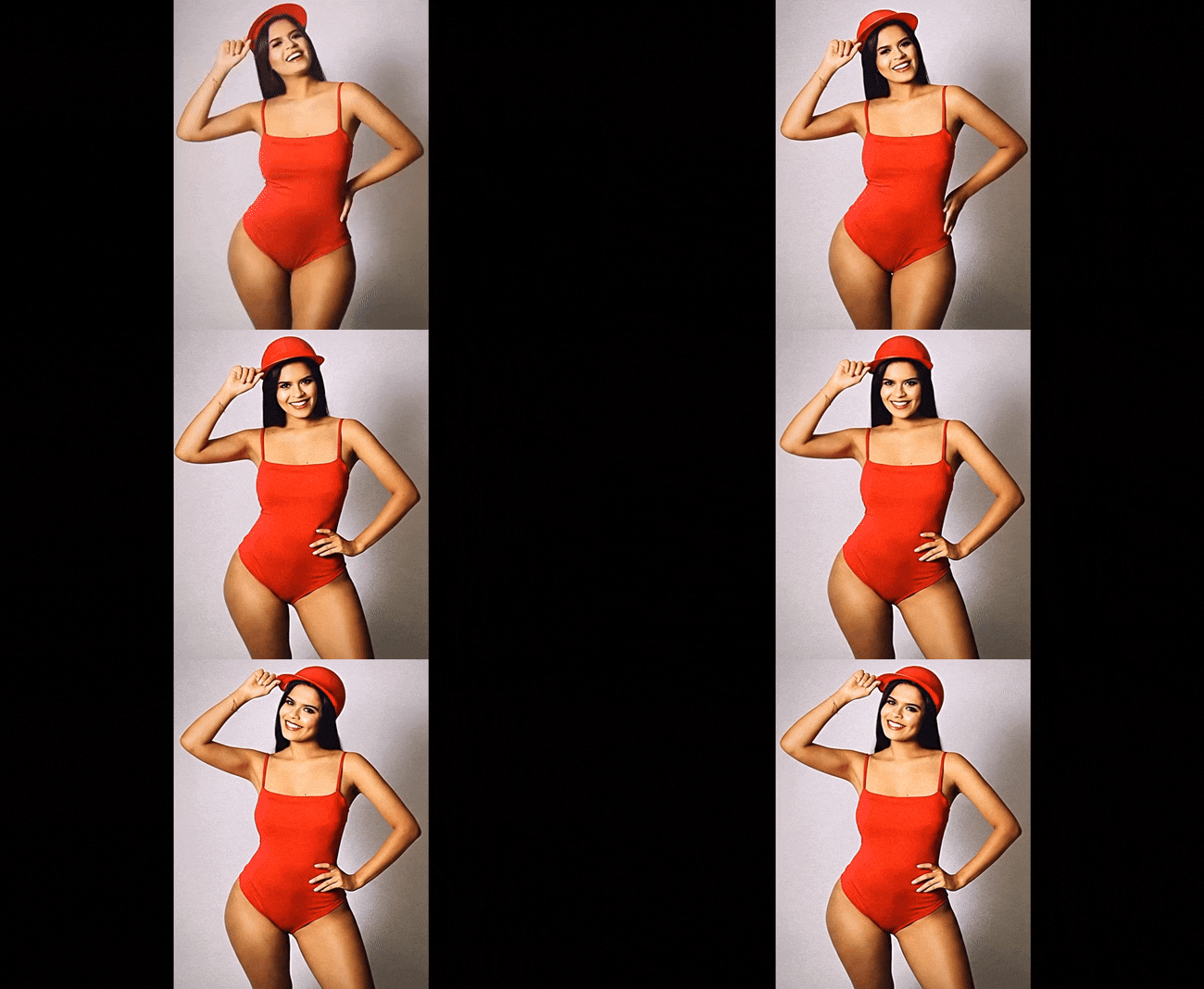
Step 4: Preview the result and save your image or video.
Part 3: Video Body Editor: Best App to Edit Face Parts (Eyes, Nose, Mouth, Eyebrows, etc.)

When your face looks dull on camera, no filter can save it. You need something smarter, something that understands light and detail. That’s where Wondershare Filmora steps in. It’s more than a video body editor. It’s a full creative suite that makes your skin glow and your features sharp without fake effects.
Filmora's AI Beauty lets you touch up your eyes, nose, and lips in motion. This facial body editing video app tracks each frame, keeping edits smooth even when you move. You can lift brightness around the eyes, refine skin tone, or reshape outlines slightly for balance. Everything stays natural, so you still look like you.

 secure download

How to Edit Face Parts in Videos with Filmora
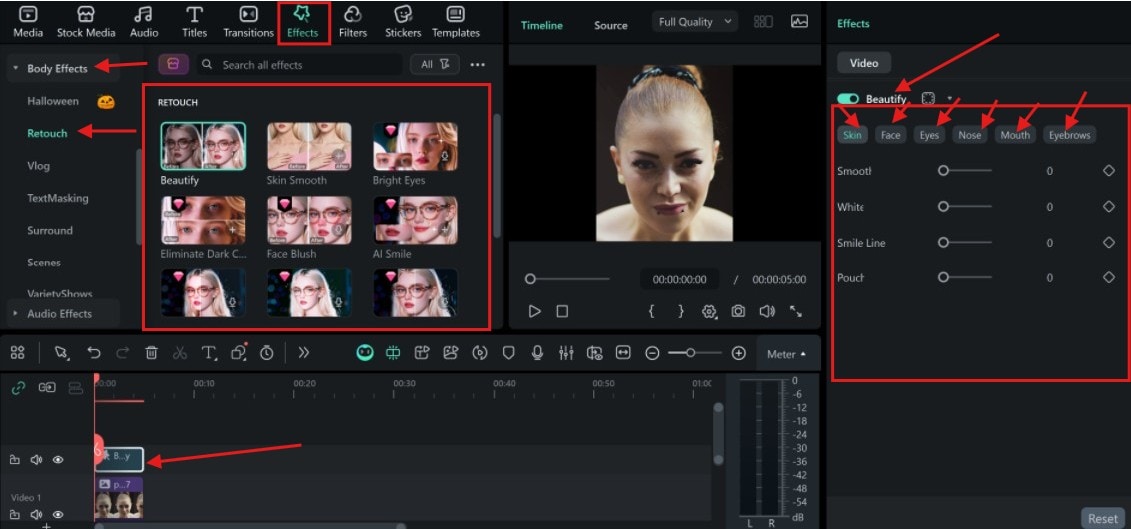
You can edit your face on Filmora using the Beautify feature, which is part of the Retouch effects under the Effects tab. It allows creators to enhance facial features directly in video editing with more control and precision.
When you apply the Beautify effect to your clip, a set of adjustable sliders appears on the right panel. These options let you fine-tune different areas of the face, like skin, eyes, nose, mouth, and eyebrows. Each slider lets you decide how strong or subtle you want the effect to be, ensuring your final video looks polished but still realistic.
Follow the steps below to give your face that perfect look you have always dreamed of.
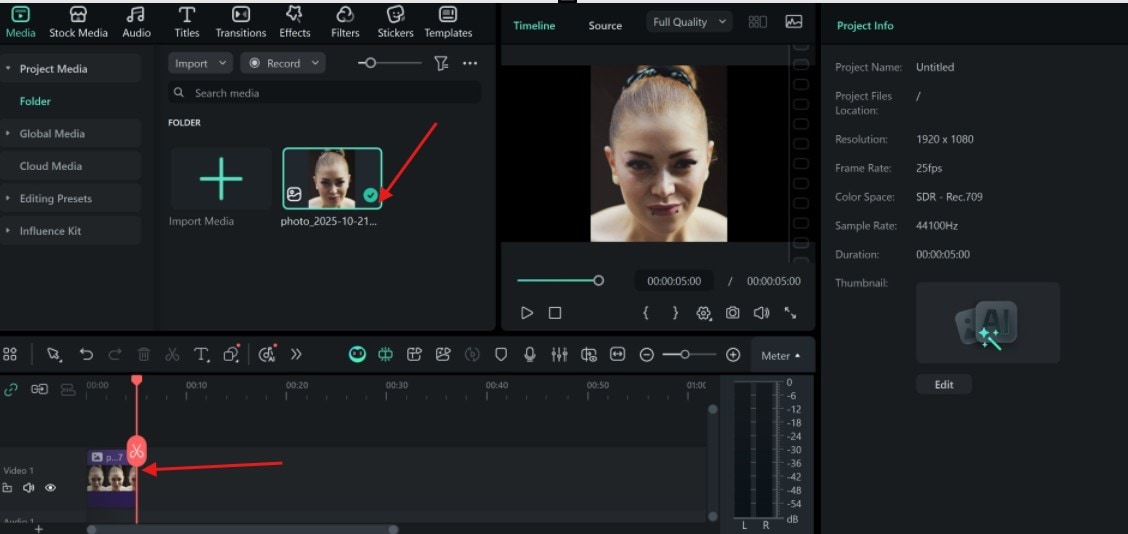
Step 1: Open Filmora and import your video.
 secure download
 Step 2: Go to the Effect Tab, click, select Body Effect, and click on Retouch. Drag the Beautify effect onto the clip. The right panel will show the grouped sliders. Start with the Skin tab, move the Smooth slider a small amount, and preview.
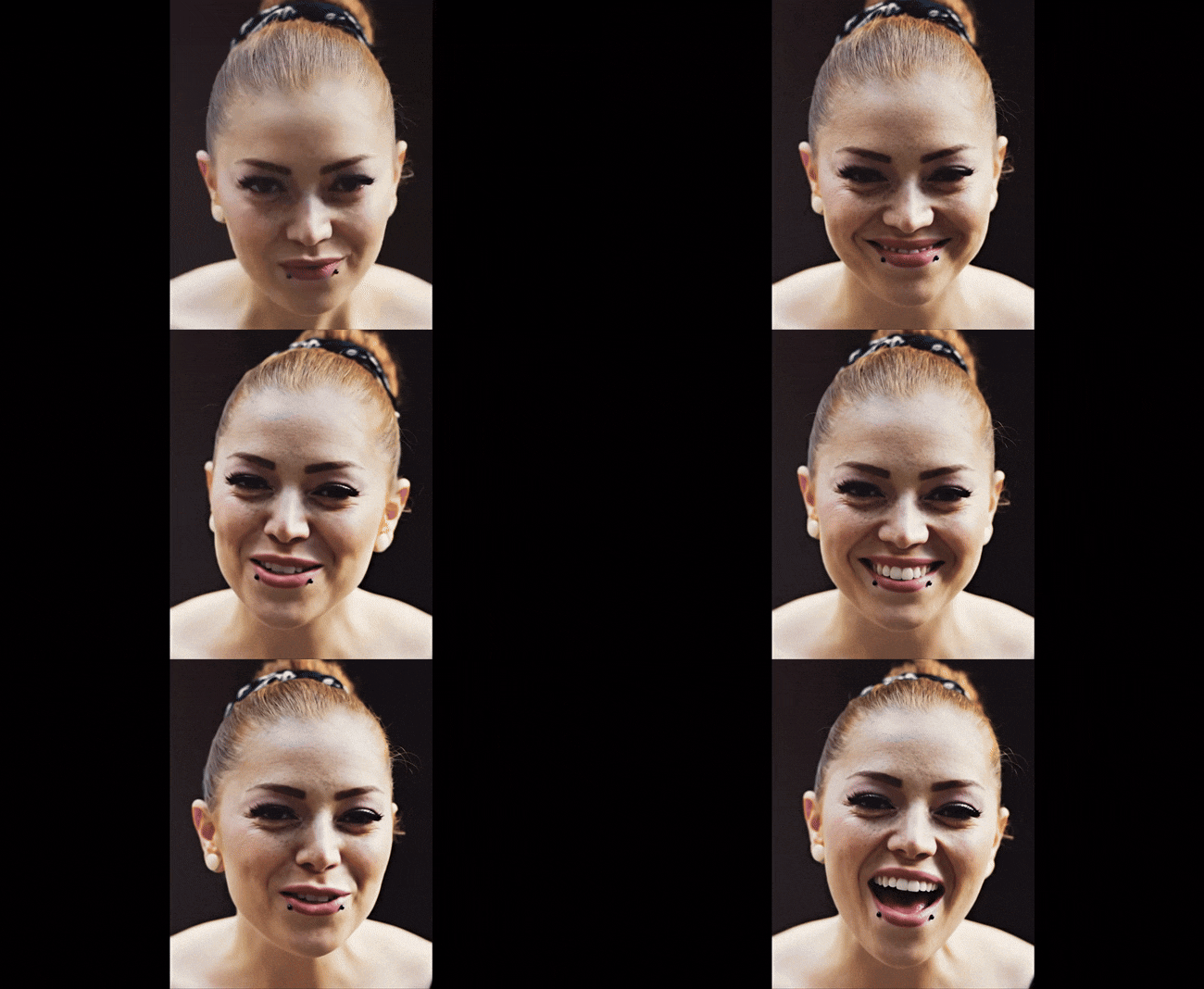
Video Preview
- Before using the Filmora video body editor.
- After using the Filmora tool to edit body shape in video.
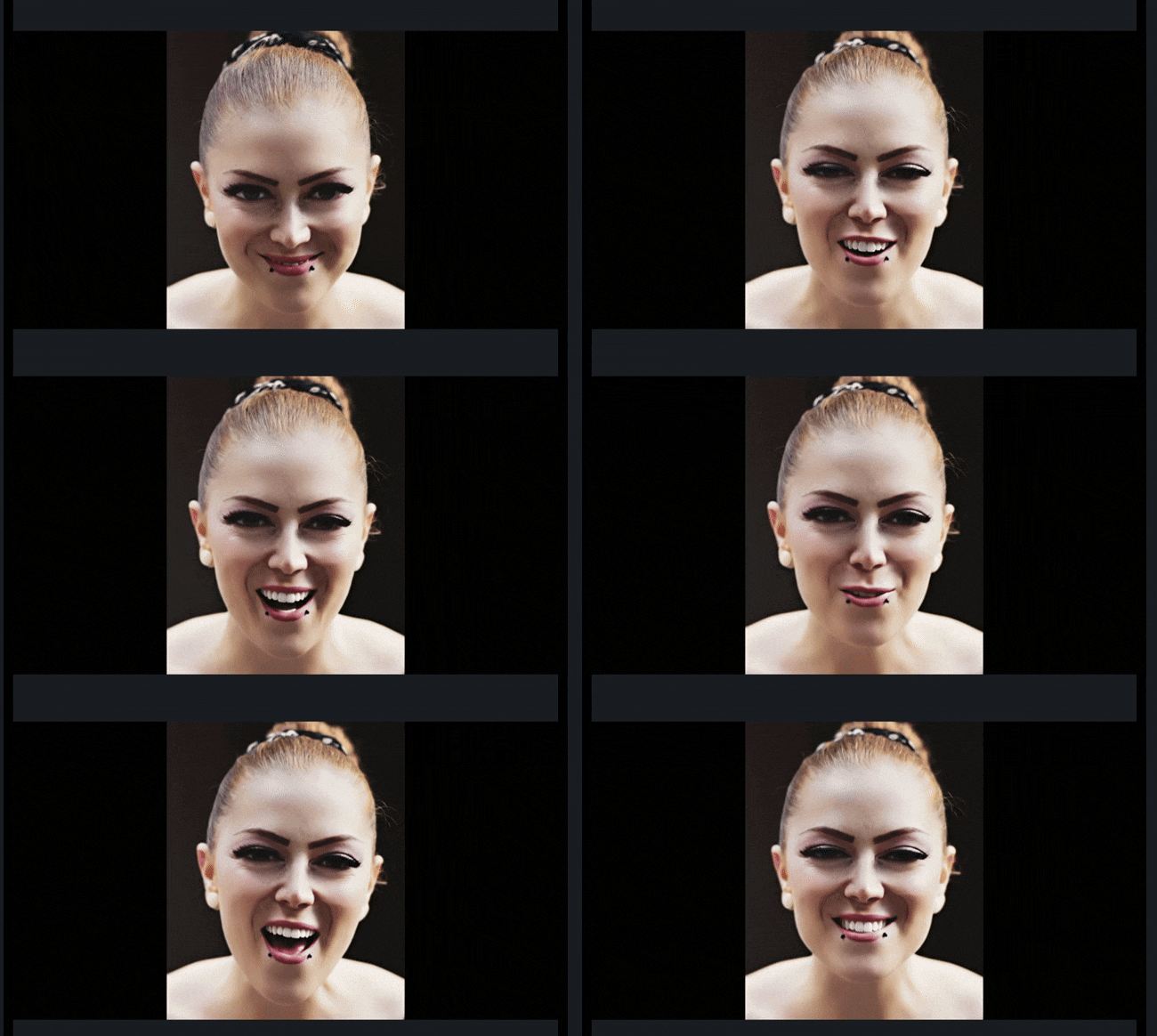
Note: The example above uses higher effect levels to demonstrate the full power of Filmora’s Beautify tool and how visible the changes can be. However, for natural results, start with small adjustments, around 10 to 20 percent, to preserve skin texture and maintain your real facial features. You can always increase the intensity gradually until you achieve the perfect balance between enhancement and authenticity.
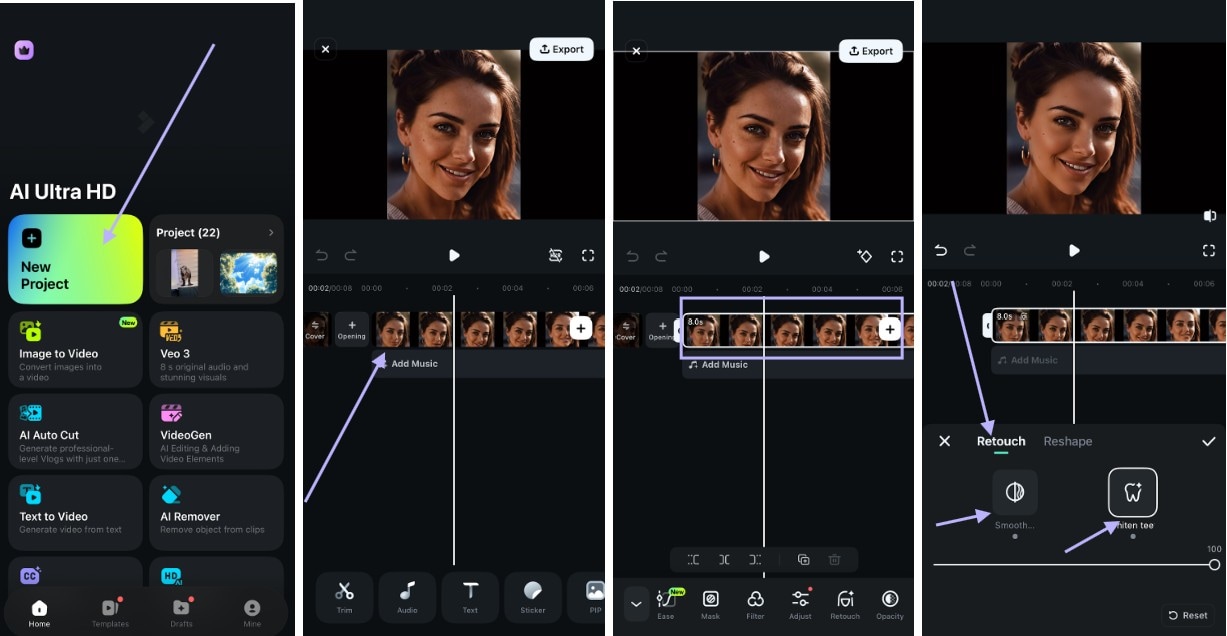
How to Edit Face Parts in Videos with Filmora (Mobile)
Below are the steps on how you can refine each frame while keeping the motion natural using this video body editor on a mobile device.
Step 1: Open Filmora and import your clip.
secure download Step 2: Click on your video in the timeline and scroll through the menu under till you find the Retouch tool
Step 3: On the retouch menu, use the sliders to adjust the body smoothness and teeth whitening feature.
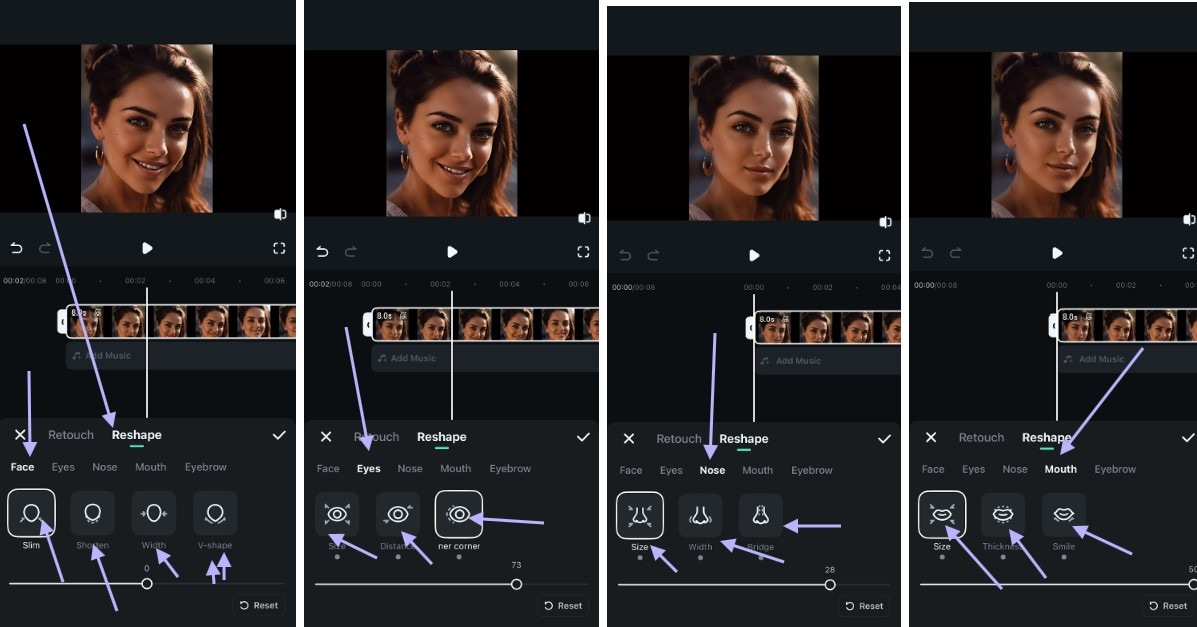
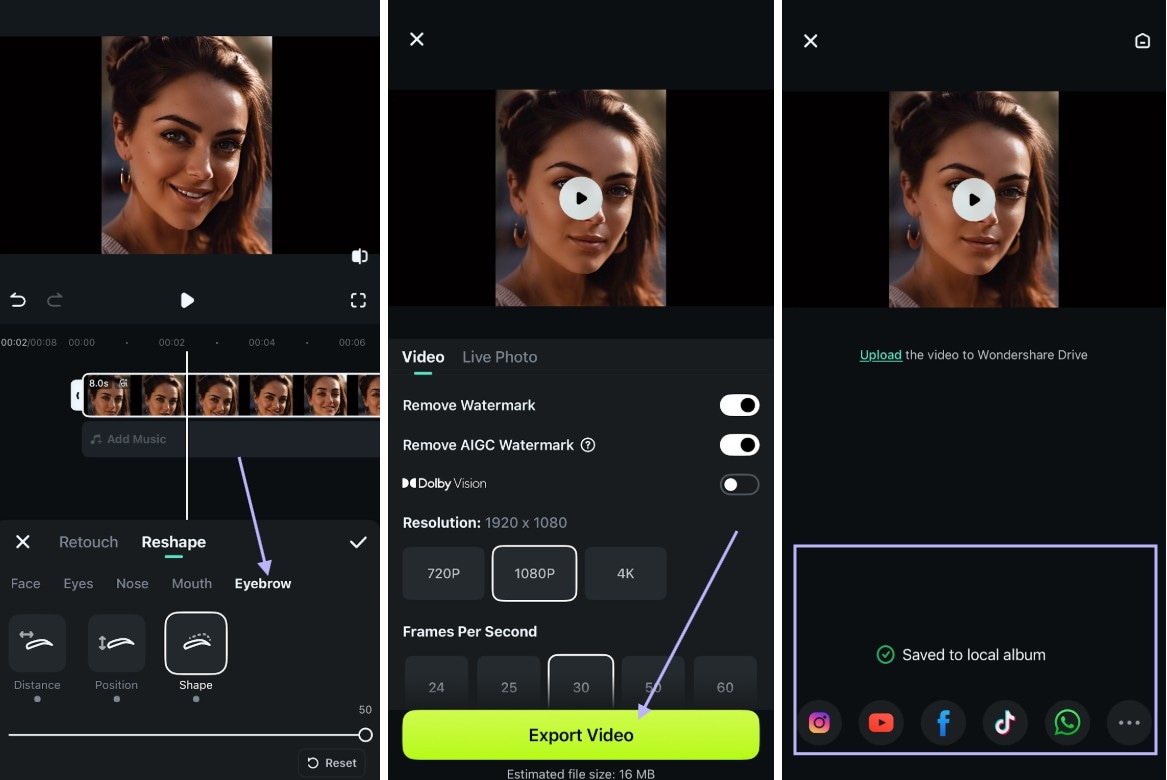
Step 4: Next, click on the Reshape button, and you will be shown options to change Face, Eyes, Nose, Mouth, and Eyebrows. Use the slider to adjust.
Step 5: Export the video in your preferred resolution and share it on your social media platforms
Video Preview
- Before using the Filmora video body editor.

- After using the Filmora app to edit body shape in video.

Note: While the Retouch tool remains the best facial body video editor, as it balances light, smooths skin, and adjusts facial proportions within seconds, you may want to try the Filmora AI Ultra HD Tool.
Conclusion
You’ve now seen how a body editor for video and face tools can transform your clips in motion. They help you reshape, smooth, and balance your body while keeping every move natural. While tools like Pretty Up serve as a body slim video editor, they can sculpt or boost curves, refine posture, and boost confidence in each frame. Filmora’s retouch features help your videos gain a standard, high-quality look.
Using PrettyUp and Filmora is straightforward, meaning you don’t need special skills, just your phone and network. So, whether you’re editing for fun, fashion, or business, these tools can help you look attractive and smart for your audience.
