

 100% Security Verified | No Subscription Required | No Malware


 ChatGPT
 Perplexity
 Gemini
 Claude
 Grok
Grok
No new photo to post for this Christmas? No problem!
You can reuse any of your old pictures and add a Santa hat by following this simple guide. It’s practical when you need to create Christmas greetings or update your social media profile picture, but there’s currently no new photo worth posting.
Without wasting any more time, let’s start learning how to add a Santa hat to your photos quickly and easily, so you can have pictures ready to post for Christmas right away!
In this article
- Creative Ideas for Santa Hat Photos
- How to Manually Add a Christmas Hat to a Photo Using a Sticker
- Automatically Add a Santa Hat with Filmora AR Effects
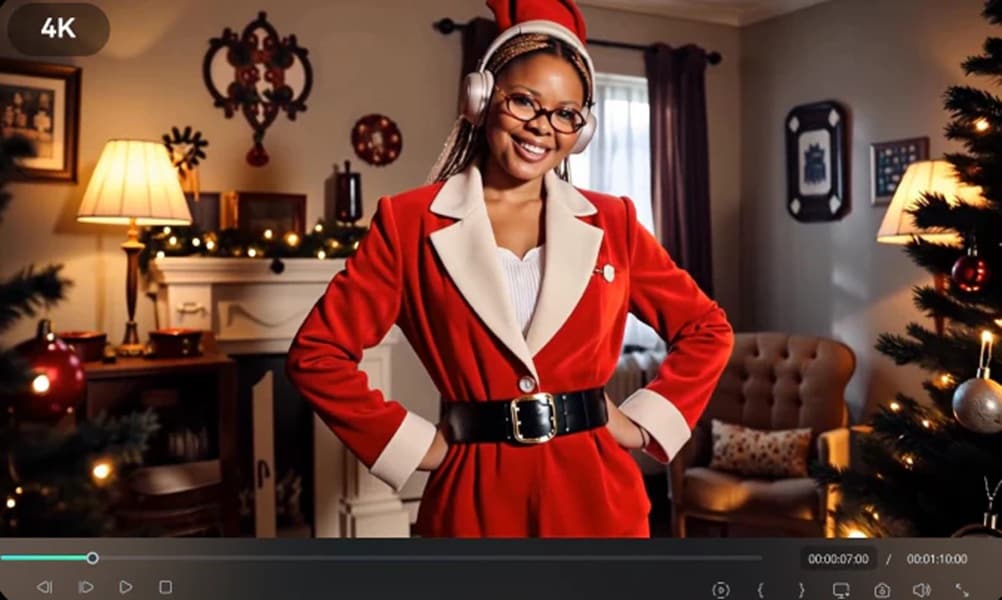
- Generate a Full Santa Video of Yourself with a Christmas Hat
- How to Add a Santa Hat to a Photo Using Filmora Mobile
- Editing Tricks to Make the Santa Hat Look More Realistic
Part 1. Creative Ideas for Santa Hat Photos
Adding a Santa Claus hat to your photos opens up many exciting possibilities to use them during the holidays. You can use it for almost anything related to Christmas. To give you some ideas, you can try using it for:
- Update your profile with a Christmas-themed profile picture
- Use it for a family holiday card or printed Christmas greeting
- Post something fun on social media (Instagram Stories, posts, Reels, TikTok, X, and more)
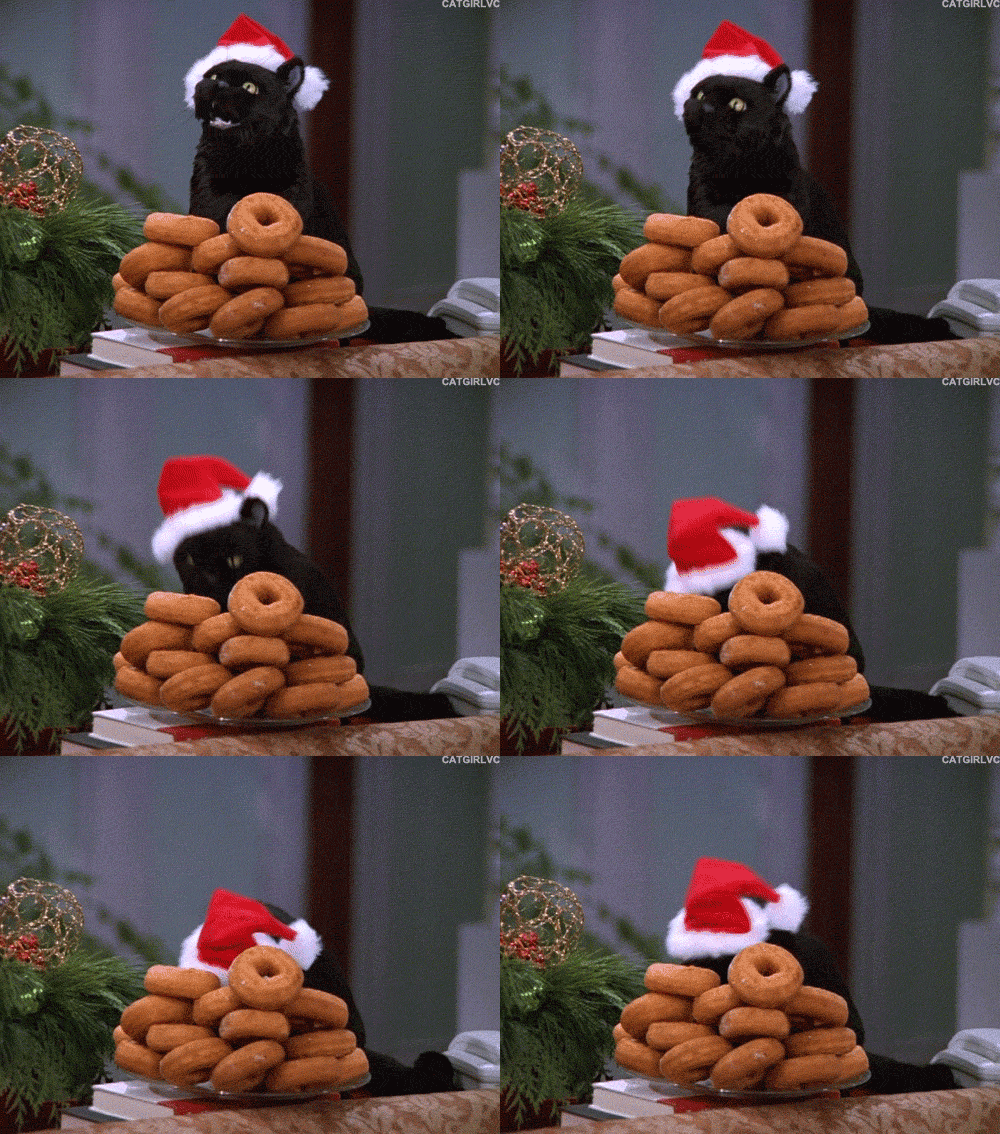
- Make a cute post with your pet wearing a Santa hat
- Create a sweet couple Christmas edit
- Edit group photos where each person gets a different hat
- Turn your Santa hat photo into a funny Christmas meme
- Use it as an intro for a Christmas vlog or a year-end montage
If you want to create more than just a simple hat overlay, Wondershare Filmora is one of the best tools for the job. Filmora not only lets you put a Christmas hat on a photo manually, but also helps you automatically transform your images into Christmas-themed photos or videos, complete with joyful Christmas elements.
Why Filmora is Great for Christmas Edits
The built-in features in Filmora are what make it a good Santa hat photo editor and keep the whole process simple. You can find everything you need in one place, which makes editing way more efficient and easy for anyone to do:
- Use Christmas Stickers: Add Santa hats, snowflakes, decorations, and frames to your photos
- Apply Holiday Effects & Overlays: Enhance your image with snowfall, sparkles, or warm glowing lights
- Add Built-in Christmas Music: Choose background songs and sound effects that fit your holiday theme
- Auto-generate Edit Clips with AI Image-to-Video: Create Santa-style or Christmas-themed videos using ready templates
- Edit with the Drag-and-Drop Timeline: Mix photos, videos, stickers, and text with simple clicks
- Work Across Devices: Edit on desktop or mobile so you can create anytime, anywhere

 secure download

Part 2. How to Manually Add a Christmas Hat to a Photo Using a Sticker
The sticker method is the fastest and most user-friendly way to add a Santa or Christmas hat. Filmora features built-in Christmas stickers that you can use to add a Santa hat to any photo and adjust it as needed.
This method works great if you want to fully customize the size, angle, and position while keeping the process quick and beginner-friendly!
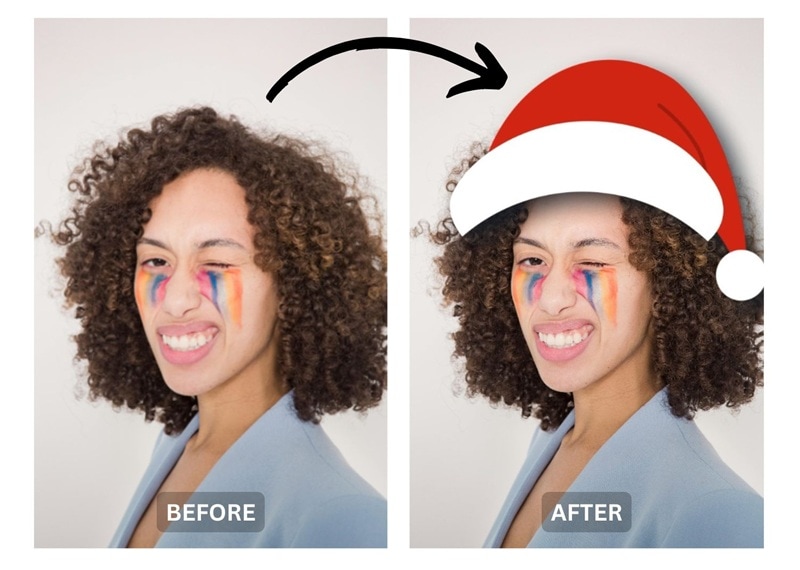
Steps to Add a Santa Hat Sticker in Filmora
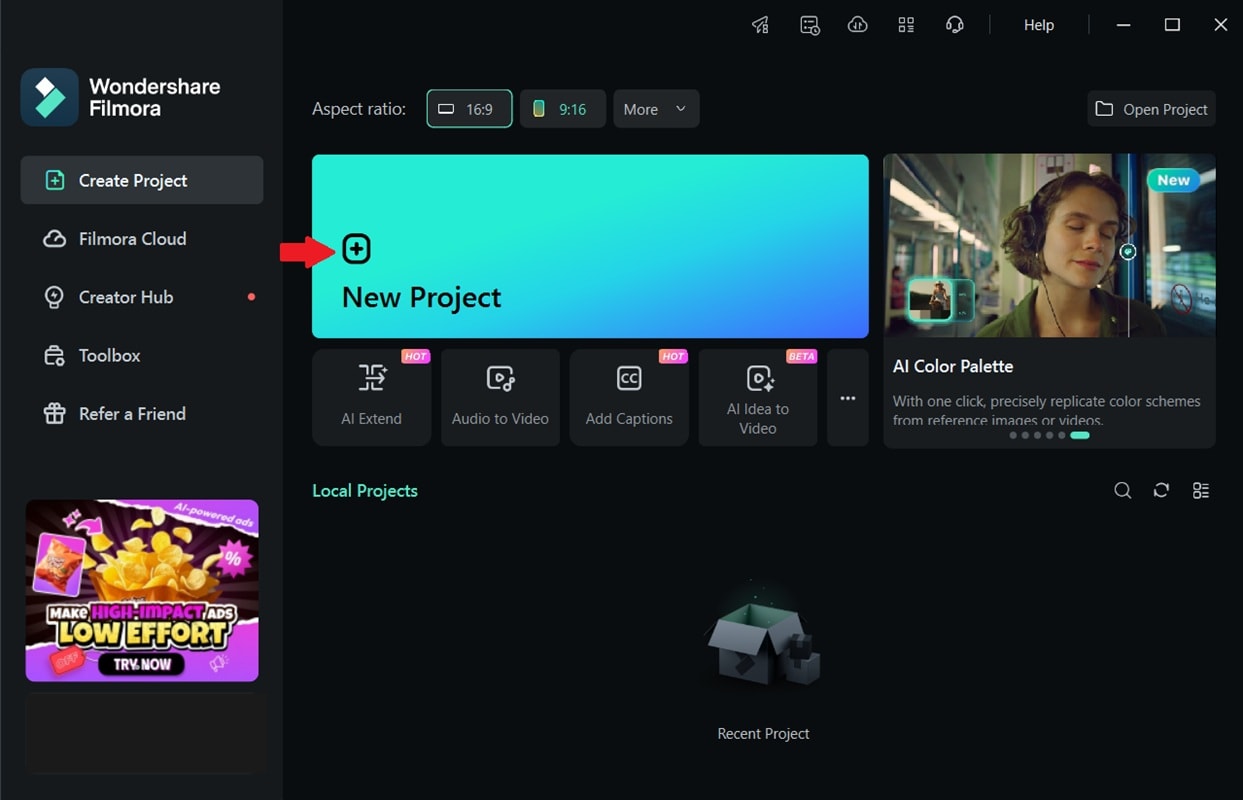
Step 1. Launch Filmora and Create a New Project
Open Filmora and start a new project to begin editing.
 secure download
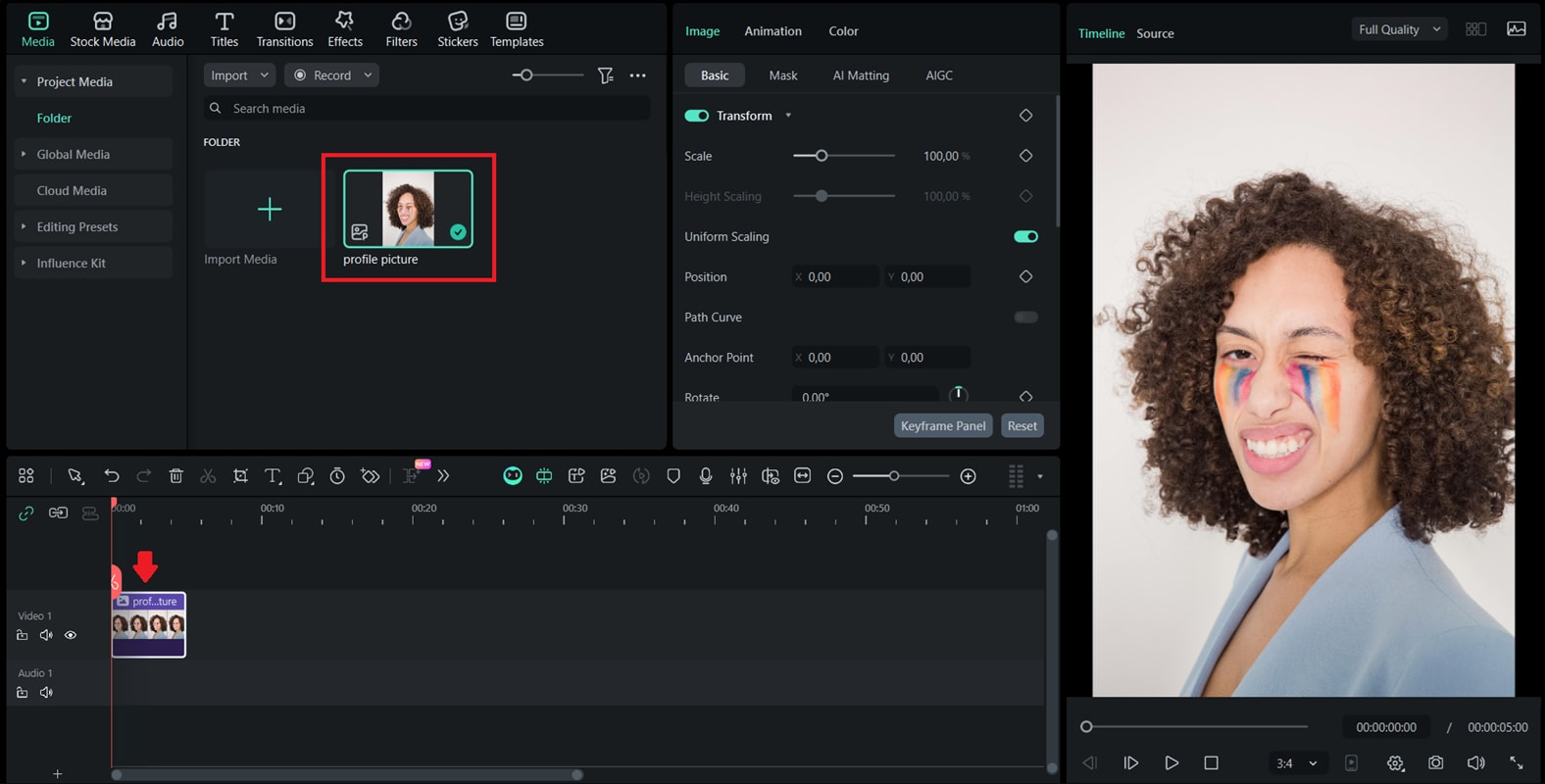
Step 2. Import Your Photo
Click Import to add your photos to the media library, then drag them onto the timeline.
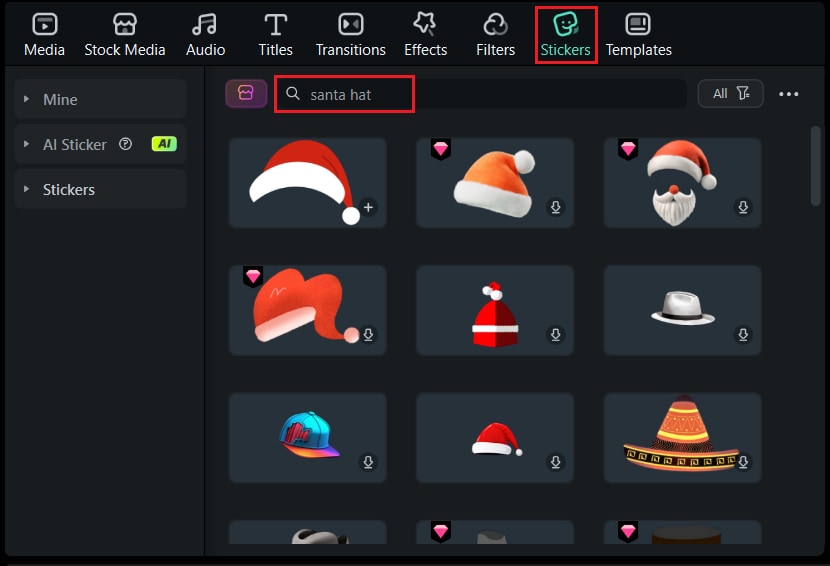
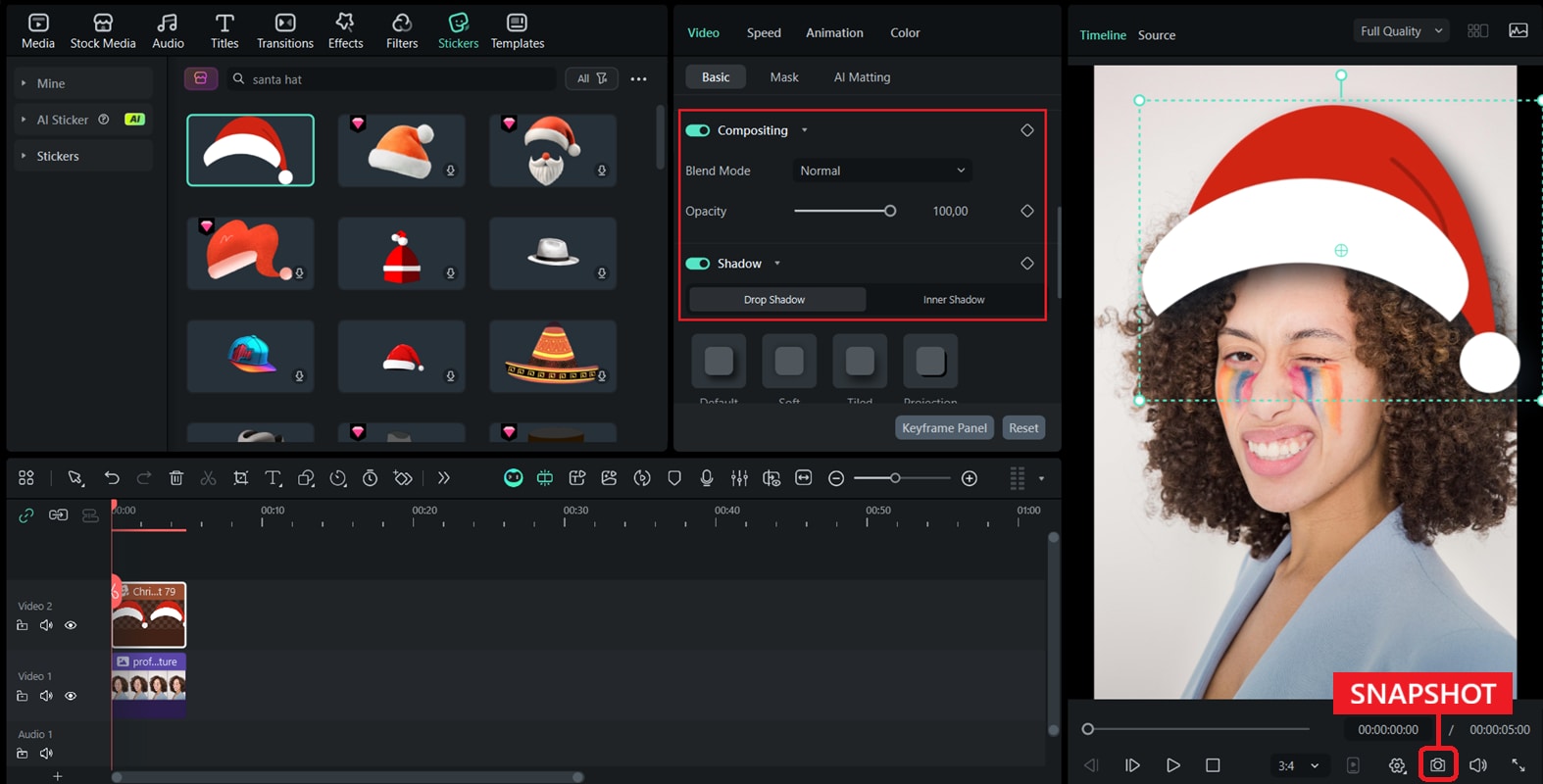
Step 3. Open the Sticker Library
Go to the Stickers tab. Search for "Christmas" or "Santa hat" to find related sticker options.
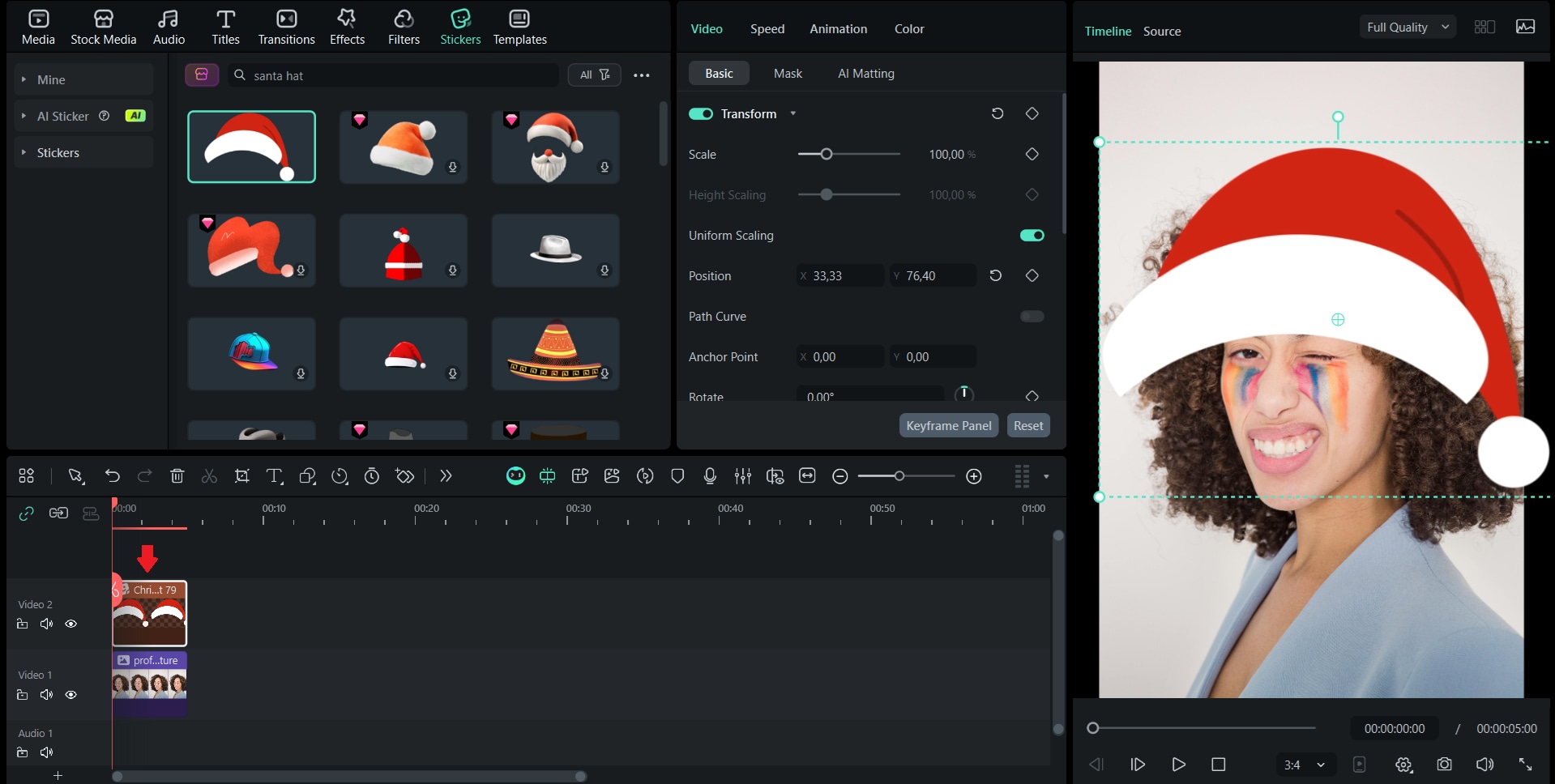
Step 4. Choose and Add a Santa Hat
Select a Santa hat sticker. Then, drag it onto your timeline above your photo layer to add the Santa hat to your photo.
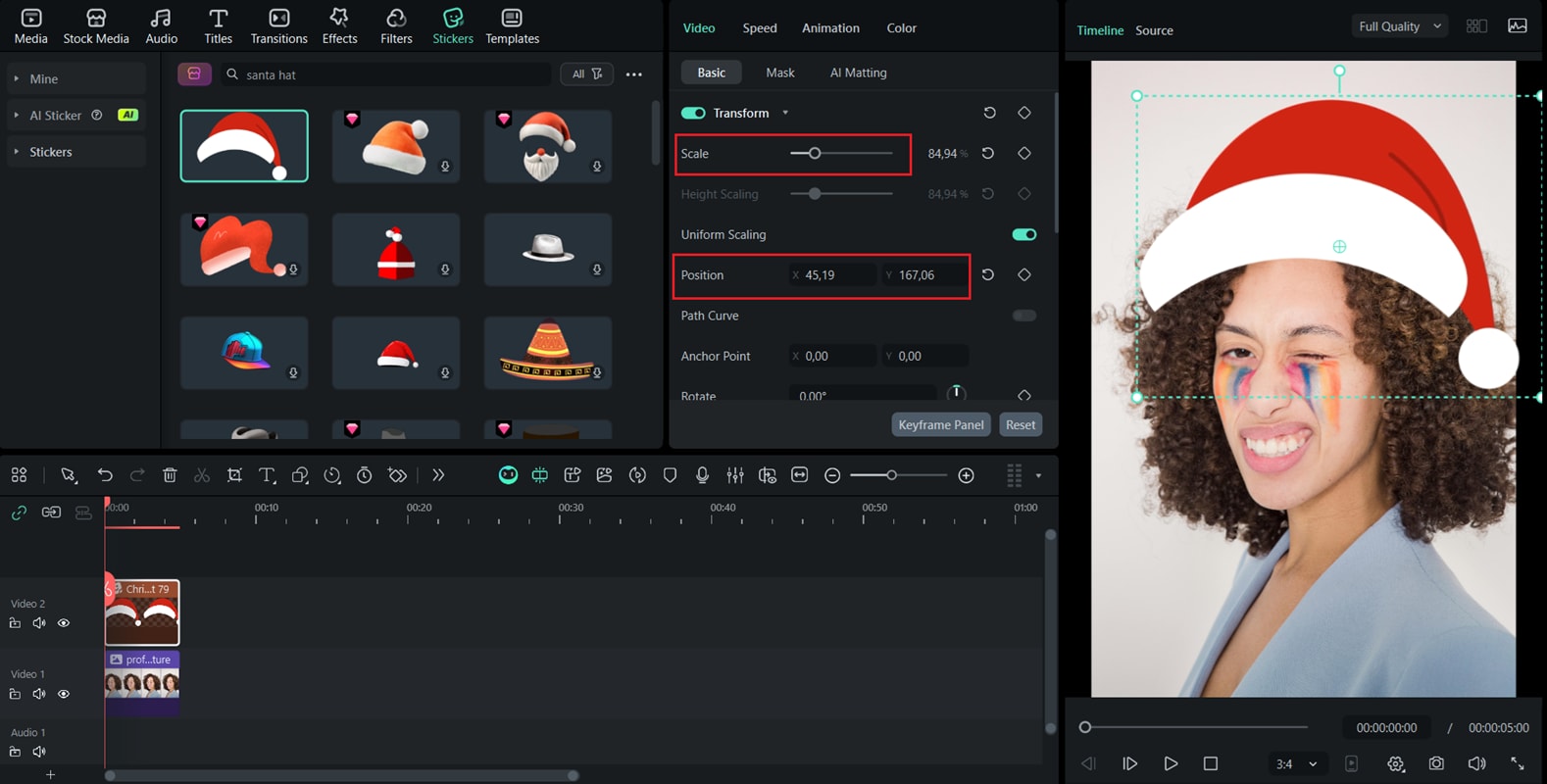
Step 5. Adjust Size, Angle, and Position
Click the sticker on the preview window. Resize, rotate, or move it until it fits perfectly on your subject’s head.
Step 6. Fine-Tune and Export
Lower opacity if needed, add drop shadows, or add more festive stickers. Once done, click the Snapshot button to save it in an image format.
Part 3. Automatically Add a Santa Hat with Filmora AR Effects
If you don't want to add a Santa hat to the image manually, Filmora also offers a faster, easier option using the Santa Hat AR effect. This feature uses face tracking technology, so the Santa hat will automatically adhere to your head and follow your movements.
Since it tracks your face automatically, you can use it on video clips without worrying that the hat will end up in the wrong spot when moving. Moreover, this AR effect also comes with light facial enhancement, so your skin tone, lighting, and makeup look a bit more polished without extra filters.
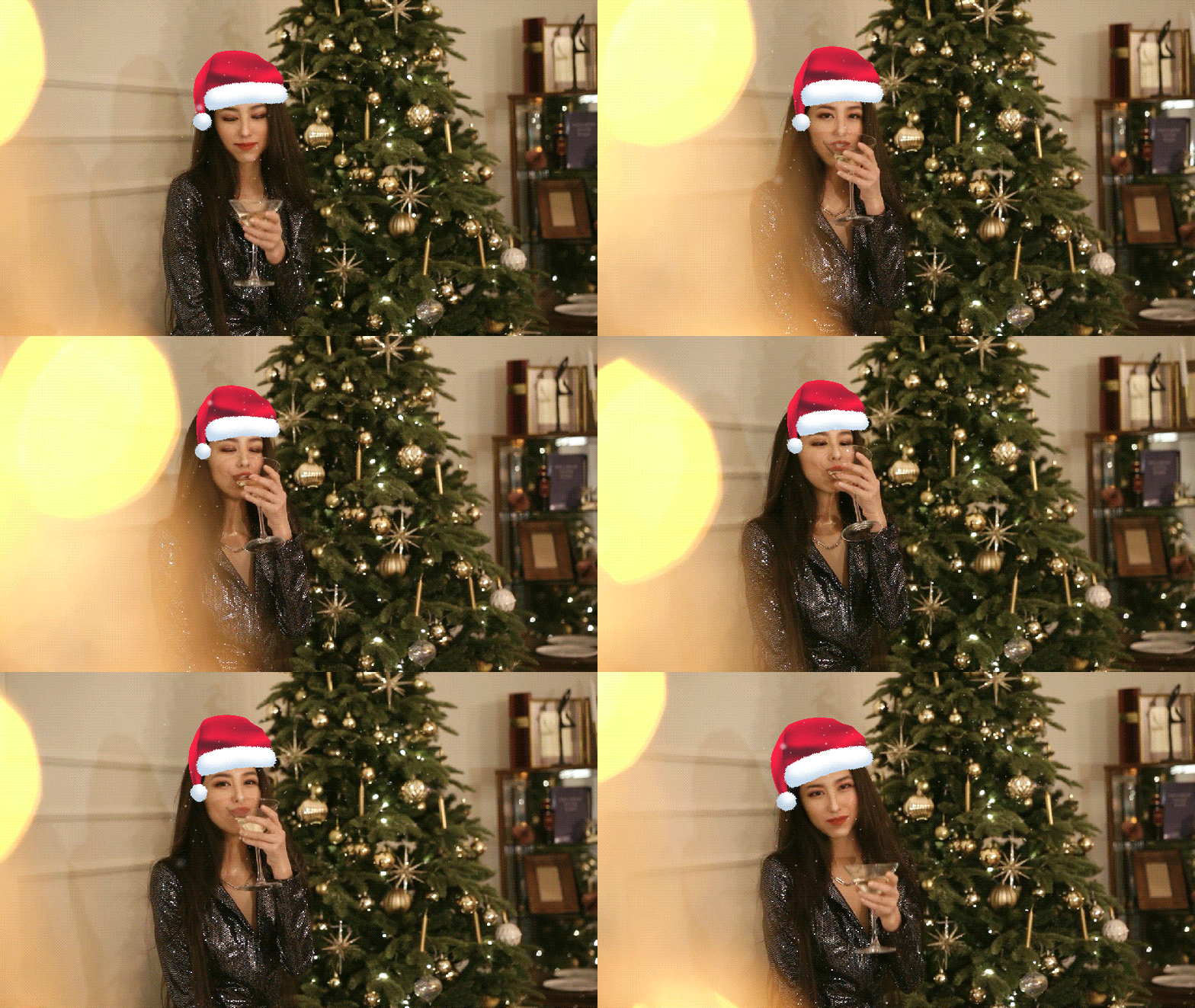
How to Use Filmora’s AR Santa Hat Effect (Step-by-Step)
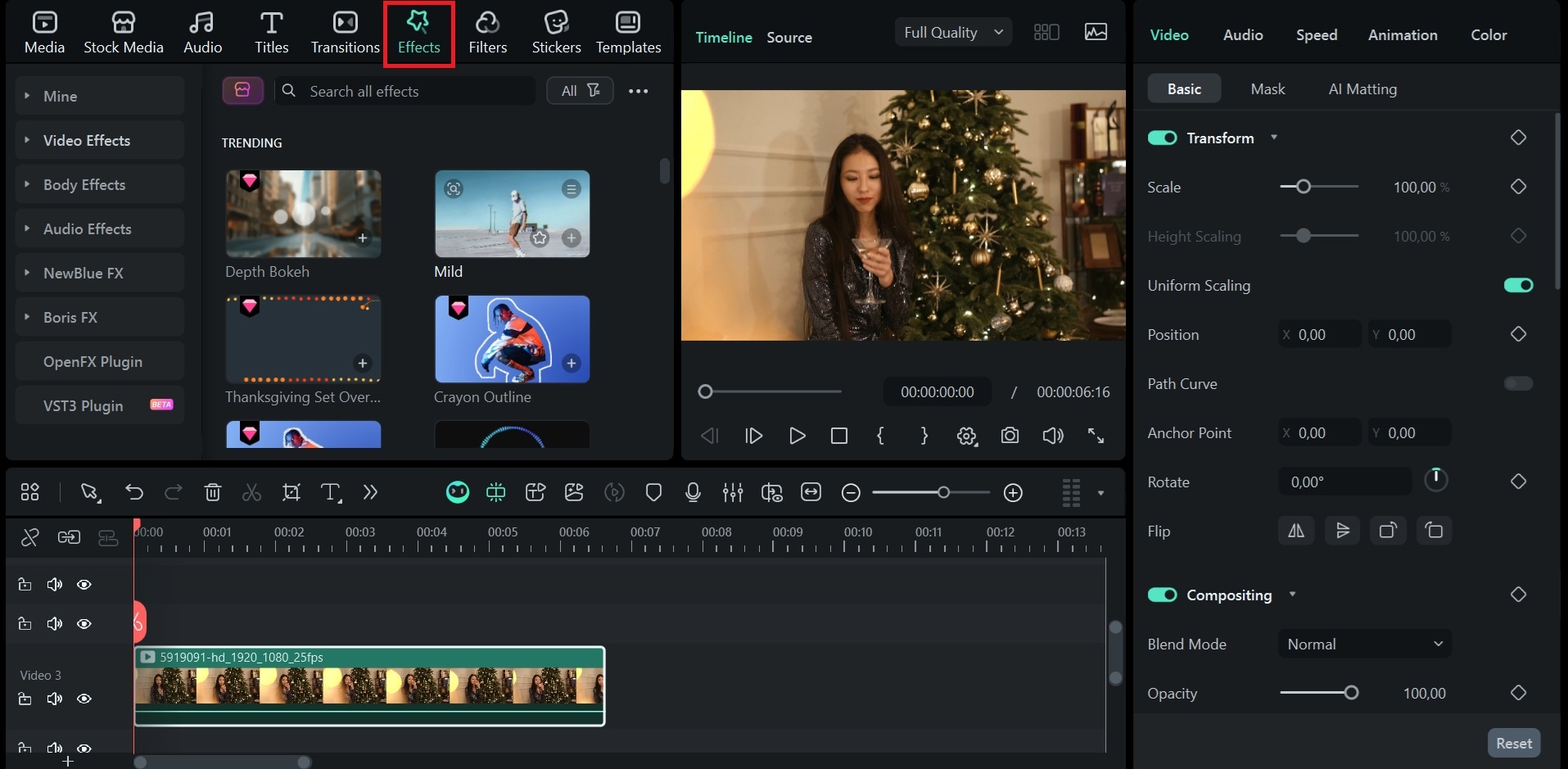
Step 1. Go to the Effects Tab
With your image or video ready, go to the Effects tab. This is where Filmora stores all face-tracking AR effects.
 secure download
Step 2: Search for “Santa Hat”
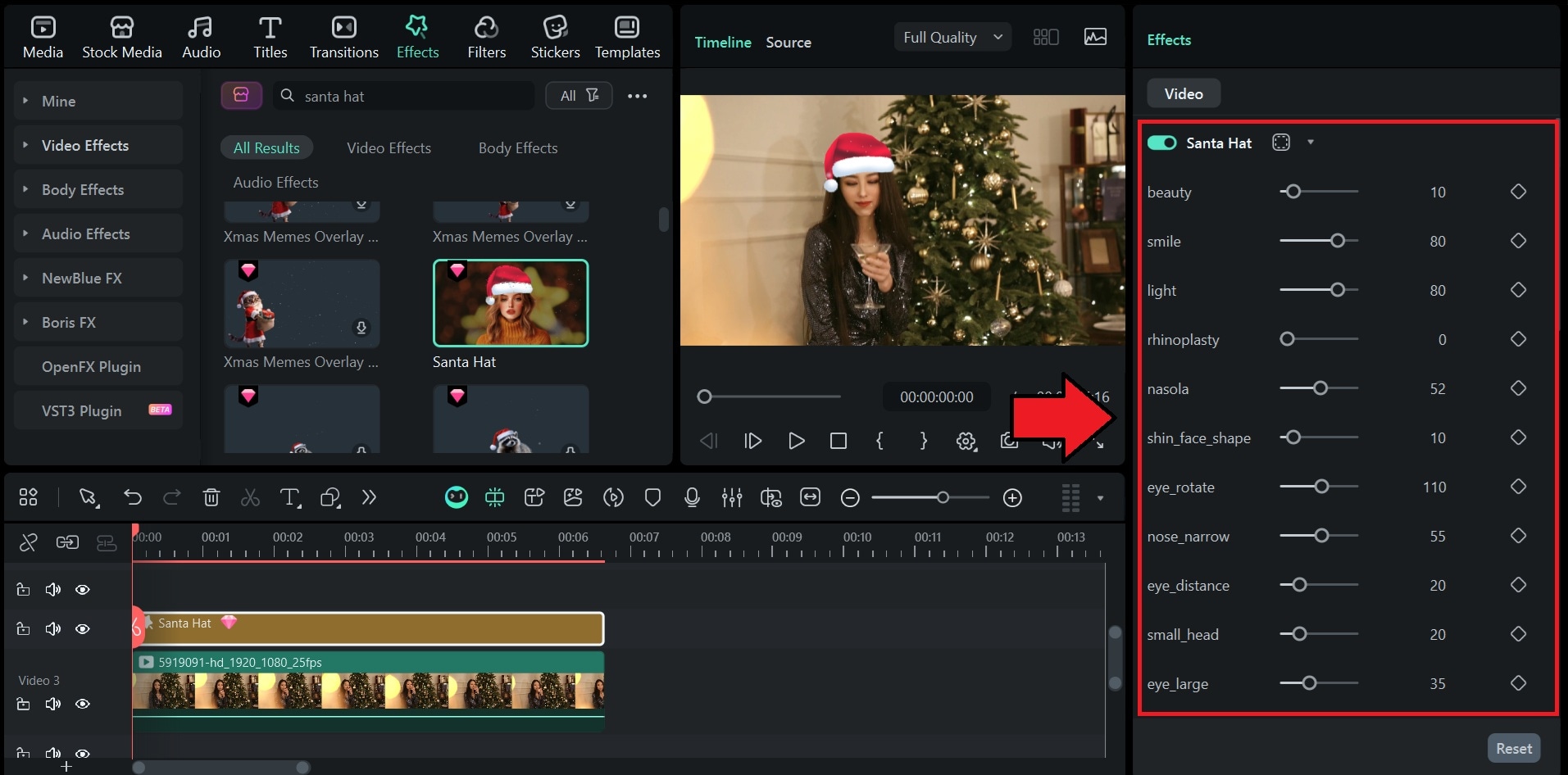
Search for the Santa Hat effect and drag it to the timeline. Filmora will automatically detect the face and place the hat perfectly.
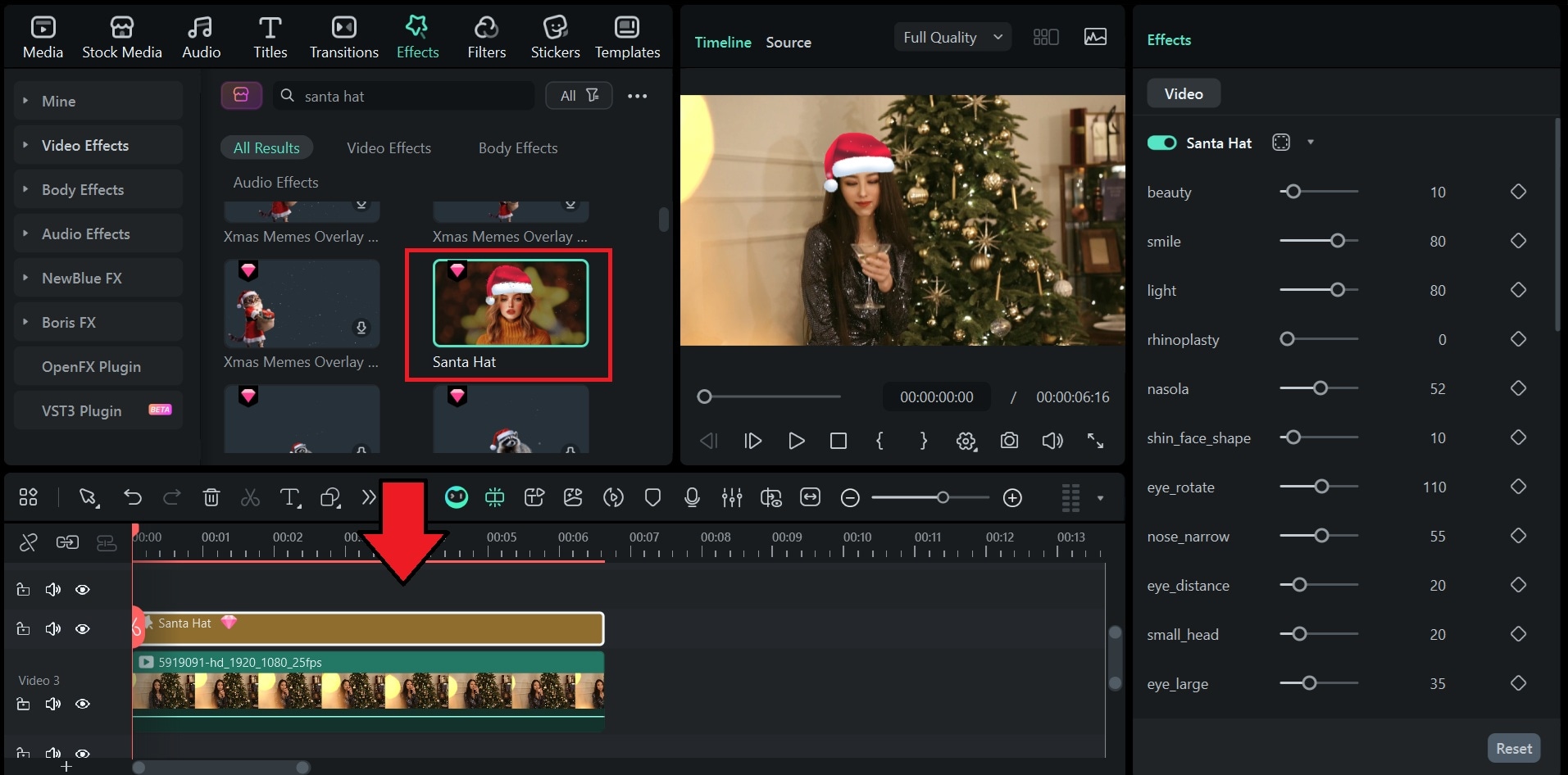
Step 3. Adjust the Effect Settings (Optional)
Click the effect in the timeline to fine-tune the intensity or adjust the beauty filter that comes with it.
Part 4. Generate a Full Santa Video of Yourself with a Christmas Hat
We've discussed two ways to add a Santa hat to your photo manually. Now, this next method is suitable if you want something more creative than just adding a Santa hat to your photo.
The AI Image to Video includes AI templates that can instantly turn your ordinary photo into a complete Santa animation. You’ll get the Christmas outfit and the hat, complete with movement that blends into the scene so well that it looks like you were actually there.
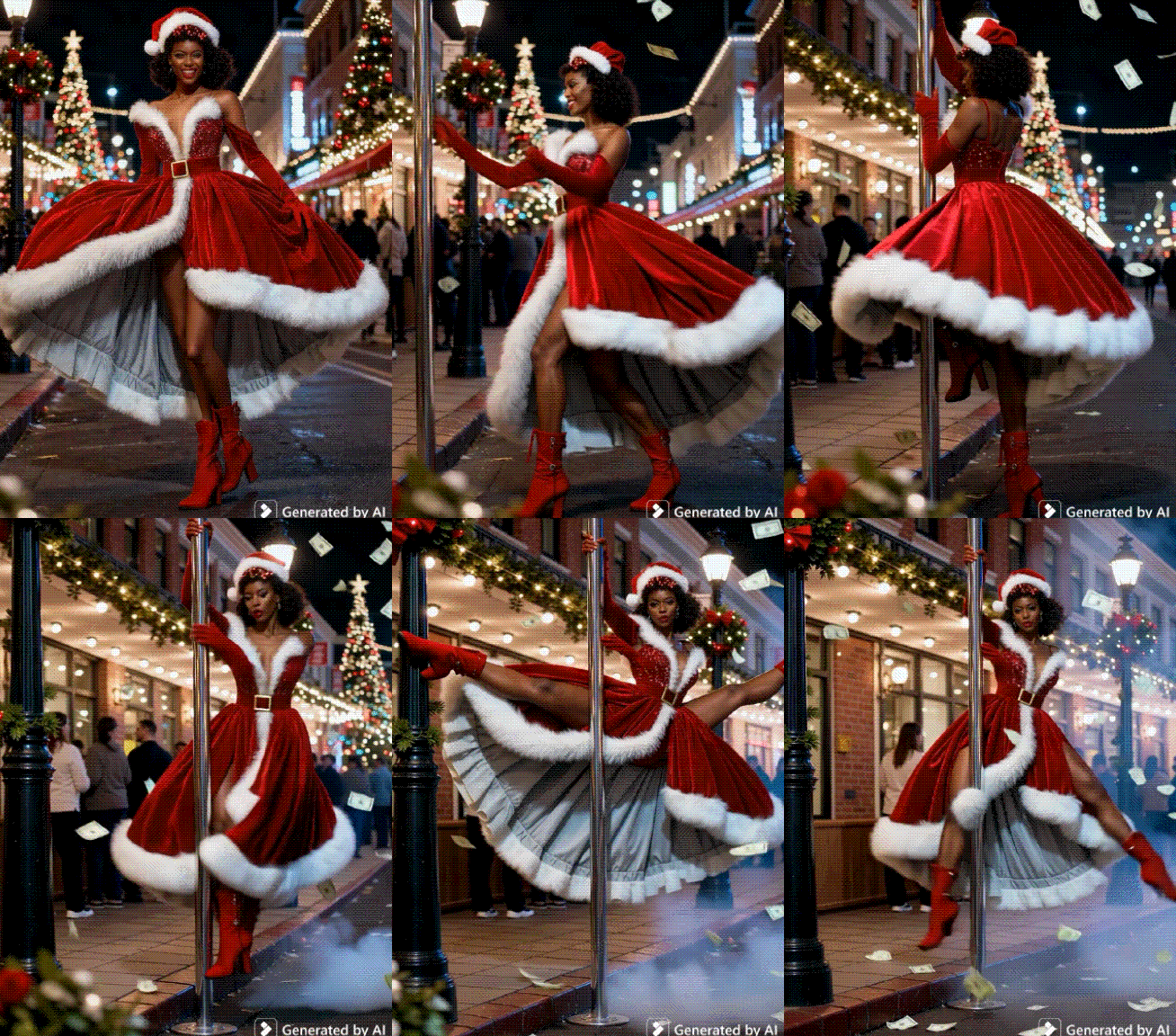
This option is a perfect fit for holiday greetings, social media posts, or personalized Christmas messages. Filmora's AI handles the entire process, so you don't need advanced editing skills to create something that looks polished.
How to Create a Full Santa AI Video in Filmora (Step-by-Step)
Step 1. Browse Filmora’s AI Video Template
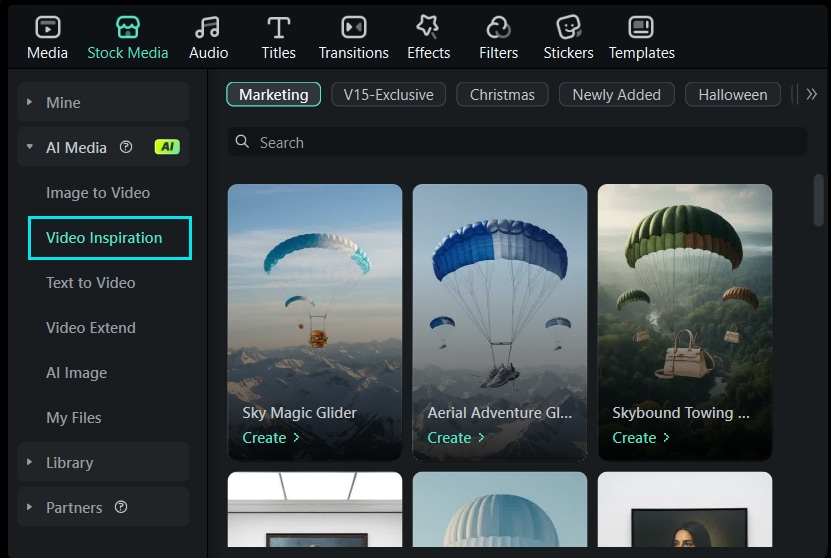
On Filmora’s editing interface, click Stock Media on the top menu. Then, choose AI Media > Video Inspiration to browse the available templates.
 secure download
Step 2. Choose the Christmas Category
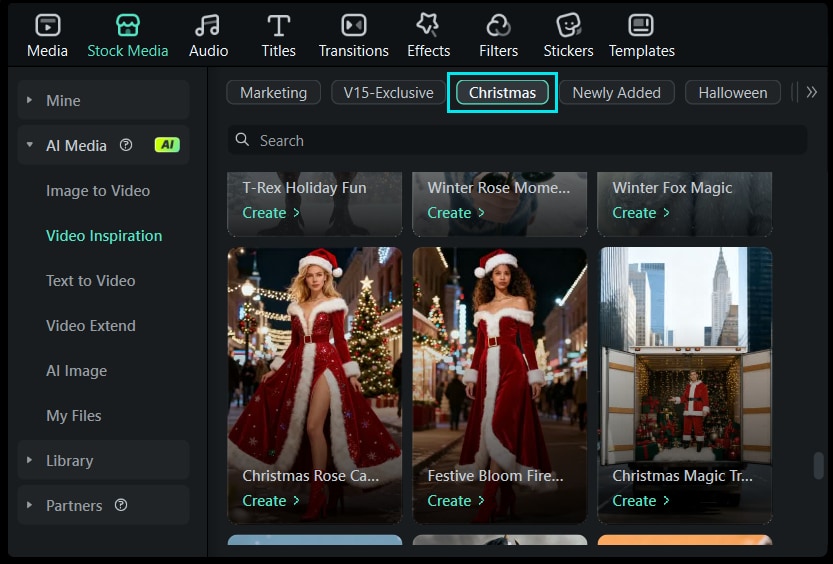
Click the Christmas filter at the top to show all holiday templates.
Step 3. Pick Any Santa-themed Template and Upload Your Photo
Select a template that features Santa's hat, outfit, or Christmas decorations.
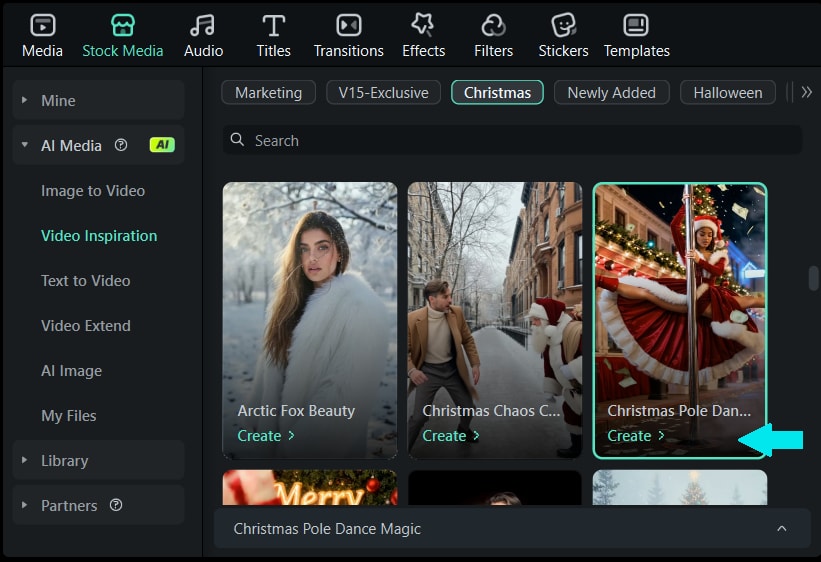
Click on it and upload the image you want to convert into a Santa video. Then, click Generate to start the process.
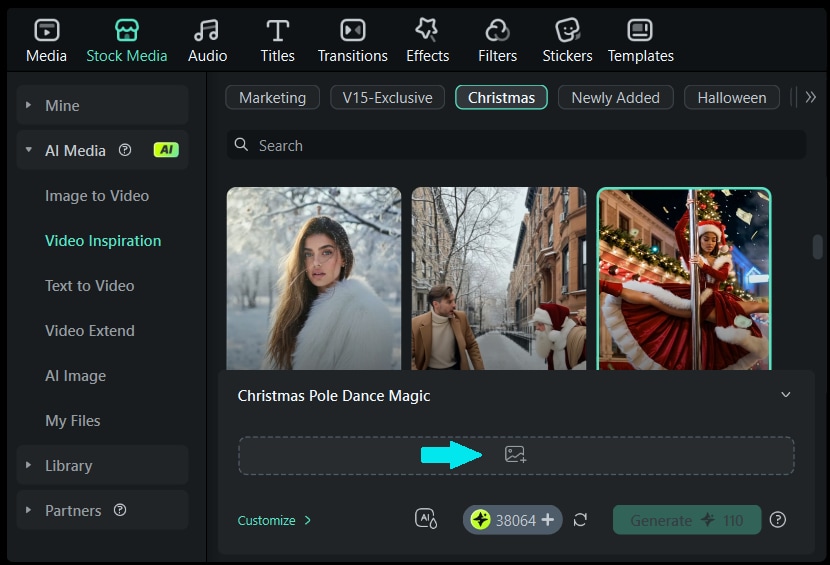
Filmora will process the image and automatically create the animated clip, where you are wearing a Santa hat and costume!
Part 5. How to Add a Santa Hat to a Photo Using Filmora Mobile
Filmora is not only available on desktop. You can also use the Filmora mobile app to add Santa hats to your photos or videos directly from your phone. You can also use it to add Christmas stickers, adjust them with simple drag-and-drop controls, or use AI Image-to-Video templates to turn your photos into an animated Santa video.
All these features are optimized for quick editing and instant sharing.

How to Add a Santa Hat on Your Phone
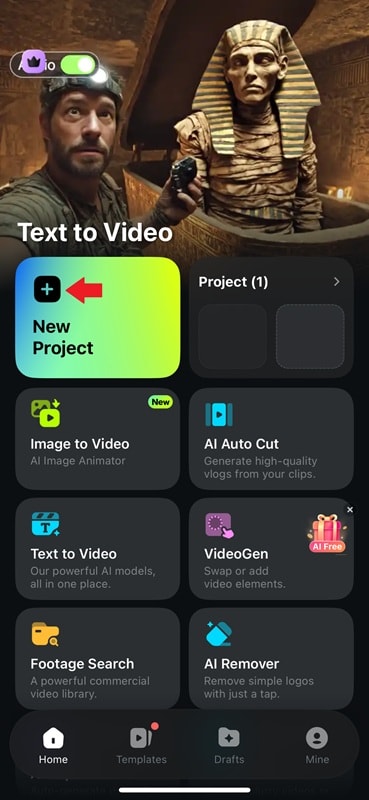
Step 1. Open Filmora Mobile
Launch the app on your phone and start a new project.
 secure download
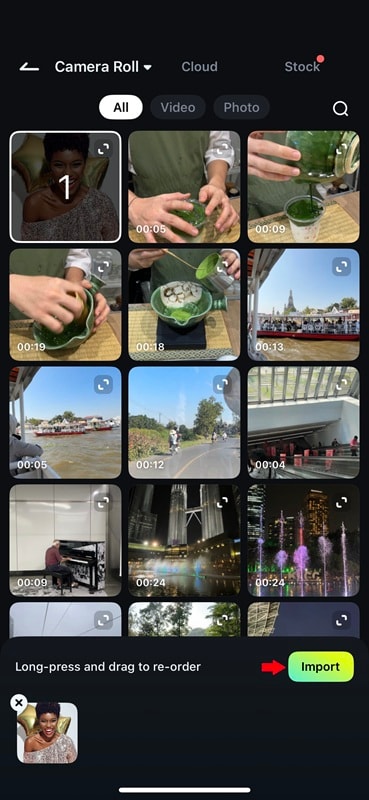
Step 2. Import Your Photo or Video
Tap Import and select the image or clip where you want to add the Santa hat.
Step 3. Go to the Stickers tab
At the bottom toolbar, choose Stickers. Browse or search for Christmas or Santa hat stickers.
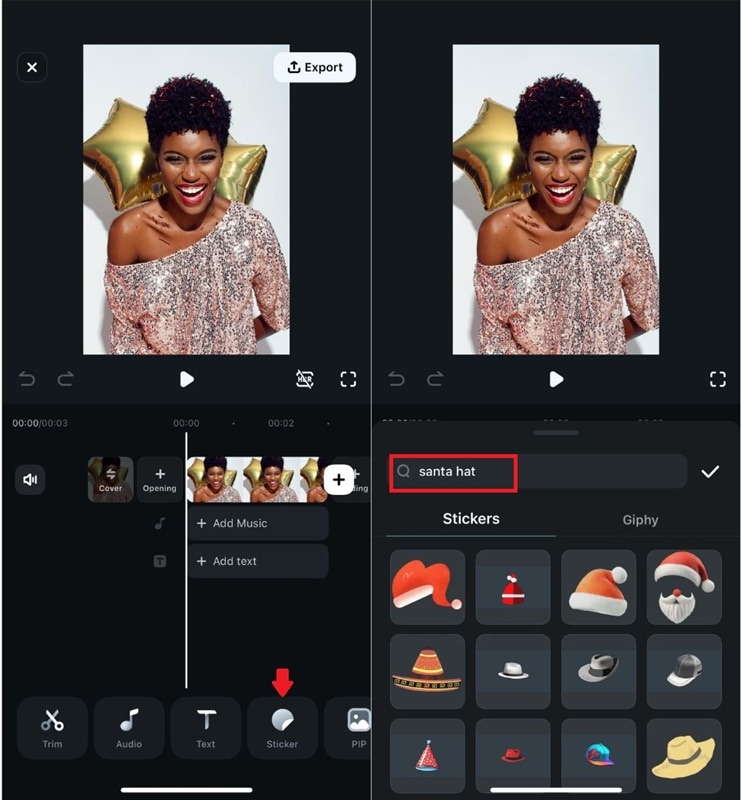
Step 4. Select a Santa Hat Sticker
Tap on a Santa hat sticker to add it to your photo. It will appear on the canvas immediately.
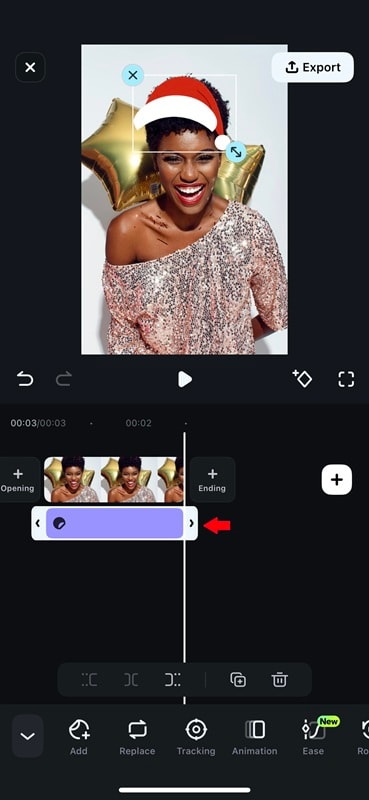
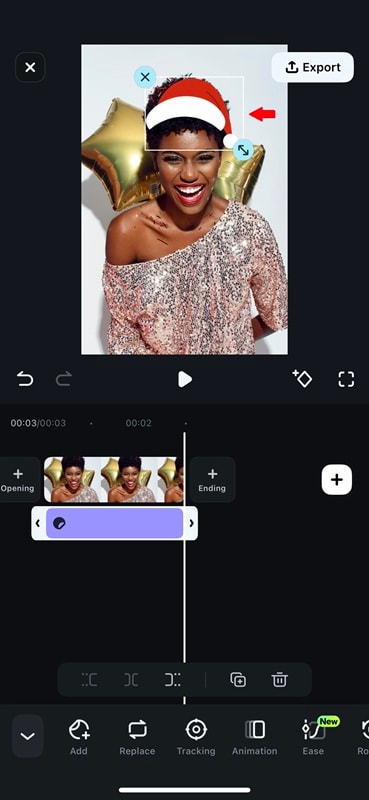
Step 5. Adjust Size and Position
Use simple pinch-and-drag movements to resize, rotate, and position the hat naturally on the head.
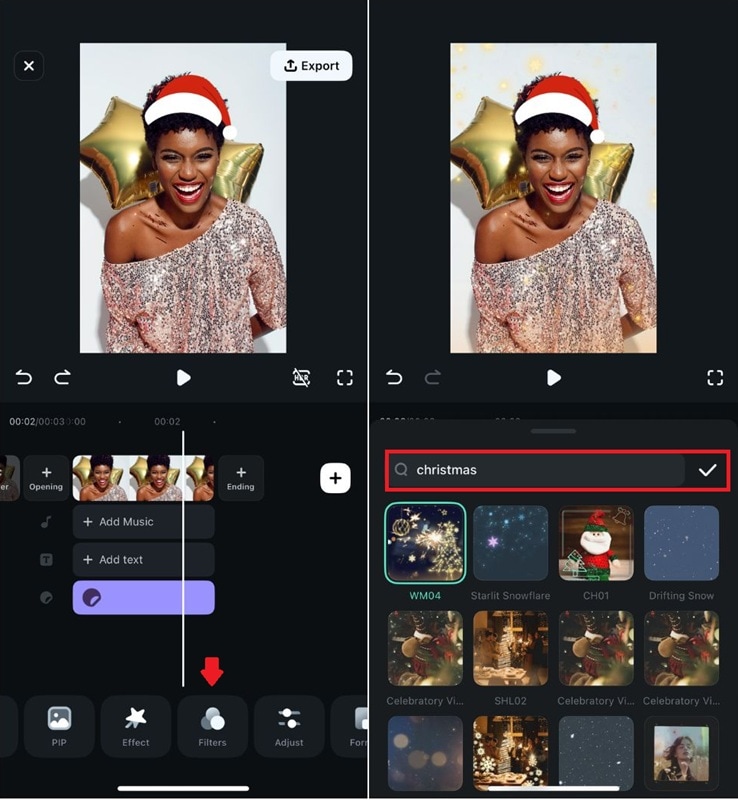
Step 6. Add Effects or Filters (Optional)
Filmora Mobile also offers festive effects, Christmas filters, and text styles you can apply to create a more complete holiday look.
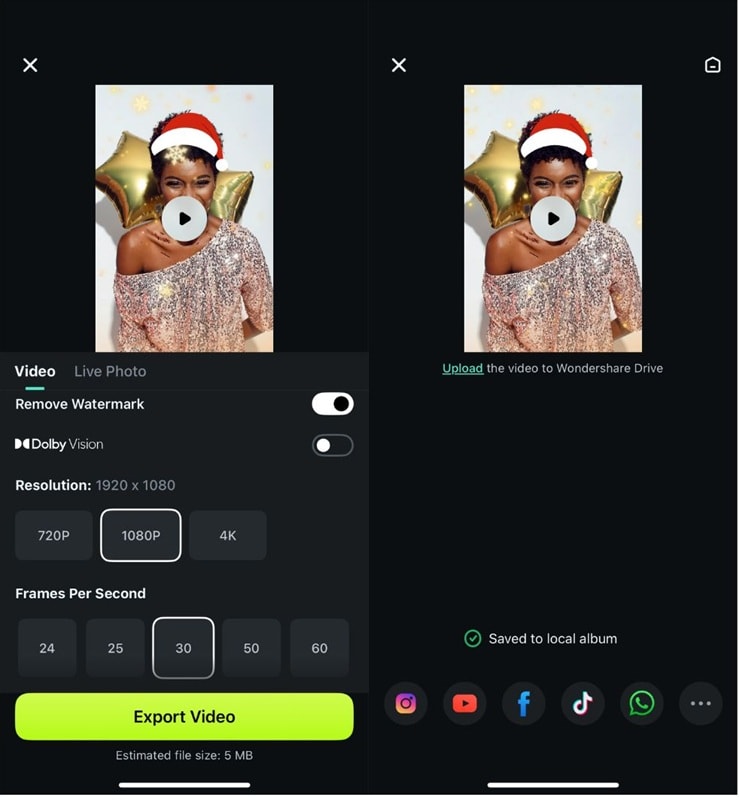
Step 7. Export and Share
Tap Export, then select the format and instantly share your Santa hat photo to Instagram, TikTok, WhatsApp, or wherever you like.
Part 6. Editing Tricks to Make the Santa Hat Look More Realistic
Once you've added a Santa hat to your photo or video, you can make a few small adjustments that can make a big difference to how natural the hat looks. Filmora offers several tools to refine the position, lighting, and movement so it blends seamlessly with your content.
Below are some simple tricks to make your Santa hat look more realistic:
Use motion tracking for videos
If your subject is moving, use Motion Tracking after inserting a Santa hat sticker to keep it attached and moving naturally with them. But if you’re already using the AR effect or Filmora’s Image-to-Video template, you don’t need to track anything. The hat already follows the face automatically.
Adjust the lighting and color tone
Use Filmora's basic color tools to adjust the brightness and color temperature. Adjusting the hat's lighting to match the environment helps the hat blend into the scene. You can also apply filters for a quick adjustment.
Add a subtle shadow
Adding a light shadow under the hat helps create the illusion of the hat resting directly on the head. This small detail can enhance the realism!
Conclusion
The festive Christmas season and holiday vibes are just around the corner. Adding a Santa hat to photos is a simple way to bring holiday cheer to your content, and Filmora offers plenty of creative options to make it even more fun.
When you want to add stickers, use automatic AR effects, or turn your photos into complete Santa animations, you can do it all quickly on your desktop or mobile device. With Christmas templates, AI tools, and easy-to-use editing controls, Filmora helps you create polished holiday photos and videos ready to share.
So, what are you waiting for? Editing with Filmora will make your holiday posts stand out!
