

 100% Security Verified | No Subscription Required | No Malware


 ChatGPT
 Perplexity
 Gemini
 Claude
 Grok
Grok
These Facebook video LUT-style filters are designed for content creators who want a clean, bright, and scroll-stopping look without heavy color grading work.
Use this collection to quickly give your Facebook videos a crisp, modern polish that matches brand-safe feeds, lifestyle vlogs, product clips, and talking-head content.
In this article
Clean Daylight Stories and Feeds
Soft Daylight Wash
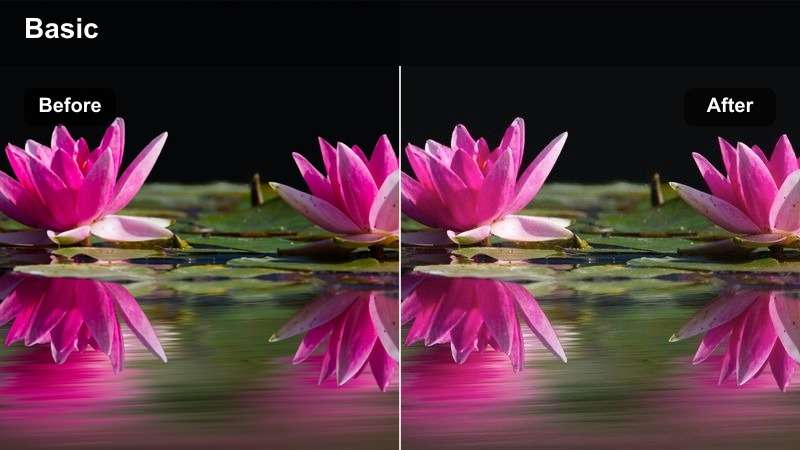
- Effect look: Neutral, bright wash with gentle contrast for clean feeds.
- Best for: Daytime lifestyle clips, vlogs, and behind-the-scenes Facebook Stories.
- Editing tip: Lower saturation slightly if skin tones feel too warm in strong sunlight.
Soft Daylight Wash gives your Facebook footage a clean, bright base that keeps colors natural instead of overly stylized. Whites stay crisp, shadows are gently lifted, and contrast is soft enough that faces look flattering even when you shoot quickly on a phone.
In Filmora, drop this filter on clips shot outdoors or near windows when you want your Stories, Reels, or feed posts to feel light and true-to-life. Adjust saturation and white balance after the filter is applied to fine-tune skin tones from one scene to the next without losing the overall neutral, polished look.
Crisp Feed Neutral
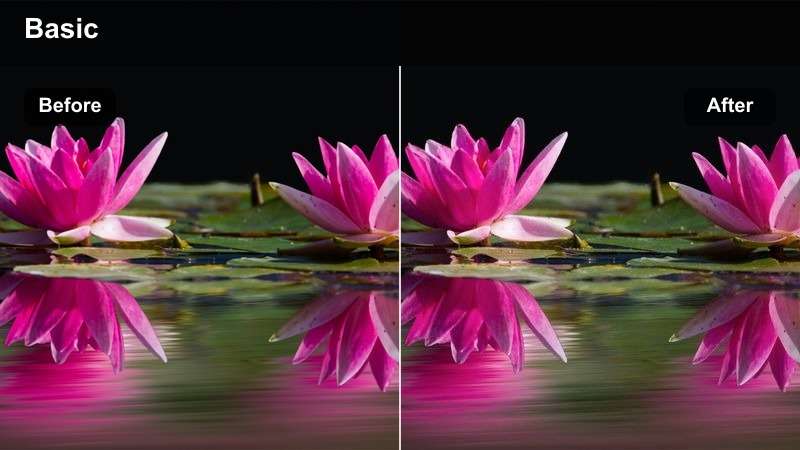
- Effect look: Clean, neutral grade with boosted clarity and subtle sharpness.
- Best for: Product demos and talking-head explainers designed for the Facebook feed.
- Editing tip: Pair with a slight vignette to center attention on your face or product in busy backgrounds.
Crisp Feed Neutral is designed to make your Facebook videos look clear and professional without drawing attention to the grade itself. It boosts midtone clarity and adds just enough sharpness so product edges, text overlays, and facial features stay clean on mobile screens.
Use this filter in Filmora on horizontal and vertical content where information needs to be easy to read, such as tutorials or reviews. Combine it with a subtle vignette and gentle noise reduction to keep viewers focused on your subject, and slightly reduce in-camera sharpening if you shoot on a phone to prevent halos or crunchy details.
Lock in a Clean Look with AI-Powered Color Matching
Filmoras AI color tools help you quickly bring all your shots into the same exposure and color range before you layer on clean-look filters. This gives you a stronger starting point so your Facebook content looks balanced from clip to clip.
Run AI white balance and brightness correction on a few test clips, then apply your preferred clean-look filter to see how it behaves on properly normalized footage. This workflow keeps your adjustments smaller and more precise.
 secure download

Preview Clean Facebook Filters in Real Time
Filmora lets you hover over effects in the Filters panel to see how each one will change your clip before you apply it. This makes it easy to compare multiple clean-look styles on the same talking-head or b-roll shot.
Try stacking one filter with light color and exposure tweaks, then toggle the effect on and off to judge whether it matches your Facebook brand style and works across different scenes.
secure download1000+ Video Filters and 3D LUTs
Beyond clean-look Facebook grades, Filmora includes a large library of filters and 3D LUTs for cinematic, vintage, and stylized moods. You can mix these with basic corrections to build your own signature look.
After you find a combination that works, save it as a custom preset so every new Facebook video can match the same polished aesthetic with a single click.
secure downloadMinimal Daytime Brand
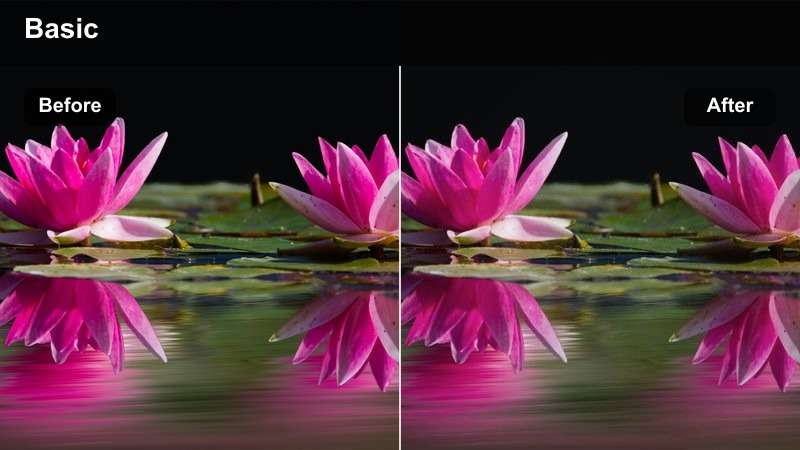
- Effect look: Softly desaturated whites with a clean, branded lifestyle vibe.
- Best for: Light, airy brand reels, minimal desk shots, and workspace tours on Facebook.
- Editing tip: Keep your background simple; this filter works best with neutral walls and tidy workspaces.
Minimal Daytime Brand leans into a bright, airy aesthetic that works well for creators who favor neutral palettes and clean compositions. It gently desaturates and softens harsh colors, so white desks, light walls, and simple props feel cohesive on screen.
In Filmora, apply this filter to all your desk b-roll, typing shots, and flat-lay scenes to create a consistent brand mood. Add subtle exposure tweaks and a small amount of blur on background overlays so your subject, hands, or products remain the visual focus in every Facebook upload.
Clean Indoor Talking-Head Videos
Studio Soft Clean
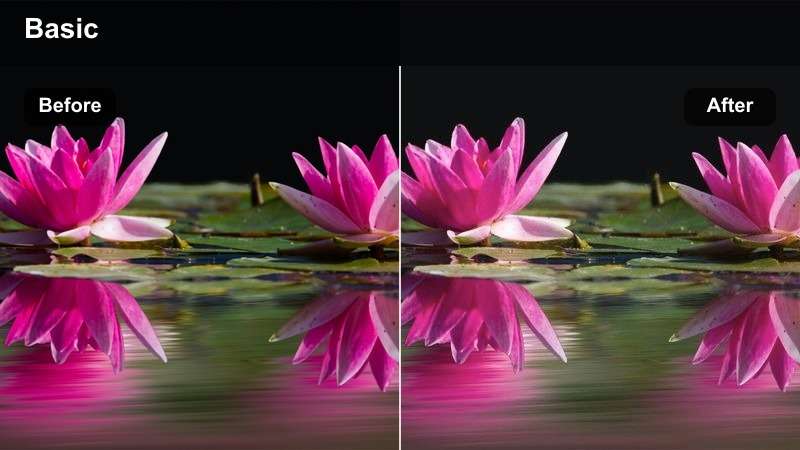
- Effect look: Balanced contrast with gentle highlights and flattering skin tones.
- Best for: Coaching content, webinars, and long-form Facebook Lives edited down for feed.
- Editing tip: Push shadows up slightly for softer, more flattering facial details under harsh LEDs.
Studio Soft Clean is tuned to give indoor talking-head clips a soft, broadcast-ready polish. It smooths bright highlights, slightly lifts shadows, and keeps skin tones in a flattering, natural range so your face stays inviting on camera.
When editing in Filmora, add this filter to your recorded Lives, workshops, and Q and A sessions before cutting them into short clips. Combine it with light skin-tone adjustments in the color panel and a gentle background blur to transform raw studio recordings into content that feels intentionally produced for the Facebook feed.
Office Clear Tone
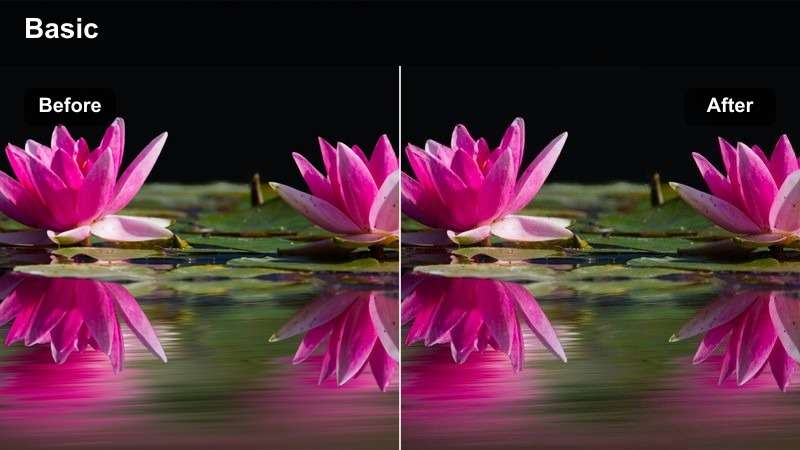
- Effect look: Cool, clean office tone that reduces mixed indoor color casts.
- Best for: Corporate announcements, team updates, and screen-share intros for Facebook.
- Editing tip: Use white walls or screens in the frame as your reference to fine-tune white balance after applying the filter.
Office Clear Tone is built to clean up the strange mixes of fluorescent, window, and monitor light you get in modern office spaces. It cools down overly warm casts while keeping skin tones believable, and it helps neutral surfaces like walls and desks look consistent between shots.
In Filmora, apply this filter to your office updates, presentations, and internal comms videos aimed at Facebook audiences. Use the white balance eyedropper on a wall or slide background after the filter is active to lock in a reference tone, then adjust contrast to keep suits, laptops, and text-heavy slides crisp but not harsh.
Cozy Room Neutral
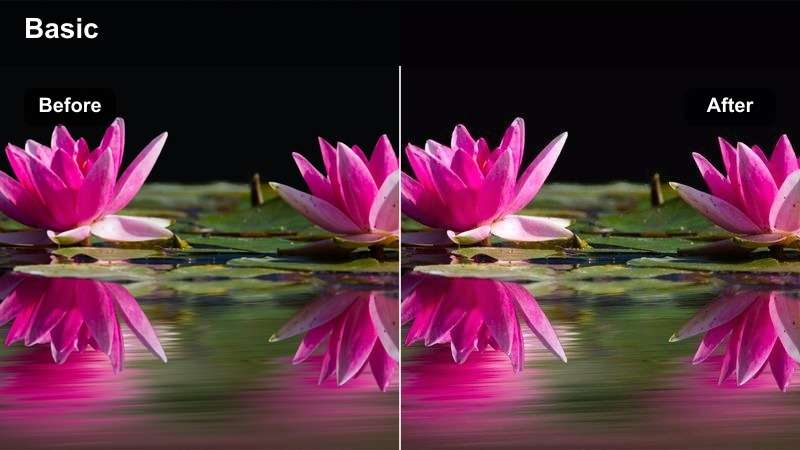
- Effect look: Warm-neutral indoor grade with clean shadows and soft highlights.
- Best for: Bedroom vlogs, casual Q and A videos, and personal updates on Facebook.
- Editing tip: Reduce orange saturation if warm lamps dominate the scene to keep the clean look intact.
Cozy Room Neutral keeps your evening or bedroom vlogs feeling warm and inviting while still looking tidy on the feed. It cleans up muddy shadows and tames blown-out lamps so blankets, curtains, and decor hold detail without going overly yellow.
Use this filter in Filmora when you record from beds, couches, or small rooms using practical lamps instead of full studio lights. After applying it, fine-tune orange and yellow saturation and gently lift shadows so your background still looks cozy but your face remains the clearest, most readable element in every Facebook clip.
Urban B-Roll for Clean Facebook Reels
Urban Clear Lines
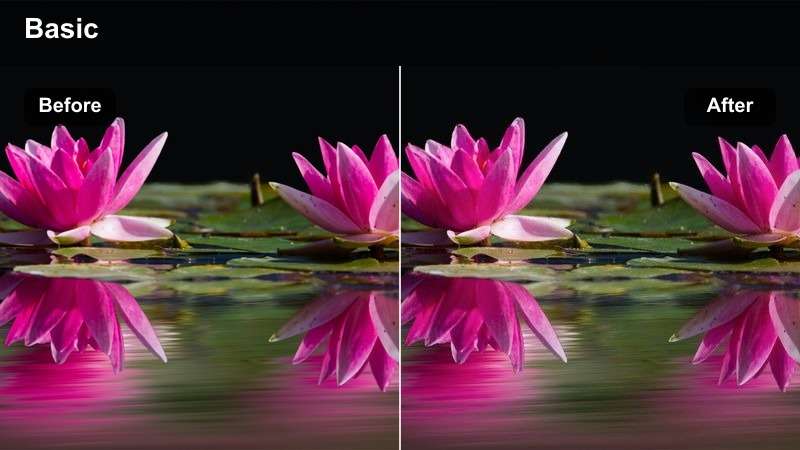
- Effect look: Crisp edges, neutral colors, and slightly lifted shadows for city shots.
- Best for: Street b-roll, commute clips, and city transitions in Facebook reels.
- Editing tip: Use slow motion and stable camera moves to let the clean lines and details stand out.
Urban Clear Lines is made for sharp, detail-rich footage of streets, buildings, and traffic. It keeps colors neutral and raises shadows just enough that sidewalks, crosswalks, and glass reflections feel clear without turning gray or washed out.
In Filmora, add this filter to your transitional b-roll between talking-head sections or product segments in Facebook Reels. Combine it with stabilization, slight slow motion, and rhythmic cuts so every city snippet feels like a deliberate, clean visual break that refreshes viewers without distracting from your main message.
Rooftop Fresh Tone
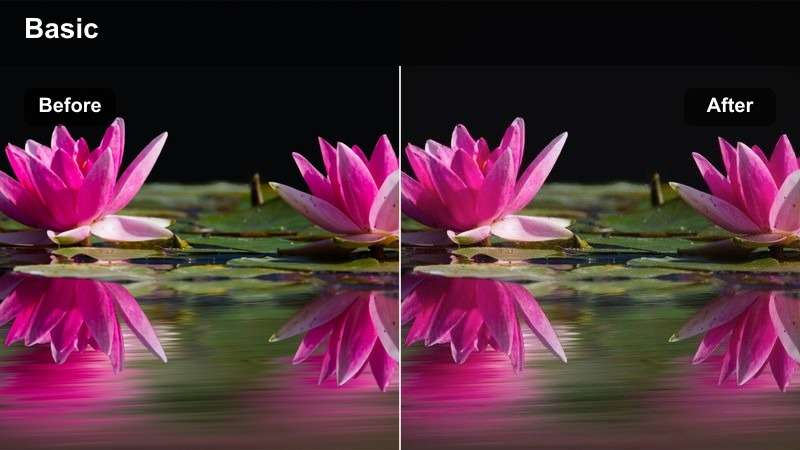
- Effect look: Fresh, airy city rooftop look with softened blues and clear midtones.
- Best for: Lifestyle shots, fitness clips, and creator intros filmed on rooftops or balconies.
- Editing tip: Keep sky exposure slightly lower than your subject to avoid losing detail in bright clouds.
Rooftop Fresh Tone enhances outdoor balcony and rooftop scenes with clean midtones and softened blues, so skies look bright but not overly saturated. It is ideal for intros, outros, or hero shots where the skyline acts as a backdrop to your main subject.
In Filmora, apply this filter to wide shots and medium frames on terraces or balconies, then refine exposure with the scopes so your subject stays brighter than the sky. Add simple text or animated titles in the negative space above railings or along the horizon to turn these clean, airy shots into on-brand openers for Facebook videos.
Commuter Clean Motion
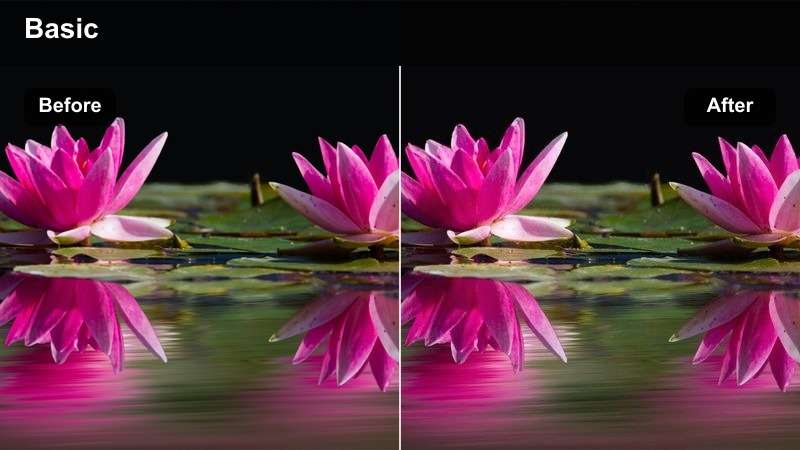
- Effect look: Subtle contrast with motion-friendly clarity and reduced color noise.
- Best for: On-the-go phone clips in trains, buses, and sidewalks posted to Facebook Stories and Reels.
- Editing tip: Stabilize shaky shots first, then apply the filter so the clean look does not emphasize motion blur.
Commuter Clean Motion is built to rescue handheld, fast-moving clips shot during daily travel. It smooths out color noise in darker areas, keeps contrast gentle, and adds clarity so windows, passing buildings, and interiors remain readable even with motion blur.
Use this filter in Filmora for quick montages of commuting, walking, or moving through a city in your Facebook Stories and Reels. Stabilize the footage first, then apply the filter and lightly adjust contrast and saturation so the final sequence feels intentional and cinematic instead of shaky and noisy.
Clean Evening and Low-Light Facebook Videos
Evening Noise Cleanup
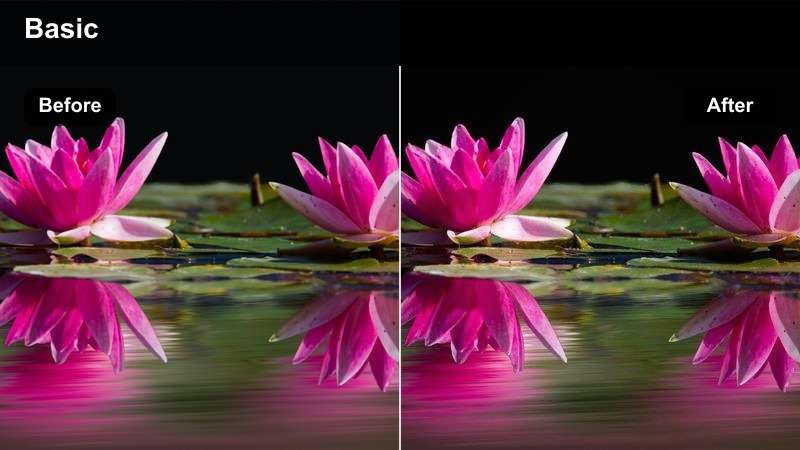
- Effect look: Softened grain, lifted shadows, and smoothed low-light colors.
- Best for: Night walks, city lights, and casual evening updates filmed on phones for Facebook.
- Editing tip: Avoid over-brightening; let some darkness remain so the clean look does not turn gray and flat.
Evening Noise Cleanup targets the grain and color blotches that appear in phone footage shot after dark. It gently lifts shadows so faces and backgrounds are visible, while smoothing noise so neon signs, streetlights, and shop windows do not break into distracting speckles.
When editing in Filmora, apply this filter to night walks and low-light updates, then fine-tune exposure and contrast without trying to make the scene look like daytime. Keep blacks slightly rich and let highlights from lights stay bright so your Facebook videos keep a clean but authentic evening atmosphere.
Desk Lamp Clarity
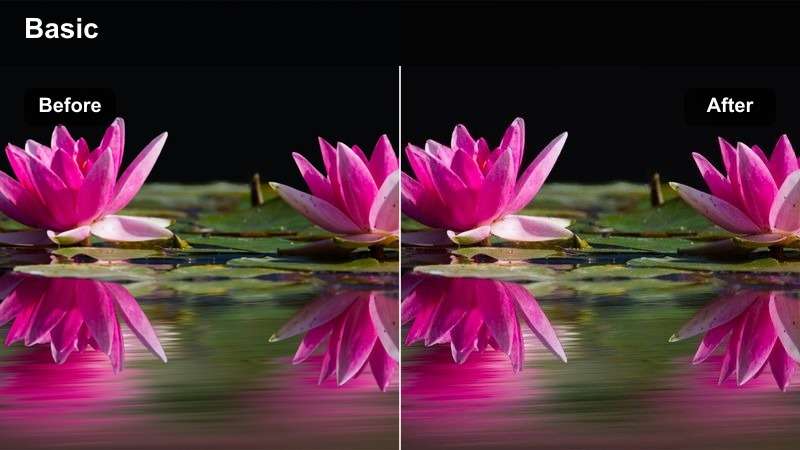
- Effect look: Warm desk-light feel with cleaned-up shadows and clear midtones.
- Best for: Late-night editing sessions, coding videos, or study-with-me content for Facebook.
- Editing tip: Drop the saturation of deep yellows slightly if the lamp color overpowers your skin tone.
Desk Lamp Clarity is tuned for scenes where a single lamp or monitor provides most of the light. It preserves the cozy warmth while tightening up midtone clarity so keyboards, notebooks, and screens are easy to see without crushing surrounding shadows.
In Filmora, use this filter on late-night productivity clips, POV desk shots, or study-with-me sessions aimed at Facebook viewers. After applying it, pull back strong yellows and slightly lower highlights to keep skin tones natural and on-screen text readable, then consider adding a subtle vignette to keep attention centered on your workspace.
Evening Lounge Neutral
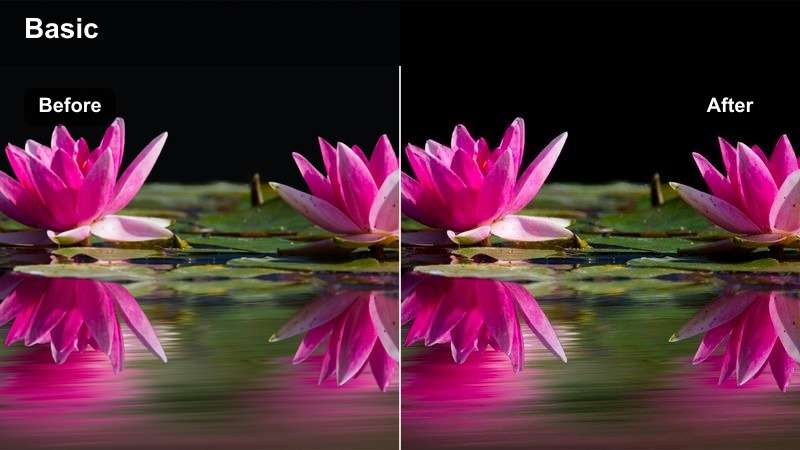
- Effect look: Neutralized warm casts with gentle contrast for living-room scenes.
- Best for: Casual couch talks, watch-party recaps, and relaxed Q and A sessions on Facebook.
- Editing tip: Keep background lamps dimmer than your main light so the clean look stays focused on your face.
Evening Lounge Neutral dials back overly warm, orange-heavy living-room lighting while keeping the atmosphere soft and relaxed. It provides gentle contrast that keeps your face separated from the background without making the scene feel overly lit or staged.
Apply this filter in Filmora to couch chats, reaction videos, or end-of-day reflections recorded in your lounge. Adjust white balance and contrast after the filter so your skin looks natural, then slightly dim or blur background elements if needed to ensure your Facebook audience stays locked on your expression and captions.
Tips for Using Facebook Video Luts Clean Look Filters in Filmora
- Shoot in the brightest space you can and keep your background simple so clean-look filters work at their best.
- Apply your Facebook video LUT-style filter before adding heavy text or graphics, then fine-tune contrast so overlays stay readable.
- Create one clean-look preset for daylight and one for low light, and stick to them for a more consistent Facebook grid.
- Always check your video on a phone screen, since most Facebook viewers will watch your clean-look content on mobile.
- Balance skin tones first; if faces look natural, the rest of your clean Facebook grade is usually close enough.
These Facebook video LUT-style filters give content creators an easy way to keep their feed, Stories, and Reels looking clean, modern, and consistent.
Pick two or three favorites that match your usual shooting conditions, save them as presets in Filmora, and build a recognizable clean look across all your Facebook content.
secure download