

 100% Security Verified | No Subscription Required | No Malware


 ChatGPT
 Perplexity
 Gemini
 Claude
 Grok
Grok
These free LUT-style filters for city video give creators and editors an easy way to turn flat urban footage into polished, cinematic scenes in just a few clicks.
Whether you shoot busy streets, neon nights, rainy alleys, or golden-hour skylines, these Filmora filters are tuned specifically for city video so you can keep editing fast and consistent.
In this article
Golden Hour and Dusk City Streets
Sunset Soft Glow
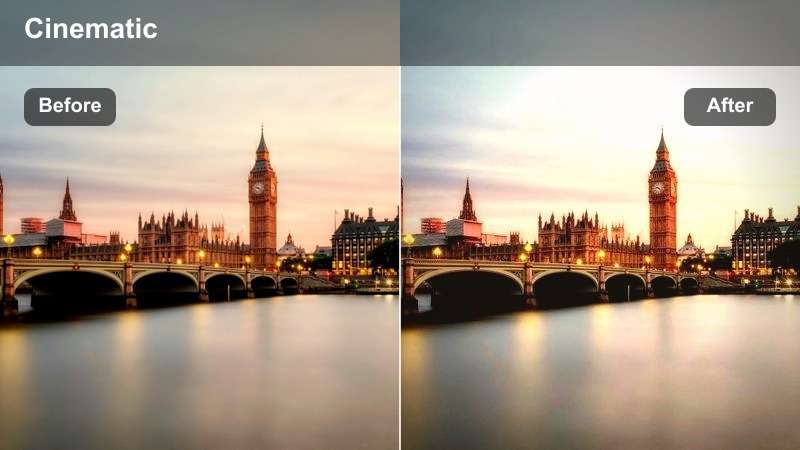
- Effect look: Warm, hazy highlight boost that wraps city streets in a soft sunset glow.
- Best for: Handheld walk-throughs of downtown at golden hour, skylines with warm sun, and rooftop b-roll.
- Editing tip: Reduce filter intensity to 60-75 percent for skin tones, and pair with a gentle vignette to keep focus on the subject.
Sunset Soft Glow is ideal when your city footage has a nice sunset in camera but still looks a little flat on the timeline. In Filmora, this filter adds warm halos around bright areas and softens harsh edges, so buildings, clouds, and street highlights blend into a cohesive golden-hour look without complex color grading.
Apply it as a finishing touch after basic exposure and contrast corrections, then dial back the intensity slider until skin tones look believable. For walk-and-talk scenes, add a light vignette and a touch of sharpening on your subject so they stay crisp while the rest of the frame melts into a cinematic, LUT-style glow.
Speed Up City Color Grading with AI Tools
Filmoras AI-powered color tools can quickly balance exposure and white balance in your city footage before you add any of these LUT-style filters. Using AI auto color gives you a clean, neutral starting point, which helps every creative filter behave more predictably.
Once the base is corrected, layer Sunset Soft Glow or any other city filter to create consistent looks across clips from different cameras and locations.
 secure download

Preview Filters on Real City Clips
Before you commit to a look, preview these city filters on short clips of your skyline, street vlogs, and night drives. Filmoras split-screen and before-and-after views let you compare the filtered and original versions side by side so you can see how much contrast and color you really need.
By quickly cycling through presets, you can match each scene to the right mood, from warm sunsets to moody neon nights, without spending time on manual grading curves.
secure download1000+ Video Filters and 3D LUTs
Beyond these free LUT-style options, Filmora includes a large library of filters and 3D LUTs that cover everything from subtle color tweaks to bold cinematic looks. You can combine them with the presets in this guide to build your own signature city style.
When you find a combination that works, save it as a custom preset so you can apply the same grade to future projects in a single click.
Filmora can also export compatible color adjustments from a selected clip as a standard .cube LUT when the same city color base is needed in future projects or in DaVinci Resolve, Adobe Premiere Pro, and Final Cut Pro.
secure downloadAmber City Film
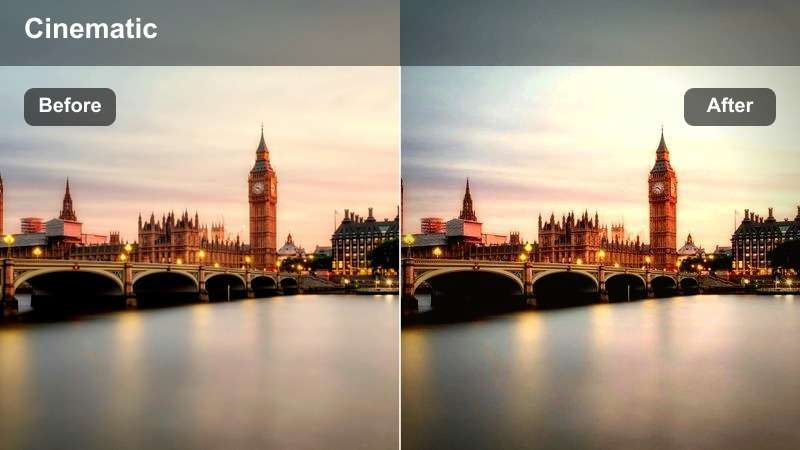
- Effect look: Soft film-style amber toning with gentle contrast and subtle grain feel.
- Best for: Urban lifestyle b-roll, cinematic B-roll of sidewalks, and storyteller vlogs shot at late afternoon.
- Editing tip: Combine with a slight fade in the shadows and a 24 fps motion blur for a classic filmic city montage.
Amber City Film leans into warm, analog-inspired tones that make everyday sidewalks and traffic feel like scenes from a nostalgic movie. In Filmora, this filter lightly softens contrast while shifting the overall color temperature into a pleasant amber that flatters skin and evening light.
Use it on sequences of b-roll that bridge between talking-head moments in your vlog or documentary. Add a small amount of fade in the Color section and enable motion blur on 24 fps footage to reinforce the filmic feeling, then keep all clips with this filter grouped together so the look stays cohesive.
Soft Haze Boulevard
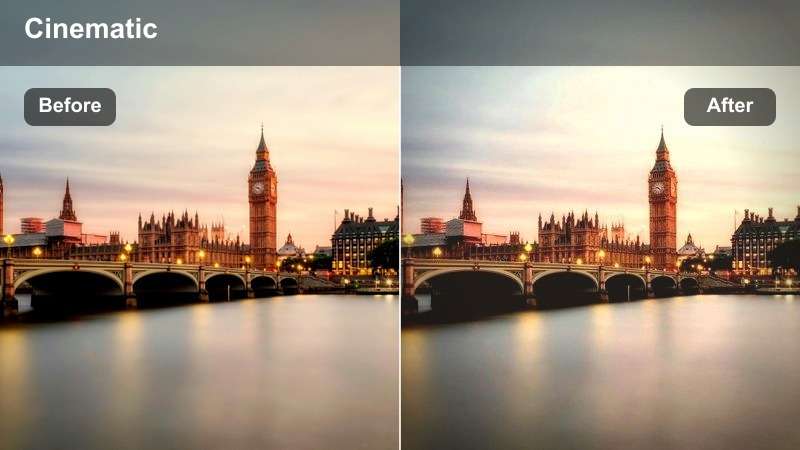
- Effect look: Low-contrast, dreamy haze with lifted blacks and pastel highlights over city scenes.
- Best for: Slow-motion shots of wide boulevards, cyclists, and light traffic at early evening.
- Editing tip: Use on clips with strong backlight and keep saturation slightly lower to prevent colors from looking cartoonish.
Soft Haze Boulevard is perfect for turning everyday commutes into dreamy, cinematic interludes. It lifts the blacks for a matte finish and introduces gentle haze into the highlights, so backlit cars, cyclists, and buildings take on a pastel, almost romantic city glow.
Apply this filter in Filmora to slow-motion or 60 fps shots you have conformed to 24 fps for smooth movement. Reduce global saturation a touch in the Color panel to keep the pastel palette under control, and consider masking sharper foreground elements if you want the soft look to focus mainly on the skyline and horizon.
Neon Nights and Downtown Skylines
Neon Noir
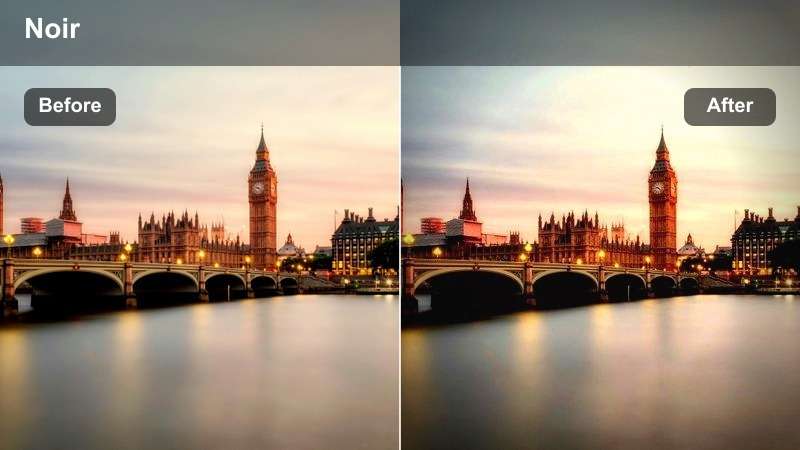
- Effect look: High-contrast, cool-toned city night filter with punchy neon signs and deep blacks.
- Best for: Night street video with neon storefronts, rainy sidewalks, and moody cyberpunk-style shots.
- Editing tip: Lower saturation on skin tones while keeping blues and magentas strong so people still look natural in neon-heavy frames.
Neon Noir gives your night city footage a dramatic, cyberpunk-inspired look by deepening blacks and emphasizing cool neon colors. Blues, magentas, and cyans become more vivid, while the overall image gains strong contrast that makes reflections on wet streets really stand out.
In Filmora, apply this filter to footage shot slightly underexposed to protect bright signage. If faces start to look unnatural, use color correction or skin-tone controls to selectively reduce saturation on oranges while leaving neon colors untouched, keeping your subjects believable in a stylized world.
City Cyber Glow
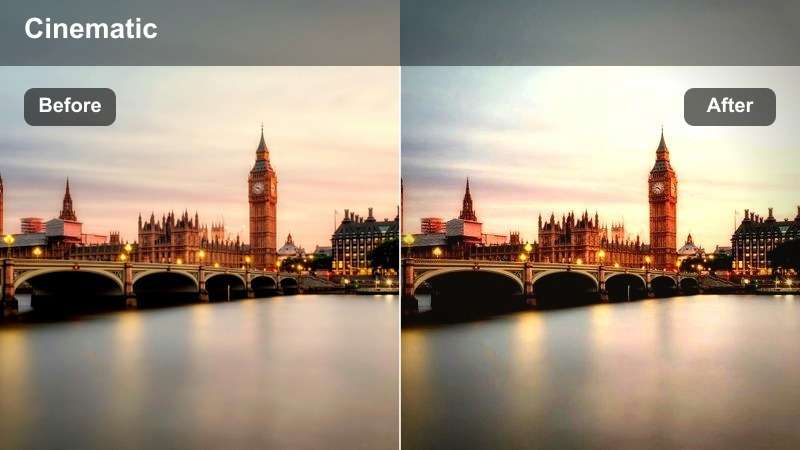
- Effect look: Cool teal and magenta glow that exaggerates colored lights and reflections across the city.
- Best for: Drone or handheld shots of skyscrapers, LED billboards, and modern glass buildings at night.
- Editing tip: Push the filter more on wide establishing shots and tone it down on close-ups to avoid color cast on faces.
City Cyber Glow leans into a strong teal-and-magenta palette that works especially well for glass towers, LED screens, and futuristic architecture. The filter boosts saturation in those color ranges and adds a mild glow, turning simple skyline clips into sci-fi style title shots.
Use it in Filmora on wide drone passes or gimbal sweeps where people are small in frame, then lower the intensity on close-ups so the color cast does not overwhelm skin tones. Pair with clean, minimal motion titles placed against darker building areas for legible, modern-looking openers and chapter cards.
Midnight Skyline Contrast
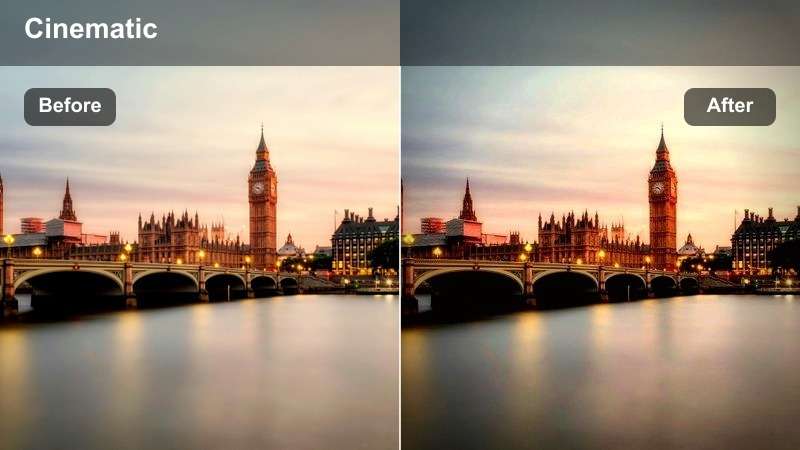
- Effect look: Rich contrast city-night filter with crisp lights, deep blues, and controlled noise feel.
- Best for: Static tripod shots of city skylines, bridges, and light trails from cars at night.
- Editing tip: Apply slight noise reduction before this filter to keep the contrasty look from exaggerating sensor grain.
Midnight Skyline Contrast is built to make static night views of the city look sharp and cinematic. It deepens blue tones in the sky and water, increases contrast around building edges, and intensifies the glow of windows and streetlights, while keeping noise from becoming too distracting.
Before adding this filter in Filmora, run a light noise reduction on your clips so the increased contrast does not amplify grain. Use it on locked-off shots of bridges, rivers, and long-exposure traffic trails as your main establishing visuals, and consider adding a subtle zoom animation to give static frames a bit of motion.
Rainy Streets and Moody Urban Scenes
Urban Rain Cinematic
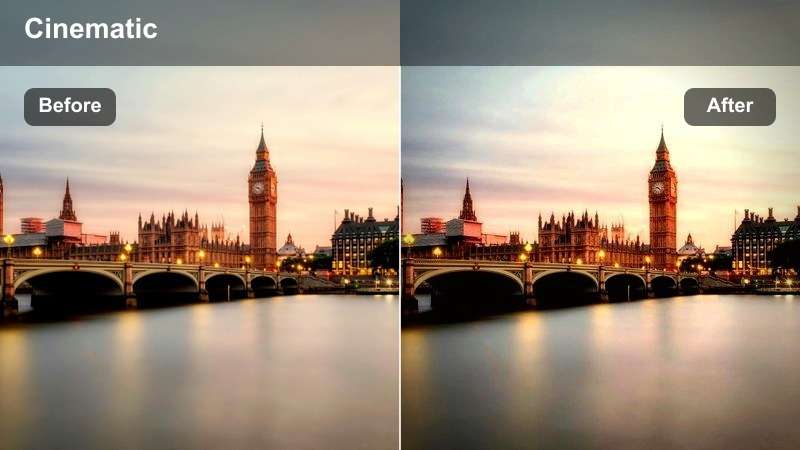
- Effect look: Desaturated, cool cinematic filter with extra clarity on reflections and wet surfaces.
- Best for: Slow-motion raindrops on windows, puddle reflections of buildings, and moody crosswalk shots.
- Editing tip: Shoot at a slightly higher shutter speed for raindrop detail, then use this filter to make puddle highlights pop.
Urban Rain Cinematic cools down your color palette and slightly desaturates it, giving rain-soaked streets a moody, reflective tone. It increases clarity in wet surfaces, so puddles, windows, and umbrellas catch and reflect light more dramatically, making them natural focal points in the frame.
In Filmora, drop this filter on clips where you have visible raindrops, mist, or shiny pavement, then tweak exposure so highlights in puddles remain bright but not blown out. Combine it with slow-motion shots and close-ups of reflections to build atmospheric sequences without relying on a lot of locations or props.
Industrial Gray Matte
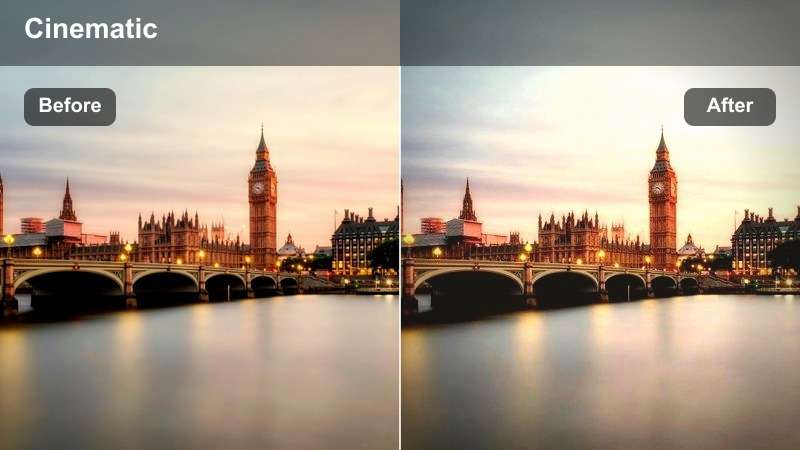
- Effect look: Muted, low-saturation gray filter with matte blacks that flattens bright colors for gritty realism.
- Best for: Underpasses, parking garages, train platforms, and industrial blocks on overcast days.
- Editing tip: Pair with subtle film grain and handheld footage to sell a documentary-style city atmosphere.
Industrial Gray Matte is designed for gritty, realistic storytelling in hard-edged urban spaces. It pulls down saturation across the board and lifts the blacks for a matte finish, removing flashy colors so textures in concrete, metal, and asphalt become the main visual interest.
Use this filter in Filmora on footage from underpasses, rail yards, loading docks, and other utilitarian locations. To keep characters from looking too dull, you can add a secondary color adjustment on faces to warm them selectively, while leaving the environment flat and desaturated so your subject stands out naturally.
Stormy Alley Teal
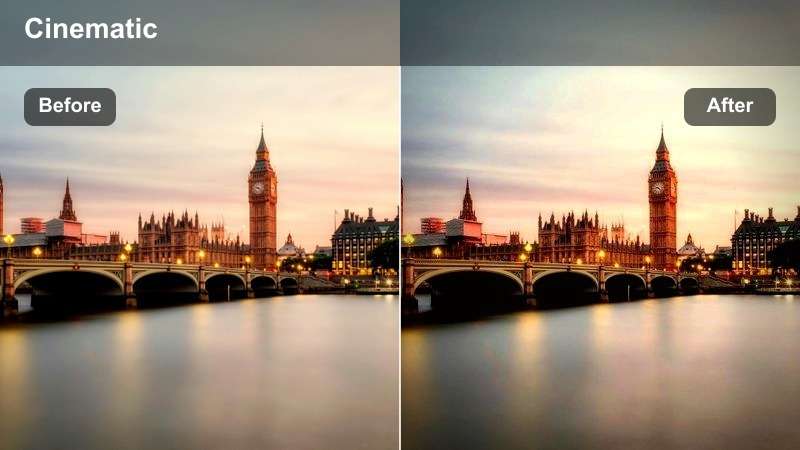
- Effect look: Cool teal shadows with slightly lifted blacks and strong detail in wet brick and concrete.
- Best for: Narrow alleys, wet stairways, and side streets shot before or after a storm.
- Editing tip: Let deep teal sit in the shadows while you protect whites so signs and street lamps stay neutral.
Stormy Alley Teal pushes your shadow tones toward teal, creating a tense, cinematic atmosphere ideal for narrow streets and damp back alleys. It enhances texture in wet bricks and concrete, while slightly lifting blacks so shadow detail is preserved even in darker areas of the frame.
In Filmora, apply this filter to sequences that use strong leading lines, like stairways or alleyways drawing toward a bright exit. Keep an eye on your highlights; you can gently pull down whites in the Color controls to keep street lamps and signs from picking up too much teal, maintaining a clean contrast between cool shadows and neutral light sources.
Daytime City Life and Street Vlogs
Clean City Vlog
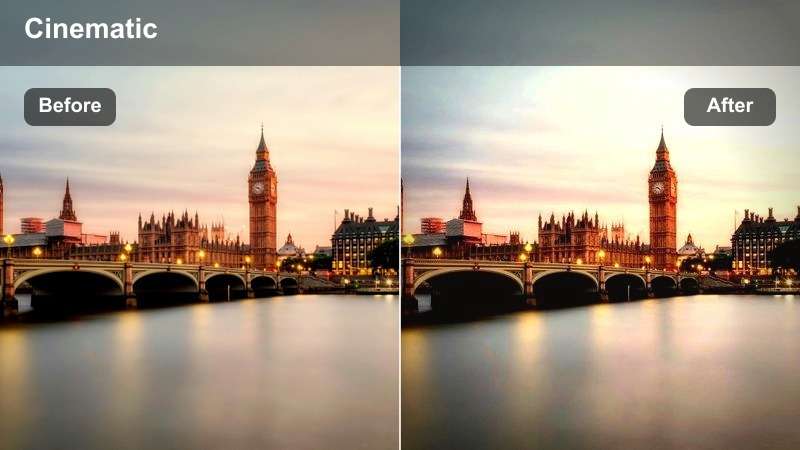
- Effect look: Bright, neutral filter with slight contrast and color pop that keeps skin tones natural.
- Best for: Talking-head vlogs on sidewalks, cafe exteriors, and tourist walkthroughs in daylight.
- Editing tip: Enable auto white balance in-camera but fine-tune temperature in Filmora before applying this filter.
Clean City Vlog is a balanced daytime look that keeps colors true-to-life while adding just enough contrast and saturation to feel polished. It is especially good for creators who record a lot of talking-head segments in busy streets, since it protects skin tones and avoids heavy color casts.
Set your exposure and white balance first in Filmoras Color panel, then apply this filter across the entire vlog timeline for a consistent base look. You can still layer other stronger filters on b-roll sections, but keeping Clean City Vlog on all A-roll clips makes your channel feel professional and cohesive from episode to episode.
Urban Pop Streets
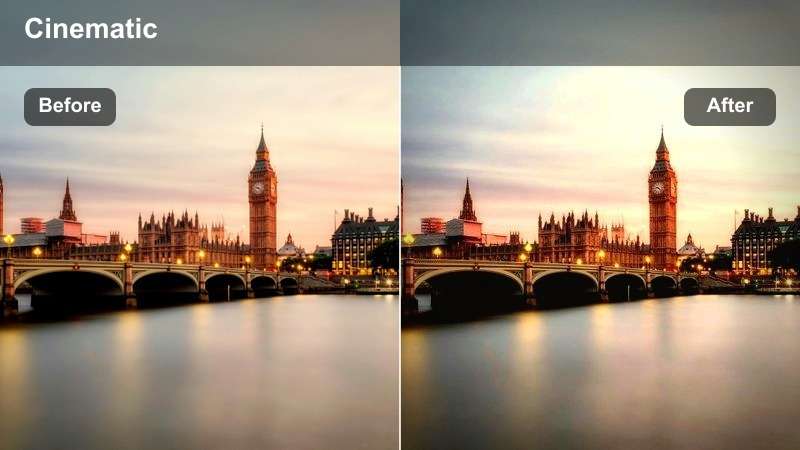
- Effect look: Vibrant, high-saturation filter with extra punch on reds, yellows, and shop signs.
- Best for: Busy markets, crowded crosswalks, outdoor cafes, and colorful storefronts at midday.
- Editing tip: Reduce saturation slightly on blue and green to keep sky and trees from overpowering city architecture.
Urban Pop Streets is built for energy: it boosts saturation and contrast, especially in reds and yellows, to make markets, signs, and storefronts stand out. This filter turns crowded intersections and vendor rows into dynamic, eye-catching visuals ideal for travel and lifestyle content.
Use it in Filmora on quick-cut montages and B-roll sequences cut to the beat of upbeat music. If skies or trees start to dominate the frame, open the advanced color controls to gently pull down blues and greens, letting architecture and signage remain the star of the shot while still feeling bright and lively.
Metro Soft Neutral
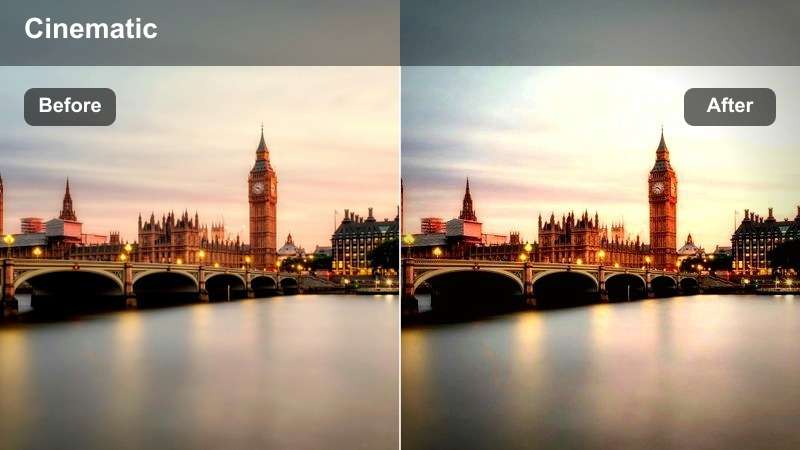
- Effect look: Soft, low-contrast neutral filter with balanced colors and gentle roll-off in highlights.
- Best for: Subway platforms, tram rides, office district walks, and everyday city b-roll.
- Editing tip: Use this filter on your narrative or interview portions so they feel calmer than your high-energy b-roll.
Metro Soft Neutral adds a calm, understated polish to everyday city scenes. It lowers contrast slightly and smooths out highlight roll-off, which helps interior lights, windows, and mixed lighting on public transport look more controlled and less harsh.
Apply this filter in Filmora to narrative segments, interviews, or reflective moments in your edit to give viewers a visual break from louder, high-saturation footage. Pair it with cleaner audio and slower pacing; by alternating it with stronger filters like Urban Pop Streets, you create a natural rhythm between energetic and relaxed scenes in your city videos.
Tips for Using Free Luts For City Video Filters in Filmora
- Shoot your city footage in a slightly flat picture profile so these LUT-style filters have room to add contrast and color without clipping highlights or crushing shadows.
- Organize clips on your Filmora timeline by time of day, such as day, dusk, and night, then test filters within each group to keep the overall look consistent.
- Always correct basic exposure and white balance first so each filter reacts predictably and you avoid color shifts from clip to clip.
- Lower filter intensity on close-ups of people to protect natural skin tones, especially with strong teal, magenta, or neon-focused looks.
- Stack two or more subtle filters and adjustments to build a unique city style instead of relying on a single heavy effect.
- Save your favorite combinations as Filmora presets so you can apply the same city grade across entire projects in one click.
- Use Filmoras split-screen or before-and-after preview to compare different filters quickly and choose the one that best matches your story mood.
These free LUT-style filters for city video give creators and editors fast ways to turn everyday streets, skylines, and transit scenes into cohesive, cinematic stories. From warm golden-hour walks to neon-drenched nights and rainy alleys, you can cover nearly any urban mood with just a few clicks.
Experiment with stacking two or three subtle looks in Filmora, then save your best combinations as custom presets so every future city edit starts from a polished, professional base. Over time, you will build a personal toolkit of urban grades that keeps your channel or brand visually consistent.
secure download