

 100% Security Verified | No Subscription Required | No Malware


 ChatGPT
 Perplexity
 Gemini
 Claude
 Grok
Grok
These free LUT-style indoor video filters for Filmora give creators and editors an easy way to fix mixed lighting, boost skin tones, and create cinematic moods in home, office, and studio interiors.
Below you will find 12 curated indoor looks, each tuned for common scenarios like desk setups, living rooms, product shots, and studio interviews, all optimized to work as fast, one-click grades that still leave room for fine-tuning.
In this article
Cozy Living Room and Lounge Scenes
Warm Lamp Glow
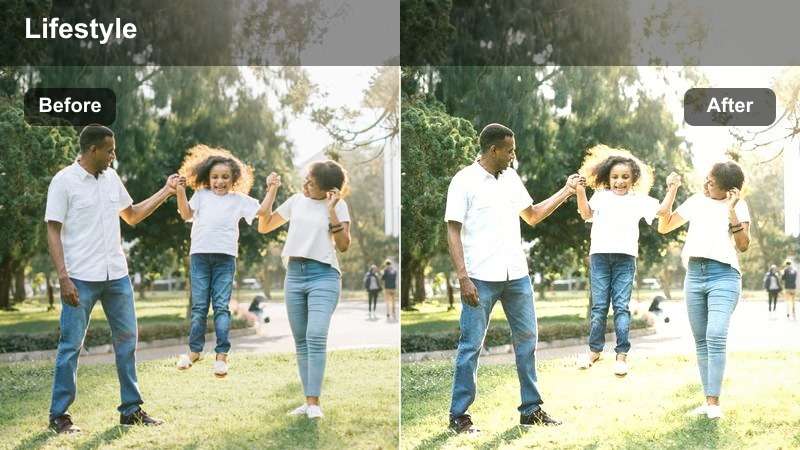
- Effect look: Soft warm tone that mimics tungsten lamp light and gently lifts shadows for a cozy, inviting living room feel.
- Best for: Evening couch vlogs, family moments, and lifestyle B-roll shot under warm indoor bulbs.
- Editing tip: Lower the filter intensity for already warm footage and slightly reduce saturation on orange tones to keep skin natural.
Warm Lamp Glow adds a gentle tungsten-style warmth to your living room footage, giving couches, blankets, and furniture a soft, cinematic glow without losing detail in fabrics or faces. In Filmora, this filter works especially well when you are shooting with practical lamps in frame and want to enhance the cozy mood while still keeping the image clean and modern.
Apply the filter to your clip, then fine-tune intensity in the Effects panel so skin tones do not become too orange. If your scene also includes daylight from a window, slightly cool the white balance slider after adding the filter to balance warm lamps with natural ambient light and maintain realistic-looking walls and skin.
Use AI to Match Indoor Looks Across Clips
Filmora's AI Color tools can analyze your favorite graded indoor shot and automatically match the color and brightness of other clips on your timeline. This makes it easy to keep your living room, office, and studio scenes consistent, even if they were filmed on different days or cameras.
Apply one of these LUT-style indoor filters to a hero clip, adjust exposure and white balance until it feels right, then use AI color matching to sync the overall look across the rest of your project in just a few clicks.
 secure download

See Indoor Filters in Action on Real Setups
To find the best LUT-style look for your space, drop several of these indoor filters onto short test clips of your living room, desk setup, or kitchen. Filmora's preview and side-by-side comparison tools help you quickly judge which filter feels most natural for your channel and lighting conditions.
Compare before and after views in real time, then combine your favorite filter with small adjustments to exposure, contrast, and saturation so the grade feels tailored to your specific room.
secure download1000+ Video Filters and 3D LUTs
Beyond these free indoor looks, Filmora includes hundreds of additional filters, cinematic LUTs, and creative presets you can layer to build signature styles. You can stack multiple effects, adjust their intensity, and save the combination as a reusable indoor preset for faster future edits.
For a portable color base, Filmora can also export compatible color adjustments from a selected clip as a standard .cube LUT for future rooms, shoots, or projects edited in DaVinci Resolve, Adobe Premiere Pro, and Final Cut Pro.
Explore Filmora's filter library, test a few 3D LUTs on your interior clips, and mix them with these curated indoor filters to create a unique, repeatable look that fits your brand.
secure downloadSoft Netflix Night
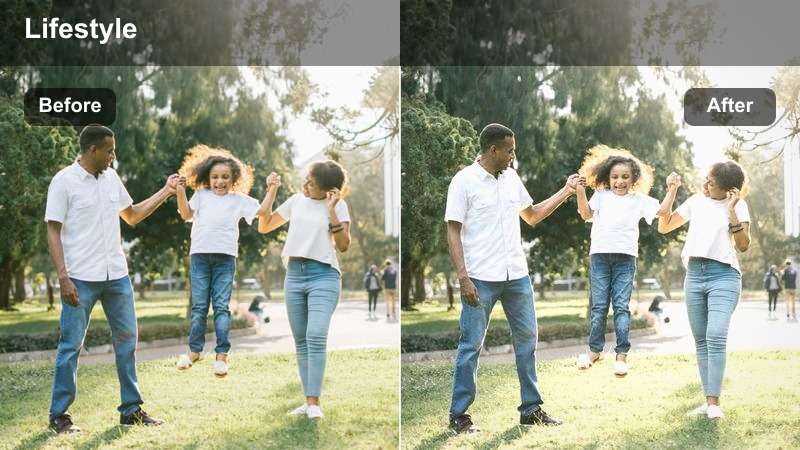
- Effect look: Muted contrast with gentle fade in the blacks for a cinematic streaming-series style living room mood.
- Best for: Nighttime living room scenes, storytelling vlogs, and cinematic B-roll with minimal movement.
- Editing tip: Add a slight vignette and reduce sharpness a bit to enhance the moody, story-driven atmosphere.
Soft Netflix Night introduces a low-contrast, filmic fade to your living room shots, which works perfectly for night vlogs, storytelling pieces, or reaction videos lit mainly by TV or screen light. It softens harsh shadows and pulls back highlights so the footage feels like a scene from a streaming drama instead of a typical home video.
In Filmora, apply the filter to your clip and then gently raise overall exposure to keep important details visible in dark areas. Pair it with a subtle vignette and a touch of noise reduction so your footage keeps that moody, cinematic vibe without looking muddy or overly noisy in the shadows.
Bright Morning Lounge
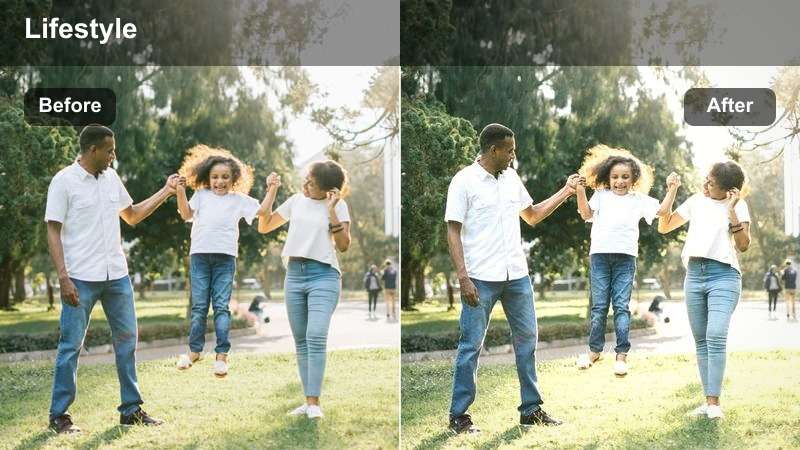
- Effect look: Clean, high-key indoor look with lifted mids and slightly cooler whites for fresh daylight interiors.
- Best for: Morning coffee vlogs, living room workouts, and bright lifestyle content shot near windows.
- Editing tip: Lower highlights if your windows clip, and nudge temperature warmer if your space already has cool walls.
Bright Morning Lounge is designed to emphasize natural daylight flooding into your living room, making whites feel crisp and airier while gently lifting midtones for a clean, upbeat mood. It is ideal for wellness content, morning routines, or any interior scene shot near large windows where you want a fresh, lifestyle aesthetic.
After adding this filter in Filmora, pull down the Highlights control to recover detail from bright windows, and adjust the Temperature slider to balance cool daylight with the actual wall color of your room. Fine-tune filter intensity until your subject remains bright and flattering without pushing the room into an overexposed, clinical look.
Desk Setup and Office Interior Shots
Clean Workspace Pro
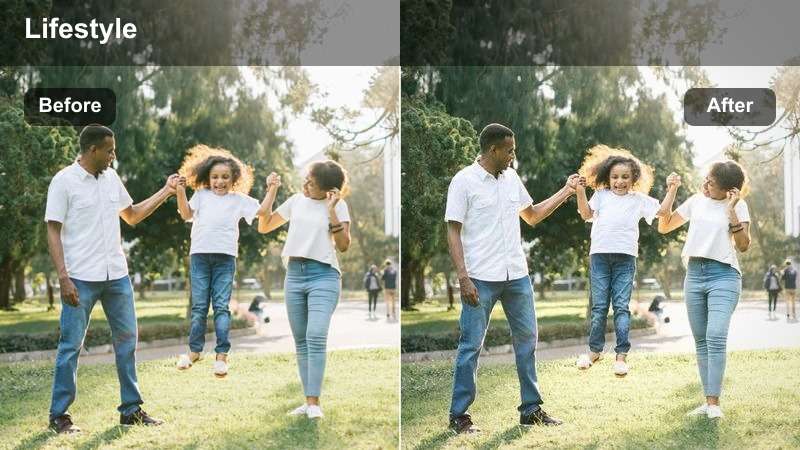
- Effect look: Neutral, contrasty office look with crisp edges and slightly desaturated backgrounds to focus attention on the subject.
- Best for: Desk setup tours, productivity videos, and talking-head clips in home offices.
- Editing tip: Pair with a subtle sharpening and noise reduction pass to make text and screens extra legible.
Clean Workspace Pro enhances office and desk footage by adding precise contrast and slightly pulling back background saturation so the viewer's eye goes straight to your face or key objects. It keeps whites neutral and lines sharp, which is especially useful for videos that show monitors, notebooks, and gear where readability matters.
In Filmora, drop this filter on your desk clips and fine-tune sharpness to bring out details on keyboards and screens while using a bit of noise reduction to avoid grain in darker corners. If your monitors cast strong blue or green light, combine the filter with a small blue saturation reduction in the HSL controls to keep skin tones natural while maintaining a modern, techy feel.
Creator Desk Neon
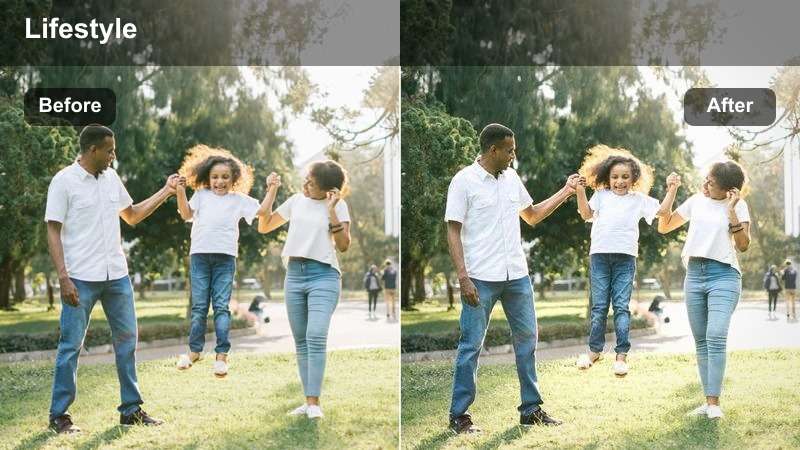
- Effect look: Punchy contrast with boosted saturation in accent colors to emphasize RGB lights and neon strips.
- Best for: Gaming setups, RGB desk tours, and tech content filmed in darker rooms with colored light.
- Editing tip: Reduce overall saturation slightly, then selectively push the hue of your main accent color for a branded look.
Creator Desk Neon is tuned for dark, RGB-heavy setups where you want your desk lights and LED strips to pop on screen. It deepens shadows, adds punchy contrast, and enhances saturated accent colors while keeping faces from looking too unnatural under mixed lighting.
Apply the filter in Filmora, then gently lower overall saturation before using HSL controls to boost and fine-tune your main brand color, like cyan, purple, or magenta. Consider slightly lowering exposure or highlights if your LED strips look blown out, so the colorful light retains texture instead of becoming flat blocks of color.
Soft Office Daylight
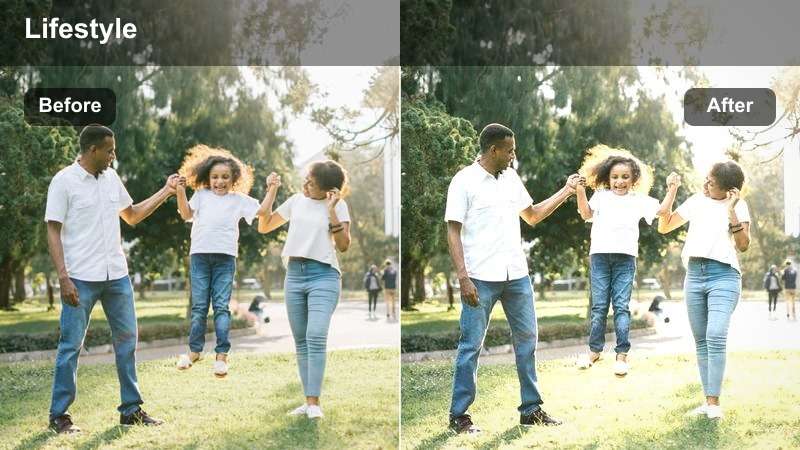
- Effect look: Gentle contrast and slightly warm mids that make office spaces look friendly and approachable on camera.
- Best for: Zoom-style recordings, tutorial intros, and business content filmed in conference rooms or home offices.
- Editing tip: Subtly increase exposure on faces using masking to keep skin bright without overexposing white walls.
Soft Office Daylight brings a subtle, inviting warmth to office interiors, keeping contrast moderate and skin tones flattering for business-style videos. It is ideal for talking-head explainers, online courses, and remote work content where you want the environment to feel professional yet approachable.
In Filmora, combine this filter with a simple face mask and a slight exposure boost on your subject so they remain the brightest area in frame. If you mix webcam and camera footage, apply the same filter to both clips and then adjust intensity individually so cuts between angles look cohesive and smooth.
Studio and Creator Set Recordings
Studio Soft Key
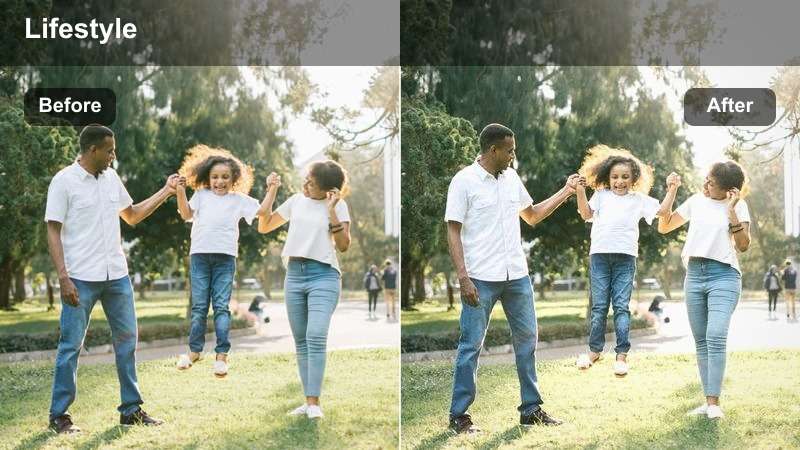
- Effect look: Balanced contrast with slightly lifted blacks and smooth roll-off in highlights for softbox-lit studio sets.
- Best for: YouTube tutorials, course videos, and professional studio interviews with controlled lighting.
- Editing tip: Add a touch of clarity to midtones only to enhance facial detail without making the background noisy.
Studio Soft Key is optimized for controlled, softbox-lit setups where you want your subject to look polished and professional. It gently lifts blacks, smooths highlight roll-off, and keeps colors neutral, giving your studio shots a broadcast-ready feel without appearing overly stylized.
After applying this filter in Filmora, use the Clarity or Sharpen controls sparingly on midtones to bring out facial features while keeping the background nice and smooth. Focus on dialing in white balance so skin tones look natural first, then make minor HSL tweaks to your backdrop color to align with your channel branding.
Creator Set Cinematic
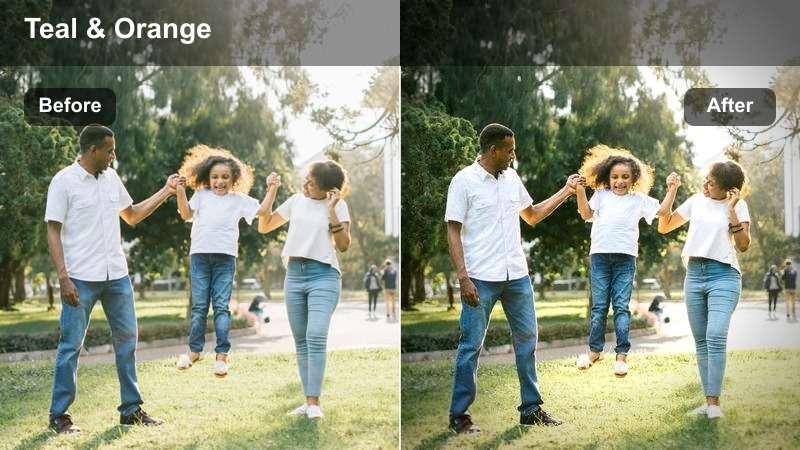
- Effect look: Rich cinematic contrast with subtle teal in shadows and warm skin tones, inspired by modern creator studios.
- Best for: High-production talking heads, course trailers, and branded studio intros.
- Editing tip: Use a small amount of film grain and a 2.35:1 crop to complete the cinematic studio look.
Creator Set Cinematic applies a modern teal-and-warm-skin aesthetic to your studio, deepening shadows and adding punchy contrast for a more dramatic, high-end appearance. It works especially well with colored backlights and accent LEDs, giving your background depth while keeping faces inviting and natural.
In Filmora, pair this filter with a cinematic aspect ratio crop and a touch of film grain to emphasize the movie-like feel. You can then selectively increase saturation or adjust hue on your brand color so that logos, backlights, or props stand out clearly without overpowering your subject.
Podcast Room Matte
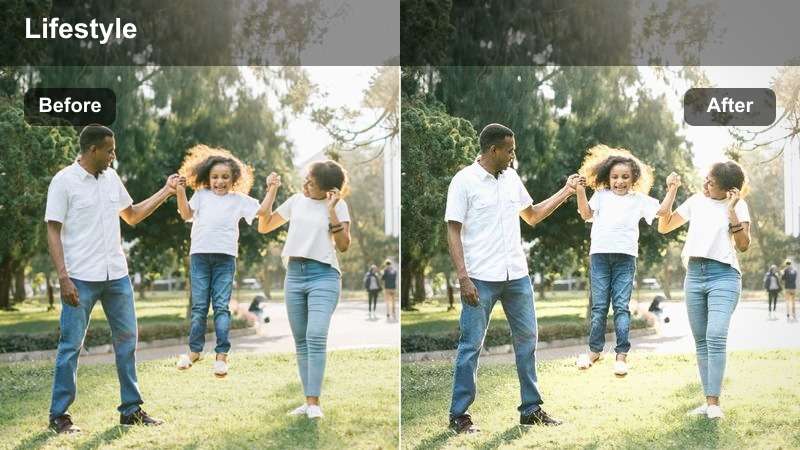
- Effect look: Flatter contrast with muted saturation and softened highlights for intimate podcast or talk-show rooms.
- Best for: Podcast recordings, multi-guest conversations, and casual roundtable setups indoors.
- Editing tip: Add a subtle vignette and warm the white balance slightly to keep focus on faces around the table.
Podcast Room Matte mutes contrast and saturation slightly, creating a calm, intimate atmosphere that suits conversation-driven content. It takes the edge off bright lights and colorful backgrounds so viewers stay focused on guests' expressions and interactions around the table.
After you apply this filter in Filmora, gently warm the white balance and add a mild vignette so faces become the natural focal point of the frame. If you are cutting between multiple cameras, use the filter at the same intensity on each angle first, then fine-tune exposure and temperature per camera for a consistent, cohesive look throughout the episode.
Kitchen, Dining, and Indoor Product Shots
Bright Countertop Showcase
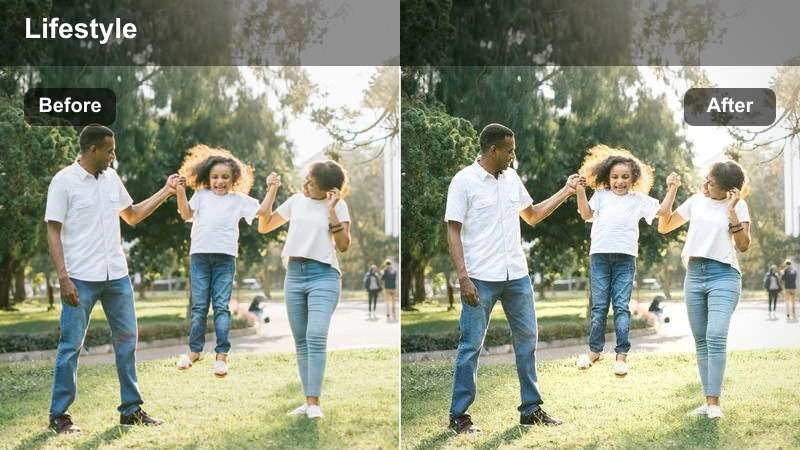
- Effect look: Clean, slightly high-key look with neutral whites that make countertops, props, and packaging stand out.
- Best for: Indoor product showcases, unboxings on tables, and how-to demos filmed on kitchen islands or desks.
- Editing tip: Gently increase local contrast around your product using masking to separate it from the background.
Bright Countertop Showcase is built to highlight products, packaging, and props on indoor counters or tabletops. It leans toward a bright, neutral aesthetic that keeps whites clean, enhances edge definition, and makes labels and textures easy to see for viewers.
Use this filter in Filmora for unboxings or how-to demos, then add a simple mask around your main product and boost contrast or sharpness slightly inside that area. This combination pulls the subject forward from the background while maintaining a polished, consistent look across all your indoor product content.
Warm Dining Evening
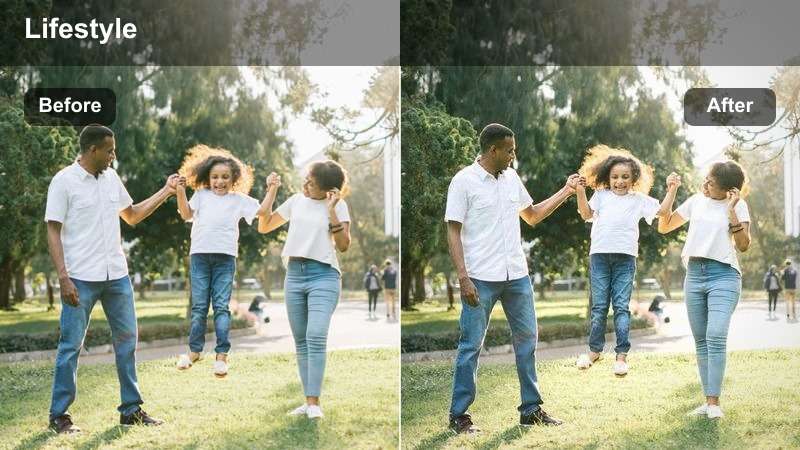
- Effect look: Rich, warm tones with soft highlights that mimic candlelight and pendant lamps over dining or kitchen tables.
- Best for: Indoor dinner scenes, evening gathering B-roll, and cozy tabletop storytelling shots.
- Editing tip: Reduce orange saturation slightly if faces look too red, and balance with cooler shadows for depth.
Warm Dining Evening adds a golden, candlelit quality to dinner and kitchen scenes, softening highlights from pendant lamps while preserving a rich, cozy atmosphere. It is great for food content, family gatherings, and narrative B-roll where you want the table to feel inviting and cinematic.
In Filmora, apply the filter, then watch skin tones closely and dial back orange saturation if cheeks appear too red. You can also introduce slightly cooler shadows using HSL or temperature controls to add depth and contrast, keeping the scene warm overall while preventing it from looking overly yellow.
Minimal Product Flatlay
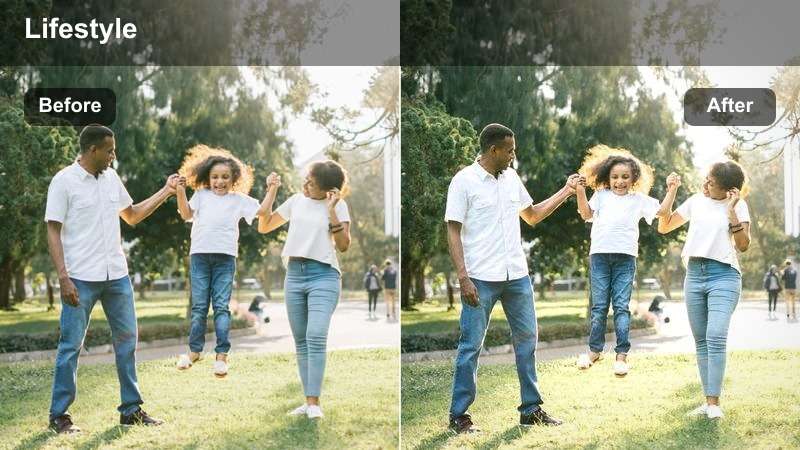
- Effect look: Low-saturation, high-clarity indoor look with clean whites and defined edges suited to overhead product shots.
- Best for: Flatlay product demos, tabletop reviews, and minimalist branding shots indoors.
- Editing tip: Increase clarity carefully and use Filmora's crop and grid tools to keep lines straight and compositions graphic.
Minimal Product Flatlay is tailored to overhead shots where you want a clean, modern look with accurate whites and crisp edges. By slightly lowering saturation and increasing clarity, it helps your products and brand colors stand out against neutral backgrounds without feeling overly stylized.
Once you apply this filter in Filmora, use the crop and grid overlays to correct alignment so tables, tiles, and props run perfectly straight in frame. Then fine-tune temperature and tint by sampling white surfaces in the viewer, ensuring that your background stays truly neutral and your product colors remain consistent across different shoots.
Tips for Using Free Luts For Indoor Video Filters in Filmora
- Shoot a short gray card or white wall reference indoors before recording so you can quickly correct white balance in Filmora before or after applying LUT-style filters.
- Group similar indoor scenes on your timeline, such as all living room or all office clips, and apply the same filter at a similar intensity to avoid jarring changes in color.
- Run noise reduction on dark or night clips before adding high-contrast filters so grain does not get exaggerated in lifted shadows and midtones.
- Start with filter intensity around 60 to 80 percent, then rely on Filmora's basic exposure, contrast, and white balance controls for final fine-tuning.
- If your interior has strong wall colors, use HSL adjustments with your filter to prevent those walls from casting unwanted tints onto faces and products.
- Use Filmora's split-screen or before-and-after preview to compare your original footage with each indoor filter so you can pick the most natural look for your channel.
- Save customized versions of your favorite indoor filters as Filmora presets labeled by room, such as Living Room Night or Desk RGB, to speed up future edits.
These free LUT-style indoor filters give creators and editors a fast way to turn everyday home, office, and studio footage into clean, consistent, and cinematic scenes.
Try a few different looks on the same clip, save your favorites as presets in Filmora, and build a reliable indoor grading workflow you can reuse on every project.
secure download