

 100% Security Verified | No Subscription Required | No Malware


 ChatGPT
 Perplexity
 Gemini
 Claude
 Grok
Grok
Moody influencer video filters give your content the rich shadows, deep contrast, and cinematic color character that dark aesthetic influencers and artistic creators love. Instead of bright and bubbly vibes, these looks lean into drama, depth, and emotional storytelling that makes every frame feel intentional.
Whether you are shooting intimate vlogs, bold brand storytelling campaigns, or conceptual reels, the right moody filter can unify your feed and turn simple shots into signature visuals. The Filmora presets below are designed to help you craft a cohesive identity that feels dark, polished, and unmistakably yours.
In this article
Deep Shadow Vibes for Moody Influencer Content
Noir Portrait Glow
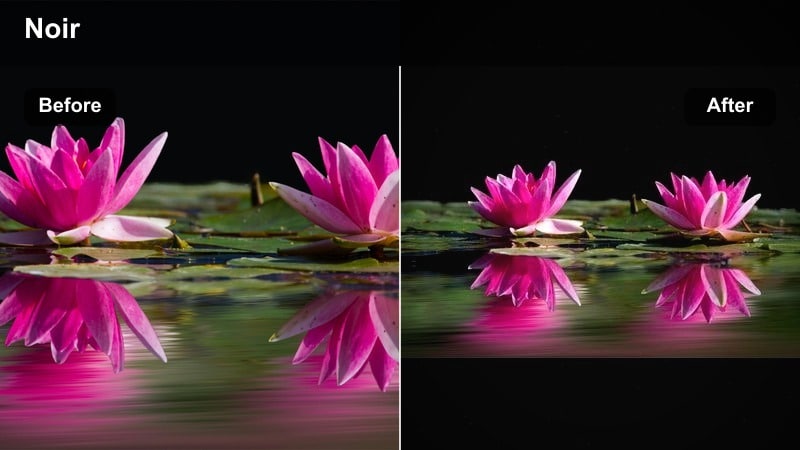
- Effect look: Softened skin tones wrapped in deep shadows with subtle bloom in highlights for a modern film noir vibe.
- Best for: Close-up influencer portraits, talking-to-camera reels, and dark aesthetic GRWM content.
- Editing tip: Lower overall exposure slightly, then add a bit of clarity on the eyes to keep them sharp and magnetic within the soft frame.
Noir Portrait Glow is designed to give your face that creamy, cinematic finish while plunging everything around you into rich, velvety blacks. The subtle glow in the highlights mimics classic film lighting, so your cheekbones, nose bridge, and lips catch the light while the rest of the frame falls away into moodier tones.
In Filmora, apply this preset to your portrait or GRWM clips, then fine-tune exposure and contrast until your skin looks smooth but not washed out. Use the detail and sharpening tools sparingly on the eyes and lashes so they remain crisp focal points within the soft, noir-inspired atmosphere.
Use AI to Find Your Signature Moody Palette
Filmora’s AI-powered tools can quickly analyze your footage and suggest color adjustments that match your dark aesthetic. Start with one of the moody influencer video filters above, then let AI refine saturation, temperature, and contrast automatically.
Once you land on a look you love, save it as a preset so all your future content carries the same recognizable tone. Over time, that consistent color language becomes part of your personal or brand identity online.
 secure download

Preview Moody Filters in Real Time
You do not need to commit blindly to a dark aesthetic. Filmora lets you preview each moody filter live on your footage so you can compare soft vs bold vs high-contrast looks within a single project.
Scroll through options while watching your reel play back, then fine-tune intensity with simple sliders. This makes it easy to move from playful tests to a precise, polished final grade that fits your storytelling.
secure download1000+ Video Filters and 3D LUTs
Filmora offers a large library of creative filters and 3D LUT-style looks so you can build anything from subtle mood shifts to bold cinematic grades. Mix and match moody presets with stylized LUTs to craft a dark aesthetic that still feels unique to your channel.
Use HSL and additional color tools on top of these looks to fine-tune skin tones, brand colors, and background details without starting from scratch every time you edit.
secure downloadPro Tip: Anchor attention with intentional light
When you work with heavy shadows, always define one clear focal point. Use this filter with a single light source or window light aimed at the face, and let the rest of the frame fall into darkness.
In Filmora, use masking to subtly brighten only key details like eyes or lips so they stand out against the moody background without ruining the deep contrast.
Ink Black Street
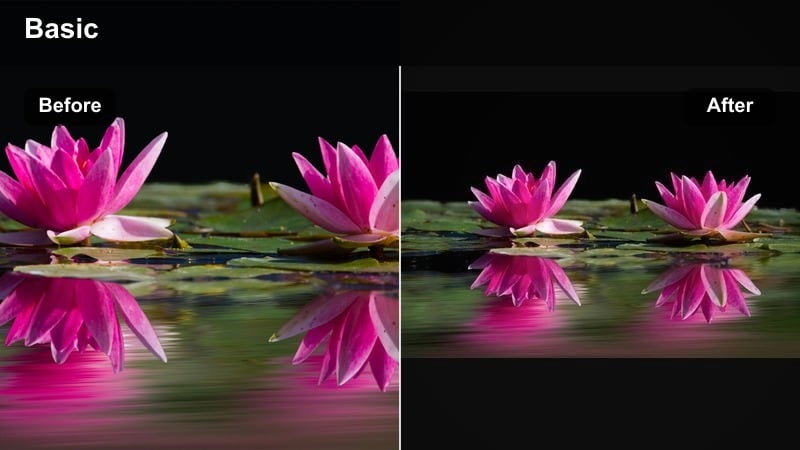
- Effect look: Crushed blacks, cool-toned mids, and slightly desaturated colors for gritty, urban night energy.
- Best for: Street-style OOTD clips, nighttime city walks, and neo-noir brand teasers.
- Editing tip: Add a gentle vignette and reduce saturation in warm hues to keep neon lights and city signs from stealing focus from your subject.
Ink Black Street pushes city scenes into an ink-deep nightscape, emphasizing glows, reflections, and silhouettes. The cooled midtones and crushed blacks turn everyday streets, crosswalks, and storefronts into cinematic backdrops that match edgy, fashion-forward influencer content.
Inside Filmora, apply this preset to your handheld night clips, then tweak saturation and vignetting so your outfit and face remain visible while the environment falls into dramatic contrast. Combine it with light flares or bokeh overlays to make wet streets, glass, and traffic lights feel even more stylized.
Pro Tip: Pair with motion for cinematic city reels
Combine this filter with subtle slow motion or speed ramping to accentuate light streaks and reflections in puddles or glass.
In Filmora, stabilize handheld clips slightly so the dark contrast feels intentional and polished instead of chaotic and shaky.
Shadow Journal Vlog
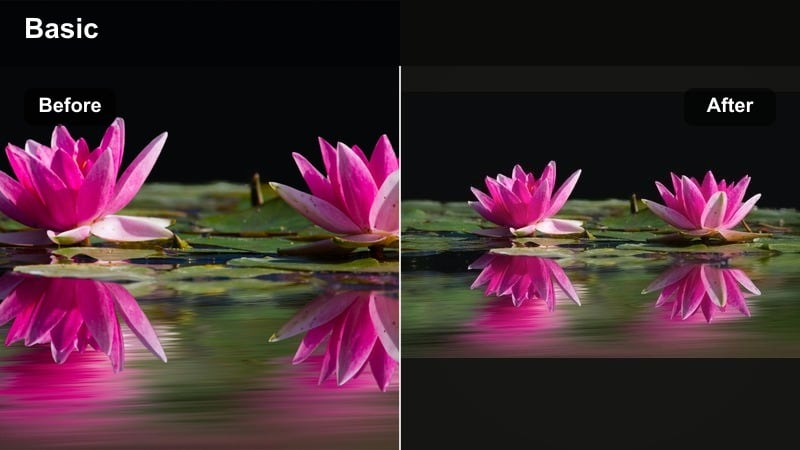
- Effect look: Muted contrast with soft blacks, gentle film grain, and a dimmed, introspective palette.
- Best for: Moody storytelling vlogs, voiceover confessionals, and slow morning or late-night aesthetic clips.
- Editing tip: Pull down highlights and whites to avoid any overly bright spots that break the calm, journal-like feeling of the shot.
Shadow Journal Vlog gives your footage a tender, diary-like quality, where every scene feels like a private moment caught in low light. Soft blacks and restrained contrast help the frame feel calm and reflective, ideal for vulnerable voiceovers or intimate lifestyle content.
In Filmora, pair this filter with subtle film grain and slower cuts so scenes have time to breathe. Keep your color adjustments minimal and gently lower highlight values so desk lamps, windows, or screens do not overpower the mellow palette that defines this look.
Pro Tip: Let negative space tell the story
Leave plenty of empty, darker areas in the frame so your voiceover and words carry emotional weight.
In Filmora, combine this filter with lower music levels and minimal sound design to reinforce the quiet, reflective mood.
Bold Color Mood for Dark Brand Storytelling
Crimson Identity
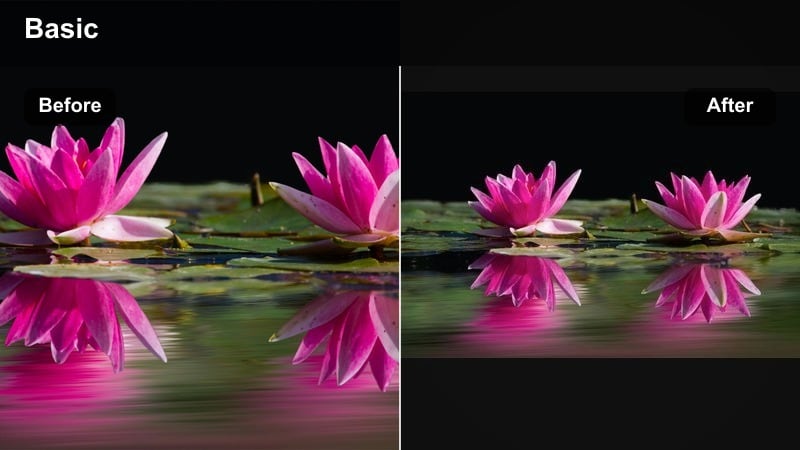
- Effect look: Rich, deep reds and burgundies set against moody shadows for unapologetically bold branding.
- Best for: Product reveals, lipstick or fashion campaigns, and dramatic brand storytelling clips.
- Editing tip: Use selective color to keep reds strong while gently muting greens and yellows so the brand color becomes the visual signature.
Crimson Identity turns reds into the star of the frame, deepening them into luxurious burgundy tones that scream confidence and high-impact branding. Against dark backgrounds, your red lipstick, dress, or product packaging pops as a clear visual signature that audiences remember.
Within Filmora, drop this filter on your campaign footage, then refine the red channel with HSL controls to perfectly match your brand hex code or packaging. Desaturate competing colors and keep contrast moderately high so that every frame on your feed feels like part of one cohesive crimson-driven story.
Pro Tip: Turn brand color into a character
Repeat the same red elements across shots, like wardrobe, props, and text overlays, to build instant recognition for your brand.
In Filmora, add subtle red-tinted light leaks or overlays on top of this filter to unify multiple scenes into one cohesive campaign look.
Obsidian Gold Aura
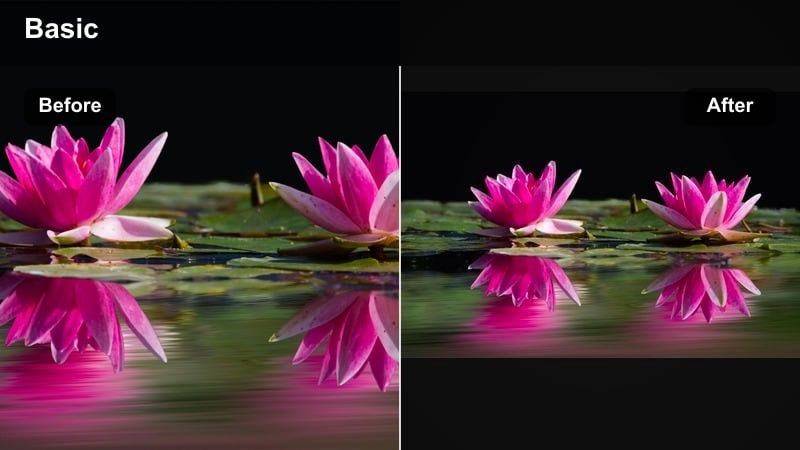
- Effect look: Dark, obsidian-like blacks with warm golden highlights for a luxurious yet moody atmosphere.
- Best for: High-end beauty content, jewelry showcases, and premium lifestyle influencer ads.
- Editing tip: Increase contrast slightly, then warm the highlights while keeping shadows neutral so skin stays natural against the deep background.
Obsidian Gold Aura is tailored for creators who want a glossy, luxe mood where products gleam out of near-black surroundings. The golden highlights flatter metallic objects, shimmer, and glossy skin, while the deep blacks keep the frame feeling editorial and expensive.
In Filmora, add this filter to close-up beauty shots, then refine highlight warmth so metallic details and skin glow without clipping. Use vignetting or radial masks around the product or face to keep the brightest golden tones centered, giving your promos a premium, ad-ready finish.
Pro Tip: Use light falloff to frame products
Position your main light so it fades quickly into black, making the product or jewelry glow at the center of the frame.
In Filmora, combine this filter with a subtle radial blur around the edges to draw the viewer’s eye straight to the brightest point.
Teal Embers
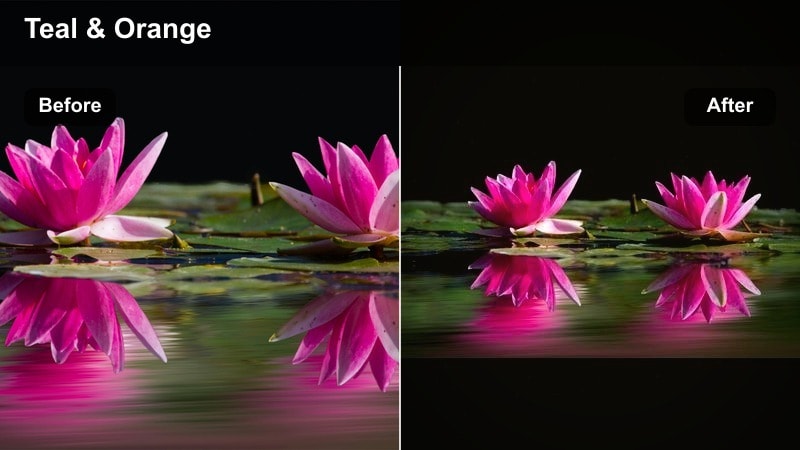
- Effect look: Cinematic teal shadows with warm amber highlights for an intense, dramatic contrast.
- Best for: Trailer-style brand edits, concept reels, and transformation or reveal content.
- Editing tip: Push midtones slightly cooler and highlights slightly warmer, then keep saturation moderated to avoid an overprocessed look.
Teal Embers brings the classic blockbuster color contrast to your influencer videos, cooling down shadows while letting warm lights burn like embers. This dual-tone structure instantly makes transitions, reveals, and story beats feel more dramatic and intentional.
In Filmora, apply this preset to sequences with practical warm lighting like lamps or sunsets and cooler backgrounds or shadows. Use keyframes on exposure and contrast to emphasize shifts between teal-dominant and amber-dominant frames, especially around scene changes or major hooks in your reel.
Pro Tip: Sync color shifts with transitions
Cut or transition on beats where teal shadows or warm highlights dominate the frame for a rhythmic, intentional feel.
Use speed ramping and this filter together in Filmora to emphasize shifts from cool to warm as part of your visual storytelling.
Soft Dark Aesthetic for Artistic Creators
Velvet Fade
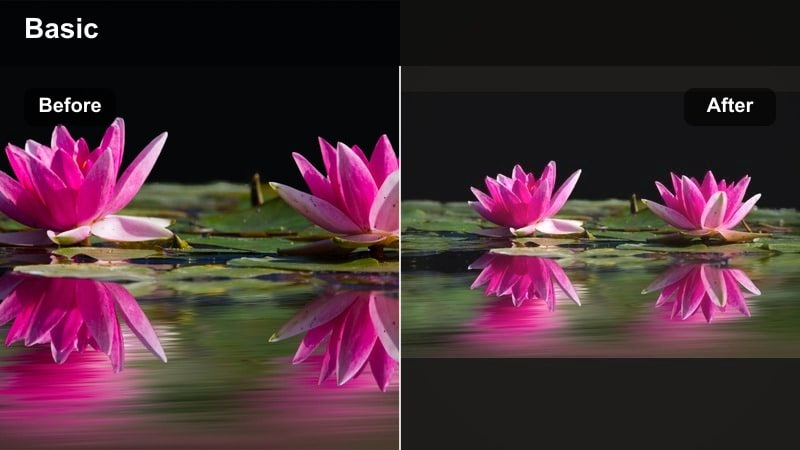
- Effect look: Lifted blacks and low contrast combined with warm, velvety tones for a dreamy darkness.
- Best for: Aesthetic desk setups, bookish content, and slow, cinematic B-roll sequences.
- Editing tip: Lift black levels gently but protect midtones so your subject does not get washed out in the soft fade.
Velvet Fade trades sharp contrast for soft, painterly shadows that feel cozy instead of harsh. Blacks are lifted just enough to keep detail in the darks, while gentle warmth wraps your desk, books, candles, and props in a tactile, inviting atmosphere.
In Filmora, use this filter on static or slow-moving B-roll and close-ups of textures like paper, fabric, and ceramics. Adjust curves to keep midtones intact so your subject maintains depth, and consider adding a touch of film grain or dust overlay for a dreamy, analog-inspired finish.
Pro Tip: Layer texture for tactile visuals
Combine this filter with close-ups of textures like paper, fabric, and skin to amplify the cozy, tactile vibe.
In Filmora, add a light film grain or dust overlay at low opacity to deepen the analog feeling without overwhelming the image.
Dusky Olive Muse
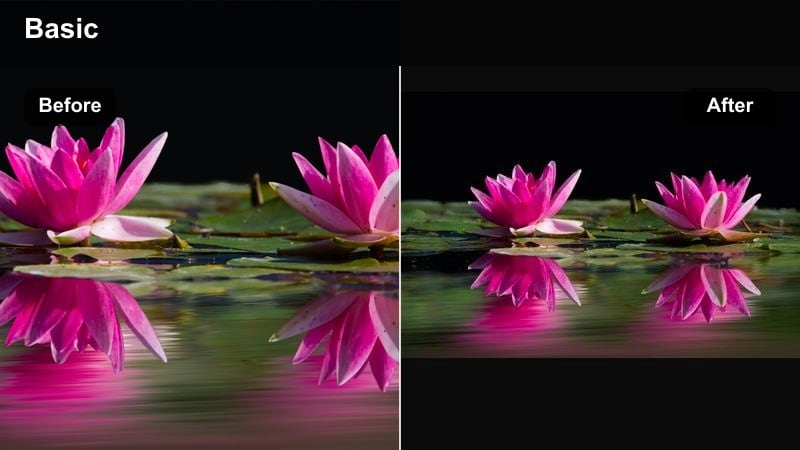
- Effect look: Muted greens and earthy tones with soft skin hues and subtly darkened corners.
- Best for: Nature-inspired influencer shots, cottagecore reels, and dark academia-style content.
- Editing tip: Desaturate greens slightly and warm shadows just a bit to avoid sickly tones while keeping the earthy palette intact.
Dusky Olive Muse dials foliage and neutrals into a muted, painterly palette that suits outdoor vlogs and quiet, nature-based aesthetics. Greens become softer and more sophisticated, while skin tones stay gentle and flattering against the darker, earth-toned environment.
In Filmora, apply this preset to forest paths, parks, or indoor scenes with plants and wooden furniture. Use the color correction panel to gently warm shadows and add a touch of magenta to skin if it leans too green, ensuring that both your subject and surroundings look intentional and cinematic.
Pro Tip: Shape light to flatter skin tones
Avoid direct overhead sun and shoot in shade or golden hour to keep skin tones smooth under the darker, earthy filter.
In Filmora, use the color correction tools to add a touch of magenta to skin if it starts leaning too green under the preset.
Smoke Room Minimal
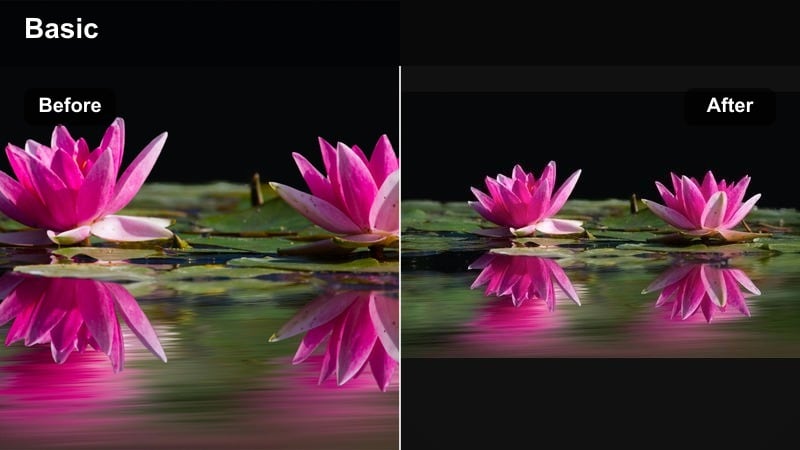
- Effect look: Desaturated colors, cool shadows, and soft highlights that feel like a quiet smoke-filled room.
- Best for: Minimalist flatlays, tech setups, and conceptual reels with clean lines and negative space.
- Editing tip: Keep compositions simple and avoid strong competing colors so the reduced palette feels intentional, not dull.
Smoke Room Minimal strips your palette back to near-monochrome, with cool shadows and gentle highlights that highlight shape and structure. It is ideal for clean desk setups, tech gear, and minimalist content where you want calm, controlled visuals instead of loud, colorful chaos.
In Filmora, pair this filter with simple compositions, minimal text, and slow cuts to preserve its quiet, gallery-like mood. Avoid heavy saturation boosts or flashy transitions; instead, let the limited color and strong negative space become a signature style element across your grid.
Pro Tip: Use silence as a visual tool
Pair this filter with minimal on-screen text and subtle ambient sound to let the visuals breathe.
In Filmora, keep transitions simple, like fades and cuts, so the calm, smoky look is never broken by flashy movement.
Cinematic LUT-Style Filters for Creators
Midnight Cinema Grade
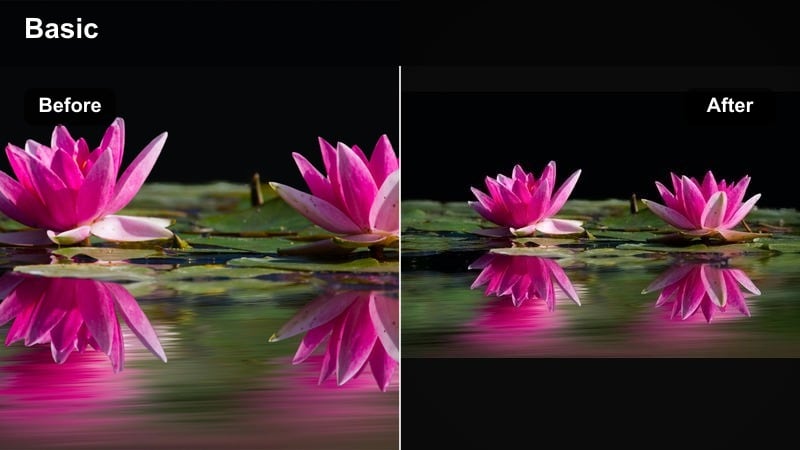
- Effect look: Film-inspired contrast with cool shadows, neutral skin, and subtle halation around bright lights.
- Best for: Narrative reels, cinematic transitions, and moody influencer short films.
- Editing tip: Expose slightly brighter in-camera, then let the filter pull the image down into richer blacks without clipping shadow detail.
Midnight Cinema Grade gives your footage a feature-film treatment, cooling down shadows while preserving natural-looking skin. Subtle halation around light sources adds a nostalgic, movie-theater feel that works beautifully for narrative sequences and dramatic transitions between scenes.
In Filmora, apply this LUT-style preset across a full sequence, then adjust exposure and contrast clip by clip so shadows stay detailed. Use consistent framing, angles, and camera movement so the grade can tie all shots together into one cohesive cinematic story.
Pro Tip: Think in scenes, not single shots
Shoot with coverage and angles in mind so this cinematic filter can connect multiple moments into a narrative sequence.
In Filmora, apply the same preset across clips, then fine-tune exposure clip by clip for a cohesive but controlled final grade.
Ashen Film Diary
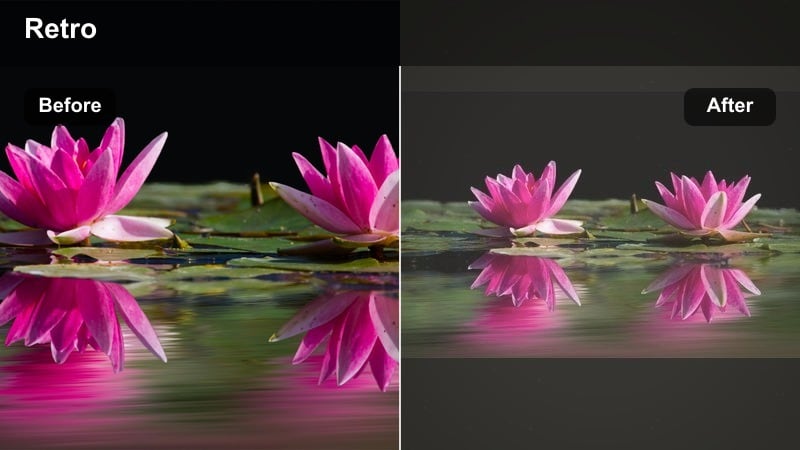
- Effect look: Washed, grayish tones with gentle contrast and a nostalgic, analog softness.
- Best for: Memory-style edits, travel montages, and introspective storytelling posts.
- Editing tip: Dial back saturation first, then add a hint of warmth in midtones to keep the footage emotional rather than flat.
Ashen Film Diary transforms your clips into soft, memory-like entries with muted colors and restrained contrast. The ashen palette suggests distance and nostalgia, making it perfect for travel reflections, relationship stories, and personal milestones shared with your audience.
In Filmora, apply this filter to sequences with natural light and varied scenery, then gently reintroduce warmth into midtones so faces still feel alive. Keep sharpening low and embrace slight grain or motion blur to enhance the analog, journal-style character of the grade.
Pro Tip: Let imperfections stay in frame
Grain, lens flares, and small focus shifts complement this diary-style filter and make moments feel real.
In Filmora, avoid heavy sharpening and let the subtle softness of the preset carry the emotional tone of the story.
Ember Hue Log
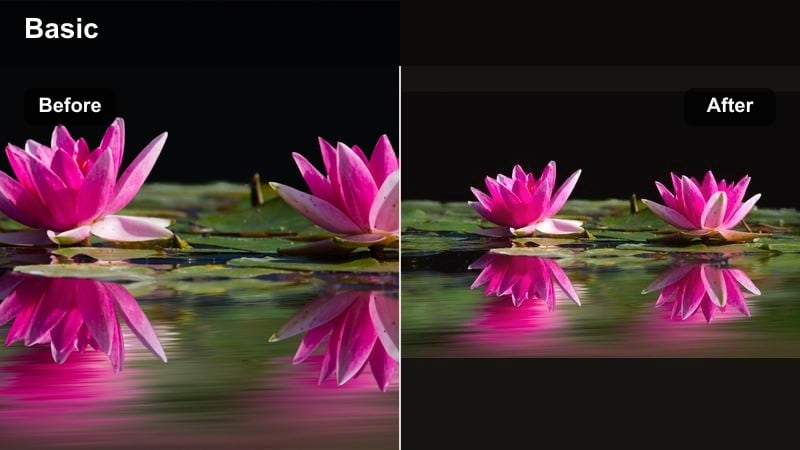
- Effect look: Log-style dynamic range with warm, ember-like highlights and controlled, dark shadows.
- Best for: Influencers who shoot flat profiles and want a quick, moody creator LUT look straight out of Filmora.
- Editing tip: Apply this filter after basic exposure correction, then adjust contrast slightly to match your camera’s original dynamic range.
Ember Hue Log is built for creators who like to shoot in flat or log-style profiles but want a fast path to a polished, moody grade. It restores contrast and warmth, turning neutral footage into cinematic scenes with glowing ember highlights and dense, controlled shadows.
In Filmora, correct exposure and white balance first, then drop this preset on your clips to add depth and warmth. Tweak global contrast and highlight roll-off so you retain dynamic range and avoid crushed blacks, then save your tweaks as a custom preset to quickly match future projects.
Pro Tip: Match shots for a pro-grade finish
Use this filter as a base, then fine-tune individual clips so skin tones and exposure stay consistent across your sequence.
In Filmora, save your adjustments as a custom preset so future projects can instantly match this moody, ember-toned look.
Tips for Using Influencer Video Moody Filters in Filmora
- Shoot slightly brighter than your final mood and let Filmora’s moody filters pull the image down into rich shadows without losing detail.
- Choose one or two signature color accents, like crimson or gold, and repeat them with the same filter across your grid for brand consistency.
- Use slower camera movement and longer shots when working with dark aesthetics so viewers have time to absorb the details in the shadows.
- Keep on-screen text minimal and high-contrast when using very dark filters so captions and brand names stay legible on mobile.
- Batch-edit multiple clips with the same filter and small tweaks, then export as a series to keep your reels and stories visually unified.
- Combine Filmora’s AI color tuning with your favorite moody presets to refine skin tones and brand colors without rebuilding your grade from scratch.
- Test each filter at different intensities using Filmora’s sliders so you can dial in anything from subtle mood shifts to bold, dramatic looks.
- Save your best dark aesthetic combinations as custom presets so new content can instantly match your established visual identity.
Moody influencer video filters allow dark aesthetic influencers and artistic creators to turn everyday footage into bold, cinematic stories. With the right combination of deep shadows, controlled color, and subtle texture, your content can feel intentional and atmospheric without needing a complex setup.
Use these Filmora presets as a starting point, refine them to match your brand colors, and save your favorite looks as reusable presets. Over time, your audience will recognize your signature mood the moment your video appears in their feed.
secure downloadNext: Explore Warm Influencer Video Filters for Cozy Storytelling
