

 100% Security Verified | No Subscription Required | No Malware


 ChatGPT
 Perplexity
 Gemini
 Claude
 Grok
Grok
The Cinematic Outdoor Filter. Epic Wild preset is designed for filmmakers and photographers who want to give their nature footage a bold, cinematic edge. It adds rich contrast, subtle color shifts, and a filmic softness that turns ordinary landscapes into dramatic outdoor scenes.
Use these cinematic outdoor video filters to instantly shape the mood of your cinematic outdoor films, from sunlit forest walks to misty mountains and golden-hour horizons, while keeping skin tones natural and the overall image balanced.
In this article
Golden Hour Epic Looks
Cinematic Outdoor Filter. Epic Wild
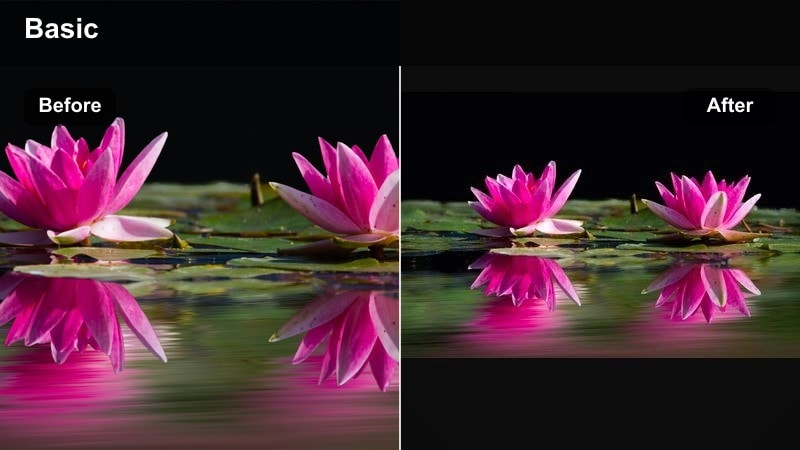
- Effect look: High-contrast cinematic base with slightly warm highlights and deep, rich shadows for outdoor nature scenes
- Best for: Wide establishing shots of mountains, forests, and coastlines in late afternoon or golden hour light
- Editing tip: Lower the contrast slightly and raise shadows a touch if your camera profile is already very punchy to avoid crushed detail in foliage
A versatile base filter that sets a strong cinematic foundation for epic wild outdoor footage. In Filmora, the Cinematic Outdoor Filter. Epic Wild preset gives landscapes a bold film look nature aesthetic, perfect for trailers, travel vlogs, and outdoor cinematic films that need instant impact.
Apply this preset to your wide shots to unify sky, foliage, and rock tones while preserving natural-looking skin if talent is in frame. Then fine-tune exposure, contrast, and saturation with Filmora sliders so the filter enhances your camera profile instead of overpowering it, especially in high-contrast scenes.
Pro tip – Balance contrast with sky detail: When using the Epic Wild base filter on bright days, dial back highlights to protect cloud texture in the sky while keeping the ground contrasty. If the sky still clips, add a subtle vignette or a graduated exposure adjustment on the upper frame to keep the cinematic punch without losing detail.
Leverage AI to Match Cinematic Outdoor Palettes
Filmora s AI-powered color tools help you match your Cinematic Outdoor Filter. Epic Wild preset to other shots in your project with just a few clicks, keeping your dramatic outdoor sequences visually cohesive. This is ideal when you have a hero shot with perfect grading and want the rest of the timeline to share the same mood.
You can analyze a reference frame from a favorite film look nature scene and let AI suggest palette adjustments so your footage inherits similar tones, contrast, and atmosphere without manual trial and error across dozens of clips.
 secure download

See Cinematic Outdoor Filters in Action
Preview how each cinematic outdoor video filter behaves on different environments, from dense forests to high-contrast ridgelines and open water horizons. Filmora s real-time preview lets you compare moods quickly so you can choose the best match for your story.
Load sample clips in Filmora, stack a few presets like Epic Wild, Evergreen Drama, and Glacier Lake Film, and toggle their visibility to see how they reshape color, contrast, and atmosphere. This workflow helps you lock in a cinematic base grade before refining details.
secure download1000+ Video Filters and 3D LUTs
Beyond these outdoor cinematic filters, Filmora includes a large library of creative filters and 3D LUTs so you can stack looks and build your own signature grade. Combine nature-focused presets with film-emulation LUTs to add depth, halation-style glow, or subtle vintage character.
Keep LUT intensity low so your base outdoor filter remains visible while the LUT adds final polish and separation between highlights, midtones, and shadows. This layered approach gives your dramatic outdoor footage a film-ready finish without complex grading.
secure downloadGolden Glow Trails
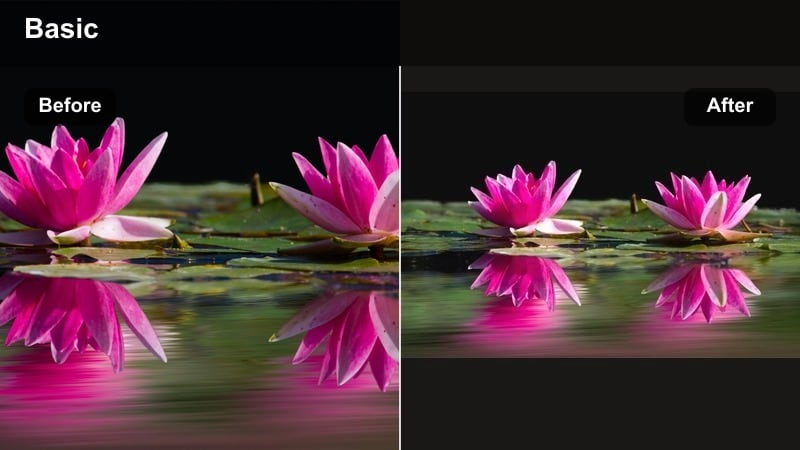
- Effect look: Warm, glowing highlights with slightly lifted blacks for a soft, dreamy cinematic look in outdoor paths and trails
- Best for: Hiking sequences, walking shots through forests, and handheld tracking of subjects in warm light
- Editing tip: Add a subtle blur or reduce clarity a bit in the background to separate your subject and emphasize the dreamy golden atmosphere
A warm cinematic filter that turns simple trail footage into emotional, story-driven outdoor visuals. In Filmora, Golden Glow Trails wraps your scene in golden-hour warmth, ideal for lifestyle vlogs, couple walks, and narrative clips where mood matters more than realism.
Combine this preset with Filmora s depth of field style blur or background defocus to guide attention to your subject while the glowing forest backdrop stays soft and nostalgic. Gently raise saturation in oranges while keeping exposure under control so highlights feel bright but not blown out.
Pro tip – Use backlight to enhance glow: Position your subject with the sun behind them to create natural rim light that the Golden Glow Trails filter will enhance beautifully. Slightly underexpose in-camera so the warm highlights do not blow out when the filter increases glow and warmth.
Sunset Ridge Cinema
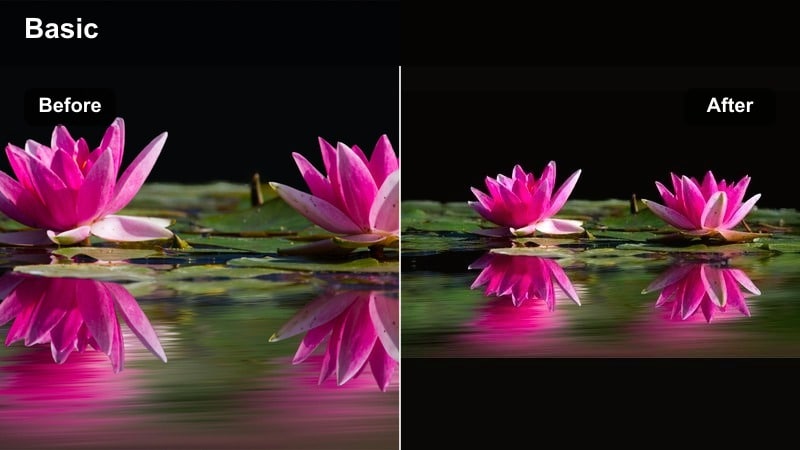
- Effect look: Rich orange and amber highlights with cool, deep shadows for high-impact cinematic sunset vistas
- Best for: Silhouetted ridgelines, cliffs, and skyline shots during sunset or late blue hour transitions
- Editing tip: Push saturation in the orange and red channels slightly while reducing overall global saturation to keep the sunset powerful yet controlled
A dramatic outdoor filter that intensifies sunset scenes with a filmic, color-graded look straight out of a feature film. In Filmora, Sunset Ridge Cinema is perfect for closing shots, hero timelapses, and drone passes where the sky carries the emotional weight.
Use this preset on clips exposed for the sky, then lift shadows modestly so land silhouettes retain shape without turning gray. Fine-tune color in Filmora s HSL controls to emphasize amber and magenta hues while keeping blues rich but not overpowering.
Pro tip – Expose for color, not brightness: When shooting for Sunset Ridge Cinema, underexpose by about two thirds of a stop so the filter can pull rich color from the sky without heavy noise. Avoid auto white balance and lock it slightly warm in-camera so the filter has a stable color base to enhance.
Moody Forest and Woodland Styles
Evergreen Drama
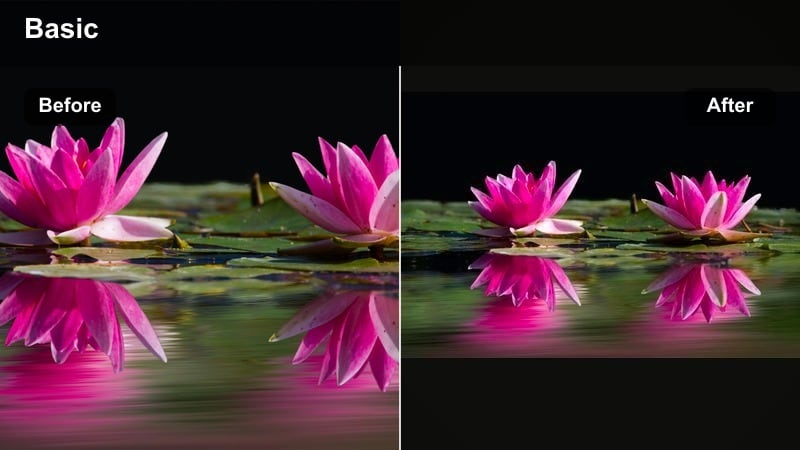
- Effect look: Cool, dense greens with strong contrast and muted warm tones for a dramatic forest film look
- Best for: Dense woodland, pine forests, and moody hiking sequences in overcast or diffused light
- Editing tip: Use local adjustments to slightly brighten your subject’s face so they pop against the darker, moody background
A dramatic outdoor filter that turns green forests into cinematic, atmospheric locations with a polished film look. In Filmora, Evergreen Drama adds depth and mystery to pine woods, making it great for thriller intros, cinematic B-roll, or hiking videos with a serious tone.
After applying the preset, lower saturation in yellows to avoid neon foliage and use Filmora s mask tools to bring subtle light back onto faces or key objects. This way, the forest stays dark and moody while your subject remains readable and emotionally engaging.
Pro tip – Let shadows stay dark: Resist the urge to over-lift shadows with Evergreen Drama; the deep blacks help maintain a strong cinematic contrast curve. If detail is important, gently raise only the midtones so texture appears without flattening the overall mood.
Fogbound Film
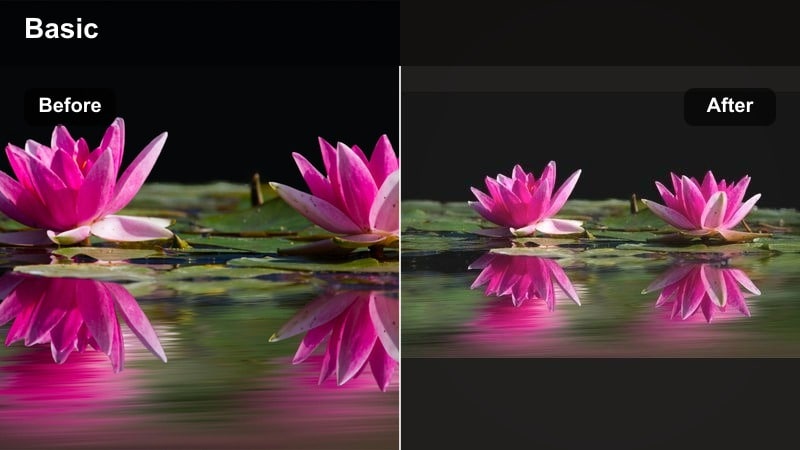
- Effect look: Low-contrast, soft matte finish with cooler midtones that enhance mist, fog, and atmospheric depth
- Best for: Early morning forest shots, misty lakes, valleys with fog, and drone footage over clouds
- Editing tip: Combine the filter with a gentle film grain layer to add texture and prevent misty scenes from looking too digital or flat
A soft, atmospheric filter that elevates foggy outdoor scenes into cinematic, ethereal moments. Fogbound Film works wonderfully in Filmora when you want your nature video filter to emphasize mood, silhouettes, and depth rather than crisp detail.
Apply the preset, then use Filmora s curves or tone controls to slightly lift blacks and tame highlights, reinforcing the matte look. Adding a subtle grain overlay or texture clip on top will keep gradients smooth and give your misty scenes a more analog, filmic character.
Pro tip – Lean into desaturation: For maximum mood with Fogbound Film, slightly reduce overall saturation so the focus stays on light, depth, and silhouettes. Add a subtle blue tint to shadows if you want the scene to feel colder and more mysterious without losing narrative clarity.
Shadow Trail Noir
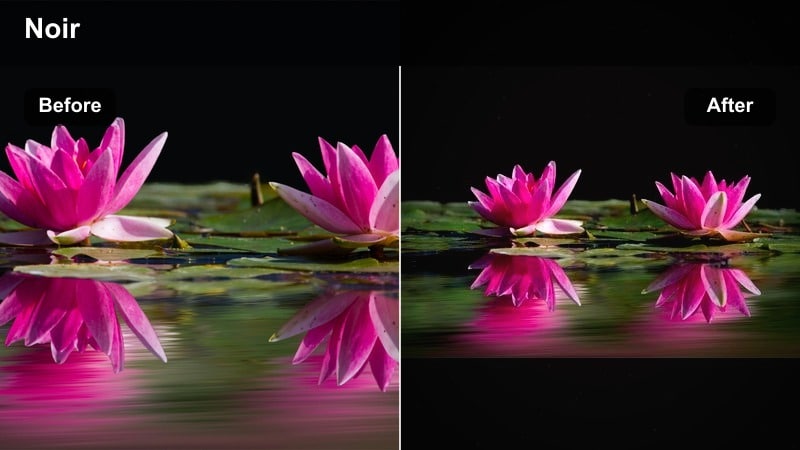
- Effect look: High-contrast, desaturated film look with emphasis on texture and directional light in outdoor paths
- Best for: Dramatic outdoor walking scenes, thriller-style sequences, and narrative moments in woodland or city parks
- Editing tip: Reduce saturation in the greens and yellows while keeping skin tones slightly warmer to get a stylized yet human look
A gritty, cinematic filter that brings a noir-inspired look to outdoor trails and story-driven sequences. In Filmora, Shadow Trail Noir is ideal for suspenseful walks, detective-style B-roll, or any scene where you want tension and texture.
After applying the preset, use Filmora s vignette and highlight controls to shape where the eye goes in the frame, letting edges fall darker while your subject remains visible. Keep motion smooth with stabilized footage so the bold contrast feels controlled and intentional, not chaotic.
Pro tip – Shape light with vignettes: Use a medium-strength vignette with Shadow Trail Noir to guide the viewer’s eye toward your subject in the frame. If the scene feels too harsh, ease off global contrast and instead enhance micro-contrast with clarity for a more refined finish.
Mountain, Rock, and Epic Wild Terrain
Granite Cinema
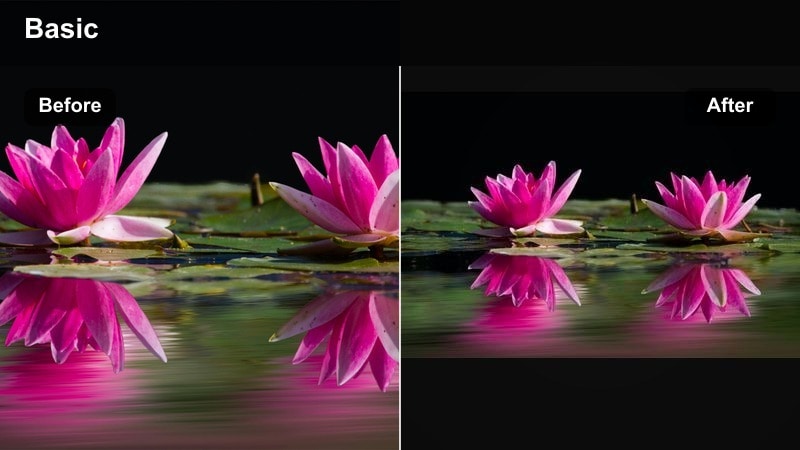
- Effect look: Neutral cinematic contrast with slightly cool highlights and clean, sharp detail in rocks and cliffs
- Best for: Rocky summits, cliff edges, boulder fields, and high-contrast daytime mountain footage
- Editing tip: Sharpen selectively on midtones and edges to bring out rock texture while keeping skies and clouds smooth
A crisp outdoor filter that highlights the raw texture and scale of rugged mountain landscapes. In Filmora, Granite Cinema works especially well on handheld or drone shots where you want to showcase geological detail without making colors look oversaturated.
Apply the filter, then use Filmora s sharpen and clarity tools on masked areas like ridges and rock faces, leaving the sky softer for a cinematic separation. Adjust cool highlights slightly warmer if skin tones are present so people look natural against the dramatic backdrop.
Pro tip – Protect skin tones in harsh light: If talent is in frame, use a skin-tone mask to soften contrast slightly on faces while keeping the rocks and background punchy. Lower the blue channel saturation a bit to prevent skies from overpowering the subject when shooting at midday.
Wild Ridge Epic
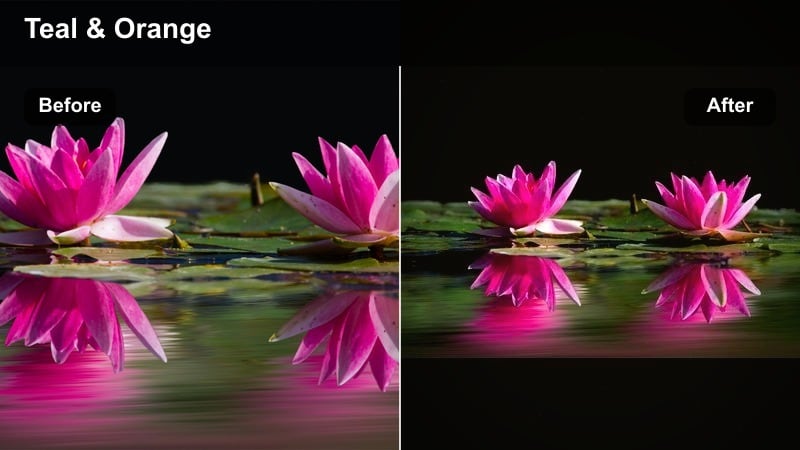
- Effect look: Bold, high-contrast cinematic grade with slightly teal shadows and warm midtones for large-scale landscapes
- Best for: Drone flyovers, sweeping ridge shots, and establishing scenes in adventure or travel films
- Editing tip: Adjust the intensity slider or overall opacity of the filter to find a balance where the grade feels strong but not over-processed
A classic adventure film look that makes ridges and valleys feel larger-than-life and intensely cinematic. In Filmora, Wild Ridge Epic is ideal for intros and location reveals where you want that teal and warm blockbuster palette in a single click.
After applying the preset, tweak intensity and midtone contrast to avoid halos or crunchy details, especially on drone footage. Match exposure and white balance across clips in a sequence so cuts feel seamless and the teal-and-warm grade stays consistent throughout your edit.
Pro tip – Match shots across a sequence: Apply Wild Ridge Epic as a base, then fine-tune exposure and white balance on each clip so cuts feel seamless in a montage. Group similar shots and copy grade adjustments between them to maintain consistent mood across the entire sequence.
Desert Cinema Dust
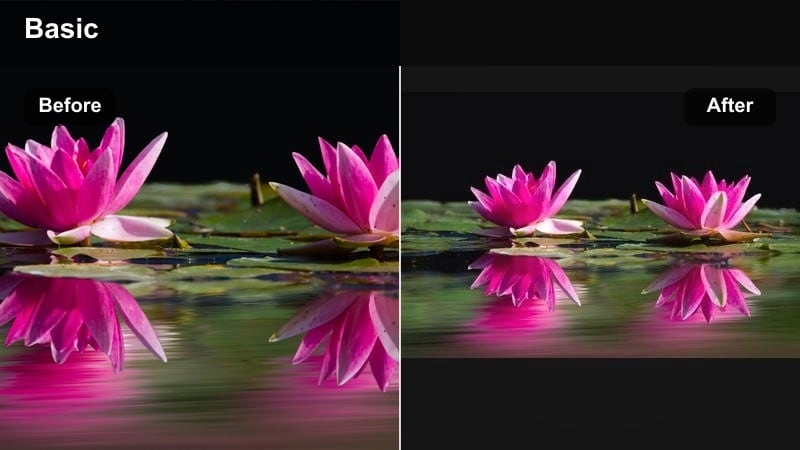
- Effect look: Warm, slightly dusty midtones with softened highlights and gentle contrast curve for dry, sun-baked terrains
- Best for: Desert trails, rocky plateaus, dry grasslands, and handheld travel sequences in harsh light
- Editing tip: Use a subtle fade in the blacks to mimic a film scan look and reduce any harsh digital clipping in bright sand or rocks
A warm, cinematic outdoor filter that transforms desert and dry landscapes into stylized film scenes. In Filmora, Desert Cinema Dust helps tame harsh sun while keeping a sandy, travel-film aesthetic that feels nostalgic and adventurous.
Apply the preset, then gently roll off highlight brightness and lift black levels so dunes, rocks, and paths retain detail. Use Filmora s HSL panel to pull back intense yellows and push oranges so both the environment and skin tones look rich but believable.
Pro tip – Control yellow saturation: Sand and dry grass can easily turn oversaturated, so pull back yellows and slightly boost oranges to keep tones natural. If skin tones look too orange, isolate them and nudge hue back toward peach while keeping the environment stylized.
Lakes, Rivers, and Open Sky Moods
Glacier Lake Film
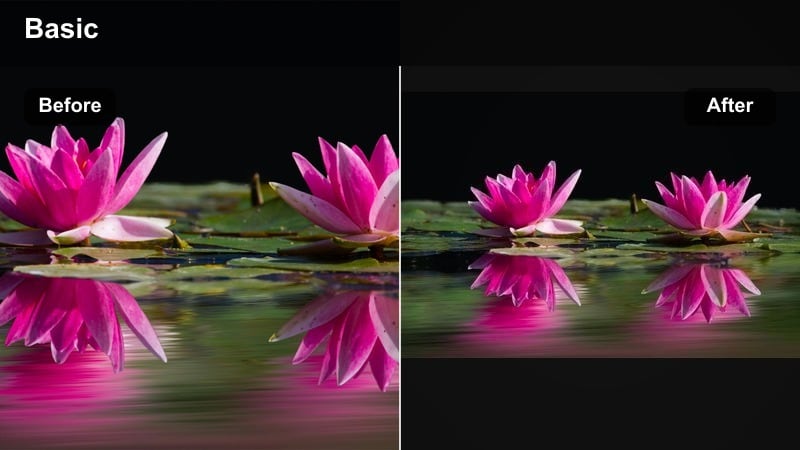
- Effect look: Cool, cyan-shifted water tones with crisp highlights and clean whites for pristine lake and river scenes
- Best for: Mountain lakes, flowing rivers, waterfalls, and reflective water shots under clear or slightly cloudy skies
- Editing tip: Dial back cyan saturation slightly if the water begins to look unnatural, and balance with a gentle warmth in the midtones
A clean, modern cinematic filter that emphasizes crisp blues and reflective water surfaces. In Filmora, Glacier Lake Film is great for travel vlogs, kayaking sequences, and nature reels where water clarity and sky reflections are the heroes.
Apply the preset, then fine-tune cyan and blue saturation so lakes feel vibrant without looking artificial. Add light midtone warmth to keep skin tones flattering, and use Filmora s local contrast around shorelines and rocks to add perceived depth.
Pro tip – Use polarizing shots to your advantage: If you used a polarizer on set, Glacier Lake Film will enhance clarity even more, so keep clarity and sharpening adjustments subtle. For non-polarized shots, raise local contrast slightly around water edges to create the illusion of extra depth and detail.
Storm Sky Dramatic
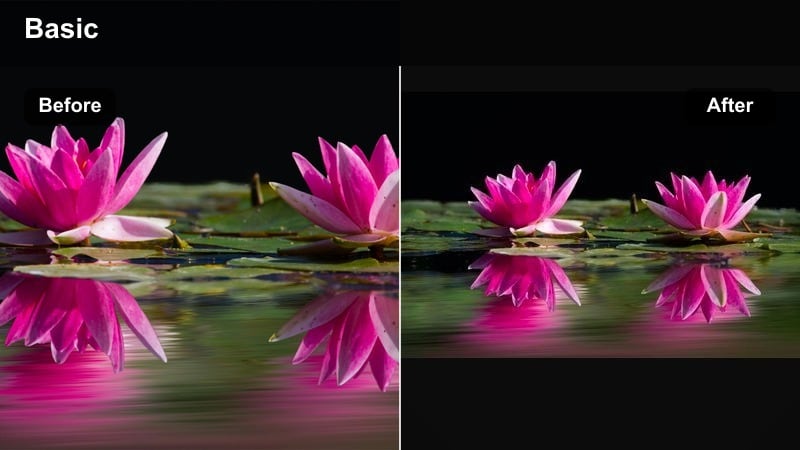
- Effect look: Heavy, darkened clouds with boosted texture, cool shadows, and subdued midtones for intense sky drama
- Best for: Approaching storms, dramatic timelapses, and wide shots where sky and clouds dominate the frame
- Editing tip: Apply selective sharpening and clarity to the sky only, leaving the foreground softer so the viewer’s focus stays upward
A powerful outdoor filter that turns ordinary cloudy skies into epic, stormy cinematic backdrops. In Filmora, Storm Sky Dramatic is perfect for time-lapses, landscape cutaways, or music videos that need a sense of approaching tension.
Apply the preset and then use masks or AI selection to boost clarity and contrast only where clouds reside, keeping the ground and any people softer. This helps the viewer feel the weight of the sky while the rest of the frame supports the mood without distraction.
Pro tip – Avoid overdoing structure: Too much clarity on clouds can look artificial, so use Storm Sky Dramatic with moderate local contrast adjustments only. If banding appears in gradients, add a touch of noise or film grain to smooth transitions and maintain a filmic feel.
Horizon Soft Film
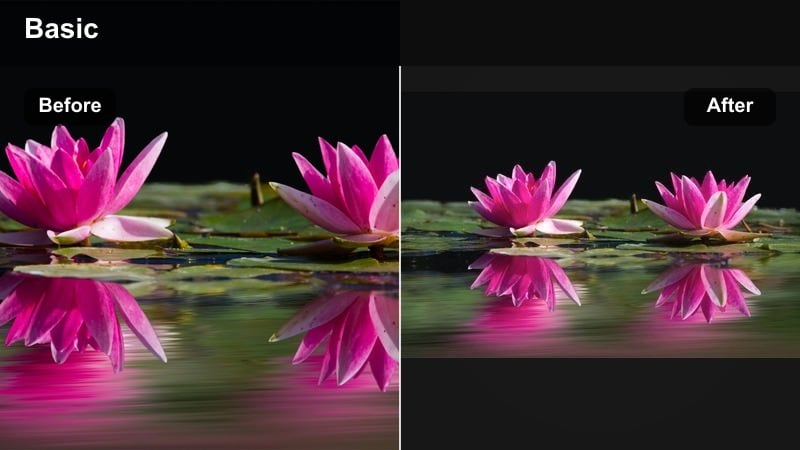
- Effect look: Soft, low-contrast film look with gentle pastel color shifts in the sky and distant horizon lines
- Best for: Minimalist seascapes, calm lakes at dawn, and contemplative outdoor scenes with simple compositions
- Editing tip: Reduce clarity and dehaze slightly to keep the distant horizon soft, and use subtle vignettes to hold attention on your subject
A delicate cinematic filter that suits quiet, reflective outdoor scenes with a soft, emotional tone. In Filmora, Horizon Soft Film pairs beautifully with slow pans, locked-off frames, and gentle music for meditative travel or nature edits.
Apply the preset, then lower contrast and clarity a bit more if you want an even dreamier look, keeping texture only on your subject. Use Filmora s vignetting and color tools to emphasize pastel gradients in the sky while maintaining a calm, uncluttered frame.
Pro tip – Embrace negative space: When using Horizon Soft Film, compose with plenty of negative space so the soft color transitions in the sky can carry emotion. Keep movements gentle and slow in these shots; the filter pairs best with subtle camera motion or locked-off frames.
Tips for Using Outdoor Cinematic Filters in Filmora
- Shoot in a flat or log profile when possible so these cinematic outdoor video filters have more dynamic range to work with.
- Lock white balance on location to avoid big color shifts when applying filters across multiple shots.
- Use one primary filter for each sequence to keep the mood consistent, then tweak exposure and contrast per clip.
- Dial back filter intensity if foliage or skies begin to look oversaturated or unnatural.
- Add subtle film grain after grading to unify digital clips and reinforce the film look nature aesthetic.
Cinematic outdoor video filters like the Cinematic Outdoor Filter. Epic Wild preset give filmmakers and photographers a fast, reliable path to dramatic outdoor visuals with a polished film look. They simplify grading decisions so you can focus on composition, pacing, and story.
Experiment with a few of these styles on your next nature shoot, then refine exposure, color, and grain so your cinematic outdoor films feel cohesive, intentional, and ready to share across platforms.
secure downloadNext: Create a Moody Outdoor Look with the Outdoor Moody Filter
