

 100% Security Verified | No Subscription Required | No Malware


 ChatGPT
 Perplexity
 Gemini
 Claude
 Grok
Grok
Give your TikTok drone shots a true big-screen vibe with cinematic filters that mimic professional LUTs in one click.
Below are 12 TikTok-ready cinematic filter styles tailored for drone footage so content creators can quickly match mood, location, and storytelling style without complex color grading.
In this article
Golden Hour Skies and Sunset Flyovers
Sunset Amber Glow
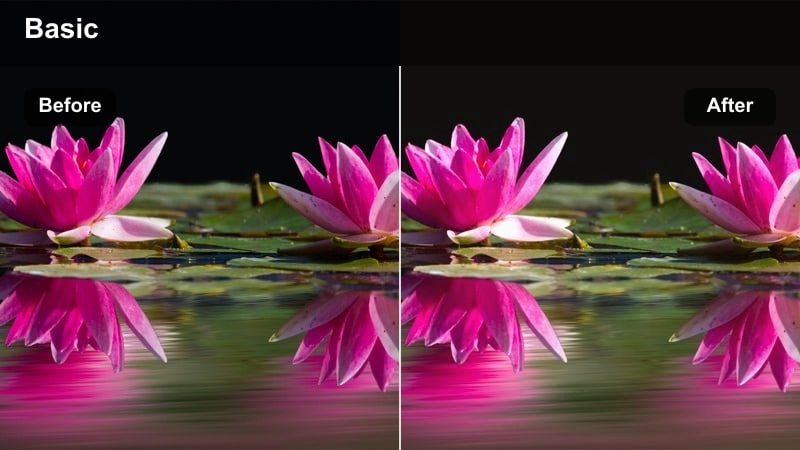
- Effect look: Warm, amber-tinted contrast that deepens skies and gives landscapes a soft cinematic halo.
- Best for: Drone passes during golden hour, beach sunsets, and coastal cliff flyovers for TikTok.
- Editing tip: Lower highlights slightly to keep clouds from clipping and add a gentle vignette for a richer frame.
In Filmora, the Sunset Amber Glow style works like an instant golden-hour LUT, pushing orange and amber tones while keeping shadows rich and cinematic. Apply it to clips that already have some warmth in the sky, then fine-tune exposure with the basic color controls so your horizon line stays detailed instead of blown out.
For TikTok drone edits, combine this look with slow, sweeping coastal flyovers or revealing pullbacks over cliffs to accent the warm gradient in the sky. Add a subtle vignette in Filmora and slightly soften highlights to hold texture in clouds, then finish with gentle sharpening so the scene still feels natural and not overly processed.
AI-Powered Cinematic Color for Every Drone Scene
Filmora AI Color tools can scan your drone footage and intelligently adapt the Sunset Amber Glow style so highlights, midtones, and shadows stay balanced. This is especially useful when your flight path moves from bright sky into darker landscapes in a single shot.
Instead of manually keyframing color, let AI refine exposure and white balance under the hood so your cinematic filter looks like a custom LUT grade across the entire clip.
 secure download

Preview Drone Filters in Real Time
With Filmora, you can hover over cinematic drone filters to preview the grade on your footage in real time before you apply it. This lets you quickly compare warm sunset looks, cool teal grades, and moody night styles on the same clip.
Use the instant preview to test how the Sunset Amber Glow filter stacks up against dusk or ocean-focused filters, then lock in the one that best fits your TikTok hook and pacing.
secure download1000+ Video Filters and 3D LUTs
Beyond these cinematic drone styles, Filmora includes a large library of filters and 3D LUTs so you can match your aerial footage to trending TikTok aesthetics or specific camera looks. Combine built-in presets with manual HSL and color controls to create a unique, branded style.
Once you dial in a drone grade you love, save it as a custom preset so you can reuse the same cinematic look across future flights and maintain a consistent TikTok feed.
secure downloadHazy Dusk Cinema
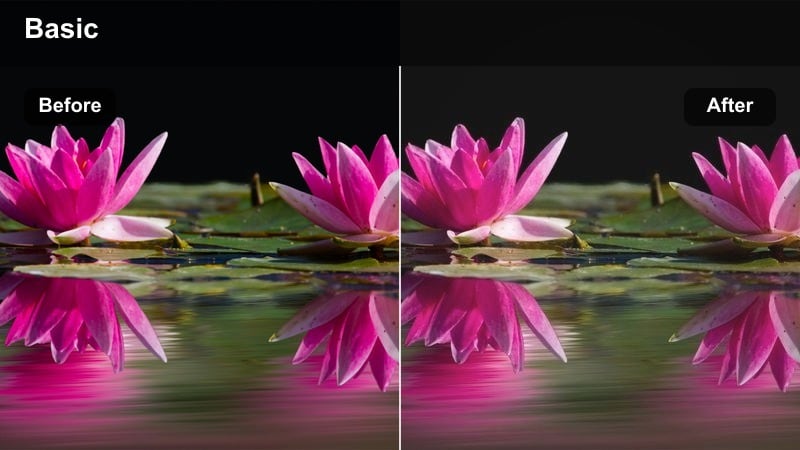
- Effect look: Soft low-contrast dusk tones with lifted shadows and pastel skies for a dreamy aerial aesthetic.
- Best for: Blue hour city flyovers, lakeside drone footage, and calm evening TikTok montages.
- Editing tip: Reduce clarity or sharpness slightly to keep the hazy mood and avoid crunchy edges on buildings and horizons.
Hazy Dusk Cinema in Filmora gently lifts shadows and lowers contrast so your blue hour footage takes on a soft, pastel character. It is ideal when street lights are just turning on and the sky still holds a gradient of color that you want to emphasize in a more romantic, cinematic way.
After applying the filter, reduce sharpness or clarity a touch and consider adding a mild blur or glow effect to lights to avoid a harsh, digital look. When you cut for TikTok, pair this style with slow pans, tilts, and reveal shots, and use Filmora audio tools to match the grade with chilled, atmospheric tracks.
Sunrise Film Matte
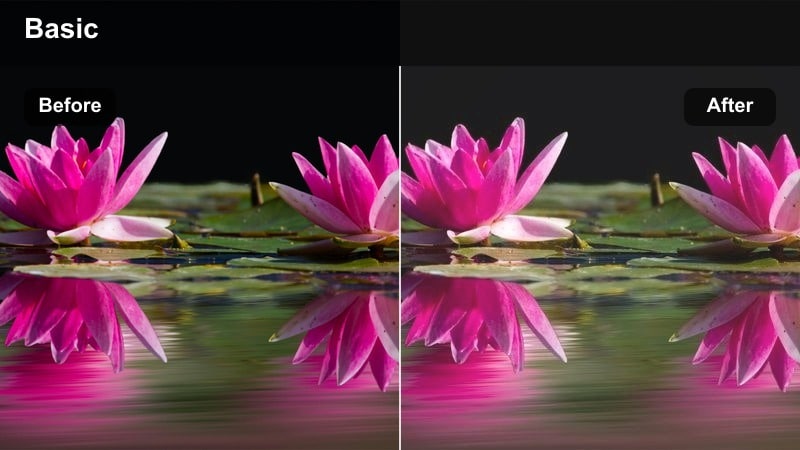
- Effect look: Faded film-style contrast with a gentle rose tint in highlights and subtle matte blacks.
- Best for: Early morning mountain flyovers, farmland reveals, and peaceful travel reels on TikTok.
- Editing tip: Use slow cross-dissolves between clips and keep saturation modest so the filmic fade remains elegant.
Sunrise Film Matte gives your drone footage a nostalgic, analog feel by slightly fading blacks and adding a soft rose tint to highlights. In Filmora, combine this look with moderate exposure adjustments so the dynamic range stays smooth and the filmic wash remains the star of the grade.
For TikTok storytelling, use this filter across a full sequence of morning shots to create a cohesive visual diary of your location. Add gentle cross-dissolves between clips and keep saturation under control in Filmora so the grade feels timeless and cinematic rather than overly stylized.
Neon Cityscapes and Night Drone Flights
Neon Skyline Punch
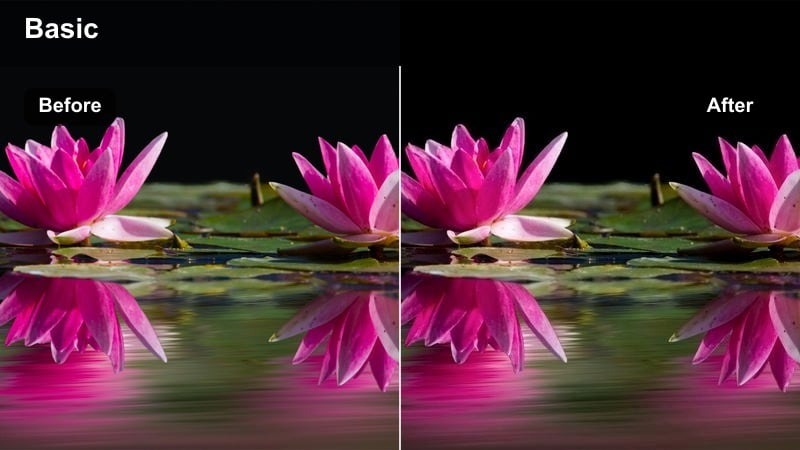
- Effect look: Bold contrast with saturated neon blues and magentas that make city lights pop against dark skies.
- Best for: Nighttime downtown flyovers, highway light trails, and urban TikTok edits synced to electronic music.
- Editing tip: Keep exposure slightly under to preserve neon detail, then add this filter to intensify color without blowing highlights.
Neon Skyline Punch is designed to make your night cityscapes explode with color by boosting blues, magentas, and overall contrast. In Filmora, apply it to properly exposed or slightly underexposed footage so windows, billboards, and car trails keep their detail instead of turning into pure white blobs.
After adding the filter, fine-tune contrast and saturation sliders until neon lights pop without causing banding or oversaturation in the sky. For TikTok, cut your drone passes on musical beats and use Filmora speed ramping to emphasize sections where the city grid and light trails look most intense under this cinematic grade.
Teal Magenta Night Grade
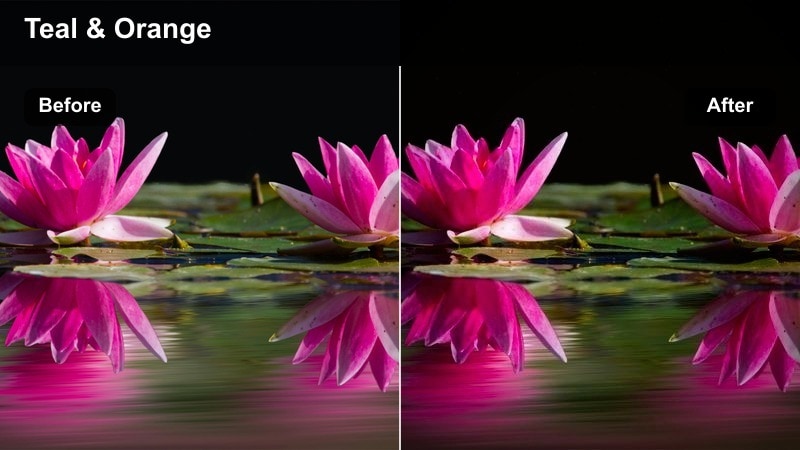
- Effect look: Modern teal shadows and magenta highlight tones that mirror big-budget city night grading.
- Best for: High-rise flythroughs, rooftop reveals, and cinematic urban stories filmed after dark.
- Editing tip: Dial down saturation on skin tones if people appear in the frame so the teal-magenta split does not look unnatural.
Teal Magenta Night Grade brings a blockbuster-style palette to your aerial city shots by cooling down shadows and infusing highlights with magenta and pink. Apply it in Filmora when your footage features lots of glass, roads, and signage so the color separation between teal streets and magenta lights feels deliberate and cinematic.
Use the color tuning tools to protect skin tones if you have subjects on rooftops or balconies, slightly reducing orange saturation while keeping the teal-magenta split strong in the environment. For TikTok edits, keep transitions simple and rely on consistent use of this filter over multiple clips to tell a cohesive nighttime story across your vertical frame.
Moody Noir Overlook
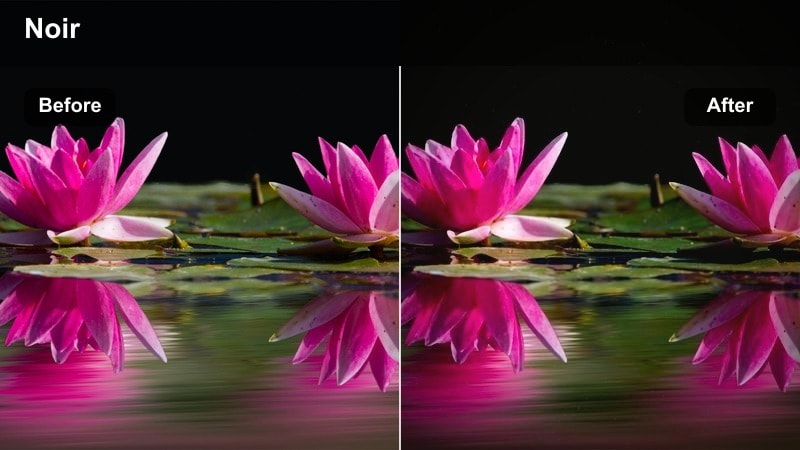
- Effect look: Desaturated, high-contrast night look with cool shadows and selective color in key light sources.
- Best for: Moody downtown alleys from above, industrial districts, and crime-drama style TikTok edits.
- Editing tip: Trim your clips to slower, intentional camera moves and sync to darker music to sell the noir aesthetic.
Moody Noir Overlook drains much of the color from your drone footage while keeping key light sources crisp and impactful, perfect for crime-drama edits. In Filmora, it works best on clips with strong pools of light from streets, windows, or factories so those highlights cut through the desaturated environment.
After applying the filter, refine contrast and blacks until the city feels dark but still readable, avoiding crushed detail in important areas. Pair the look with slower aerial moves, subtle zooms, and suspenseful music in Filmora to produce noir-style TikTok stories that feel intentionally cinematic rather than just dimly lit.
Coastal Vistas and Ocean Drone Runs
Aqua Coastline Cinema
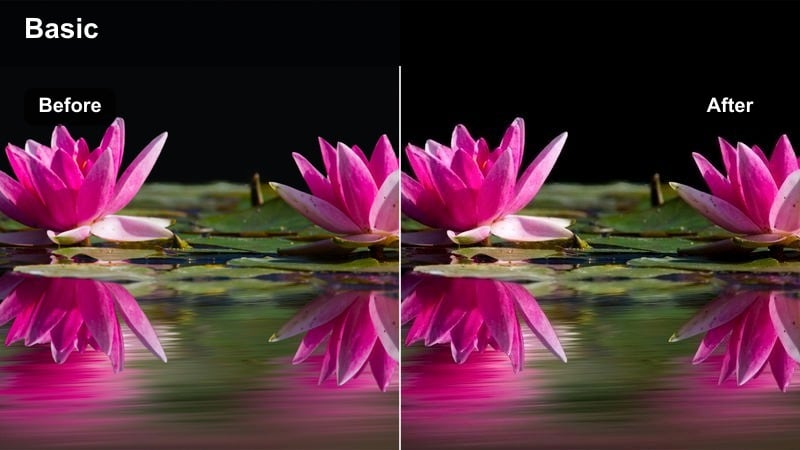
- Effect look: Crisp, cool aqua blues with bright foam whites and gentle contrast for clean, cinematic seascapes.
- Best for: Shoreline flybys, surfers from above, and tropical travel TikTok edits focused on water.
- Editing tip: Boost midtone saturation slightly on overcast days so the water still looks vivid under this cooler grade.
Aqua Coastline Cinema tunes your ocean shots toward turquoise and aqua while keeping wave foam clean and bright, ideal for travel-style TikToks. In Filmora, apply this filter when your footage features clear water and visible shoreline textures so the cooler palette enhances natural detail rather than turning the scene flat.
Use the color and saturation tools to add a bit of punch to midtones if the scene was captured on an overcast day, making sure the horizon still looks realistic. Combine this grade with straight, smooth drone paths following the coastline and minimal transitions so viewers can soak in the clarity and color of your cinematic seascapes.
Tropical Film Wash
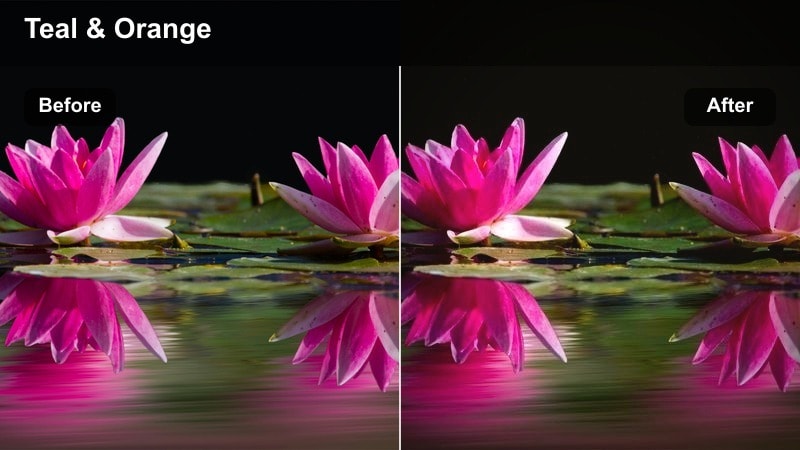
- Effect look: Lightly faded contrast with warm sand tones and teal water, mimicking classic travel film stock.
- Best for: Island hopping sequences, beach resort reveals, and vacation highlight reels on TikTok.
- Editing tip: Use this filter on clips with clear sunlight and avoid heavy clouds so the film wash stays bright and inviting.
Tropical Film Wash adds a gentle fade to contrast while separating warm sand from teal water, giving drone beach scenes a postcard-film aesthetic. In Filmora, this filter works best with sunny, well-exposed footage where the natural colors already feel vibrant before grading.
After applying it, adjust exposure and highlights to avoid losing detail in white sand or breaking the soft filmic look. For TikTok, string together a sequence of smooth island flyovers, resort reveals, and shoreline passes using this same filter and subtle cross-dissolves to create a relaxed vacation montage.
Stormy Sea Drama
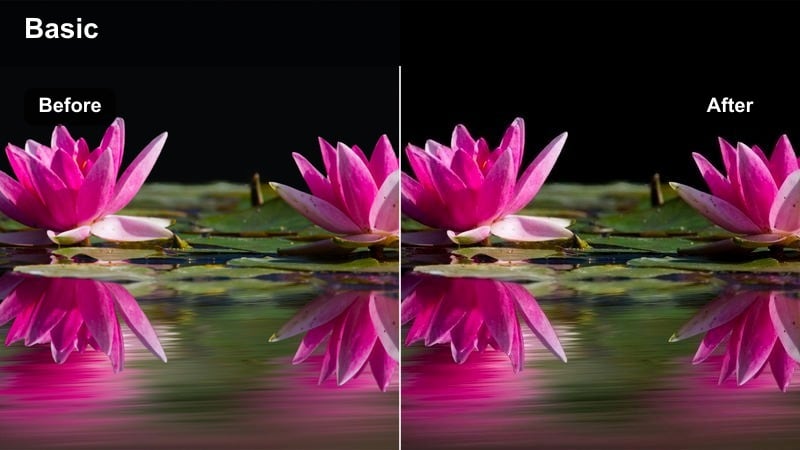
- Effect look: Dark, moody cyan-blues with boosted texture in waves and clouds for a dramatic ocean feel.
- Best for: Rough water flyovers, cliffside coasts, and intense travel or adventure drone edits.
- Editing tip: Increase local contrast or texture slightly in your editor to emphasize wave patterns and rocky details.
Stormy Sea Drama is built to emphasize texture and intensity in rough ocean scenes, deepening blues and adding grit to waves and clouds. In Filmora, it excels on clips with strong movement in the water or dramatic coastlines where shadows and highlights already have natural contrast.
Once applied, use local contrast, clarity, or texture adjustments to bring out the micro-details of waves and rocks without overdoing noise. Cut your TikTok sequence around the most powerful swells or cliff reveals and layer in dark, energetic music or sound effects so the visual drama of the grade is fully supported.
Mountains, Forests, and Epic Scenic Ranges
Cinematic Peak Contrast
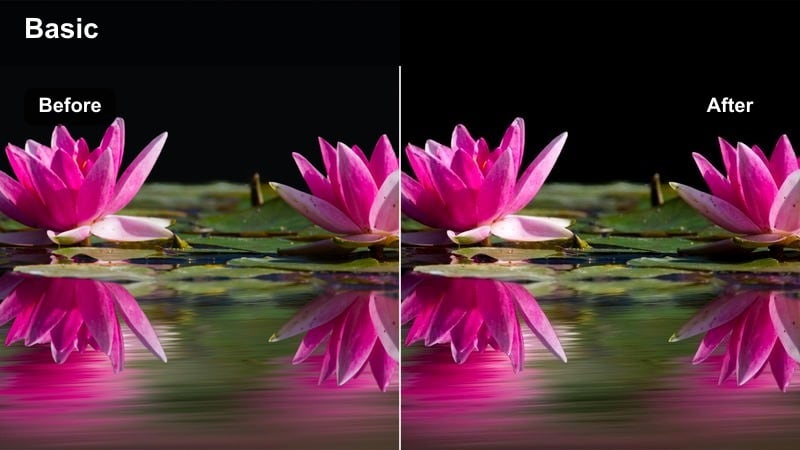
- Effect look: Bold, high-contrast grade that deepens shadows in ridges and brightens snow or sunlit peaks.
- Best for: High-altitude mountain passes, glacier flyovers, and adventure drone B-roll for TikTok.
- Editing tip: Avoid overexposing snow; slightly underexpose in-camera so this strong contrast filter keeps details.
Cinematic Peak Contrast is made to sculpt mountains by darkening ridges and brightening sunlit areas, amplifying depth and drama from the air. In Filmora, it works best on correctly or slightly underexposed footage, especially when snow or bright rock faces are present.
After applying the filter, tweak highlights and whites to prevent snow from clipping while preserving punchy contrast across the scene. For TikTok, combine big establishing sweeps with closer ridge passes under this same grade, and consider using Filmora speed ramps or time remapping to accent changes in altitude or perspective.
Evergreen Teal Grade
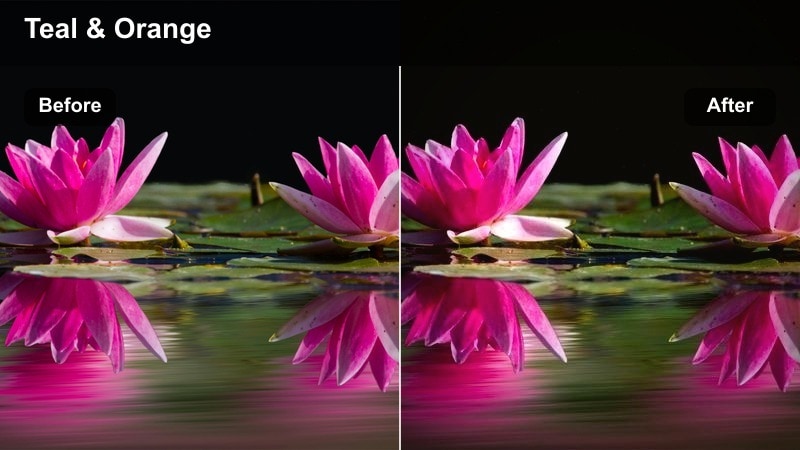
- Effect look: Cool teal-green forests with clean whites and slightly lifted shadows for soft cinematic depth.
- Best for: Forest canopy flyovers, valley reveals, and nature-heavy travel TikTok edits.
- Editing tip: If your footage is already very green, lower overall saturation a touch before applying this teal-focused style.
Evergreen Teal Grade cools down your forest scenes and pulls greens into a more stylized teal, giving top-down canopy shots a smooth, cinematic texture. In Filmora, use it on clips where trees dominate the frame so the subtle lift in shadows and cool cast create a calm, immersive feel.
If your native footage is extremely saturated, first decrease saturation slightly, then apply the filter so the final teal hue does not appear radioactive. Edit your TikTok sequence with slower drone moves and minimal digital sharpening, letting the forest patterns and gradient tones carry the visual interest.
Desert Cinema Amber
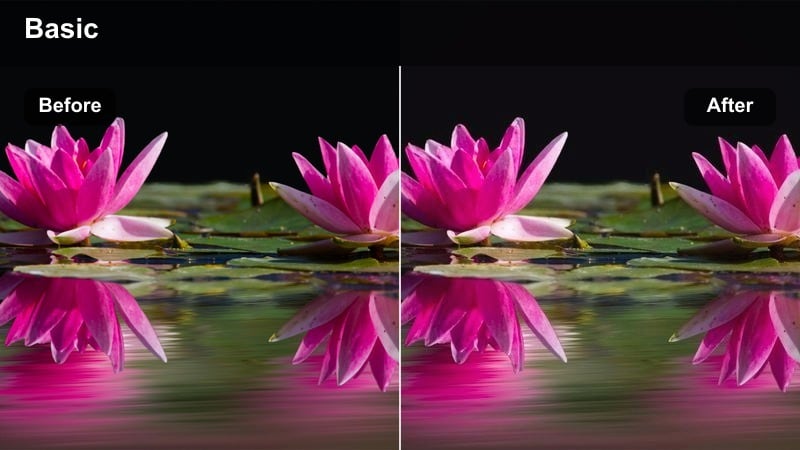
- Effect look: Rich, warm desert tones with golden highlights and slightly faded shadows for a filmic travel look.
- Best for: Canyon flyovers, dune tracking shots, and road trip drone clips across dry landscapes.
- Editing tip: Reduce vibrance instead of saturation if skin appears in frame so the sand stays rich without over-orange people.
Desert Cinema Amber wraps your arid landscapes in rich golds and ambers, ideal for dunes, canyons, and road trip footage. In Filmora, apply this look when your footage features strong sunlight and clear shapes in the terrain so the warm grade accentuates depth rather than washing everything out.
Use vibrance adjustments to gently control how strongly the warmth affects skin tones if people or vehicles are visible, maintaining a natural but cinematic feel. For TikTok edits, follow roads or dune ridges with your drone and cut between wide and low passes while keeping this same filter, creating a unified visual journey through the desert.
Tips for Using Tiktok Drone Footage Luts Cinematic Filters in Filmora
- Shoot in a flat or log-style profile when your drone supports it so Filmora cinematic filters and LUT-style presets have more dynamic range and detail to work with.
- Keep drone movement smooth and intentional; pair filters with gentle pans, tilts, and reveals instead of fast, jerky motions that can break the cinematic illusion.
- Stick to one or two filter styles per TikTok so your aerial sequence feels cohesive and recognizable as part of your visual brand.
- Correct exposure and white balance in Filmora before adding filters to avoid fighting clipped highlights, muddy shadows, or heavy color casts.
- Use Filmora intensity or opacity controls on filters and LUT-style looks to dial in a subtle grade instead of pushing the effect to 100 percent by default.
- Export in the highest resolution and bitrate that TikTok supports for your account so city lights, waves, forests, and fine textures stay sharp after compression.
- Save your favorite drone grades as Filmora presets, then batch apply them to new flights so your editing workflow stays fast and consistent.
Cinematic filters tailored for drone footage make it easy to turn everyday aerial shots into scroll-stopping TikTok visuals without advanced color skills. By matching each filter to the right lighting and location, you can quickly produce sequences that feel like they were graded with high-end LUTs.
Pick a style that fits your scene, tweak intensity to taste in Filmora, and build a consistent look across your posts so viewers instantly recognize your drone content in their feed.
secure download