

 100% Security Verified | No Subscription Required | No Malware


 ChatGPT
 Perplexity
 Gemini
 Claude
 Grok
Grok
Warm travel video filters instantly turn ordinary travel clips into glowing memories by adding golden highlights, soft contrast, and cozy tones that feel like a permanent sunset on your timeline.
This guide explores Filmoras Warm Travel Filter. Golden Adventure preset and complementary warm travel filters so travelers and vloggers can give their travel vlogs and vacation videos a consistent, cinematic glow in just a few clicks.
In this article
Core Warm Travel Filters for Golden Adventures
Warm Travel Filter. Golden Adventure
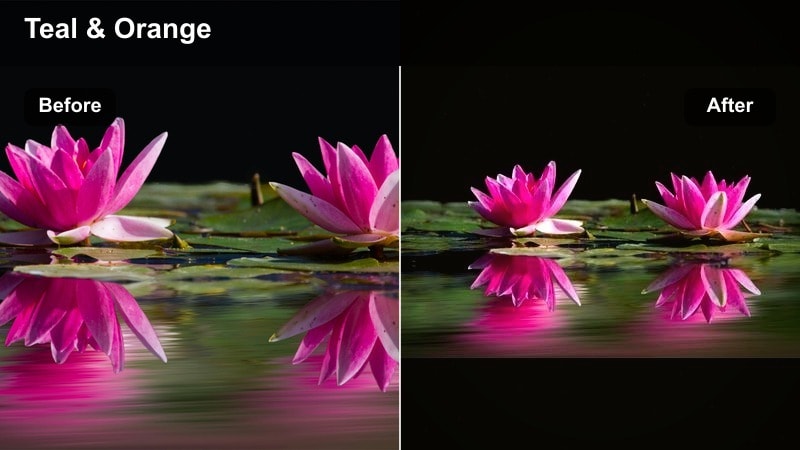
- Effect look: Rich golden warmth with soft contrast and subtle teal shadows that create a cinematic, postcard-style glow.
- Best for: Sunset beach walks, warm city evenings, and highlight reels of your favorite vacation memories.
- Editing tip: Lower the intensity slightly on already orange-toned footage to avoid oversaturation and keep skin tones natural.
This signature warm travel filter wraps your entire trip in a dreamy golden hour look, even if you did not perfectly time every shot with sunset. In Filmora, applying Warm Travel Filter. Golden Adventure instantly adds rich golden highlights and gentle teal shadows that make skies, streets, and skin tones feel like they belong in a cinematic postcard.
Use this preset as your hero look across a full vlog: apply it to B-roll of city streets, coastline walks, and tripod shots of landmarks so everything shares the same cozy warmth. Then fine-tune intensity on each clip, dialing it down on naturally orange footage and nudging exposure or white balance to keep faces flattering while the overall scene stays glowing and inviting.
Use AI Color Tools to Match Warm Travel Tones
Filmoras AI color tools help you keep a consistent warm travel look even when your clips come from different cameras, lighting conditions, or days of your trip. Once you lock in a golden look with Warm Travel Filter. Golden Adventure, you can use AI to automatically push other clips toward the same cozy palette.
After color-tuning one reference clip, use AI-assisted color matching so the rest of your timeline inherits similar warmth, contrast, and saturation. This saves time and prevents jarring jumps between cool and warm frames when you cut between indoor, outdoor, and different cameras.
 secure download

Preview Warm Travel Filters on Your Own Footage
To find your ideal cozy look, drop a few raw travel clips into the Filmora timeline and audition Warm Travel Filter. Golden Adventure beside other warm presets. Toggle them on and off, then adjust intensity sliders to see how far you can push warmth while keeping skin tones believable.
Mix a hero warm preset on scenic B-roll with a slightly softer variation on talking segments so your story remains clear but the vibe stays golden. Watching these quick comparisons inside Filmora makes it easy to pick a filter combo that feels true to the location you filmed.
secure downloadCombine Warm Filters with LUTs for Cinematic Travel Vlogs
For an extra cinematic finish, you can stack Filmoras LUTs under your warm travel filters. Start with a subtle cinematic LUT to shape contrast and color depth, then layer a warm preset like Golden Adventure on top at reduced strength.
This approach lets your vacation vlogs feel polished and movie-like without sacrificing the personal, cozy tone that warm filters add. Once you like the look, save it as a custom preset so you can reuse the same golden mood on future trips.
secure downloadSunset Route
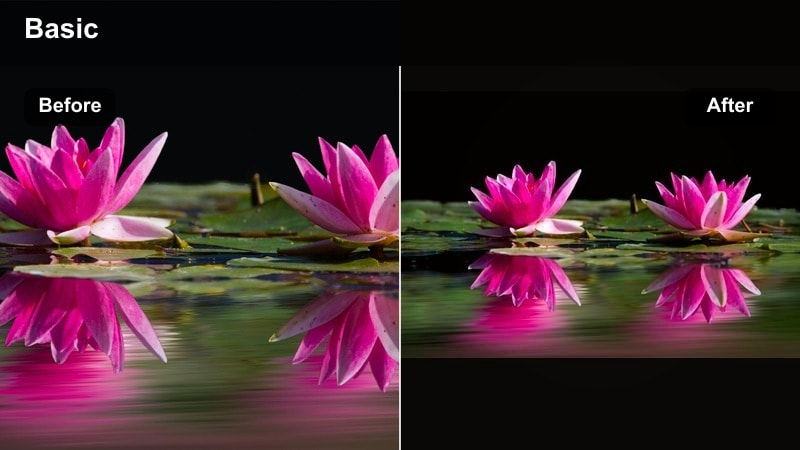
- Effect look: Deep amber highlights and soft magenta shadows that mimic a late-evening sun dipping below the horizon.
- Best for: Road trip montage shots, time-lapses of changing skies, and sunsets over water or mountain ranges.
- Editing tip: Add a slow zoom or pan to static clips so the rich, warm colors feel more alive and cinematic.
Sunset Route takes the classic golden hour look and pushes it into a bold, dramatic amber that feels like the very last light of the day. In Filmora, this filter is perfect for stretching ordinary roadside or highway footage into something that looks like a destination travel commercial.
Apply Sunset Route to car-mounted clips, drone passes over winding roads, or handheld shots from a viewpoint. Use Filmoras built-in pan and zoom or keyframed motion to slowly move into the frame, letting those deep amber skies and magenta shadows feel like they are pulling the viewer forward along your journey.
Golden City Glow
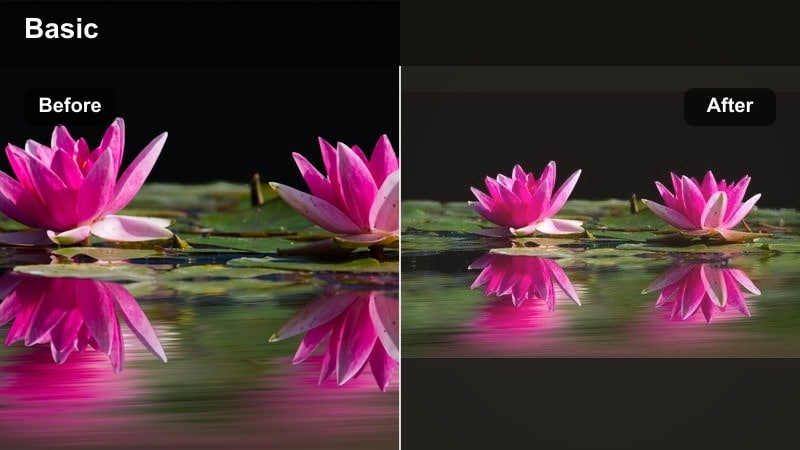
- Effect look: Soft golden lift on highlights with gentle fade in blacks for a film-like, hazy city evening vibe.
- Best for: Urban travel vlogs, rooftop views, and handheld street footage during blue to golden hour transitions.
- Editing tip: Increase sharpness slightly on skyline details so the warm haze does not make buildings look too soft.
Golden City Glow is designed to turn everyday streets, rooftops, and plazas into cinematic cityscapes. It lightly fades the blacks and lifts highlights with a warm tint, creating that dreamy, hazy atmosphere you often see in travel montages focused on nightlife and skylines.
In Filmora, pair Golden City Glow with handheld street B-roll, skyline timelapses, and rooftop bar shots. Add a subtle sharpness boost or clarity increase on buildings and signs to keep them crisp against the haze, and use slow push-in or tilt shots to showcase glowing windows, traffic trails, and neon lights under a warm dusk sky.
Filters That Amplify Golden Hour Travel Footage
Horizon Gold
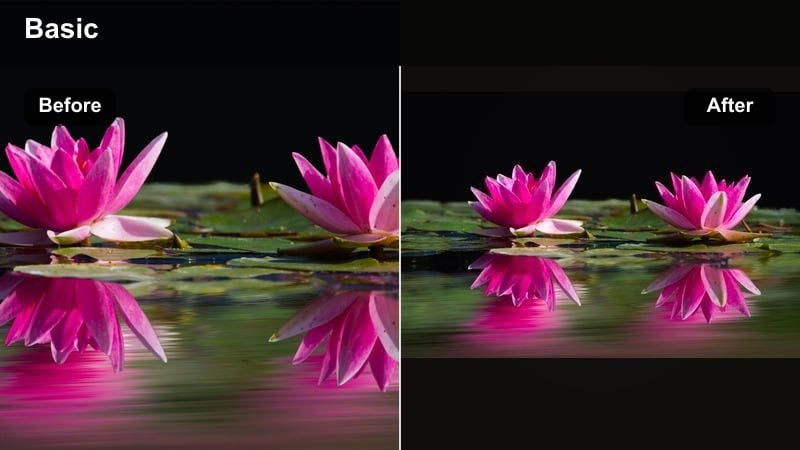
- Effect look: Intensified golden highlights and slight dehaze for crisp, glowing skies and silhouettes.
- Best for: Cliffside overlooks, drone shots over oceans, and horizon-focused landscape sequences.
- Editing tip: Reduce exposure slightly before applying the filter to preserve detail in bright clouds and sun flares.
Horizon Gold focuses on lifting the drama in your skies and silhouettes without muddying the rest of the frame. The slight dehaze adds clarity to clouds and distant landscapes, making sunrise and sunset horizons look bold and high-contrast.
Use this filter in Filmora for drone flights, panoramic tilts, and hero shots where a traveler stands against the sky. Dial exposure down a notch before applying the filter so bright clouds retain detail, then add slow motion or subtle speed changes to give the glowing horizon time to breathe on screen.
Sunlit Trails
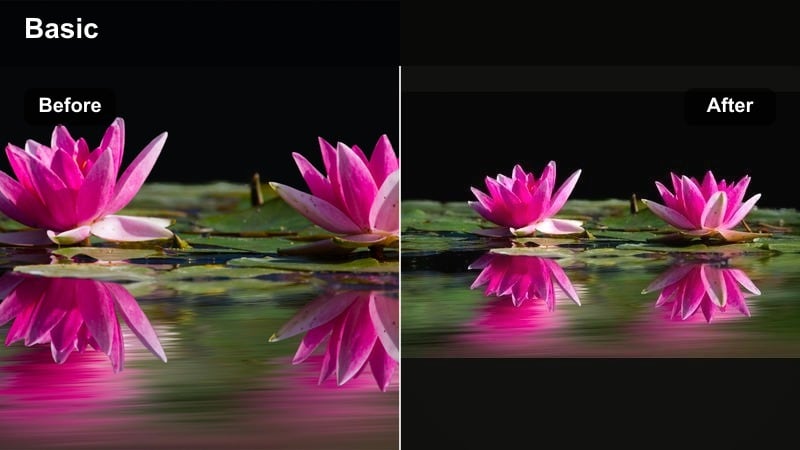
- Effect look: Warm midtones with slightly lifted shadows to reveal detail in backlit trees and paths.
- Best for: Forest hikes, countryside walks, and any travel scenes with dappled sunlight through leaves.
- Editing tip: Add a very subtle vignette to guide attention toward the path or subject in the center of the frame.
Sunlit Trails is tailored for nature adventures where light filters through trees and foliage. By warming the midtones and lifting the shadows, it preserves texture in leaves, trunks, and paths instead of letting them sink into darkness.
In Filmora, apply Sunlit Trails to hiking B-roll, bike rides, and walking shots under trees. Add a soft vignette around the edges and stabilize handheld clips to keep the viewer focused on your subject or the trail ahead, while the warm tones make the forest feel welcoming and story-rich.
Last Light Coast
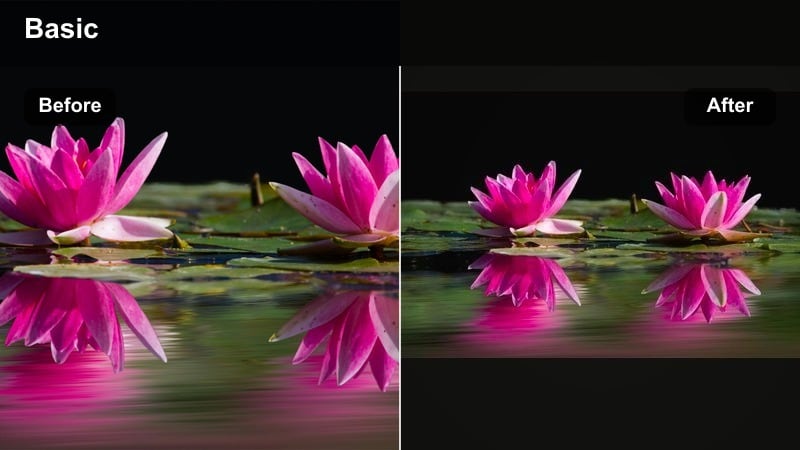
- Effect look: Soft orange and peach tones on highlights with cool shadows for a balanced warm coastal mood.
- Best for: Seaside boardwalks, boats at dusk, and relaxed farewell shots on the final day of a trip.
- Editing tip: Slow your color transitions across clips so the coast looks consistent from one scene to the next.
Last Light Coast balances warm peach highlights with gentle cool shadows, creating a soothing coastal atmosphere that still feels dimensional. It keeps water natural and deep while letting skies, buildings, and skin pick up a soft evening glow.
Use this filter in Filmora on dockside walks, harbor shots, and farewell-to-the-ocean sequences. Match white balance across clips first, then apply the filter and use Filmoras color tools to keep the warmth consistent from scene to scene so your entire coastal sequence feels like one lingering sunset.
Cozy Travel Tone Filters for Story-Driven Vlogs
Café Cozy
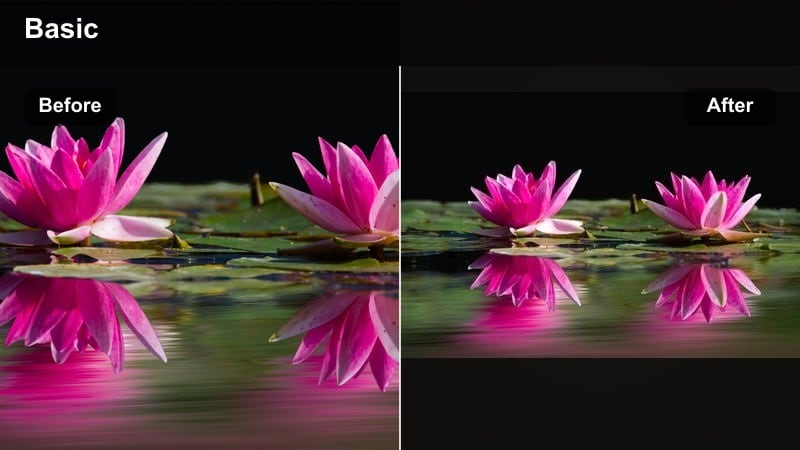
- Effect look: Muted contrast with creamy highlights and rich browns that feel like a coffee shop snapshot.
- Best for: Travel café hops, indoor restaurant scenes, and journal-style storytelling segments.
- Editing tip: Lower saturation slightly on bright reds so signs and decor do not overpower soft skin tones.
Cafe Cozy is built for intimate, indoor moments when you are journaling, sipping coffee, or sharing a quiet meal. The filter softens contrast, adds creamy highlights, and enhances browns to make wooden tables, mugs, and decor feel inviting.
In Filmora, drop this filter on talking-to-camera segments, close-ups of food, and handheld coffee shop B-roll. Reduce saturation on strong reds and oranges in menus or signage, then use jump cuts and a gentle background track so the cozy look supports a focused, story-driven monologue.
Hostel Hearth
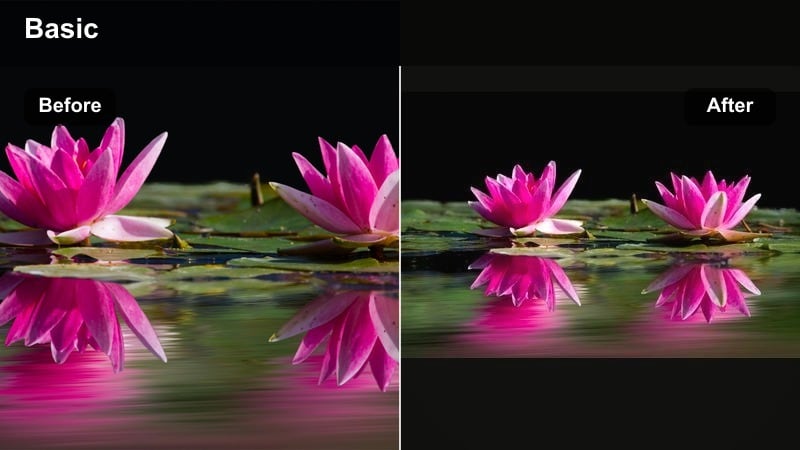
- Effect look: Warm oranges and soft grain that mimic candlelight and shared late-night hostel chats.
- Best for: Evening hangouts, hostel common rooms, and cozy storytelling clips with friends.
- Editing tip: Add a light film grain effect to reinforce the nostalgic, lived-in feeling of the footage.
Hostel Hearth recreates the glow of lamplight and late-night conversations, with warm oranges and a subtle grain that feels nostalgic. It is ideal for scenes full of friends, games, and shared stories after a long day of exploring.
Apply it in Filmora to footage from common areas, living rooms, and shared meals. Layer in a touch of film grain and cut on genuine laughs or reactions so your edit feels authentic and alive, while the warm tones tie together clips shot under different indoor lights.
Train Window Warmth
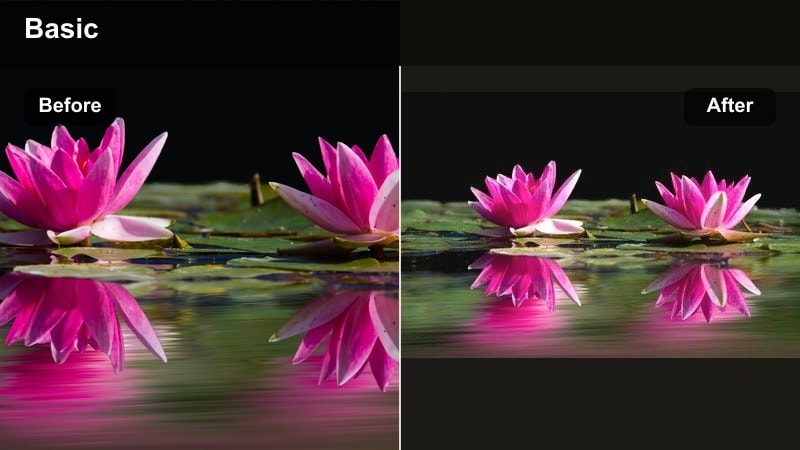
- Effect look: Warm tinted highlights and soft blur in the edges that feel like a dreamy train ride reflection.
- Best for: Long-distance train or bus rides, reflective narrative segments, and moody B-roll of passing landscapes.
- Editing tip: Use longer crossfades between clips to emphasize the sense of drifting and daydreaming.
Train Window Warmth is made for transitions and reflective sequences, adding a gentle warm tint and soft edge blur that mimics daydreaming out of a window. It turns ordinary travel time into an emotional bridge between locations.
In Filmora, use this filter on B-roll of passing fields, tunnels, and cities taken from trains or buses. Add longer crossfades and layer a personal voiceover or quiet music to turn these in-between moments into emotional storytelling beats that connect different parts of your trip.
Mix-and-Match Warm Filters for Vacation Videos
Poolside Glow
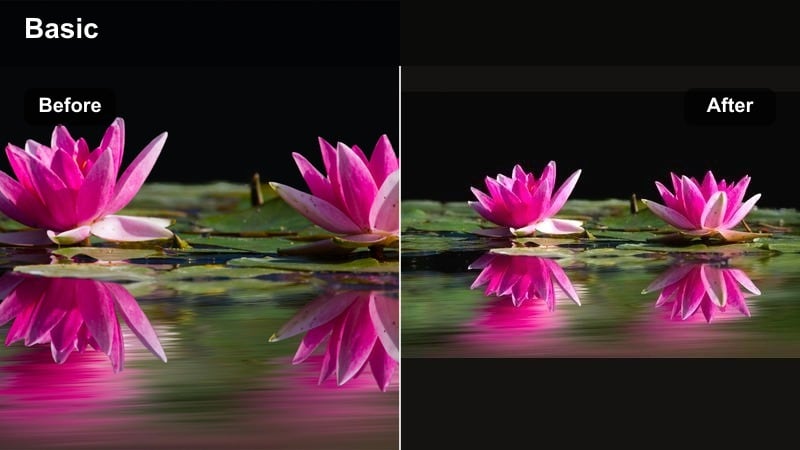
- Effect look: Bright warm highlights with crisp aqua tones so pools and oceans pop against tanned skin.
- Best for: Resort days, pool parties, and bright midday shots on tropical vacations.
- Editing tip: Lower contrast a touch if harsh midday sun creates sharp shadows on faces.
Poolside Glow is tuned for bright, sunny resort footage where you want both warm skin tones and punchy aqua water. It lifts highlights to emphasize sunlight while preserving clean, saturated blues in pools and oceans.
Apply this filter in Filmora to midday pool scenes, beach clubs, and boat decks. If the sun is harsh, slightly lower contrast or shadows to soften facial lines, then use quick cuts and upbeat music so the energetic color palette matches the fun of your vacation activities.
Market Morning Warmth
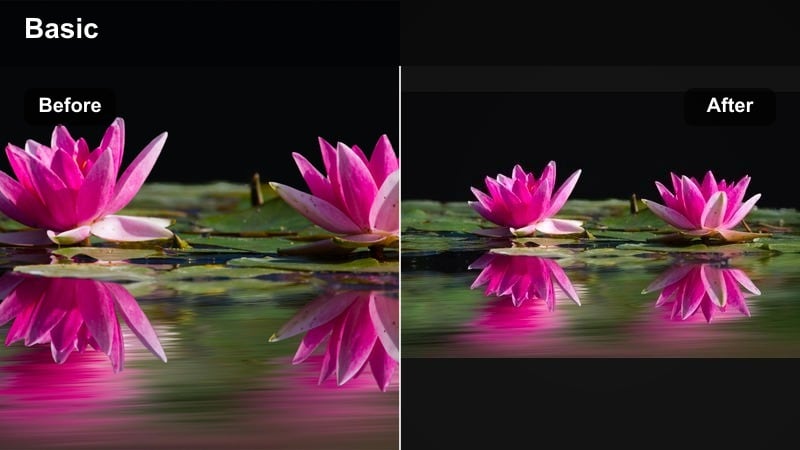
- Effect look: Soft golden highlights with boosted color on fruits, textiles, and street details.
- Best for: Local markets, morning walks, and cultural street scenes on busy travel days.
- Editing tip: Use gentle speed ramps when moving through crowds to highlight key details like signs or colorful stalls.
Market Morning Warmth is built to make markets and busy streets feel vibrant yet still cozy. It softens light with a golden cast while enhancing colors in produce, textiles, and shopfronts so key details pop without overwhelming the frame.
In Filmora, apply it to walking shots through markets, close-ups of food, and interactions with vendors. Add subtle speed ramps when passing especially colorful stalls, and overlay simple labels or captions so viewers can follow along with what they are seeing without cluttering your warm, detailed visuals.
Evening Stroll Soft
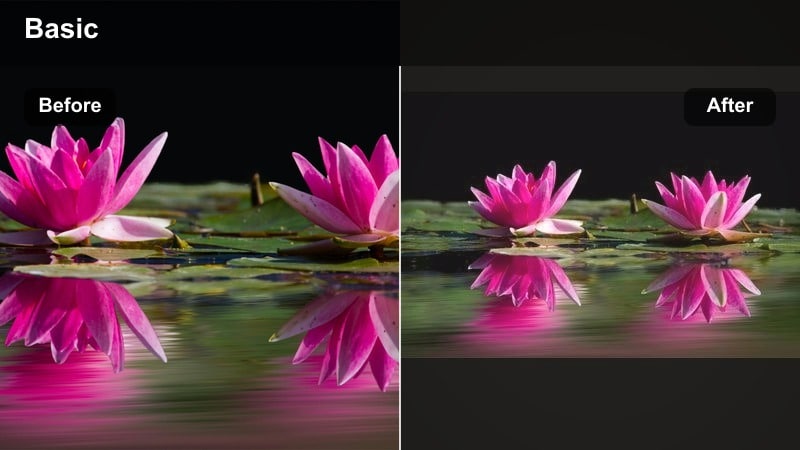
- Effect look: Gentle warm tint, reduced clarity, and light fade in the blacks for a dreamy vacation walk feel.
- Best for: After-dinner walks, city squares at dusk, and low-key closing shots for travel vlogs.
- Editing tip: Lower background noise and add a soft instrumental track to match the relaxed, dreamy visuals.
Evening Stroll Soft fades blacks slightly and reduces clarity to create a dreamy, end-of-the-day atmosphere. The warm tint makes streetlights and shop windows feel comforting, perfect for winding down a travel vlog.
In Filmora, use this filter on gentle walk-and-talk clips, wide shots of plazas, and final scenes of the night. Apply light audio noise reduction, choose a soft instrumental track, and let shots linger a bit longer to give viewers a calm, nostalgic goodbye to your day.
Tips for Using Travel Warm Filters in Filmora
- Keep one hero warm filter as your base look so your entire travel vlog feels visually consistent from start to finish.
- Dial back saturation on strongly colored clothing or signs so they do not overpower golden skies and cozy midtones.
- Export a short 20-30 second test clip with your chosen warm filter and watch it on your phone to check real-world brightness and color.
- Use warmer filters on B-roll and slightly softer versions on talking head clips so viewers focus on your story.
- Organize your timeline by time of day and apply golden hour travel filters in batches for faster, more consistent color work.
- Combine warm filters with subtle LUTs in Filmora to add depth and contrast while preserving a cozy, natural feel.
- Use Filmoras AI color matching after picking your favorite warm preset to keep clips from different cameras aligned in tone.
- Adjust white balance per clip before applying strong warm filters to avoid color casts that make skin tones look unnatural.
Warm travel video filters like the Warm Travel Filter. Golden Adventure preset give your trips a golden, cozy identity that viewers will remember long after the vlog ends.
Experiment with a small set of warm filters, adjust them to your locations, and save your favorites as presets so every new travel vlog starts with a polished, cinematic base look.
secure download