

 100% Security Verified | No Subscription Required | No Malware


 ChatGPT
 Perplexity
 Gemini
 Claude
 Grok
Grok
Cool travel video filters can instantly turn raw city footage into sleek, modern vlogs with a fresh travel vibe. With Filmora, you can apply blue tone travel looks, sharpen urban details, and keep skin tones flattering in just a few clicks.
This guide walks through a curated set of Filmora travel video filters built around the Cool Travel Filter: Urban Explorer preset, so travelers and vloggers can quickly find the right look for city travel, night streets, rooftops, and minimalist travel aesthetics.
In this article
Cool Filters for City Daylight Travel Vlogs
Cool Travel Filter: Urban Explorer
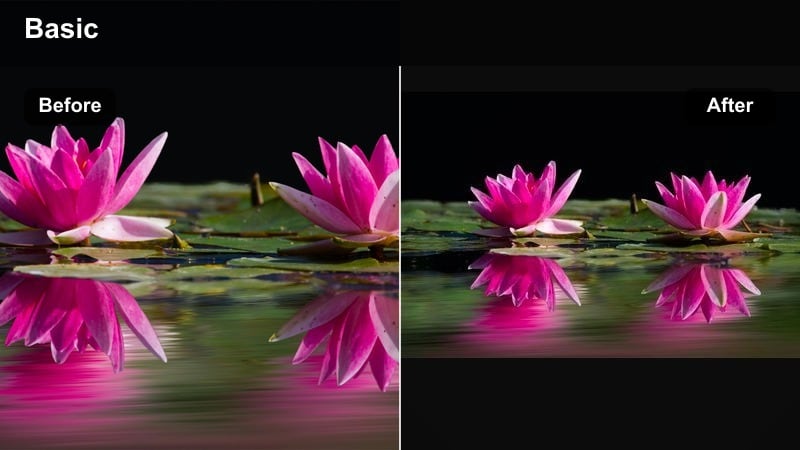
- Effect look: Clean urban contrast with subtle blue highlights and crisp shadows.
- Best for: Daytime city walks, architectural shots, and handheld street explorations.
- Editing tip: Lower saturation slightly if your footage was shot in harsh sun to keep the cool look polished rather than crunchy.
This balanced, signature preset is a strong starting point for most city travel clips. It introduces a refined blue leaning cast that keeps sidewalks, glass, and metal feeling modern, while maintaining pleasing skin tones for vlog-style storytelling.
In Filmora, you can apply Cool Travel Filter: Urban Explorer to your entire sequence, then fine-tune clip by clip. Adjust the filter intensity slider for overexposed streets, and lightly tweak saturation in the Color panel so buildings retain detail, but your vlog still feels clean and editorial.
Use Filmora’s AI tools to refine your cool travel look
After applying a travel video filter like Cool Travel Filter: Urban Explorer, Filmora’s AI-driven color tools can quickly balance exposure and white balance to suit each scene. This is especially helpful when your city vlog jumps between bright streets, shaded alleys, and indoor locations.
You can let AI suggest base corrections, then fine-tune coolness, saturation, and contrast so your city travel and modern vlogs keep a consistent aesthetic from clip to clip. This workflow keeps your blue leaning look cohesive without spending hours on manual grading.
 secure download

Preview cool travel filters in real time
Filmora’s filter browser lets you hover over travel presets to see instant previews on your clips, so you can compare blue tone travel looks before committing. Testing Urban Explorer next to other cool city presets helps you quickly settle on a base style that matches your vlog mood.
Load the same street shot or skyline clip, then scroll through Filmora’s travel and cinematic categories. As you hover, watch how reflections, shadows, and skin change so you lock in a filter that feels both modern and flattering.
secure downloadCombine filters with LUTs for a custom travel style
If you already rely on camera LUTs, you can stack Filmora travel video filters on top at reduced intensity to add a cool travel accent. This lets you keep a consistent base grade across cameras while giving your urban episodes a recognizable, blue leaning finish.
Apply your LUT first, then drop a cool Filmora preset like Urban Explorer or another travel filter at around 20 to 40 percent strength. Once you are happy with the balance between LUT and filter, save the look as a custom preset so every new city vlog starts with the same fresh travel vibe.
secure downloadGlass Skylines
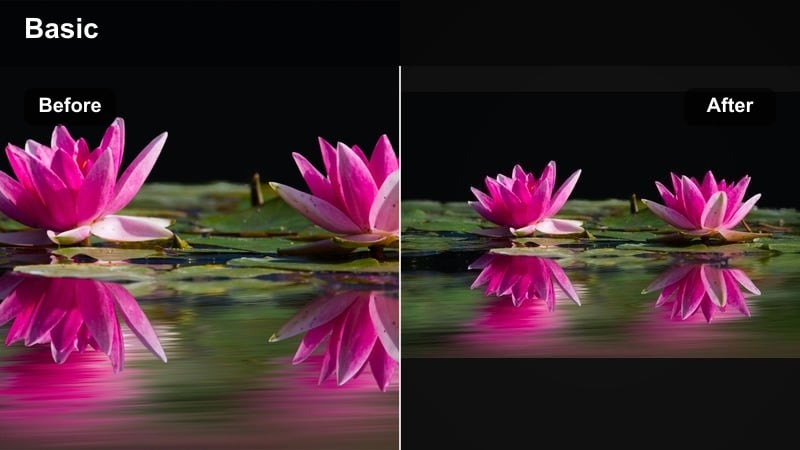
- Effect look: Neutral contrast with cool blue midtones that make glass, metal, and sky pop.
- Best for: Skyscraper reveals, rooftop viewpoints, and drone passes over modern districts.
- Editing tip: Use keyframed exposure in Filmora to keep skies from clipping while the filter brightens buildings for a clean, premium city feel.
Glass Skylines is tuned to emphasize reflective architecture and open skies, creating a polished blue tone travel look that feels premium but not overly stylized. It lifts midtones so glass windows and modern facades stand out against a crisp sky.
Inside Filmora, add this filter to your skyline B roll, then keyframe exposure or highlights to protect bright skies during reveals or drone tilts. Combine it with gentle camera moves or speed ramps for smooth establishing shots that anchor your city travel narrative.
Concrete Minimal
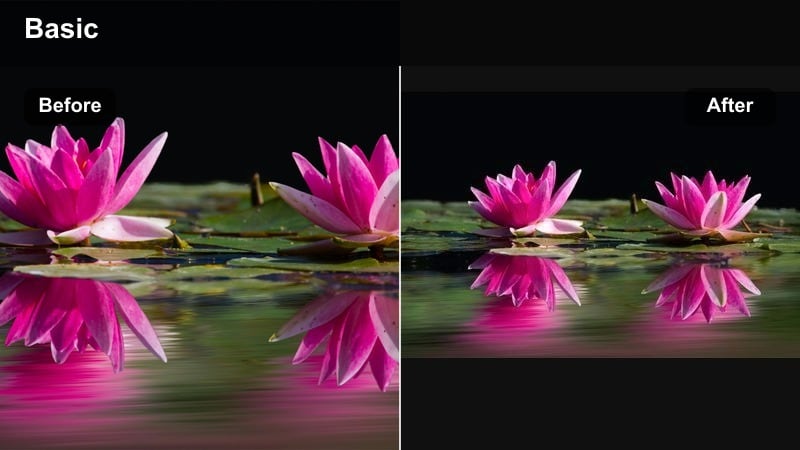
- Effect look: Low-saturation cool wash with lifted blacks and soft highlights for a calm city mood.
- Best for: Minimalist travel vlogs, museum interiors, cafes, and quiet side streets.
- Editing tip: Pair this filter with Filmora’s subtle film grain to give flat concrete surfaces a refined, editorial texture.
Concrete Minimal dials back saturation and contrast, leaving you with a smooth, understated palette that suits minimalist travel storytelling. Concrete, stone, and muted storefronts gain a soft, editorial feel that works well for slower, reflective segments.
In Filmora, apply this filter across scenes where your vlog shifts into a calmer pace, like museum walks or quiet alleys. Add a touch of film grain and keep transitions simple so the cool, desaturated look becomes a visual thread that ties these clips together.
Blue Tone Travel Filters for Night Streets
Neon Lane
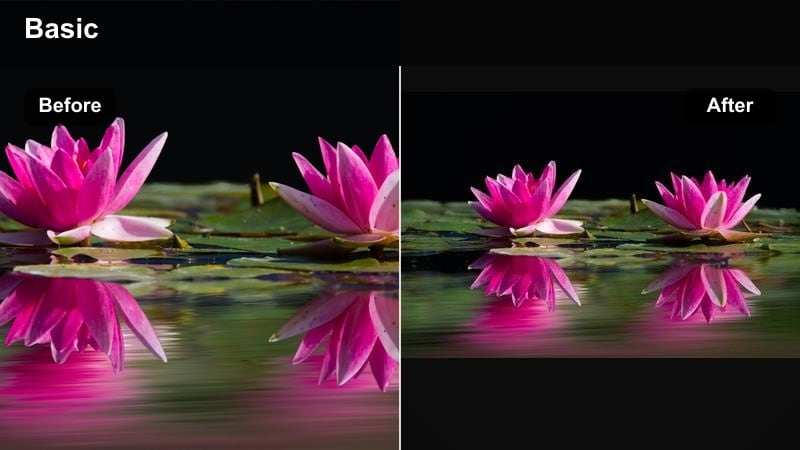
- Effect look: Deep contrast with cyan shadows and neon-boosted highlights for signs and windows.
- Best for: Night markets, neon alleys, and handheld nightlife walks in busy districts.
- Editing tip: Stabilize your clips in Filmora first, then apply the filter to keep neon edges sharp and avoid muddy light trails.
Neon Lane transforms ordinary night streets into bold, cinematic sequences by deepening contrast and pushing shadows toward cyan. Neon signs, shop windows, and reflections on wet pavement become the focal points of the frame.
For best results in Filmora, run stabilization on handheld shots before adding the filter to maintain sharp neon outlines. After grading, use HSL or color tuning to gently reduce magenta and red on faces so your subject stays natural while the environment glows with blue heavy energy.
Cold Metropolis
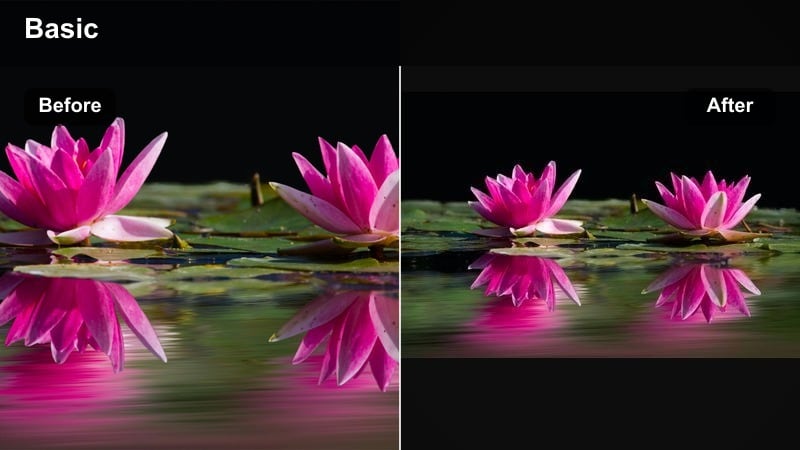
- Effect look: Steel-blue midtones and clean whites that give a futuristic, tech-city vibe.
- Best for: Business districts at dusk, metro stations, and time-lapses of traffic.
- Editing tip: Combine with Filmora speed ramping to turn simple crosswalk or train shots into high-energy city sequences.
Cold Metropolis leans into a sleek, metallic blue grade that works perfectly for business districts and structured cityscapes. Whites stay clean, while midtones shift cool to create a tech-forward, futuristic atmosphere.
In Filmora, try this preset on dusk exteriors, metro entrances, and traffic time-lapses. Add speed ramps and light motion blur to emphasize movement, then transition into slightly warmer filters when your story moves indoors to create a deliberate cold to warm narrative arc.
Midnight Transit
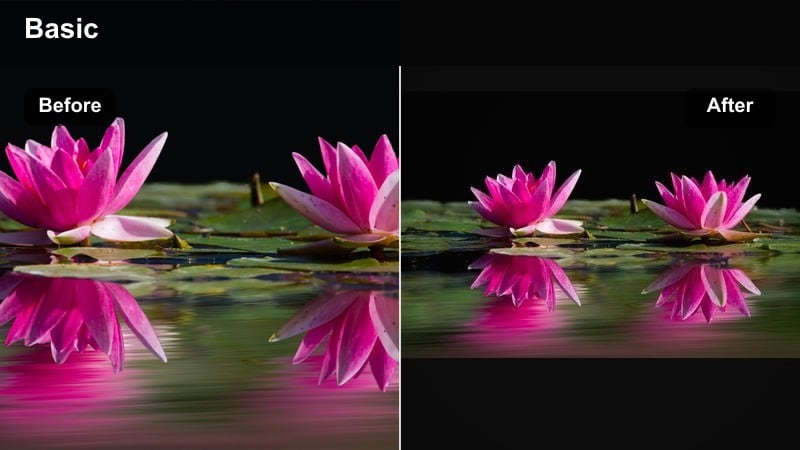
- Effect look: Muted blues with lifted shadows and soft bloom on practical lights.
- Best for: Subway rides, bus interiors, airport layovers, and late-night commute sequences.
- Editing tip: Lower clarity slightly inside Filmora to reduce harsh fluorescent edges and keep the travel mood dreamy.
Midnight Transit focuses on creating a gentle, cinematic cool tone for interior transit scenes. Shadows are lifted so details remain visible in low light, while practical lights get a soft bloom that adds atmosphere without harsh contrast.
Apply this filter in Filmora to subway, tram, or late-night airport footage, then slightly reduce clarity or sharpness to soften fluorescent fixtures. Keep your cuts longer and use natural ambient sound to match the dreamy, observational mood the grade creates.
Fresh Travel Vibe Filters for Modern Vlogs
Fresh Layover
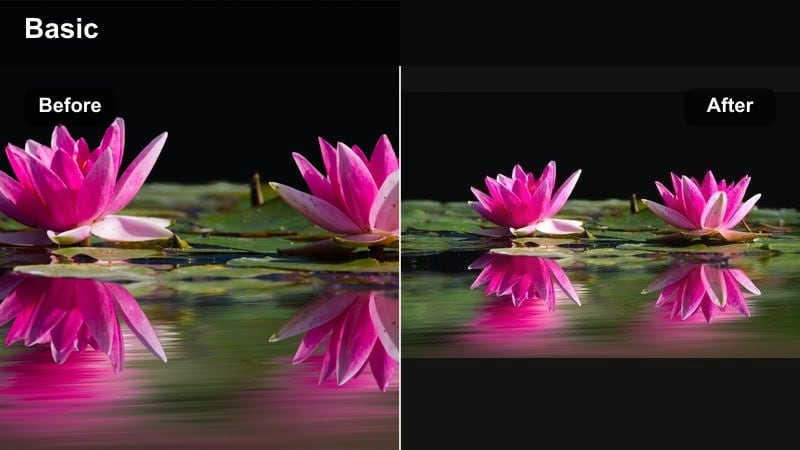
- Effect look: Balanced cool highlights with gentle warmth in skin tones for a clean, lifestyle look.
- Best for: Airports, hotel rooms, packing sequences, and quick talking-head updates.
- Editing tip: Use Filmora split screen with this filter to show A-roll and B-roll together while keeping a unified cool aesthetic.
Fresh Layover brings a polished, lifestyle-ready finish to indoor travel scenes by cooling highlights while subtly preserving warmth in skin. The result is a crisp, on-brand look that works well for channel intros, room tours, and quick updates.
Within Filmora, apply this filter to your talking head clips and packing B roll, then leverage split screen layouts to present both at once. Keep saturation moderate and exposure even so your cool aesthetic feels clean, not clinical, across all layover content.
City Brunch Cool
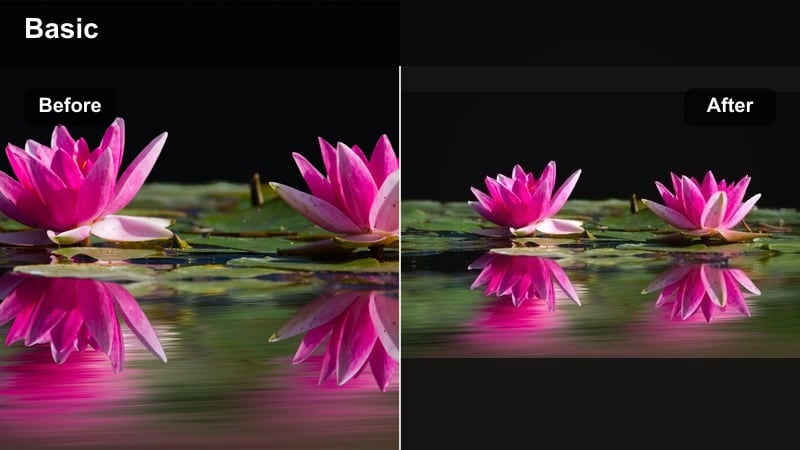
- Effect look: Soft cool shadows with natural warmth on food and skin for lifestyle-friendly footage.
- Best for: Cafe visits, brunch B-roll, co-working spaces, and casual city hangouts.
- Editing tip: Add a subtle Filmora blur vignette to pull attention to the table or coffee cup without losing the cool city background.
City Brunch Cool is designed for lifestyle shots where you want a hint of urban cool without making food or faces look uninviting. Shadows pick up a soft blue cast while highlights on plates, cups, and skin stay pleasantly warm.
Use this filter in Filmora on cafe montages, laptop sessions, and casual meetups. Add a light blur vignette to guide attention toward the table or main subject, and export still frames from your favorite shots to maintain a cohesive thumbnail style on your channel.
Rooftop Breeze
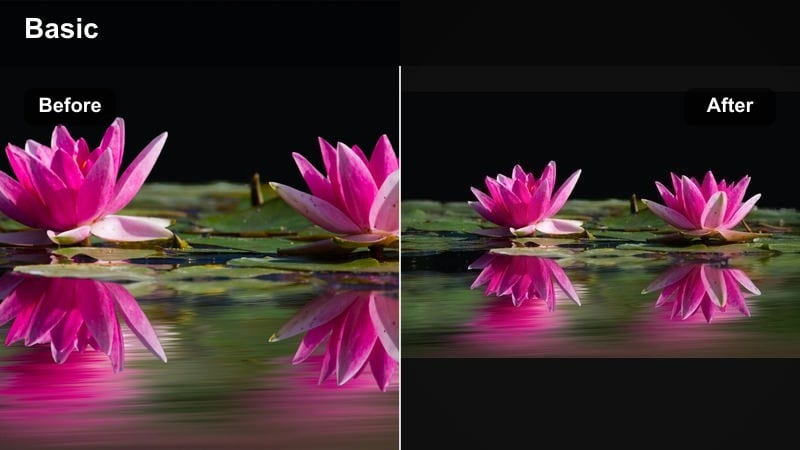
- Effect look: Airy highlights with mild cyan tint and reduced saturation for a breezy, open feel.
- Best for: Rooftop views, balcony shots, and wide establishing scenes over a city.
- Editing tip: Add a slow Filmora zoom on static rooftop shots so the cool filter and open sky feel more dynamic on screen.
Rooftop Breeze introduces a light cyan tint and slightly desaturated palette that suits open skies and wide city vistas. It keeps the frame feeling airy and aspirational, making it ideal for chapter breaks or reflective moments in your travel vlogs.
In Filmora, apply this filter to balcony and rooftop clips, then use keyframed zooms or pan and zoom effects on static shots to add gentle motion. Pair with softer music and minimal on screen text so the cool tones and expansive views can breathe.
Dynamic Cool Filters for Fast-Paced Urban Clips
Metro Rush
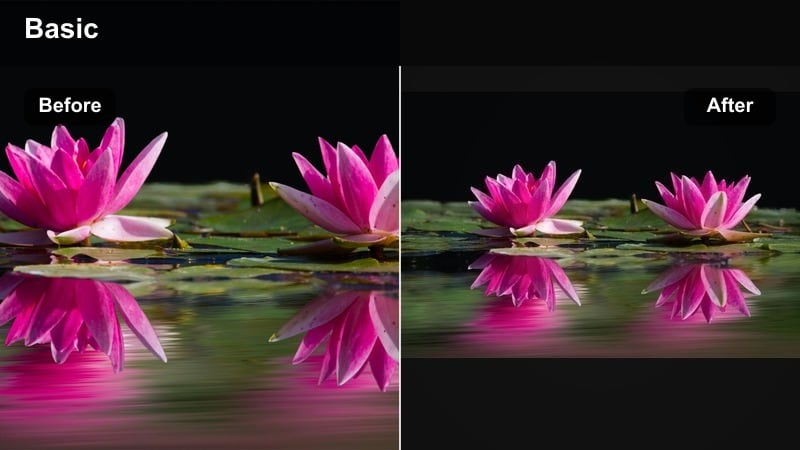
- Effect look: Punchy contrast with cool highlights and slightly darker corners for focused energy.
- Best for: POV walking shots, escalators, station entrances, and busy sidewalks.
- Editing tip: Combine with Filmora motion blur on speed-ramped clips to emphasize movement without sacrificing clarity.
Metro Rush pushes contrast and cool highlights to give fast-paced urban clips a sharp, energetic punch. Darkened corners help center attention on your subject or the main direction of movement through crowded spaces.
In Filmora, pair this filter with speed ramps, quick jump cuts, and optional motion blur for walking POVs and station entrances. Keep titles minimal over these sequences so the strong cool grade and rapid pacing carry the visual rhythm of your city montage.
Bike Lane Flow
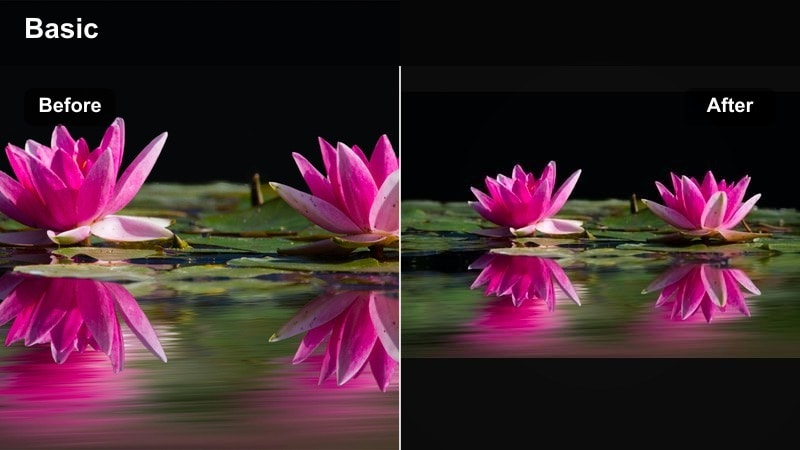
- Effect look: Cool midtones with a light teal hint and slightly softened highlights for smooth motion.
- Best for: Cycling POVs, e-scooter routes, and gimbal street rides through city parks.
- Editing tip: Apply Warp Stabilization in Filmora first, then this filter, to keep motion fluid and lines of the road clean.
Bike Lane Flow is tailored for forward-moving POV footage, adding a teal leaning cool tone and softened highlights that complement smooth, gliding motion. Road markings, rails, and bike lanes subtly stand out, guiding the viewer through the frame.
Stabilize your clips in Filmora, then apply this preset and adjust intensity to taste. Consider cropping slightly to emphasize leading lines and use gentle background music that matches the calm but continuous flow the filter evokes.
Crosswalk Chronicle
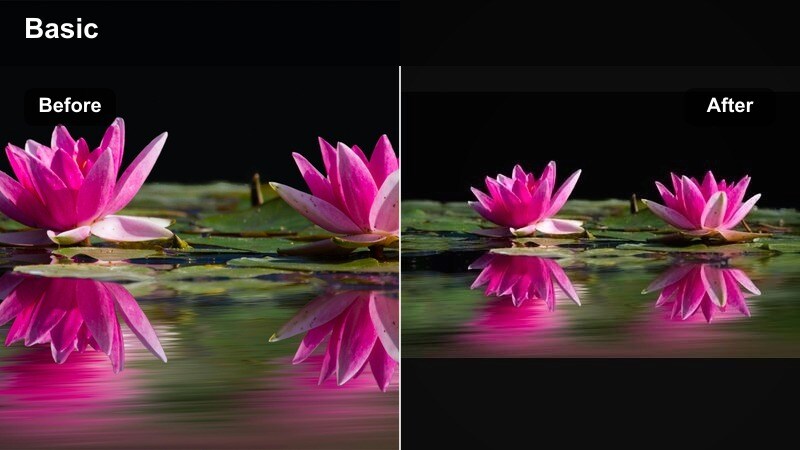
- Effect look: High clarity cool filter that sharpens edges and adds subtle blue to whites and grays.
- Best for: Time-lapse crosswalks, crowd shots, and overhead street intersections.
- Editing tip: Speed up clips 4x to 8x in Filmora, then fade in a gentle vignette so the busy motion feels contained and stylized.
Crosswalk Chronicle is built for overhead and wide shots where crowds and vehicles form patterns. It sharpens edges, cools whites and grays, and turns everyday intersections into graphic, almost illustrative sequences.
In Filmora, apply this filter to long static shots, then increase playback speed for a time-lapse feel. Add a soft vignette to contain the action within the frame, and use rhythmic cuts or speed changes on music beats to make city flow feel intentional and stylized.
Tips for Using Travel Cool Filters in Filmora
- Shoot slightly flatter in-camera so cool travel filters have more room to shape contrast and color without clipping highlights or crushing shadows.
- Keep one main cool preset for the whole vlog, then tweak only intensity and exposure per clip to maintain a cohesive travel aesthetic.
- Use warmer filters or color adjustments indoors so skin stays natural, reserving the strongest blue tones for exteriors and night street scenes.
- Always check how your filter looks on faces before final export, especially under mixed city lighting like neon, fluorescents, and window light.
- Export a short test sequence and watch it on your phone to confirm the cool travel vibe feels clear but not overdone across different screens.
- Save your favorite cool filter combinations as custom presets in Filmora so you can apply your urban explorer look quickly on every new trip.
Cool travel video filters in Filmora make it easy to turn everyday city footage into cohesive, modern vlogs with a fresh, blue leaning aesthetic. Whether you are walking downtown, riding the subway, or filming brunch, there is a preset that can unify your story.
Start with the Cool Travel Filter: Urban Explorer preset, adjust intensity for each scene, and build a simple workflow you can repeat on every trip to keep your channel visually consistent and instantly recognizable.
secure download